Booking products are ideal for businesses that take reservations, appointments, or rentals, such as hotels, tours, spas, and more. This guide walks you through how to create a Booking Product and explains the different booking types available.
To take table or unit reservations against an availability schedule instead of selling them as products, see Booking (legacy). For new table reservations, use Reservations in the Take App mobile app (Settings > Reservations).
Creating a Booking Product
- Go to Admin > Products > Create Product
- Change the Type to "Booking"
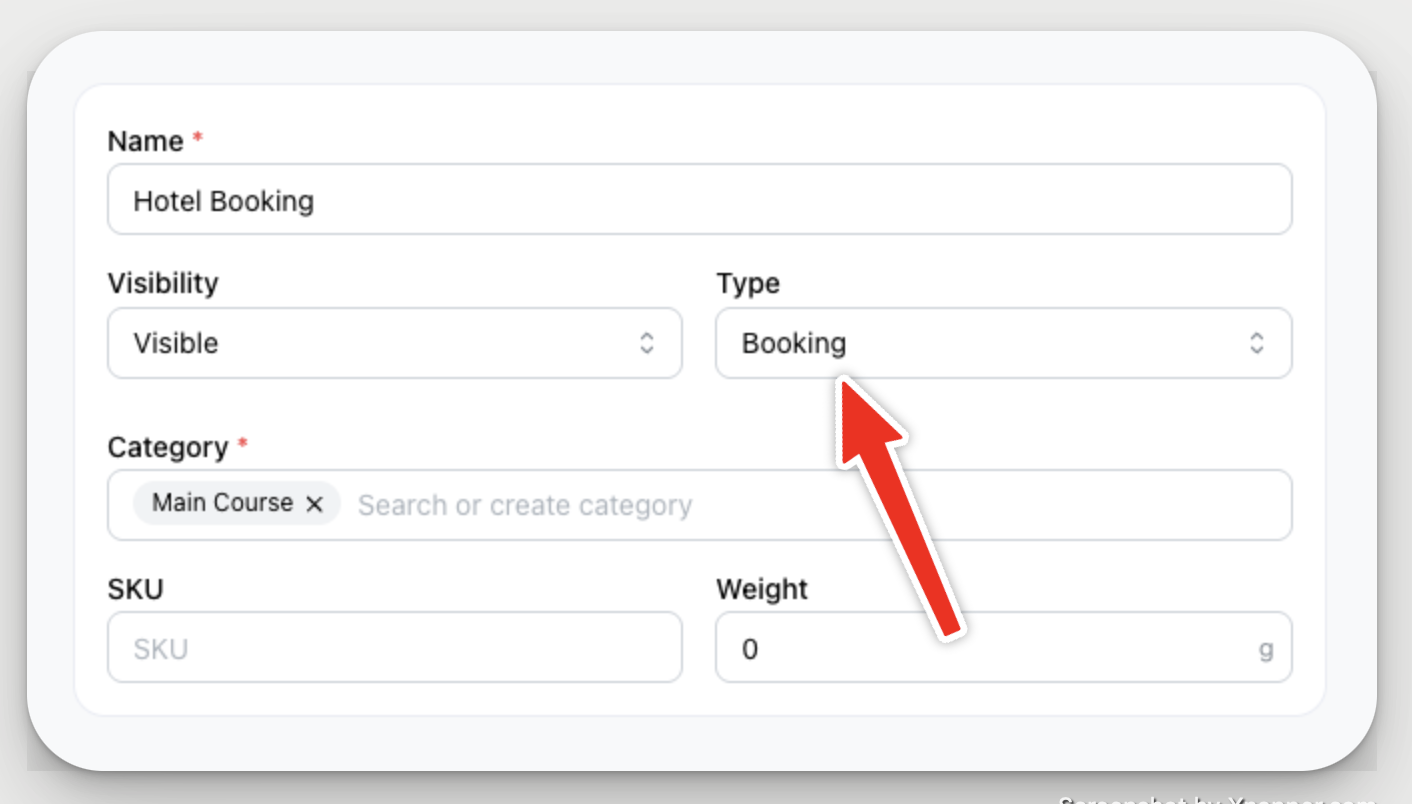
This unlocks additional booking-specific settings explained below.
Choosing the Right Booking Type
Once you've selected "Booking" as the product type, you'll see a Booking Card in the product settings. This is where you choose your Booking Type.
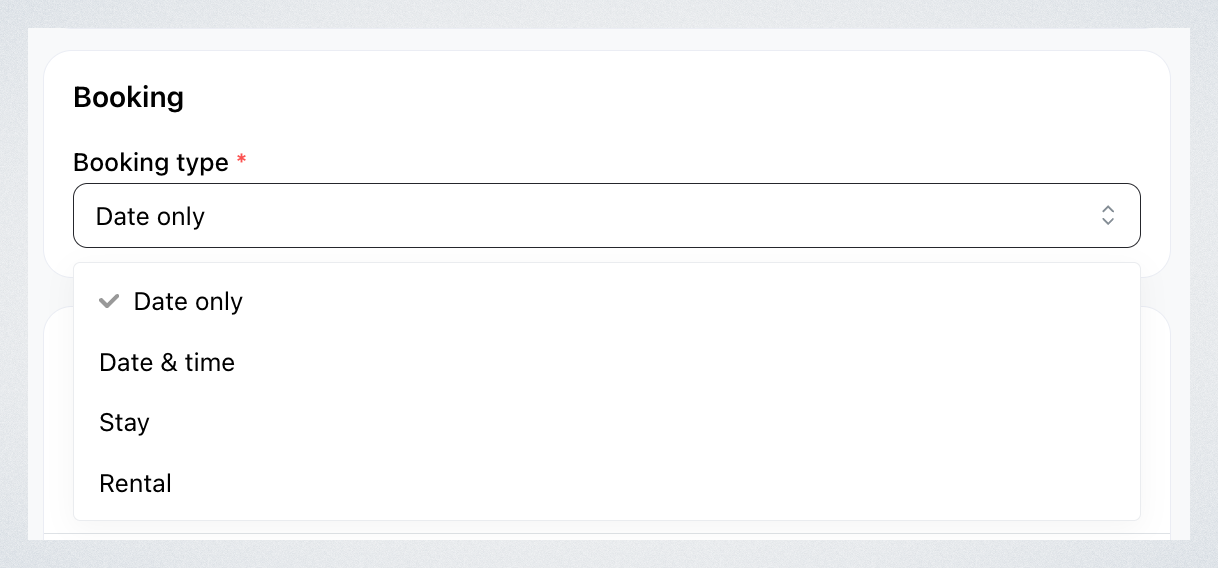
There are four types:
1 . Date
-
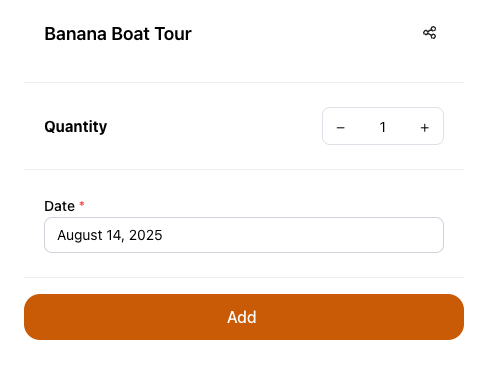
What customers choose: A single date
-
Ideal for: Tours, workshops, or single-day events
-
What they'll see: A calendar to select the event date
-
Example use case: A city walking tour on August 14
2 . Date & Time
-
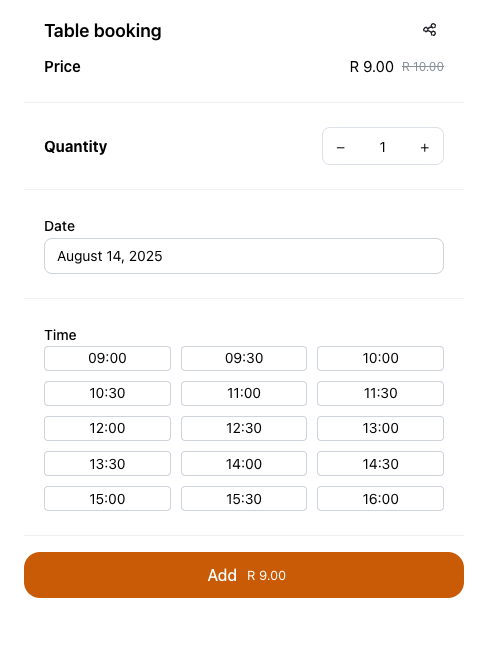
What customers choose: A specific date and time slot
-
Ideal for: Appointments at restaurants, spas, clinics, or service providers
-
Optional settings:
- Set the appointment duration
- Configure opening hours under Admin > Settings > General
-
What they'll see: A date and time selector, based on your availability
-
Example use case: A 60-minute massage appointment at 3 PM on August 14
3 . Stay
-
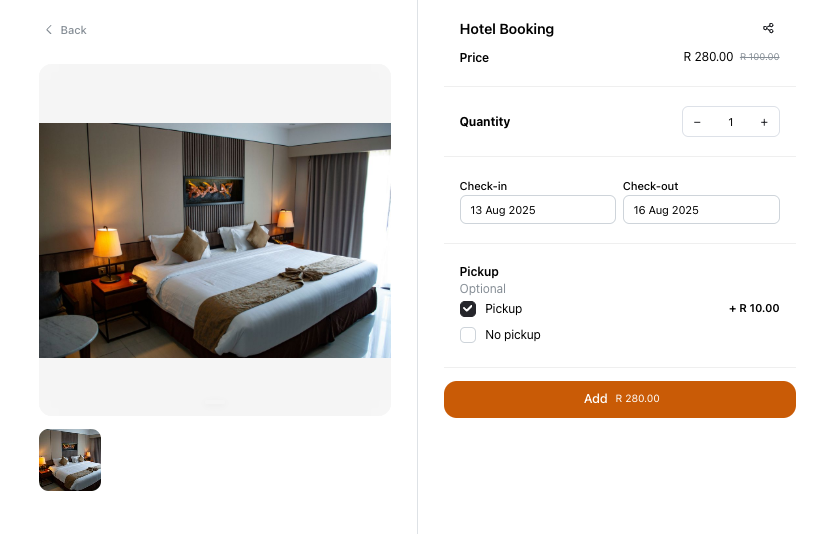
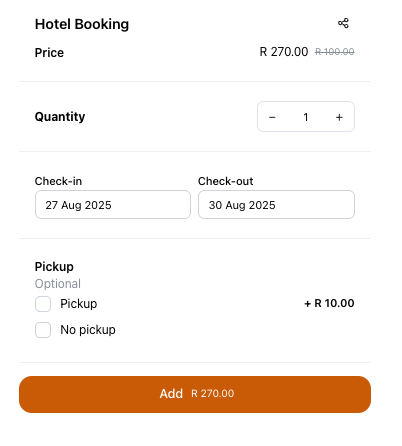
What customers choose: A check-in and check-out date (minimum: 1 night)
-
Ideal for: Hotels, homestays, and vacation rentals
-
Pricing logic:
- Total = Price per night × Number of nights
-
What they'll see: Date pickers for check-in and check-out
-
Example use case: A 3-night stay from Oct 10 to Oct 13 in a guesthouse at $100/night = $300
4 . Rental
-
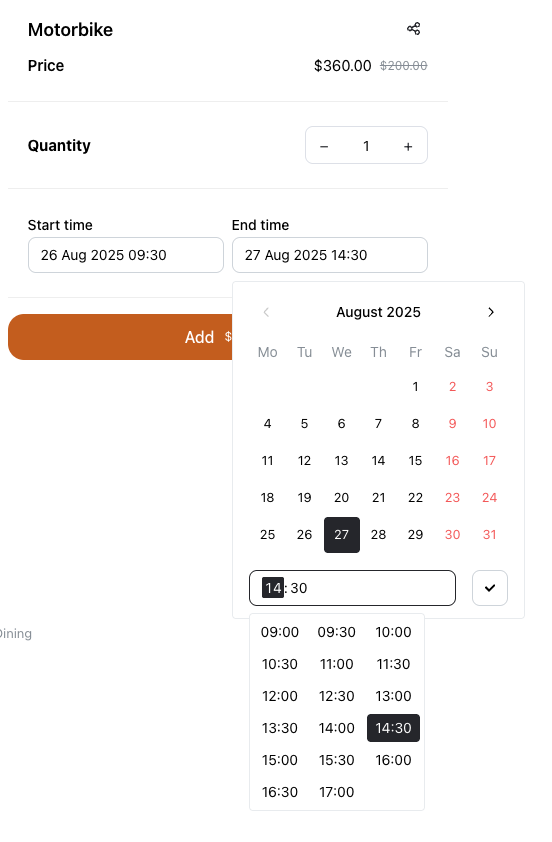
What customers choose: A start and end time (or date)
-
Ideal for: Renting vehicles, equipment, or spaces (e.g., cars, motorbikes, meeting rooms)
-
You can configure:
- Pricing per hour (e.g., meeting room)
- Pricing per day (e.g., car rental)
- Your opening hours under Admin > Settings > General
-
Pricing logic:
- Total = Price per unit (hour/day) × Duration, rounded up
-
What they'll see: Start and end date/time pickers
-
Example use case: Renting a motorbike from 2 PM–5 PM at $10/hour = $30
Summary
| Booking Type | What Customers Pick | Ideal For | Pricing Based On |
|---|---|---|---|
| Date | One date | Tours, workshops | Flat rate or fixed |
| Date & Time | Date and time slot | Appointments, services | Duration |
| Stay | Date range (nights) | Hotels, homestays | Per night × nights |
| Rental | Start and end time/date | Vehicles, meeting rooms | Per hour/day × time |
What happens if a customer creates a Booking Order?
- Their chosen plan appears on the invoice and in the WhatsApp Order message.
- You can view all booking order details in your Order Dashboard.
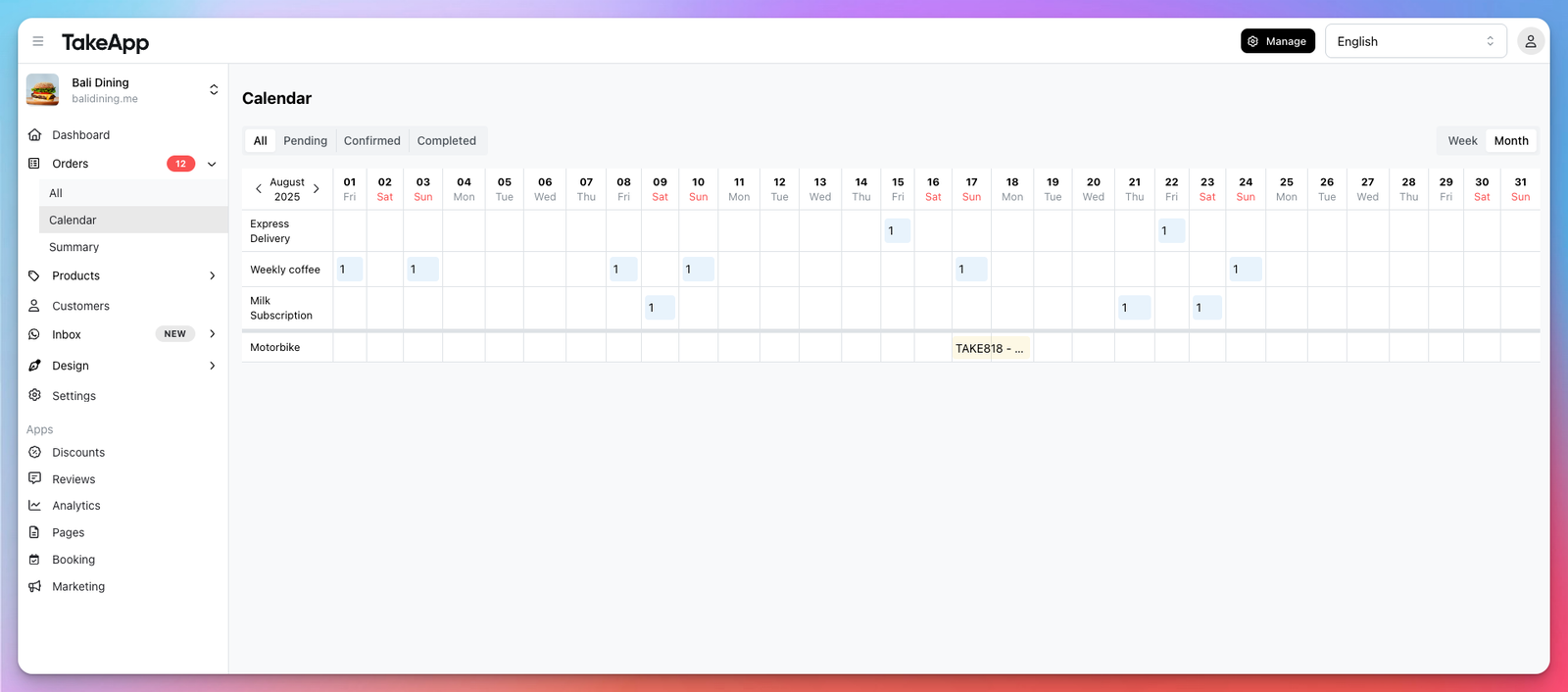
- See all bookings in weekly or monthly format so you can plan ahead, prepare for upcoming bookings, and easily spot available time slots. Calendar is view is located in Orders > Calendar.