
Digital products with licenses are ideal for e-sim, software, and other products that distribute unique license codes to their customers.
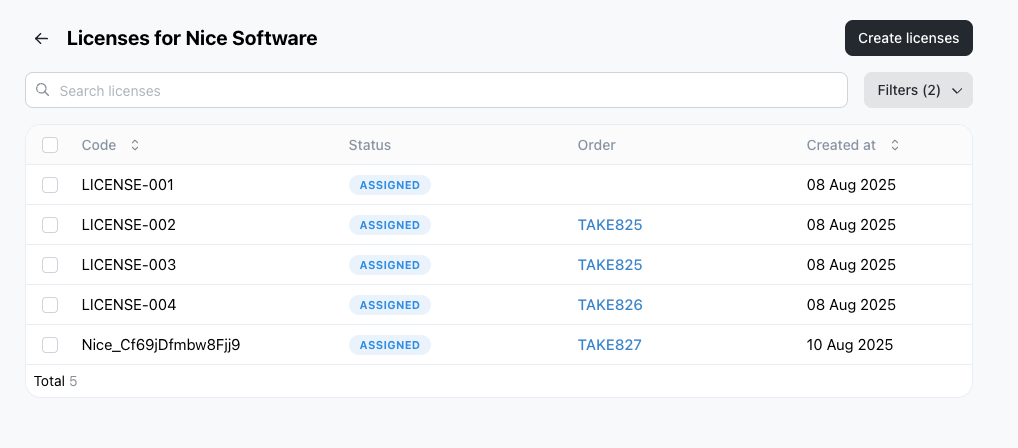
Creating a Digital License Product
- Go to Admin > Products > Create Product
- Change the Type to "Digital"
- Save your product
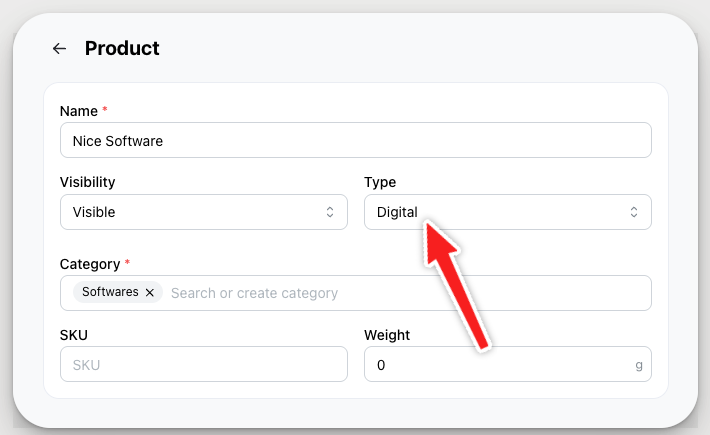
This unlocks additional License product settings button.
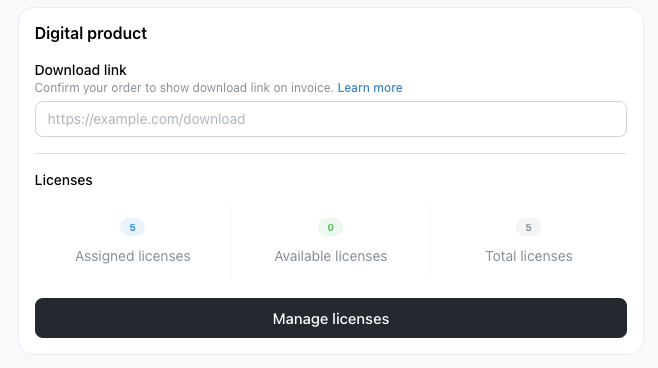
Managing Licenses
Once you've saved the product with Digital type, you'll see a Manage License in the product settings. Clicking on it will lead you to the License Manager.
Adding License
You can add license by clicking on Create Licenses on the upper right.
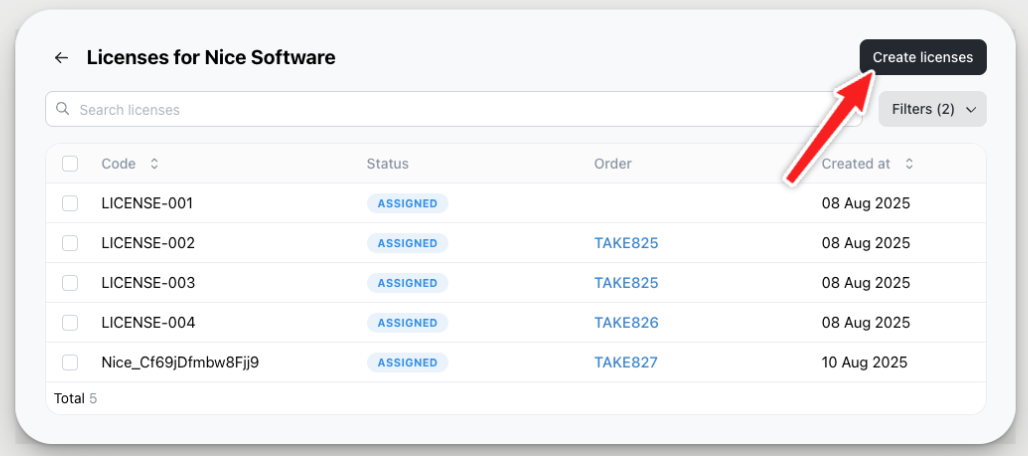
This will open up a pop-up where you can input all the license keys you want to sell.
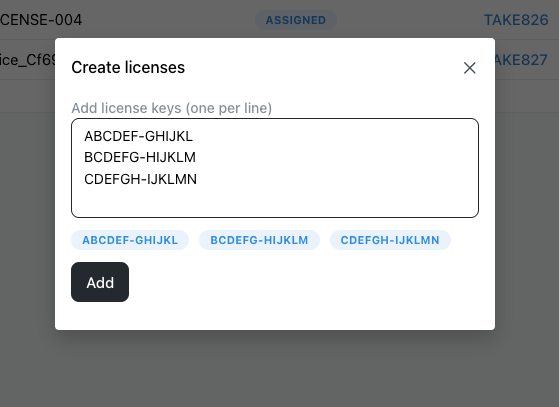
Once you've keyed in al the licenses separated by newlines, press add.
Updating License
You can always click on the word "Assigned" or "Available" to change the status of your license
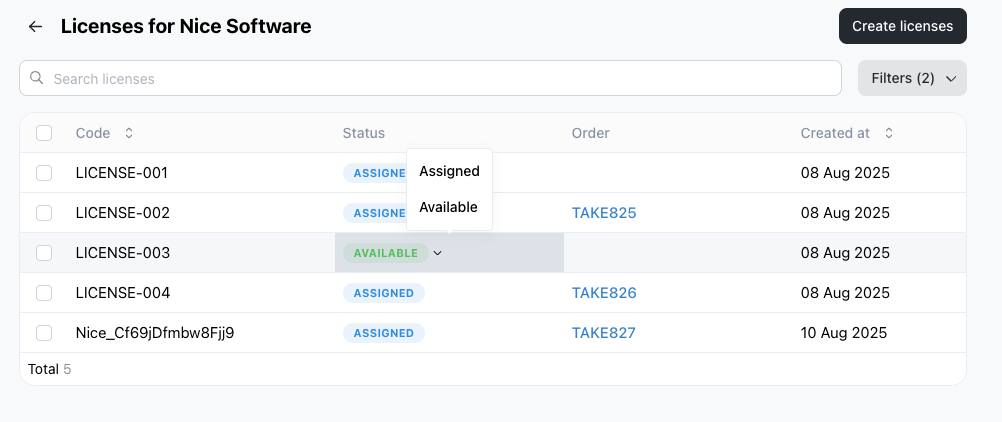
Assigned - Means license is being used by a customer.
Available - Means license is not being used by any customer.
Deleting License
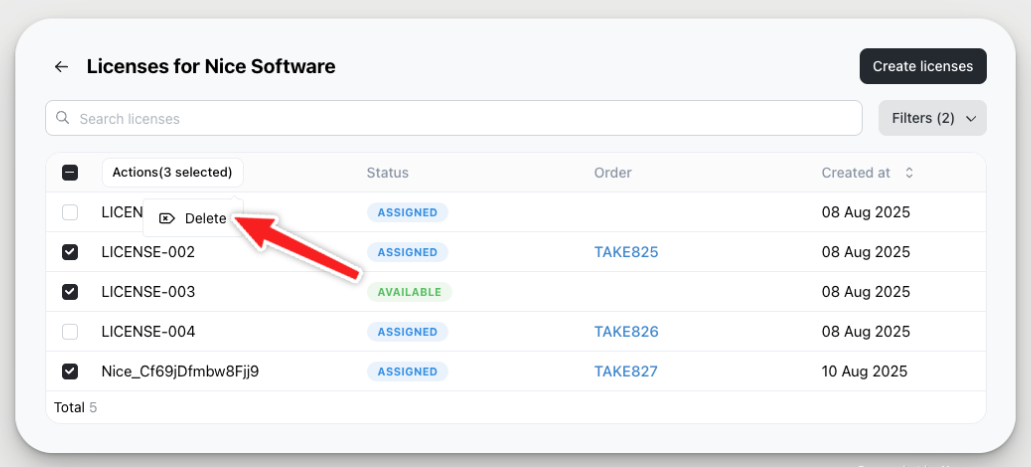
To delete a license, simply tick all the boxes and press "Delete"
How are licenses transferred to customers?
-
When a customer orders a digital license product, the order status must be set to Confirmed or Completed.
-
Once confirmed or completed, the system automatically assigns a random available license key to the customer.
-
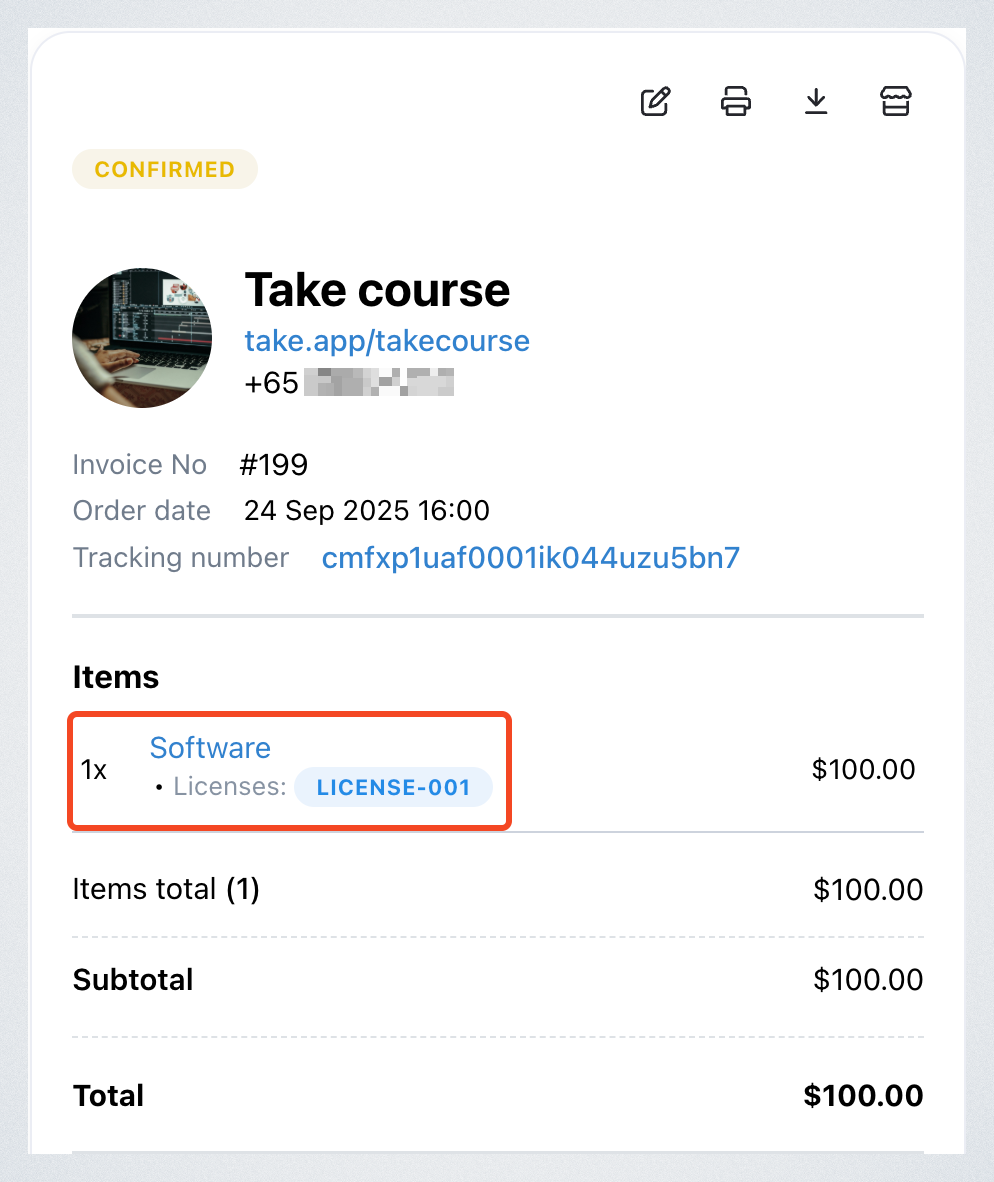
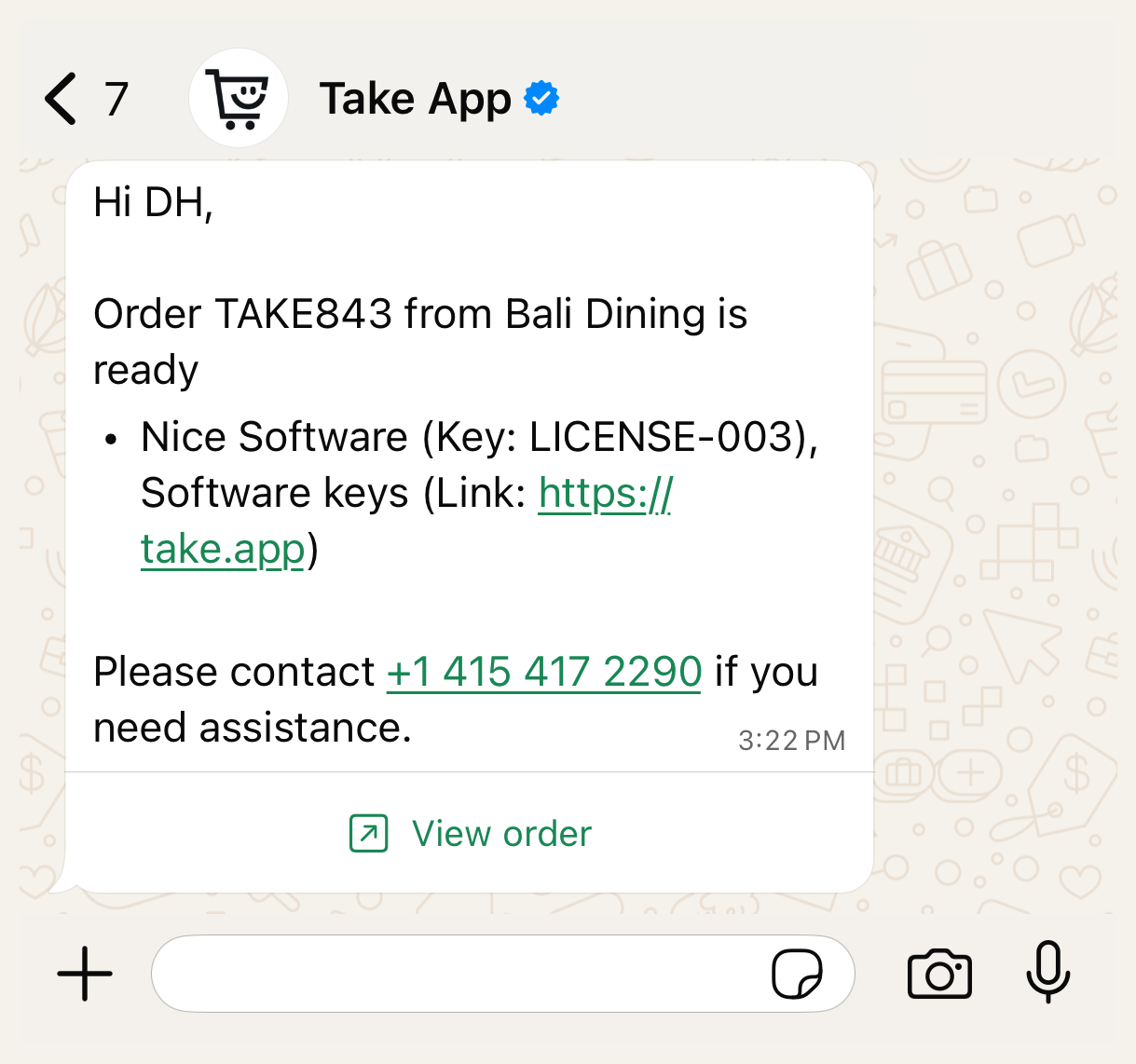
The license key will appear in two places:
-
The customer’s invoice.
-
Customer will receive an automatic WhatsApp order notification (workflow message).
-
Store owner view
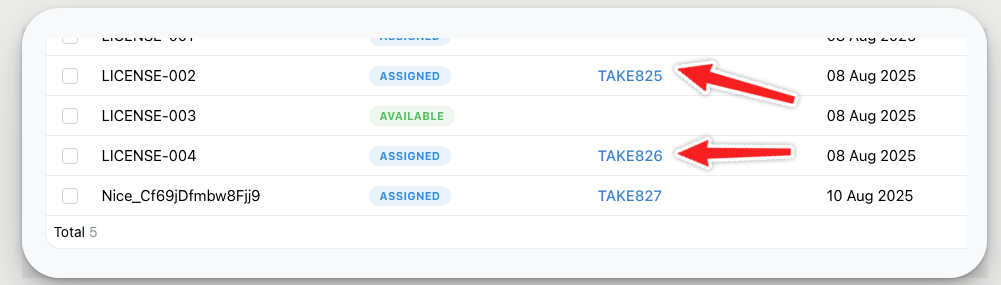
- You can track which license keys have been assigned to which customers directly inside License Manager.
- This ensures each code is delivered only once, and you have a full history of all licenses used.
Check your workflow settings
To make sure the automatic WhatsApp message is sent:
- Go to Settings > Workflows.
- Confirm that the built-in workflow called "Digital product delivery is active.