How to set up a Product Drop
1 . Enable Scheduled Launch
-
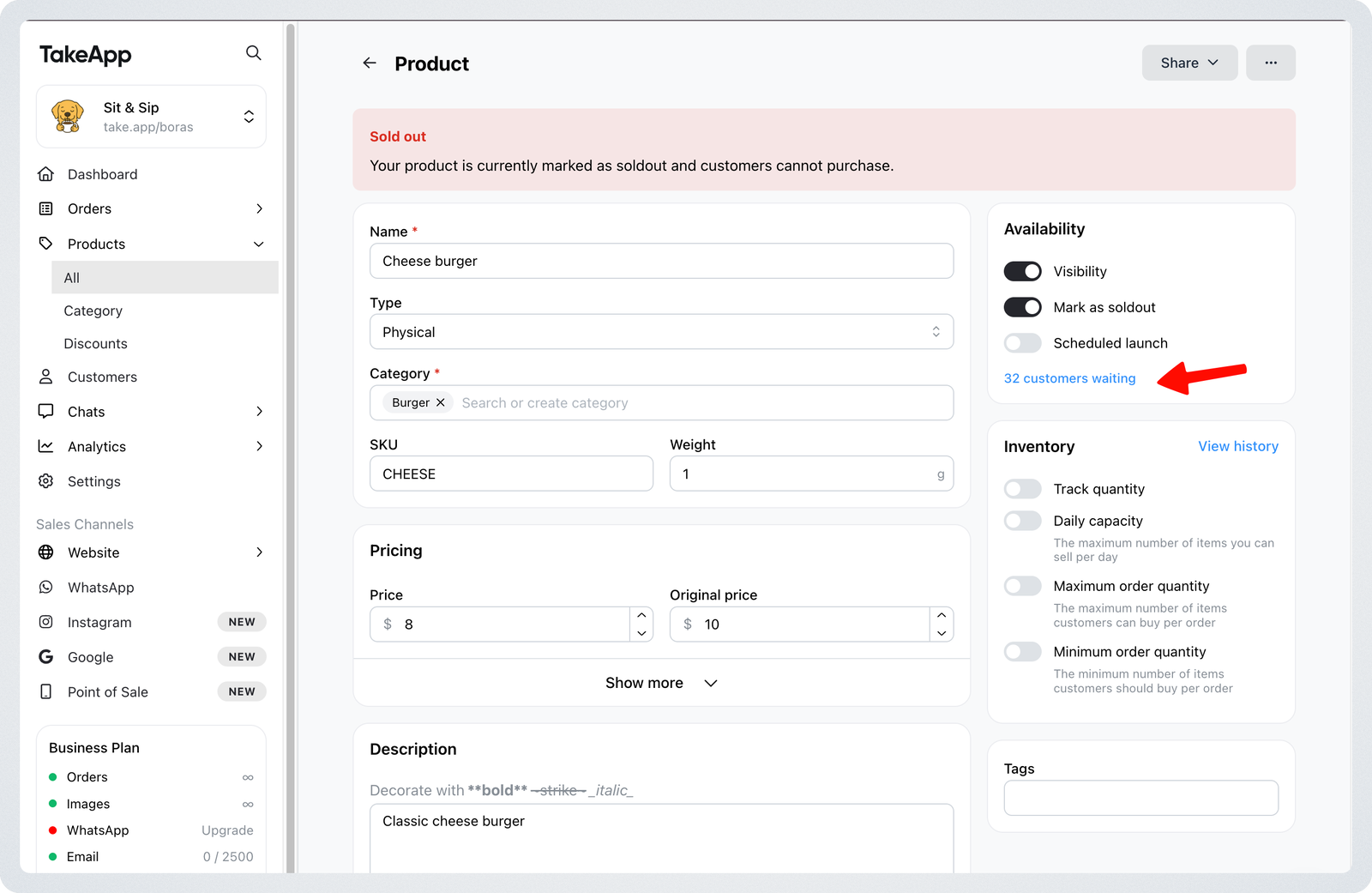
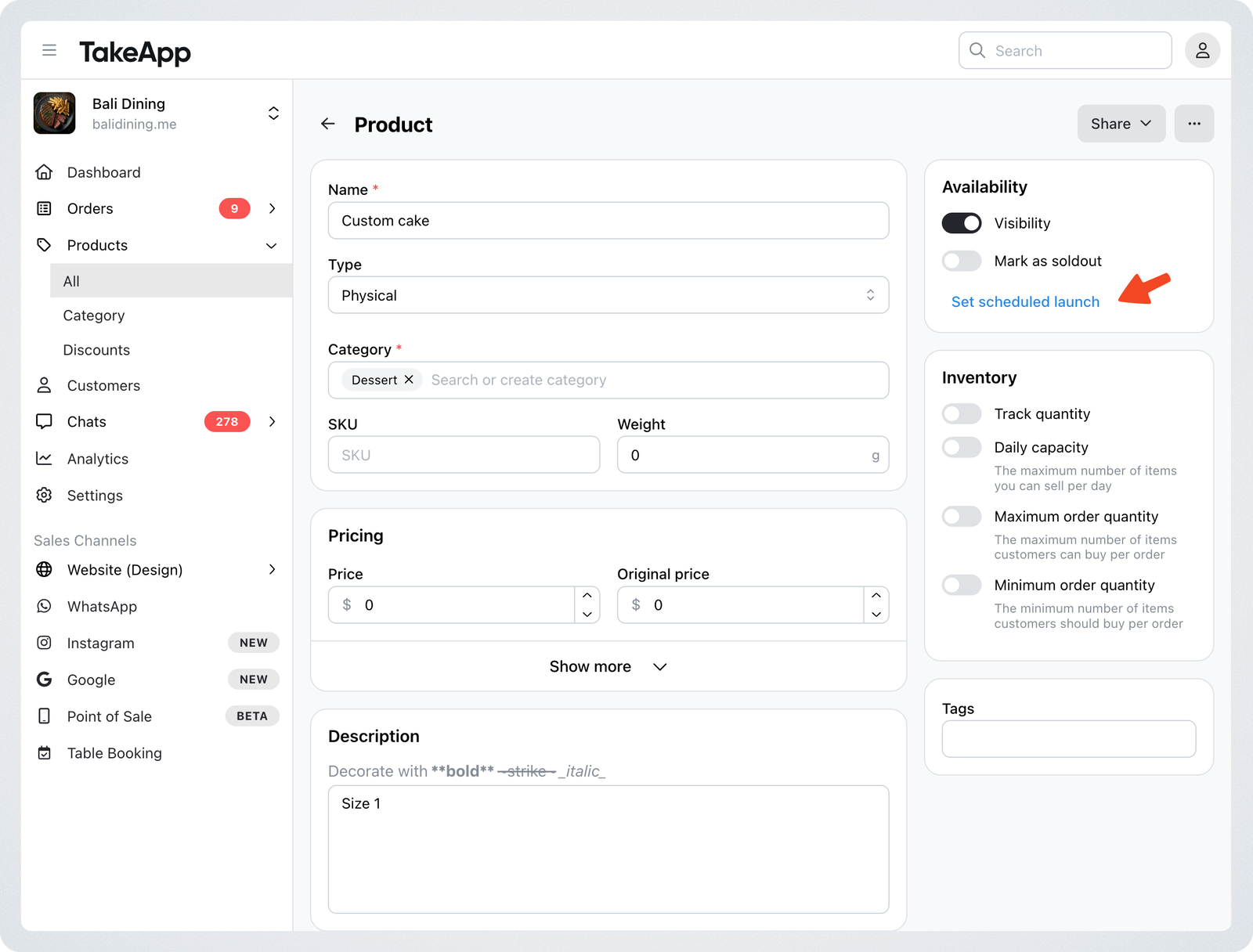
Go to Admin → Products → All → Choose a product or create a new one
-
Turn on Scheduled launch
-
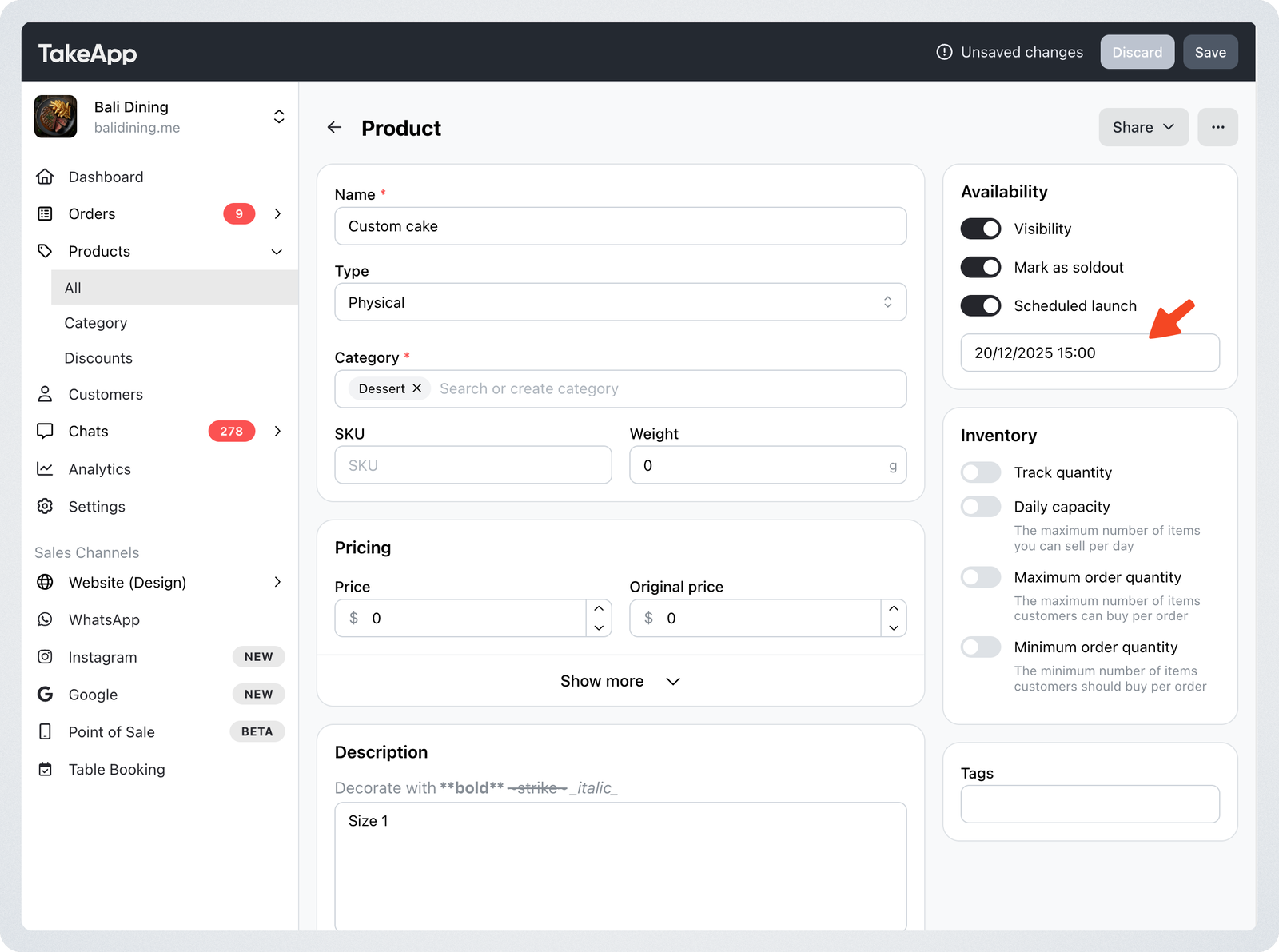
Set the release date and time (down to minutes)
-
Save the product.
2 . What happens after saving
- The product is automatically set to Sold out
- On the storefront, the product shows:
- Coming soon
- Release date
- Notify me button
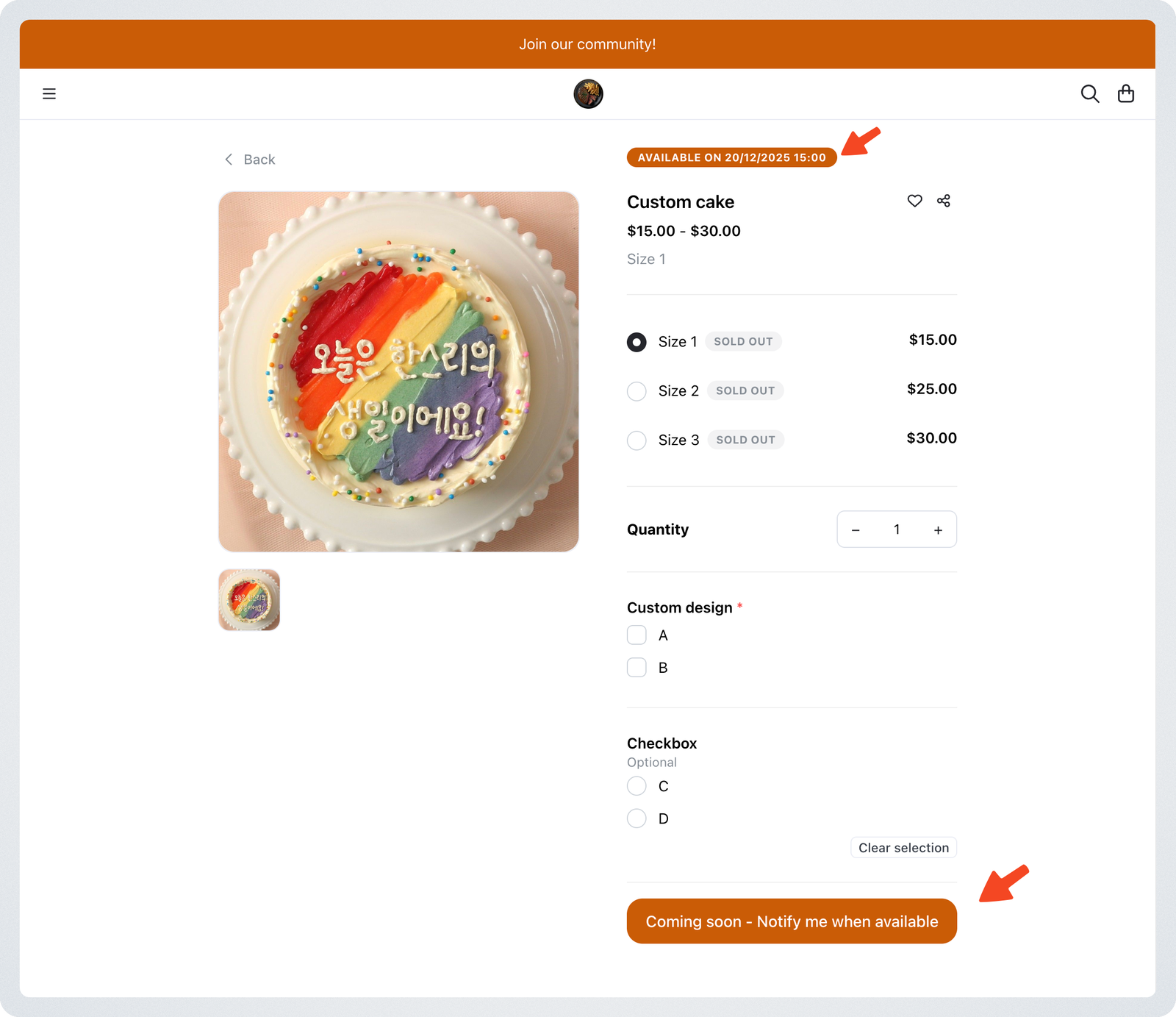
This allows customers to discover the product before launch and join the waiting list.
Customer experience
Customers can click Notify me on the product page:
-
Login is required
-
Customers can view their registered Product Drops in My Page
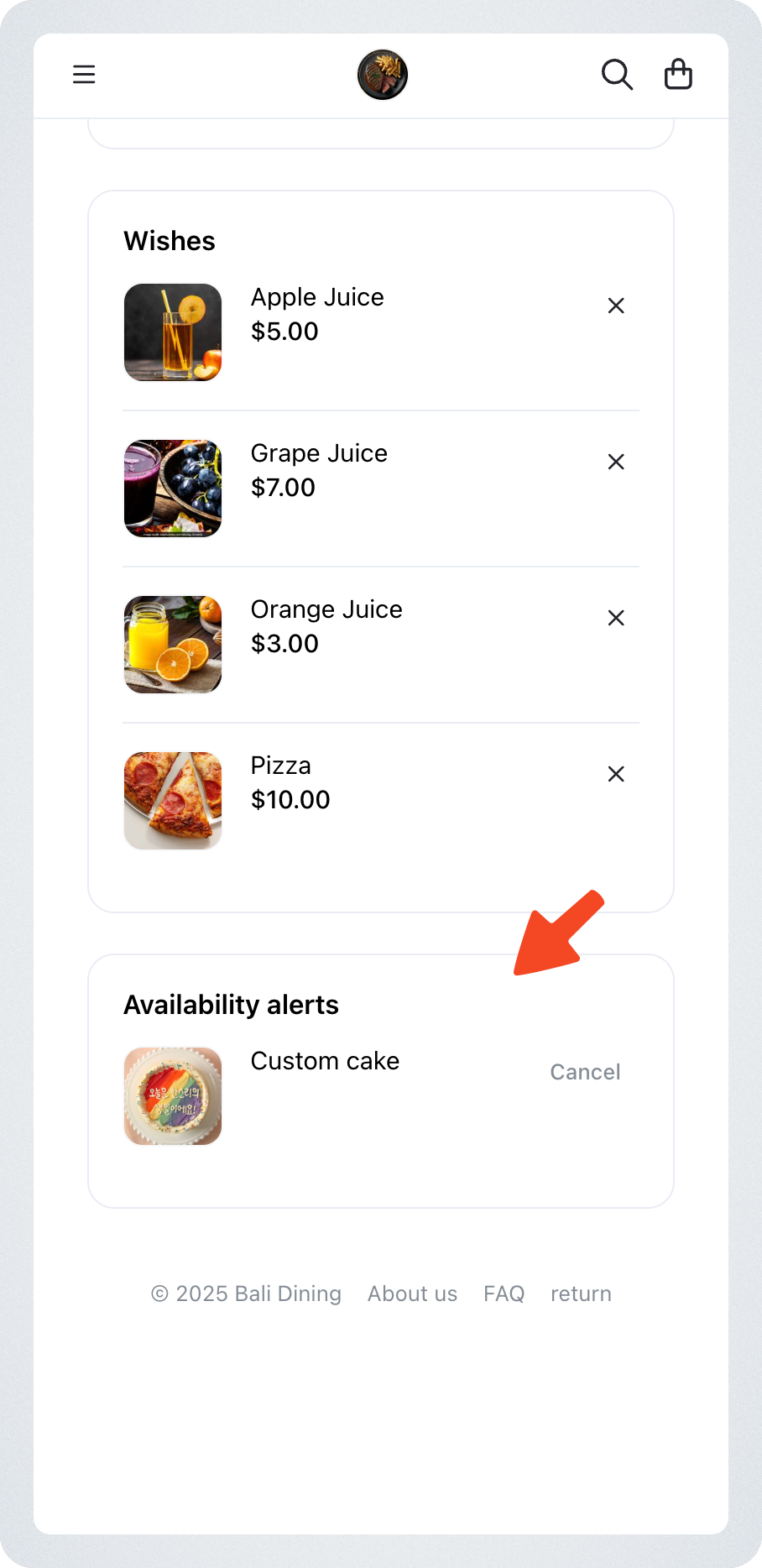
-
At the release time:
- A WhatsApp notification is sent automatically
- The product becomes immediately available for purchase
- If the product is deleted or deactivated, notifications are not sent
- If you turn off Scheduled Launch:
- Existing waiting list entries are treated as Back-in-Stock requests
- Customers will be notified when inventory is available
- Product Drop and Back-in-Stock use the same notification message template
View customers waiting for a product drop
Merchants can see which customers requested a product drop alert, making it easier to follow up or plan inventory.
- Path: Admin → Product → Availability → Customer waiting
- The list is automatically filtered to show only customers who requested a Product drop alert for that product.