
Update the Take App Mobile App
Most updates happen automatically — you don't need to do anything. Bigger updates come from the App Store or Play Store, and you install them yourself.
Check for updates
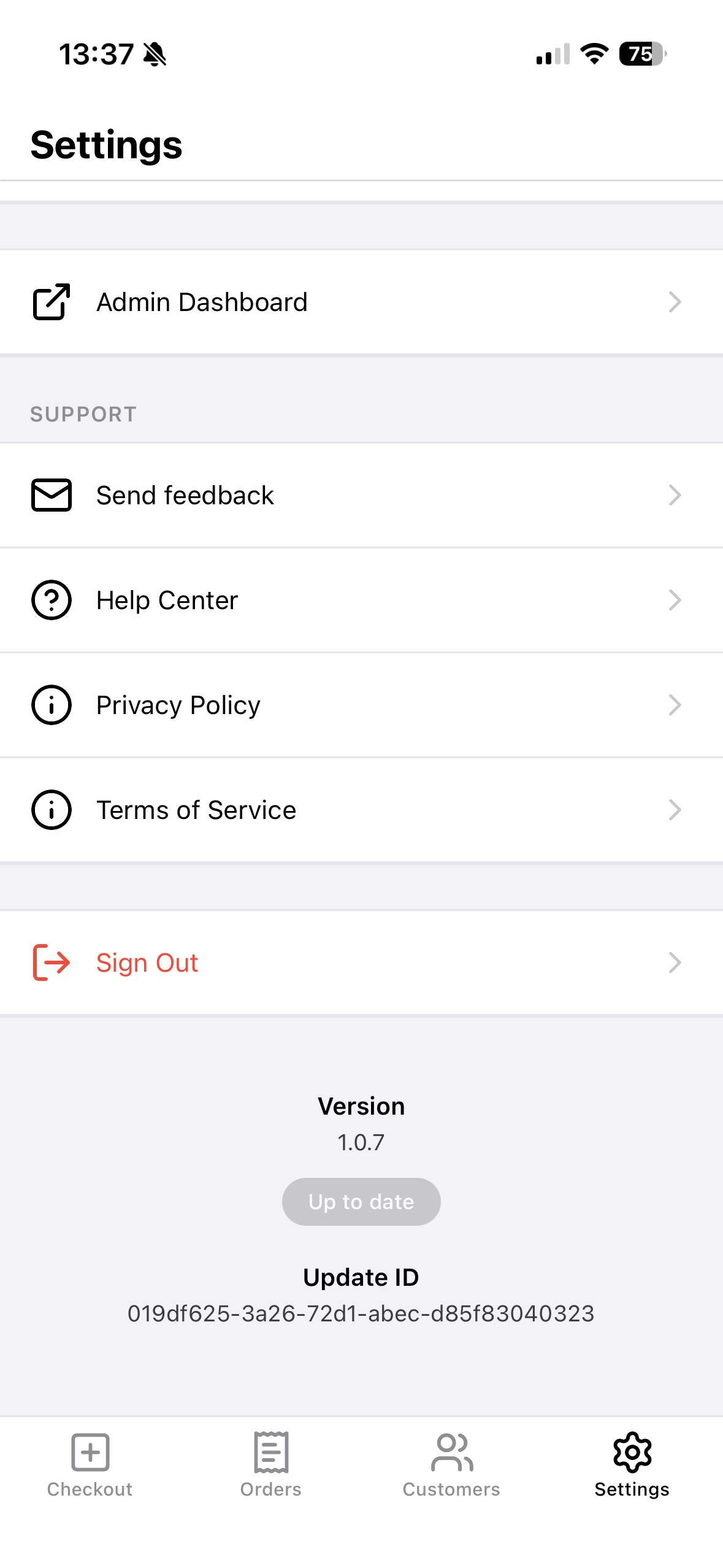
Open the app, go to Settings, and scroll to the bottom. You'll see your Version and a badge.
- Up to date — you're on the latest. Tap it to check again anytime.
- Update available — tap it to download and restart the app.
Update on iPhone
- Open the App Store.
- Tap your profile icon in the top-right corner.
- Scroll to Available Updates.
- Find Take App and tap Update.
Or open the Take App page on the App Store and tap Update.
Update on Android
- Open the Google Play Store.
- Tap your profile icon in the top-right corner.
- Tap Manage apps & device > Updates available.
- Find Take App and tap Update.
Or open the Take App page on the Play Store and tap Update.
Turn on auto-updates
iPhone: Settings > App Store > turn on App Updates.
Android: Play Store > profile icon > Settings > Network preferences > Auto-update apps.
Update not working?
- Check your internet connection.
- Close the app fully and reopen it.
- Restart your phone.
Still stuck? Contact us through Settings > Send feedback.