
Create an order
Create orders on the Checkout tab. For an amount-only quick sale, add a Custom item with the amount as its price (see Add a custom item below).
- Tap Add item. To add products by scanning their barcodes, see Barcode Scanning - Mobile POS App.
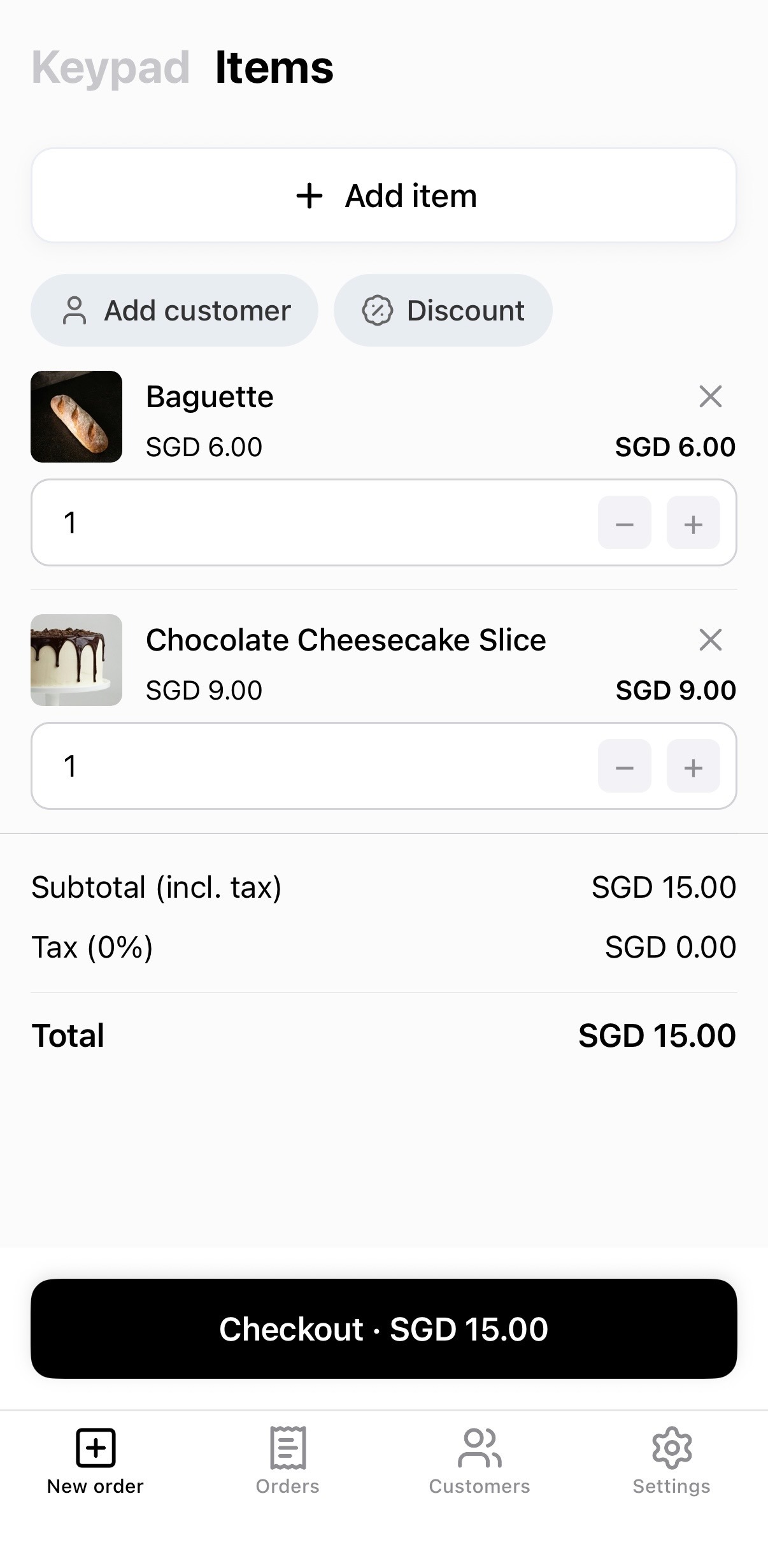
- Click on the products you wish to add to the order. If the product has variants or options, the product page will open and you will have to select those first before adding to the order.
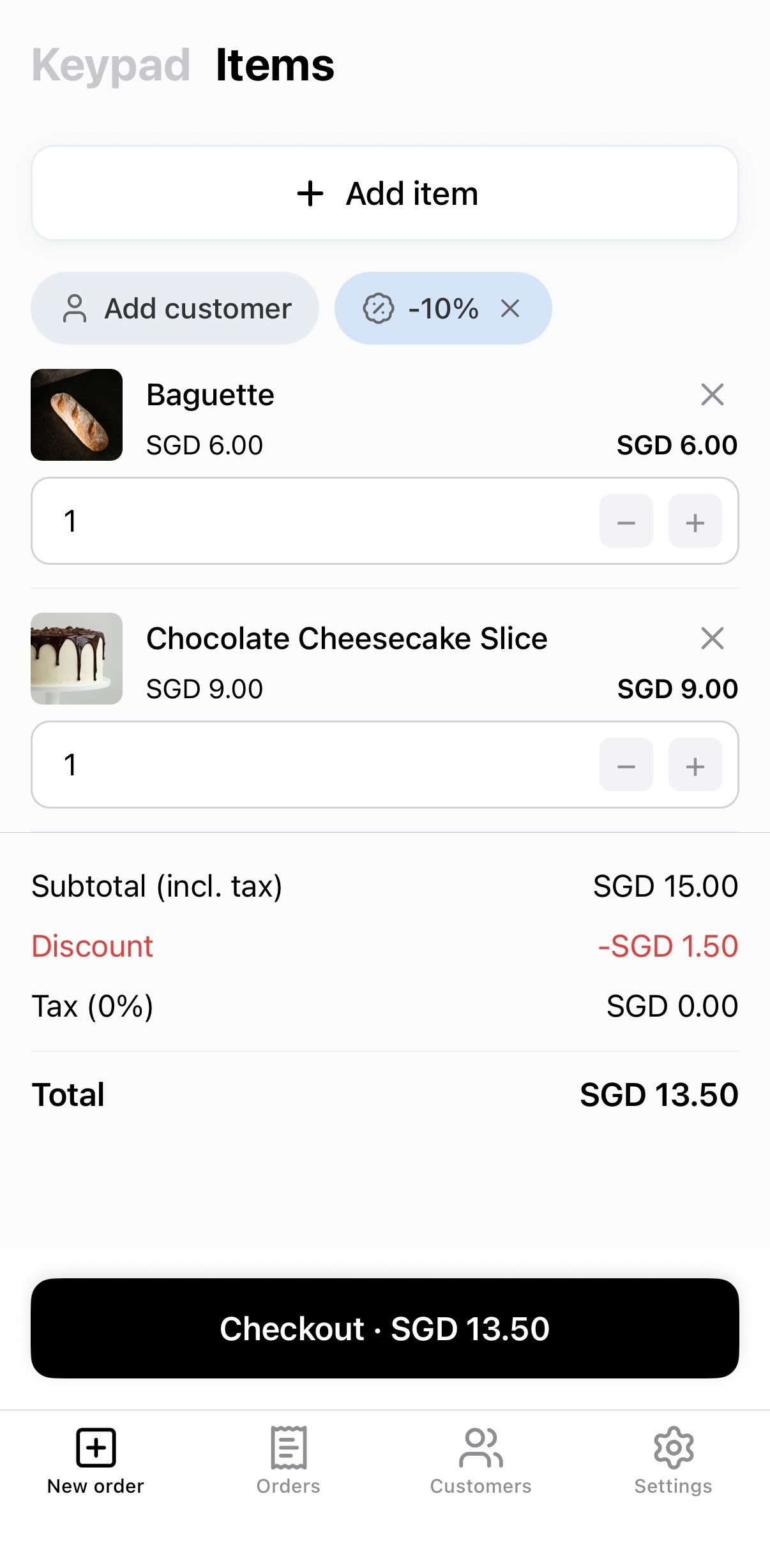
- Once you have added the desired products, you will see the checkout form with the order summary and total. Click on "Checkout" button.
- Choose a payment method (e.g. Cash) and continue the payment process (e.g. choose the cash amount received and mark as paid).
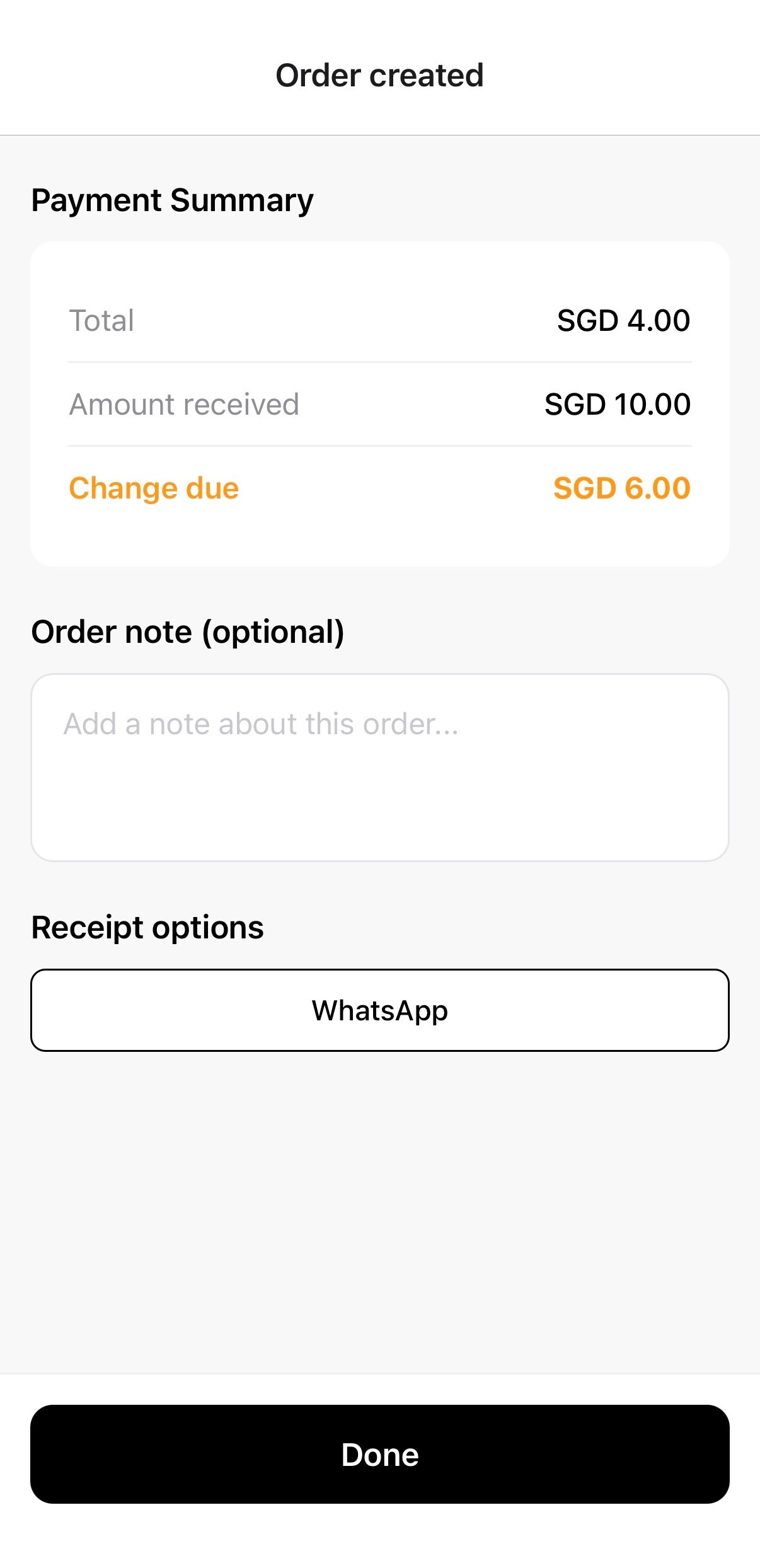
- The order has been created. You can add an order note (optional). You can send a receipt to your customer via WhatsApp or click "Done" to finish.
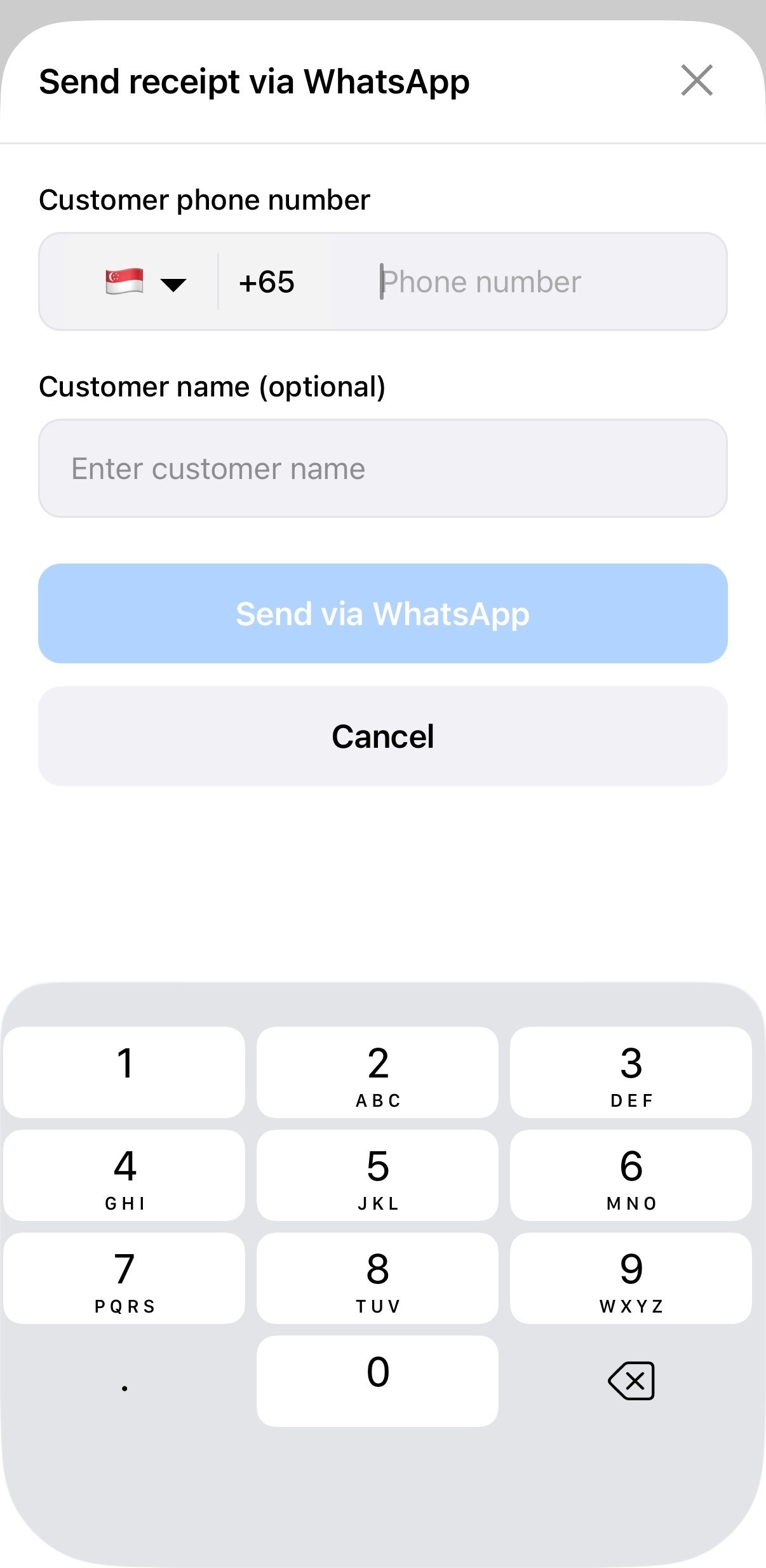
- If you want to send the receipt to your customer, click "WhatsApp" button. In the next page, enter your customer's phone number and name (optional). Then click "Send via WhatsApp".
Sold-out items: You can still add products that are sold out or out of stock when creating a POS order. Customer checkout on the storefront stays blocked.
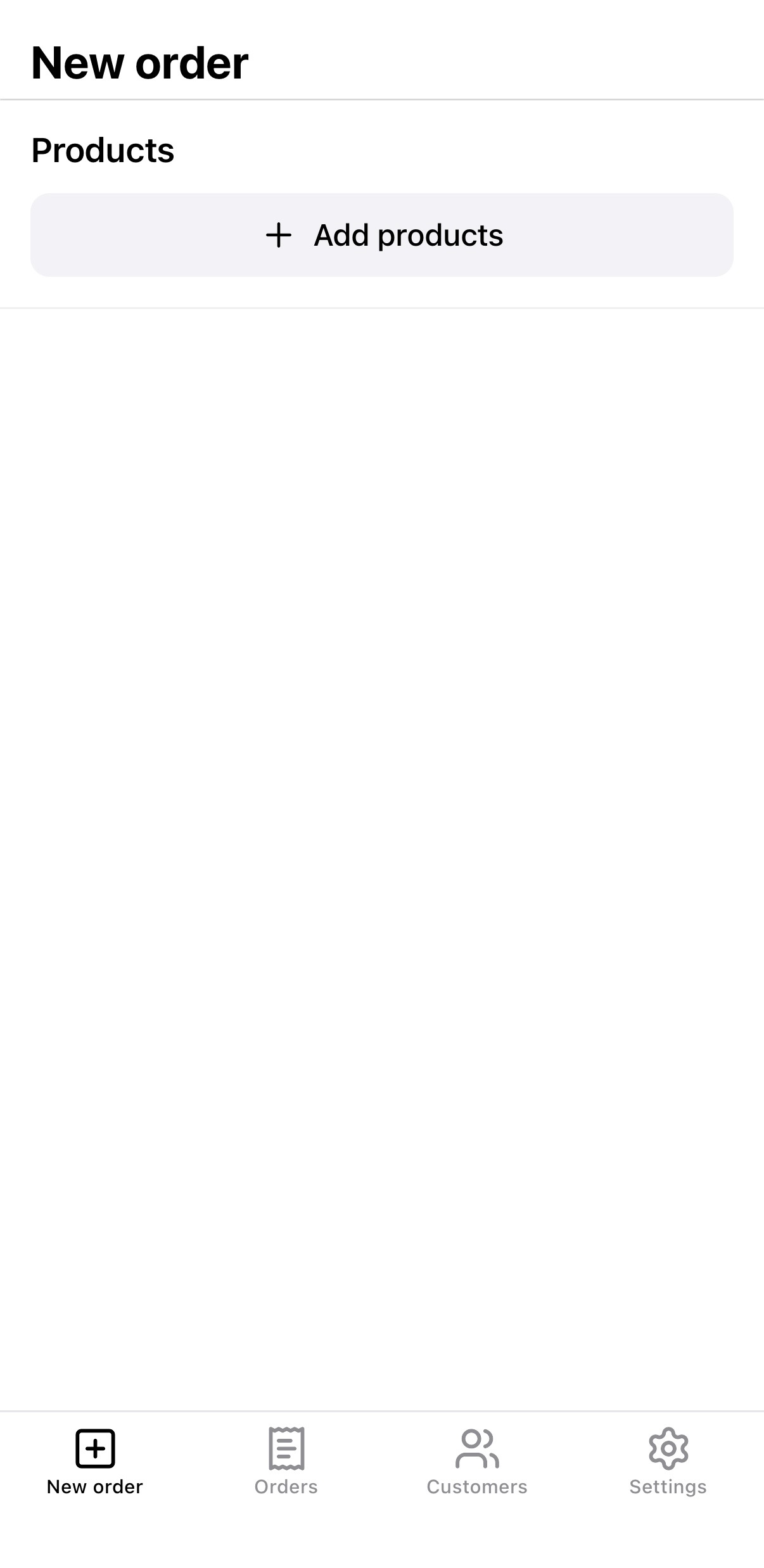 | 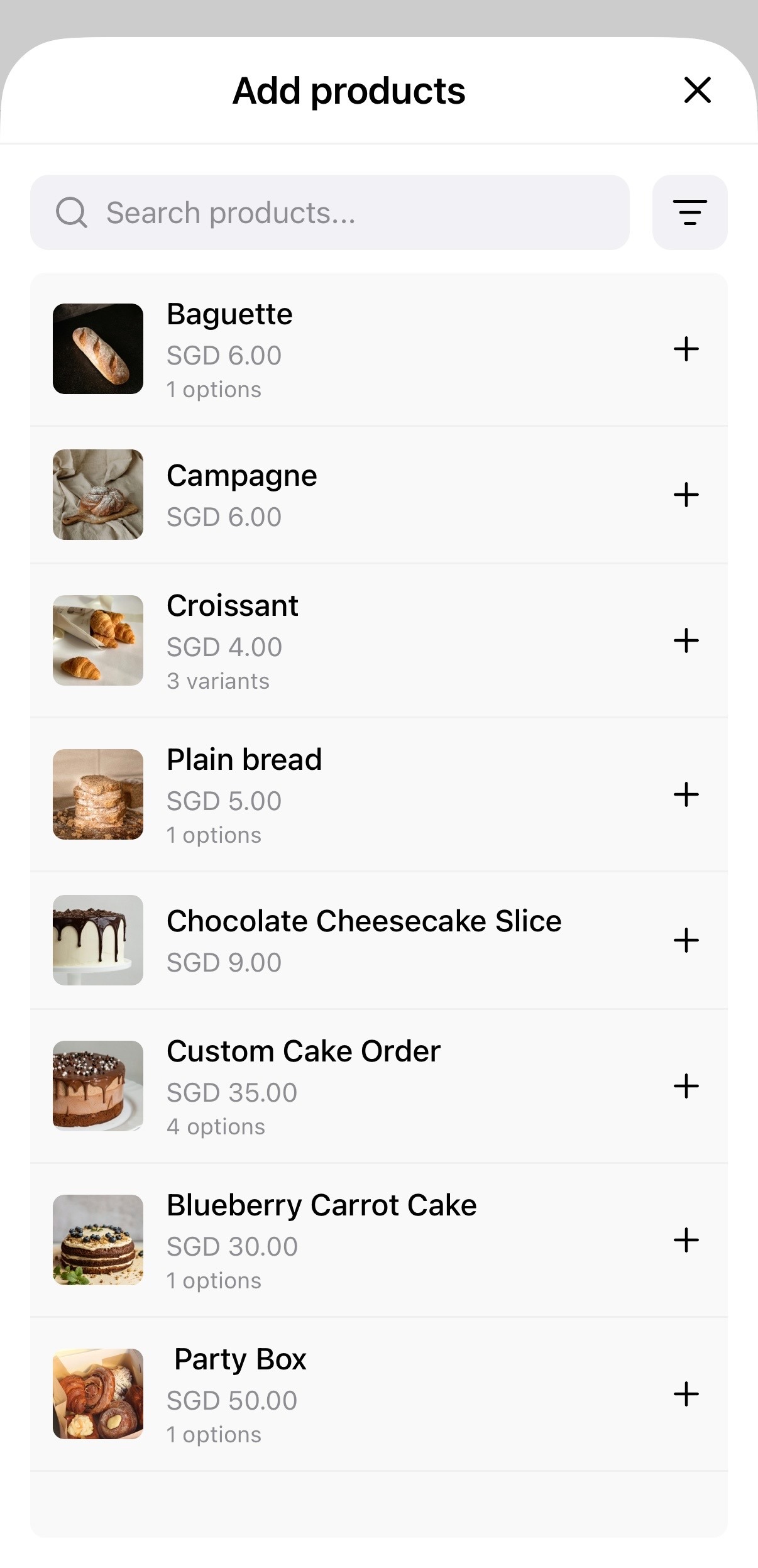 | 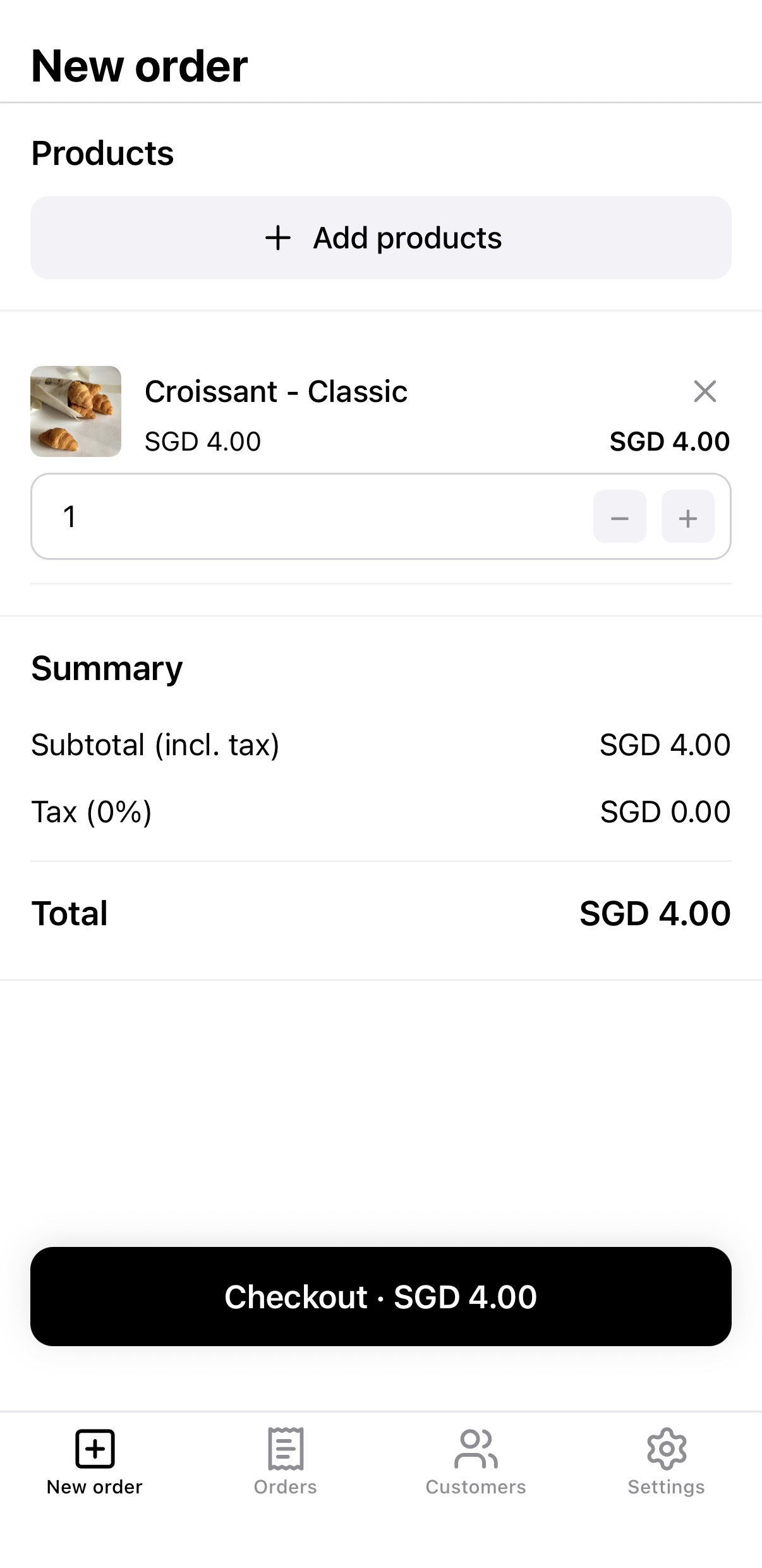 |
|---|---|---|
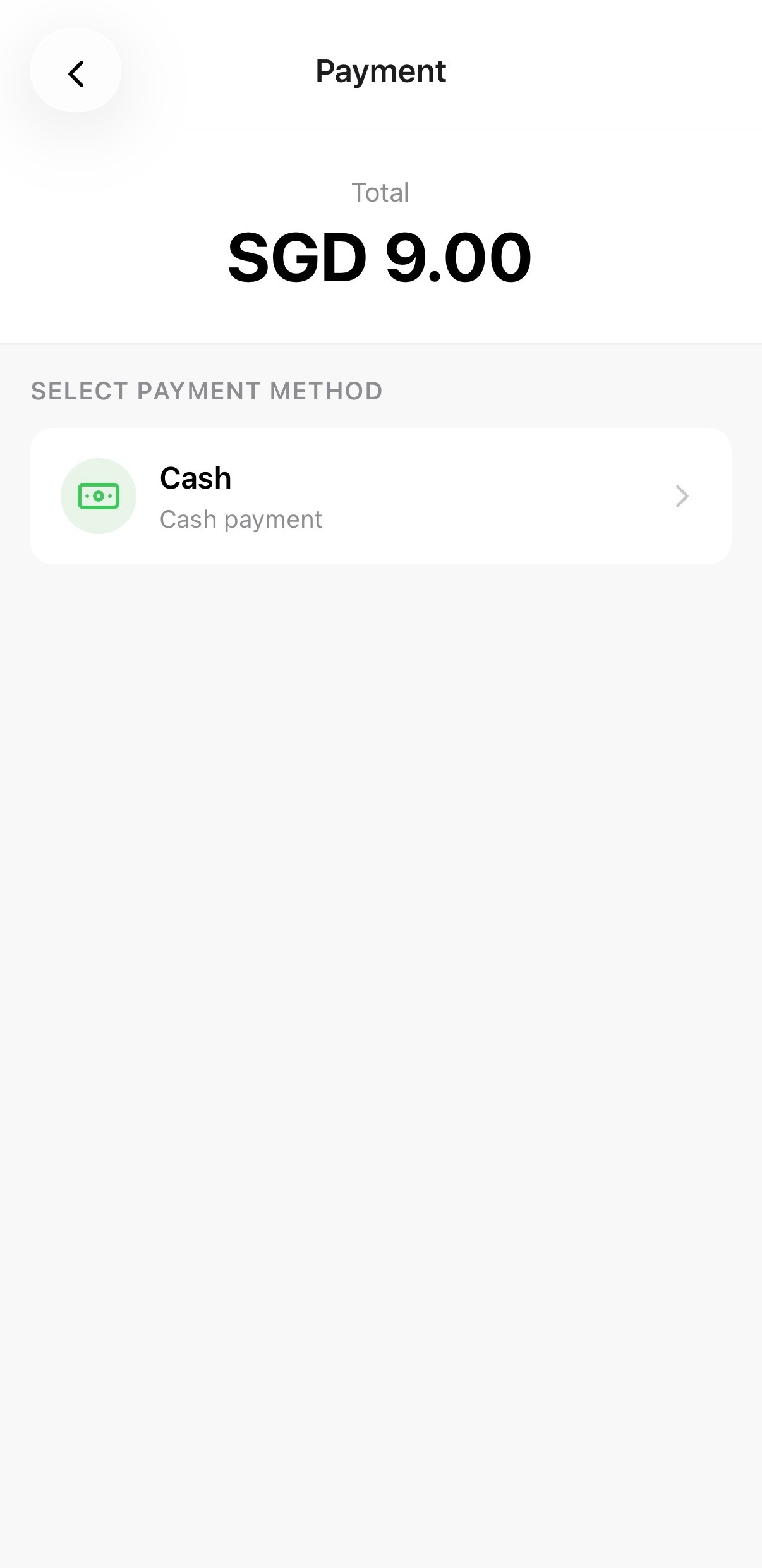 |  |  |
Add a custom item
To sell something that isn't in your catalog — or to take an amount-only payment — tap Add item, then Create custom item at the bottom of the product list. Enter the Item name, Price and Quantity, then tap Add to order. Turn on Save as product if you want to add it to your catalog too.
Edit an item on the order
After you add a catalog product, you can change its variant or options before checkout.
- On the order summary, tap the catalog line you want to change.
- The product picker opens with the saved variant and answers already selected.
- Change what you need, then tap Save to replace that line. Dismissing the picker leaves the line as it was.
Prices use the current catalog. Custom item lines cannot be edited this way — remove and add again if you need to change them.
You can also edit catalog lines this way when opening an unpaid order to change it.
Attach a customer to an order
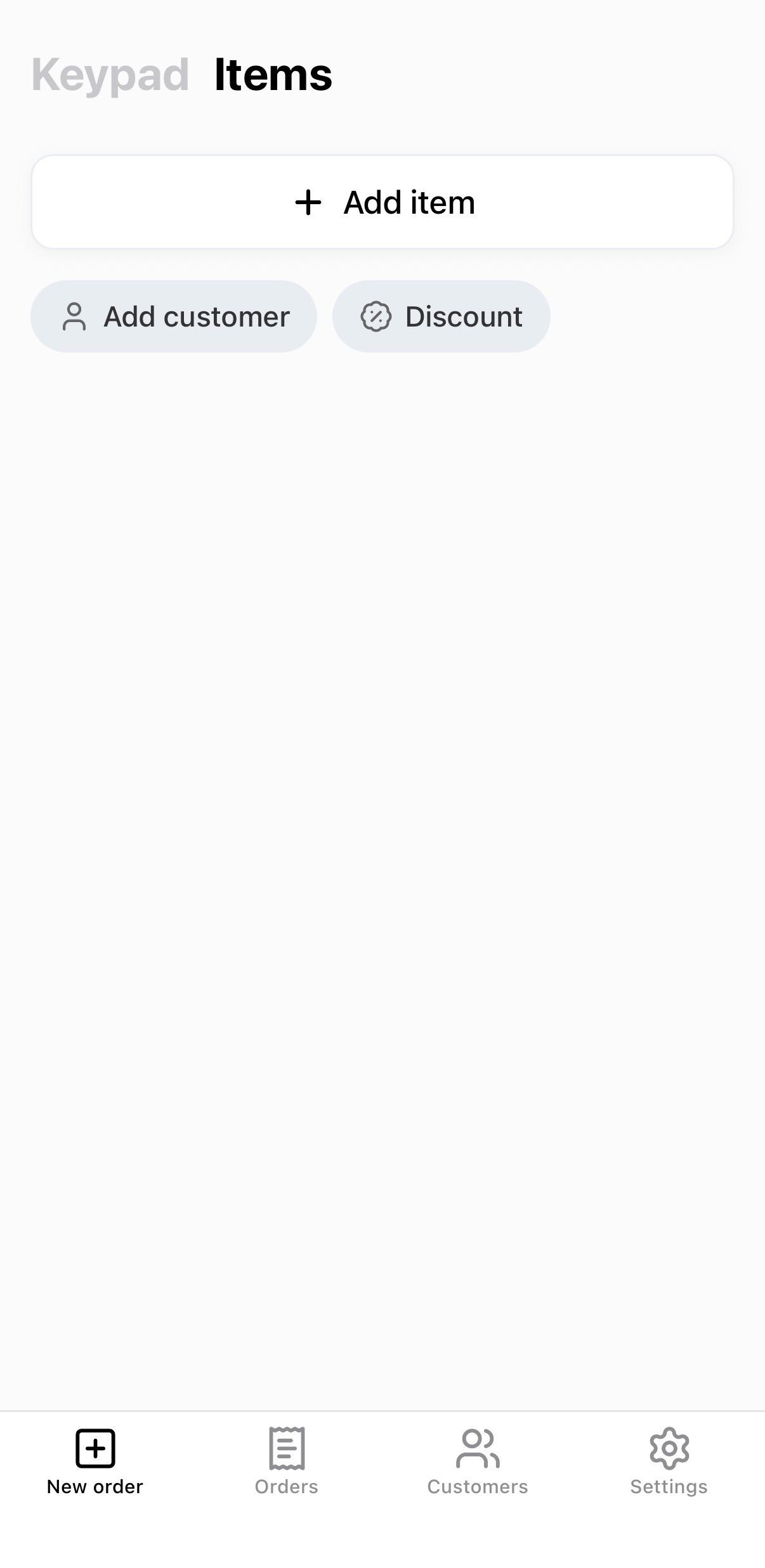
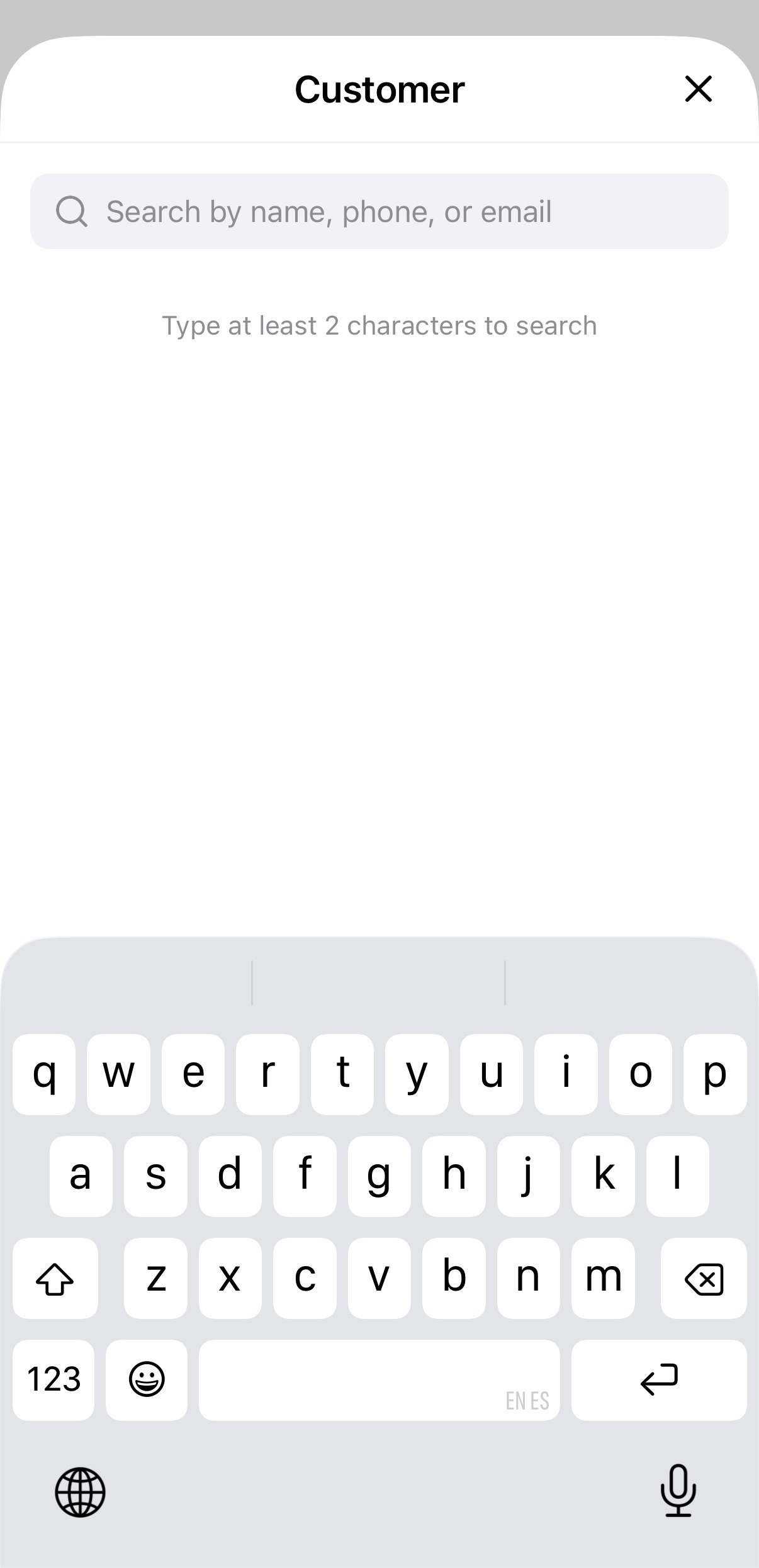
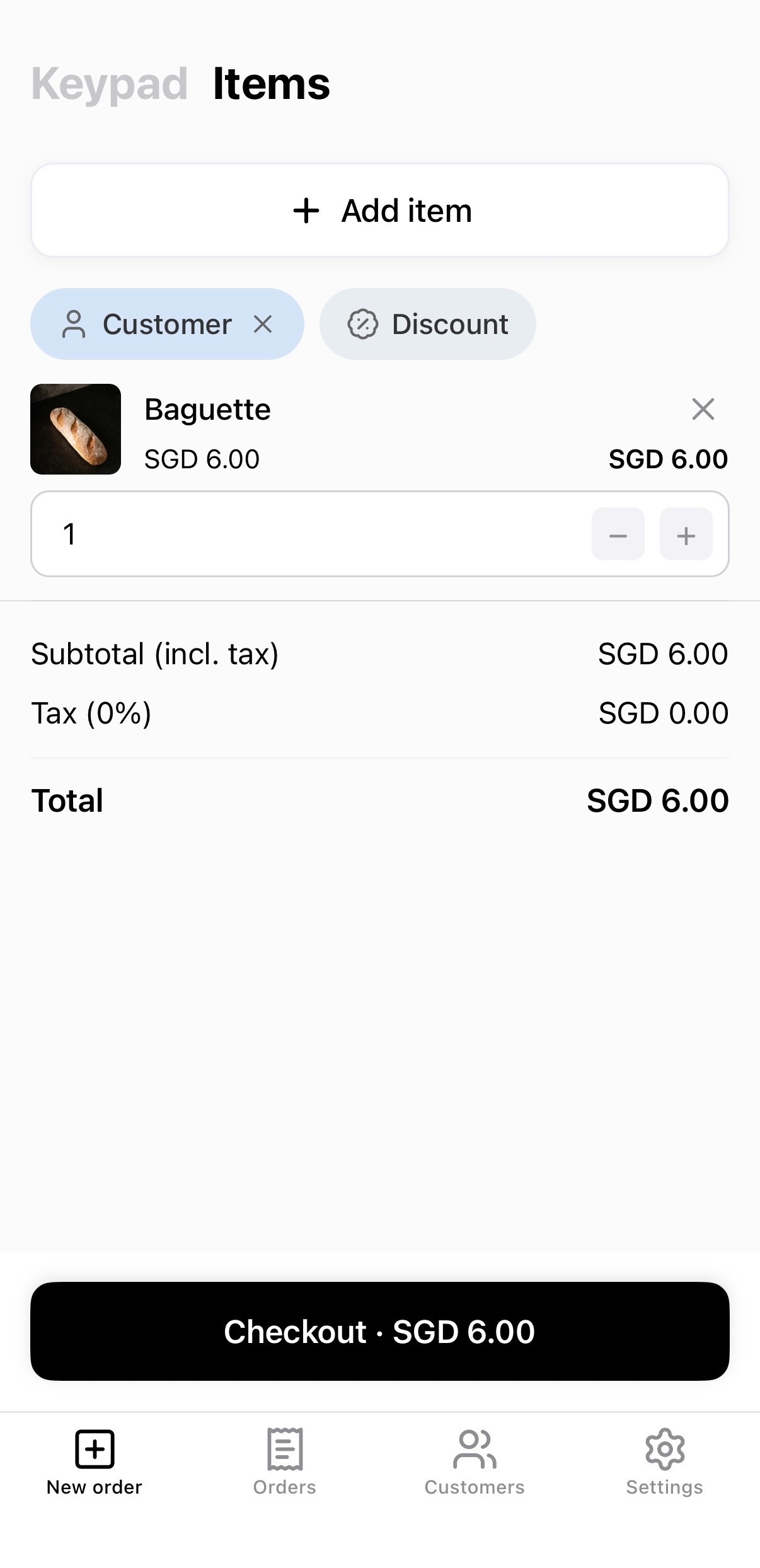
You can attach an existing customer to an order before checkout. On the Checkout tab, tap Customer. Search for the customer using their name, phone number, or email address. Select the correct customer from the list.
Once the customer is attached, proceed to add items and continue with the remaining order steps as usual.
Suggested customers: The customer picker shows your top 3 most frequent customers (by order count in the last 90 days) at the top of the list for quick access — no need to search for regular customers each time.
Walk-in orders: If you complete a POS order without selecting a customer, the order is labeled Customer (POS) in your order history. This makes it easy to identify walk-in sales separately from regular customer orders.
 |  |  |
|---|
Apply a discount to an order
If you need to offer a discount to your customer, you can easily apply it before completing the order.
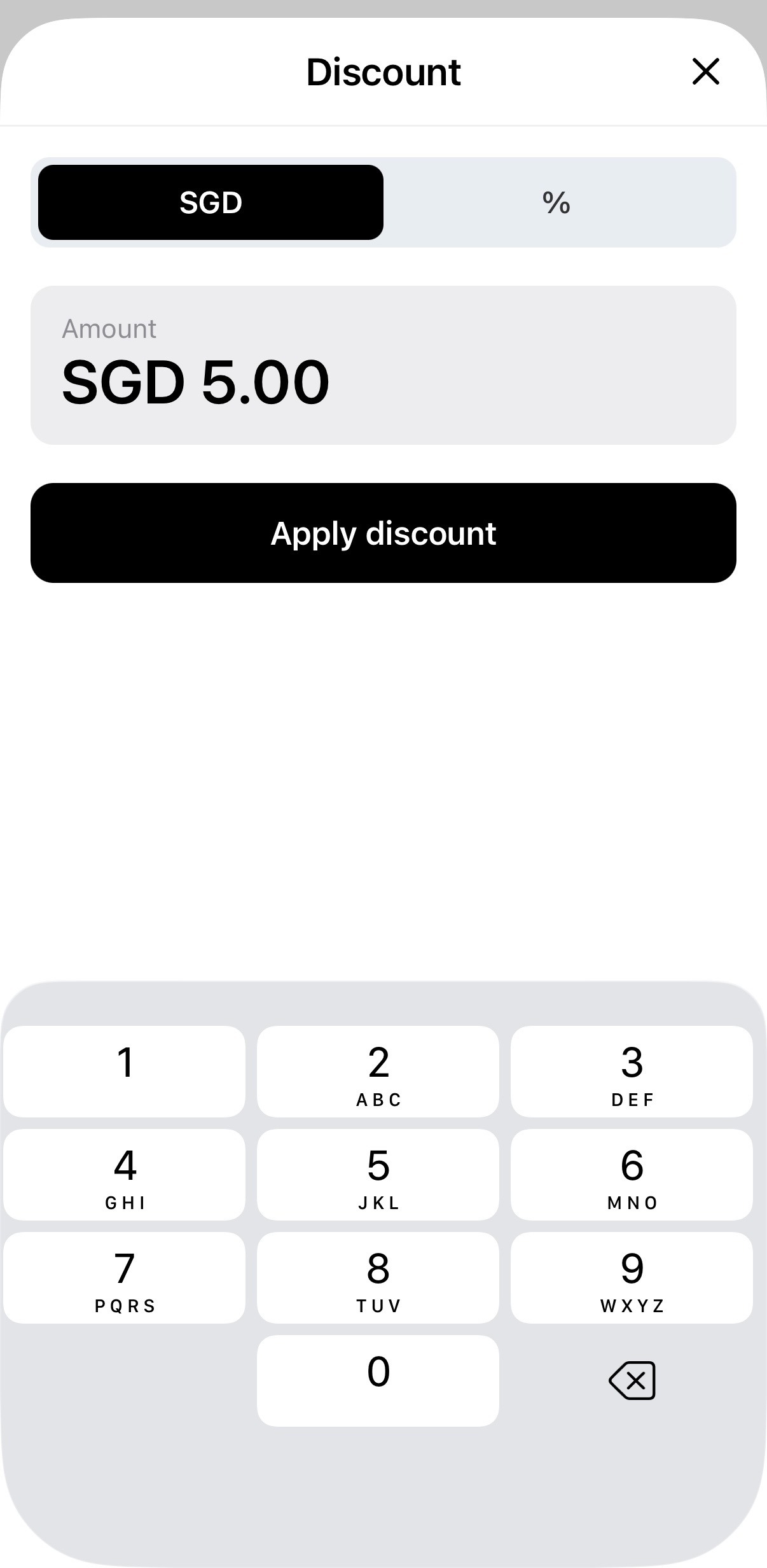
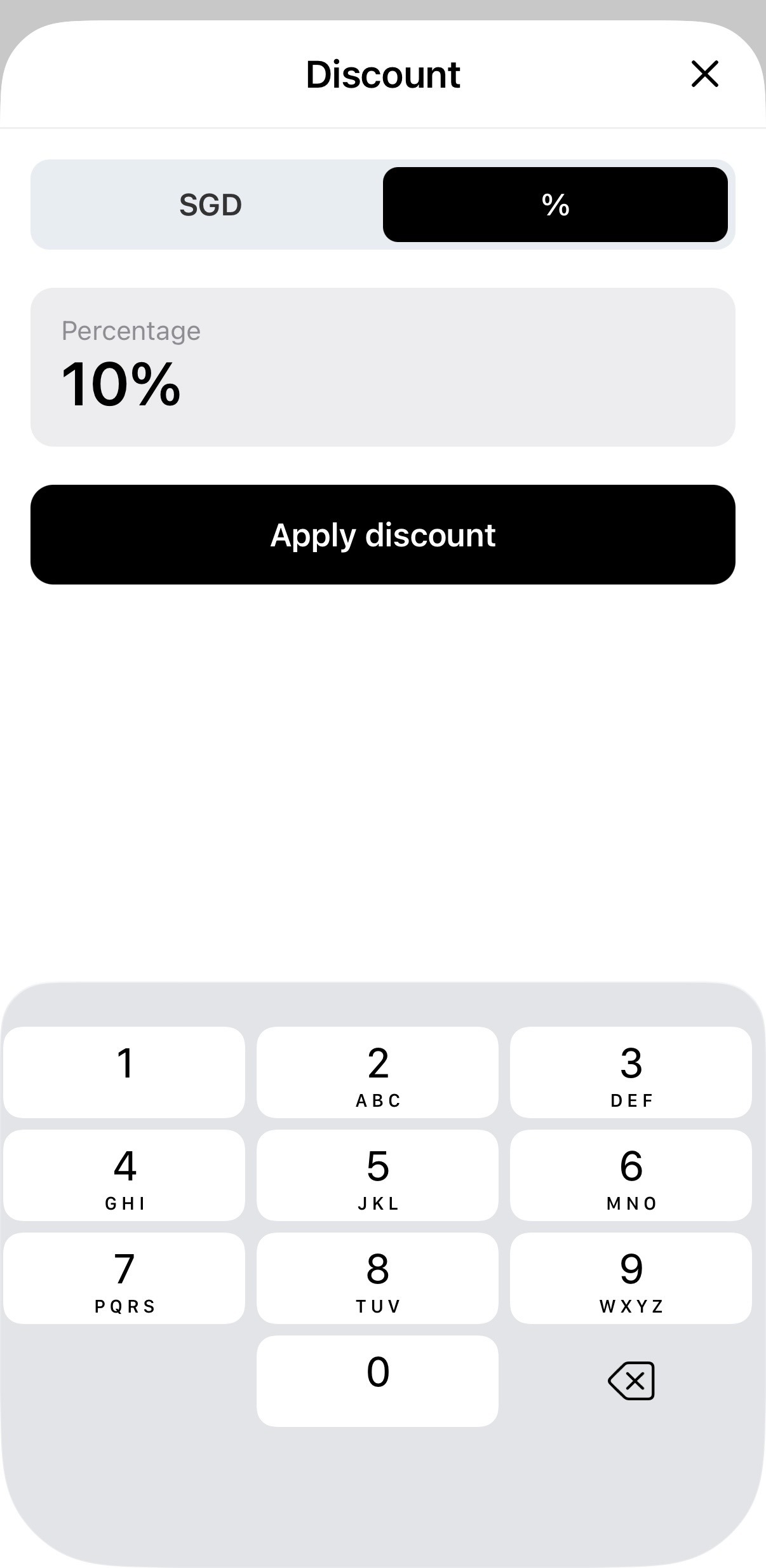
After adding items to the order, tap Discount. Choose whether you want to apply a fixed amount or a percentage discount. Enter the discount value, then tap Apply discount.
The order total will update automatically to reflect the discount.
 |  |
|---|---|
 |  |