
You can add custom items directly in the Mobile POS app when creating an order. This is useful when you want to include items that are not listed in your product catalog — for example a delivery fee or an off-menu request.
When should I use this?
- You need a one-off line that is not in your catalog
- You’re handling special requests or manual orders
- You do not want to create a full product for something you will not sell again
Catalog with products vs empty catalog
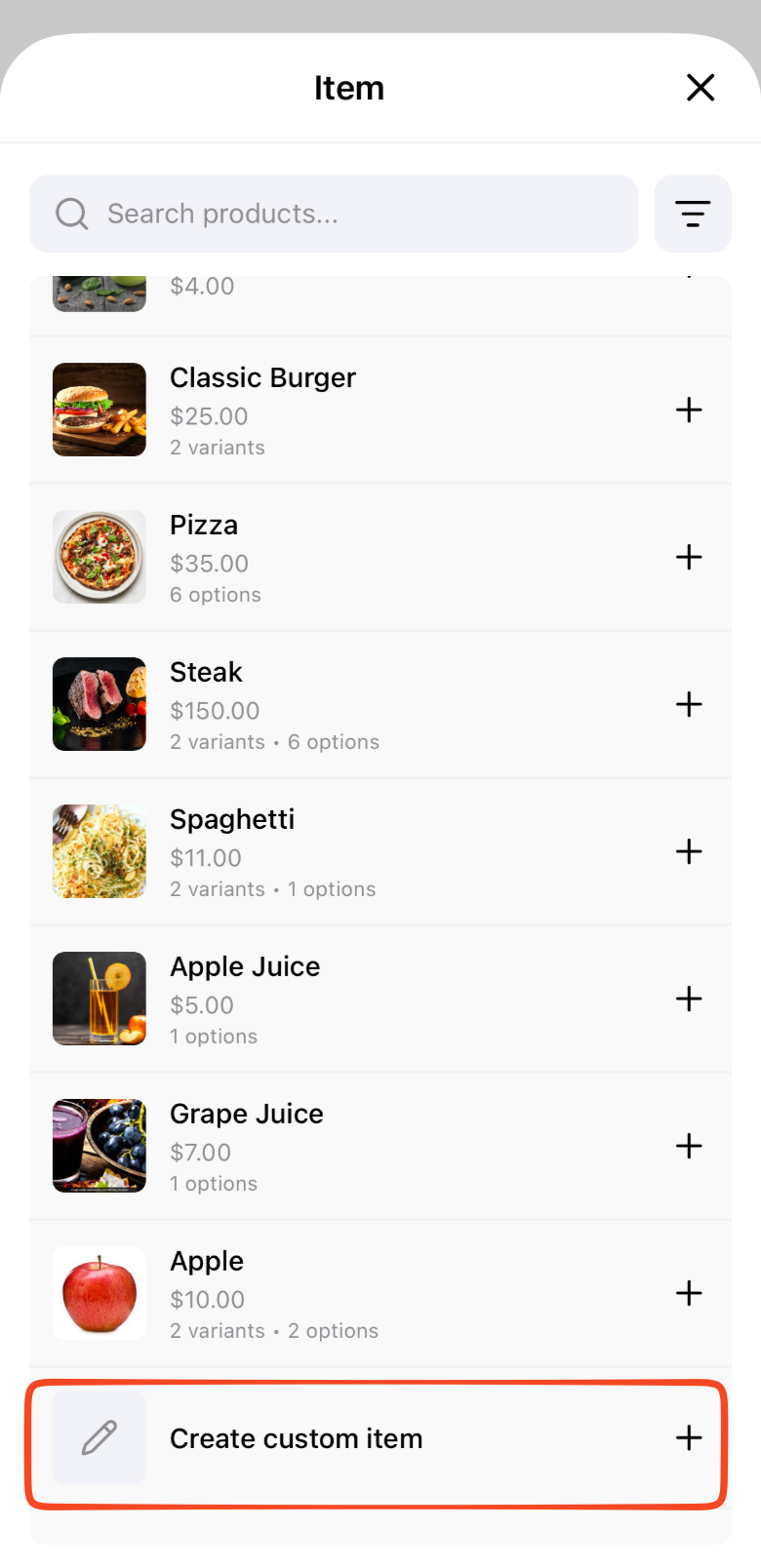
The footer row in the item picker depends on your store’s catalog:
| Catalog | Footer row | What happens |
|---|---|---|
| One or more products | Create custom item | Opens the custom item form inside the picker |
| No products at all | Add new product | Closes the picker and opens the new product form |
A search that matches nothing still shows Create custom item if your store already has products. The empty-catalog row only appears when the store has no products yet.
How to add a custom item
- On New order, open the item picker (Add products / Add item)
- Tap Create custom item (shown when your catalog already has products)
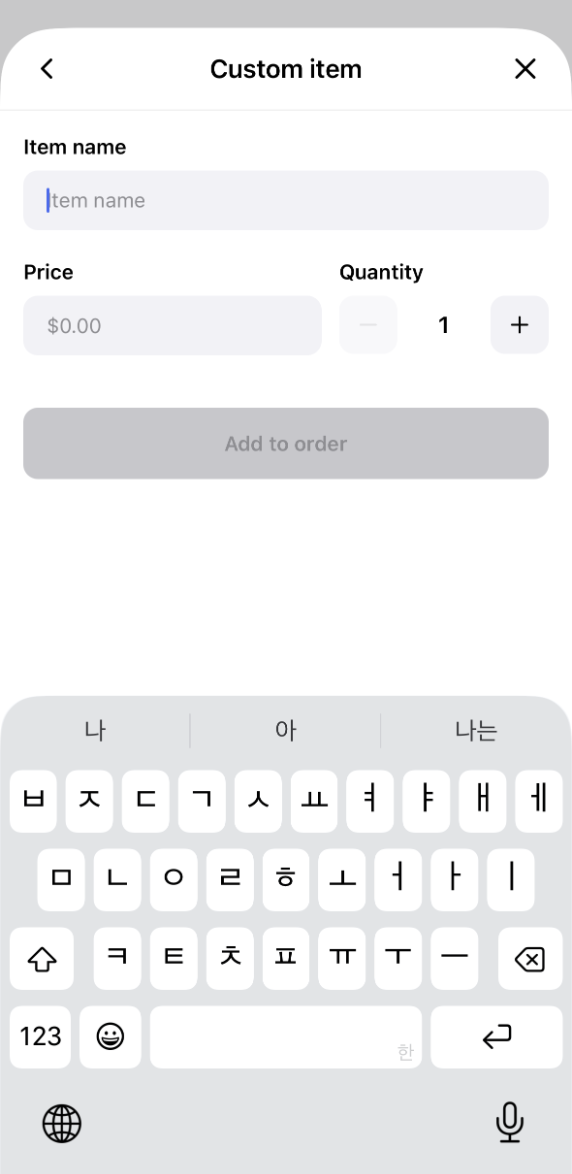
- Enter the item name, price, and quantity
- Optionally turn on Save as product if you also want it in the catalog
- Tap Add to order
The line is added to the order right away. Leave Save as product off to keep it as a one-off line that is not saved to your product list.
 |  |
|---|
Notes
- With an empty catalog, use Add new product from the picker instead — custom items are offered again once you have products
- Custom lines attach to the order even if Save as product is off