
Take App's plans are Basic (free), Essential and Business — see pricing. Each plan includes different features and usage quotas.
Understanding Plan Limits and Usage Add-Ons
This includes the number of stores, staff members, and automated WhatsApp messages and emails you can use within your plan. Agent and AI images have a separate allowance measured over the last 24 hours. The Business plan provides the most generous free quota to support growing businesses.
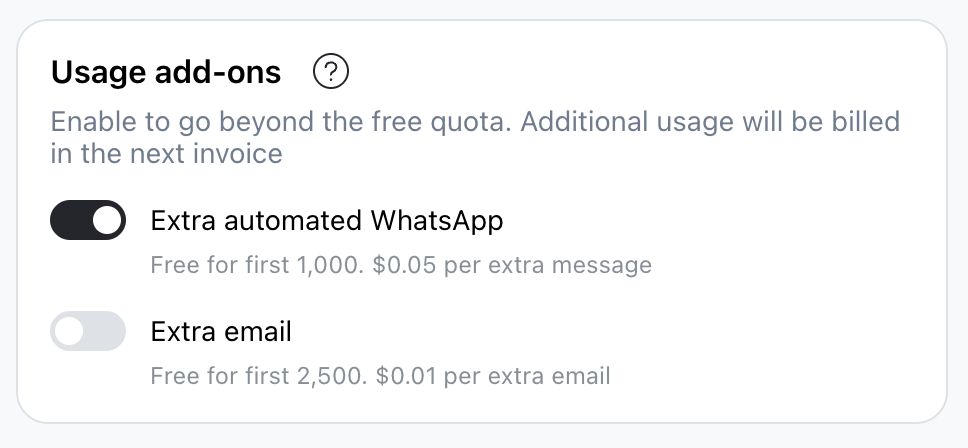
Take App does not currently offer plans with higher built-in WhatsApp message quotas. However, you can activate add-ons to increase your message capacity if you reach your included quota.
If you exceed your free quota:
- You will not be able to create more stores or add more staff.
- Automated WhatsApp messages and emails will stop sending. This includes AI chatbot replies on WhatsApp.
- Agent replies and AI image generation will pause when you reach the shared Agent limit below.
Agent and AI image limits
Agent and AI image generation share one allowance across the stores and staff in the same organization:
| Plan | Uses in the last 24 hours |
|---|---|
| Basic or Essential | 50 |
| Business or legacy Premium | 200 |
Each message you send to Agent uses one unit. Each AI image generated uses another unit, including improved product photos, social posts, and images created in Agent chat. Generating another version also uses the allowance.
This is a rolling 24-hour window, not a reset at midnight or at the start of your billing month. Uses become available again as older activity falls outside the last 24 hours.
At the limit, Basic and Essential show an option to upgrade to Business for a higher allowance. Business and legacy Premium show "Try again tomorrow." WhatsApp and email add-ons do not increase the Agent allowance.
Agent and AI image generation are paused while your subscription is overdue, regardless of how much allowance remains.
Usage Add-Ons (WhatsApp, Email)
At the bottom of the Billing page, you will find the Add-Ons section.
- Toggle on WhatsApp or Email add-ons to enable additional usage
- Once enabled, you can exceed your included quota
- Additional usage will be charged based on your consumption and added to your next billing cycle.
- If your extra usage exceeds a specific threshold, the bill may be charged immediately to avoid service interruptions.- After upgrading your plan, allow some time for the system to refresh and reflect the updated quota. This delay is normal and typically resolves itself.
Troubleshooting Quota Issues
If you have recently upgraded your plan but still see a message indicating that your automated WhatsApp quota has been exceeded, it is important to note that the system may take some time to refresh and reflect the updated quota. In such cases:
- Allow some time for the system to update after the upgrade.
- Check your quota status again after a short period. If the issue persists beyond a reasonable timeframe, consider reaching out to customer support for further assistance.
For example, each automated WhatsApp message beyond your included quota costs $0.05.
Plan Limits (Staff, Stores)
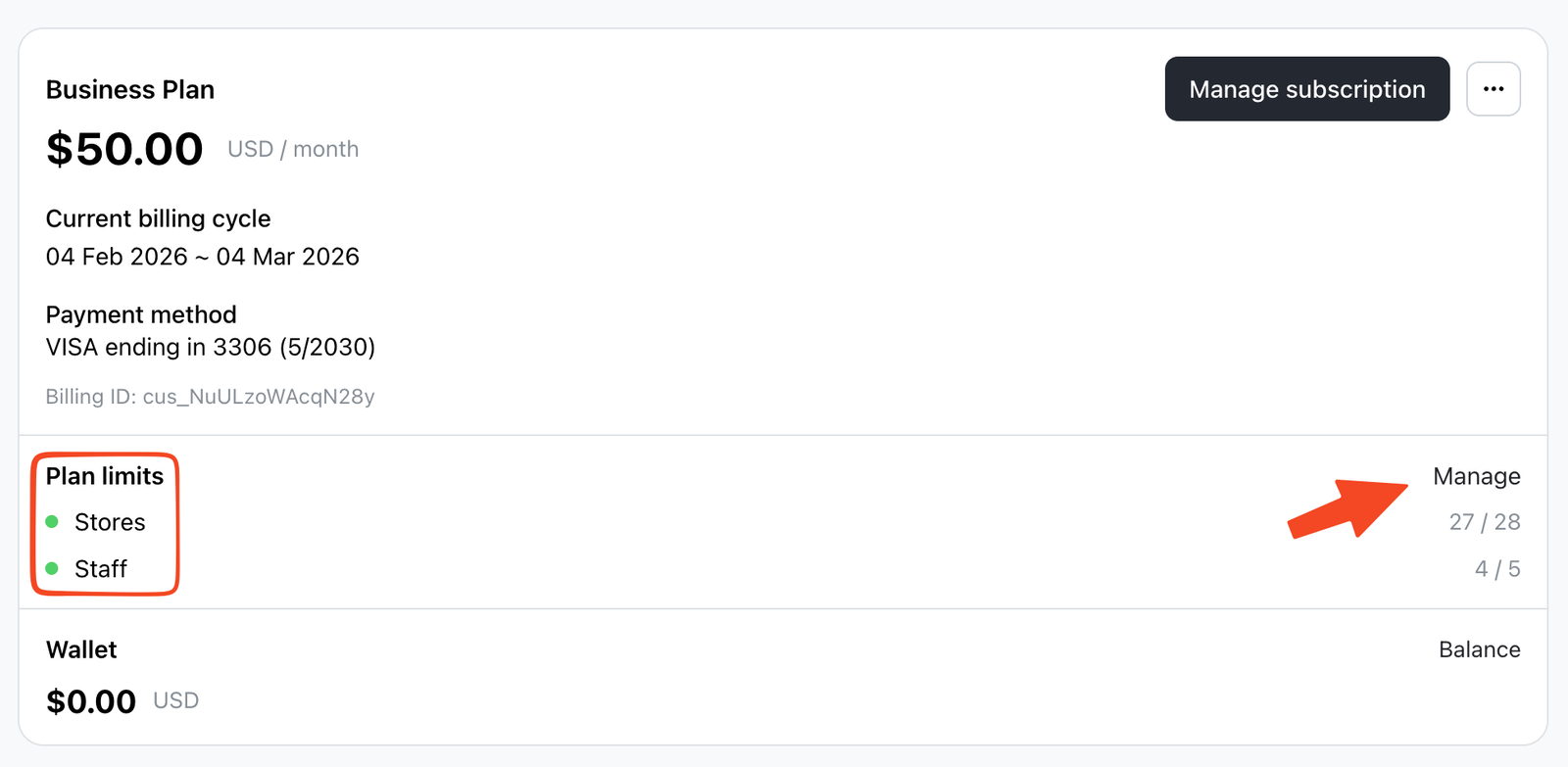
To increase the number of stores or staff:
-
Go to the Billing page
-
Under Plan limits at the top, click Manage.
-
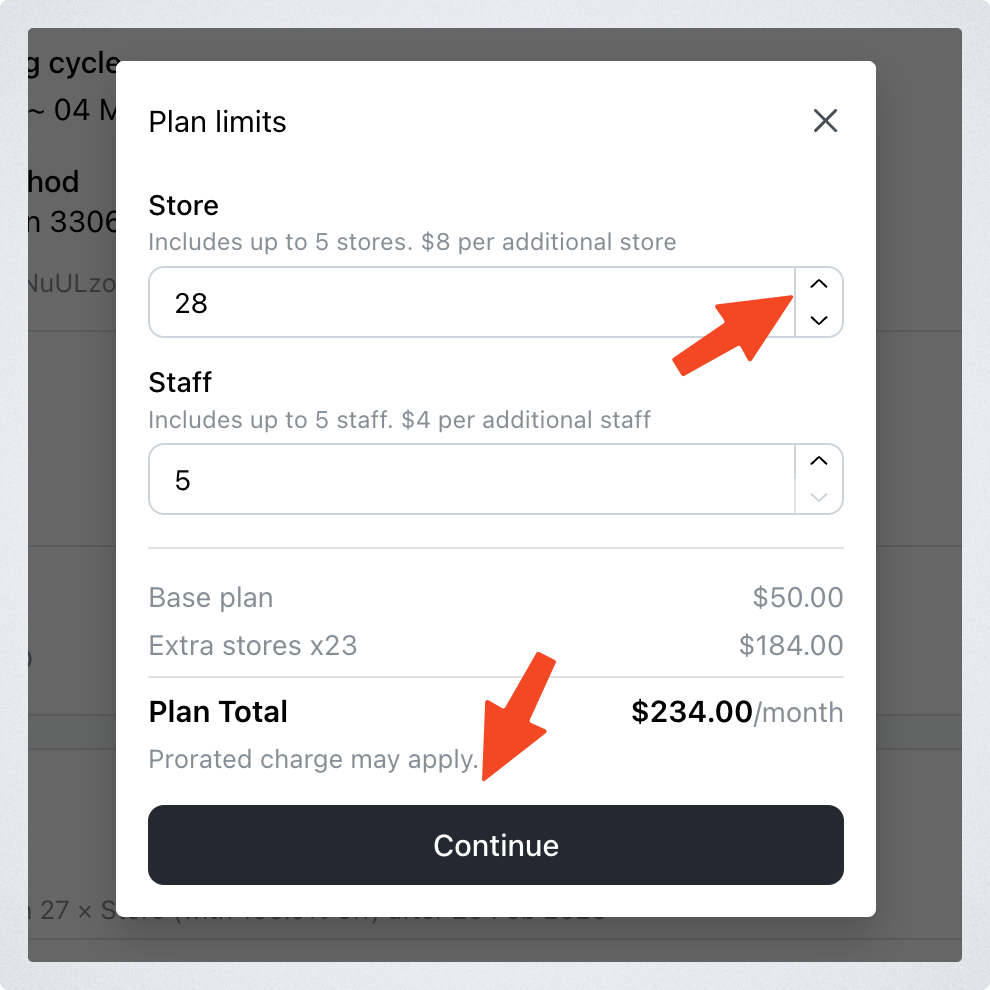
A pop-up window will appear. Increase the number of stores or staff as needed. You will see the updated price instantly.
-
Click Continue to confirm
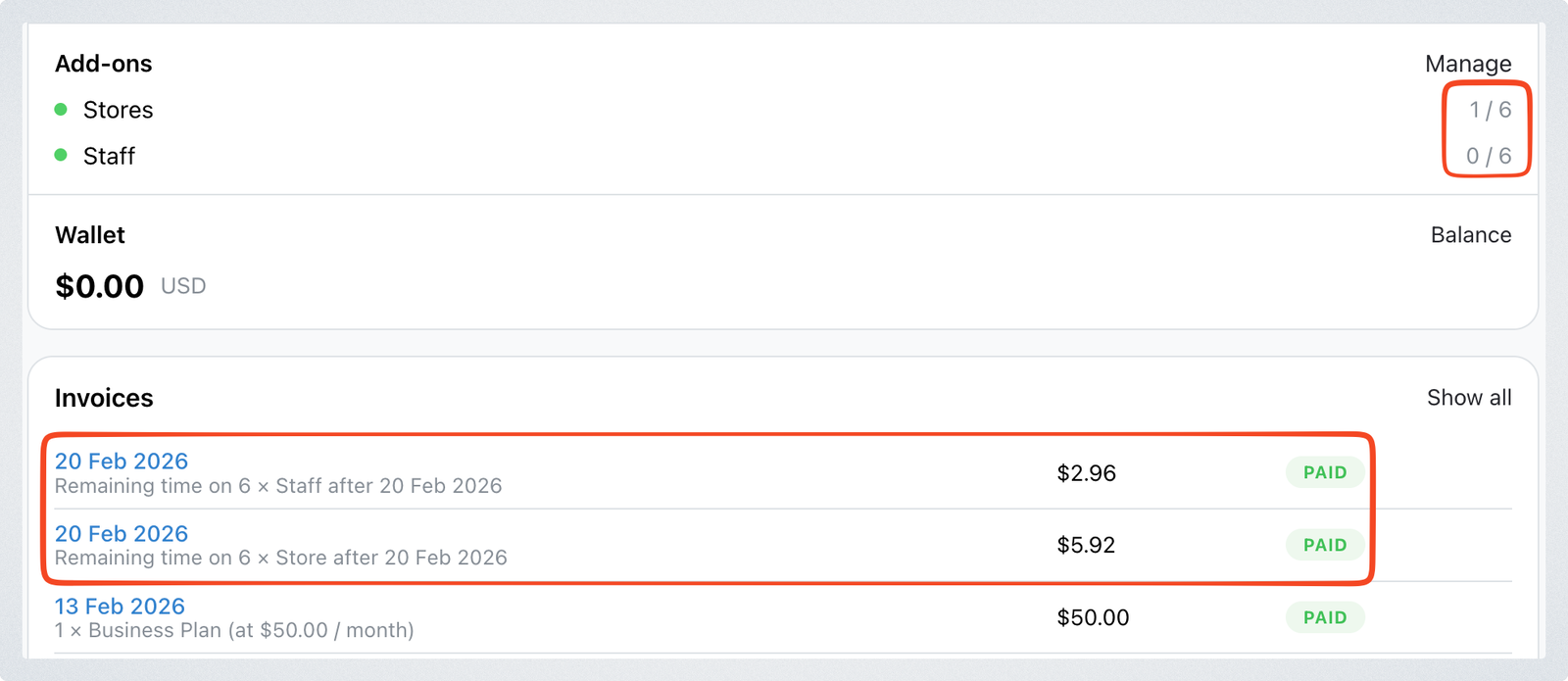
When you click Continue, you will be charged immediately for the additional stores or staff. You will be able to see the invoices in the Invoice section below.
Charges are prorated based on where you are in your billing cycle.
For example, if your billing cycle is February 10 - March 10 and you add a store on February 28, you will only be charged the prorated amount for February 28 to March 10. After that, the full add-on amount will be charged monthly together with your subscription plan on your regular billing date.
Important
If you want to reduce the number of extra stores or staff, you must manually update the quantity in the Plan limits section on the Billing page.
Deleting a store or removing a staff does not automatically reduce your add-on subscription. You must change the number (for example, from 6 to 5) inside the Billing page to adjust your charges.
Important notes
- Past-Due Payments: Automated WhatsApp messages, store emails, Agent, and AI image generation pause as soon as your subscription is overdue, including usage within your plan. Checkout, new orders, and image uploads stop at the later restriction stage. See overdue subscription payments for timing and payment steps.
- Stay Within Quota: Monitor your usage on the Billing page to avoid surprises and ensure smooth operations.
The pay-as-you-go option is designed to provide flexibility as your business grows, allowing you to scale without limitations.