
You can view and manage your orders from the Admin Dashboard. Go to Admin > Orders > All. You can manage order status, payment status and fulfillment status of all your orders.
Filter Orders
Use the status tabs above the list to switch between order statuses:
- All
- Pending
- Confirmed
- Completed
- Draft
For payment status, fulfillment status, dates, delivery methods and the rest, click Filters on the right of the same row and pick as many as you need — see Order filter.
Draft orders only appear under the Draft tab. They are held out of All and out of every payment-status filter, Unpaid included. See Draft orders.
Edit from Order Menu
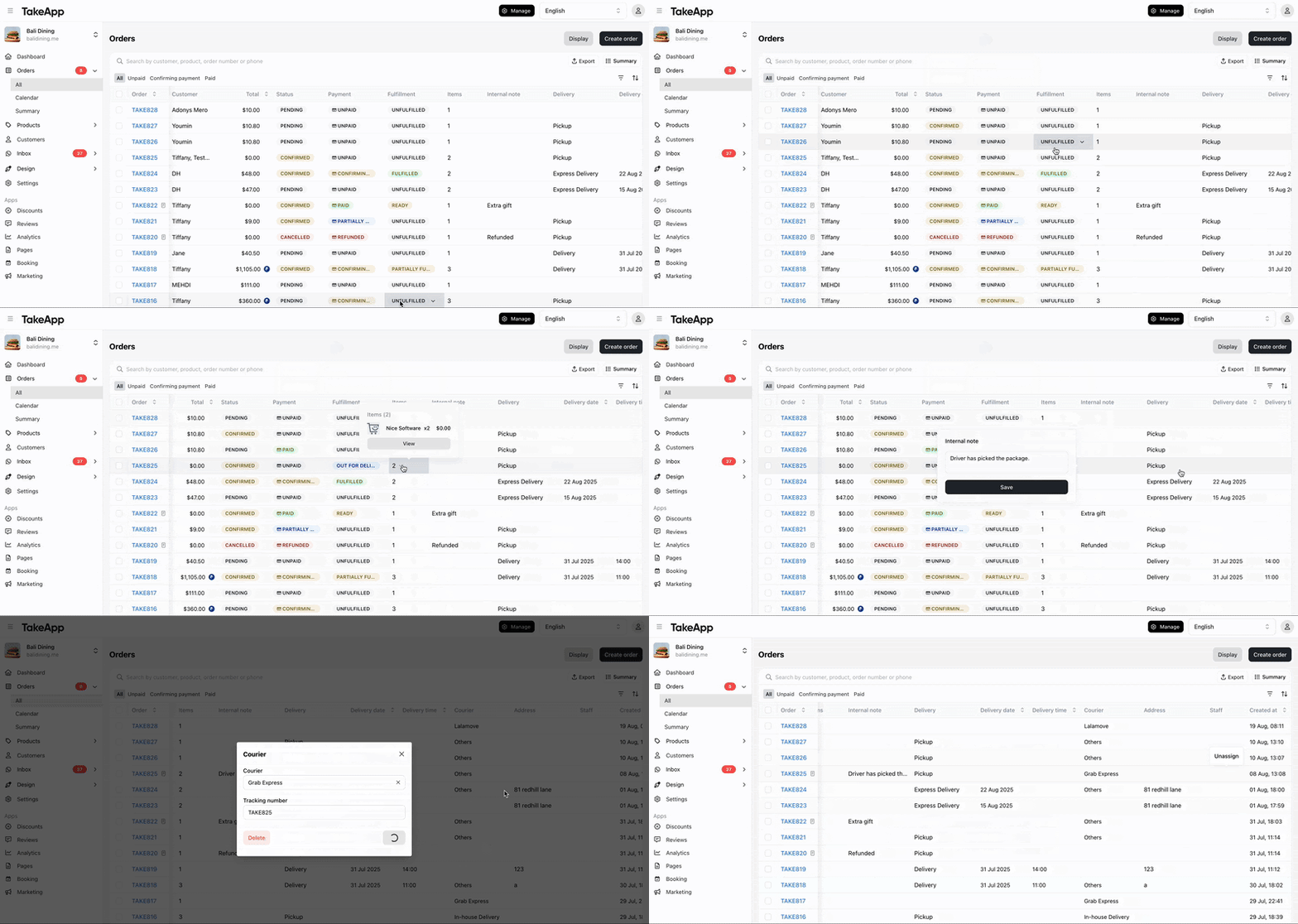
You can see your orders information and update it directly on the Orders > All page. Hover the mouse over a cell and make changes.
|
Editable columns |
Non-editable columns (hover to view details or click for more information) |
|---|---|
|
|
Edit from Order Detail Page
Click on an individual order to access the Order Details Page. From there, you can:
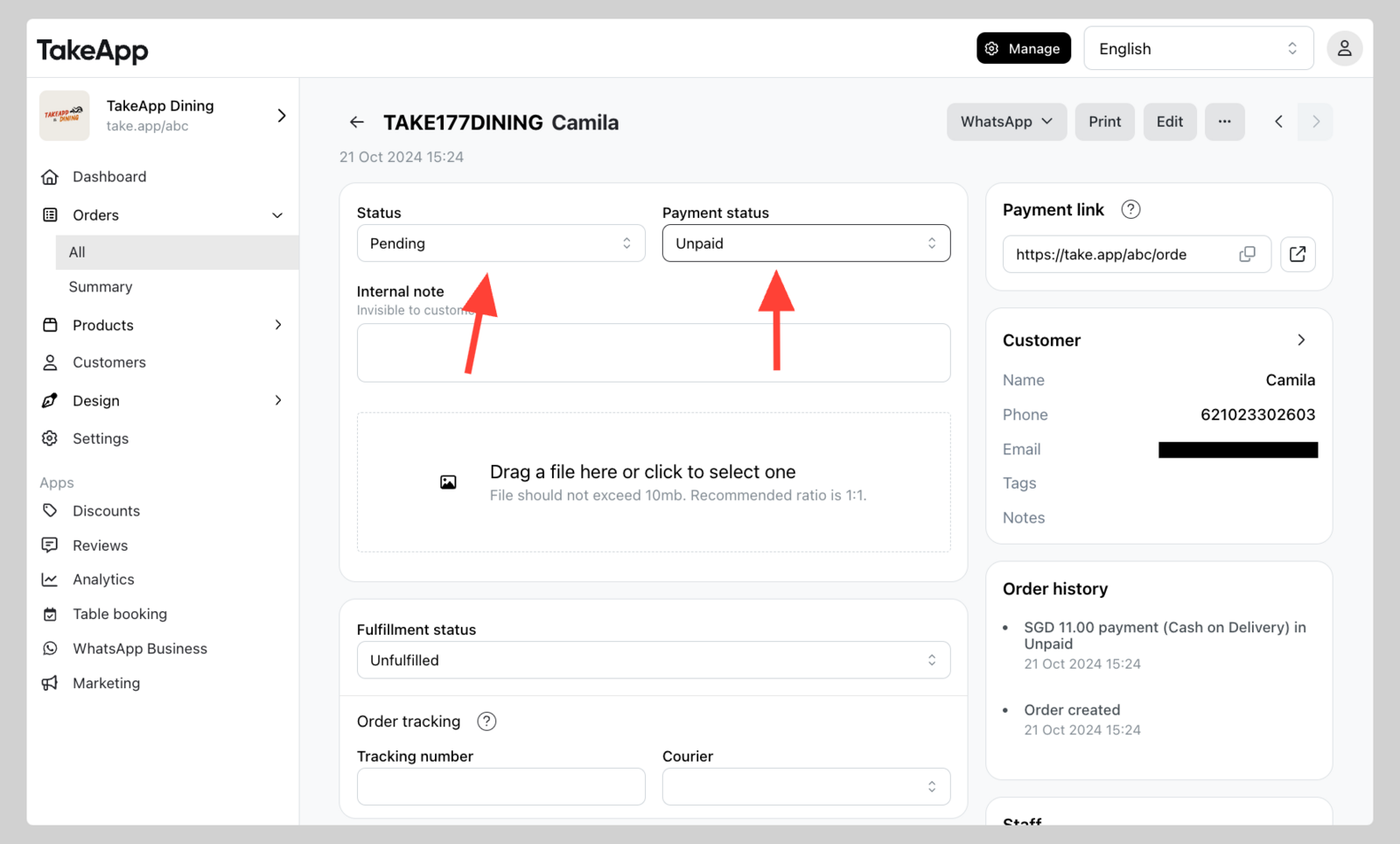
- Change order, payment, or fulfillment status
- Edit, delete, or duplicate the order
- Send the customer their order details via WhatsApp
- Print order details or a packing slip
- Assign staff to the order
- Add an order tracking number
- Add internal notes and files
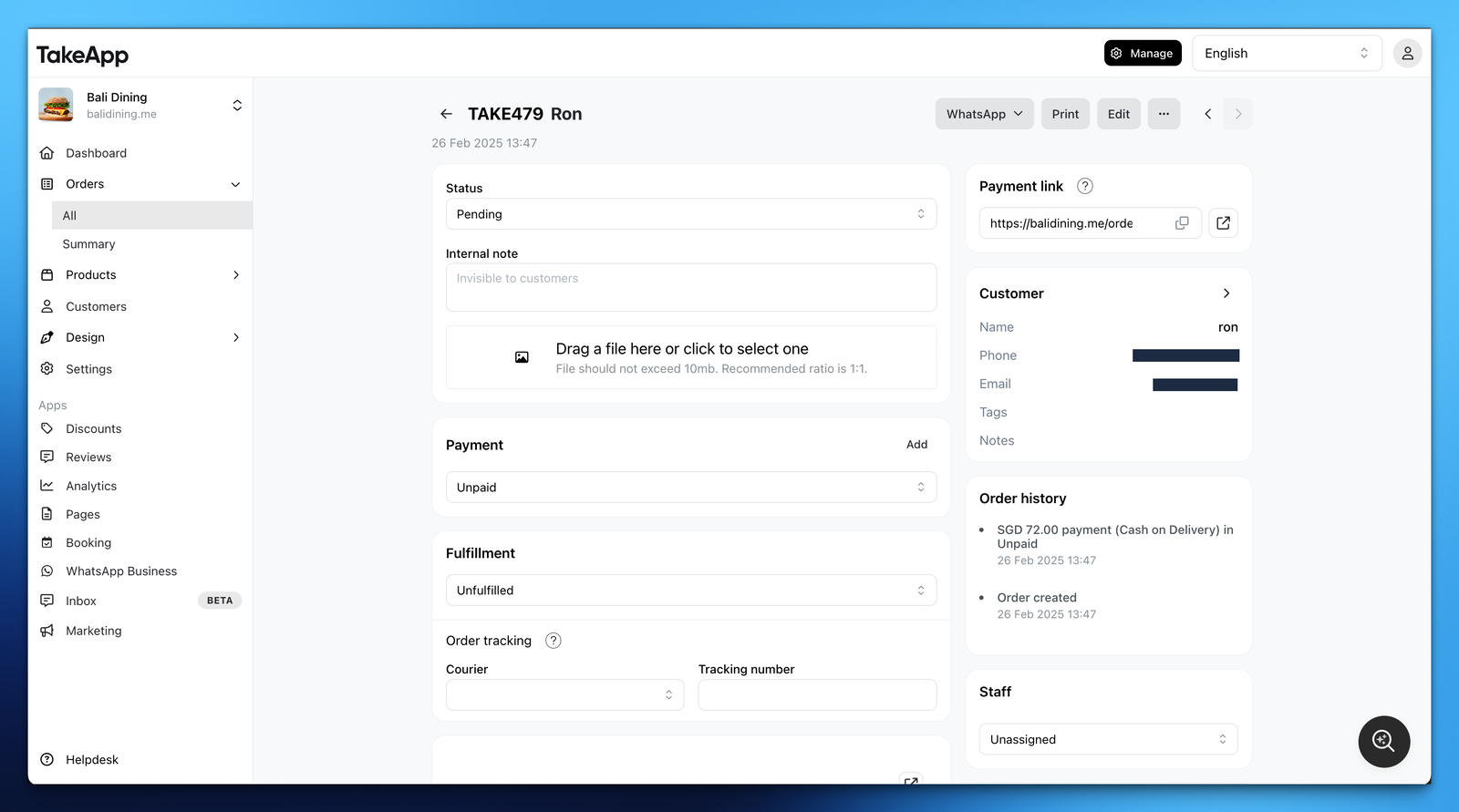
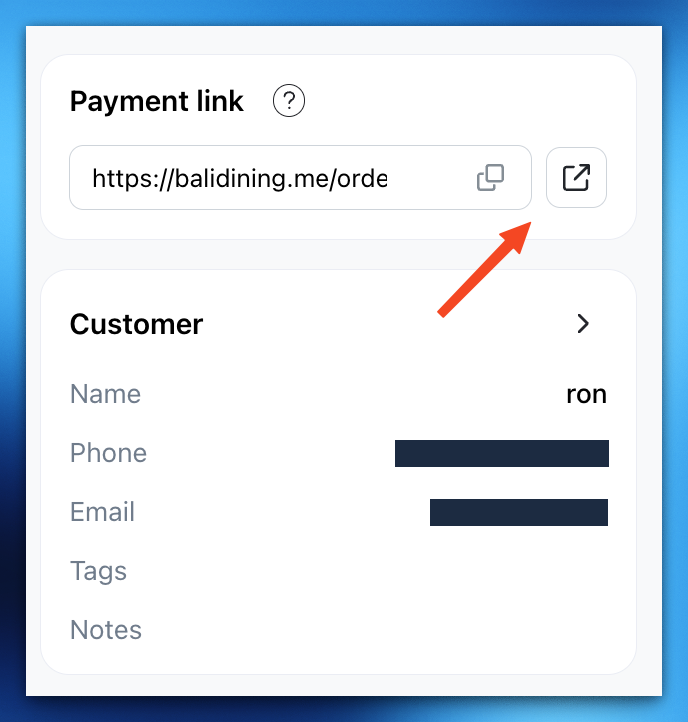
You can also copy and share a payment link with your customer. The link shows the payment methods they can pay with.
Status Definitions
Order Status
- Draft – Order recorded but not activated yet, and hidden from the list until you select the
Drafttab. See Draft orders - Pending – Order received but not yet confirmed
- Confirmed – Order confirmed by the seller
- Completed – Order fulfilled and closed
- Cancelled – Order canceled by seller or customer
Payment Status
- Unpaid – No payment received
- Confirming payment – Customer clicked "I have paid" for manual payment
- Partially paid – Partial payment received
- Paid – Full payment received
- Refunded – Payment has been refunded
When you change an order's payment status to Paid or Partially paid on the order page, a window asks you to add the payment details: Amount (filled in with the balance still owed when you mark it Paid), Payment method (Cash unless you pick another) and Date. Click Confirm to record the payment, so it counts in amount paid and shows in Daily closing. Click Skip to change only the status without recording a payment.
Fulfillment Status
- Unfulfilled – Order has not been prepared or shipped
- Ready – Order is ready for pickup or delivery
- Out for delivery – Order is on the way
- Fulfilled – Order delivered or picked up
Automatic vs Manual Payments
- When customer completes payment in automatic payment, the payment status will be changed to
Paidand order status will be change toConfirmed. - When customers click "I have paid" in manual payment payment status will be changed to
Confirming paymentand order status is still inPending.
Hotkeys in Admin Orders Dashboard
Manage orders even faster with these keyboard shortcuts:
- Cmd + → / ←: Go to next / previous order
- Cmd + M: Open WhatsApp or Inbox
- Cmd + P: Print order
- Cmd + ⌫ (Backspace): Cancel order
- Cmd + I: View invoice
- Cmd + E: Edit order