
The Customers page includes filters to help you segment your customer base — such as Minimum & Maximum Total Orders to find your most loyal customers, and Birthday Month to find customers celebrating that month.
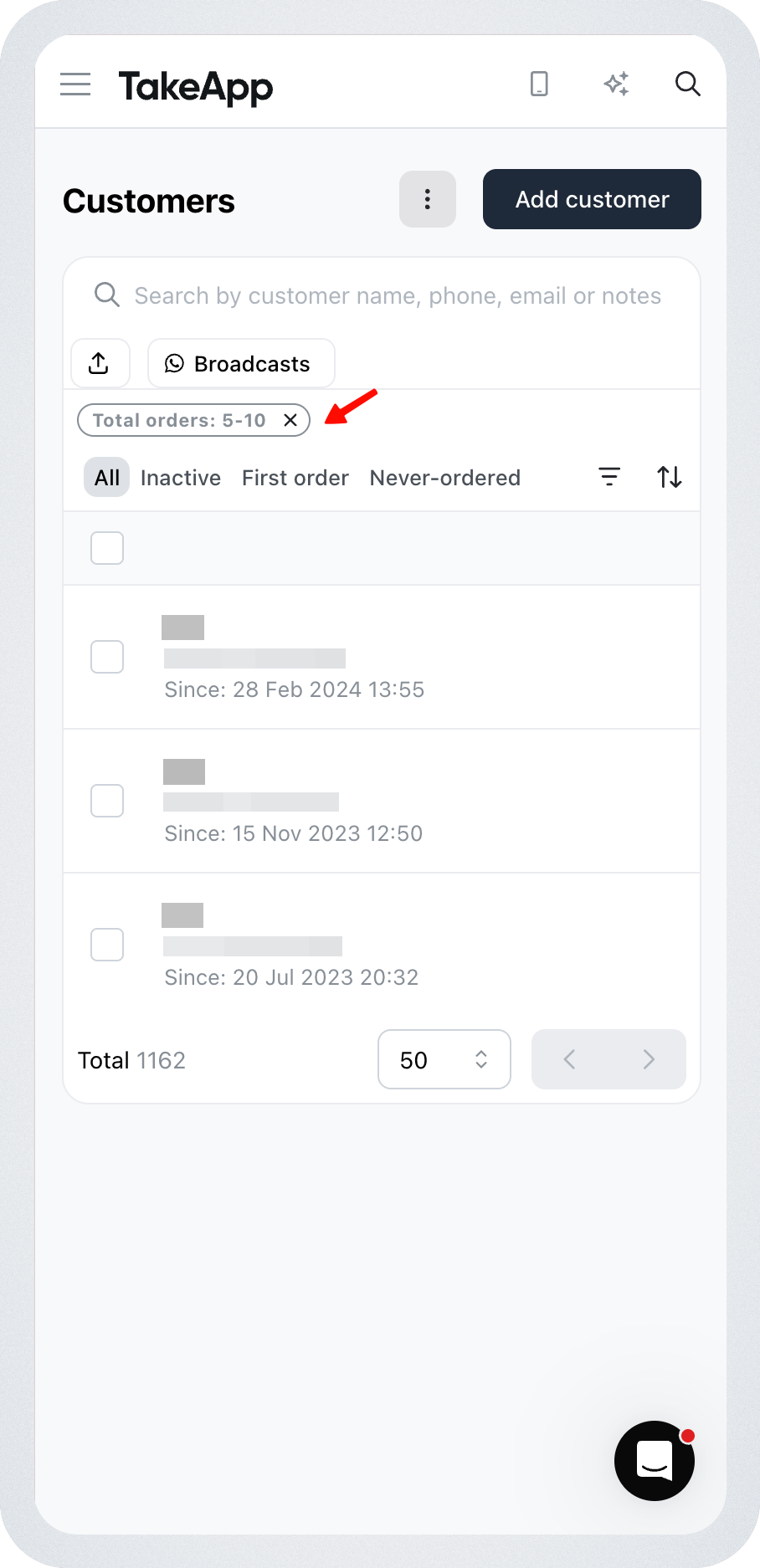
How to use the Total Orders filter
- Go to the Customers page in your Take App dashboard
- Click the Filter button
- Select Total Orders
- Enter a minimum number (e.g. 5 to find customers with 5+ orders)
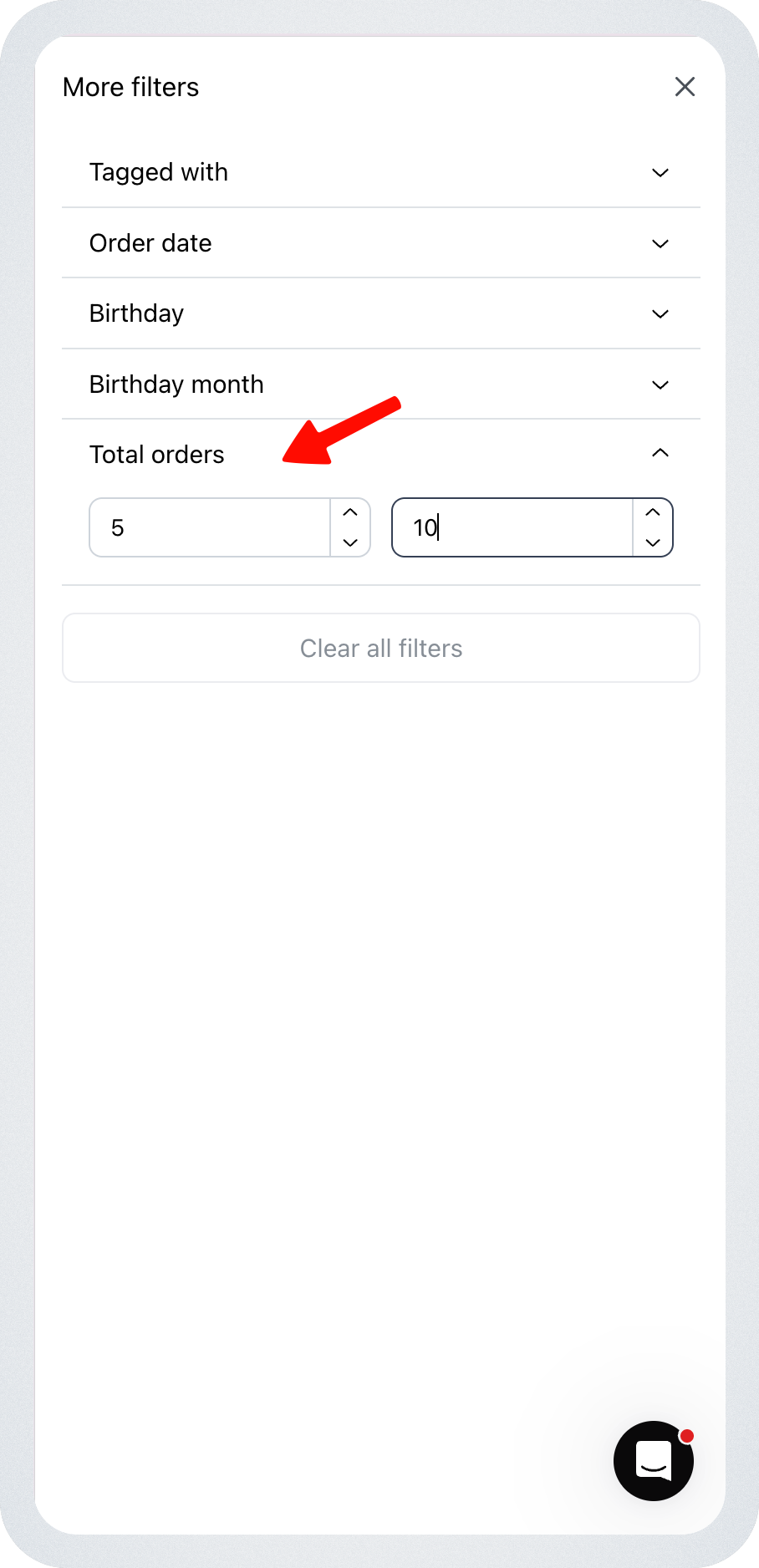
Note: This is a minimum filter only — it returns all customers at or above the number you enter. There is no maximum or range option.
How orders are counted
The count follows the same logic used in Customer Details and Analytics:
- Counted: Pending, Confirmed, and Fulfilled orders
- Not counted: Draft or Cancelled orders (payment status is ignored)
If you've applied a date range filter, only orders within that period count. Without a date filter, the customer's lifetime total is used.
Use cases
- Find VIP customers (5+ orders) to offer loyalty rewards
- Build a segment of repeat buyers for a targeted WhatsApp broadcast
- Tag high-frequency customers for priority handling
Birthday Month filter
You can also filter customers by Birthday Month to find everyone celebrating in a given month and send them a special offer.
- Go to the Customers page in your Take App dashboard
- Click the Filter button
- Select Birthday Month
- Choose the month you want to filter by
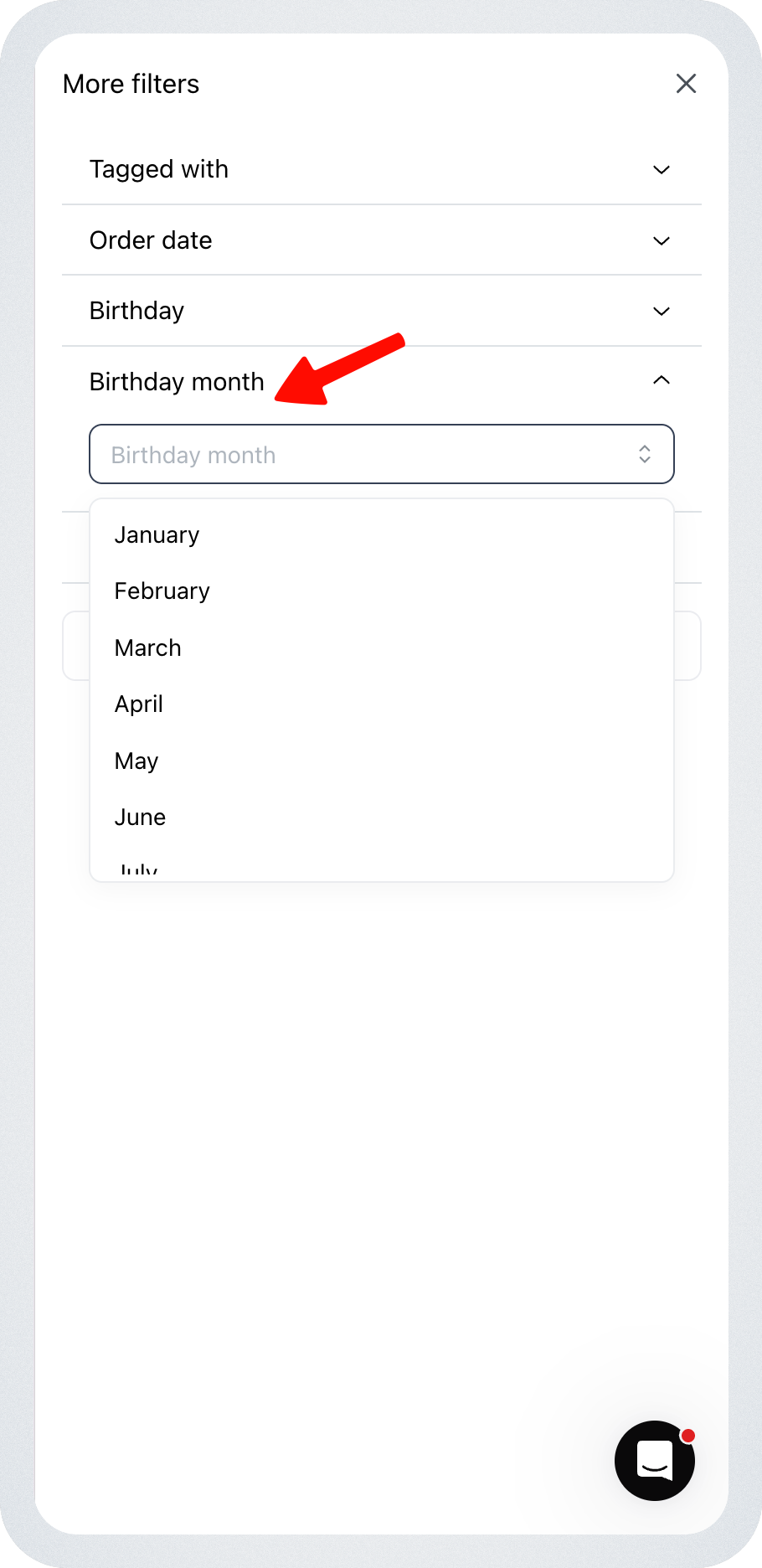
This only returns customers who have a birthday saved on their profile. Customers without a saved birthday won't appear in the results.