
Table view in POS
On a tablet, tapping a booking now lights up its table on the floor plan and opens a card with what that table has on today. The booking is one more tap — the same row again, or its line in the card.
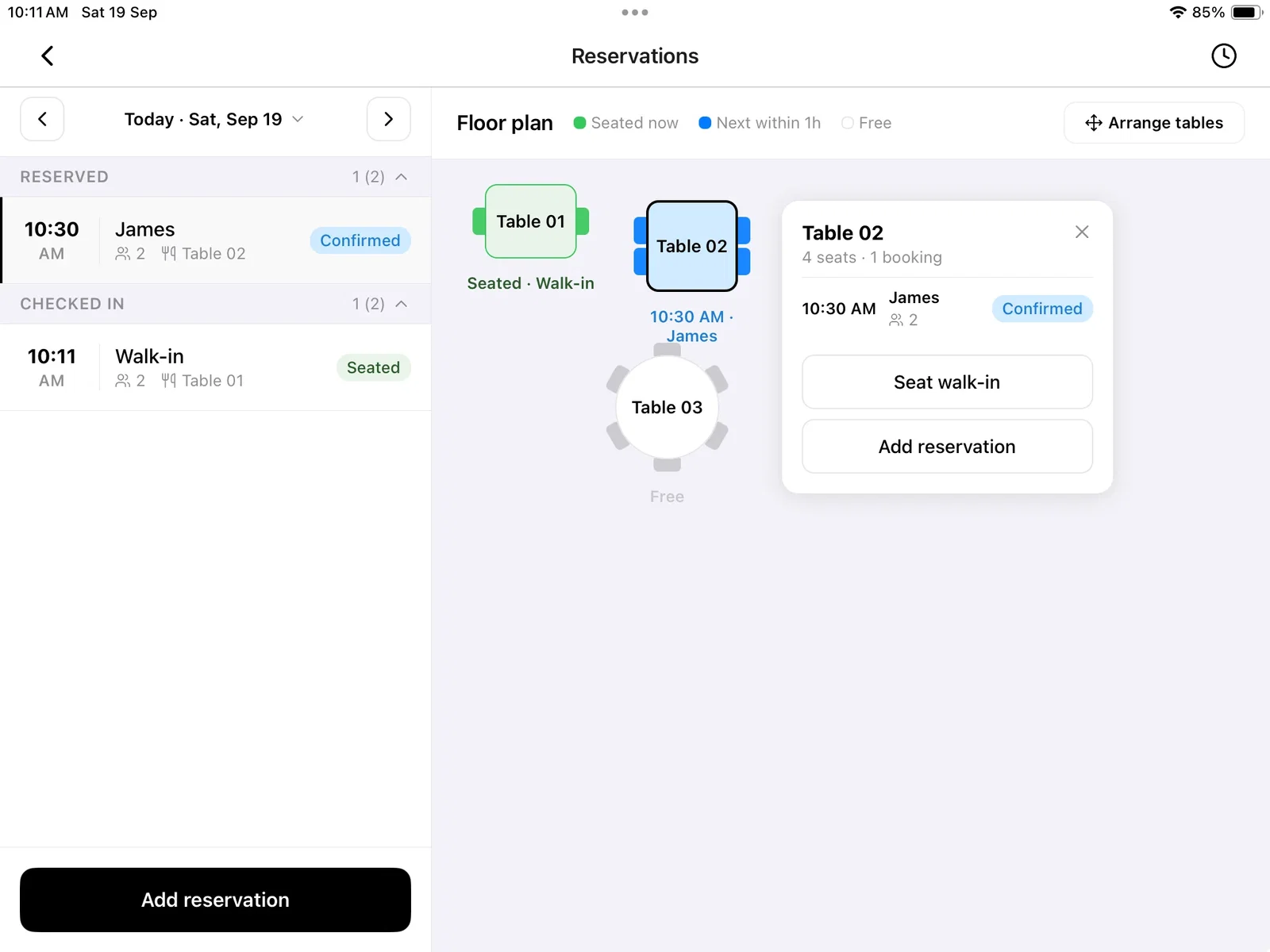
Seat walk-in on that card opens a booking already seated at the table, starting now, with no name or number needed. A booking taken ahead from the day list now requires both, so you can call the guest back.
Arrange tables is a full-screen page now: add a table, set its seats, delete one you've stopped using, and drag the rest — they snap to their neighbours with guide lines. On a phone, tapping a booking still opens it straight away.
Learn more about Reservations · Arrange the floor plan
Orders that print themselves
Leave one page open on the computer your printer is plugged into, and new orders print on their own. Open Orders, click the … menu and choose Auto print. Paid plans.
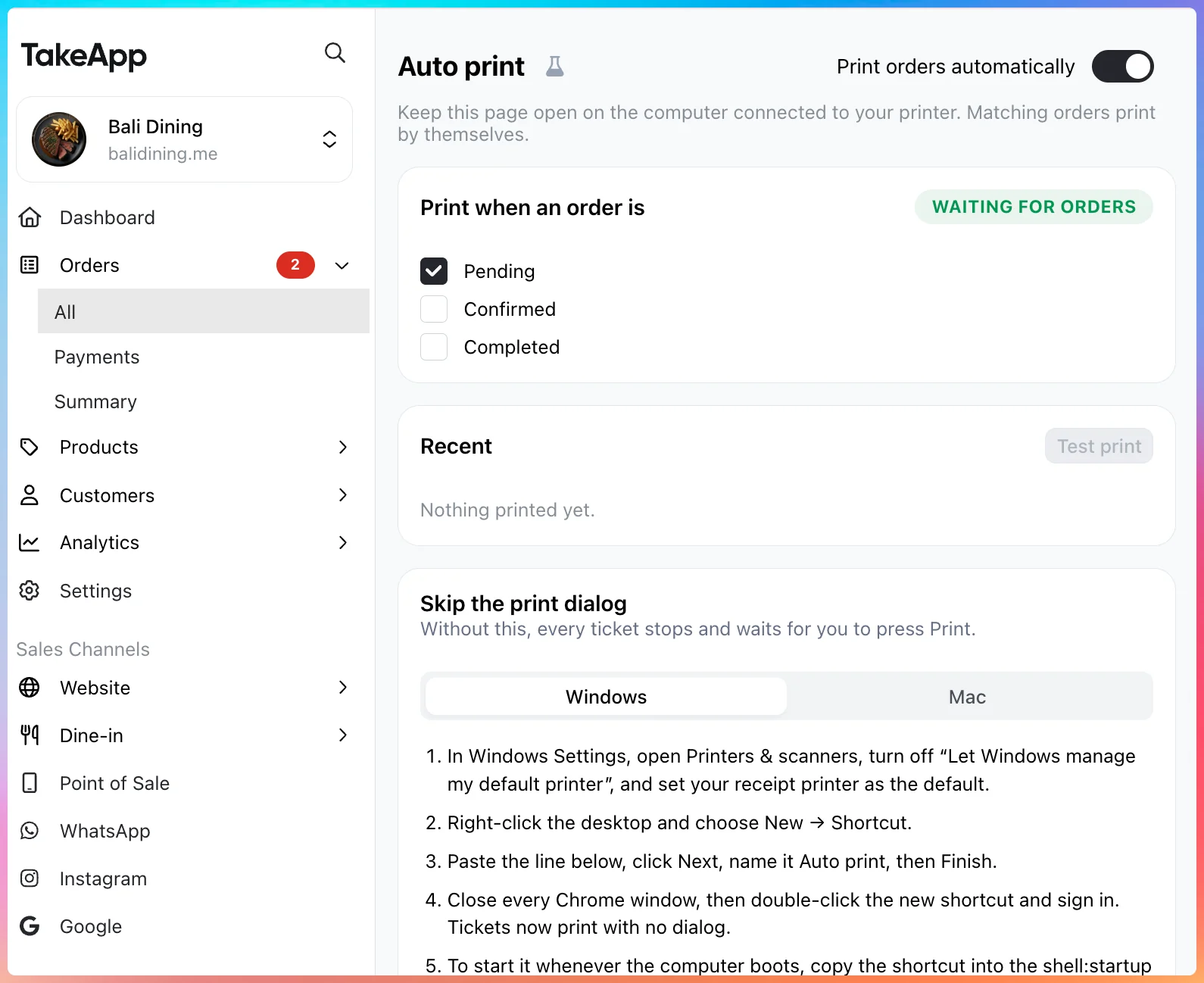
Pick the statuses worth a ticket — Pending, Confirmed, Completed — plus the template and documents you already use. Recent shows what printed, with Print again on each line. The page also carries the Windows and Mac steps for skipping the browser's print dialog, so tickets come off the roll with nothing to press.
Set stock from the product list
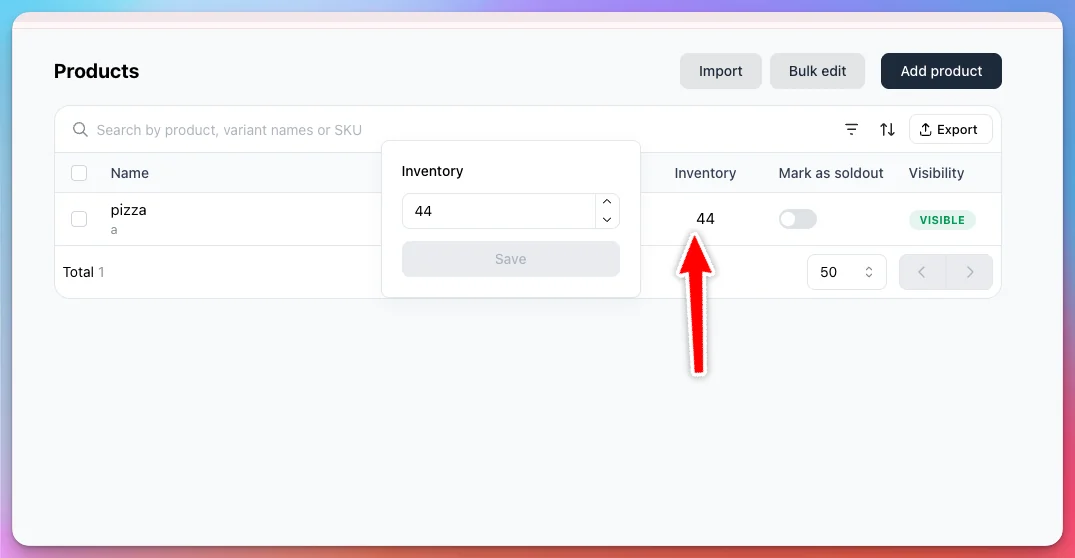
The Inventory column in Products is now editable. Click a number, type the new quantity — one field per variant — and save. Same inventory history and low-stock alert as the product page.
Learn more about products inventory
Workflows for new customers and birthdays
Settings > Workflow has a new Customer group with two triggers: New customer and Customer birthday.
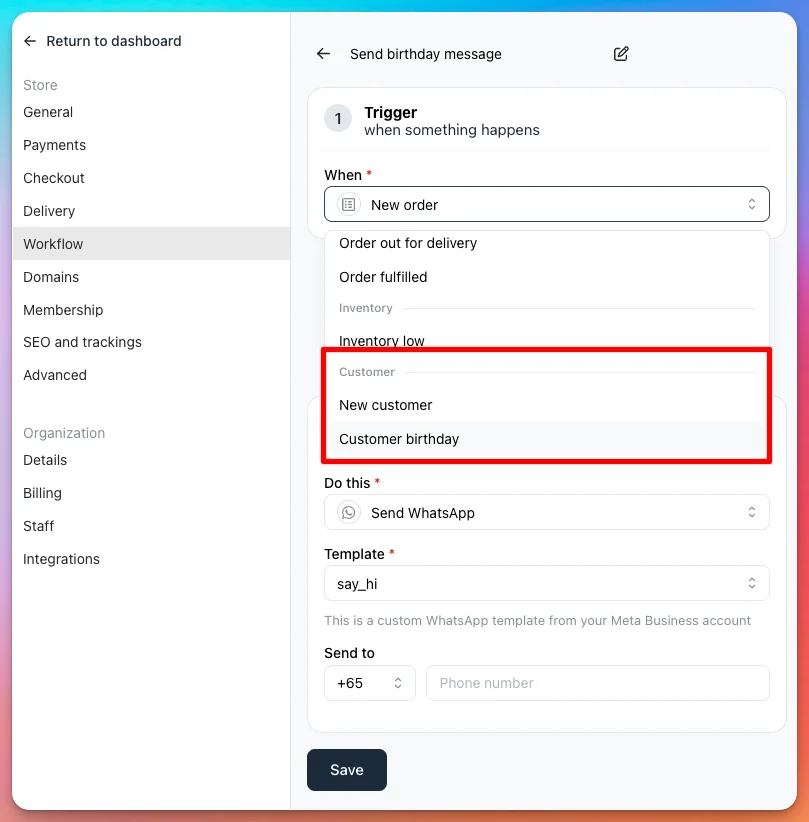
New customer fires however the customer got there — Admin, CSV import, the API, or your WhatsApp. Editing one later never re-fires it. Customer birthday runs alongside the built-in birthday reminder rather than replacing it.
There's no order behind either trigger, so both send your own approved Meta templates, using the customer's name, email and phone and your store's name and phone. With no delay set, the message goes about a minute after the event.
Learn more about creating a workflow · Use your own template
Know who's sitting at the table
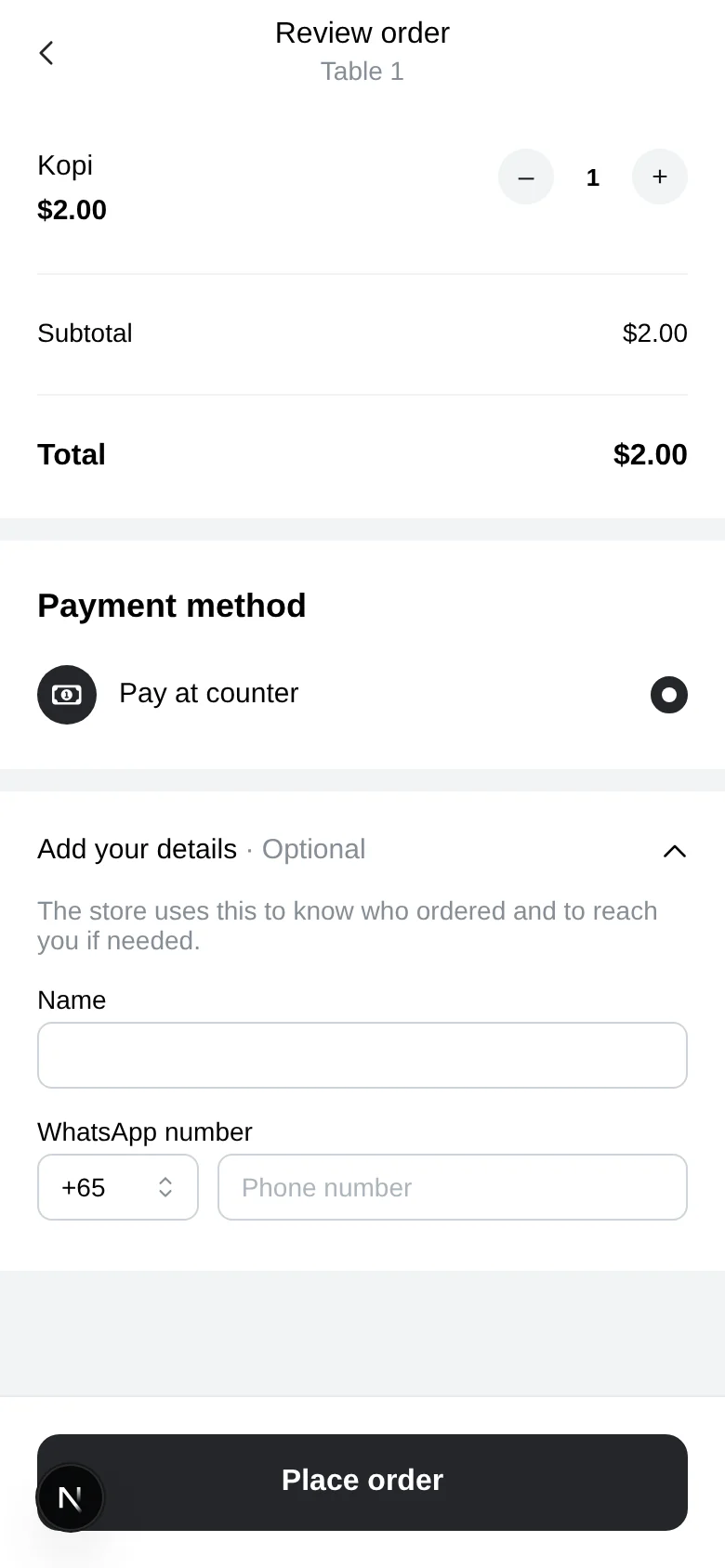
A diner scanning a table QR can now leave a name and WhatsApp number. Add your details sits on the review screen, closed by default and optional, so ordering anonymously is still one tap.
Learn more about dine-in and table QR ordering
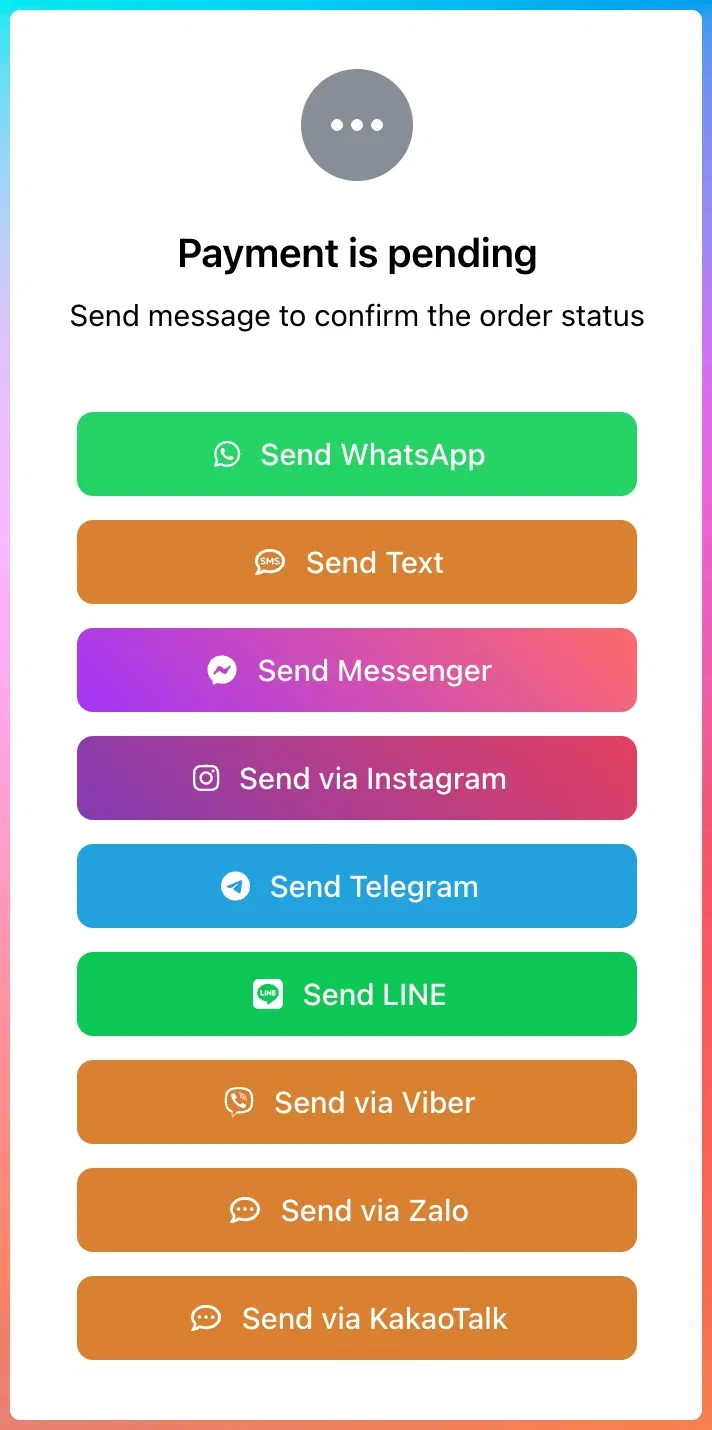
WeChat, Viber, Zalo and KakaoTalk at checkout
Four more buttons for the page after checkout, in Settings > Checkout, beside WhatsApp, Text, Messenger, Instagram, Telegram, LINE and Email.
Learn more about order message buttons
Customers can find their own referral link
The storefront account page now has a Refer friends card with the reward, the link ready to copy and a share button. Until now the only way someone got their link was for you to copy it out of Admin > Customers. Turn it on with referral rewards in Settings > Membership.
Learn more about referral rewards
Others
- Invoice emails now carry the invoice itself — items, totals, customer and delivery — not just a link to it.
- Customers can attach a PDF receipt as payment proof. A PDF used to kill the whole WhatsApp order notification, so you lost the alert as well.
- A webhook endpoint failing for 24 hours is switched off and your organisation's owners emailed. Re-enable it in Settings > Integrations > Webhook.
- A product restricted to a delivery method you've since turned off no longer blocks checkout for the whole cart.
- Selcom checkout no longer fails on a customer's second payment.