
-
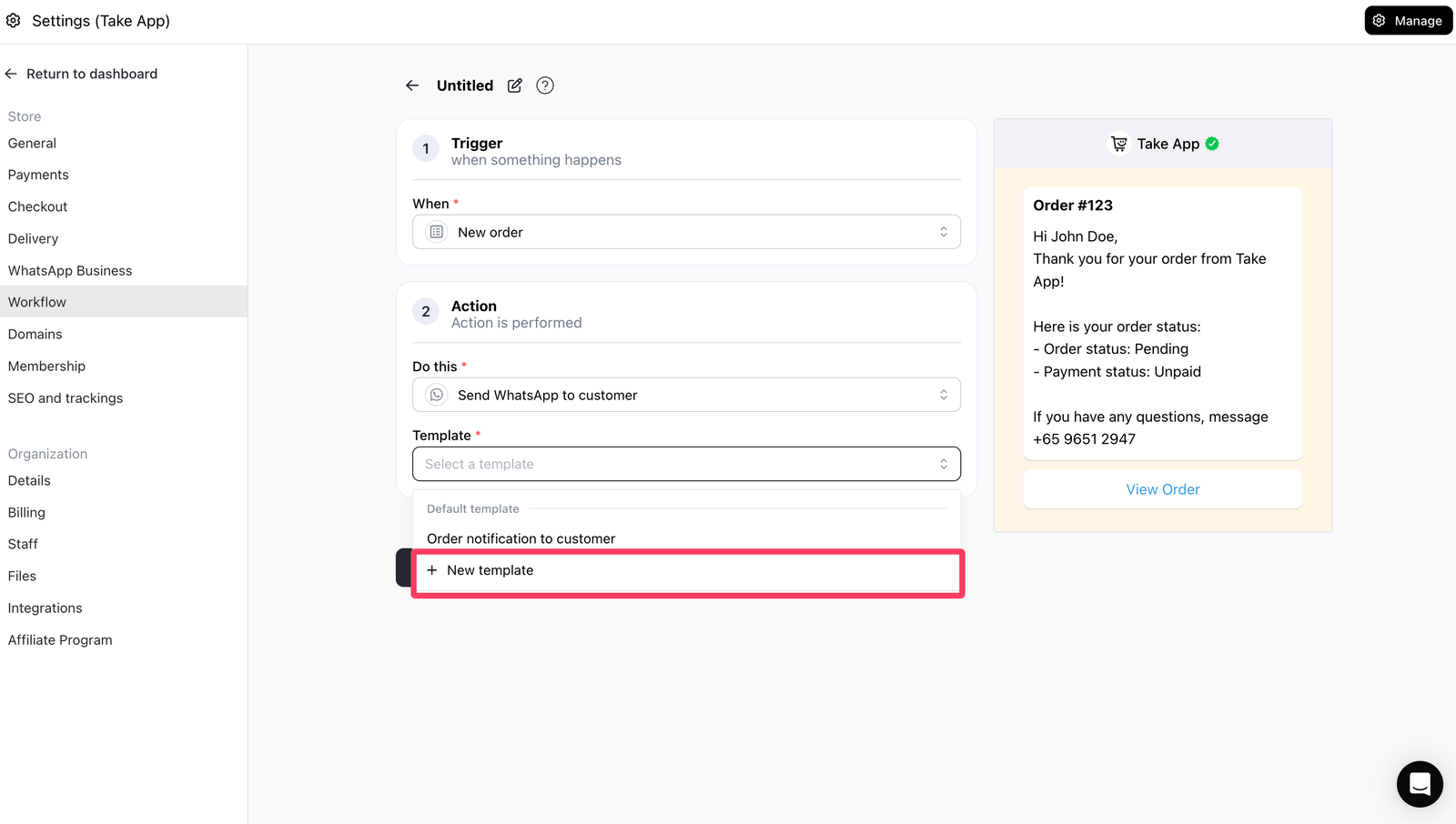
If you wish to use your own custom message template to send upon specific trigger in a workflow, click "New template" in the template selection in workflow detail page.
-
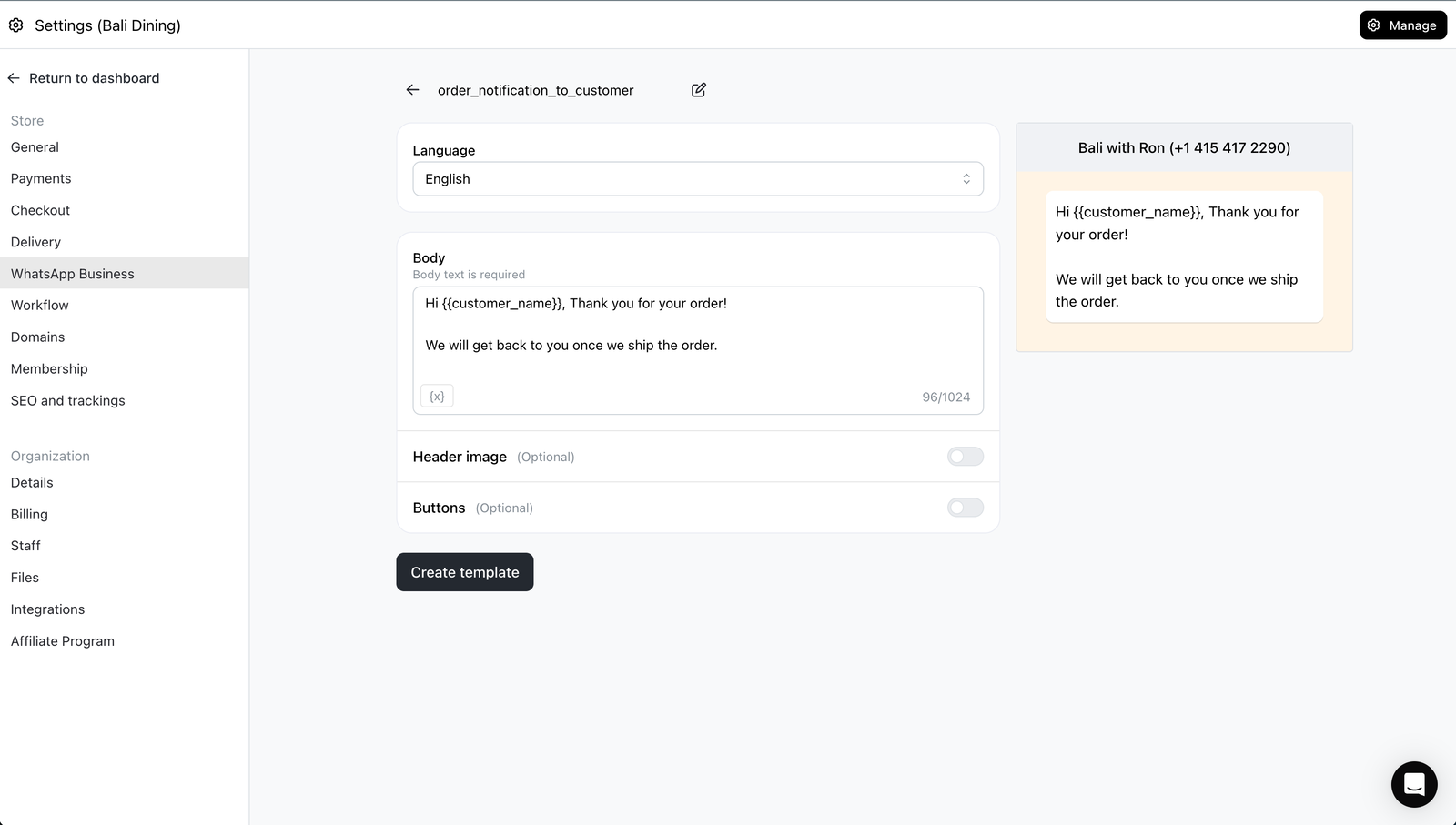
When clicked, template creation page will appear. Create a template, include variable like #{{customer_name}}, etc. Don't start or end the body with a variable; names are lowercase letters, numbers, and underscores only (e.g. {{customer_name}}). If Meta rejects it, the error on screen says why.
-
Finally, come back to workflow creation page and you will find the custom template (once Approved). This will be sent instead of default template set by Take App upon specific trigger and action.
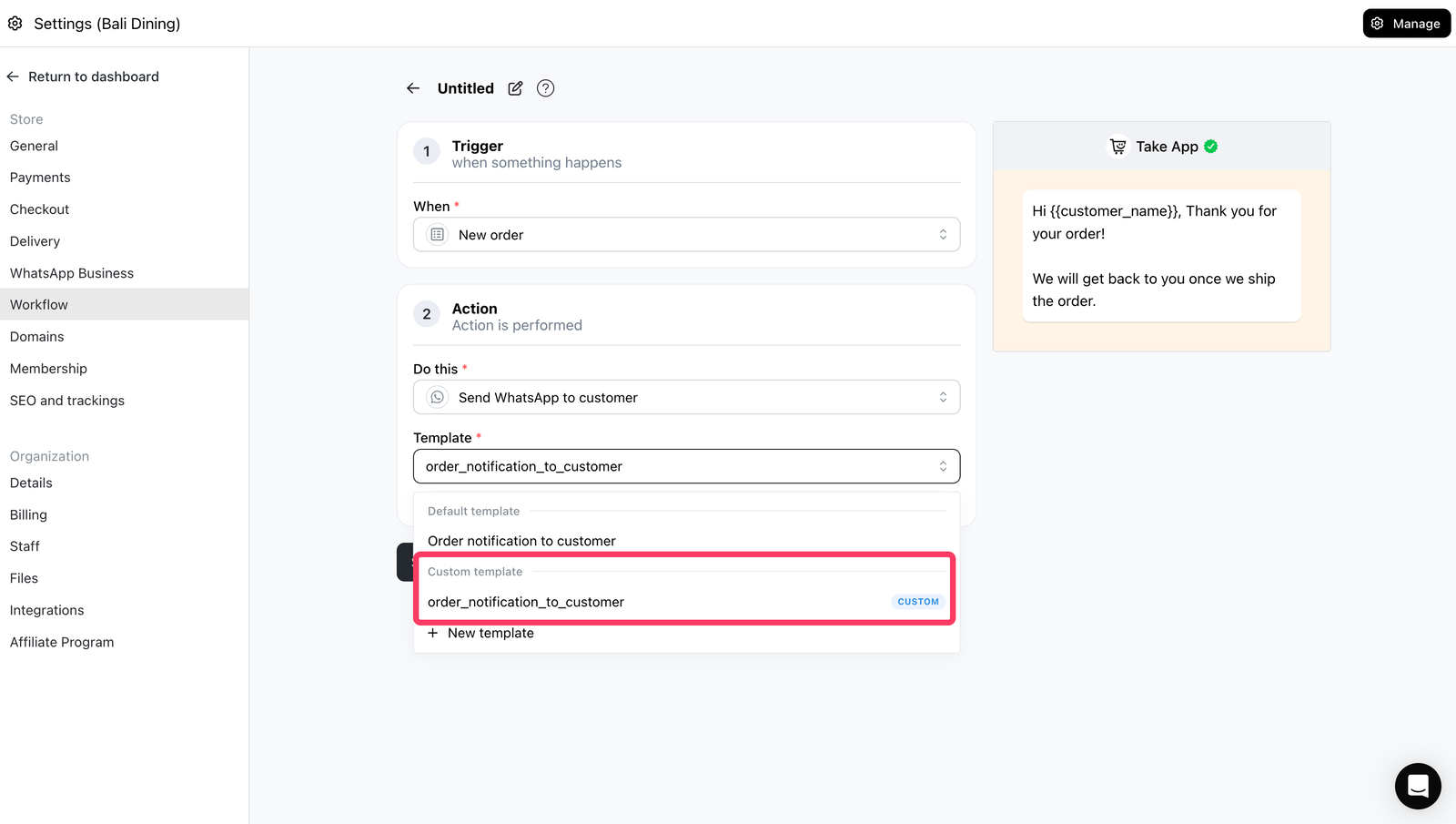
Custom Template in Workflow
Business plan required Compare plans