
Four weeks of updates since 26 September, in one post.
Agent works on your store for you
Open your dashboard and Agent is right there, under What should we work on? You can also click ? anywhere in Admin. Tell it what you need, and it checks with you before changing anything:
- Mark an order paid, completed or cancelled
- Mark several products sold out, or back in stock
- List what's sold out or running low
- Find regulars who've stopped ordering, and draft a WhatsApp to each
- Write a payment reminder or an order update for a customer
- Look up a customer's orders and spending
- Check your store setup and suggest what to do next
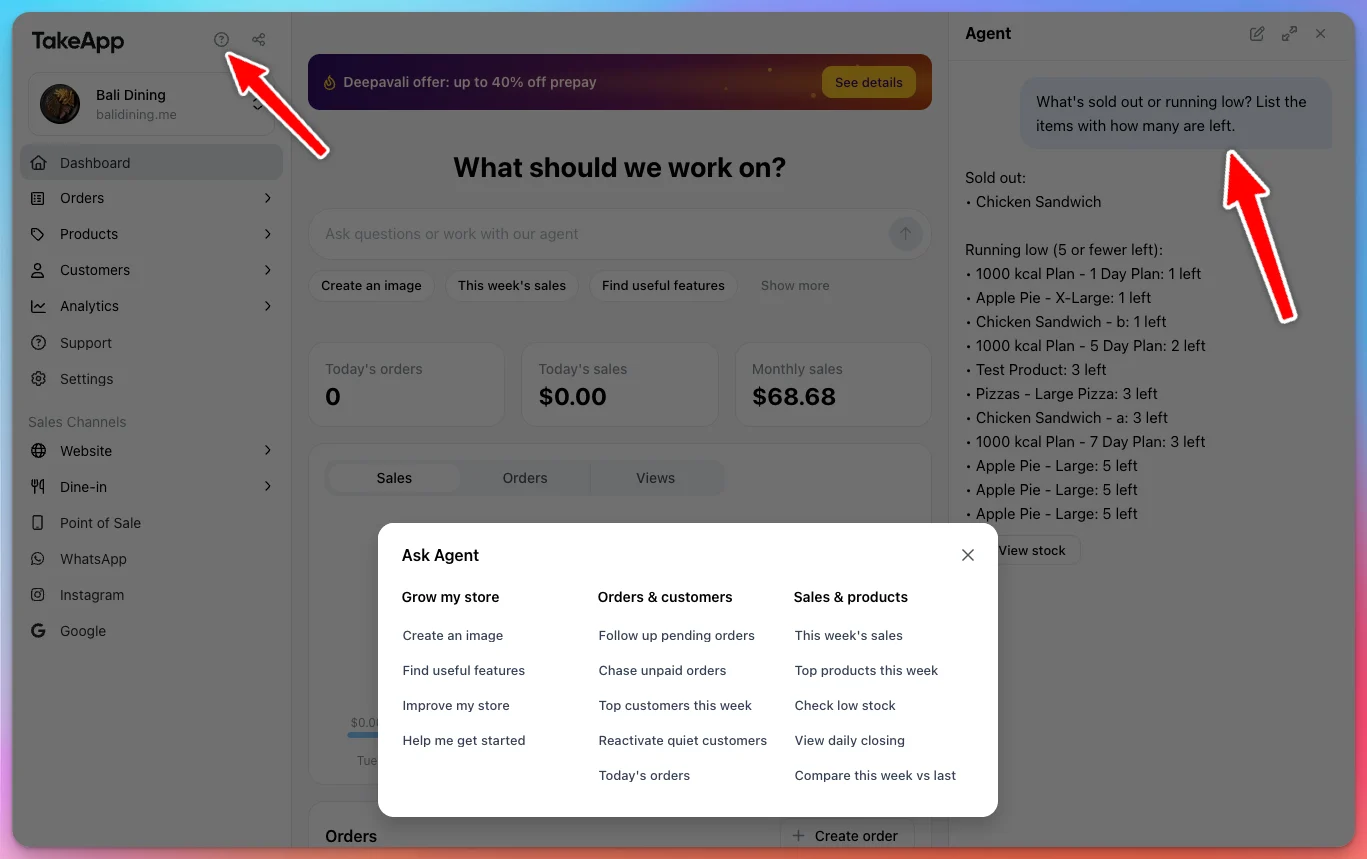
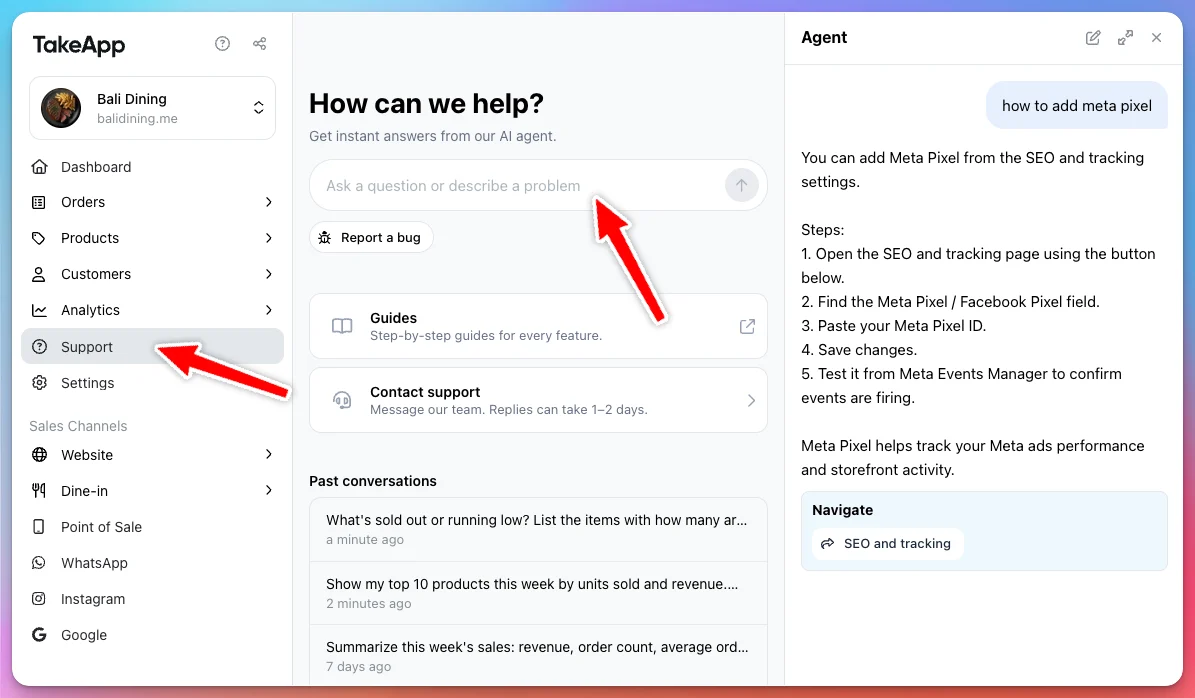
Support starts here too. The new Support page in the sidebar has Contact support and your past conversations. Agent and AI images are on every plan, with 50 uses in any 24 hours on Basic and Essential, and 200 on Business.
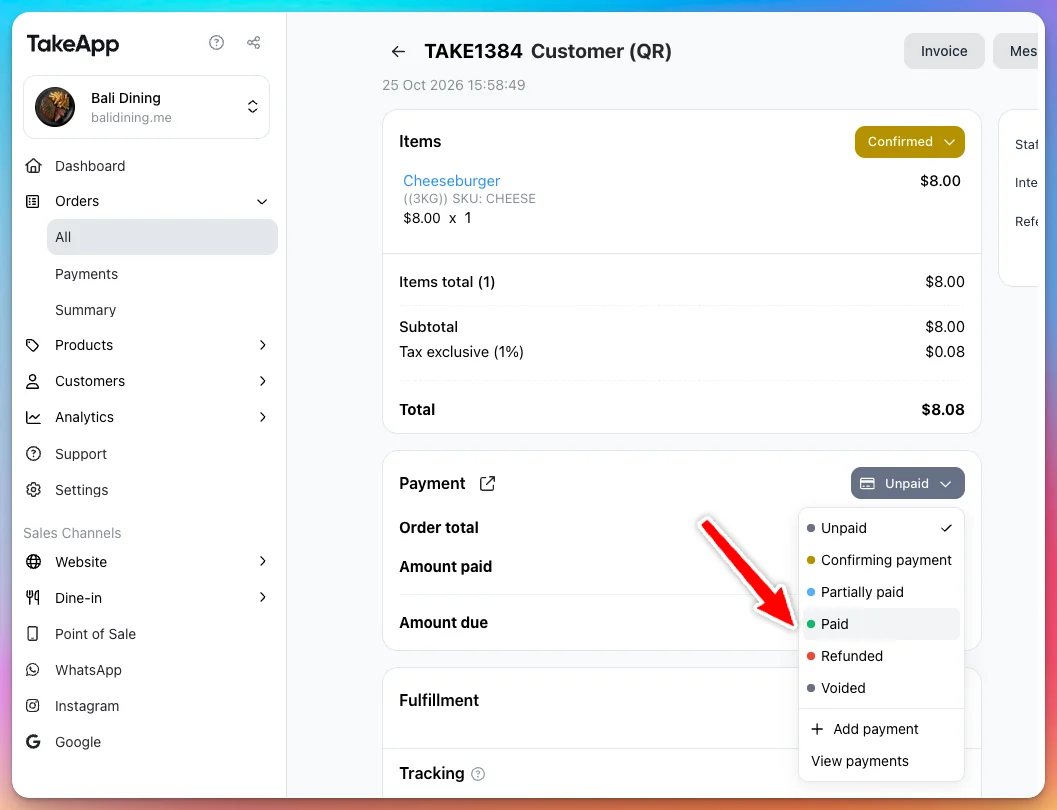
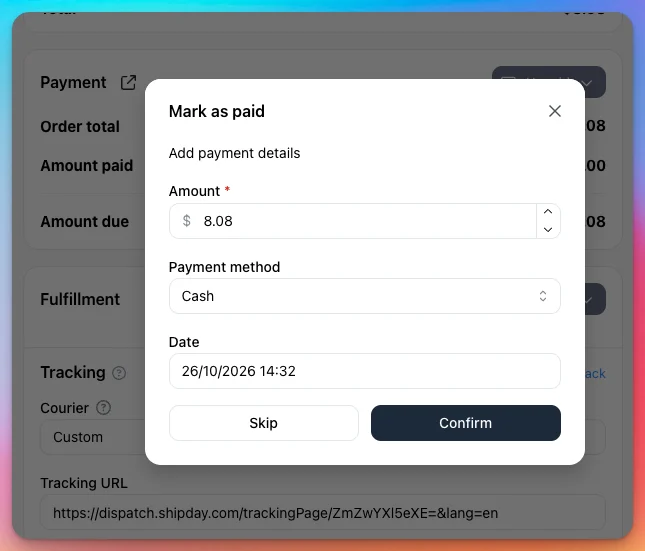
Mark an order paid, and the payment is recorded
Switching an order to Paid, or choosing Mark as partially paid, now asks for the payment details, with the balance filled in and Cash as the method. Confirm, and the money counts in Analytics > Daily closing and on the order's balance. Until now only the status changed, so cash taken this way never reached your closing report. Skip changes the status alone, as before.
Learn more about managing orders
Block a table, and run the floor from your tablet
In the Take App mobile app, Block table takes a table out of service, for a private event or a repair, so it can't be booked online. On a tablet, you can also drag a booking to another table, and check guests in and out right from the floor plan.
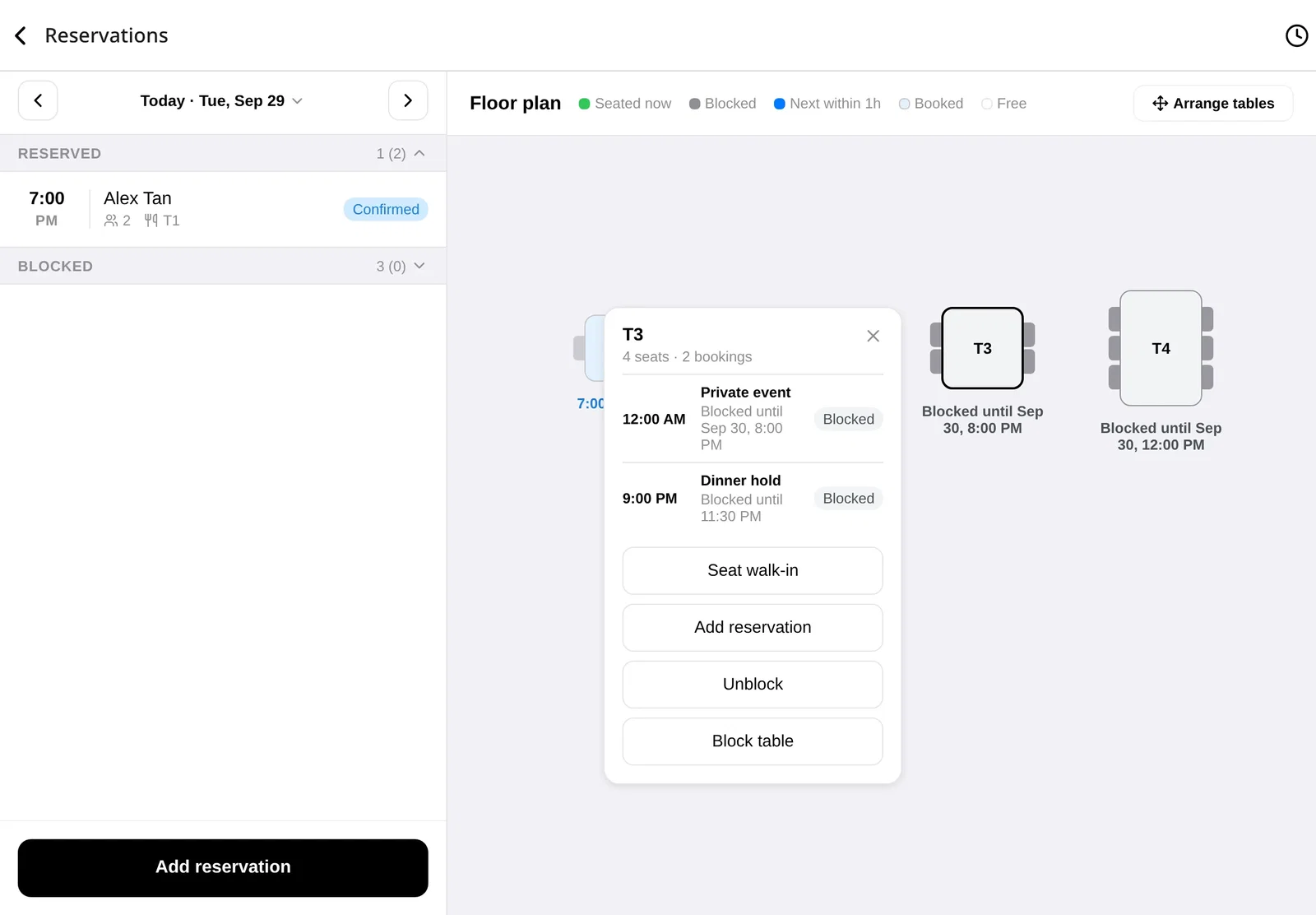
Learn more about Reservations · Arrange the floor plan
WhatsApp bot and Inbox replies now count towards your usage
This is about chats only: the replies you send from Inbox, and the messages a bot sends while chatting with customers on your WhatsApp. Order notifications, payment reminders and other workflow messages haven't changed, and count exactly as before.
Since 1 October, Meta charges businesses for these replies, called service messages, and gives each WhatsApp number 1,000 free a month. This is Meta's change. We only pass on what Meta charges us, and charged replies count towards your WhatsApp quota:
- On Take App's official WhatsApp account, every reply counts. Meta's free allowance is per number, and that number is shared by every store.
- With your own WhatsApp Business account connected, Meta's 1,000 free replies on your number are respected, and only the ones after that count.
Analytics > Usage now shows WhatsApp templates and WhatsApp service messages separately.
Learn more about the WhatsApp quota
Save money with prepay billing
Pay for 3, 6 or 12 months of your plan up front, and you pay less than you would month by month. The longer you pay ahead, the more you save. Go to Settings > Billing and choose Pay for more months. Pay the invoice by card, or scan a QR code with your banking app: PayNow, DuitNow, QRPH or UPI.
You can start a plan this way from the free plan. Moving up from Essential to Business? The unused part of your current Essential month goes to your prepaid balance. Overdue invoices open the same page, so you can settle those by QR too.
Learn more about paying for your subscription
Put the date in your order numbers
Order numbers can now show when the order was placed. In Settings > Checkout, under Order number, add {year}, {yy}, {month} or {date} to the prefix or suffix. A prefix of {yy}{month}- turns order 7, placed in March 2026, into 2603-7.
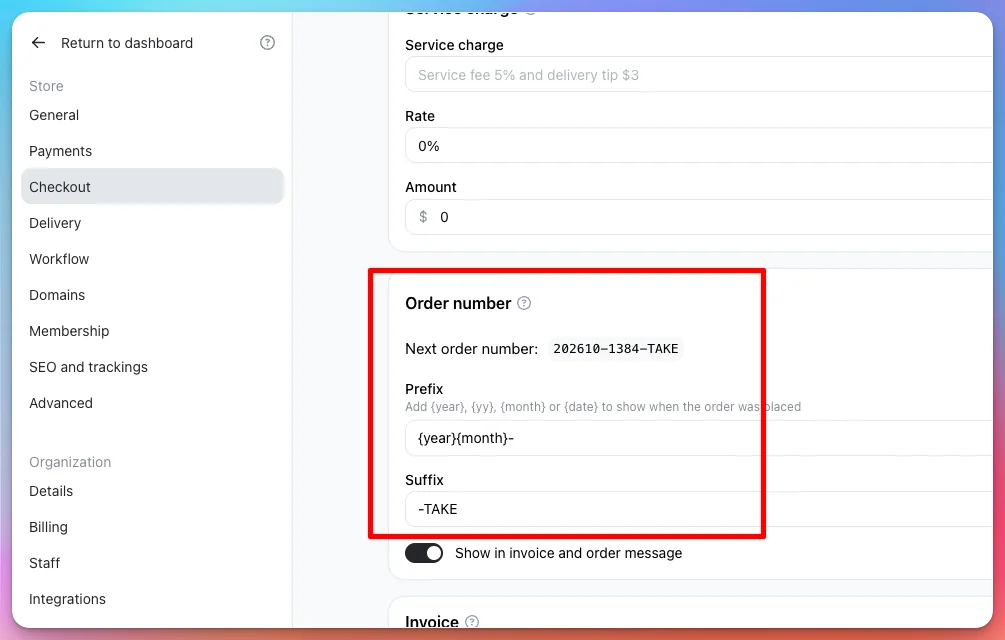
Learn more about order numbers
See what your stock is worth
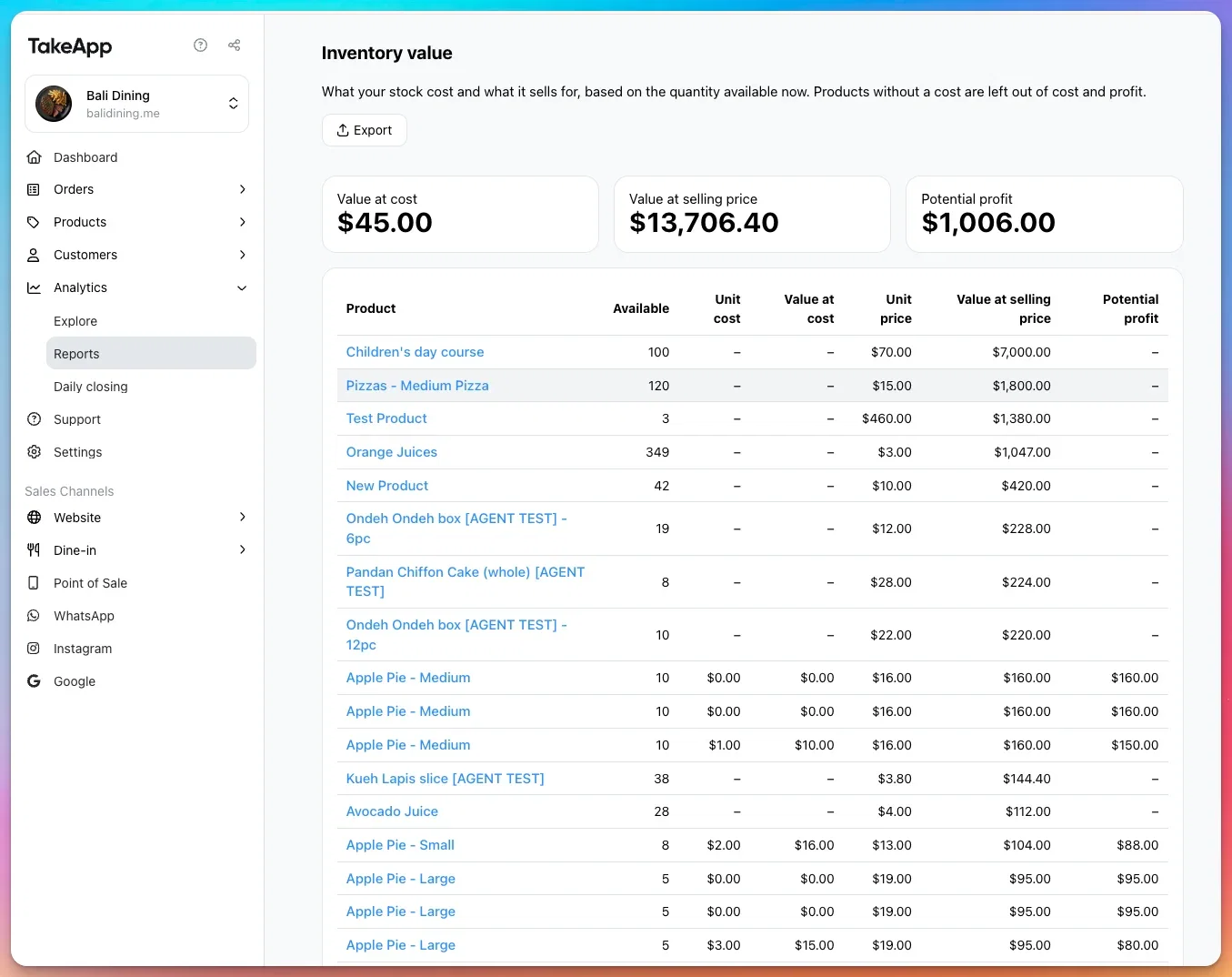
Analytics > Reports has a new Inventory value report. It shows what your stock on hand cost you, what it sells for, and the profit in between. Products without a cost price are left out of the cost and profit. Reports are now grouped into Sales, Customers, Products and Marketing, and several have clearer names. For example, Products by inventory is now Stock levels.
Take orders from Google Maps
Customers who find you on Google Maps or Search can now order straight from your listing. Click Google in the Admin sidebar, open Maps ordering and Connect Google with the account that manages your Business Profile. Choose your listing, then turn on the buttons you want on it: Order online, Order delivery, Order pickup, Shop online, or your store link as the listing's Website.
The buttons follow your store, so changing your store link or adding a custom domain updates them on Google. A new link can take a few days to show up.
Learn more about Google Maps ordering
New ways to get paid
- Khalti and eSewa now confirm payments automatically, the first automated checkout for stores in Nepal.
- WiPay brings automated checkout to Trinidad and Tobago, Jamaica, Barbados, Guyana and Grenada, and Wam to Trinidad and Tobago.
- Geidea is open to stores in Saudi Arabia, Egypt, the UAE and Qatar.
- KakaoPay for Korea: add your KakaoPay transfer link and customers pay in the app.
Add them in Settings > Payments. Automated checkout needs the Business plan.
When you set up a manual payment method, a Customer preview now shows the payment screen beside the form, so you can scan your own QR before a customer does.
For developers: API changes
- Breaking: list requests with
?page=now return400. Paginate withcursorandnext_cursorinstead.pagenever worked and always returned the first page. Each API key is also limited to 600 requests a minute. Above that, you get429with aRetry-Afterheader. - Record, correct and list an order's payments through
/orders/{id}/paymentsor the MCP tools. Orders now includeamount_paidandamount_due. - Create an order with a delivery address.
- Orders and order webhooks now include the dine-in
table.
Others
- The website editor previews your changes as you make them, before you save.
- Customers paying by QR get a Download QR code button, so they can open it from their banking app.
- In the mobile app: Analytics under Settings, Write with AI for product descriptions, and Customers has moved into Settings.
- The mobile app's keypad is gone. Use Custom item for a quick amount-only sale.
- Guests who book a table are saved to Customers, like the people who order.
- Table Booking retired on 30 September. Old booking links now open your Reservations page.
- Generating AI photos for many products at once is retired. You can still generate one product at a time.