
Uber Direct is Uber's on-demand delivery service for businesses. Once it is connected, you can dispatch a courier for any order from the order page, and let Uber Direct quote the delivery fee for your customer at checkout.
How to connect Uber Direct
You will need an Uber Direct account first. In the Uber Direct dashboard, open the Developer tab and copy your Client ID, Customer ID and Client Secret.
- Go to Dashboard > Settings > Integrations
- Choose Uber Direct
- Paste in your Client ID, Customer ID and Client Secret
- Click
Add
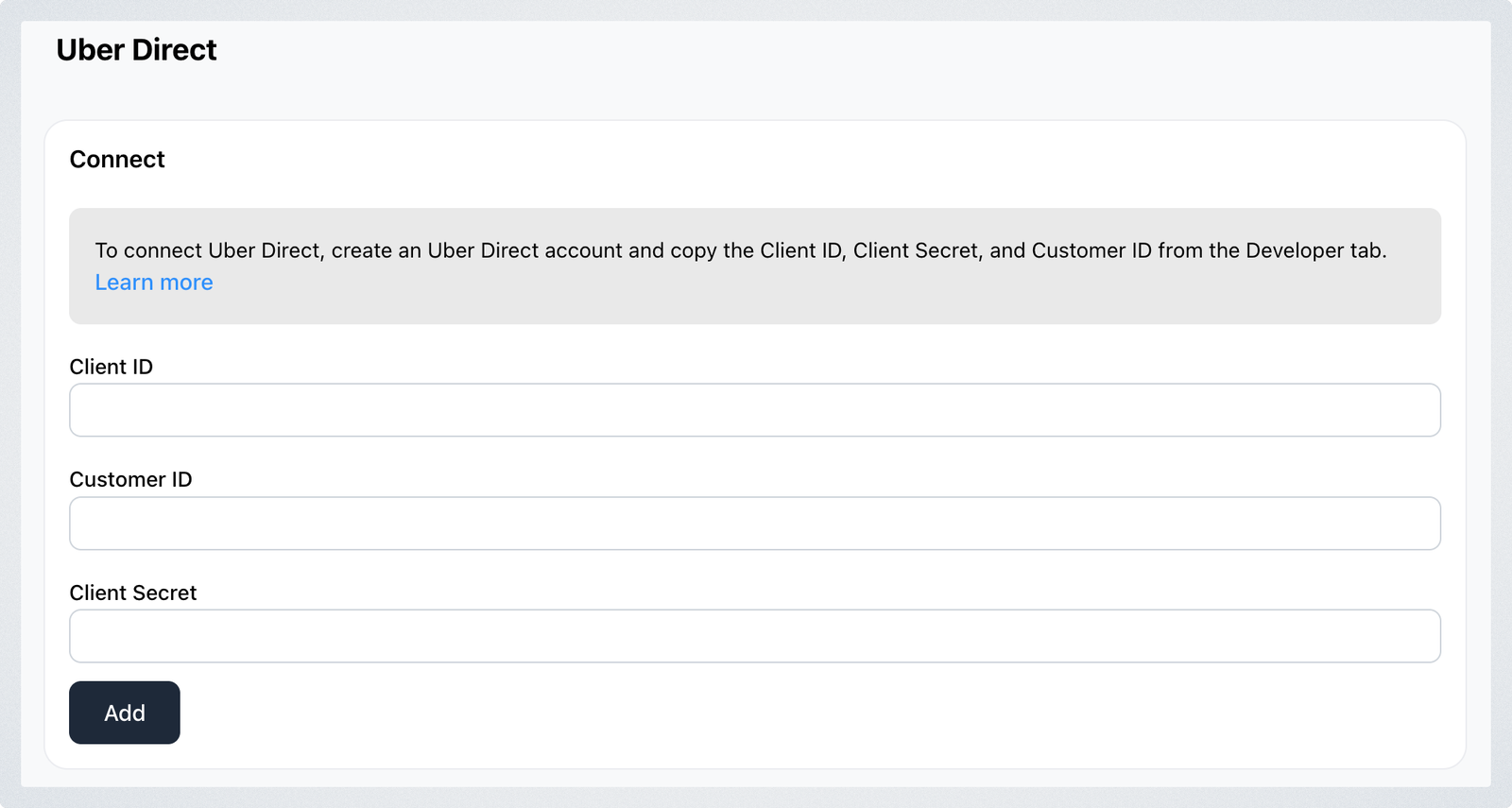
Use your production credentials. Uber Direct's sandbox keys are for testing and will not dispatch a real courier.
How to send an order with Uber Direct
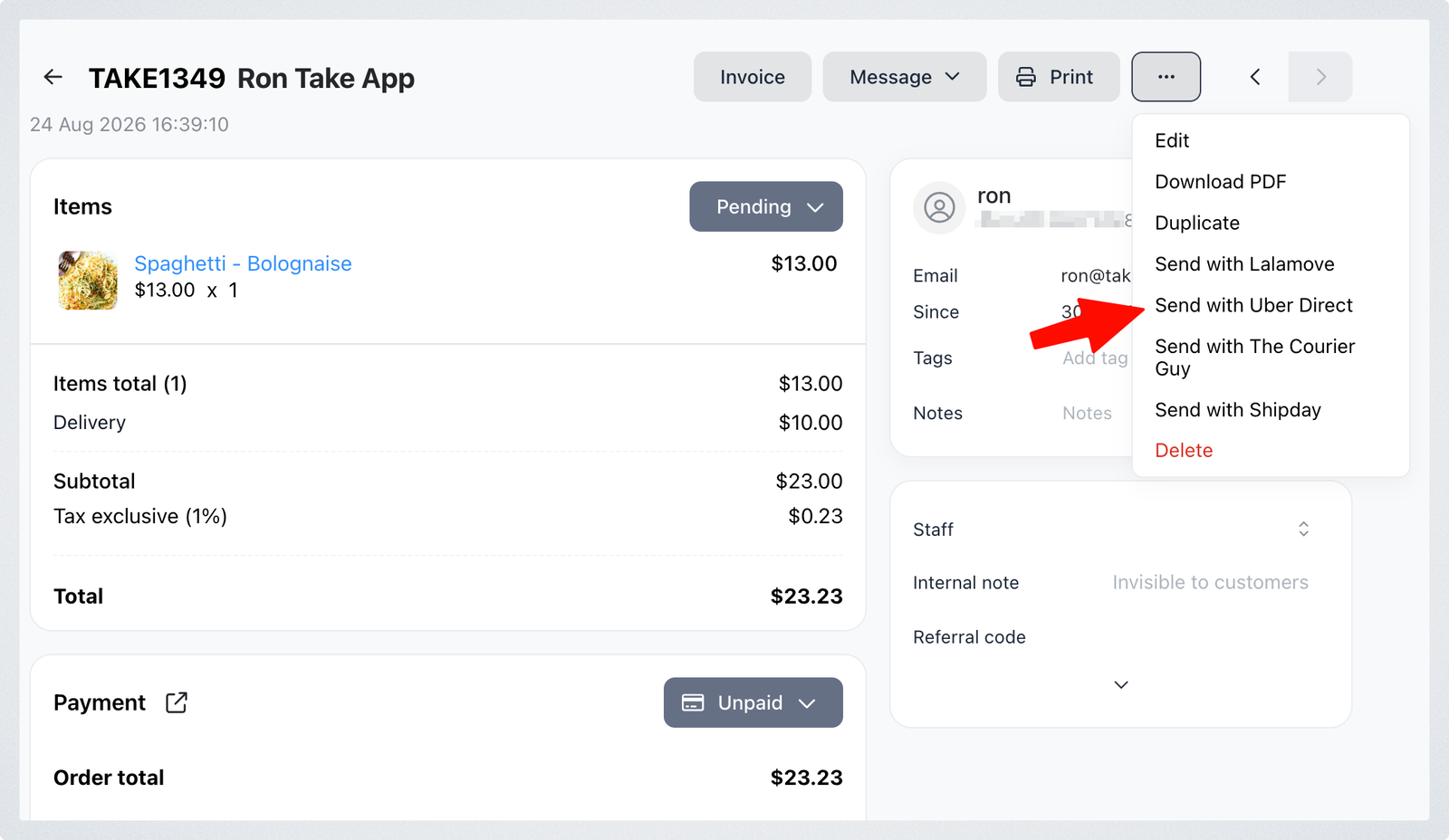
- Go to Orders and open the order you want to fulfill
- Click the
...button in the top right and choose Send with Uber Direct
- Check the recipient name and phone number, and verify the pickup and drop-off addresses. Click
Editto correct an address - Add a Note to your Driver if the courier needs directions, a unit number or a handover instruction
- Click
Get Quotation
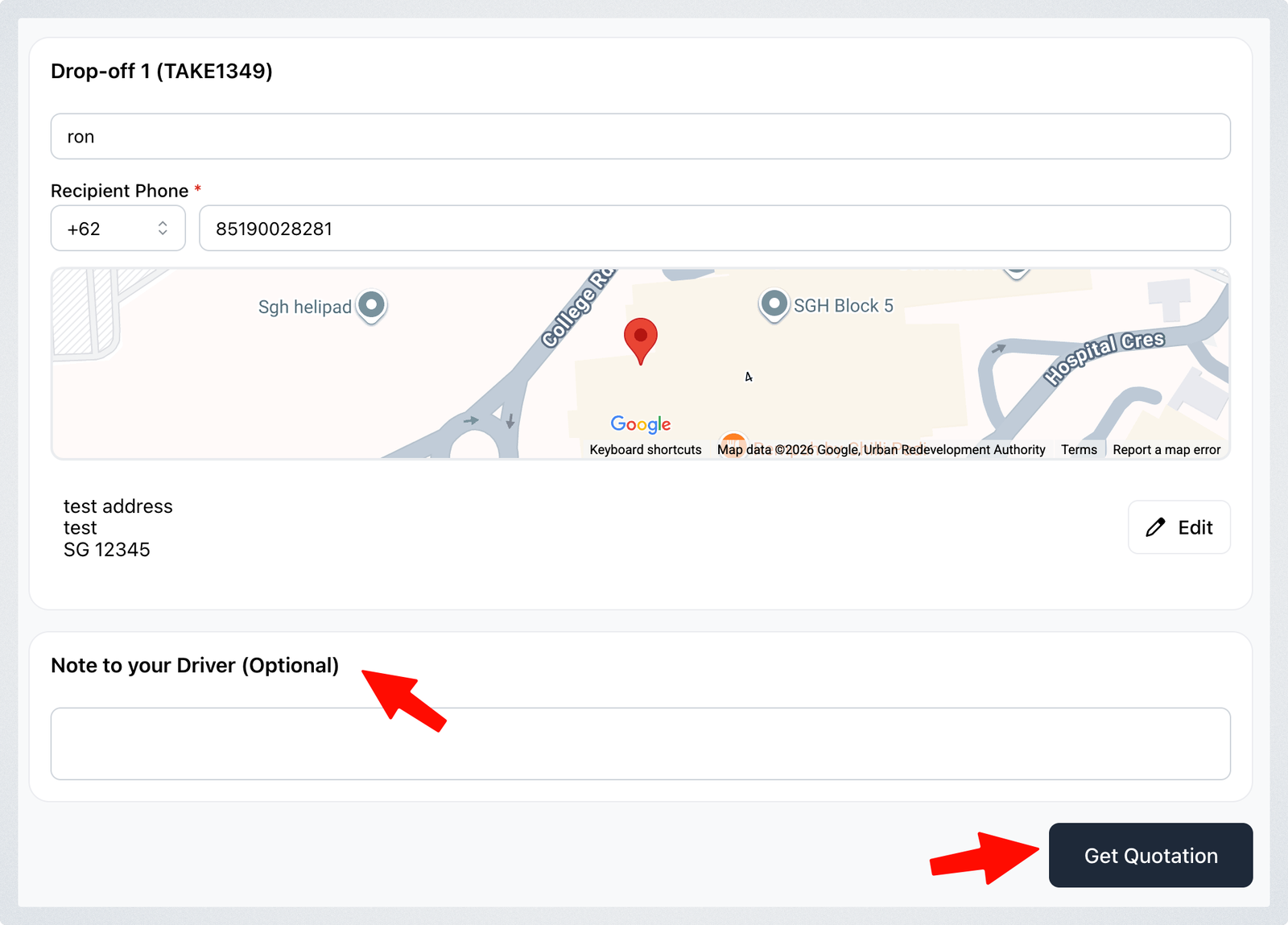
- Review the delivery fee, then place the delivery
Once the courier is booked, the tracking link is added to the order so you and your customer can follow the delivery.
How to show live Uber Direct fees at checkout
Instead of charging a flat fee you set yourself, you can let Uber Direct price each delivery from the customer's address while they are checking out.
This only prices the delivery — it does not book one. No courier is dispatched when the order comes in, even if the customer paid an Uber Direct rate at checkout. You still have to open the order and click Send with Uber Direct to send it, as described above.
- Go to Dashboard > Settings > Delivery and open the delivery method you want to use
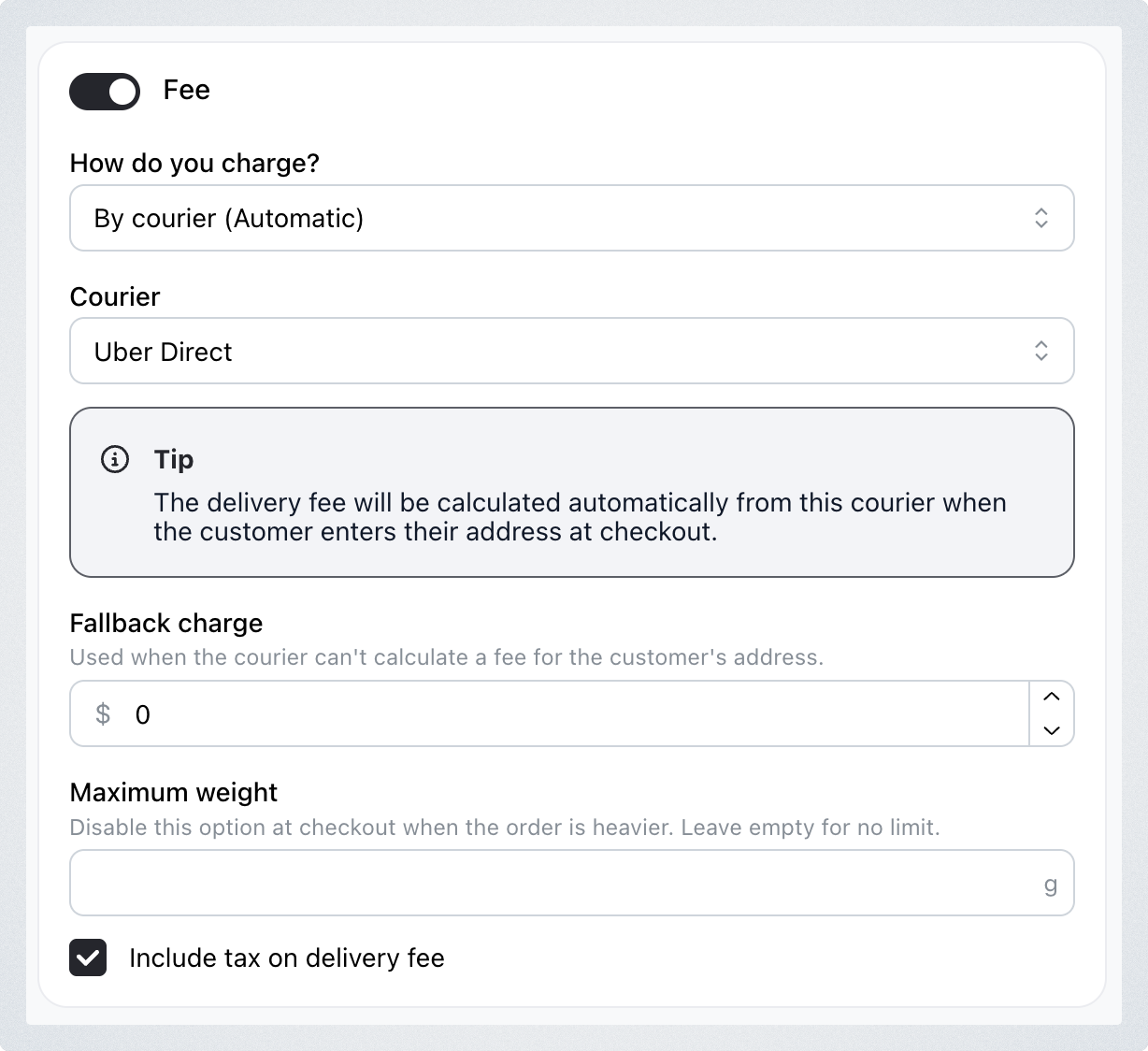
- Turn on Fee
- Under How do you charge? choose By courier (Automatic)
- Under Courier choose Uber Direct
- Set a Fallback charge — this is what the customer pays when Uber Direct cannot quote their address
- Optionally set a Maximum weight to hide this delivery option at checkout for heavier orders
- Click
Save
The fee your customer sees is Uber Direct's quote at checkout. The final charge Uber Direct bills you can differ if the order is dispatched later, or if the pickup or drop-off address changes.