
In this article, you'll learn how to control access of your clients to your Take App store.
How to activate Approved member exclusive
Step 1: Navigate to your admin dashboard.
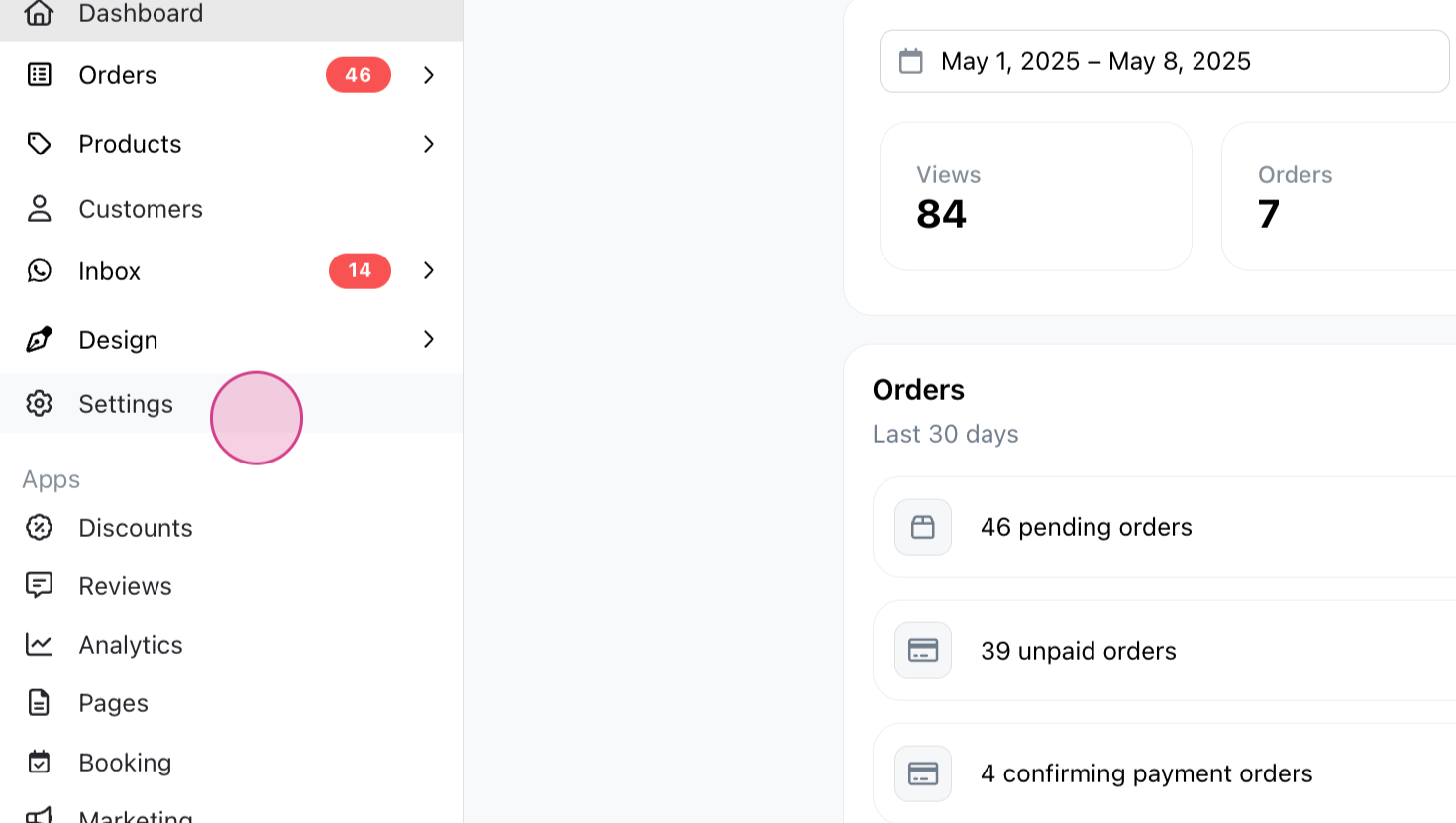
Step 2: Click on Settings and select Membership
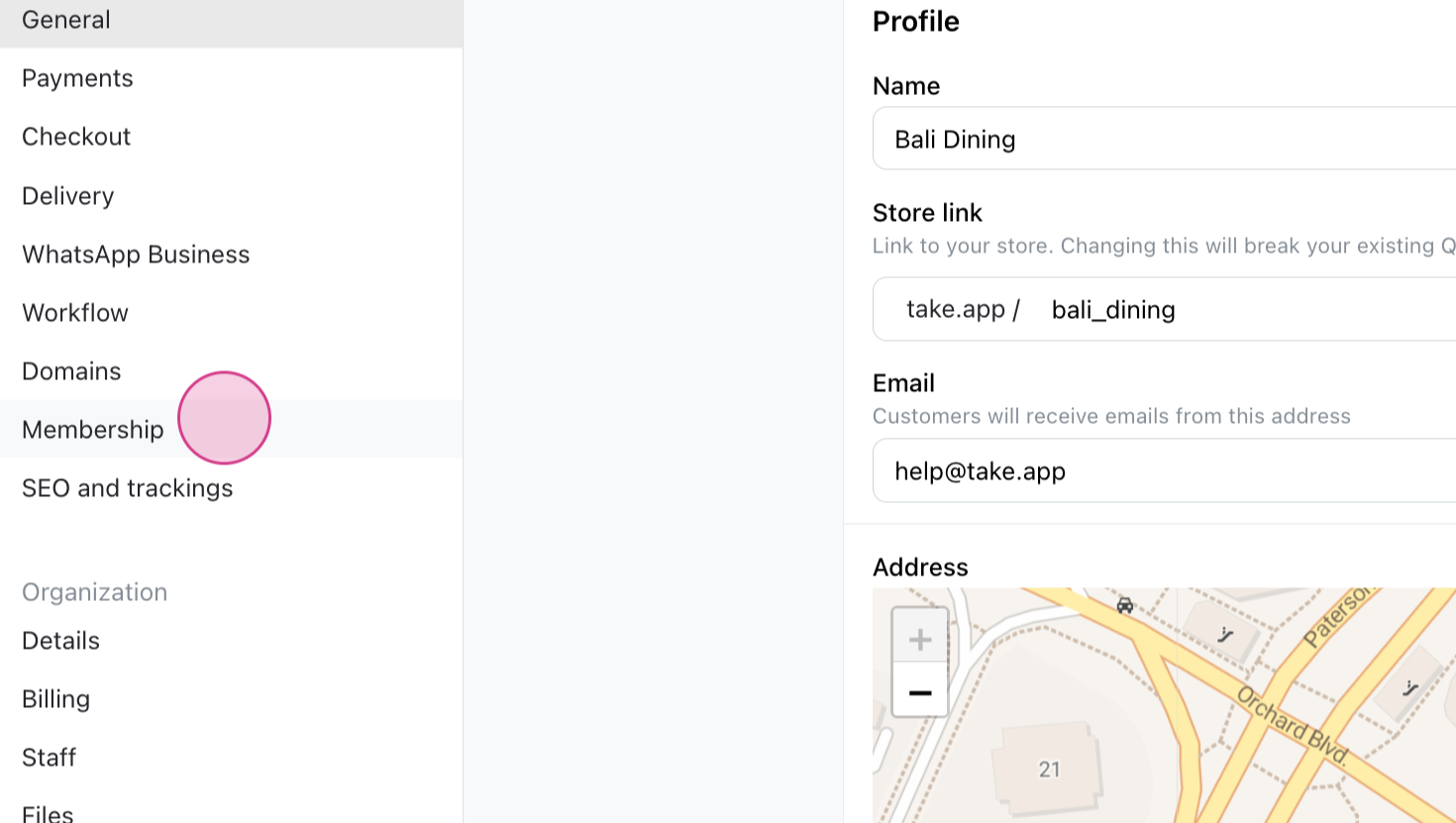
Step 3: Activate the Login to view store option
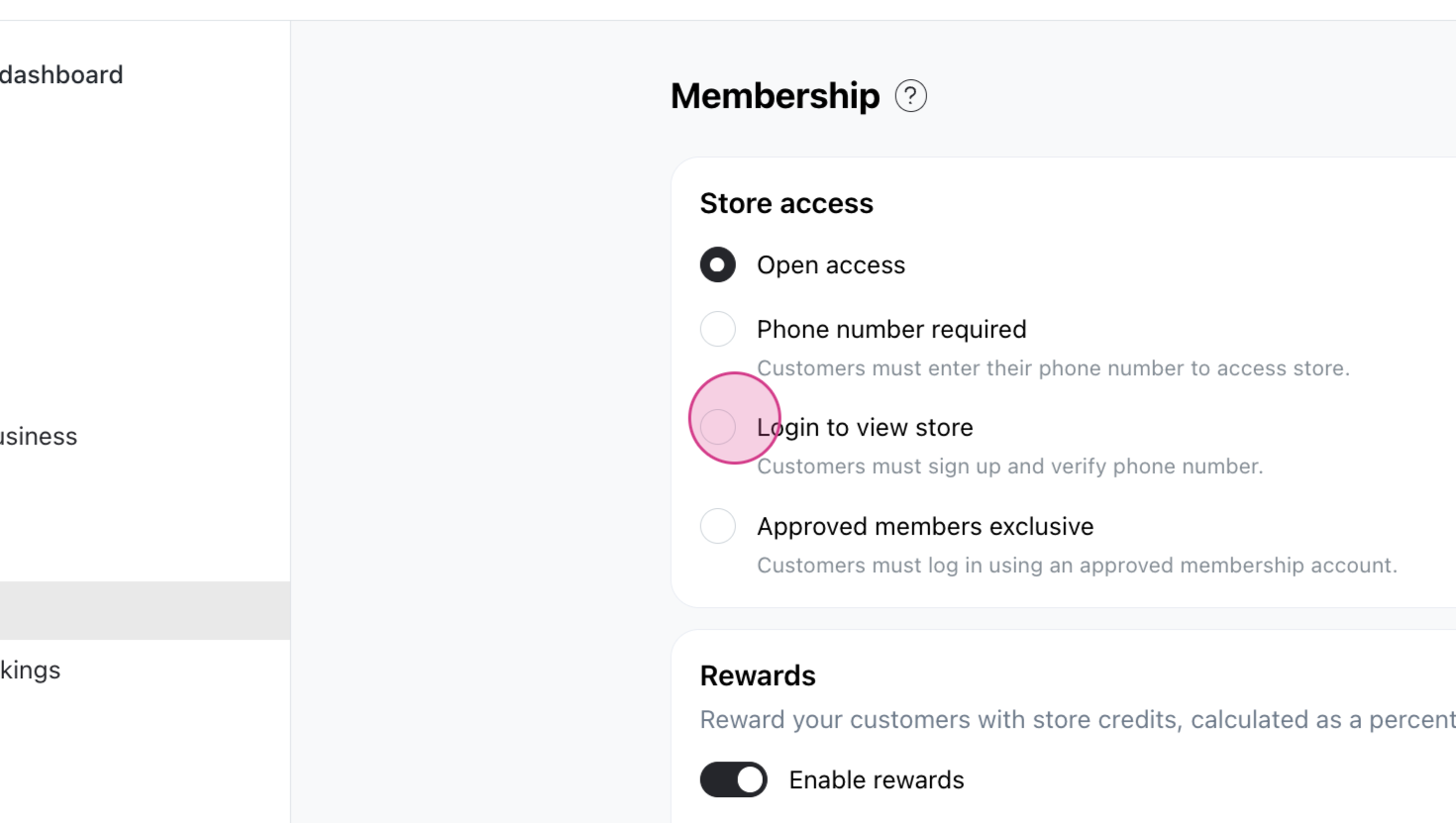
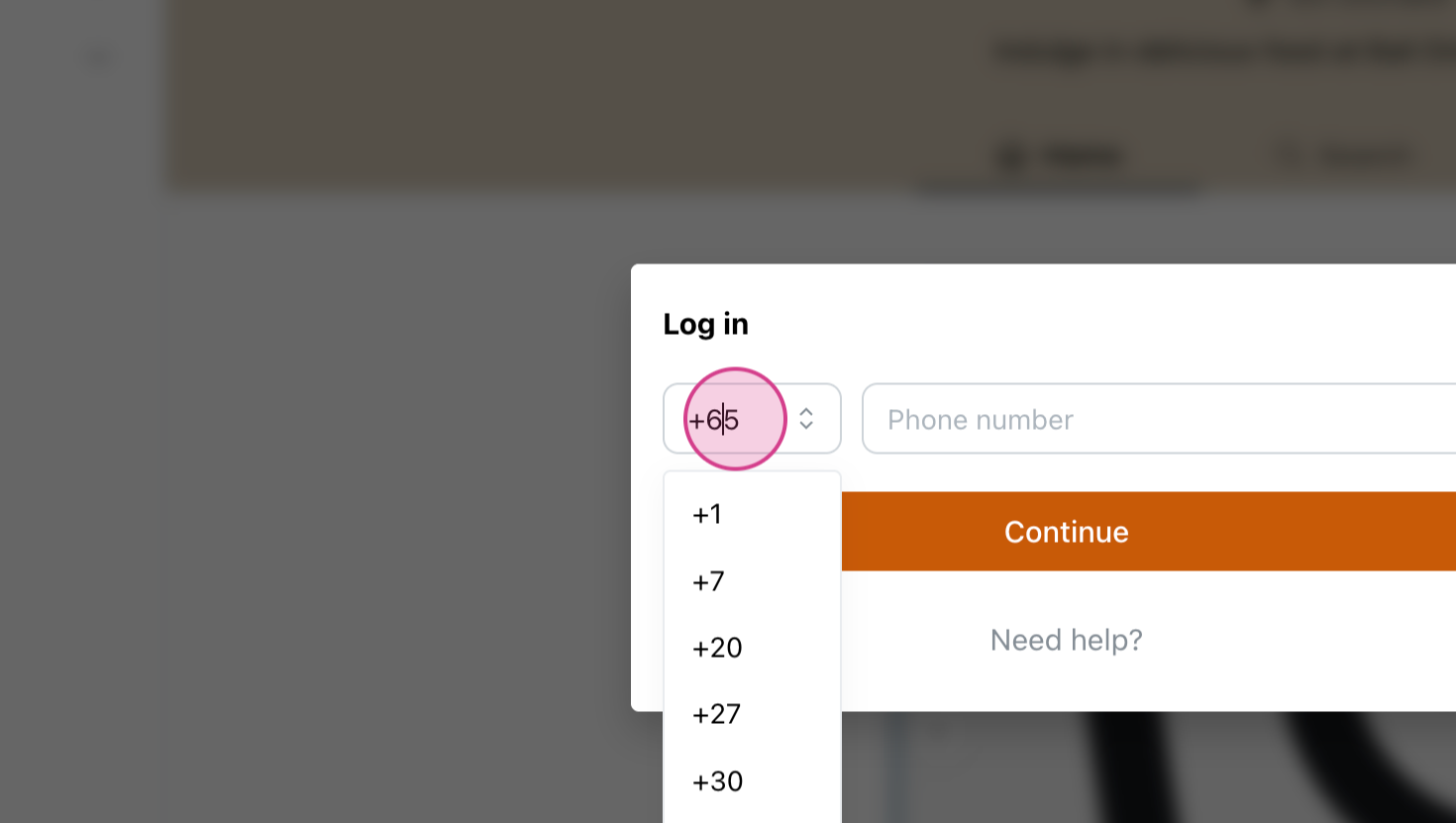
Step 4: Click save. Now, when a customer visits your store, they'll need to log in to view its contents.
Step 5: If you want to control who views your store, activate the Approved members exclusive option and click Save.
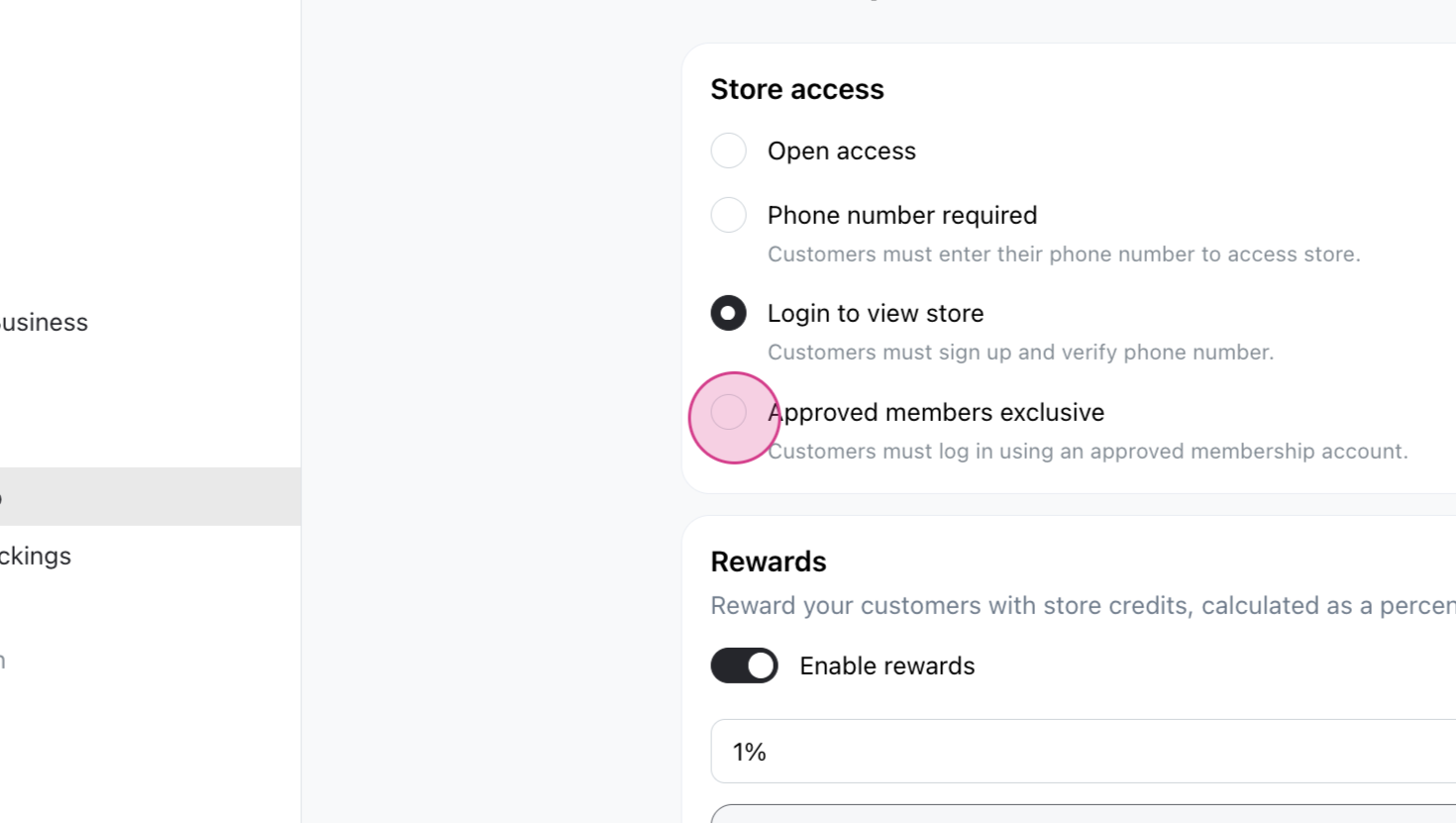
Now, when a customer tries to log in to your store, they'll see a message requesting membership approval.
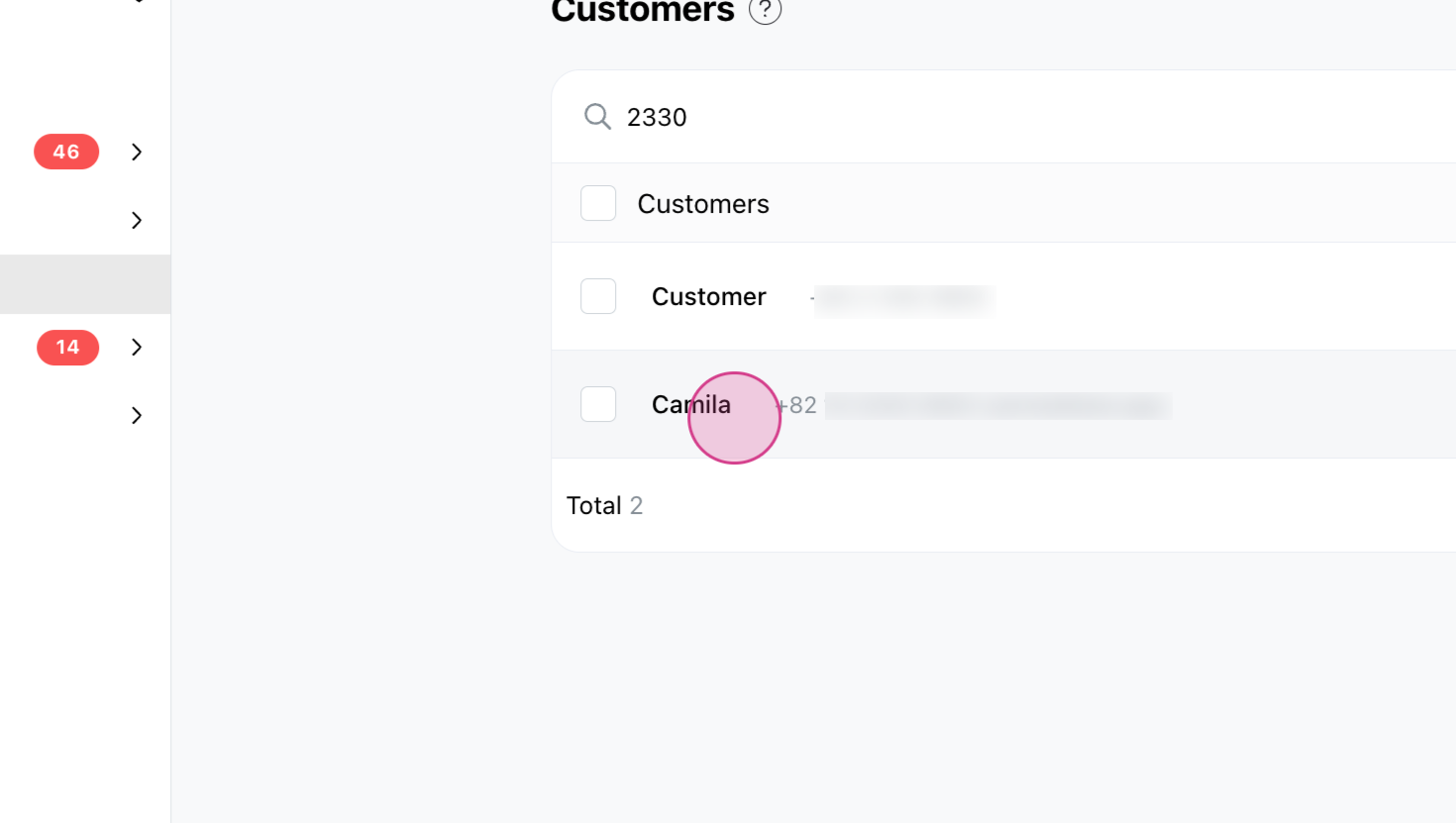
Step 6: To approve a request, go back to your admin dashboard and click on Customers. Search for the customer by name or phone number. Go to customer info and approve the profile. Repeat the process to approve more requests.
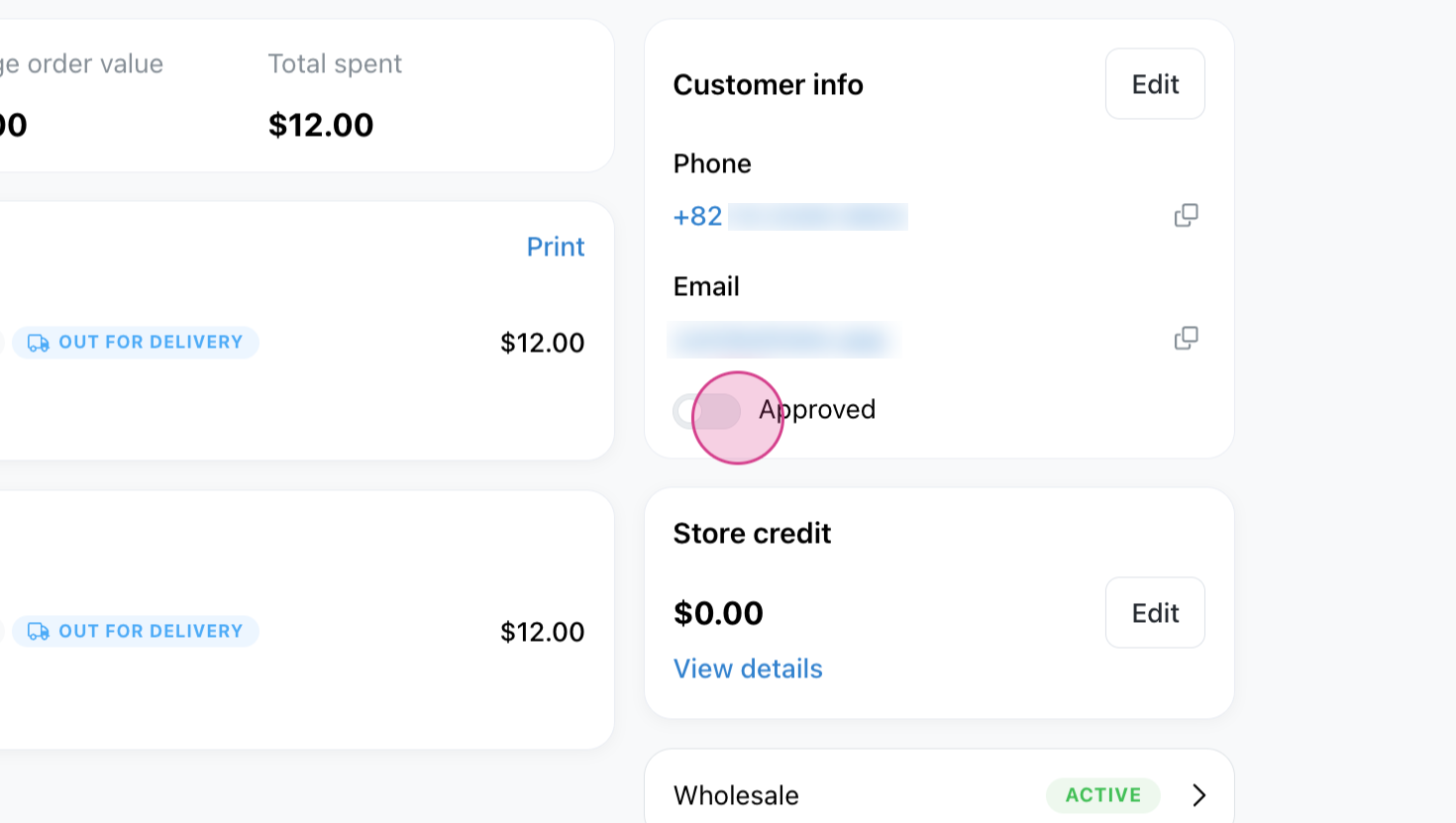
Once approved, if a customer logs in again and enters their one-time password, they'll be able to access your store's content.