
Inventory history gives you a full log of every stock change for a product — so you can see exactly what happened, when, and why.
How to access it
-
Go to Products in your left sidebar
-
Click All to see your full product list
-
Click on the product you want to check
-
On the product page, find the Inventory section on the right side
-
Click View history
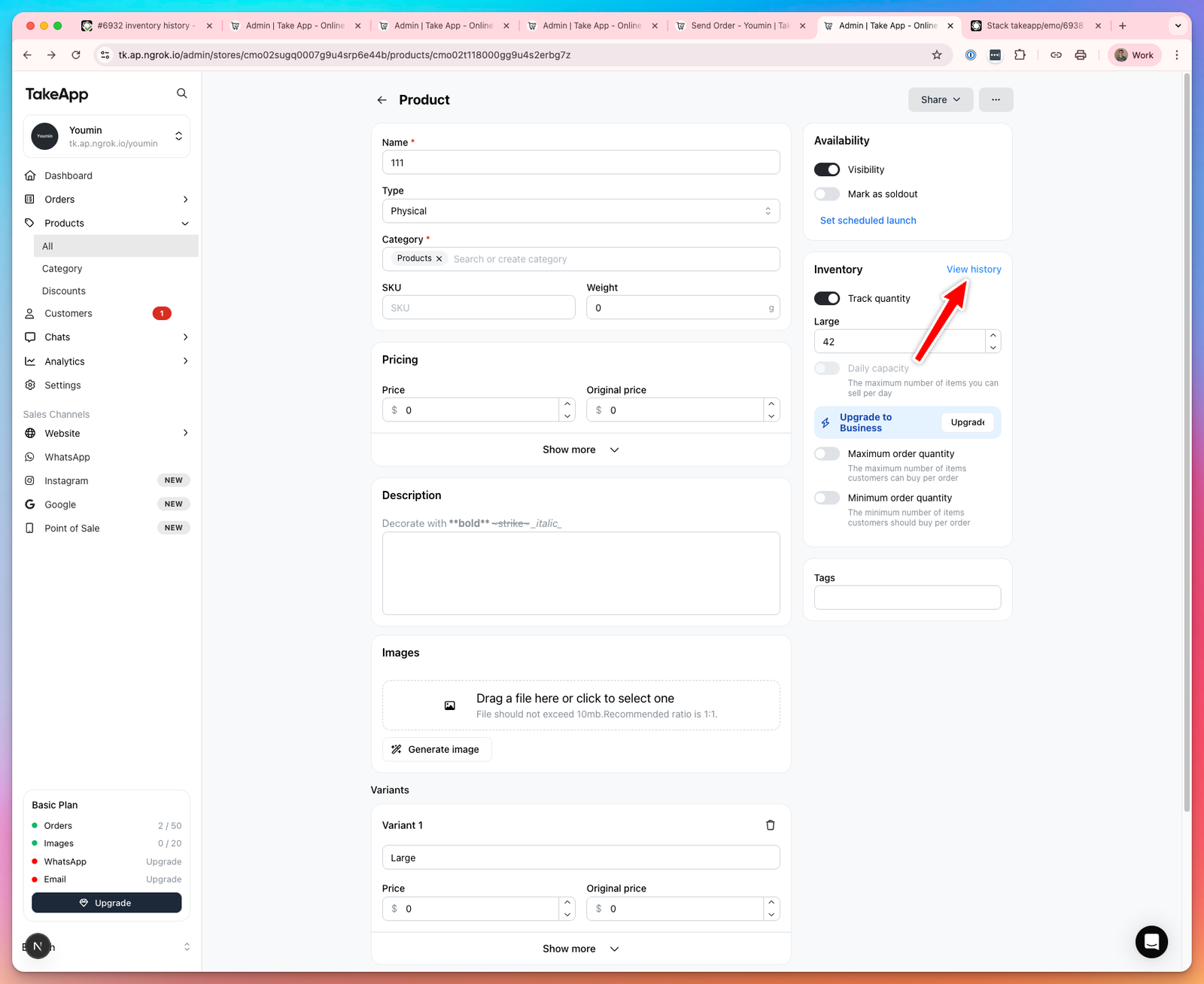
What you'll see
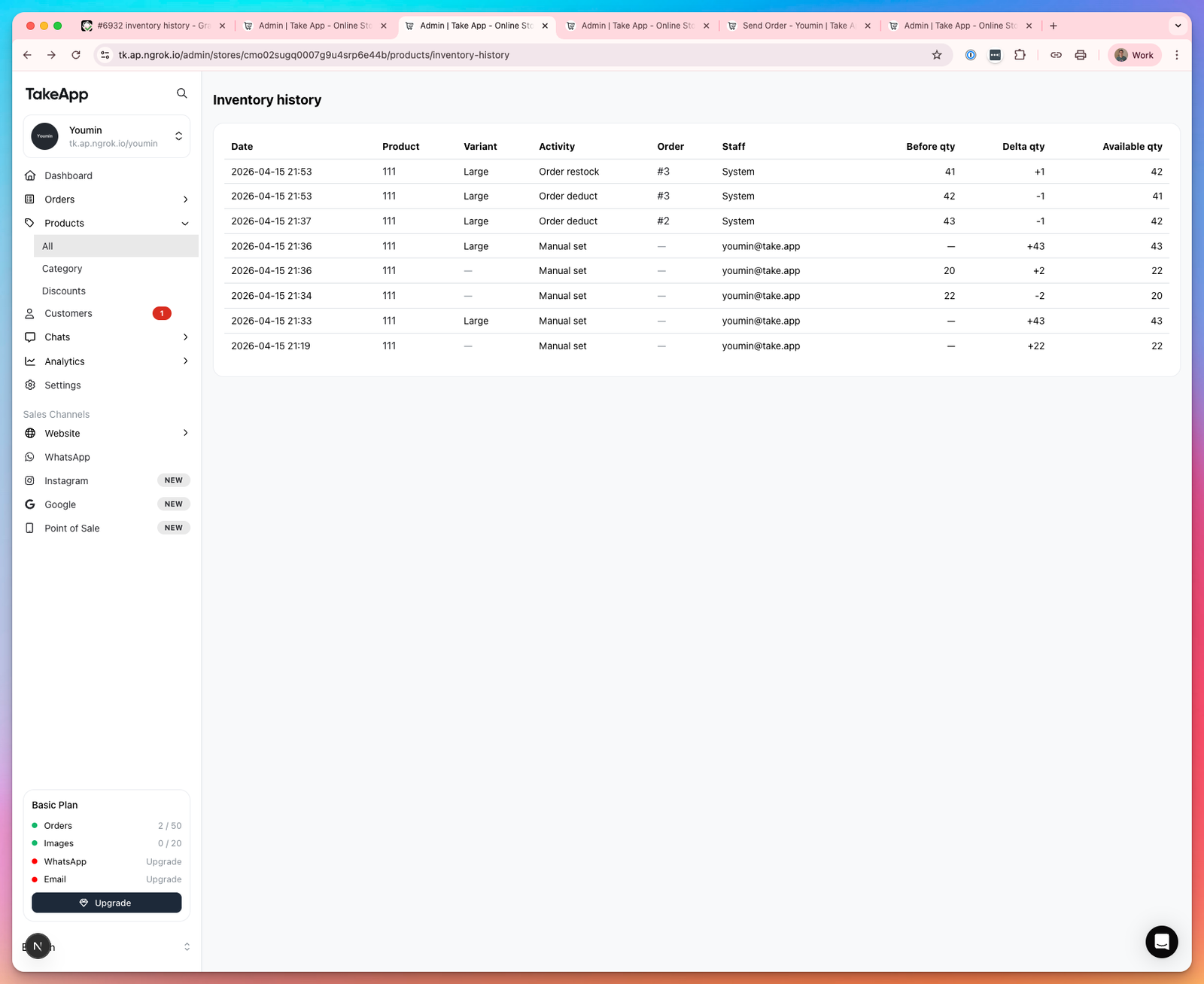
Each row in the inventory history shows:
- Date — when the change happened
- Product and Variant — which item was affected
- Activity — what caused the change (see below)
- Order — the order number linked to the change, if applicable
- Staff — who made the change (either a staff member or System for automatic changes)
- Before qty — the stock level before the change
- Delta qty — how much stock was added or removed (e.g. +1 or -1)
- Available qty — the stock level after the change
Activity types
- Order deduct — stock was automatically reduced when a new order came in
- Order restock — stock was automatically added back, for example when an order was cancelled
- Manual set — stock was changed manually by you or a staff member