
It's worth placing one test order yourself, so you know exactly what your customers see. Open your storefront link — the one you share with customers, e.g. take.app/bali_dining — and order from it.
Placing an order, step by step
-
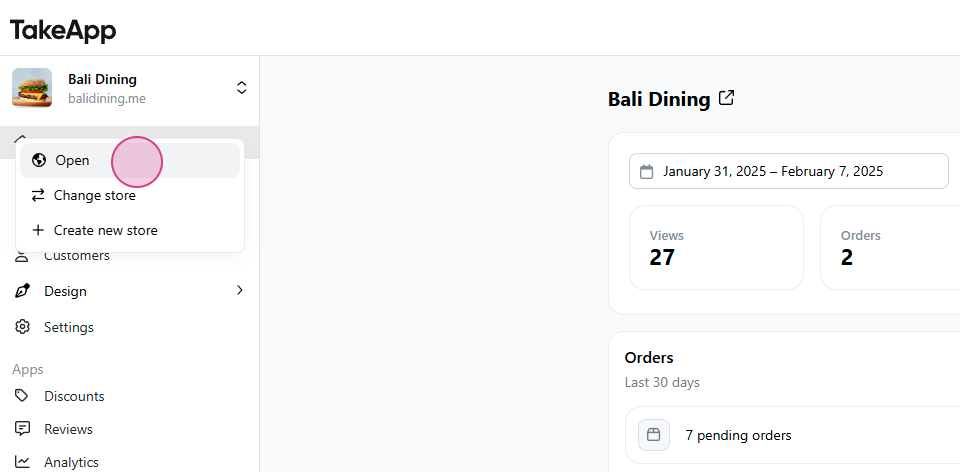
From your dashboard, click Open to view your storefront.
-
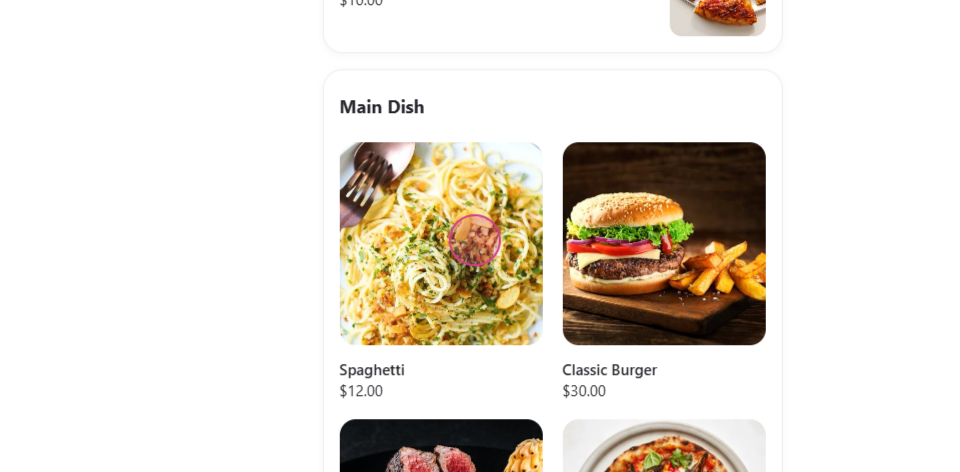
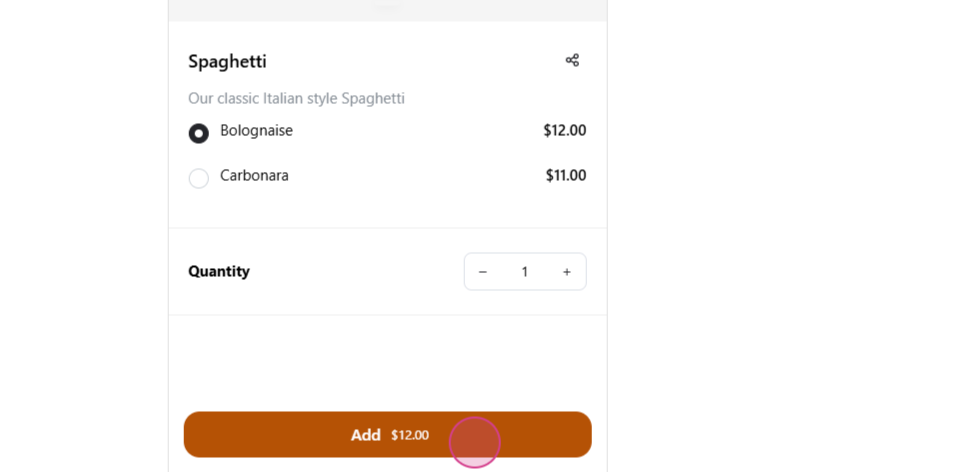
Pick an item and click Add to put it in the cart.
-
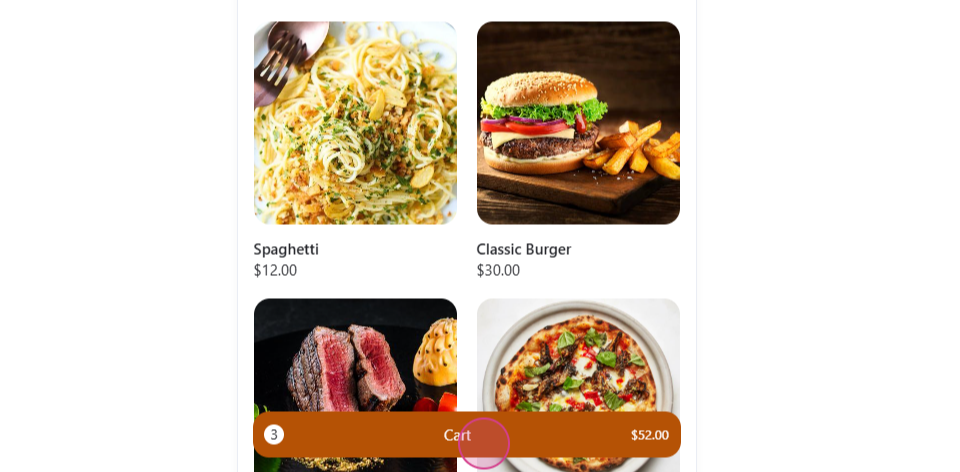
Open the Cart and click Checkout.
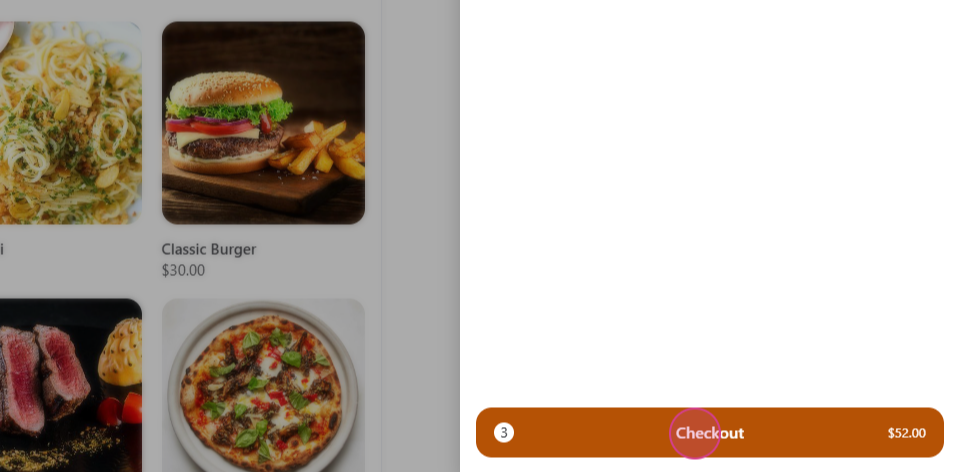
-
Fill in name, phone number, and email, and check the items.
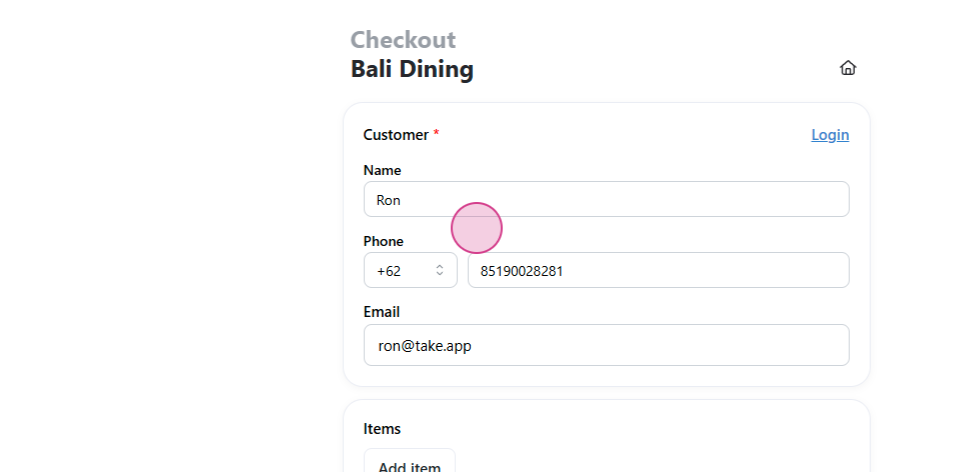
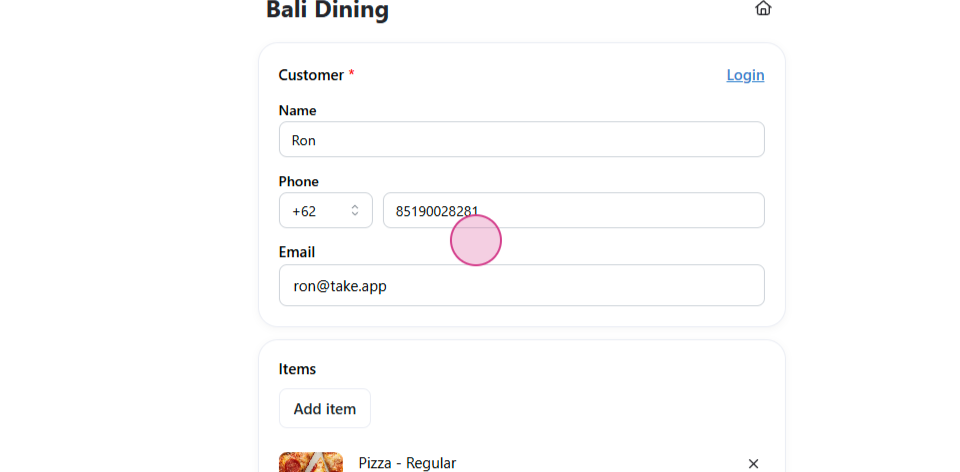
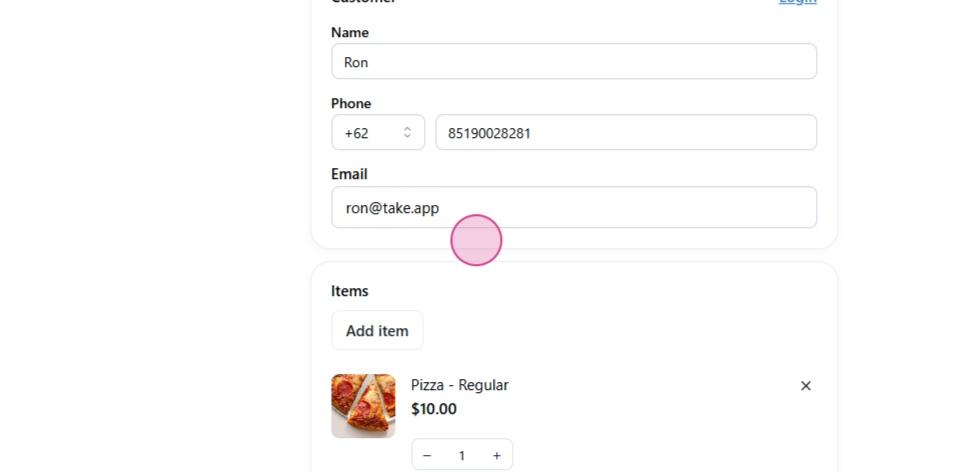
-
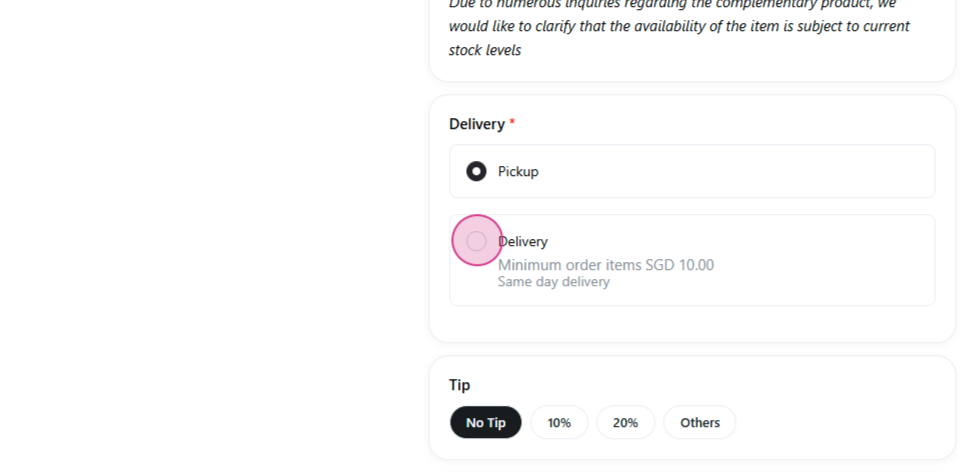
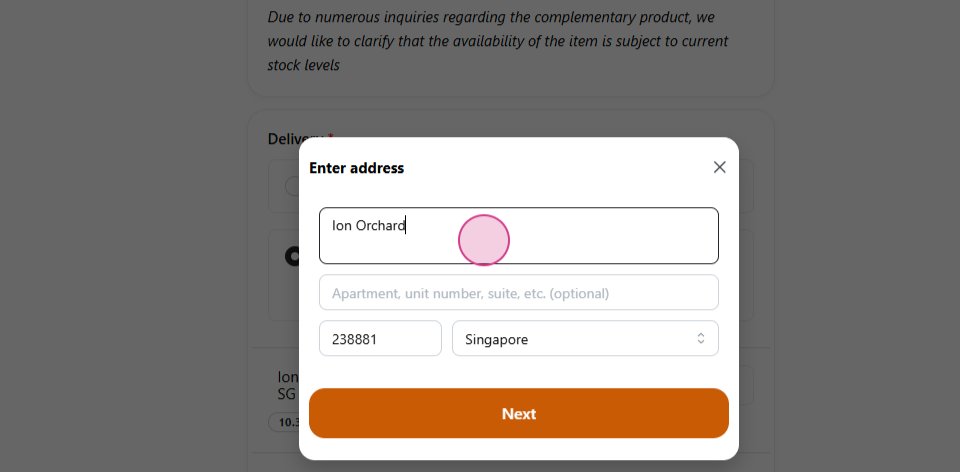
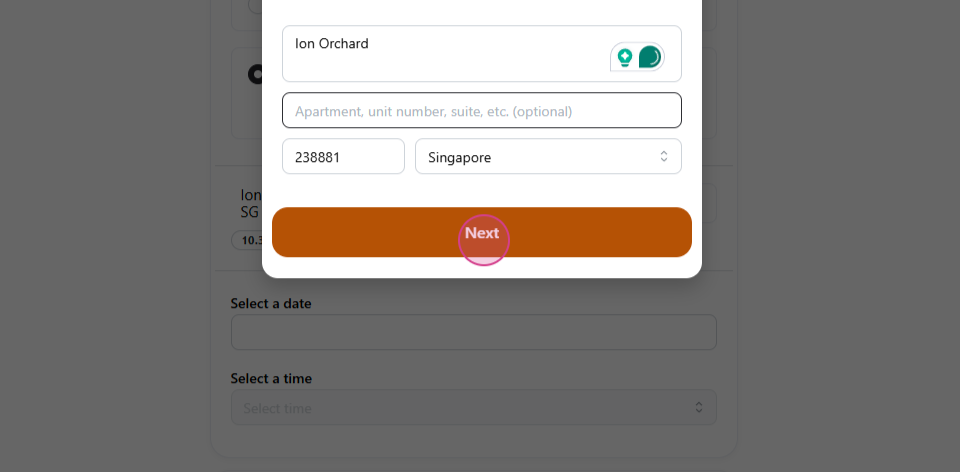
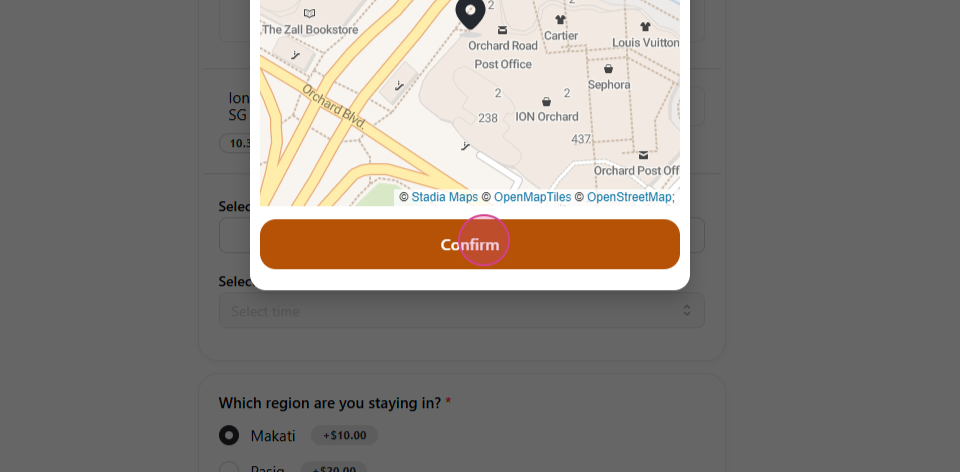
Choose the delivery method, fill in the address, and confirm the location.
-
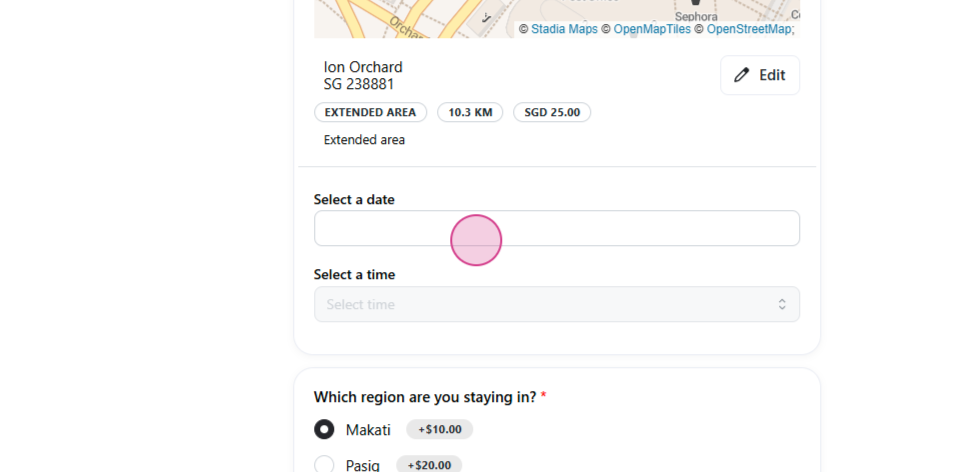
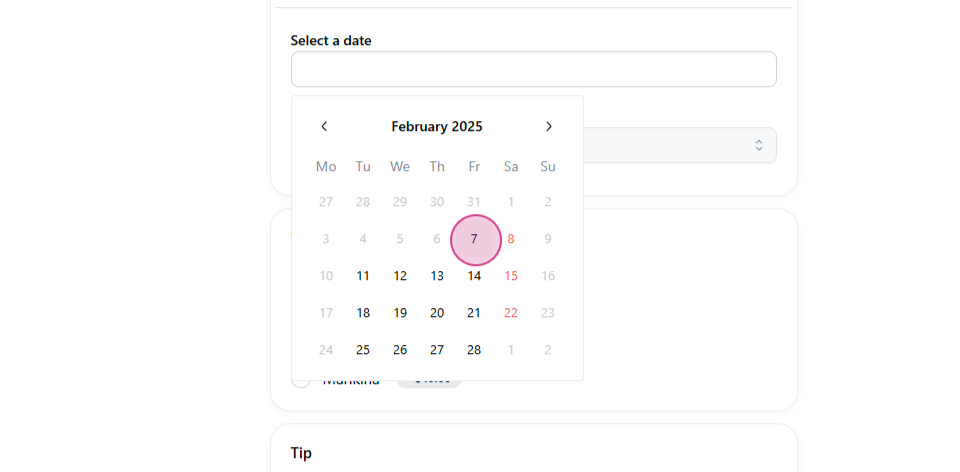
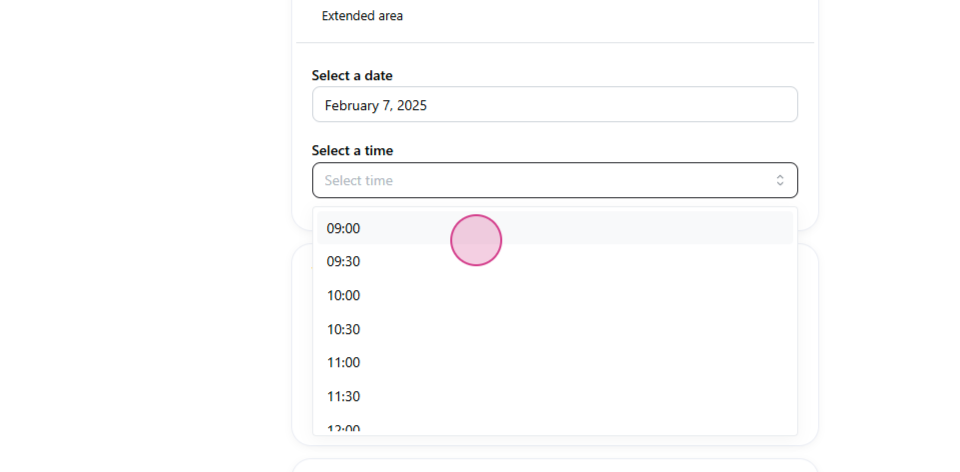
Pick the delivery date and time.
-
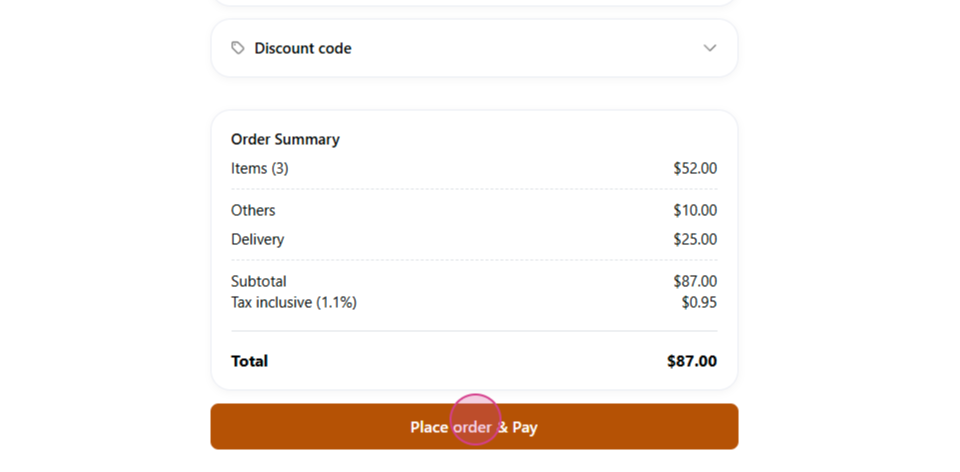
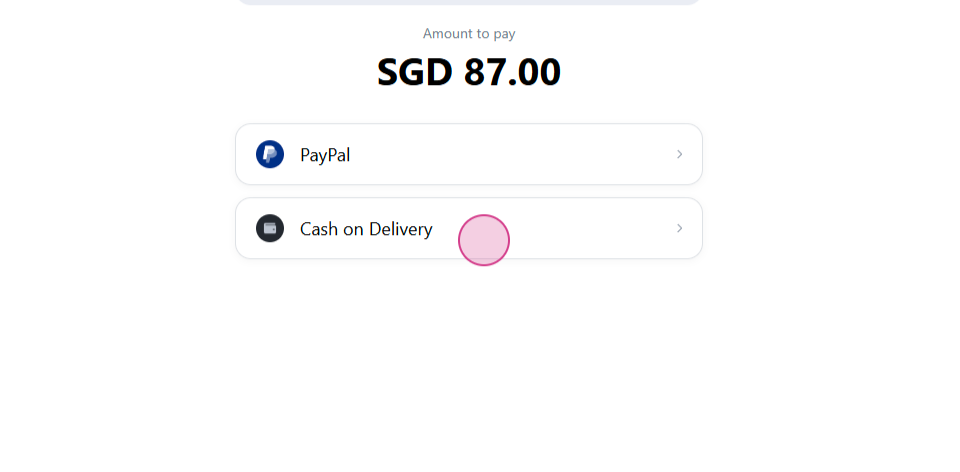
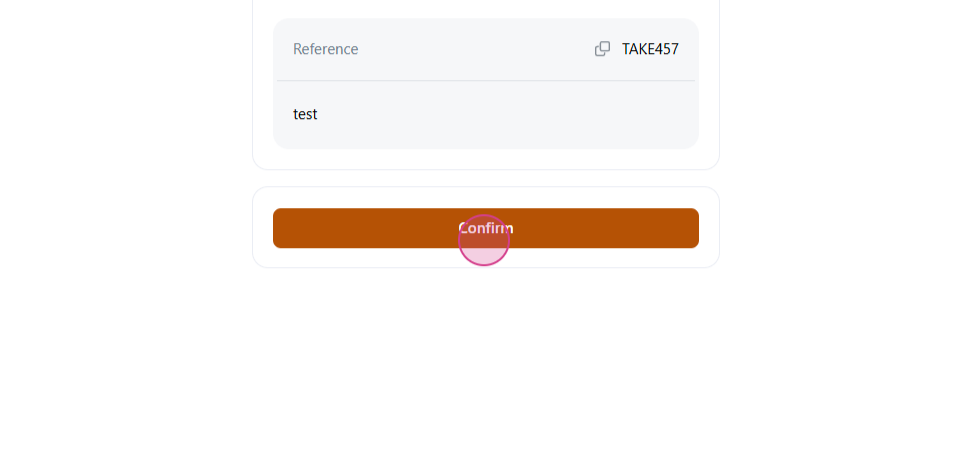
Click Place order and pay, select a payment method, and Confirm.
-
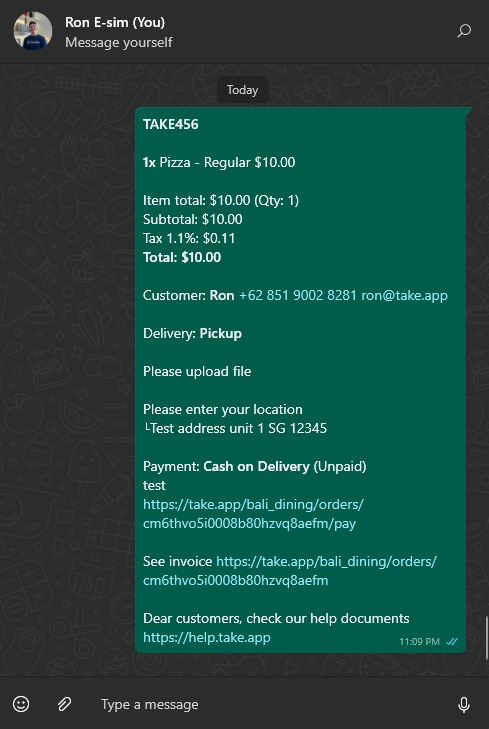
The customer sends the order confirmation to your store's WhatsApp number.
After the order
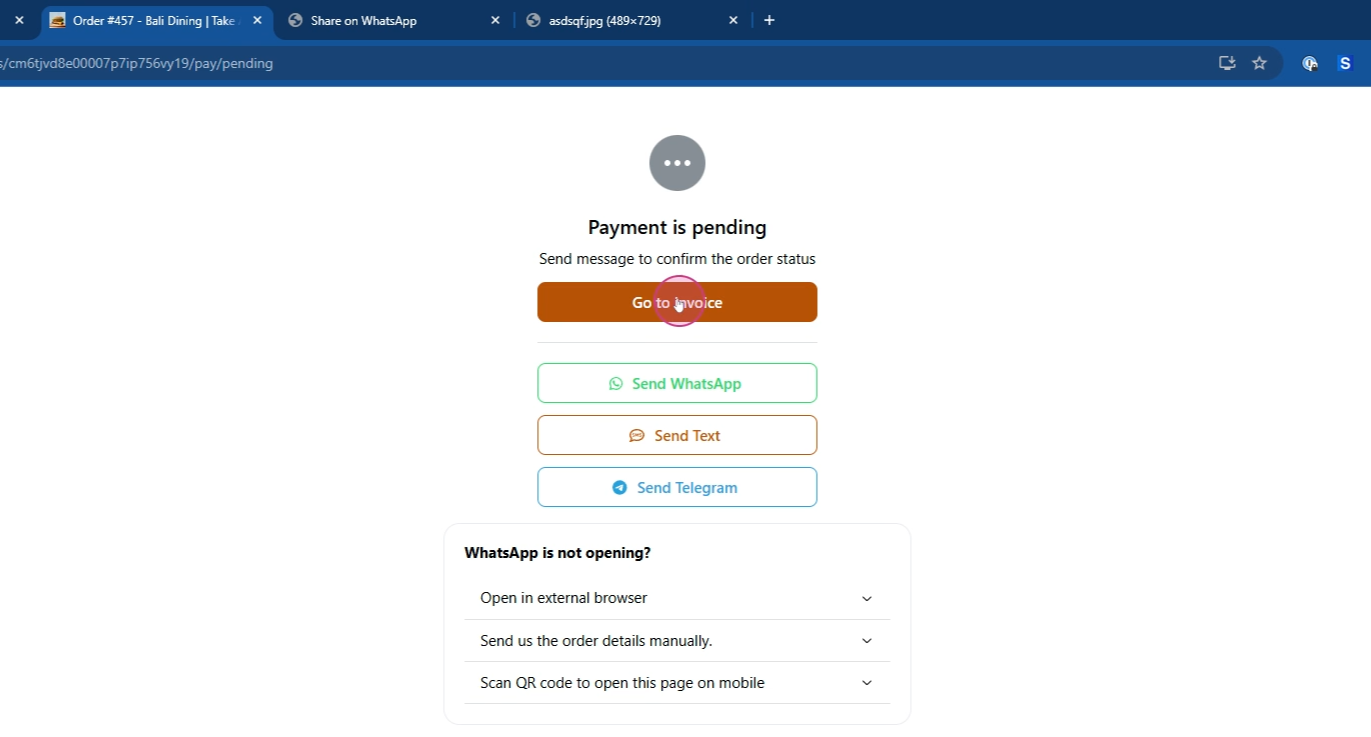
When customers return, they can view their invoice details.
To place an order for a customer yourself — over the phone, say — see Create, edit, or duplicate orders.
Customers can also start a group order from the cart so friends add their own picks and the host checks out once. See Customer group orders.