
How to add variants and options into products
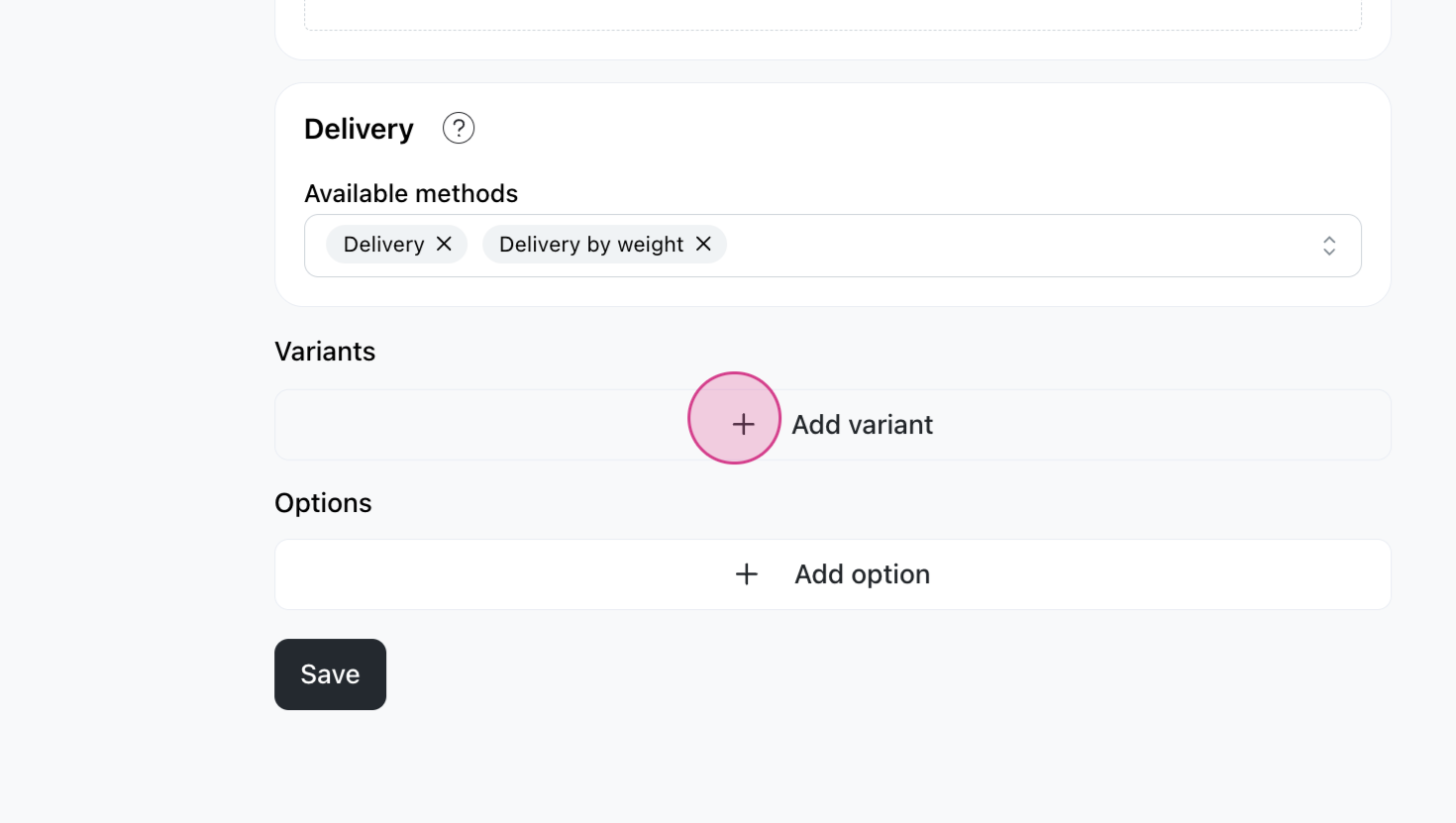
Step 1: Navigate to the product where you want to add variants and options. Scroll down to find the variants and options section and lick on Add Variant.
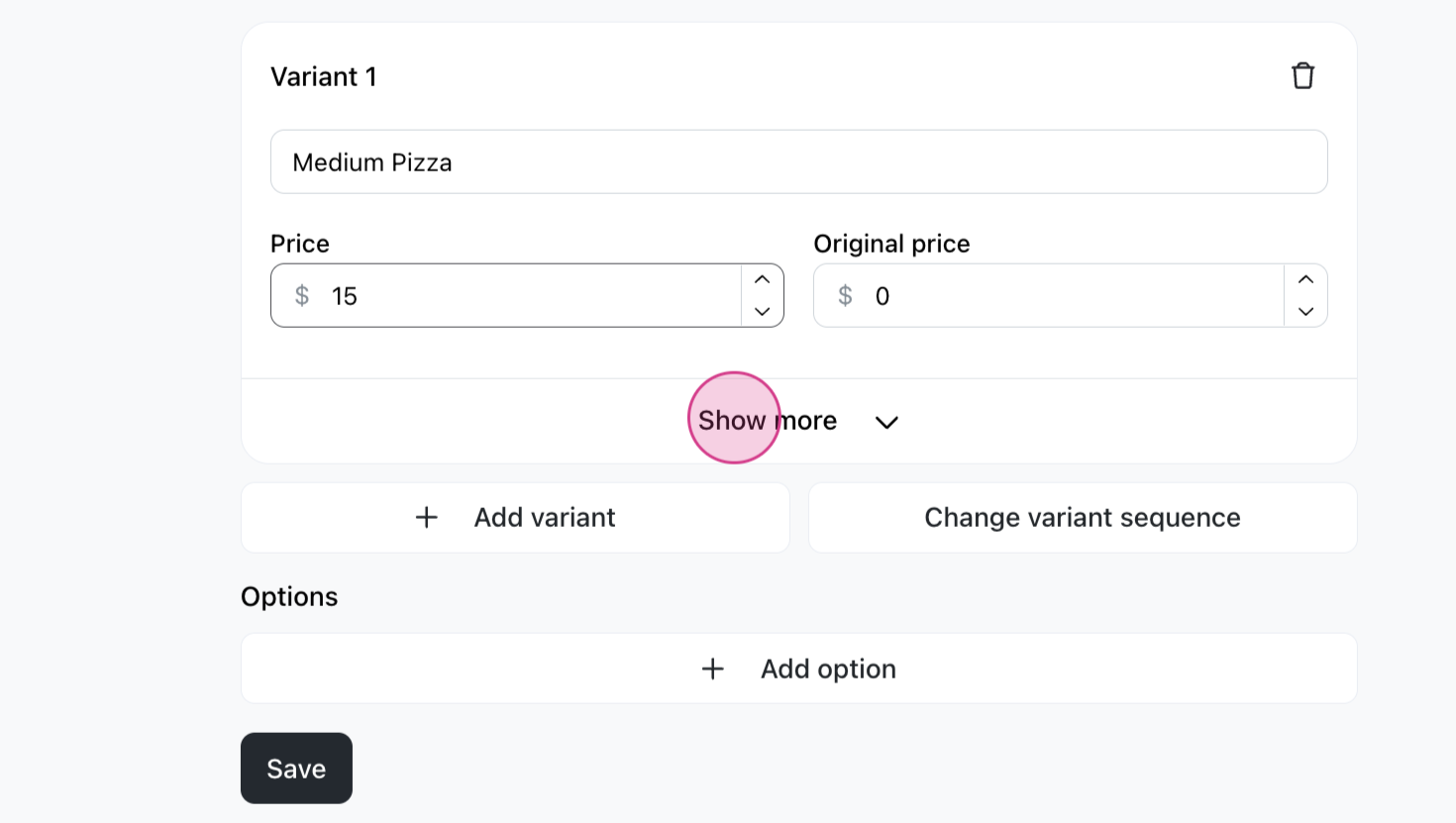
Step 2: Enter the variant details and price and click Save.
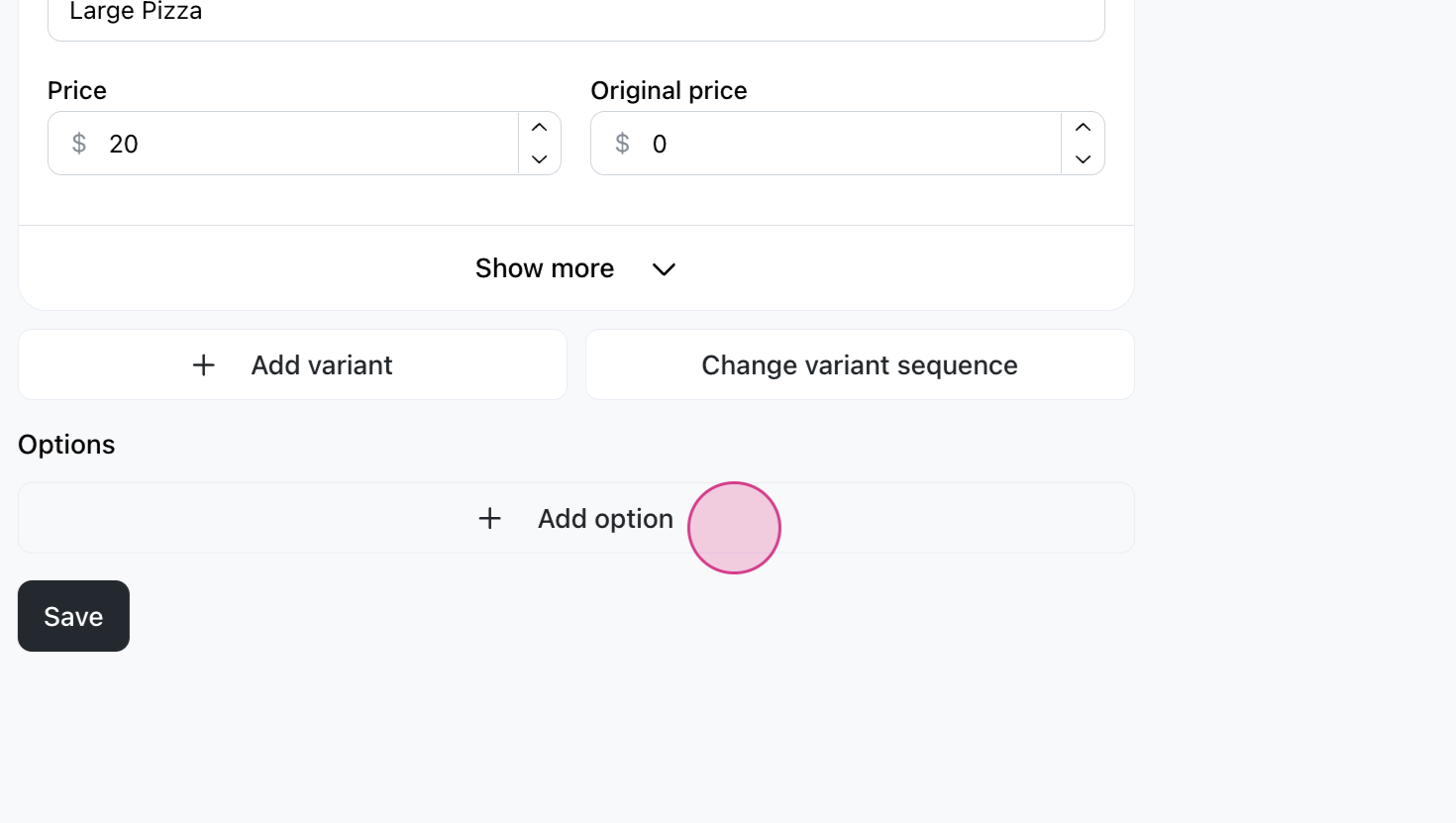
Step 3: You can also add options. These are perfect for Add-ons, like extra toppings.
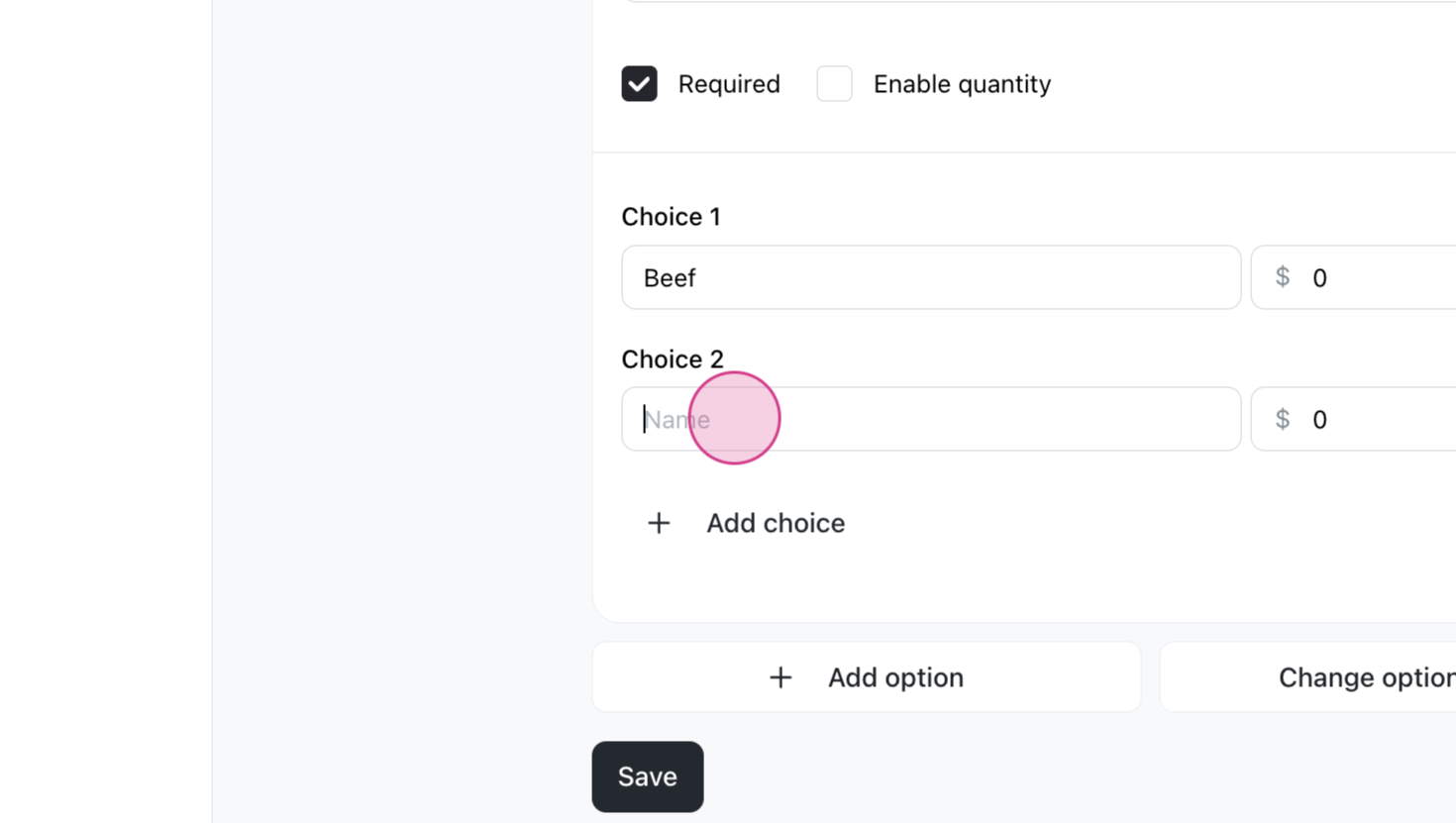
Step 4: Add the names for the options. Optionally, you may add an extra price for each option. Click Save to apply the changes.
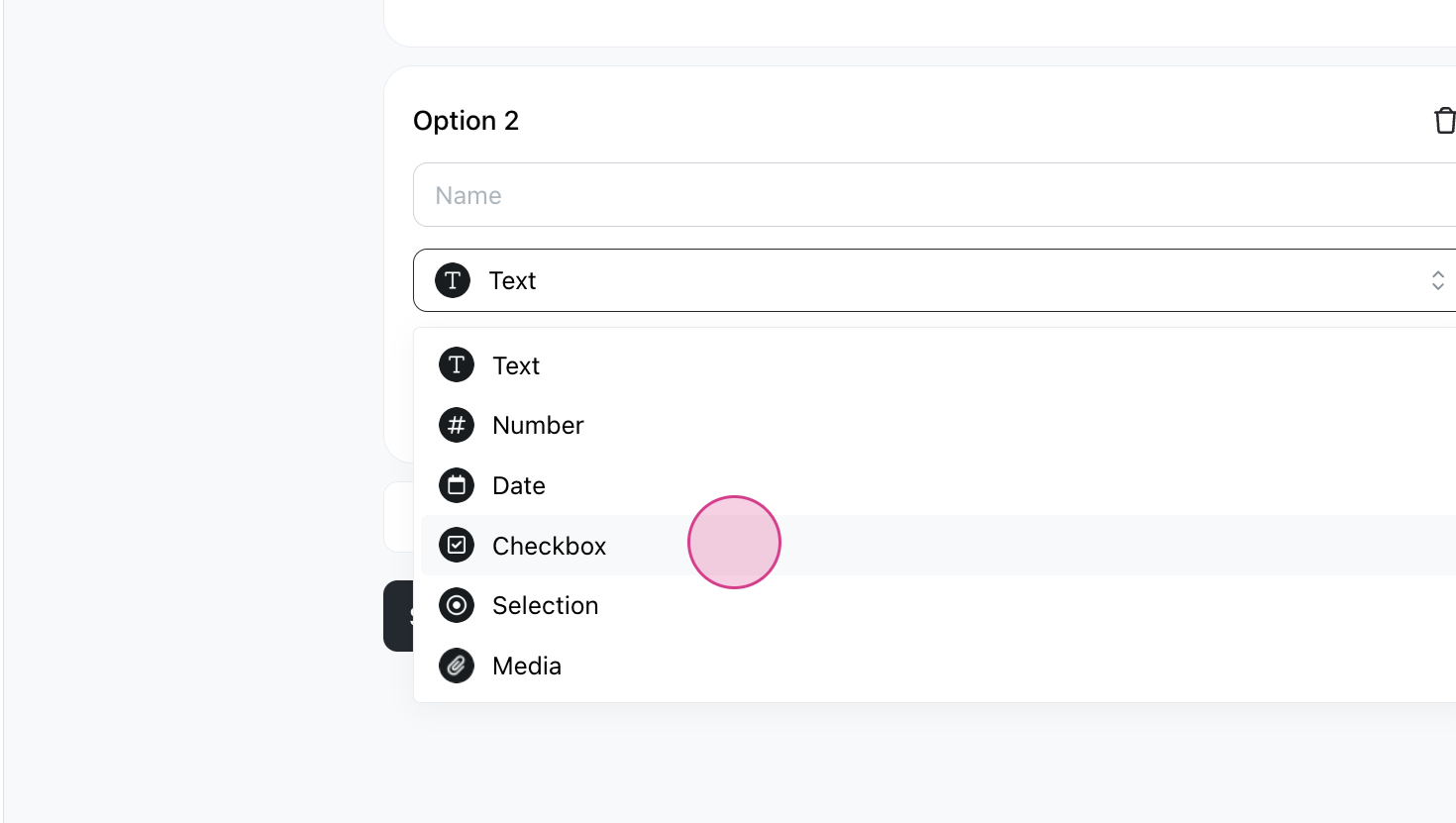
Step 5: We have many option types, like: Text, Number, Date, Checkbox, Selection and Media. For instance, you can choose the Text option to allow customers to make special requests.
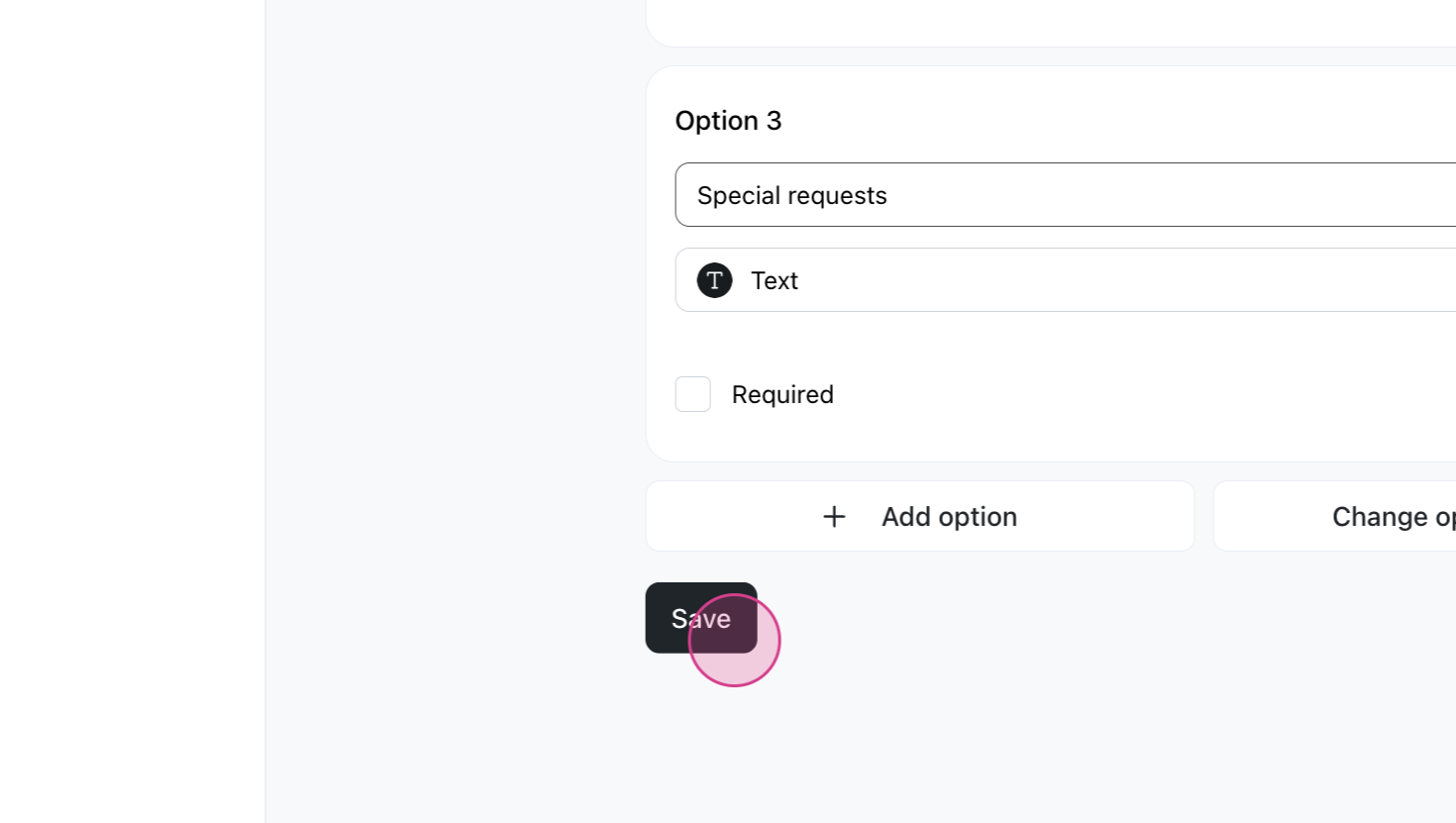
By allowing customers to add custom text, they can personalize their orders to their liking. This feature enhances the customer experience by providing flexibility in their choices.