How to add a delivery method
In this article, you'll learn how to set up a customized delivery method for your store. By the end, you'll have a delivery option tailored to your needs and preferences.
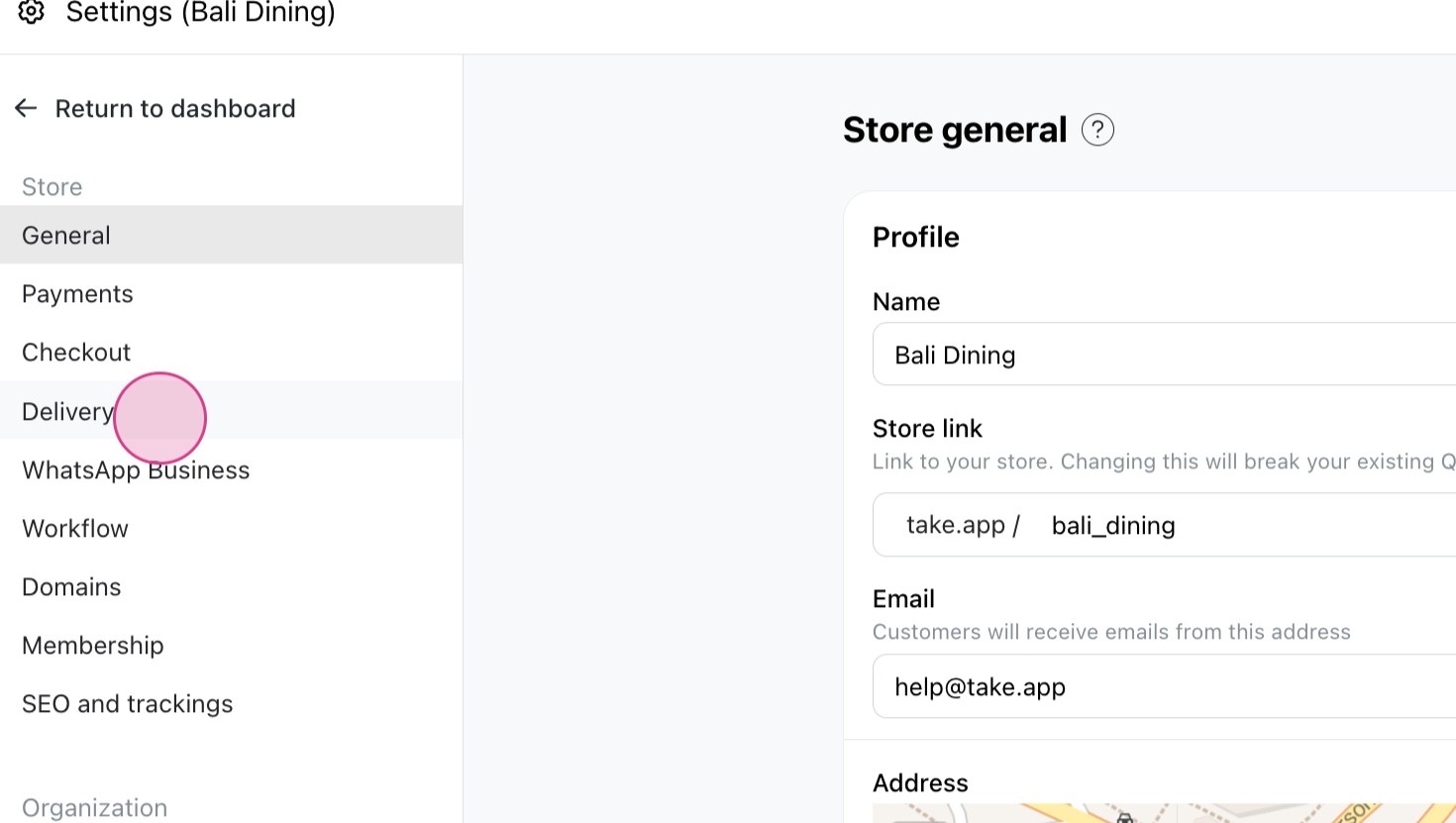
Step 1: Navigate to Settings and select Delivery.
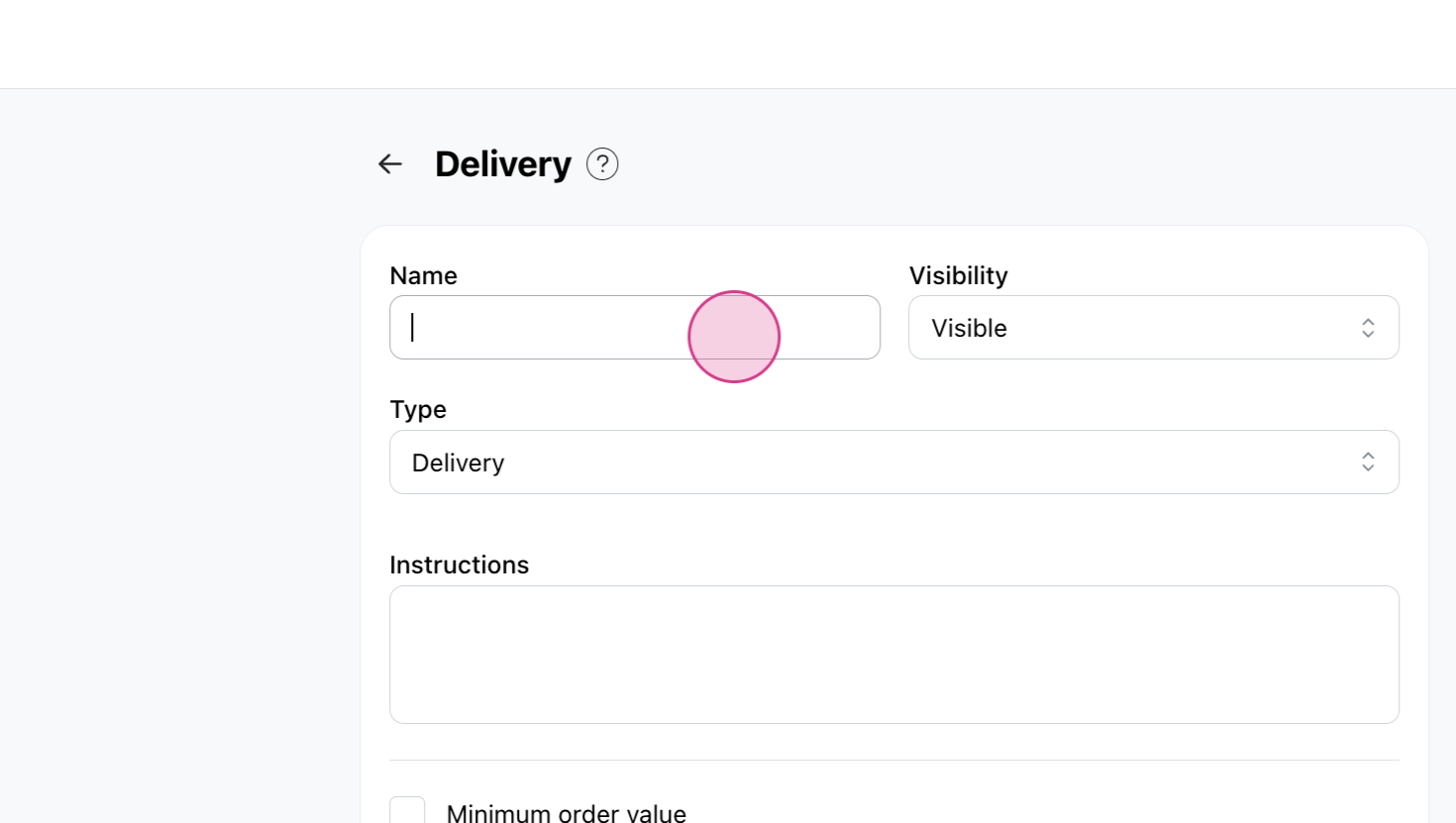
Step 2: Click on Add Delivery and name your delivery method.
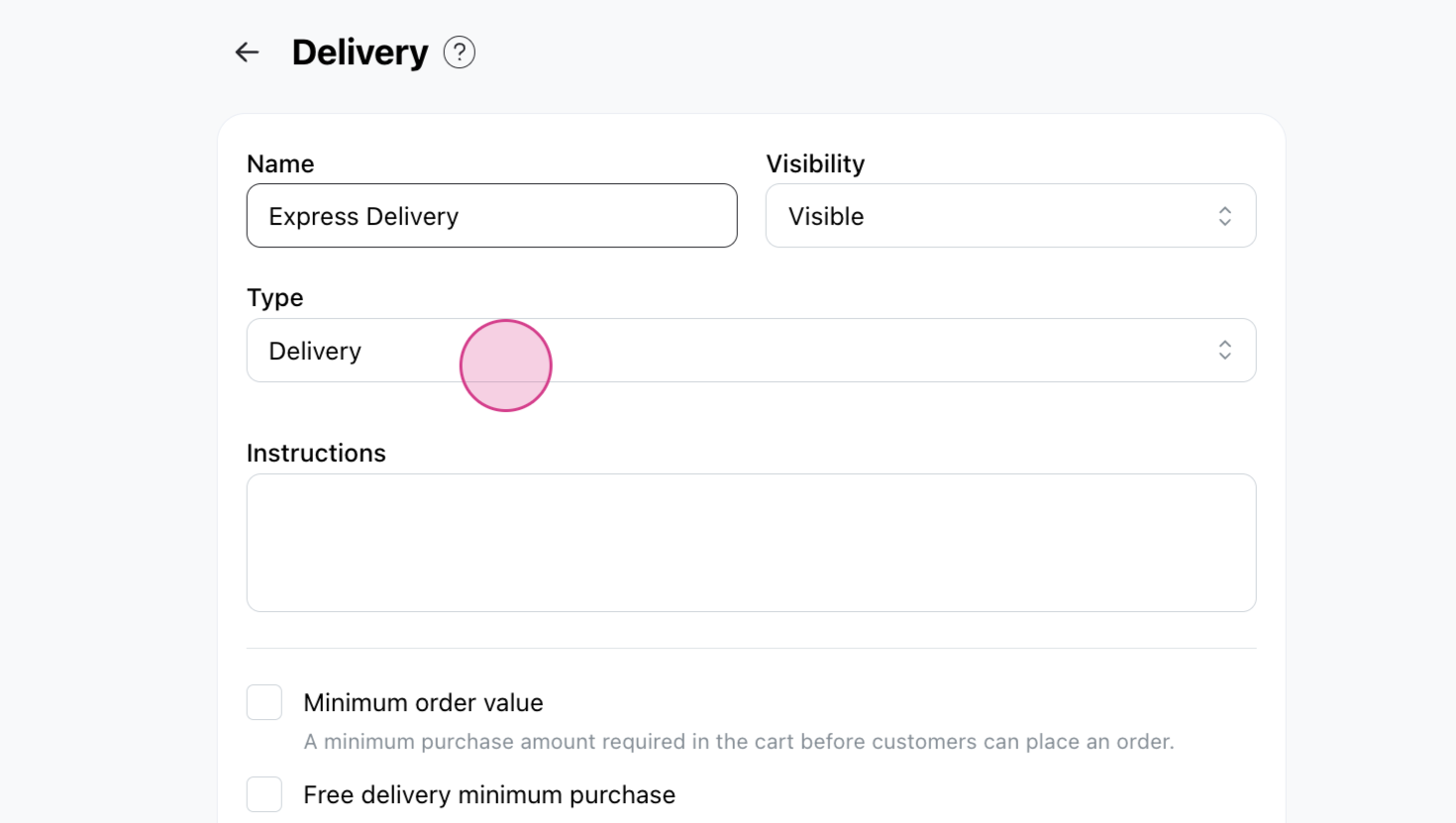
Step 3: Choose the type of delivery. If you select "Delivery", it'll ask for your customer's address. If you select "Others", it won't ask for an address, which is ideal for pickup options.
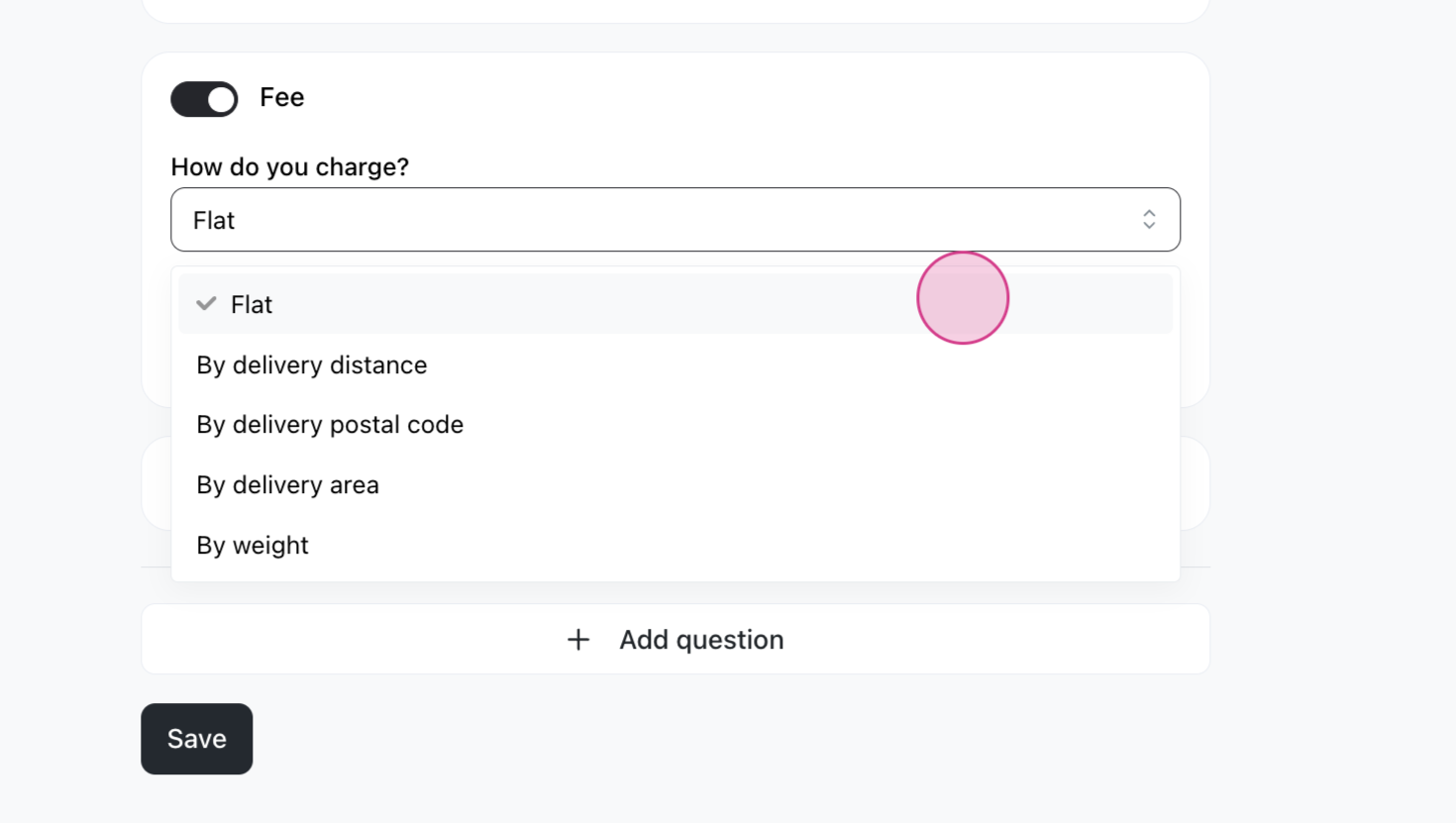
Step 4: Set up a delivery fee and choose the type of fee charge. We have many options available, like Flat, By delivery distance, Postal code, and weight.
Step 5: Click Save.
Step 6: You can also establish a delivery schedule. Choose from three scheduling options: Date, date and time, and date and time slot. Activate or deactivate your service hours and days.
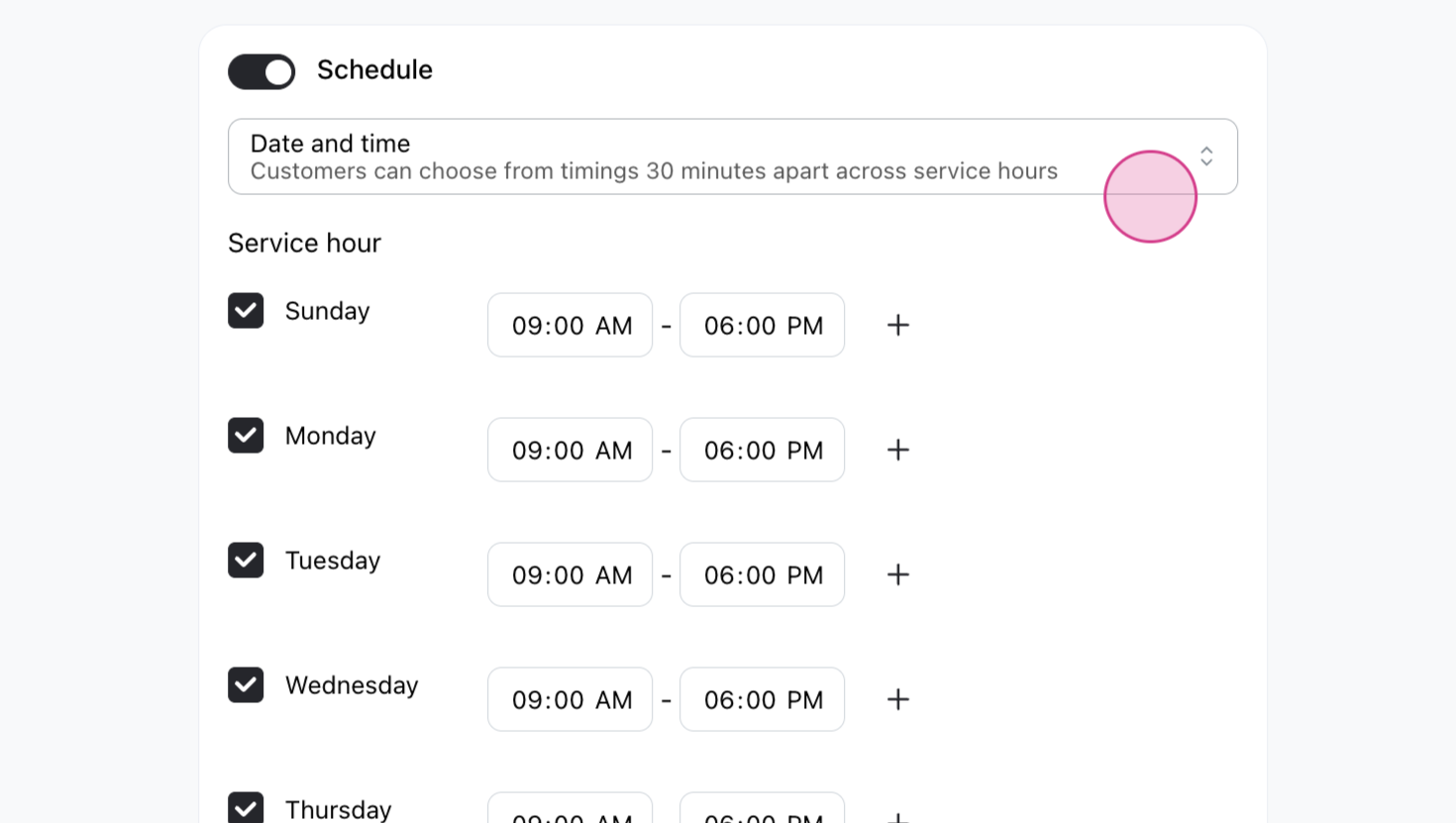
Step 7: You can also enable a delivery reminder, a cutoff time, and a capacity limit.
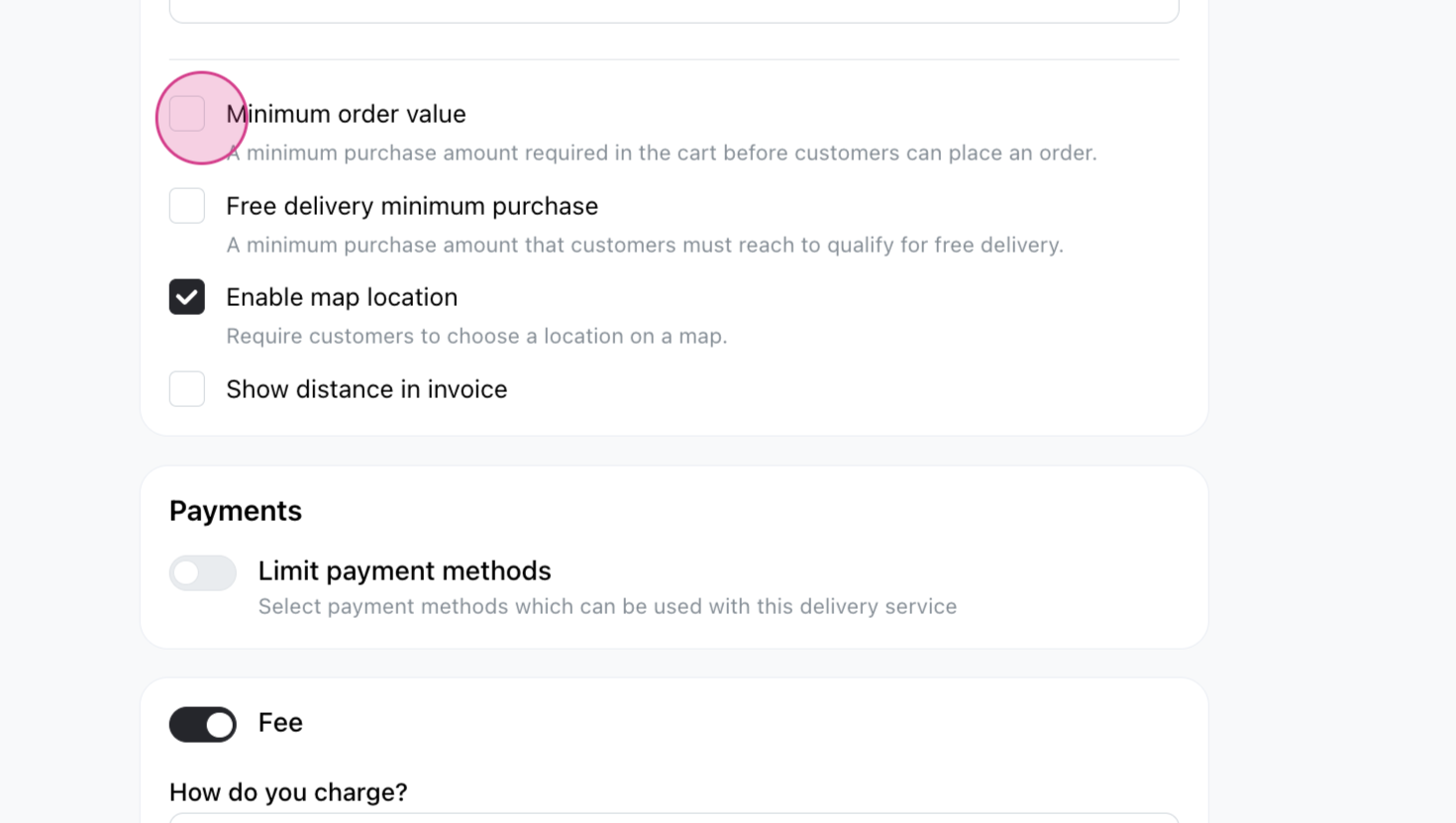
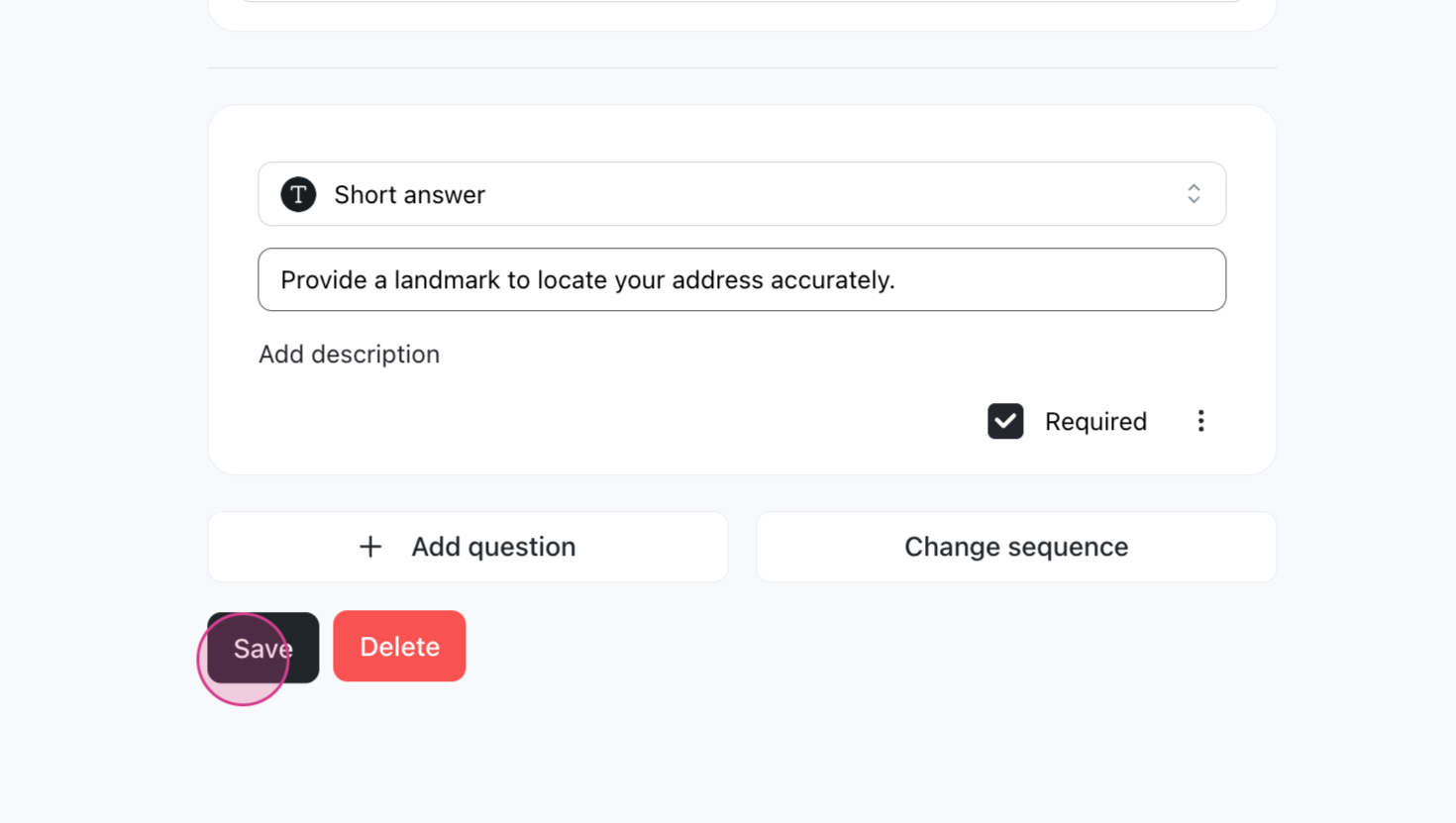
Step 8: You can add any extra questions you want to ask your customers, like a landmark to locate their address more easily.
Step 9: Customize your delivery settings further. You might require a minimum order value, offer free delivery for a minimum purchase, or limit the payment methods for this delivery service.