
Track your Take App event by TikTok Pixel.
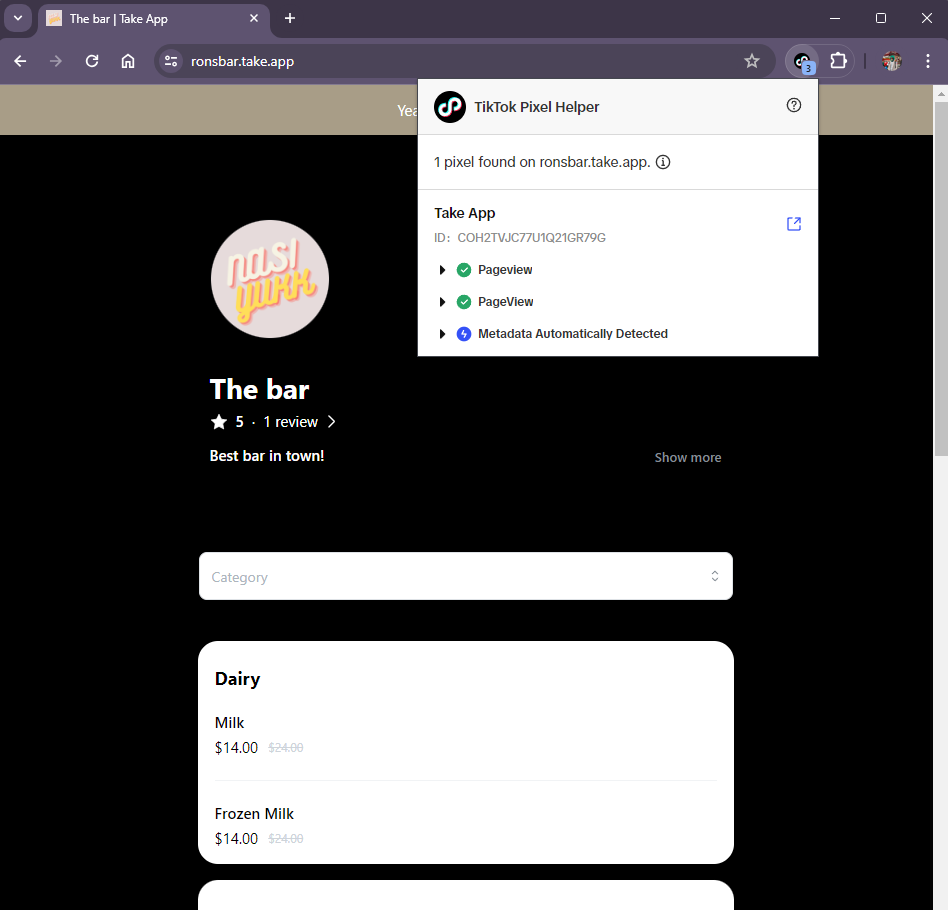
How to add Tiktok Pixel
-
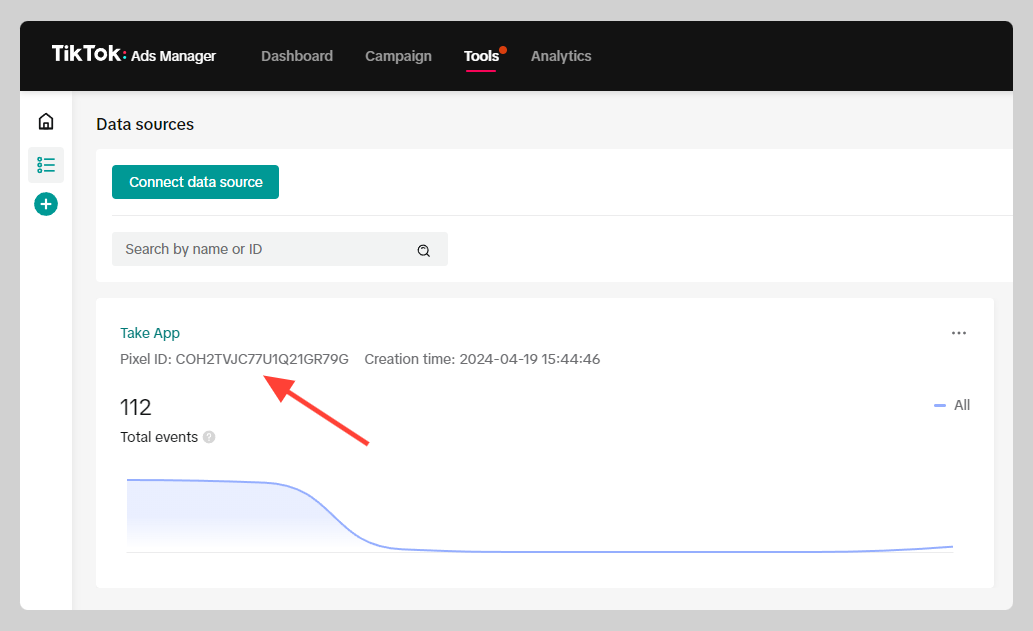
Connect your website by creating a data connection on TikTok ads manager - Learn how
-
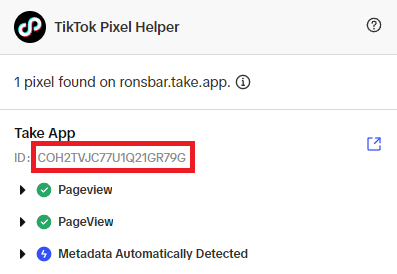
Find your TikTok pixel ID and copy the ID
-
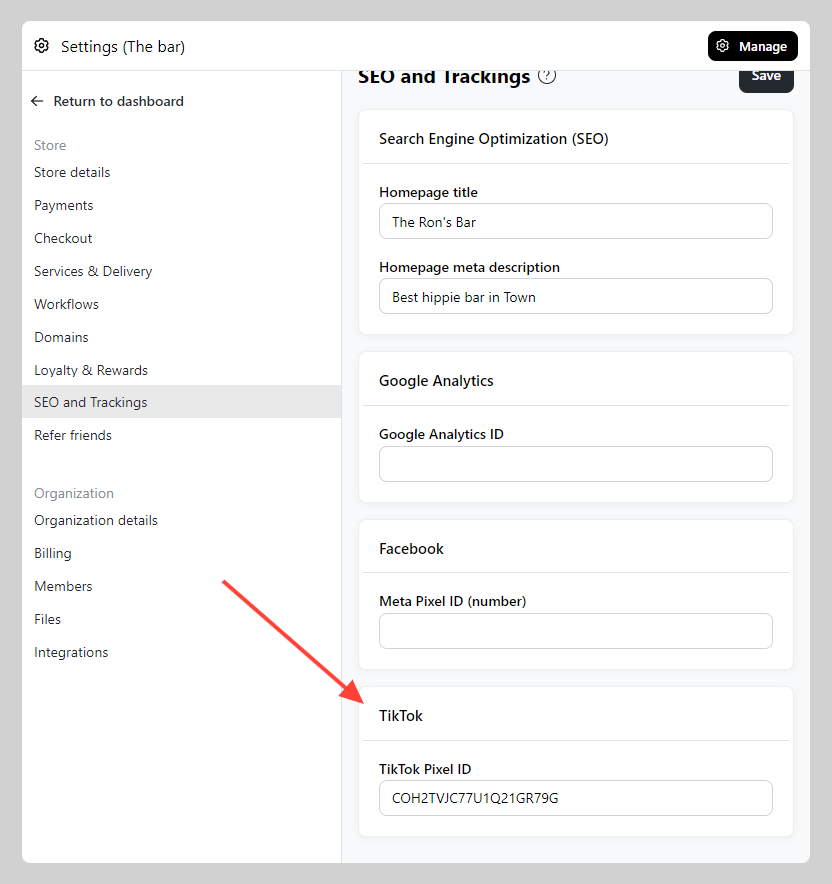
Go to Settings > SEO & Tracking > Navigate to TikTok pixel and Paste your ID
In countries that require cookie consent (EEA, UK, Switzerland, South Africa), TikTok Pixel loads only after the visitor accepts marketing cookies. See Cookie consent.
Events we send to your TikTok Pixel
Once your Pixel ID is saved, your storefront sends these events on its own — there is nothing else to set up.
| Event | Sent when |
|---|---|
ViewContent | A customer opens a product, or browses a category listing |
Search | A customer searches your store |
AddToCart | A product is added to the cart |
InitiateCheckout | A customer starts checkout |
Purchase | An order is placed |
CompleteRegistration | A customer creates an account |
PaymentStatus | The customer reaches a payment outcome |
Purchase fires when the order is placed, whether or not it was paid online. Orders you create or edit yourself in Admin are not reported.
PaymentStatus is a custom event that reports what happened to the payment, with a status property of completed (the money went through) or pending (a transfer is still being confirmed). A failed payment sends nothing, since the customer can retry. It is in addition to Purchase, not instead of it — use Purchase for orders taken and PaymentStatus for money received.