Razorpay is the payments solution in India that allows businesses to accept, process and disburse payments with its product suite. With it, you can accept credit cards and mobile wallet payments from clients and automatically be notified when they have paid.
How to add Razorpay as payment method
- Ensure your store currency is
INR. You can change store currency by visiting Store > Details. - Go to Admin > Settings > Payments and click
Add payment method. - Choose Razorpay India and make sure to hit
Save. - Click Razorpay India
Settingsto complete the setup by keying in your key ID and key secret.
Optional (to make sure orders are received)
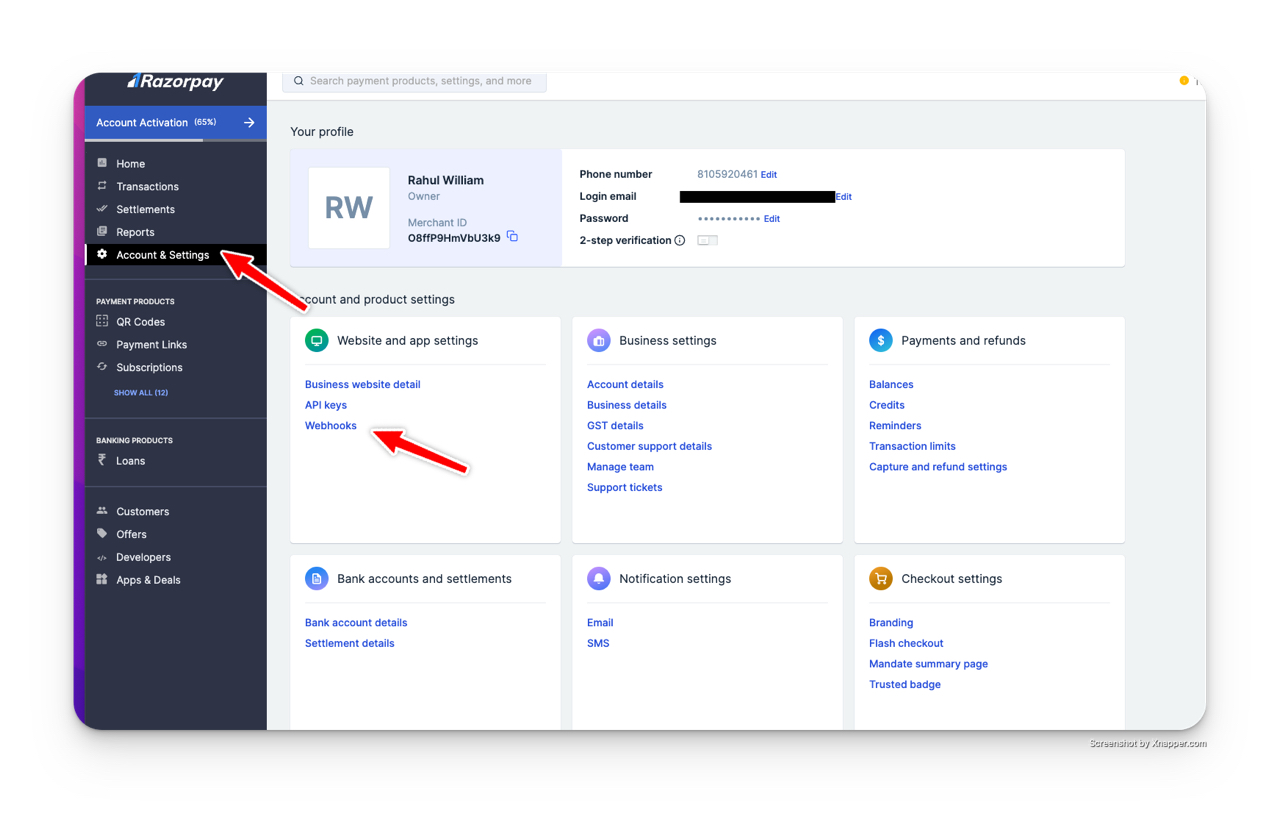
- Go to Razorpay Dashboard
- Click on Accounts & Settings > Webhooks
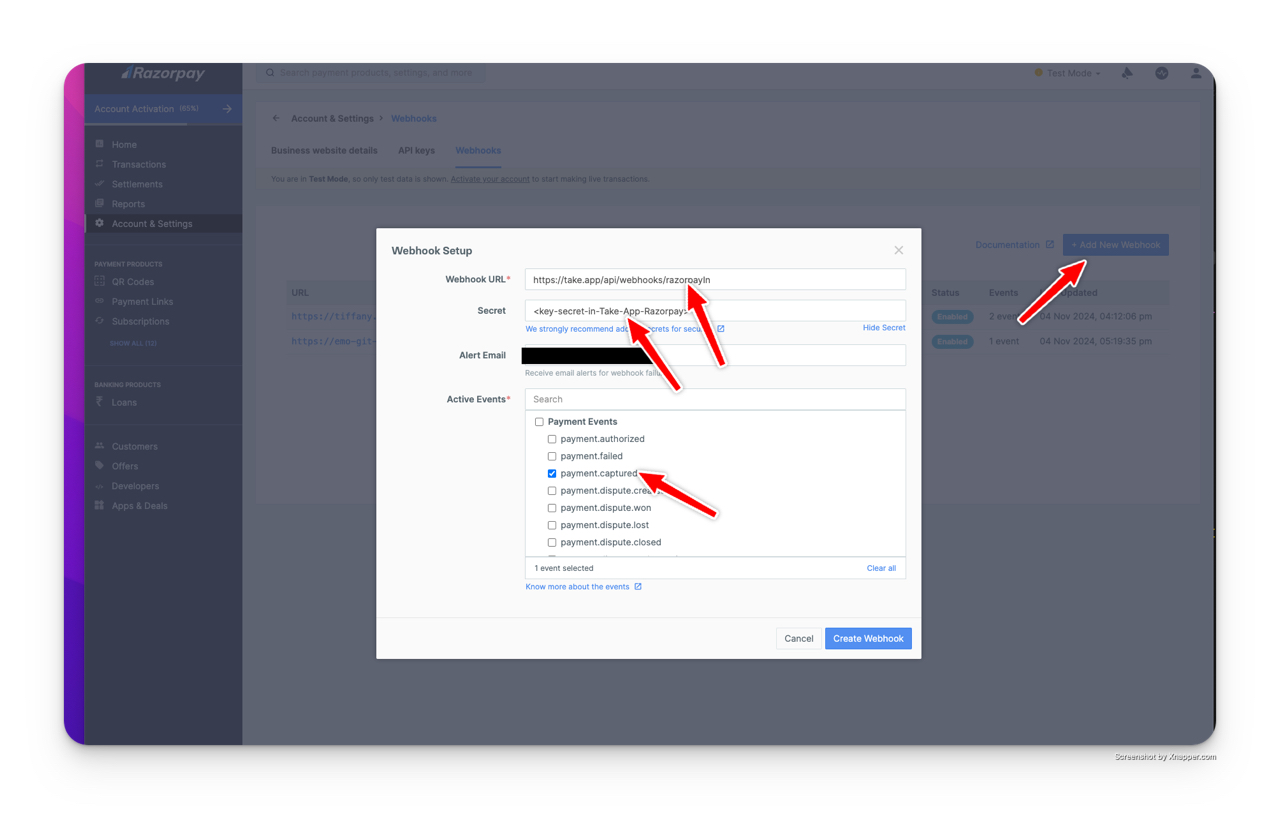
- Create a new webhook
- Insert webhook URL,
https://take.app/api/webhooks/razorpayIn - Add your key secret that you used for Take App Razorpay integration
- Tick "Payment captured"
How to find your Razorpay India Key ID and Key Secret?
- Log in to your Razorpay India account dashboard
- Sign up there and once signed up, you can submit all the documents there.
- Business Registration Proof
- Business PAN Company’s Bank Account Statement with Address Authorized
- Signatory’s ID Proof with clear photo and address
- PAN of Authorized signatory (copy not needed)
If you need any help, you can email payins-mmsolutions@razorpay.com
- Once approved, switch to Live mode.
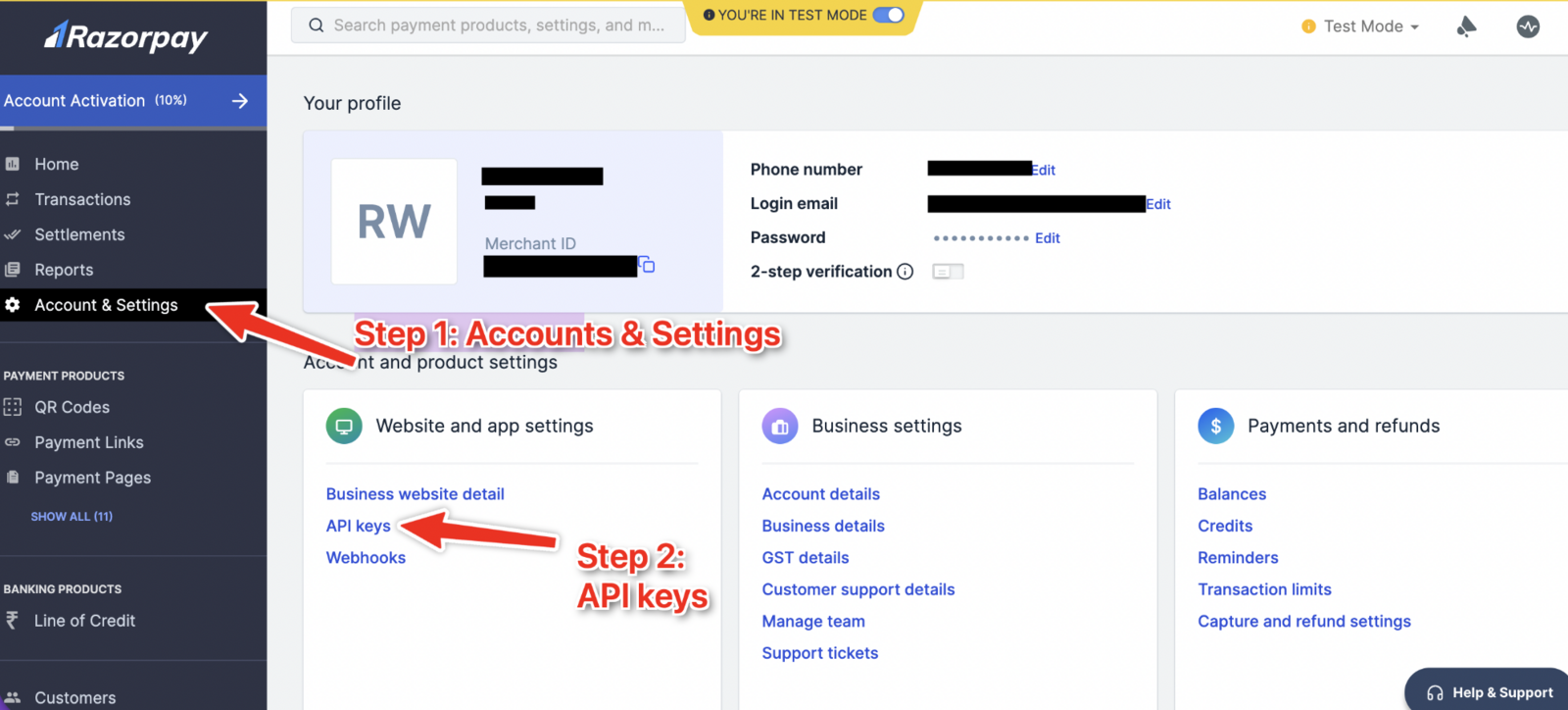
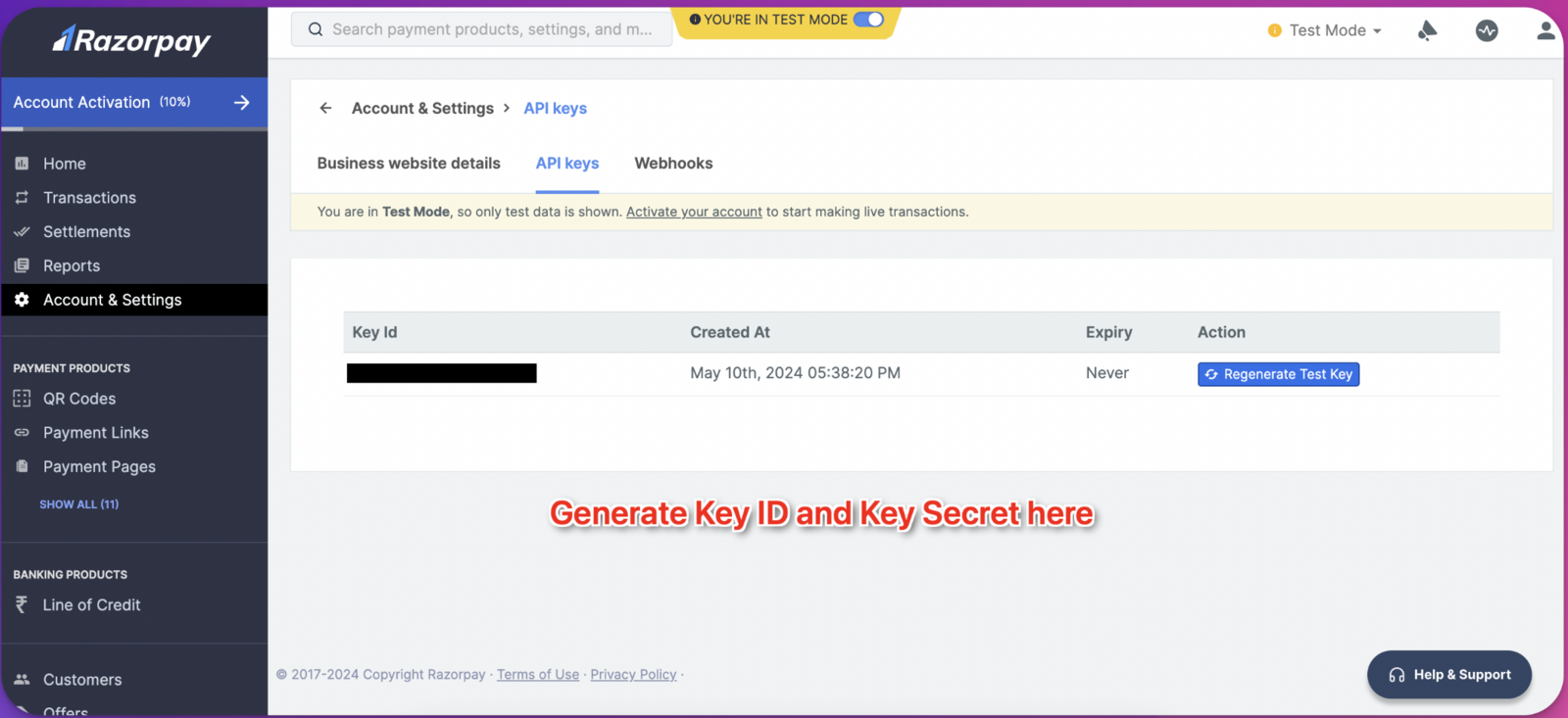
- In live mode, go to Accounts & Settings on the left-hand side menu. Click on the API Keys (See Image 1)
- Generate Key ID and Key Secret.