
Before you can start printing order receipts, set up your computer with a thermal printer by following this guide on Thermal printer setup guide. Also, make sure your device has compatibility with your printer, check on this supported printer model page.
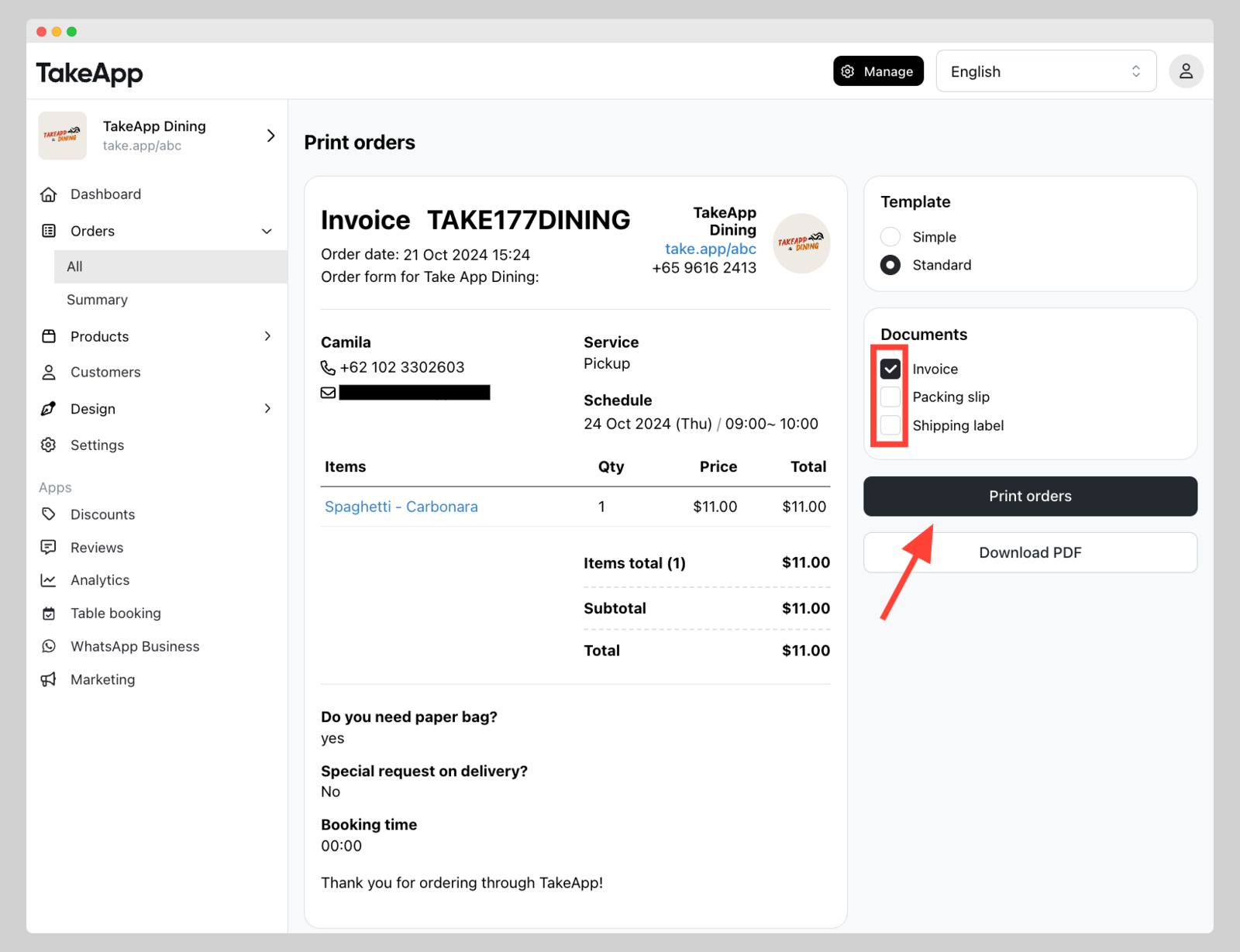
To print invoice, and packing slips, shipping label
-
Go to Admin > Orders and tick all the order that you wish to print
-
Click on
Actionsand choosePrint.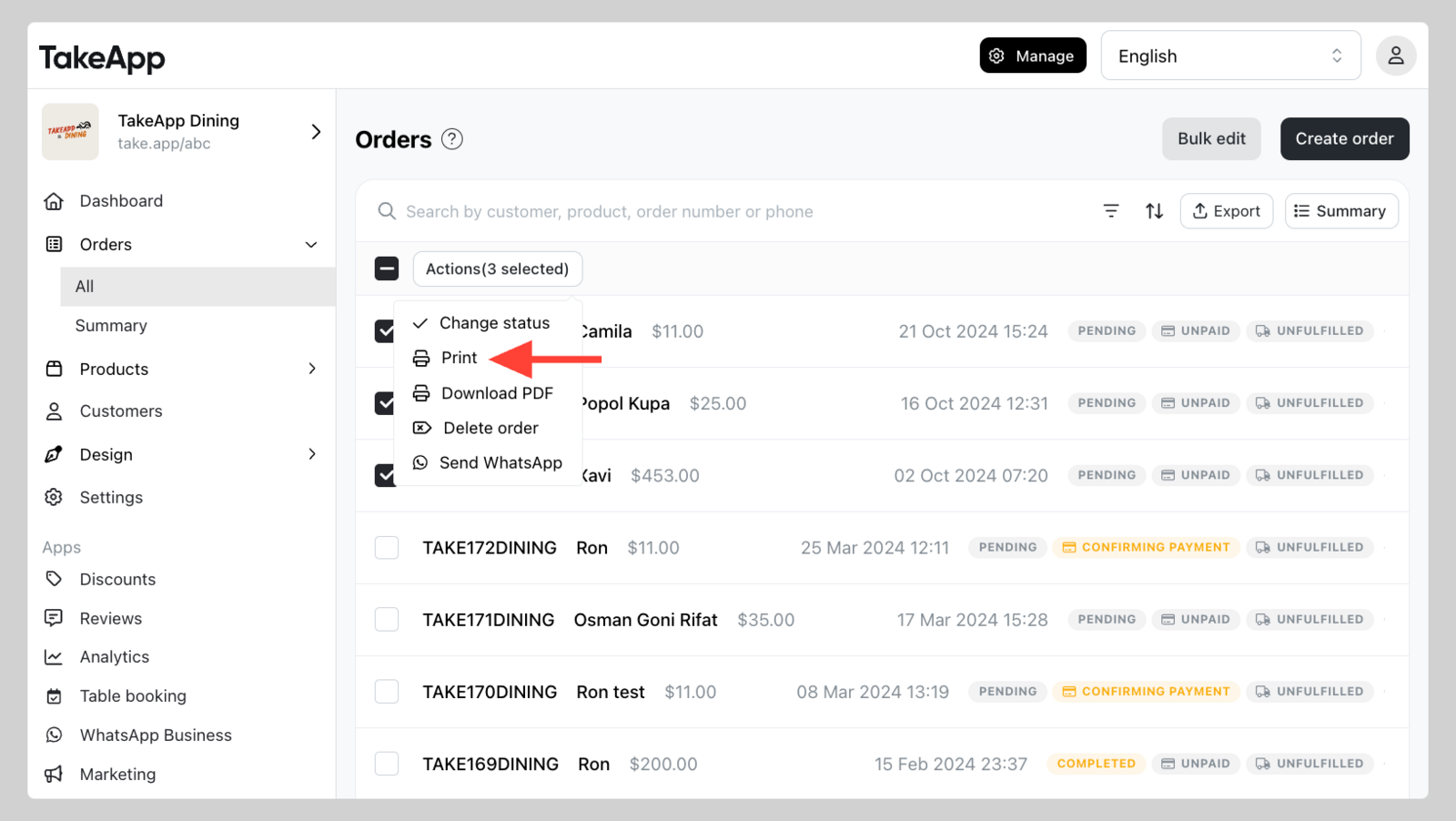
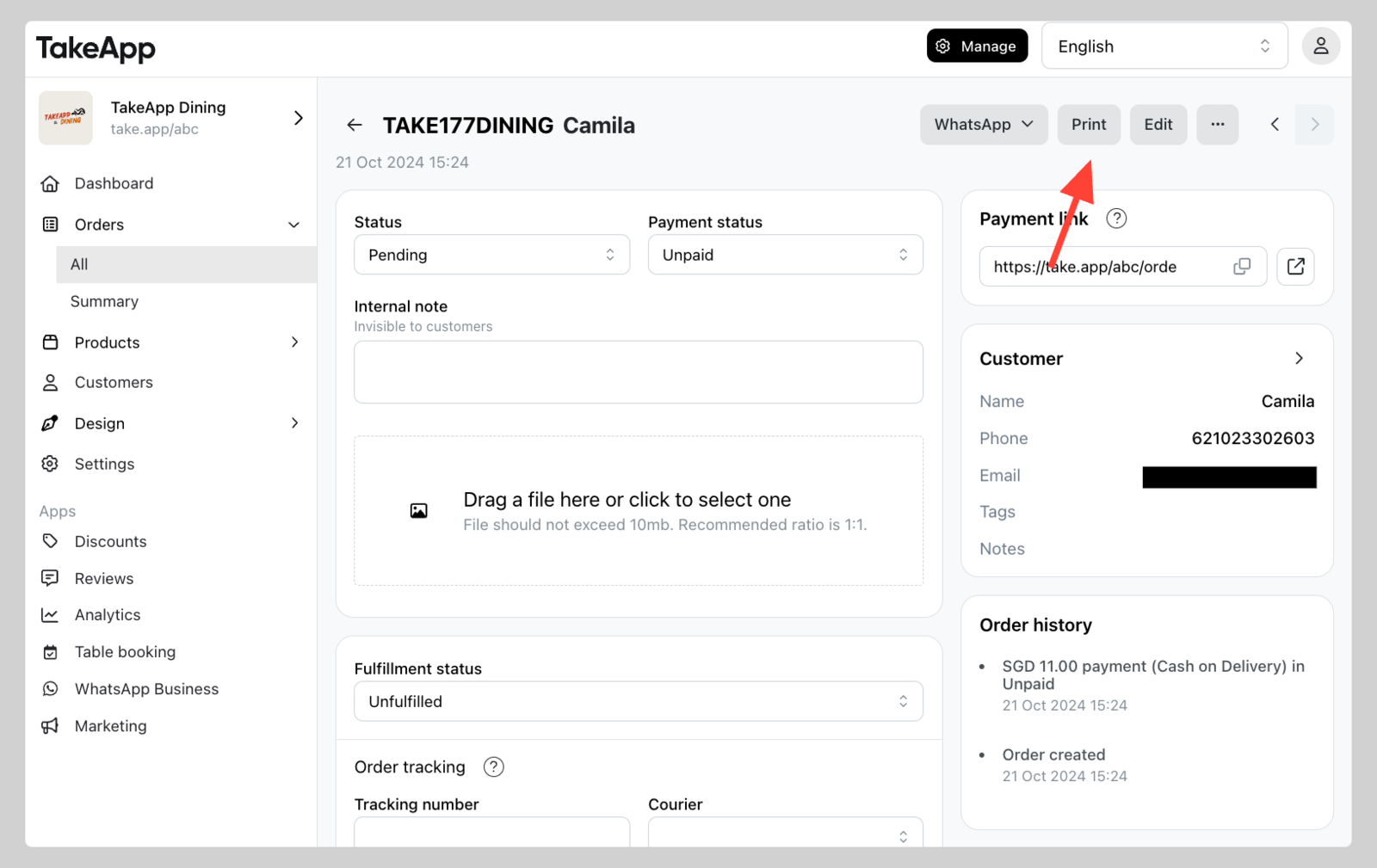
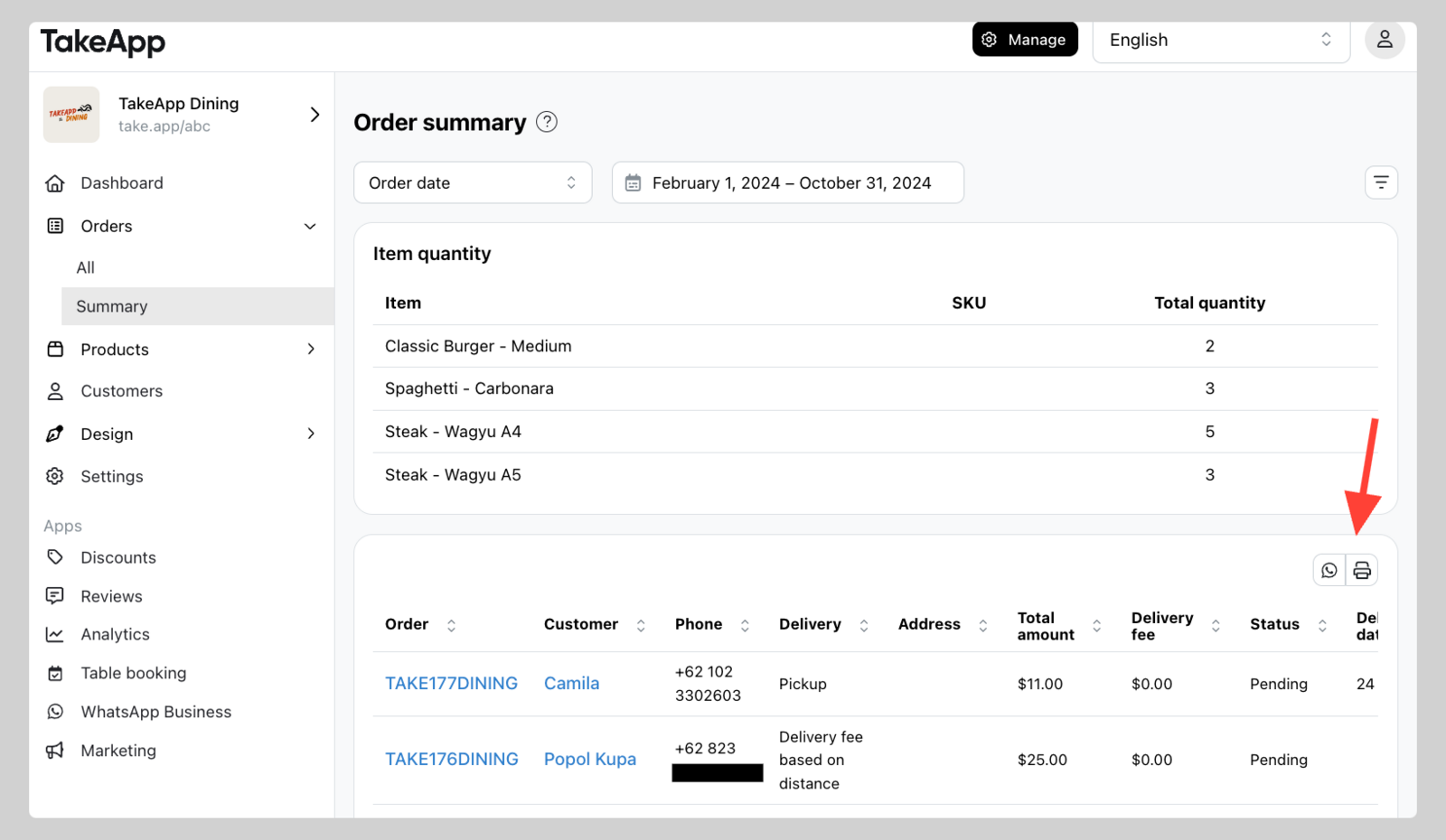
Or you can find print buttons in Admin dashboard and invoice pages.
-
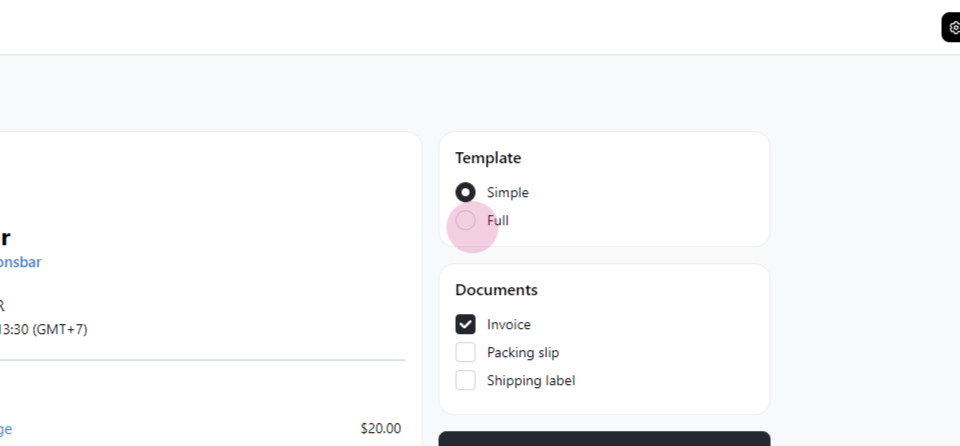
Choose the template you want — the simple template, or the full (standard) template.
-
Setup the receipt printer settings
-
Destination printer: should show your printer model (e.g. EPSON TM-T82X Receipt)
-
Paper size: should be aligned with your printer paper size compatibility (e.g. roll paper 80 x 297mm)
-
Margin: set to
NONEto avoid waste of space on the left/right side of receipt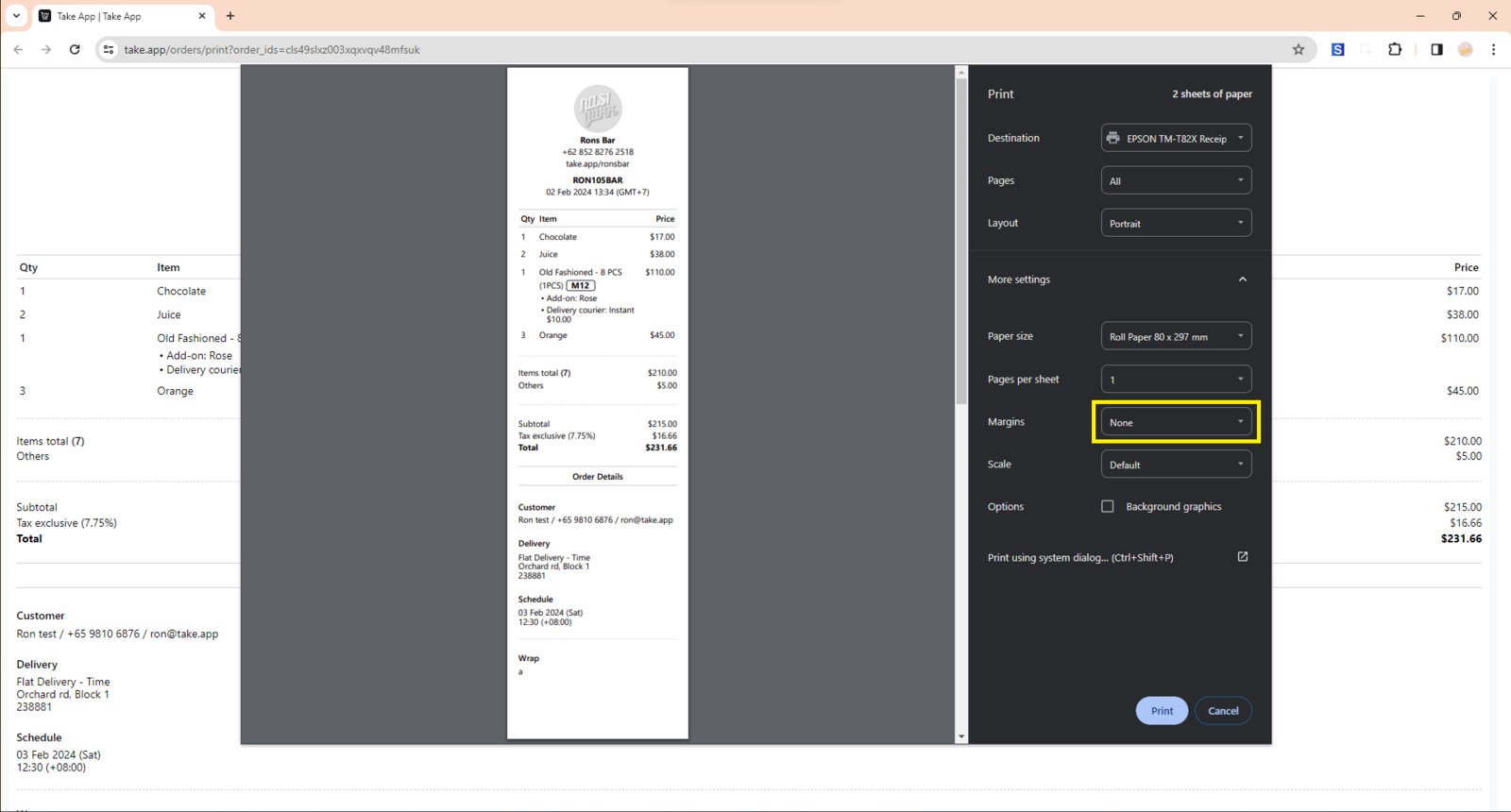
-
-
Click
Print orders.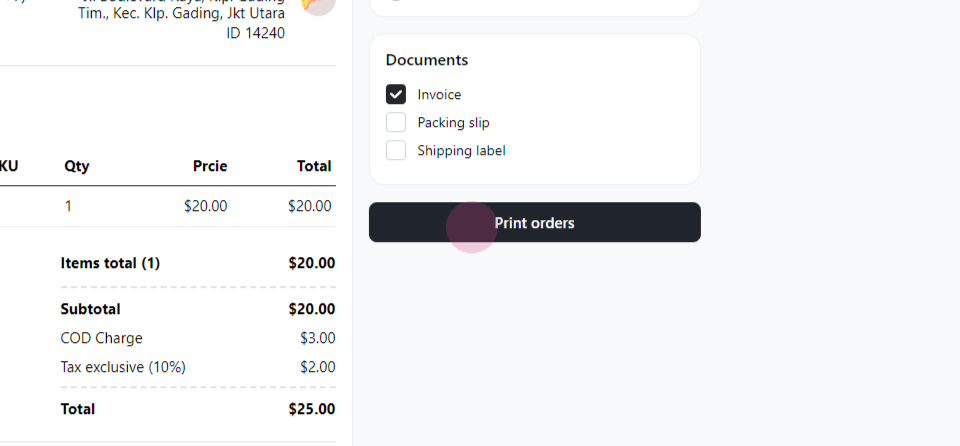
You can also open the print page straight from a single order — use the Print button on the order detail page, or press Cmd + P while the order is open.
Shipping label options
The shipping label has its own Show items and Show QR code toggles, so you decide exactly what ends up on the label. Turn Show items on when the courier or your packer needs the contents listed, and off when the label should stay minimal.
Print receipts from the mobile app
You can also print order receipts directly from the Take App mobile app using a Bluetooth thermal printer. No computer or Ethernet connection needed.
- Connect a Bluetooth printer in Settings → Printer (one-time setup).
- Complete an order and tap Print Receipt on the order confirmation screen.
The receipt includes your store name, address, order number, line items with options, totals, tax, and payment details.
For full setup instructions, see Bluetooth Printing from Mobile App.
Other print formats
Packing lists and simplified kitchen item lists print from the same menu — see Print packing lists and item lists.