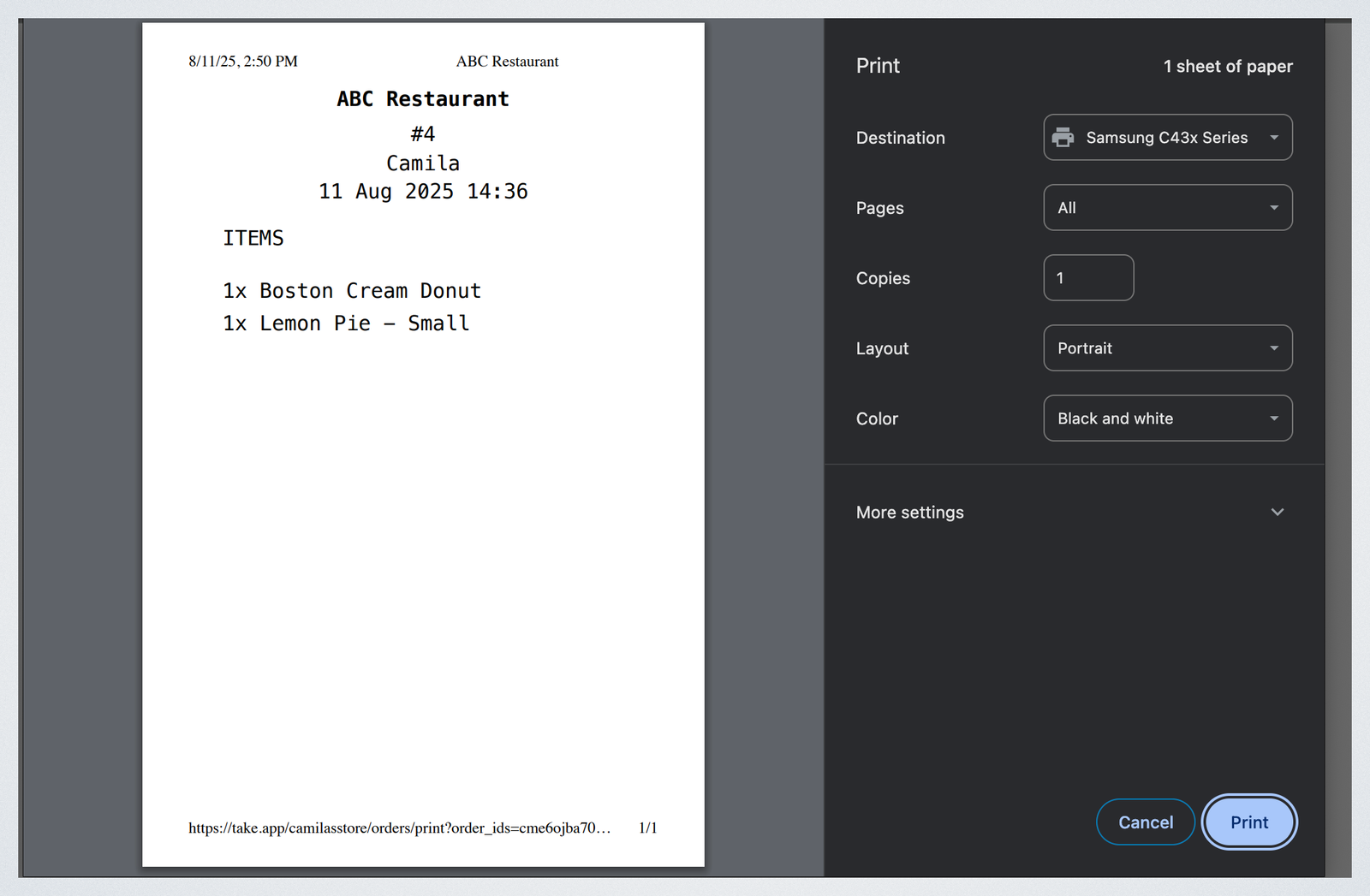
Alongside the full invoice, orders can be printed as a packing list or as an items list. Both print from the same menus as any other order — see Printing orders for printer setup.
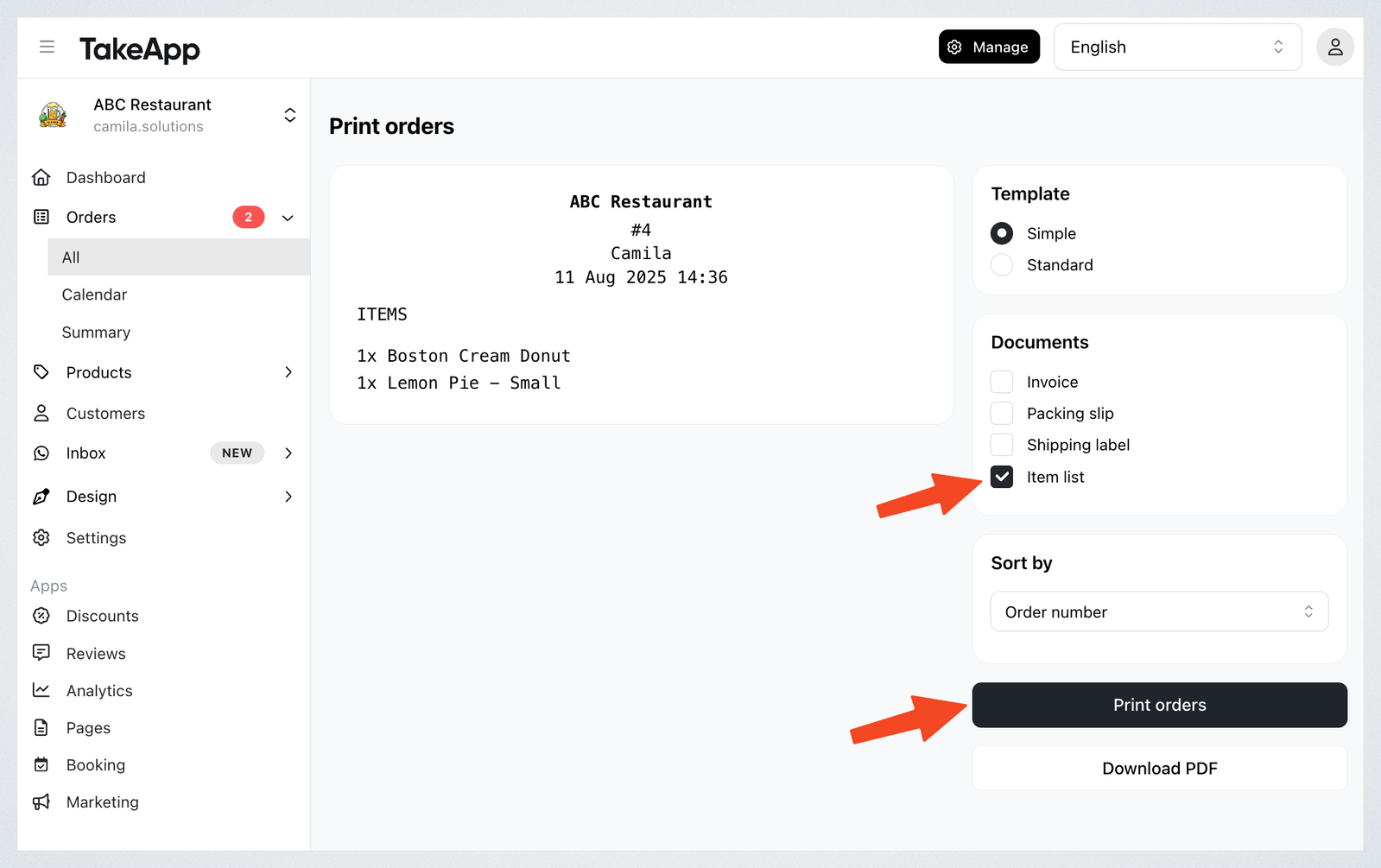
The Items List print option creates a simplified list that's perfect for small kitchen receipt printers. It shows only the customer details and the list of ordered items, helping save paper, speed up preparation, and keep the focus on essential information.
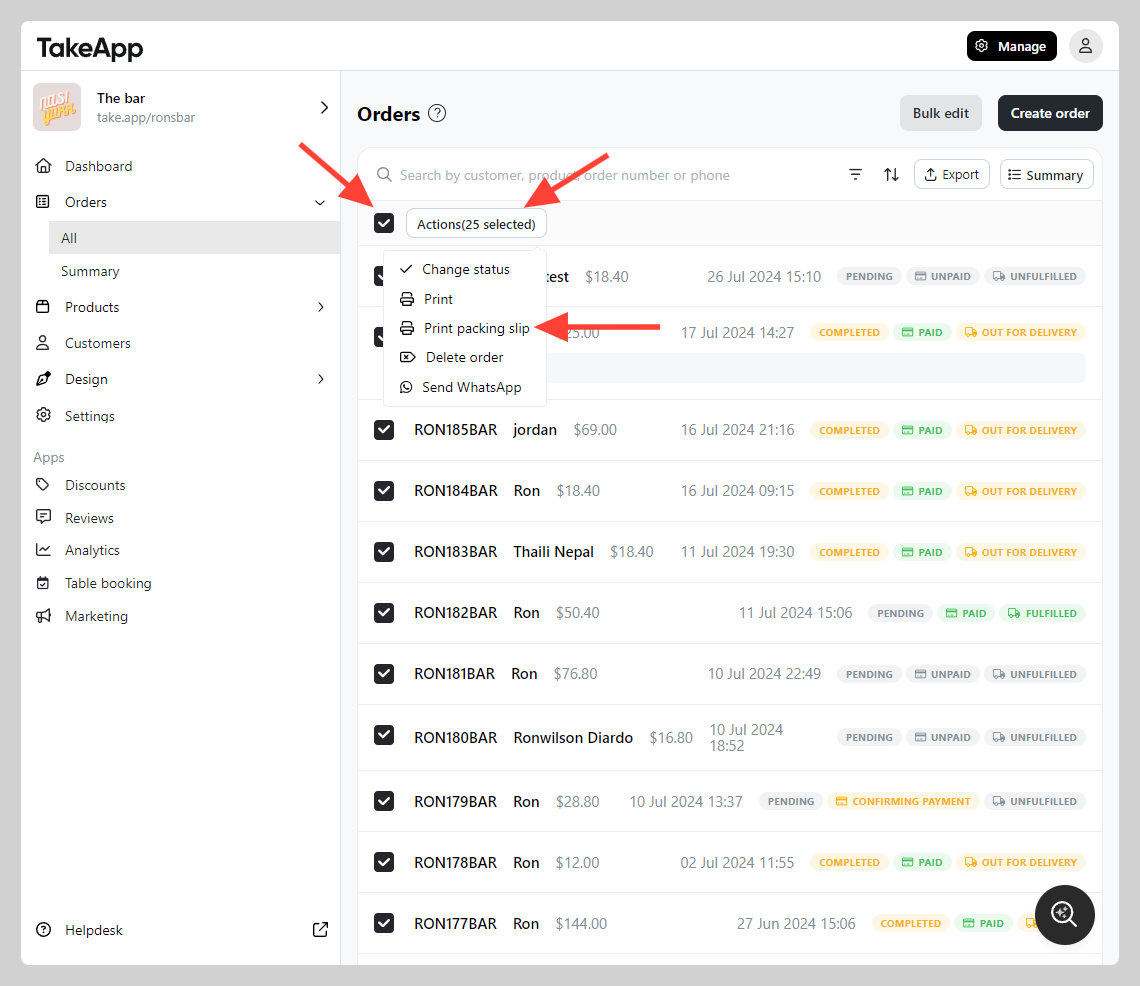
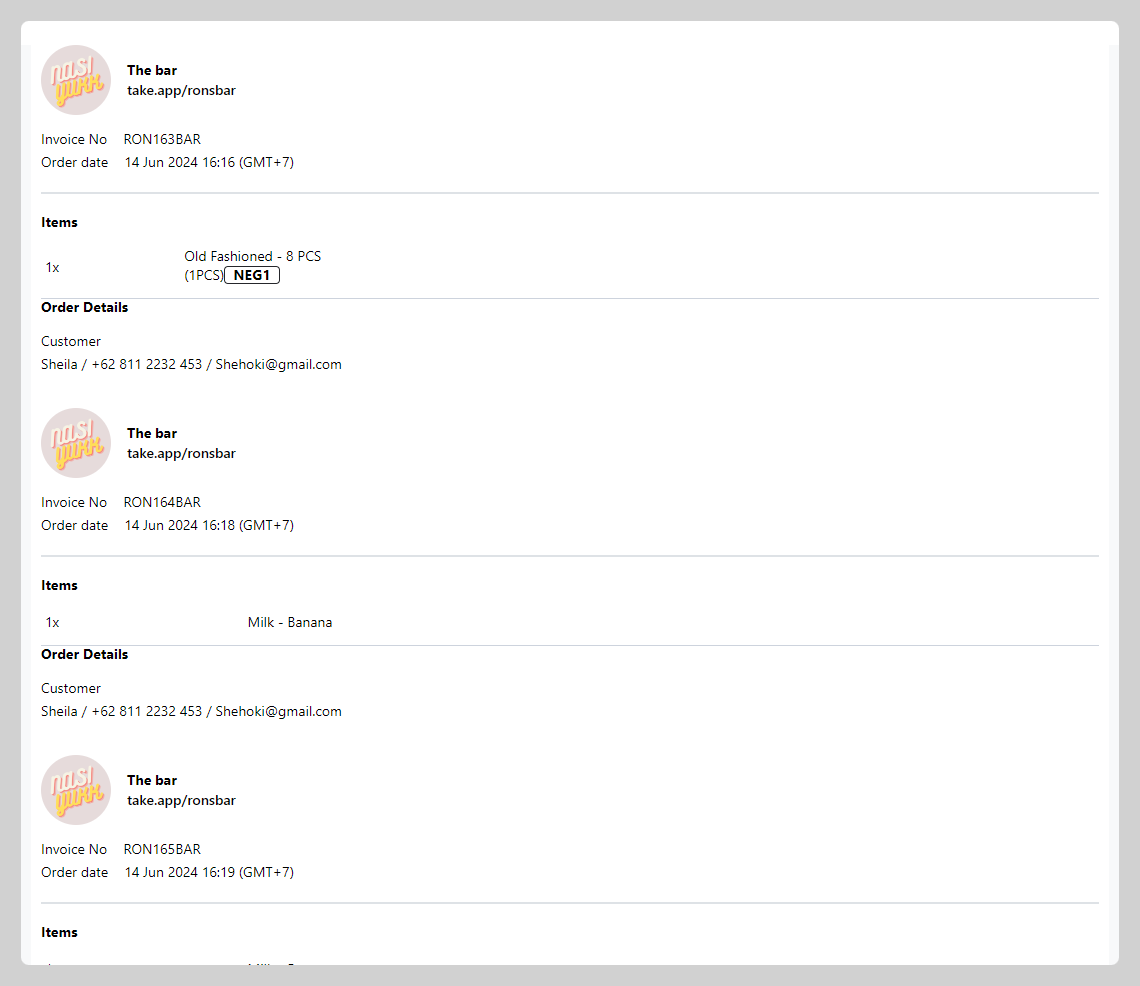
Print a packing list in bulk
- Go to Admin > Orders > All.
- Tick every order you want to print, then click
ActionsandPrint packing list.
Print an items list from an order
-
Open the order you want to print.
-
Hover over the three dots
…button and click "Print"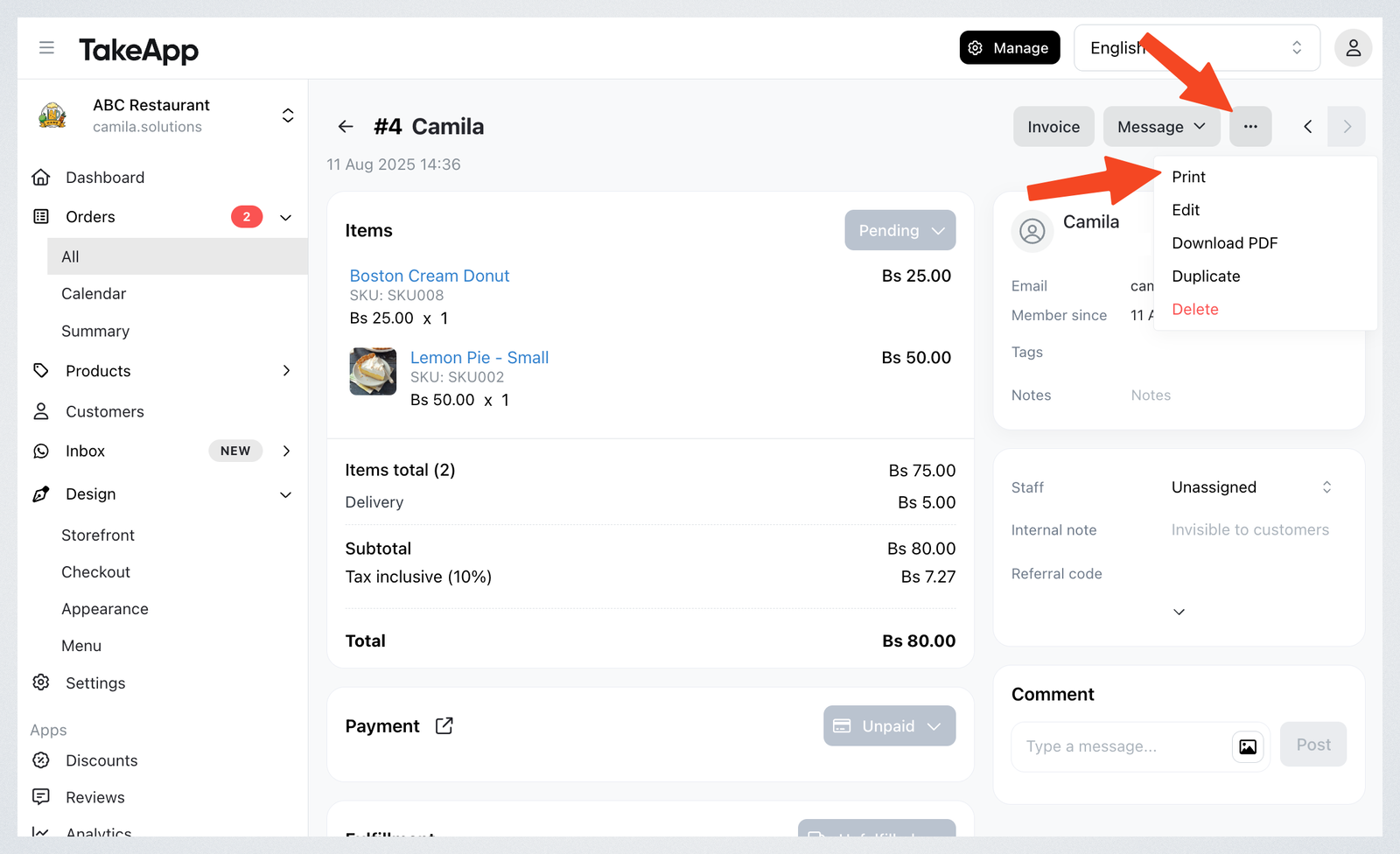
-
Select Items list and click the "Print orders" button. You can also download it in PDF format.
Print an items list from Order Display
-
Go to Orders > All > Display.
-
Find the order you want to print.
-
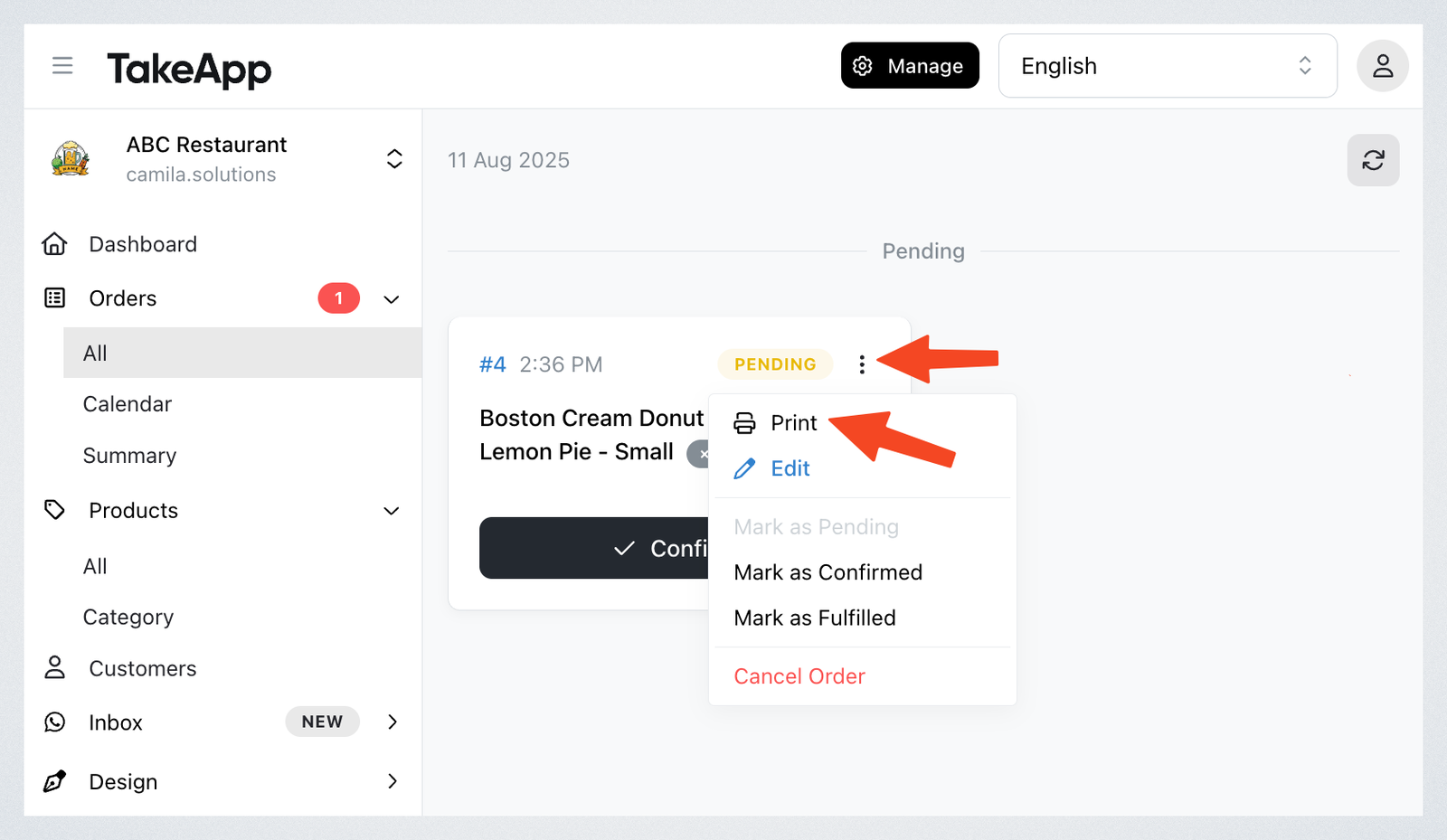
Click the three dots button and click Print.
-
A new tab will open. Once printed (or if you cancel), the print tab will close automatically.