
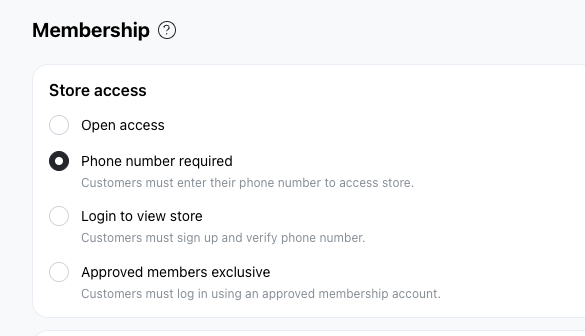
How to Enable This Setting
- Go to your Menu
- Tap Settings
- Select Membership
- Choose Phone number required
When this setting is active, visitors must enter their phone number before they can view your store.
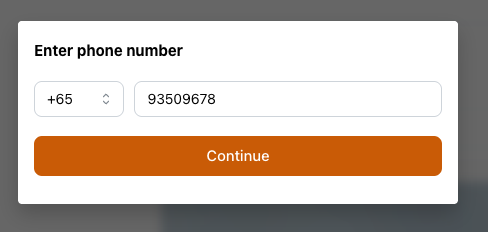
Why Use Phone Number Required?
Pros
- Frictionless data collection: Customers only need to type in their phone number — no OTP, no account creation.
- Saves WhatsApp message quota: Since no OTP is sent, this access mode does not consume your WhatsApp verification message quota.
It’s a simple way to gather contact info early without creating barriers.
Cons
- Limited functionality for the customer: Customers are not logged in, so they won’t be able to:
- Use store credits
- View discounted or wholesale pricing
- Access order history
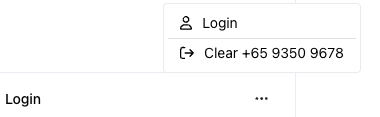
To unlock those features, they’ll need to log in by tapping the Login button at the bottom left of the store.
Additional Notes
- The phone number a visitor enters is visible when you hover over the ••• button near the Login area.
- Customers can choose to clear their number or let it expire automatically after 7 days.
When to Use This Mode
Choose Phone Number Required if you want to:
- Collect customer contact info quickly
- Avoid asking them to go through a full login or OTP verification
- Strike a balance between ease of access and customer insight