Does Take App charge a payment processing fee?
No. Take App does not charge a payment processing fee on any payment method — not on cards, not on QR or bank transfers, not on cash on delivery. We take no percentage of your sales, and we never add a fee on top of what your payment provider charges. Your subscription is the only thing you pay us.
What does cost you money is the payment gateway you connect. Stripe, HitPay, Paystack, Razorpay, PayPal and the rest are separate companies with their own per-transaction pricing, and they deduct their fee from the payment before it reaches your account. Their published rates are the rates you pay — Take App doesn't mark them up, and Take App never holds your money.
Manual and local payment methods (bank transfer, PayNow QR, cash on delivery, and others where the customer pays you directly) cost nothing on our side either. Whether there's a fee at all is between you and your bank or wallet provider.
Because the gateway's fee is a real cost, Take App lets you pass it on to your customer at checkout. That's what the rest of this article sets up.
How to pass the gateway fee to your customers
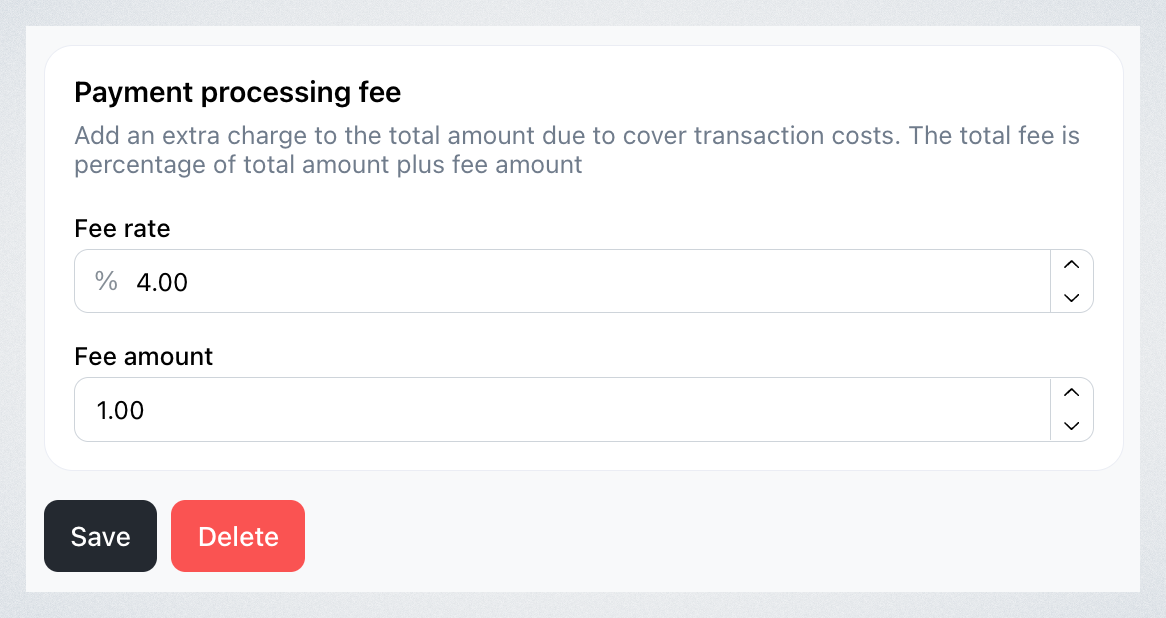
You can choose to pass payment processing fees to your customers by adding a percentage-based fee, a fixed fee, or both. This is available for automatic payment methods only (e.g., Stripe, Paystack).
- Go to Settings > Payments
- Select the payment gateway you want to apply the fees
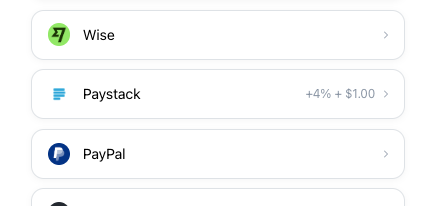
- You’ll see an option to add a percentage-based fee (e.g., 4%) and a fixed fee (e.g., $1)
-
For example, if Stripe charges you 3.4% + $0.50 per transaction, you may choose to charge your customers 4% + $1 to cover these costs.

-
- Click Save to apply the processing fee to all future orders. The customer’s total at checkout will now include the additional fee.
Reviewing the Changes
-
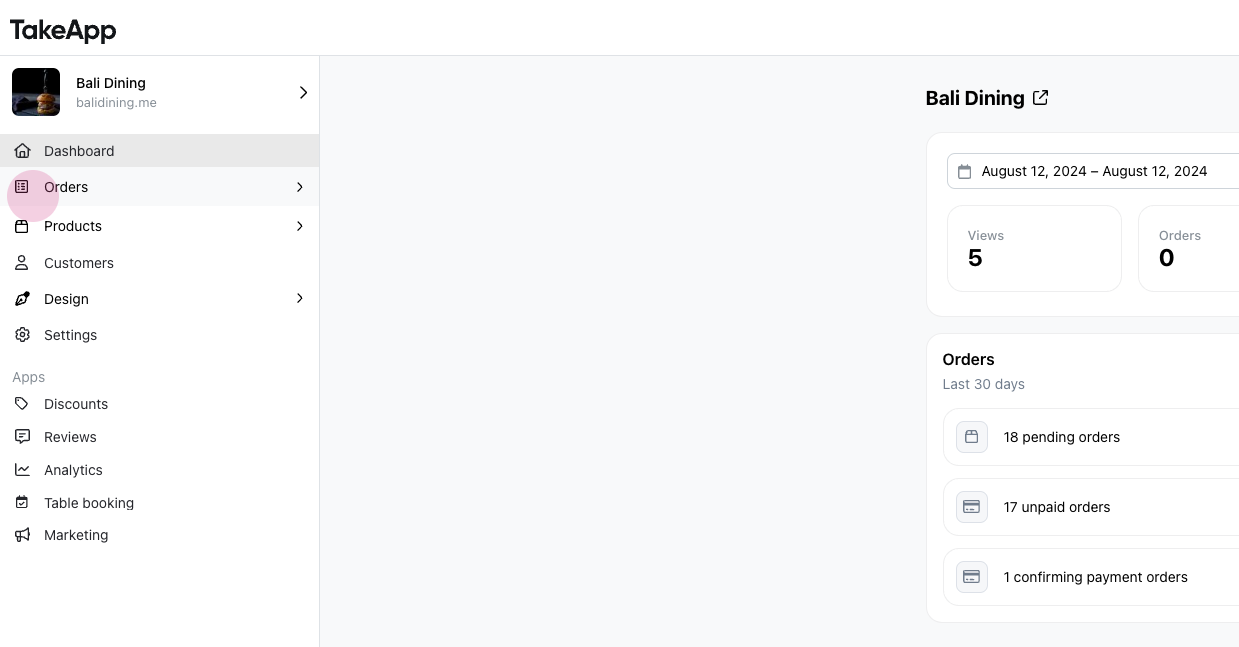
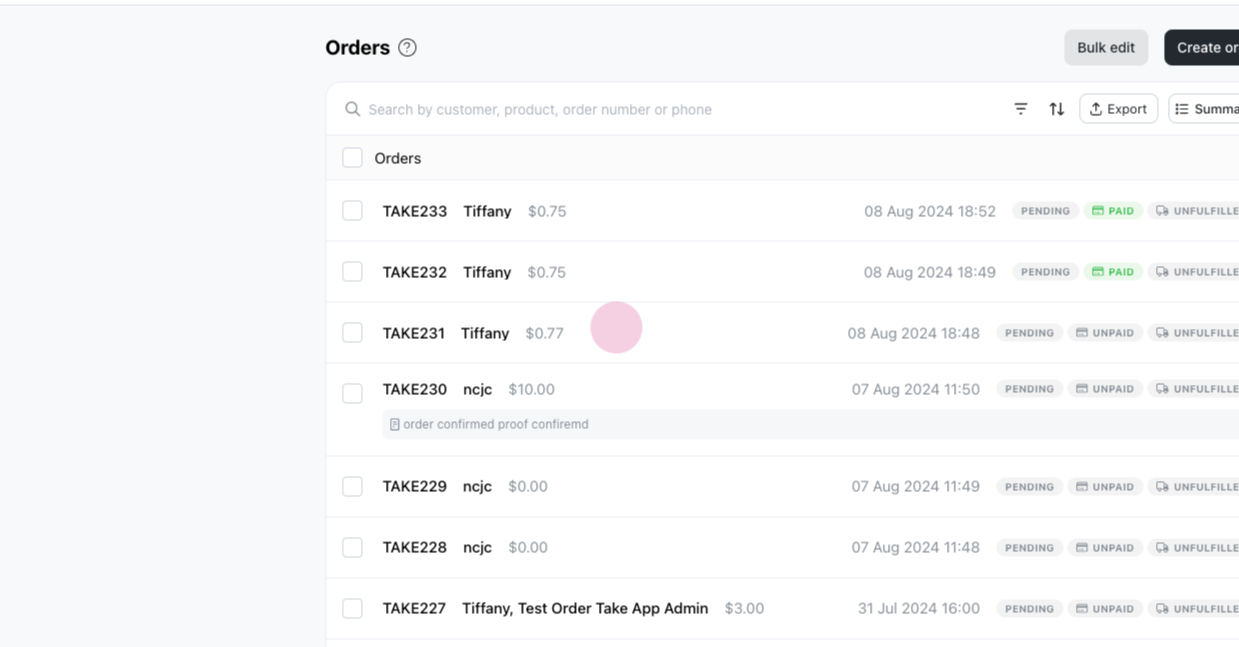
Navigate to 'Orders' and select an unpaid order.
-
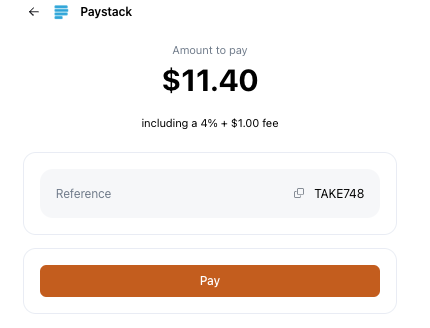
Go to the payment link. You’ll see the original price with the added 4% + $1 processing fee included in the total.
-
Click Pay to view the full cost with the transaction fee applied.