
Your customers can search, sort, and filter products on your store page to find what they're looking for faster. Here's how it works from their end.
How to open sort and filter options
-
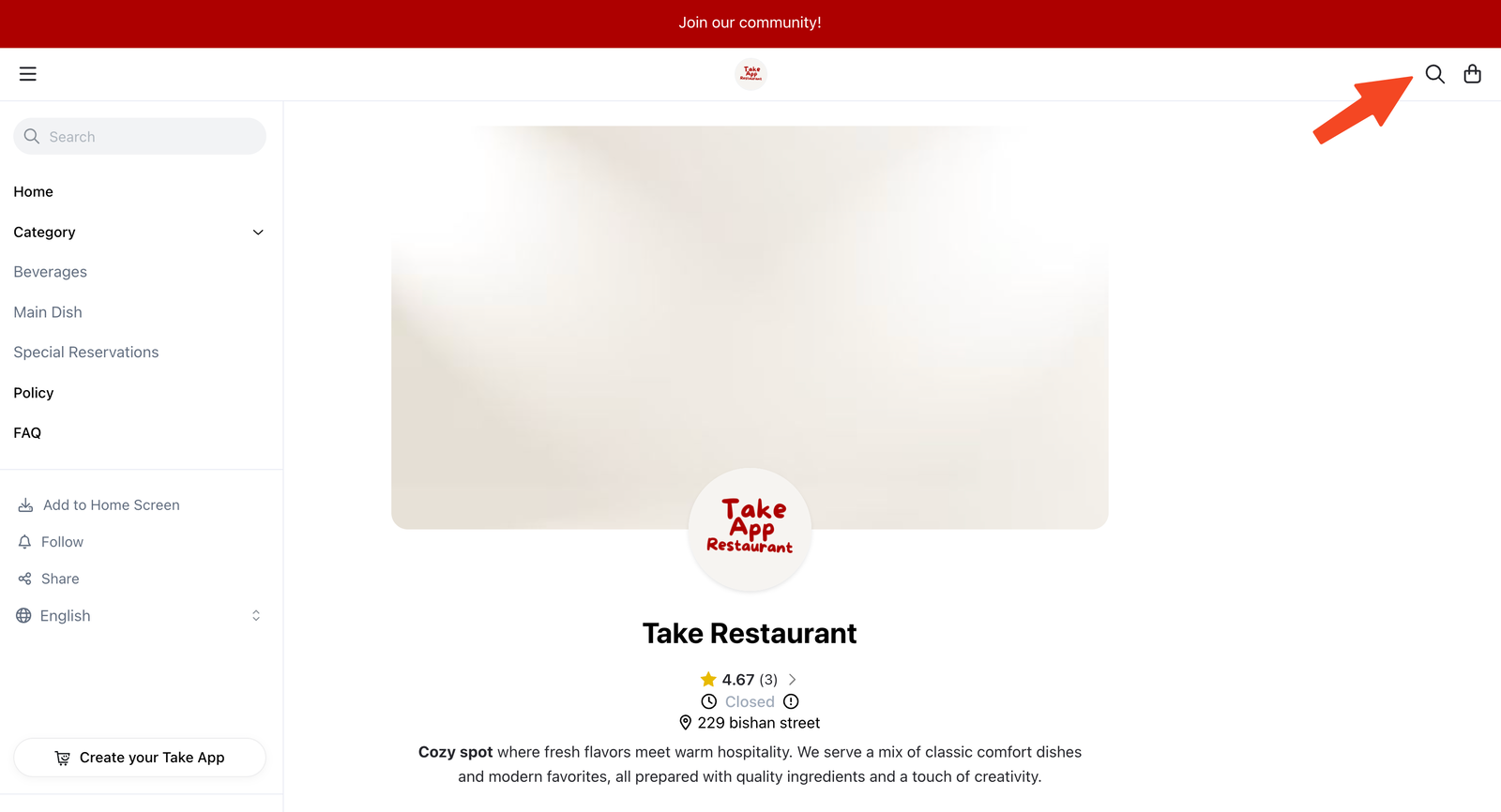
On your store page, customers tap the search icon (magnifying glass) in the top right corner
-
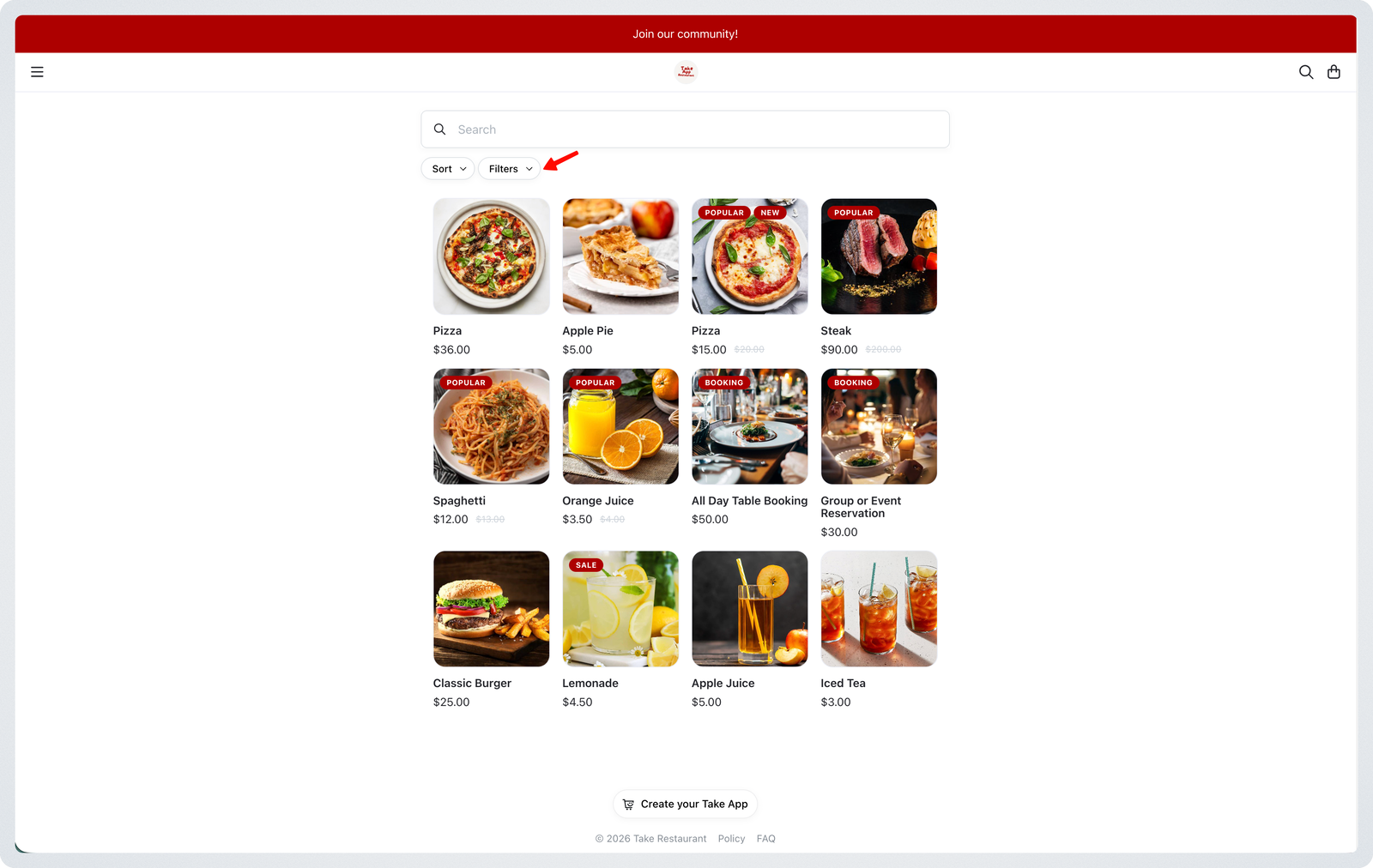
The search bar will appear along with Sort and Filters buttons just below it. They can tap them to see the options.
Sort
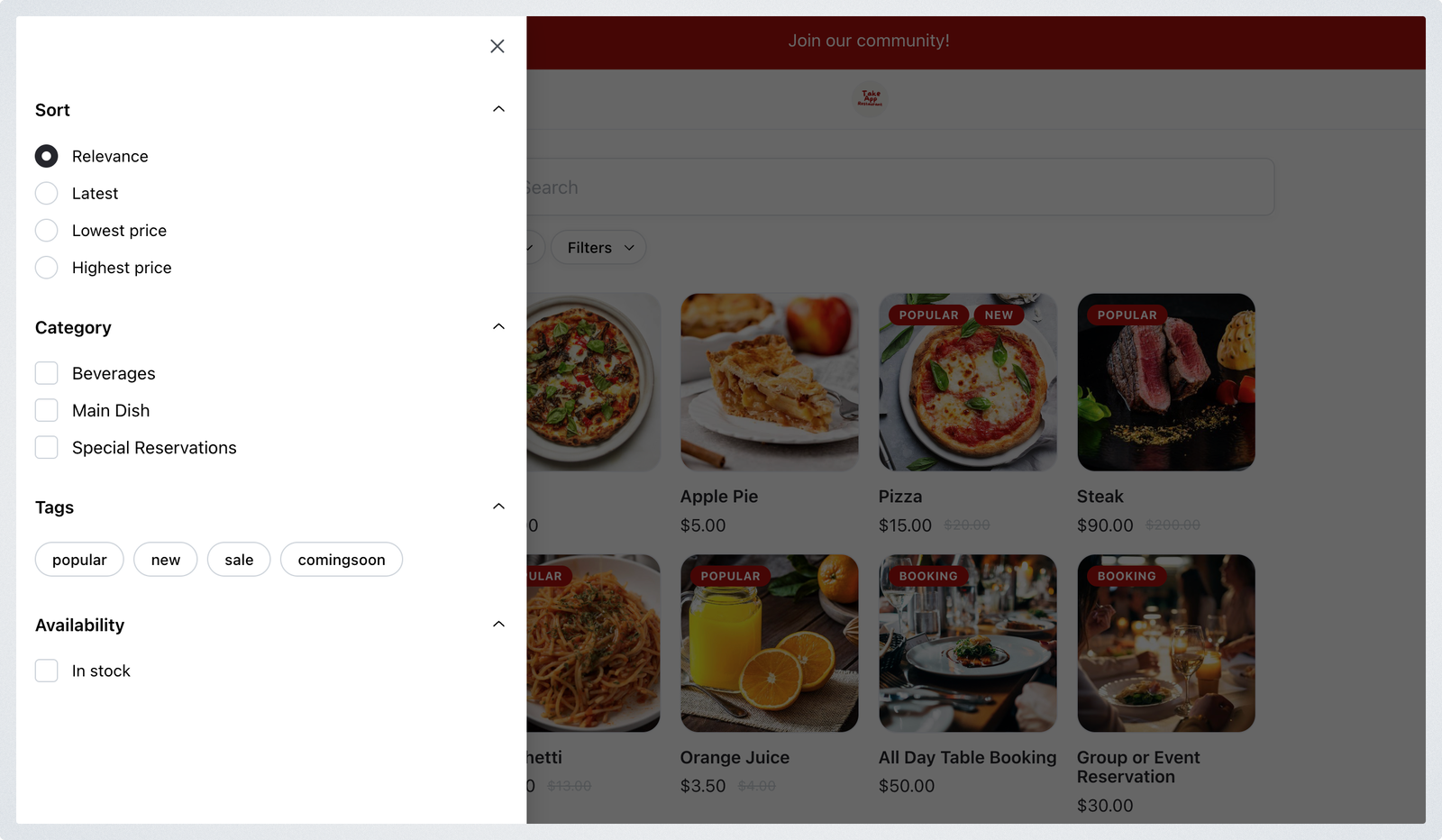
Tapping Sort lets customers choose how products are ordered:
- Relevance — default view, shows products in recommended order
- Latest — shows your newest products first
- Lowest price — shows your cheapest products first
- Highest price — shows your most expensive products first
Filters
Customers can narrow down by category, tag, and availability.
Category — filters by product type based on the categories you've set up, for example:
- Beverages
- Main Dish
- Special Reservations
Tags — filters by the tags you've applied to your products (e.g. new, popular, etc.)
Availability — customers can tick In stock to only see products that are currently available to order