Take App now lets you sync the products in your store directly to Google Merchant Center, helping your items appear more quickly and accurately across Google surfaces like Search and Shopping. This gives your business better visibility, increases the chances of customers discovering your products, and helps you reach new audiences without extra work.
How to connect Google Merchant Center
-
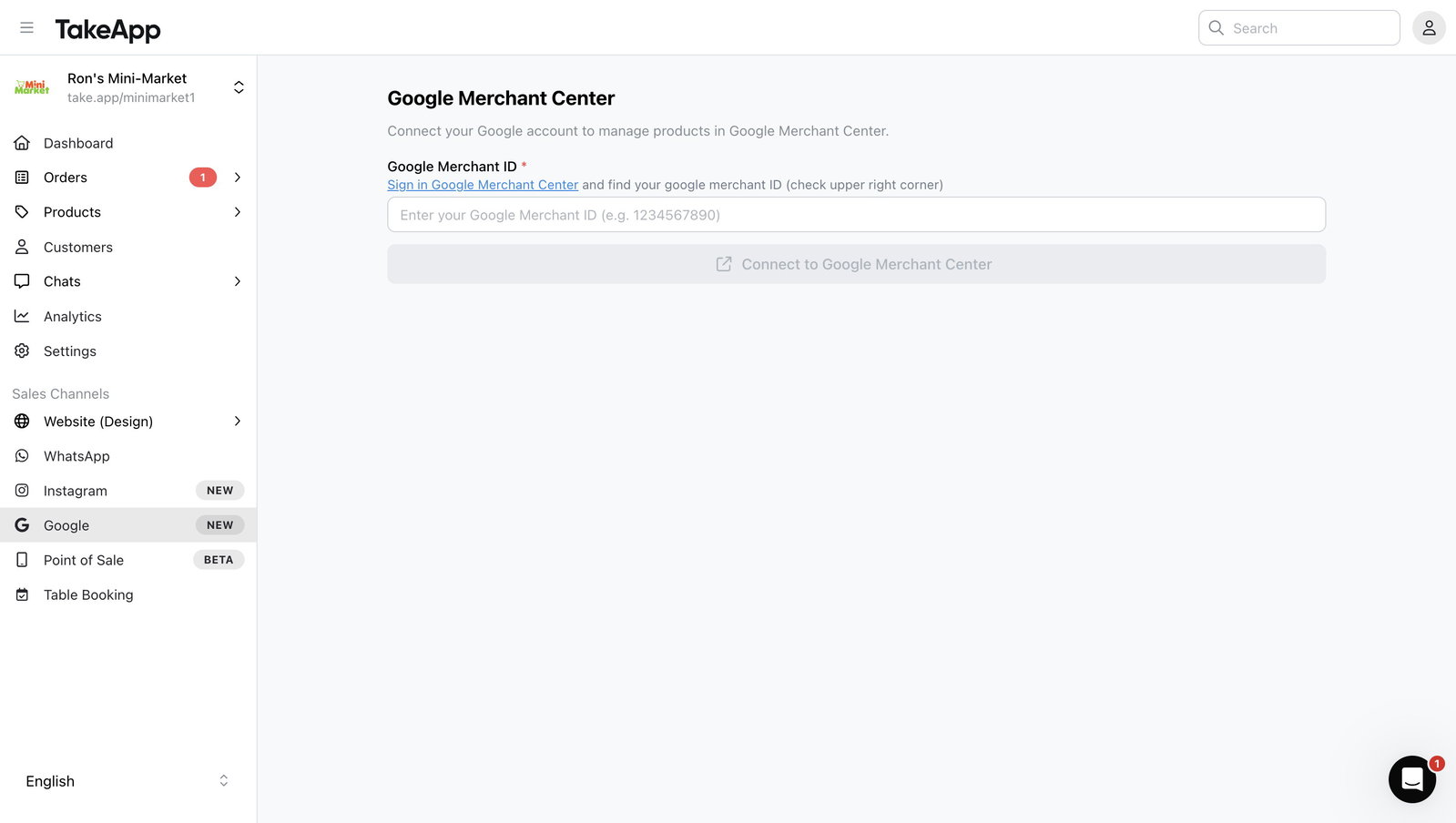
Click on "Google" under Sales Channel section.
-
Click "Sign in Google Merchant Center"
-
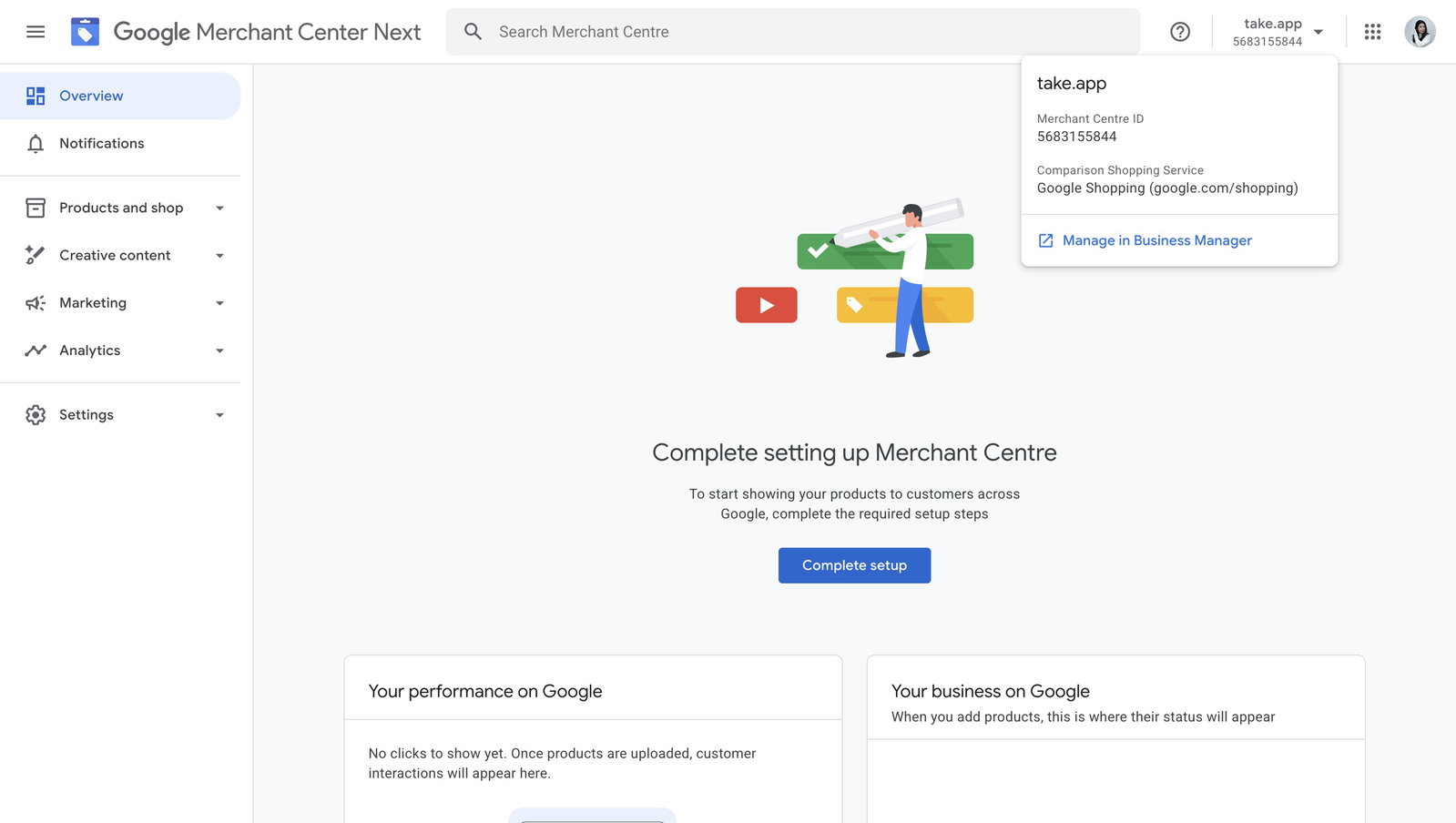
You will be redirected to your Google Merchant account.
-
Copy your Merchant Centre ID. It's located at the top right corner.
-
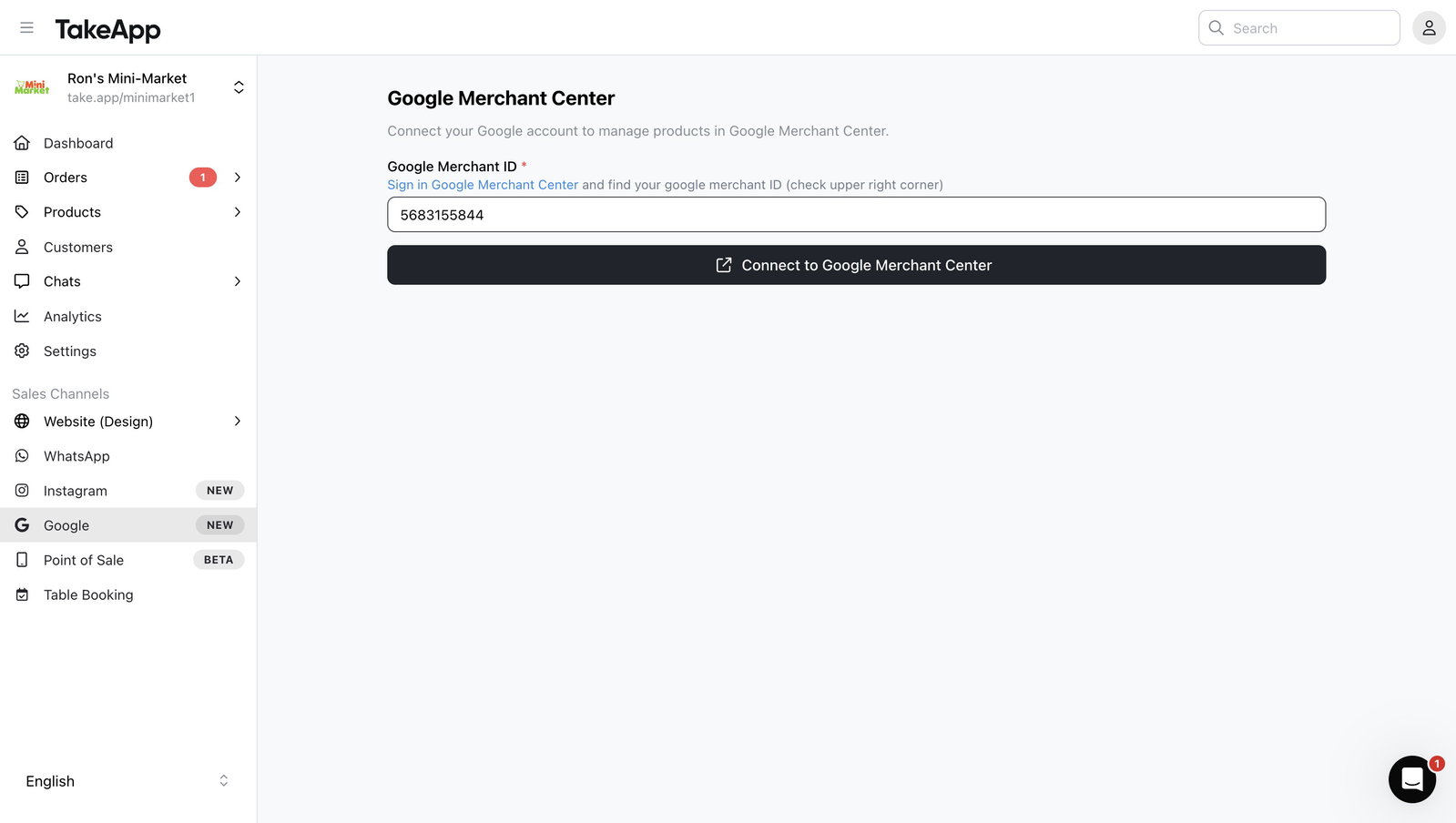
Go back to your Take App admin dashboard and enter the ID. Click on "Connect to Google Merchant Center"
-
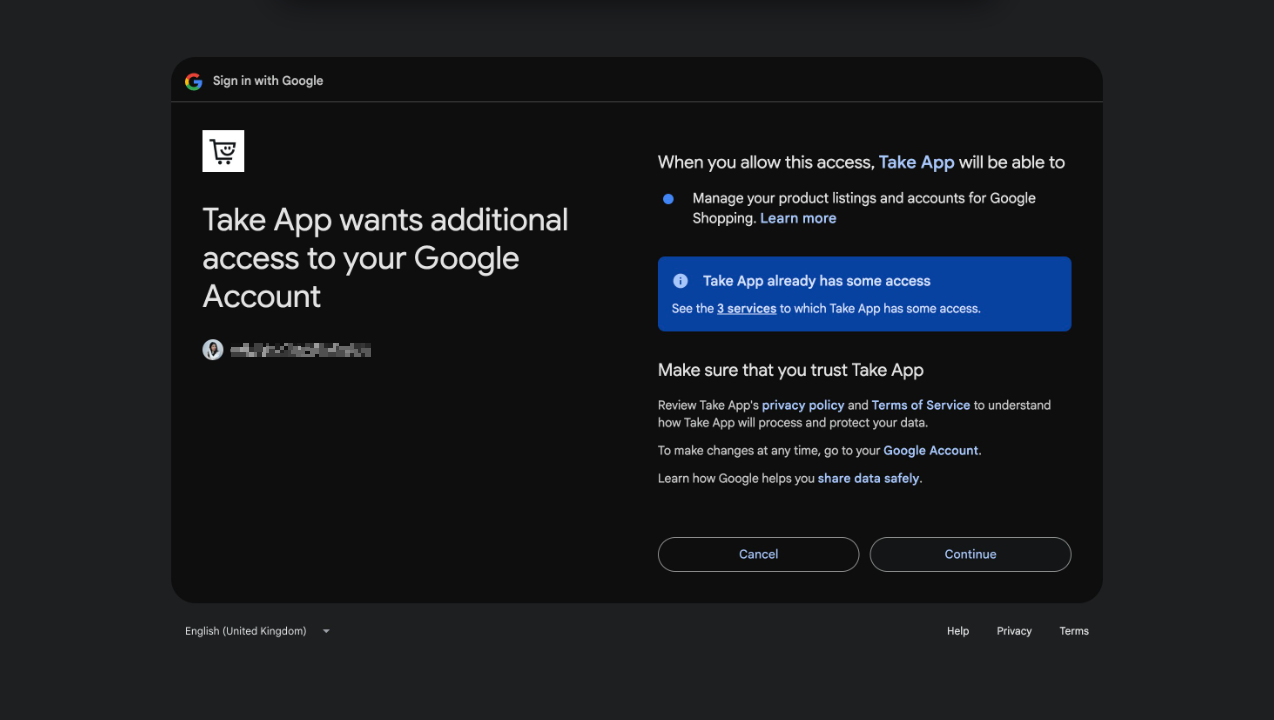
Follow the login process and all its steps
-
Your Google Merchant Center is now connected.
Verify your online store
-
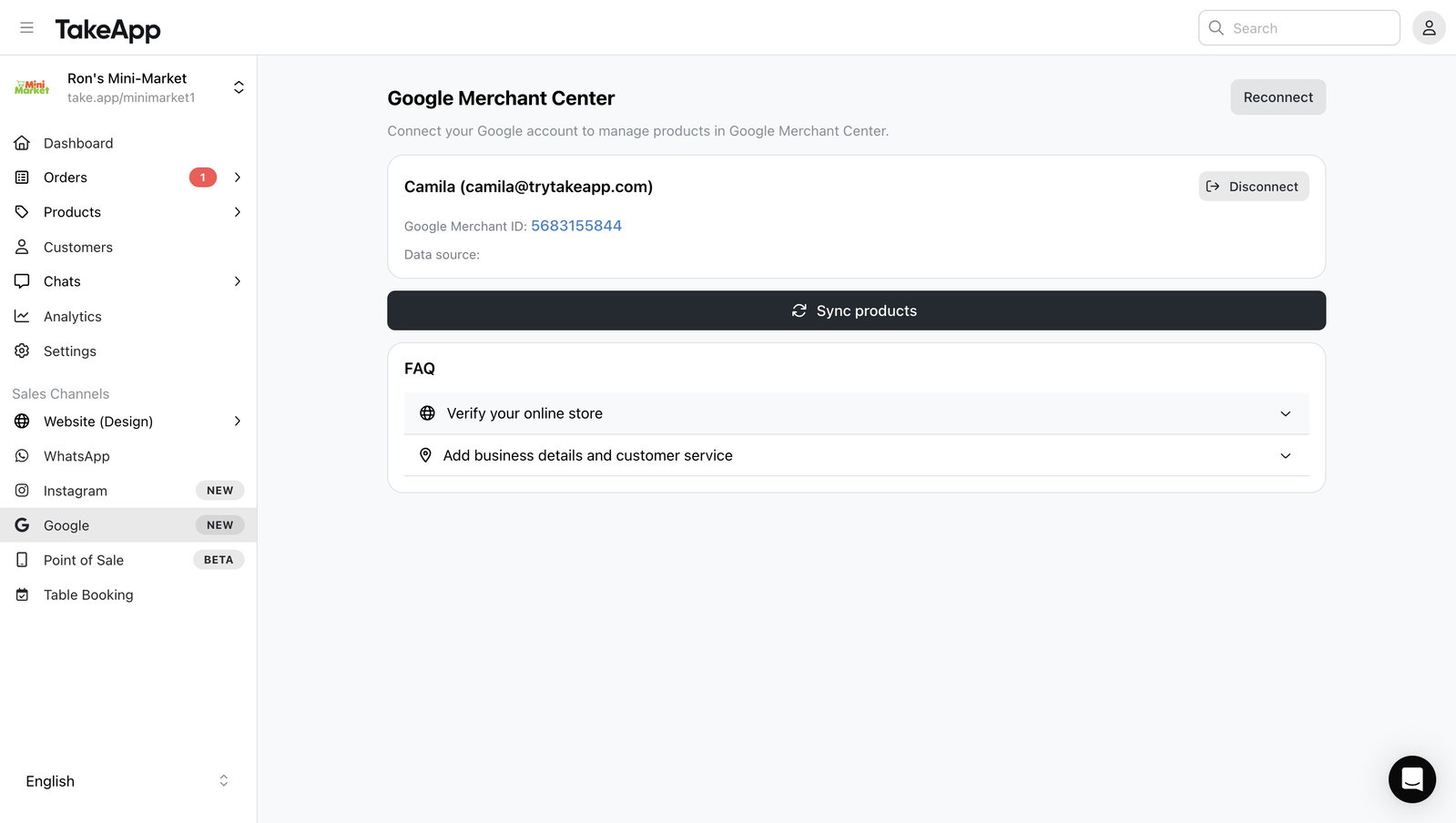
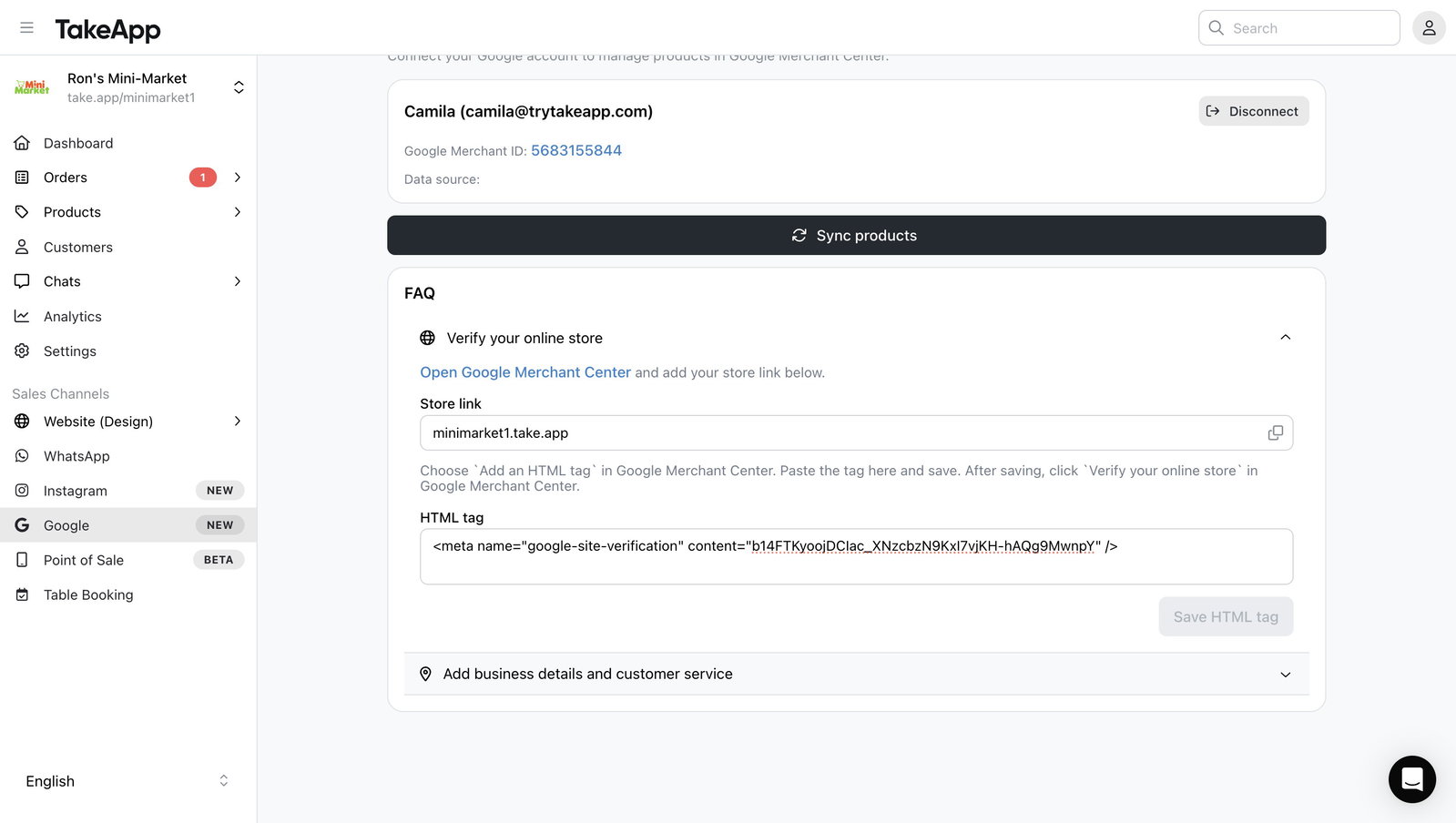
Click on "Verify your online store"
-
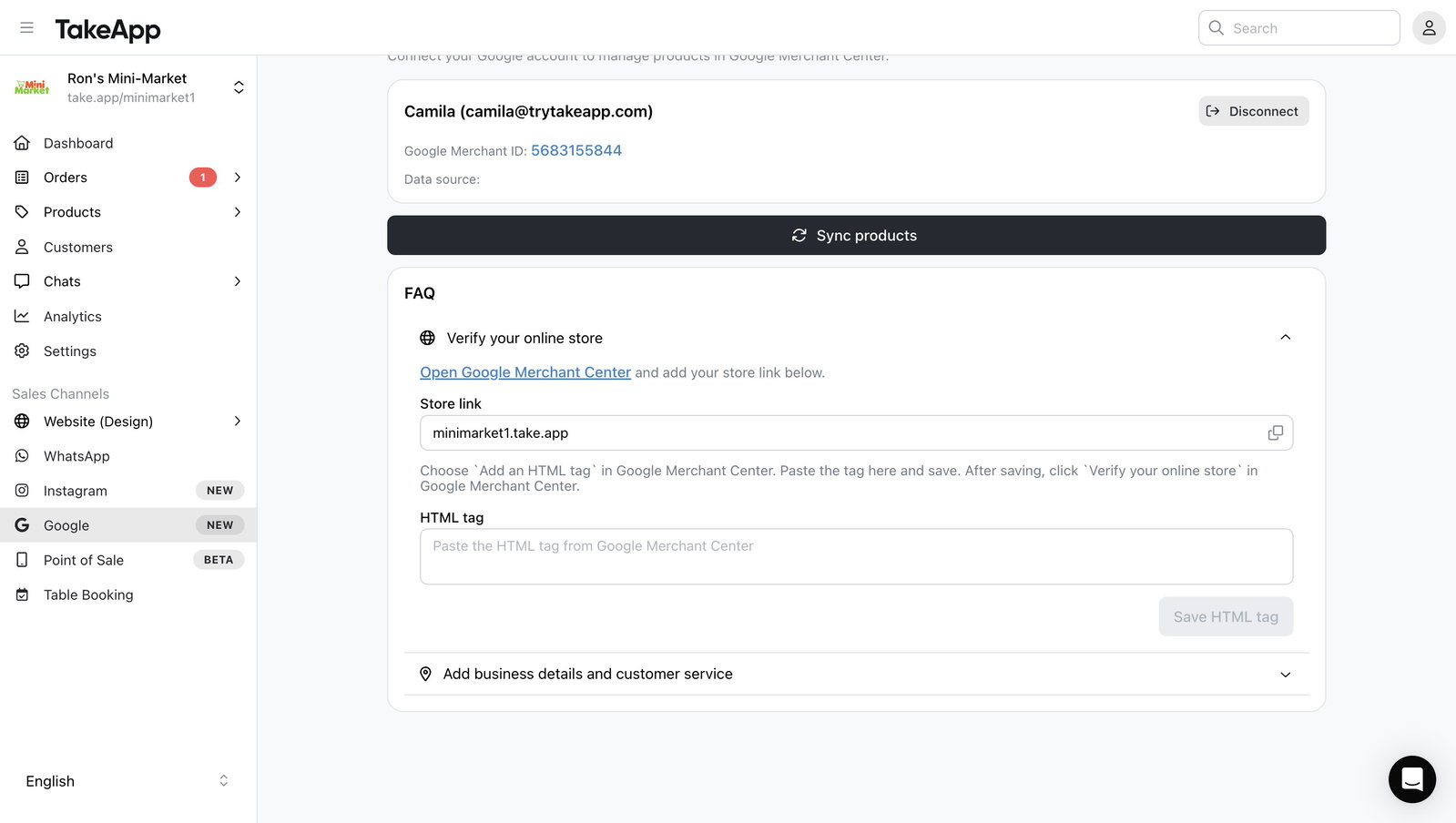
Copy the store link and click on "Open Google Merchant Center"
-
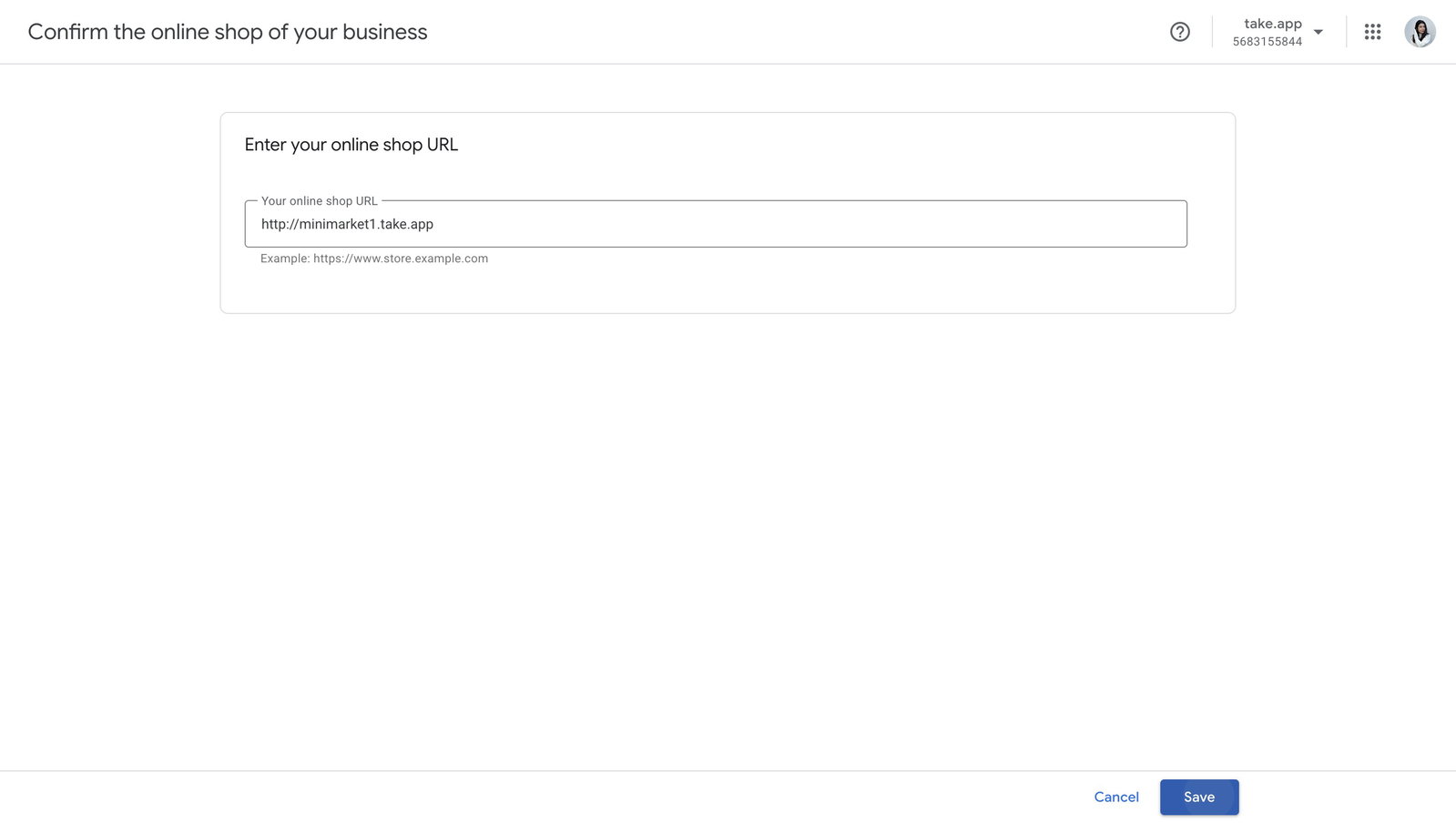
In your Google Merchant account, enter your online shop URL you just copied.
-
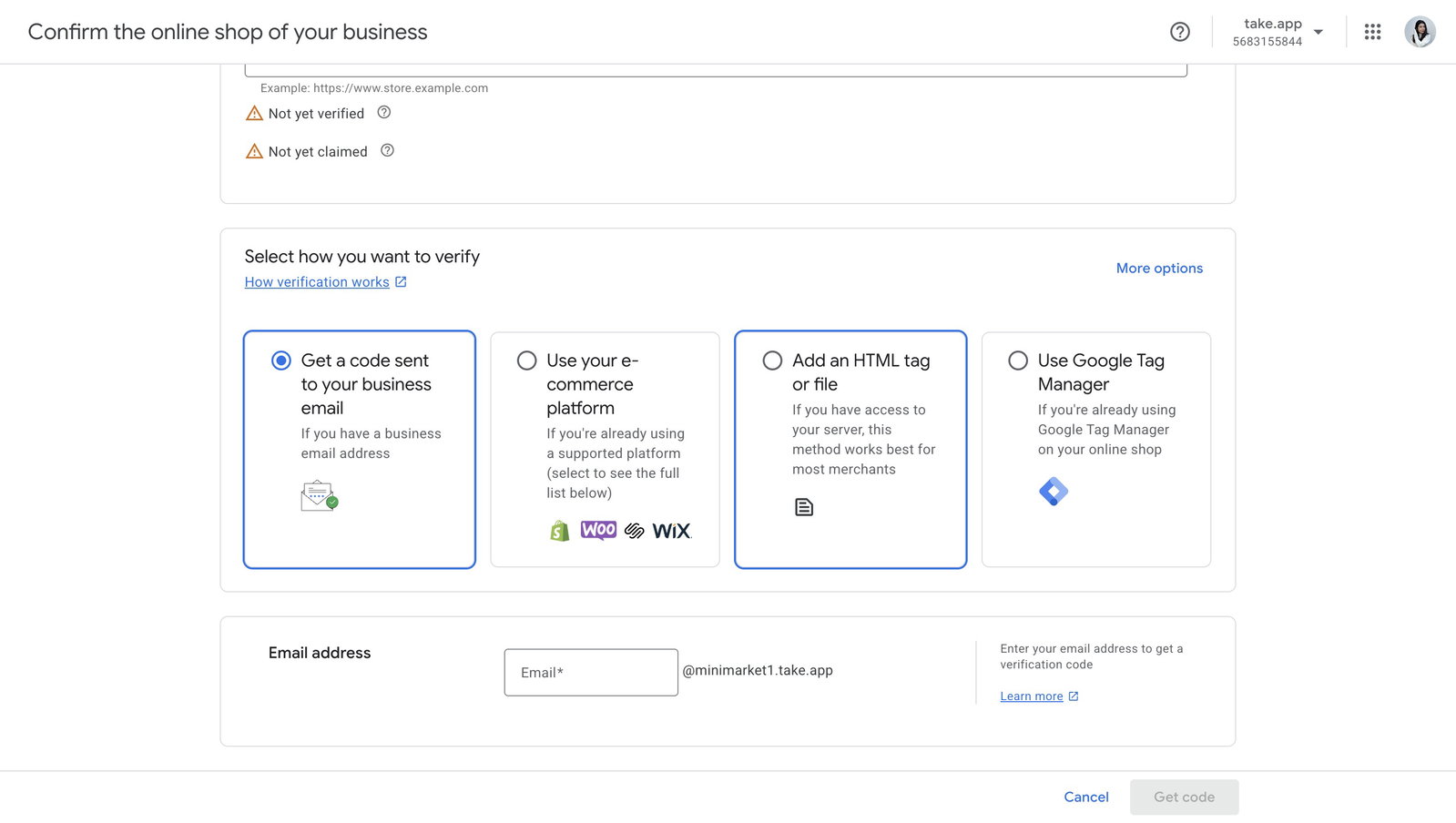
Now, select "Add an HTML tag or file" as the form of verification
-
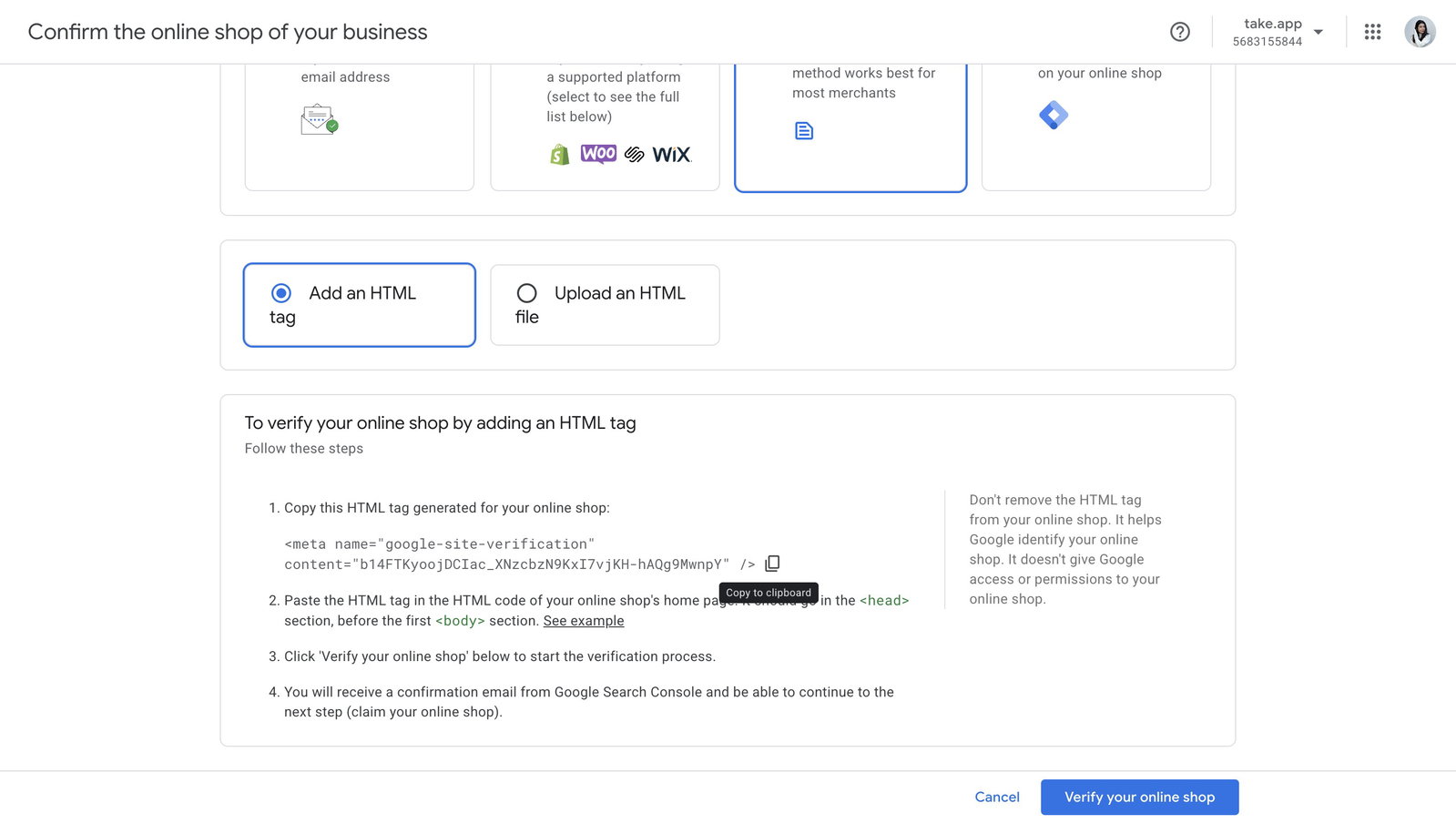
Copy the HTML tag
-
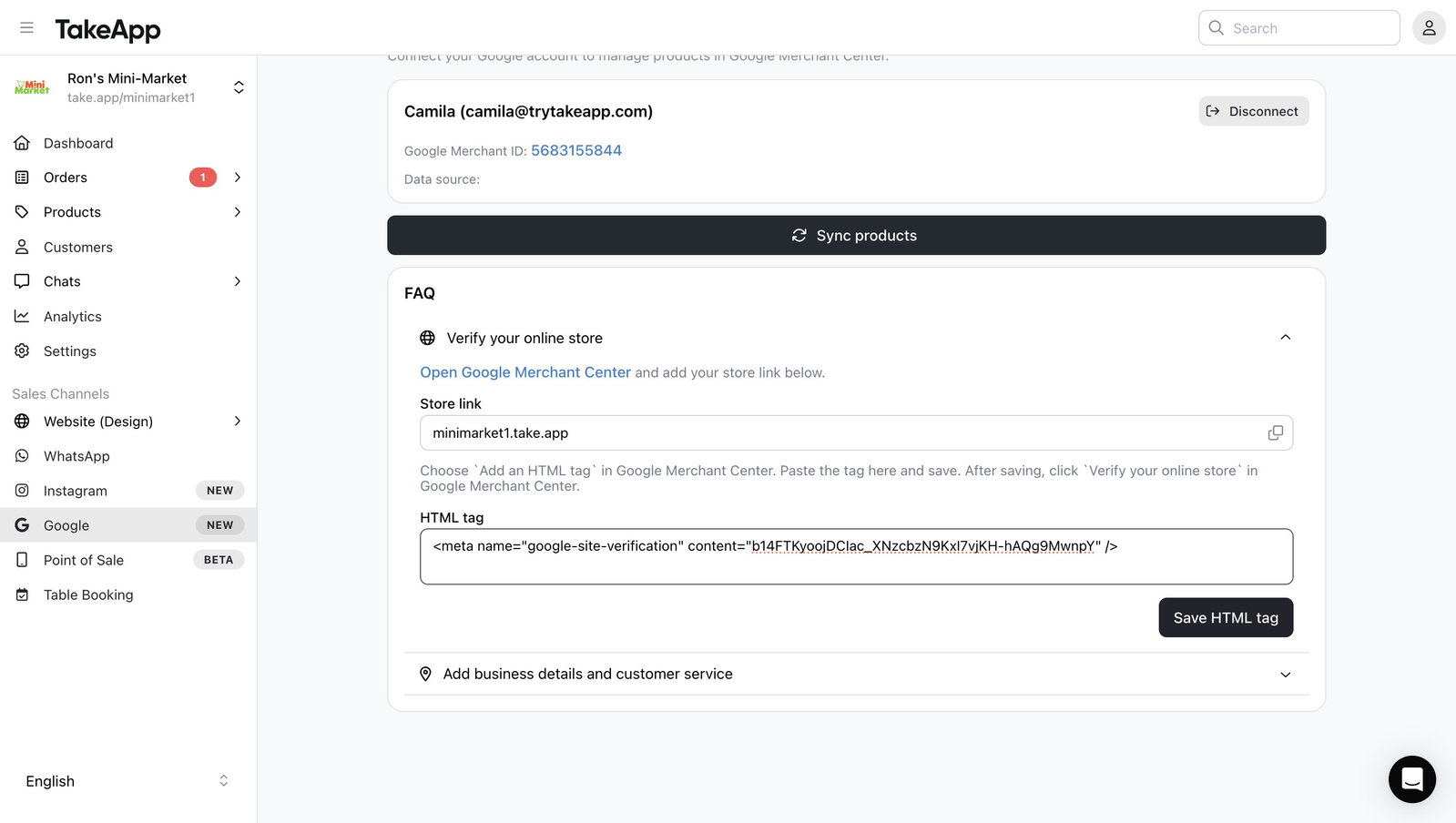
Go back to your Take App store and paste the HTML tag. Click "Save HTML tag"
-
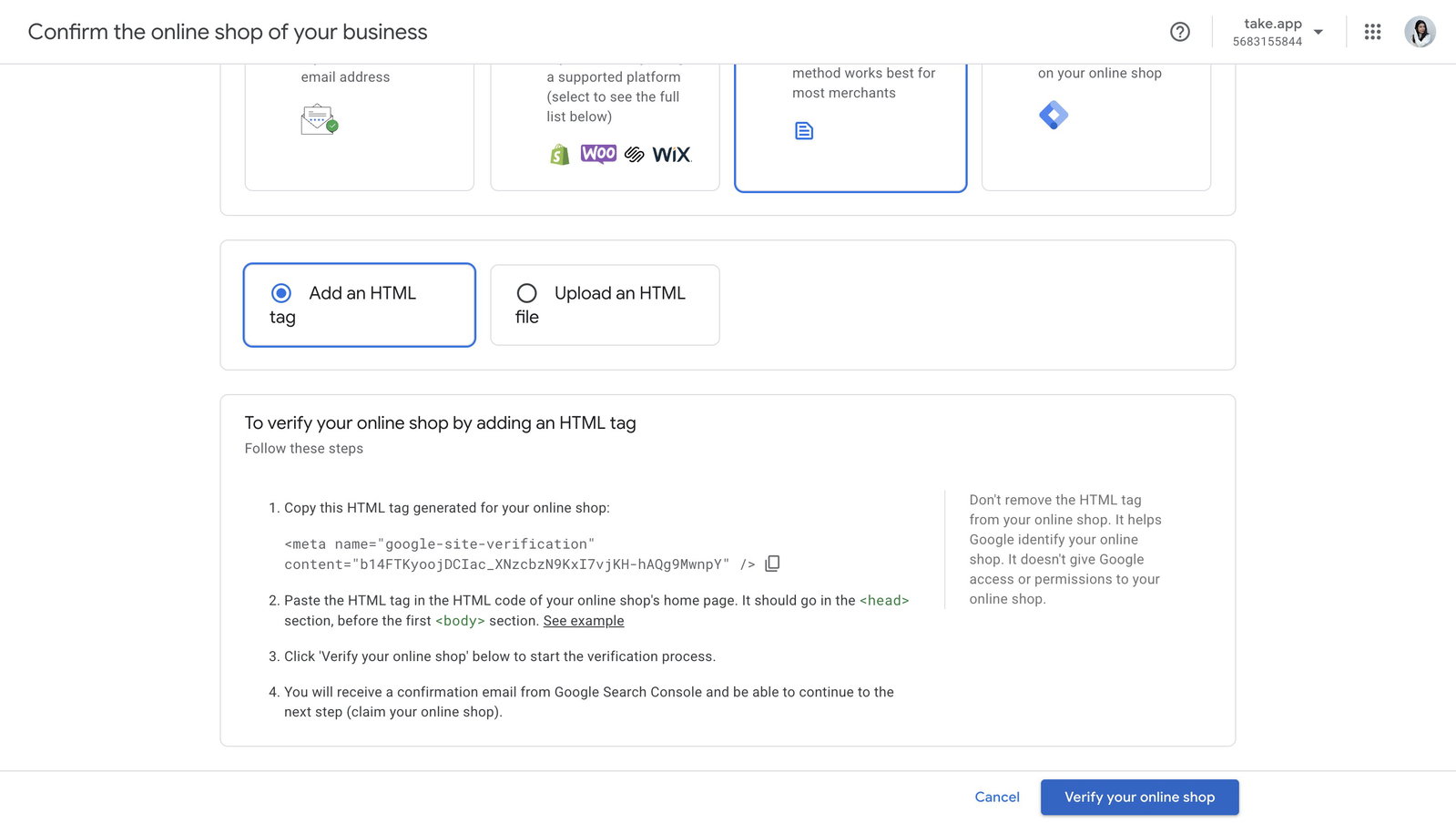
Go back to your Google Merchant account and click "Verify your online shop"
-
Next, you will receive a confirmation email from Google Search Console. Continue with the next step (claim your online shop).
-
Once you finish this process, your store will be verified. You can click "Sync products" to send the products on your store to your Google Merchant Center.
Add business details and customer service
-
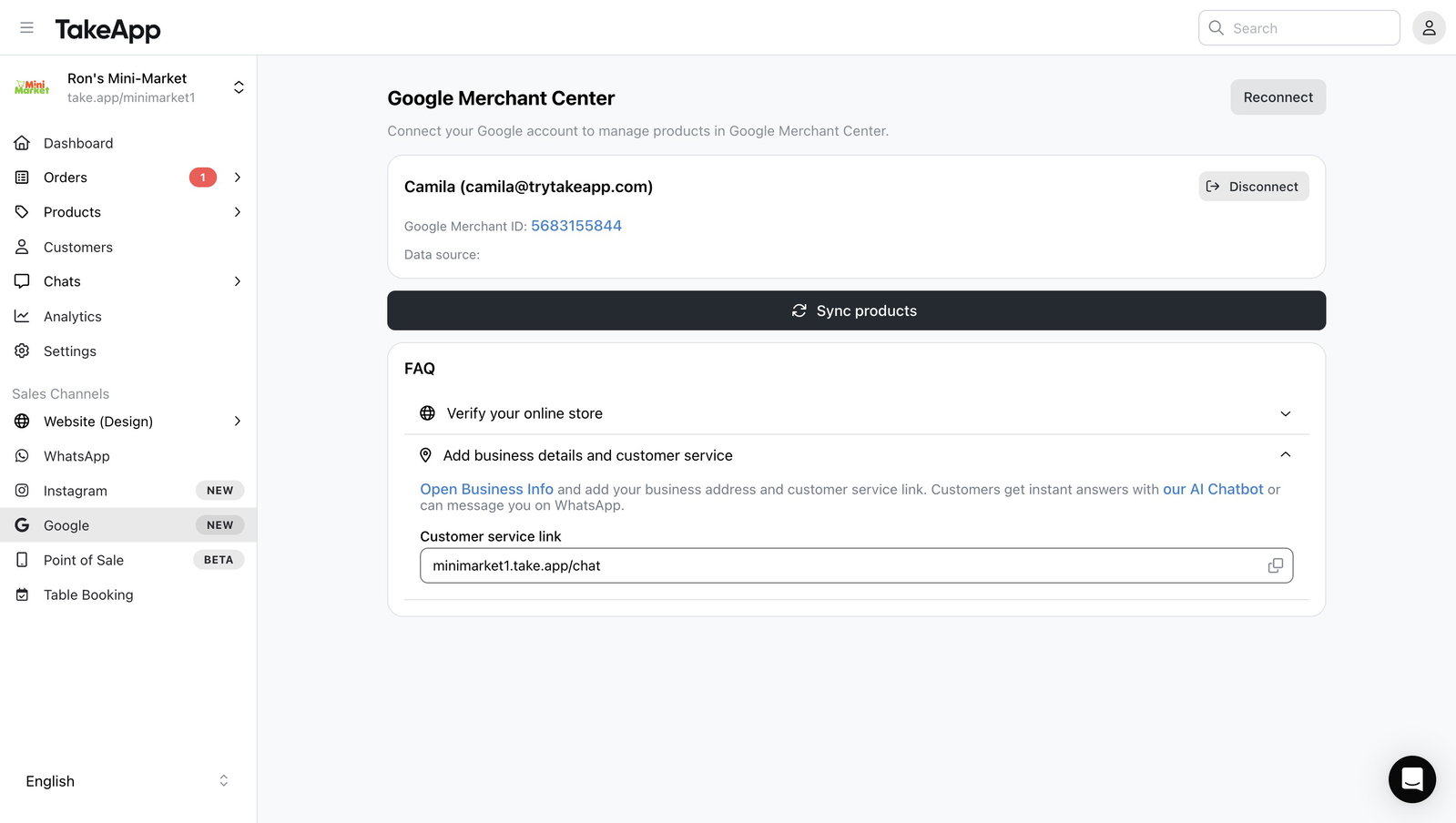
Click on "Add business details and customer service"
-
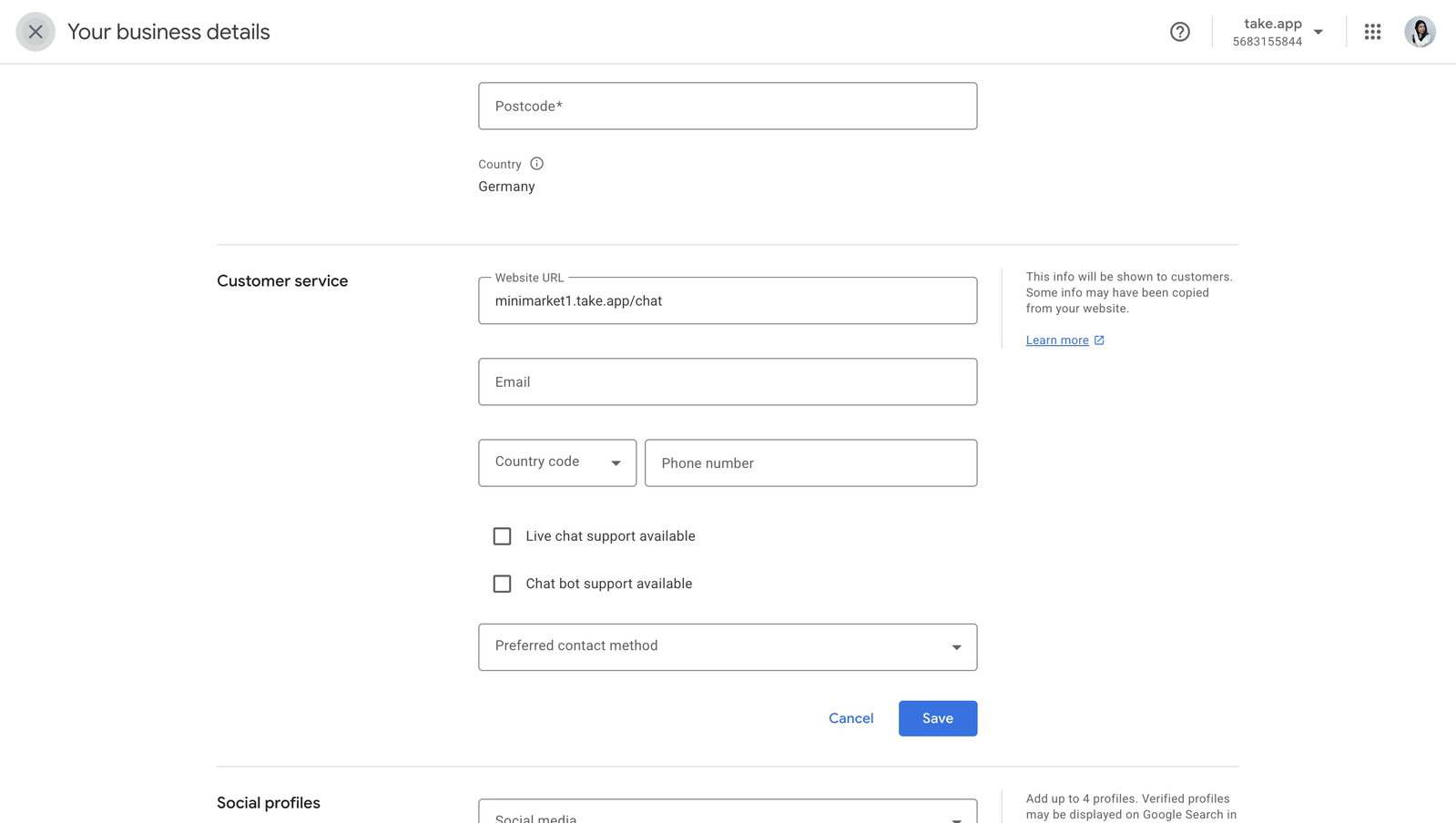
Copy the customer service link — this is where Google sends shoppers who want to contact you, so use the channel you actually answer on, such as your store's WhatsApp link.
-
Click on "Open Business Info"
-
You will be redirected to your Google Merchant account again. Paste the link in the Customer service section and click "Save".