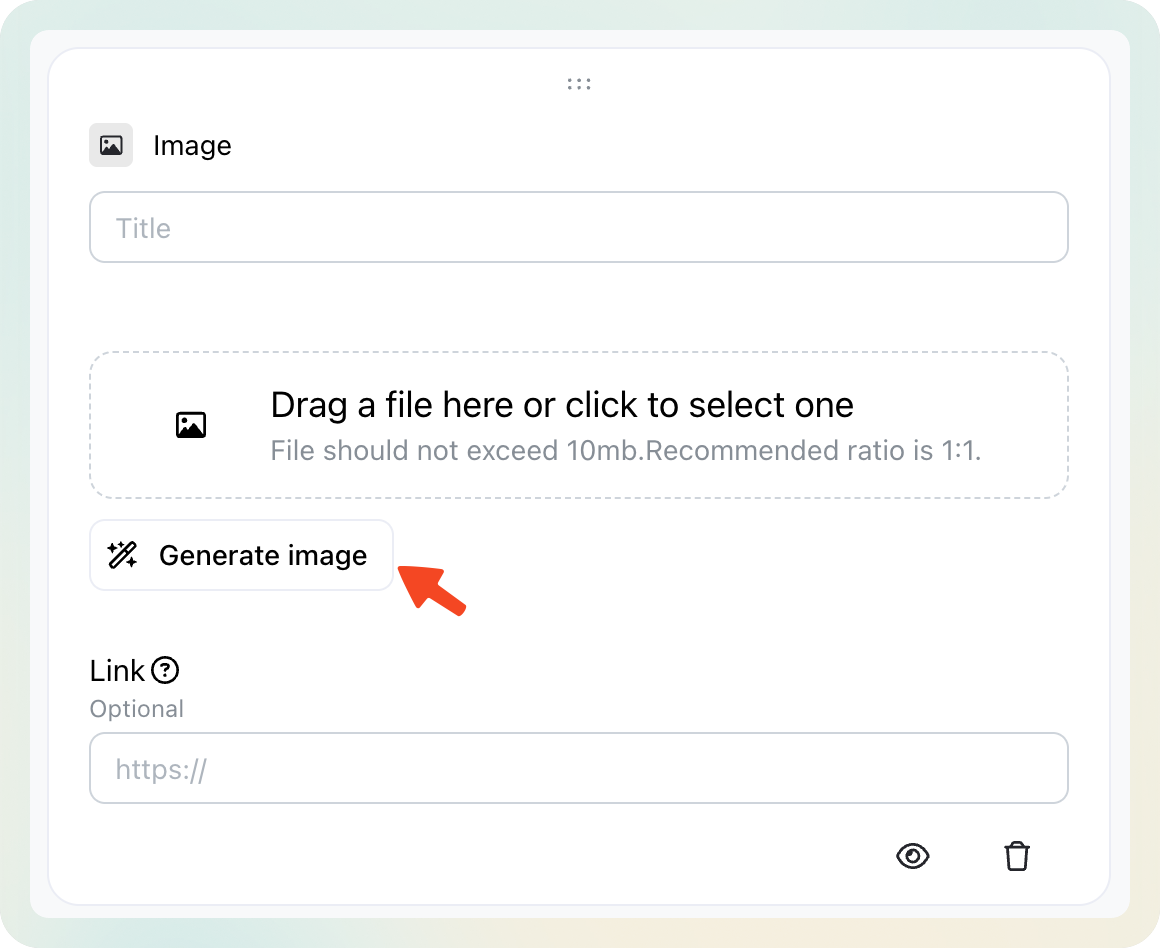
How do you find the "Generate image" option?
- You can find this function on most of our image uploader features
- For example, the Image card, Pop-up banner, and Storefront's cover page
- Choose an Image Ratio
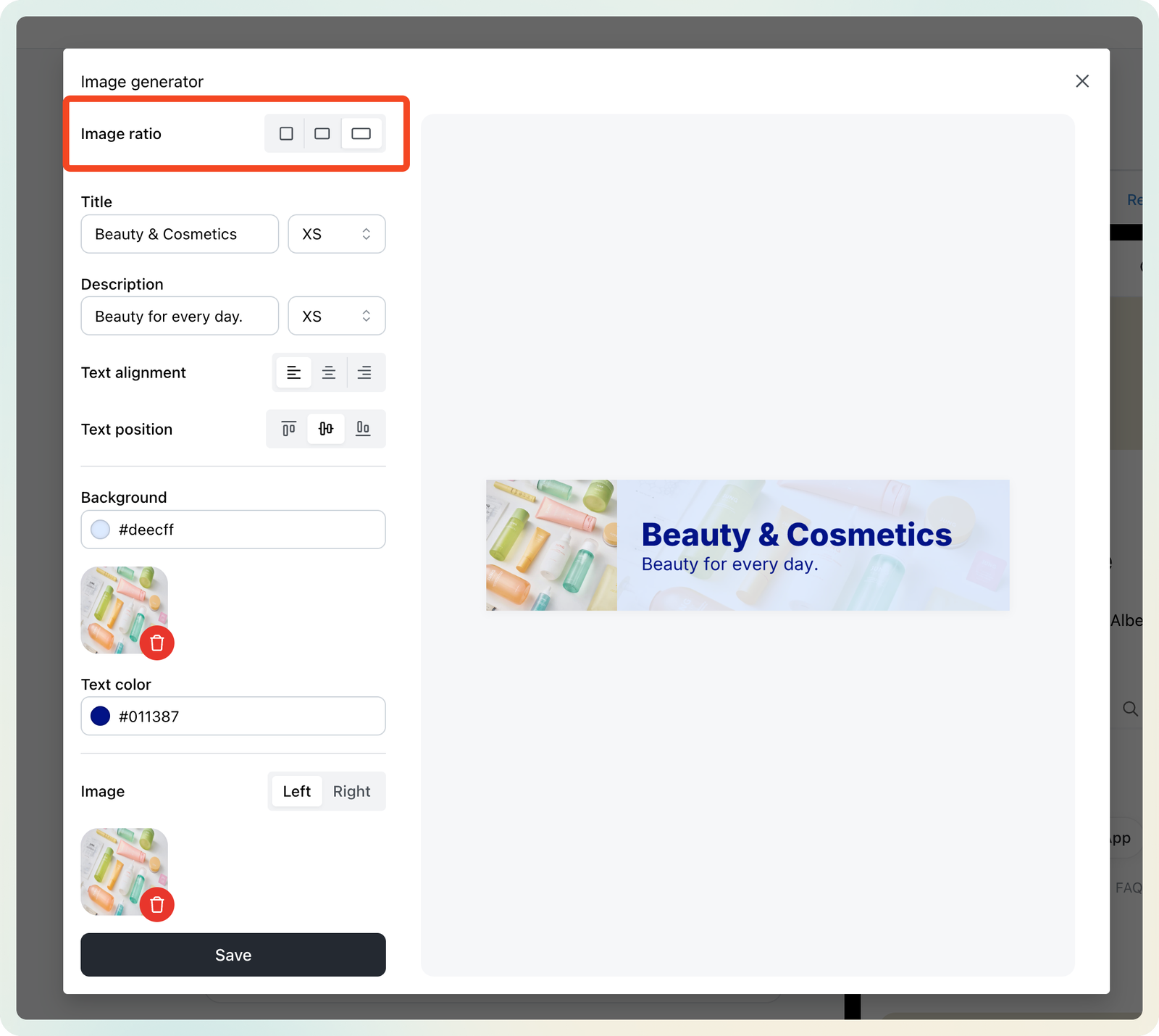
Select the best size for your image:
- Square (1:1) → Profile images
- Rectangle (1.91:1) → Category images (mobile), Banners
- Wide (4:1) → Category image card headers
2. Customize Your Text
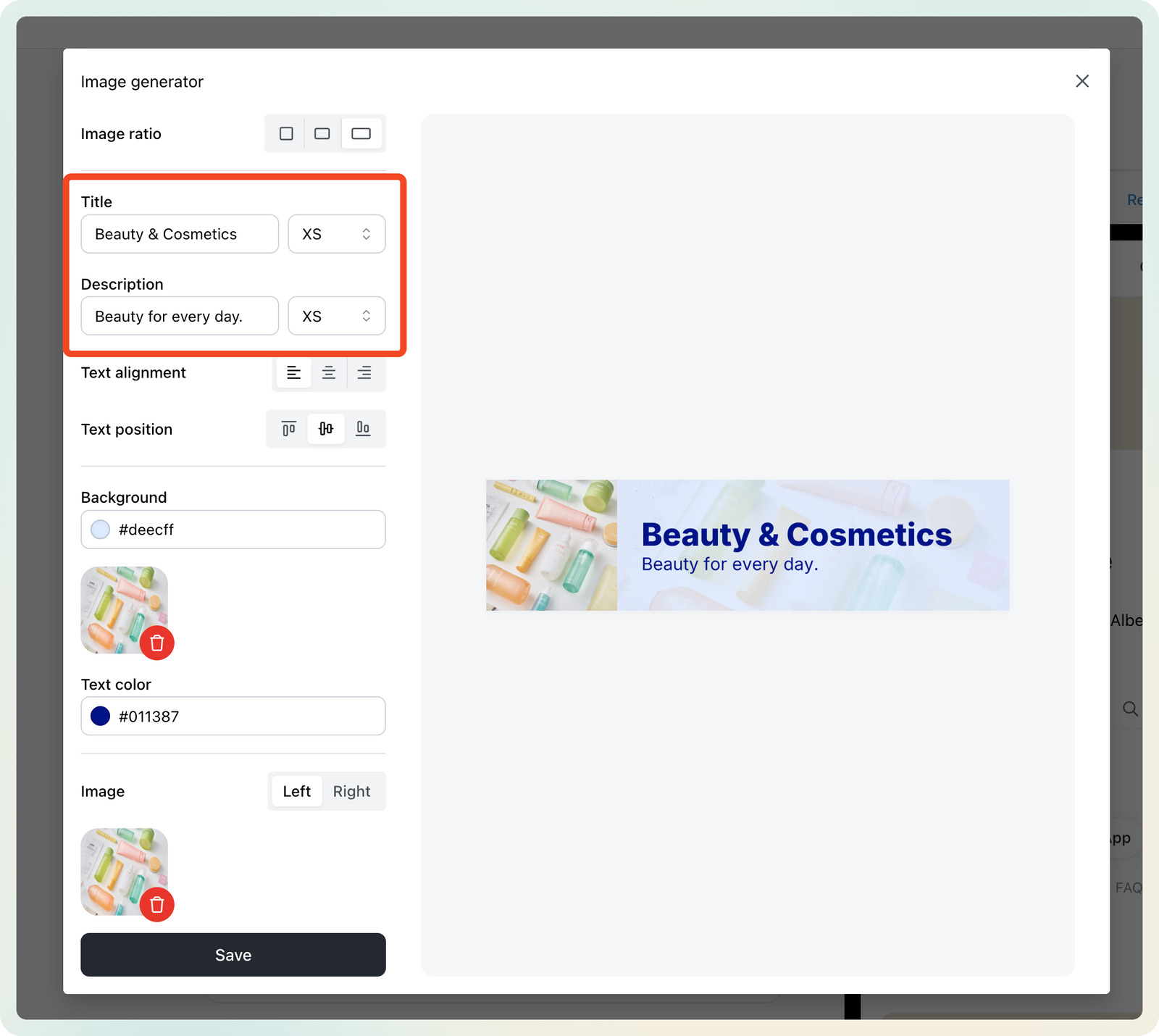
- Title: Main headline of your image
- Description: Supporting text or details
- Adjust font size using the dropdown (XS / S / M / L / XL)
💡 Tip: Keep the title short for better visibility.
3. Adjust Text Layout
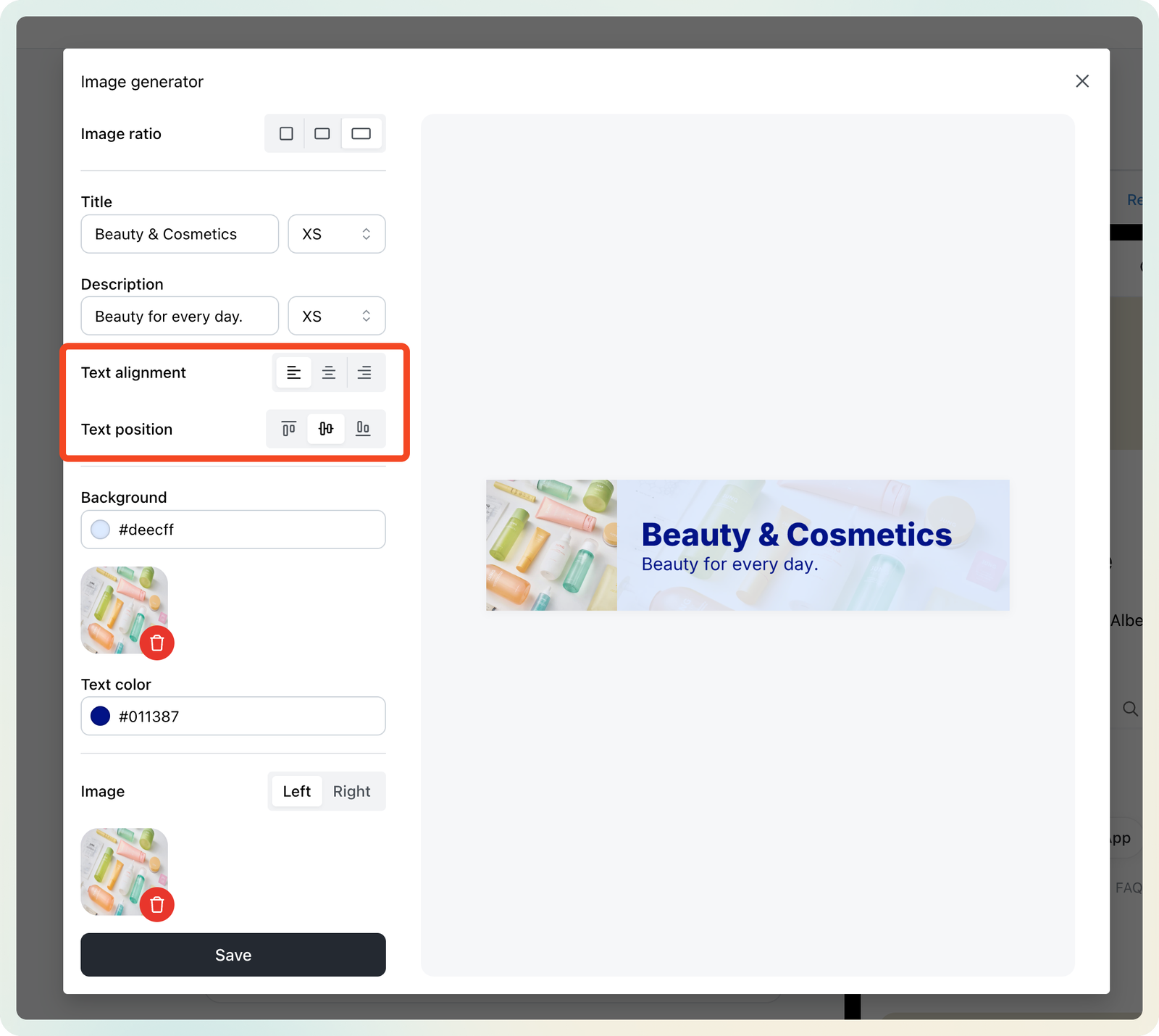
- Text Alignment: Left, Center, or Right
- Text Position: Top, Middle, or Bottom
4. Set Background and Text color
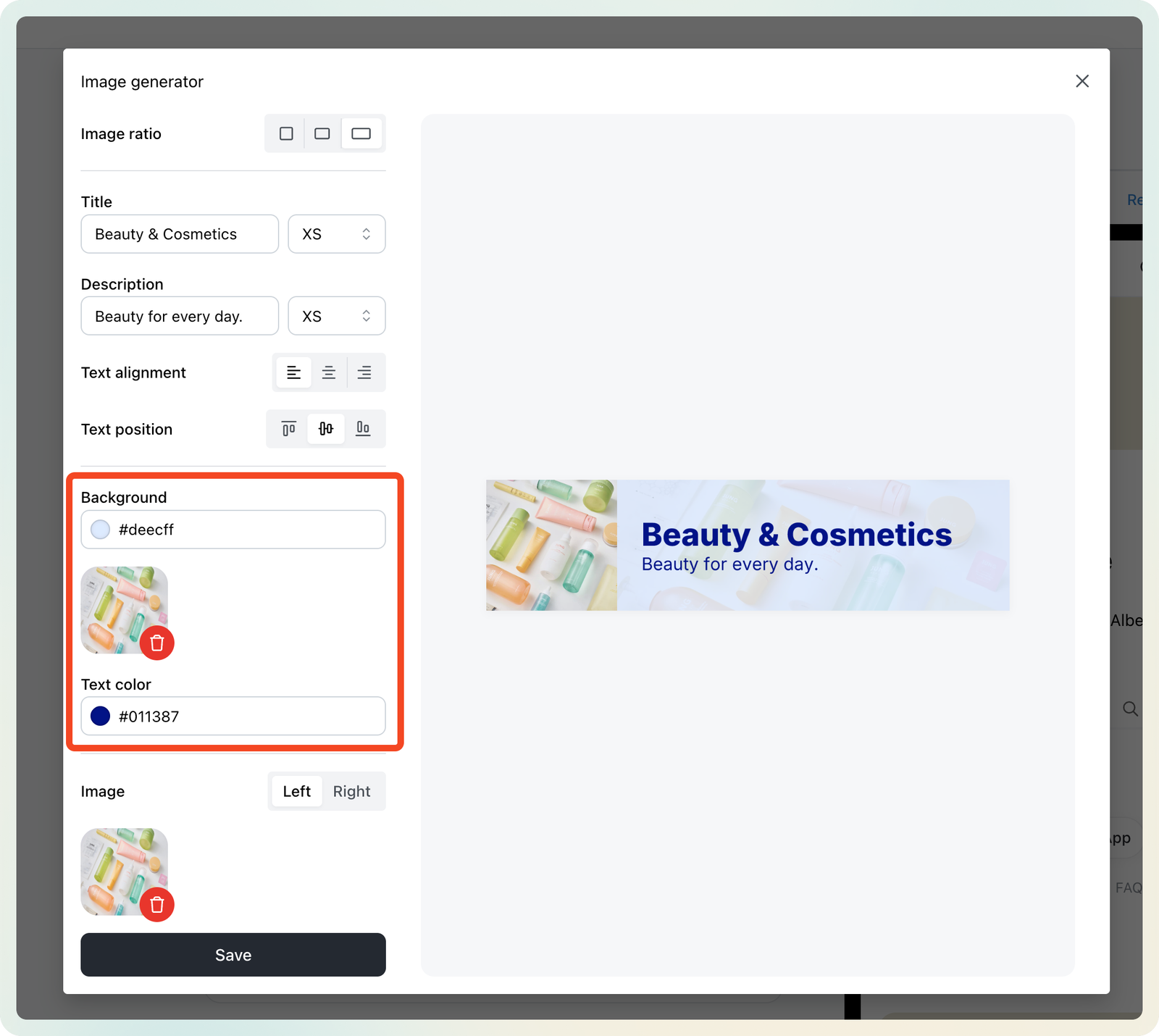
- Background Color: Choose a solid color
- Background Image: Upload a background image
- Text color: Choose title and description text color
5. Add Image
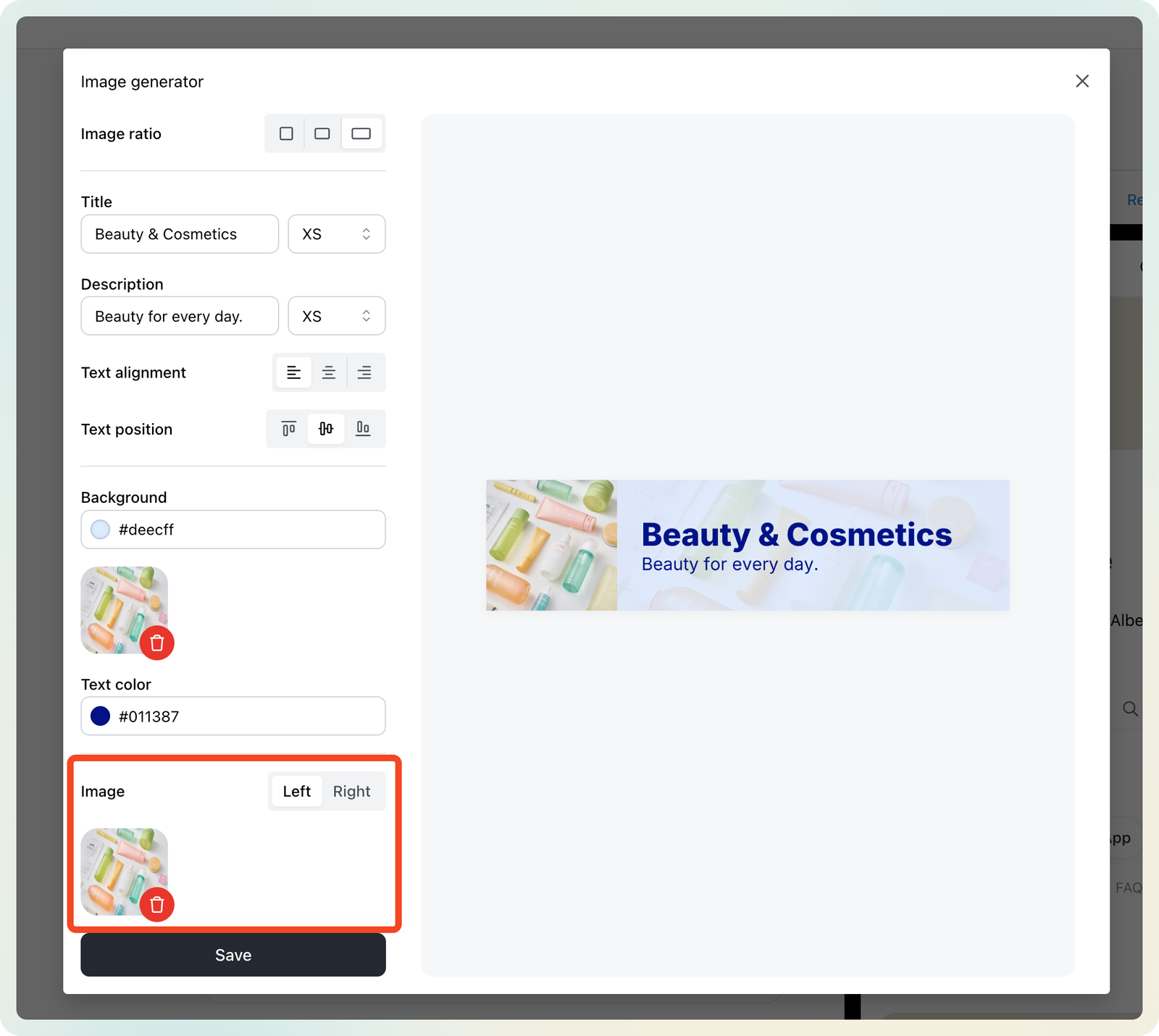
Upload product photos or other visuals to include in your design.
6. Preview and Save
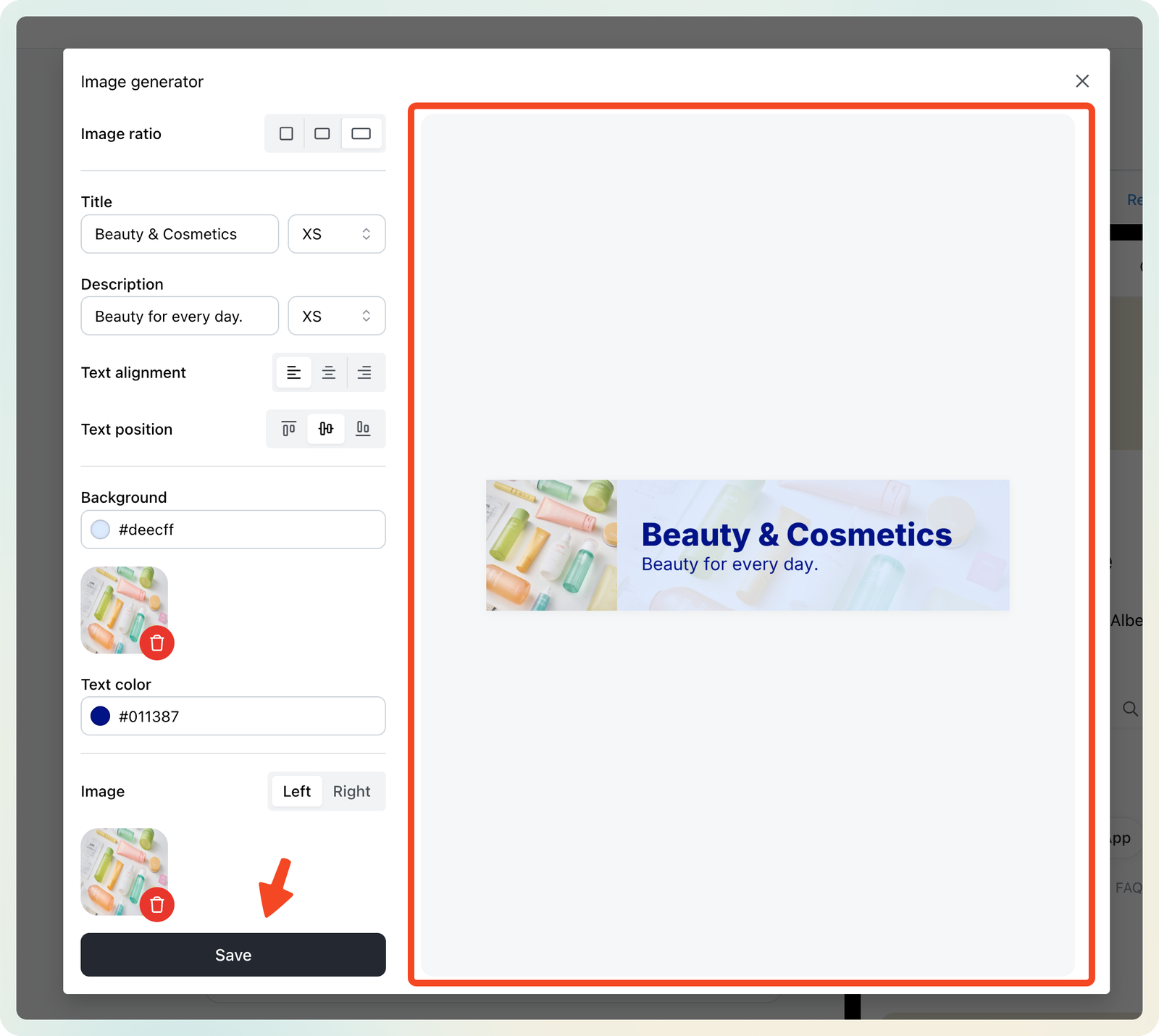
- The preview updates in real-time as you make changes.
- When you’re happy with the design, click Save to download or use it immediately.
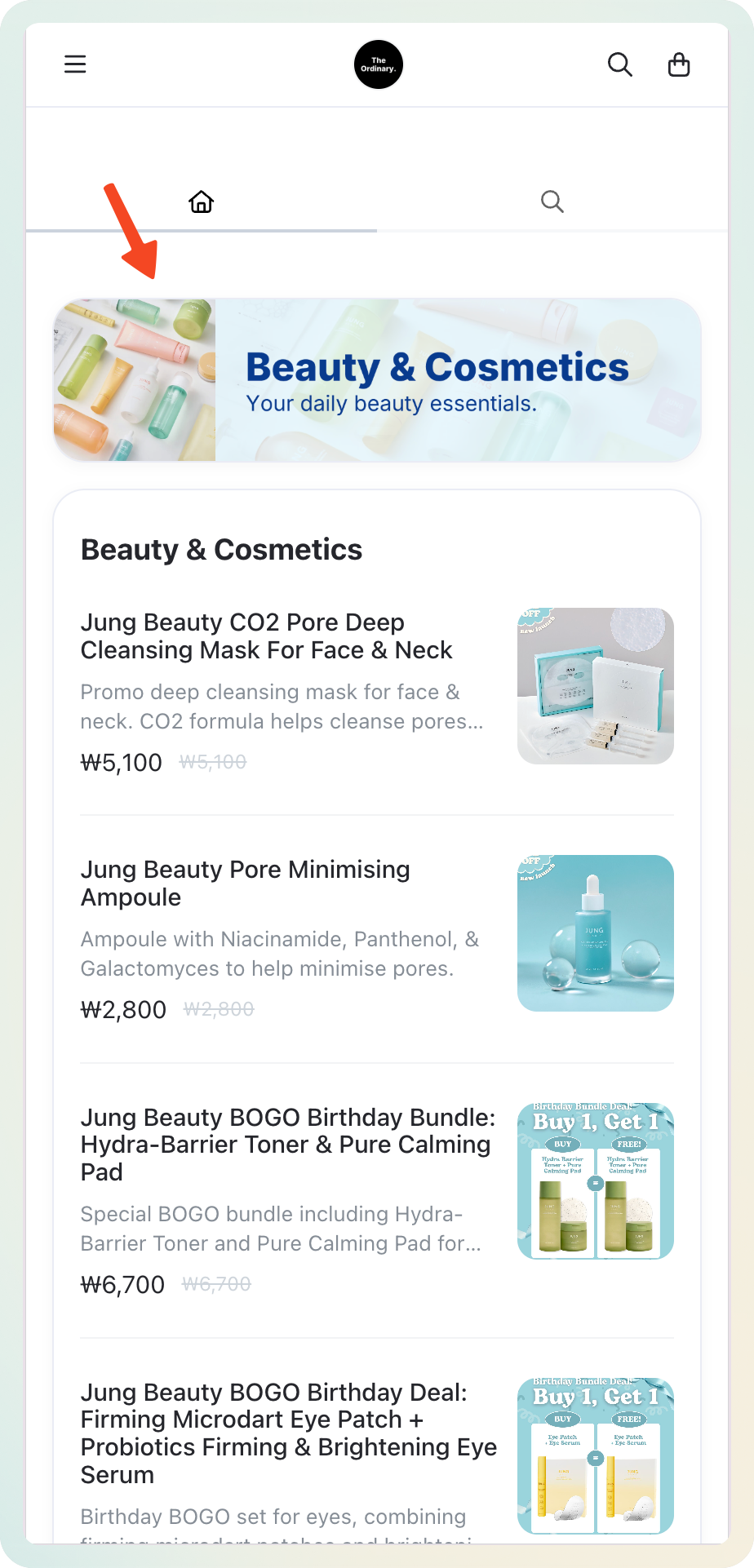
Usage example: