
You can add a checkbox field to present your buyer with a multiple-choice question, enabling them to select more than one option for their response.
How to add a checkbox field on the checkout page
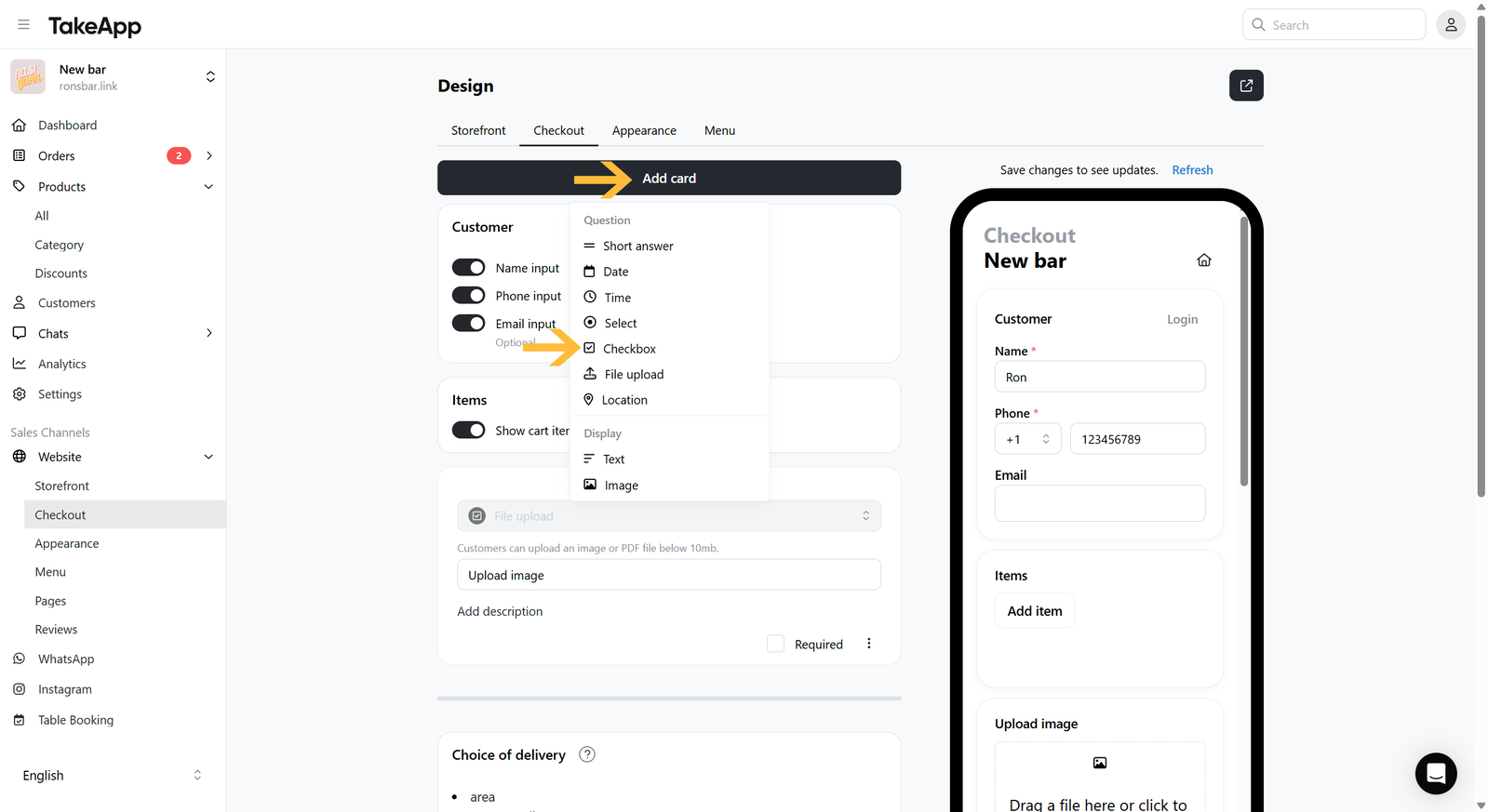
- Go to Admin > Websites > Checkout and click `Add card`, then choose "Checkbox"
 2. Put your question title and description (if any). Add the choices (e.g., Choice 1 = Extra rice, Choice 2 = Extra vegetable, Choice 3 = No extra), you can also incorporate a price for the choices.
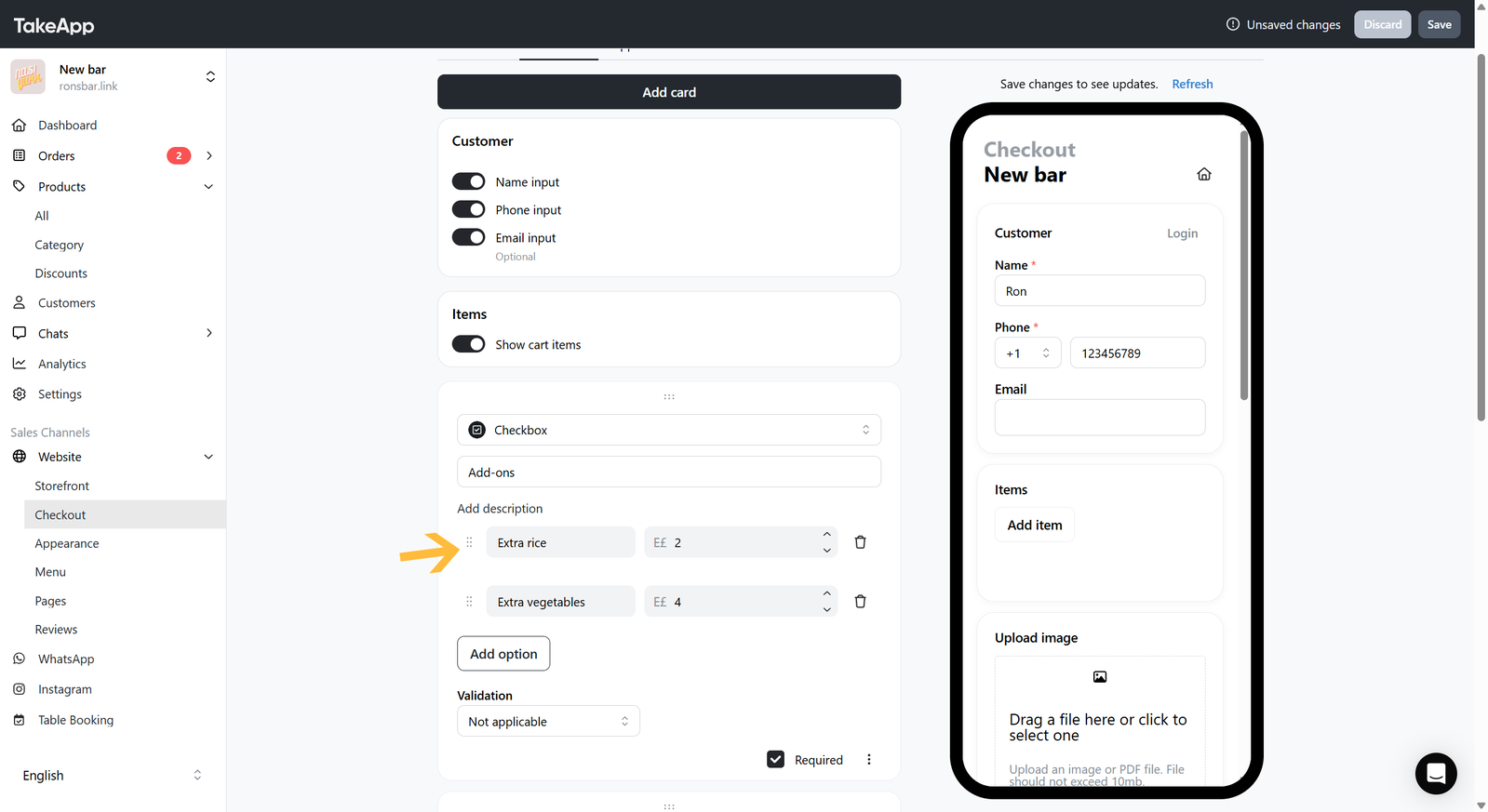 3. Configure the choice validation settings, where "at most" signifies selecting a maximum choice, "at least" denotes choosing a minimum choice, and "in between" entails selecting a specific range of choices. You can also set the question to be optional/required.