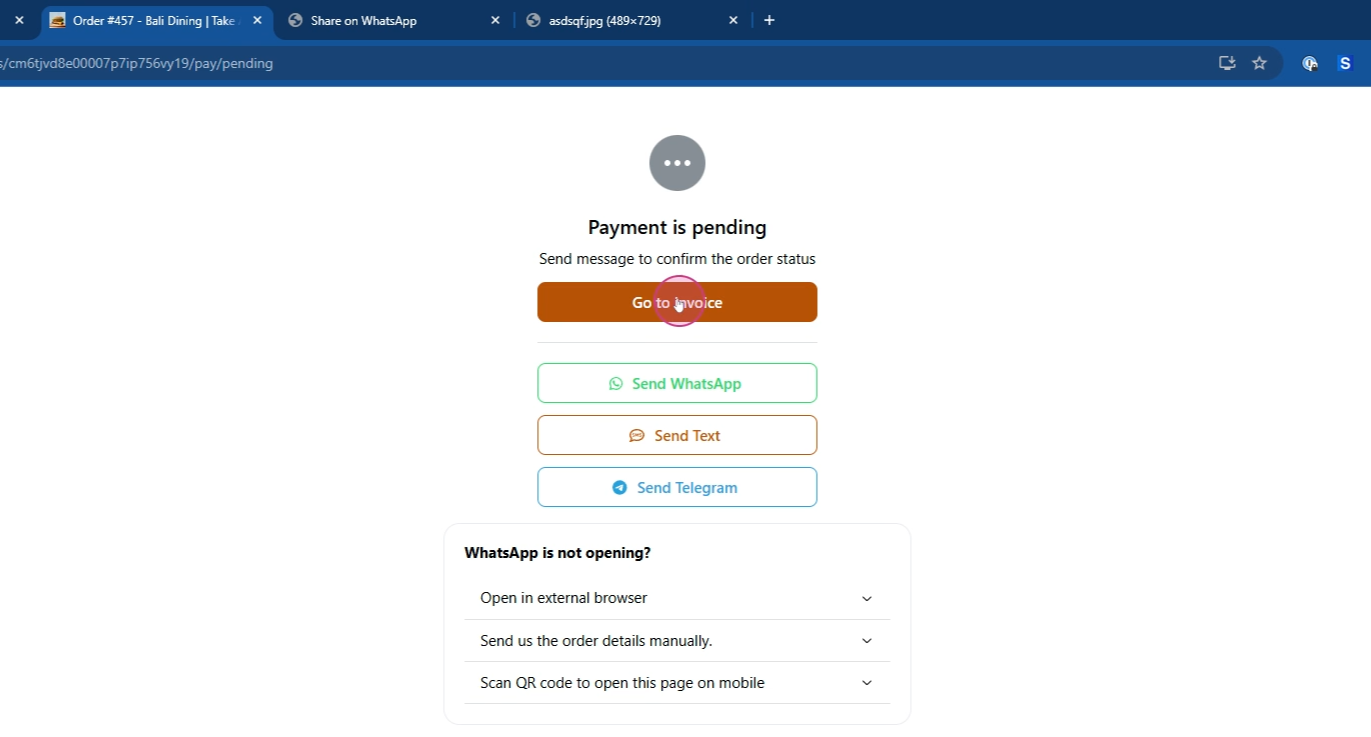
Learn how to create an order for your customer with this step-by-step guide. By the end of this tutorial, you'll understand how your customer placed an order on the Website and sent a confirmation in WhatsApp.
How to create orders
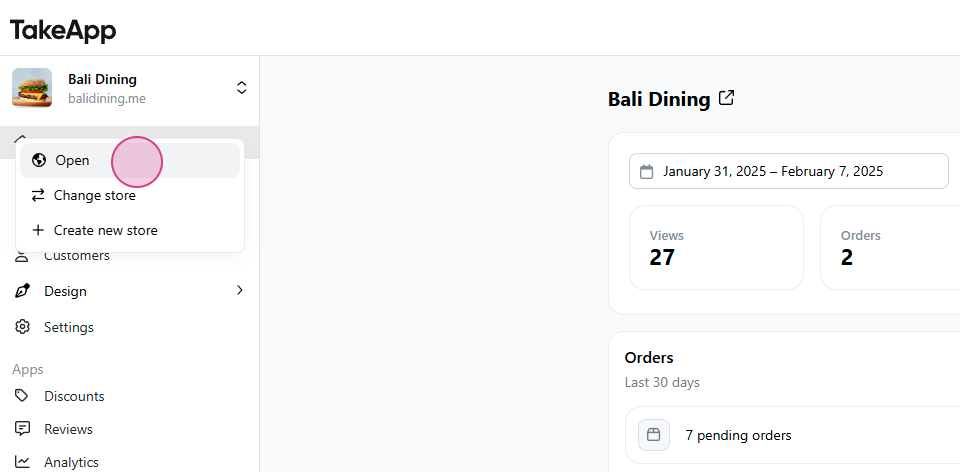
Step 1: Start by navigating to your storefront URL link and clicking Open. (this link will be shared to your customer e.g. take.app)
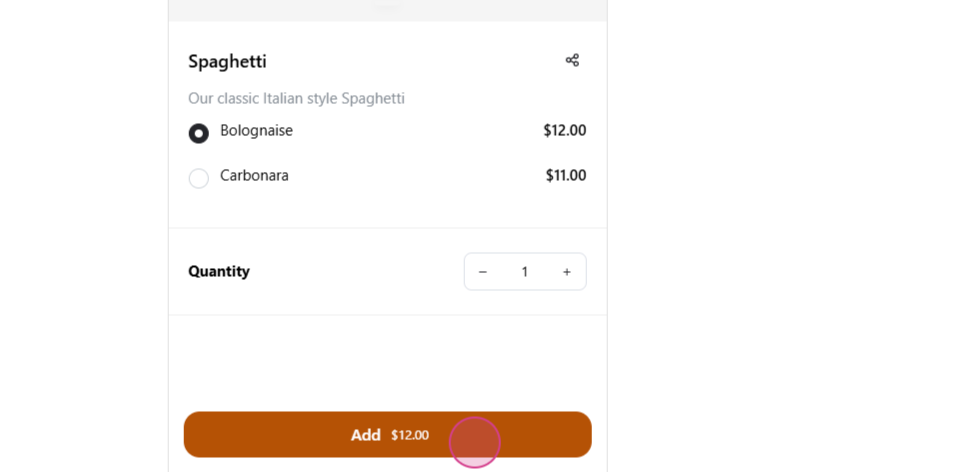
Step 2: Once you've redirected to Storefront, proceed to the items and add to cart your preferred items.

Step 3: Click Add.
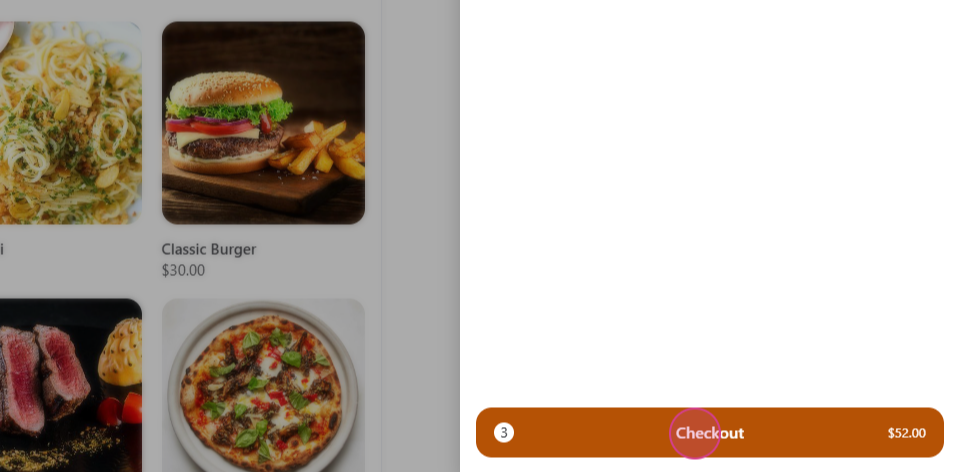
Step 4: Navigate to your Cart.

Step 5: Click Checkout.
Step 6: Fill in your name.
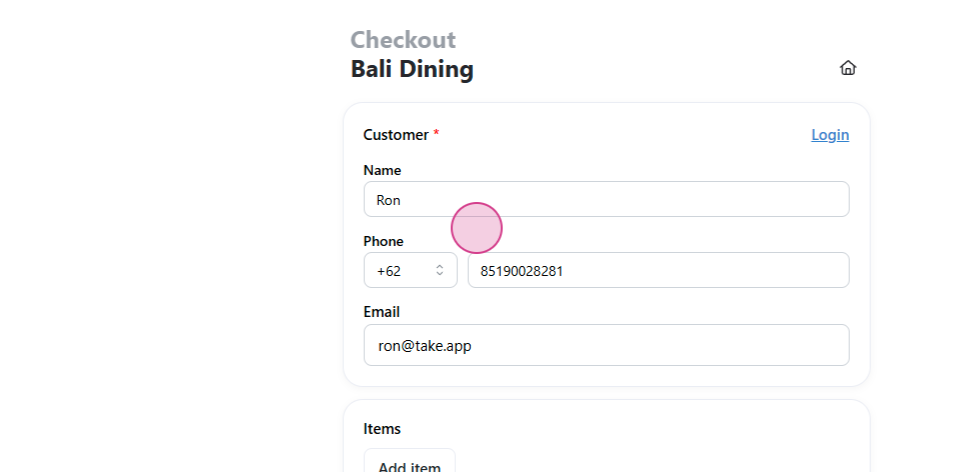
Step 7: Enter your phone number.
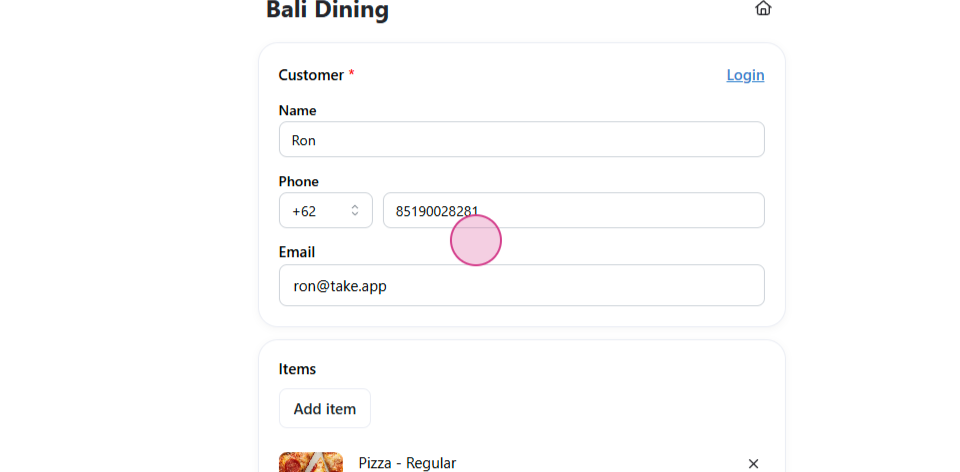
Step 8: Provide your email address and double-check your items.
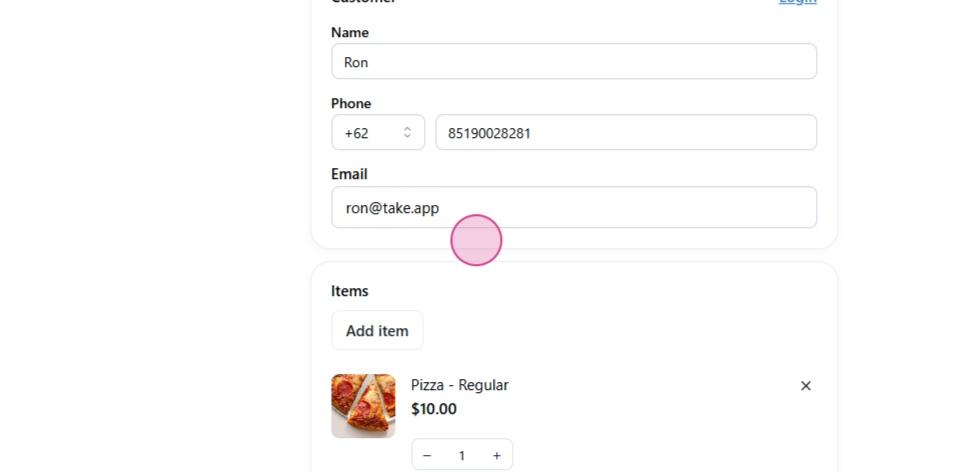
Step 9: Scroll down to select the delivery method.
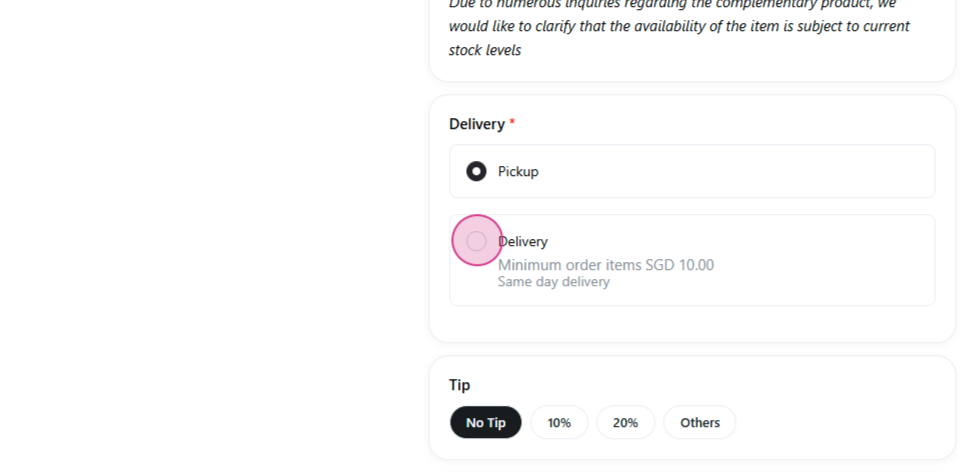
Step 10: Fill in the delivery address.
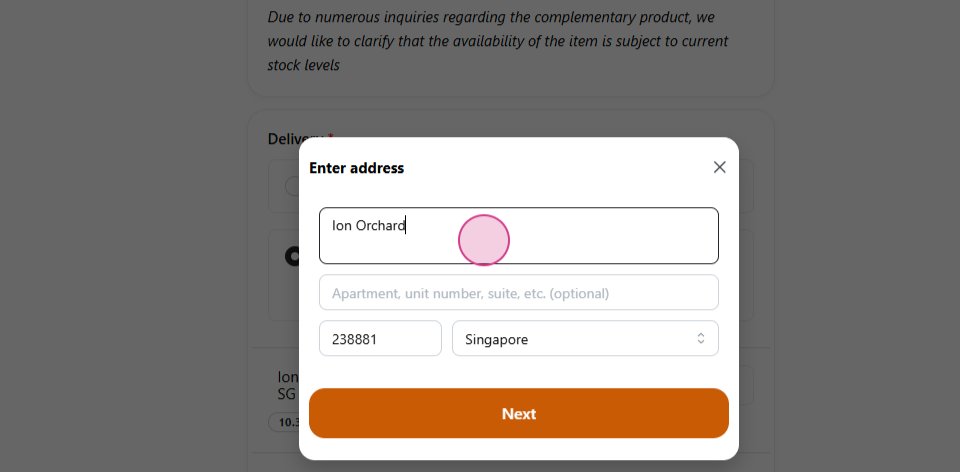
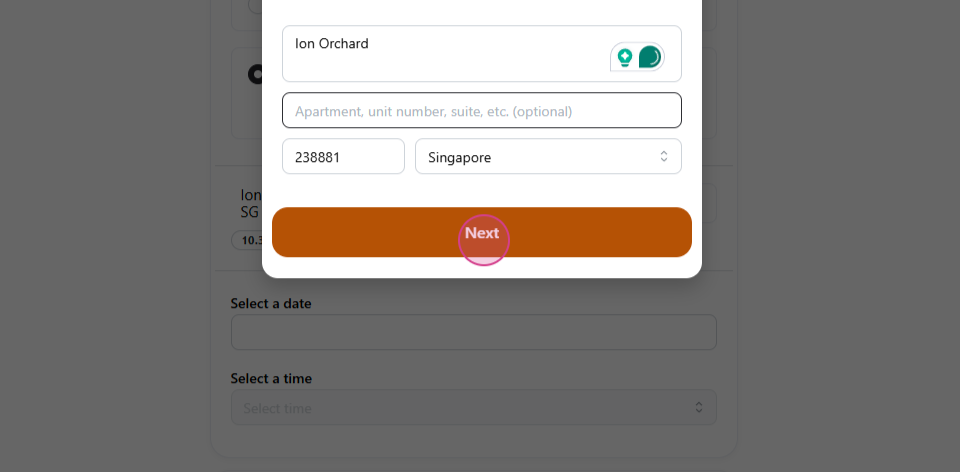
Step 11: Click Next.
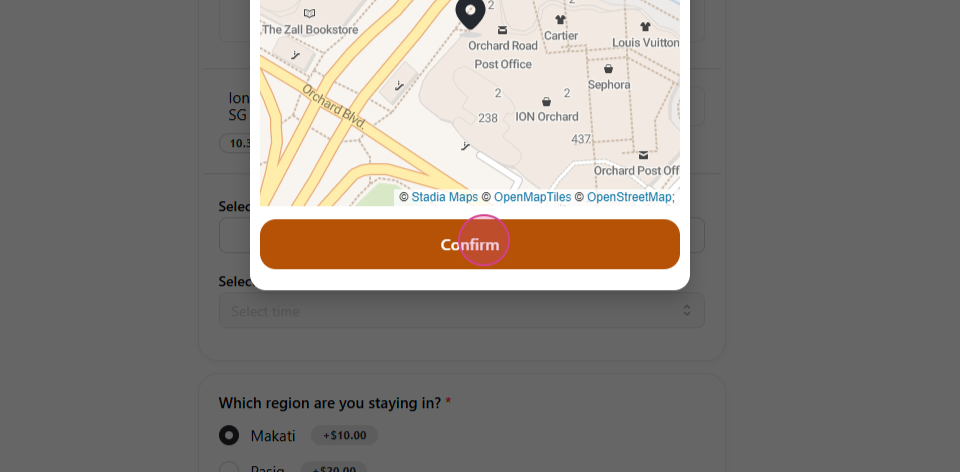
Step 12: Confirm the delivery locations.
Step 13: Choose your delivery date.
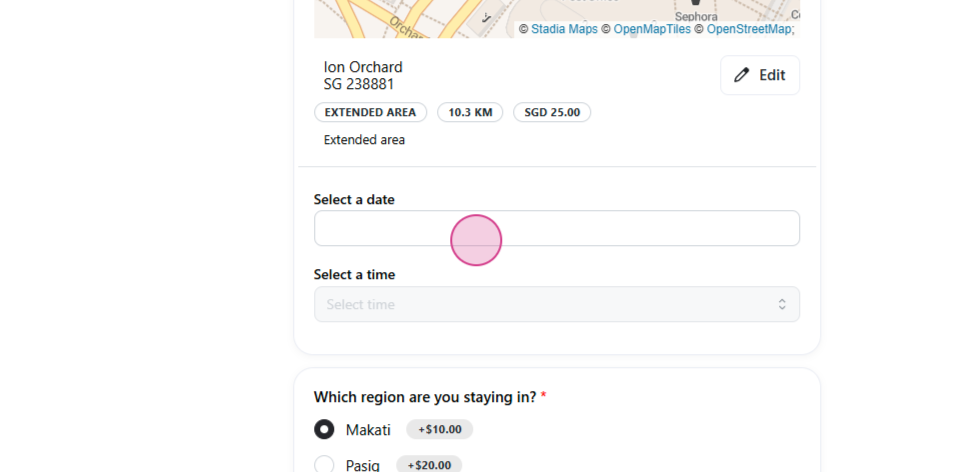
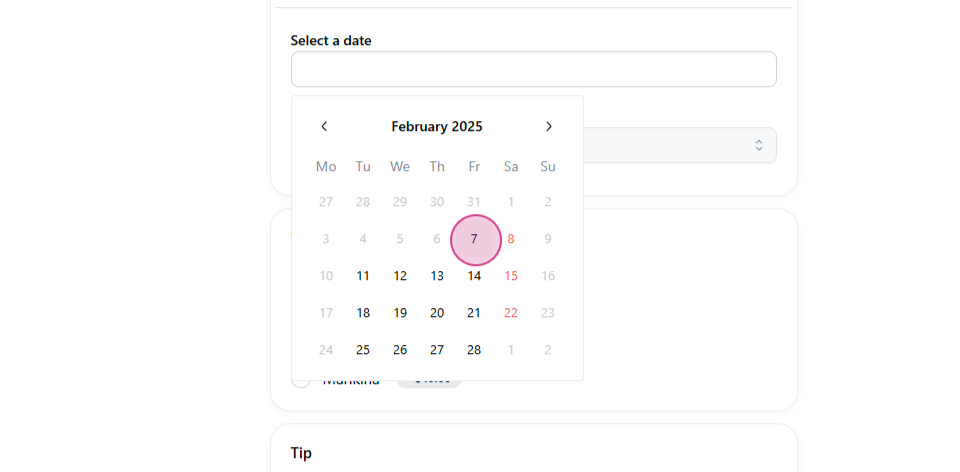
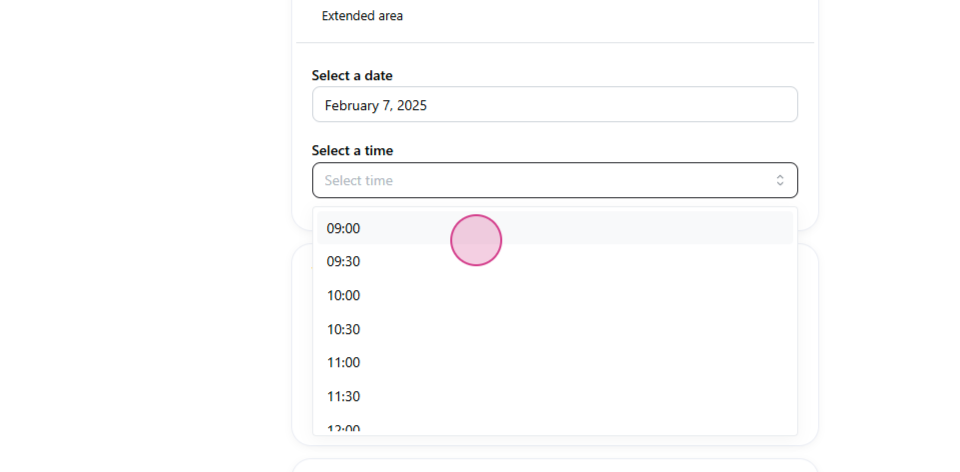
Step 14: Select your delivery time.
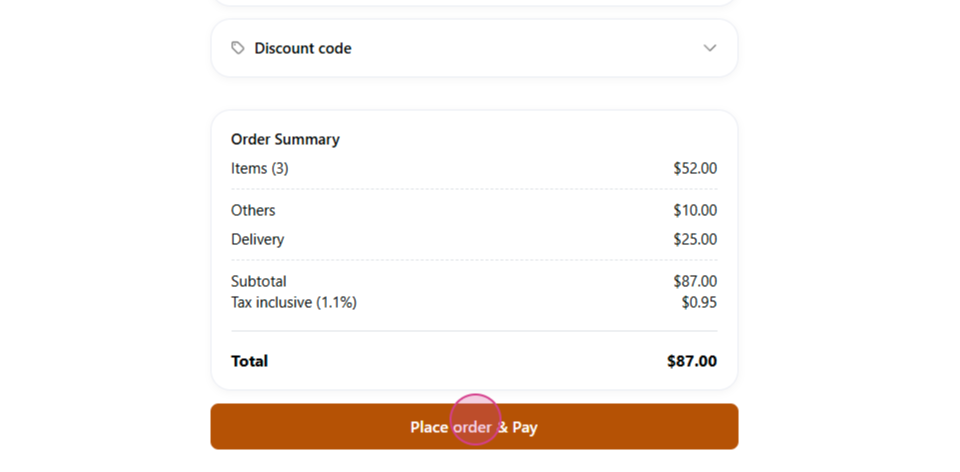
Step 15: Click Place, Order and Pay.
Step 16: Now, select your payment method.
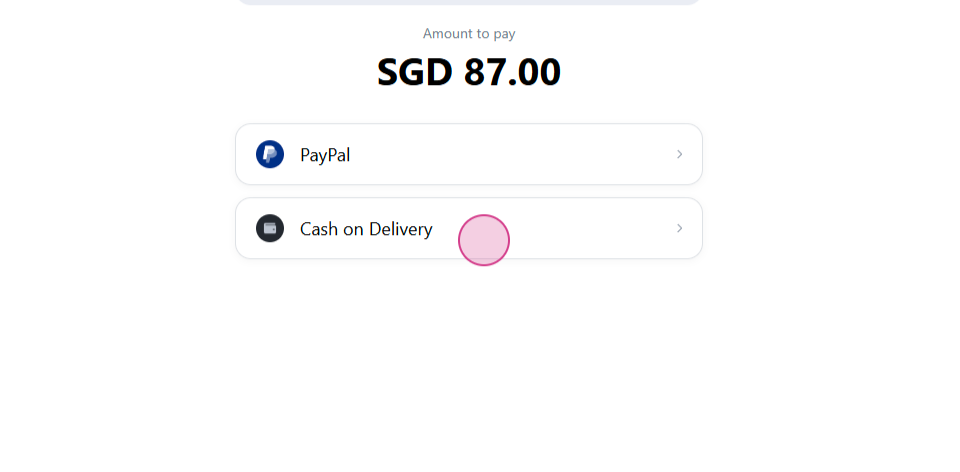
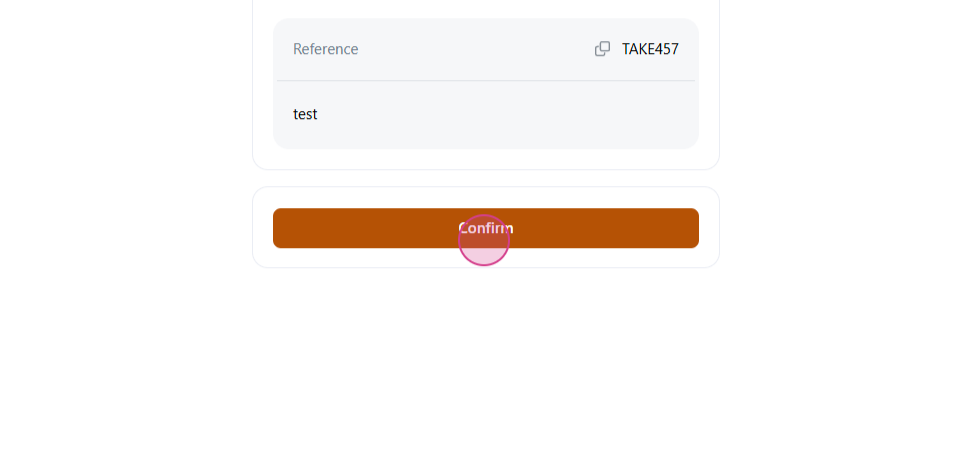
Step 17: Click Confirm.
Step 18: Your customer will send the order confirmation via WhatsApp to your store number.
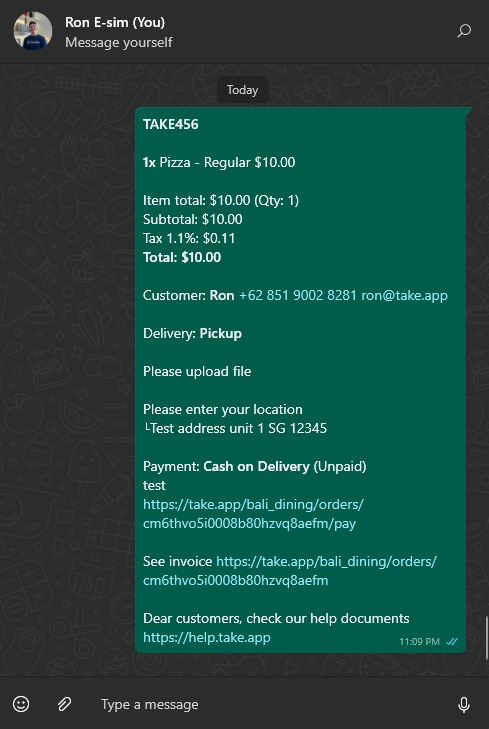
When customers return, they can view their invoice details.