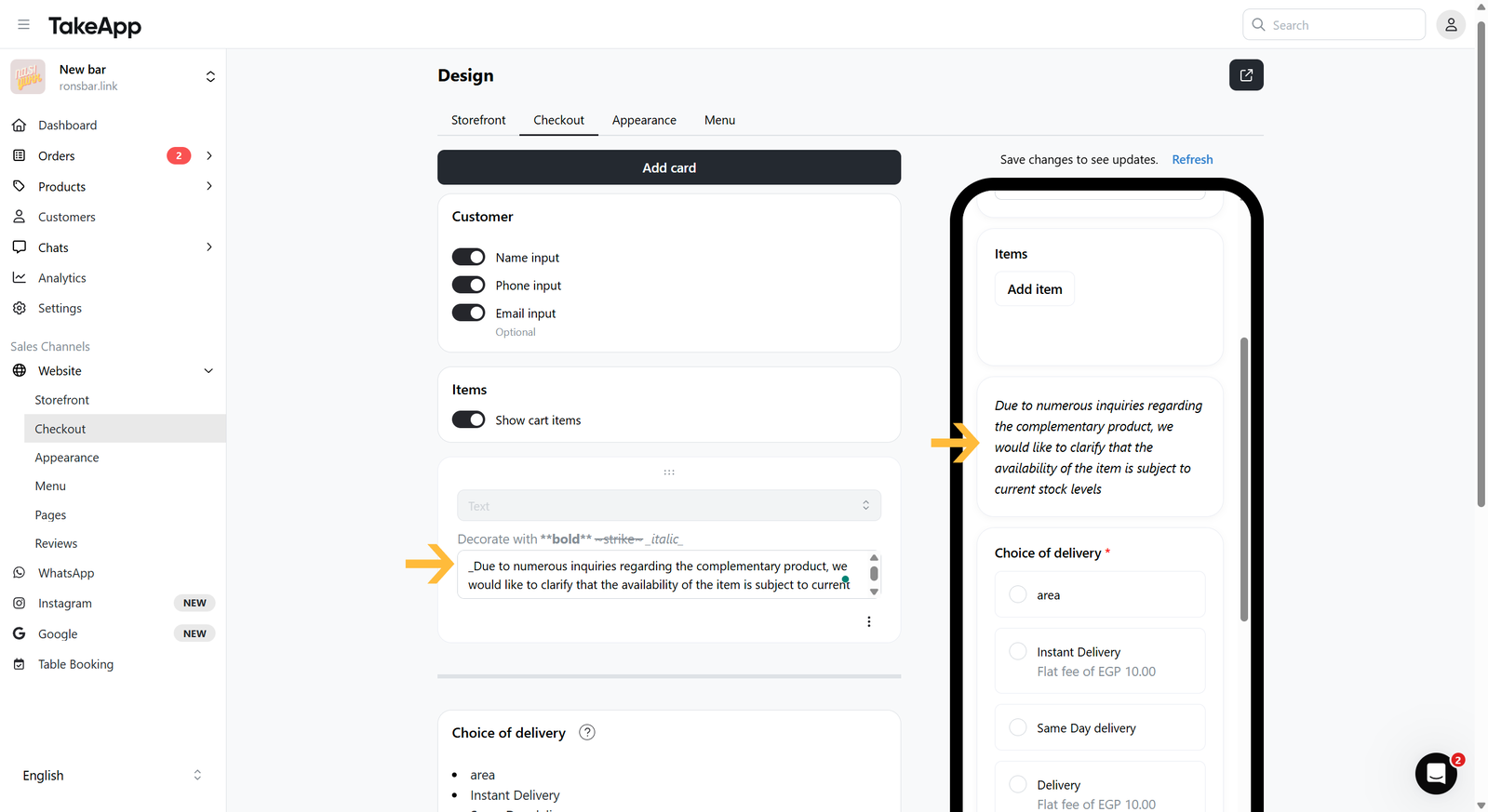
You have the option to include static text, providing your customers with essential information to be aware of before proceeding to checkout, such as your terms and conditions or delivery options.
How to add a text card on the checkout page
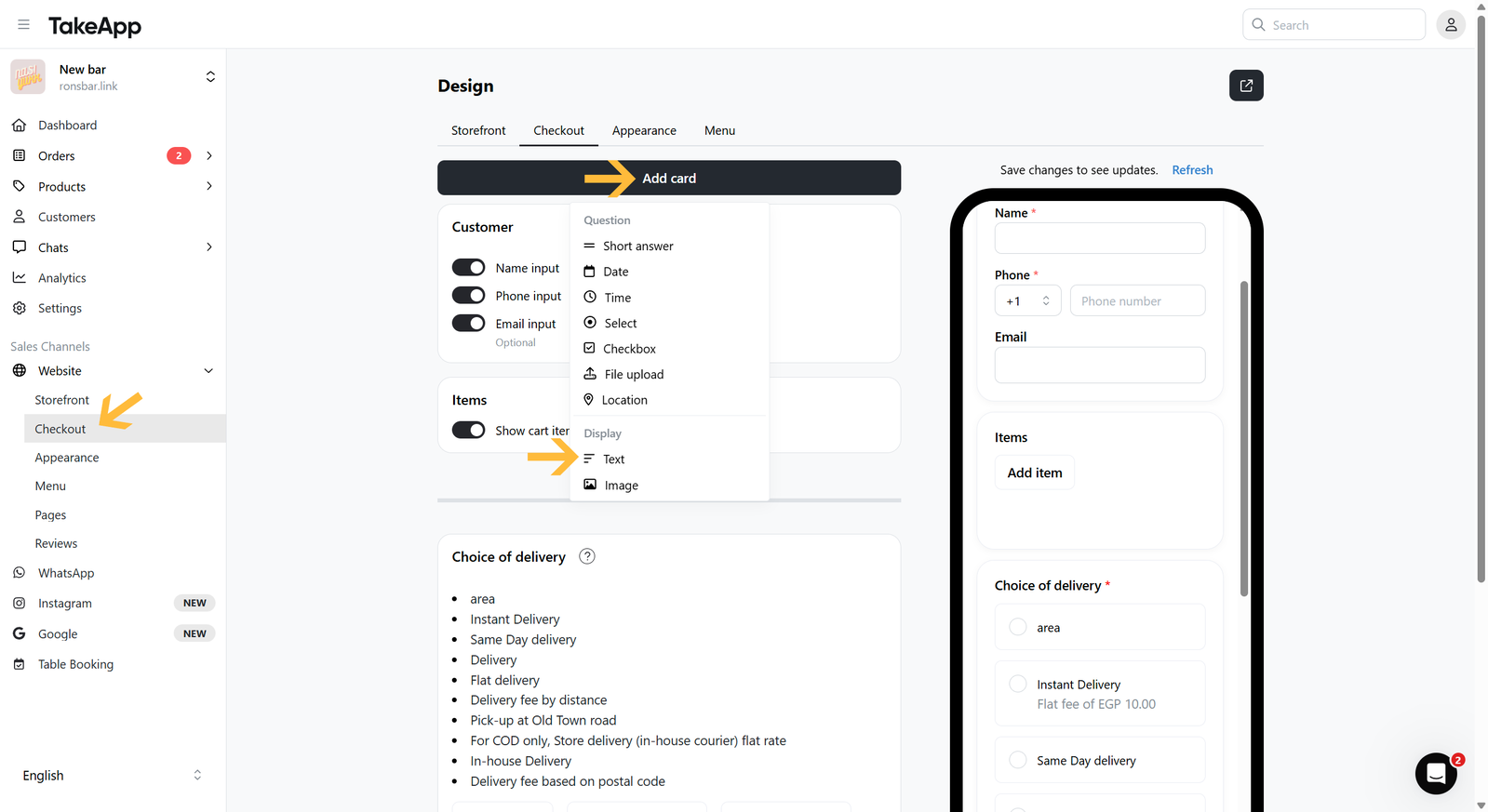
- Go to Admin > Website > Checkout and click
Add cardthen choose "Text"
- Put your explanatory text (it can be any written notice that you wanted to tell your customer before checkout). Lastly, do not forget to Save your changes.