Take App

Store email and store owner email

Your store has two separate email addresses:

  • the store email, which workflow emails are sent from
  • the store owner email, which the owner logs in with

Change the store email

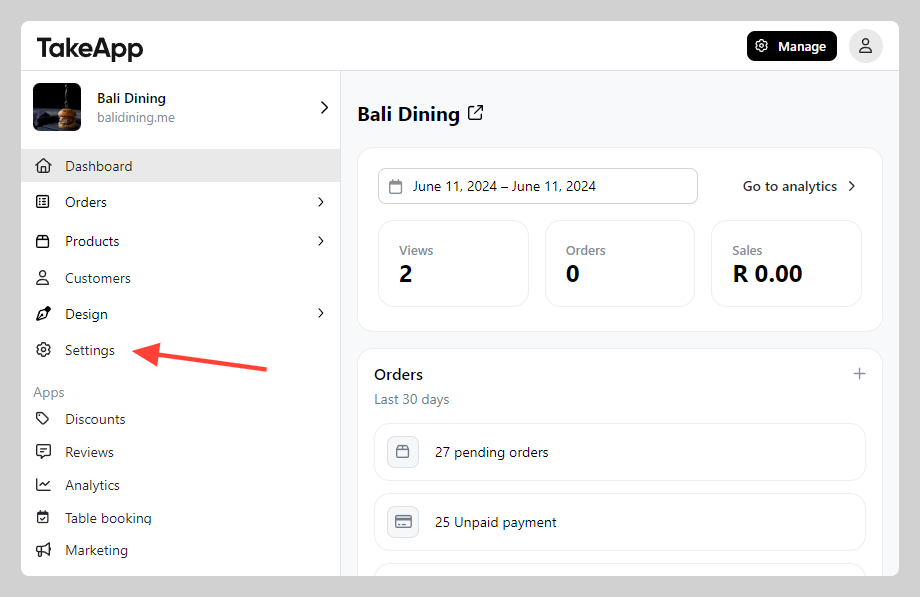
  1. Go to Admin > Settings

    Admin settings
  2. In Store Detail, navigate to the "Profile" section and find the store email field. Add or modify the email address, then click Save.
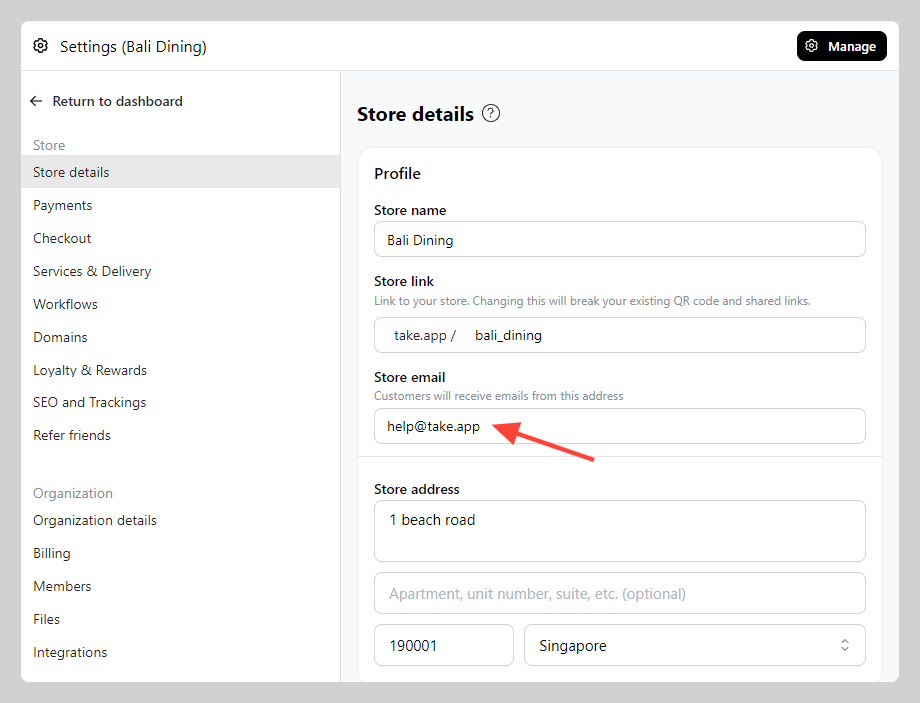
    The store email field

Change the store owner email

  1. Go to Admin

  2. Navigate to Settings > Staff

  3. Select the Store Owner

    Selecting the store owner under Settings > Staff
  4. Click Change, next to the email.

    The Change button next to the owner email
  5. Enter the new email address and click "Change email"

Entering the new owner email

Only store owners can change their email

  • The Change Email option is only available for the Store Owner account.
  • Admins and Staff members cannot update their email addresses directly.

Multi-organization behaviour

Email changes only apply to the current organization. If a user belongs to multiple organizations, changing the email in one organization will not update the email used in the others.

Security notification

After the email address is successfully changed, a notification email is sent to the previous email address associated with the store owner account. This is sent for security purposes — if you did not make the change, contact Take App support immediately.

The security notification email

Update a staff member's email

Staff and Admins can't change their own email address. To change one:

  1. Delete the existing Staff account
  2. Re-invite the Staff member using the new email address

Más en Ajustes de cuenta y tienda

Ajustes de cuenta y tienda

¿Sigues necesitando ayuda?

Haz una pregunta y recibe respuesta al momento, o habla con nuestro equipo.