
When checkout is completed, customers will send you a message. Your customers may not use WhatsApp, so you can offer alternative message buttons.
These are the supported messaging app buttons:
- Text (SMS and iMessage)
- Messenger
- Telegram
- LINE
- Viber
- Zalo
- KakaoTalk
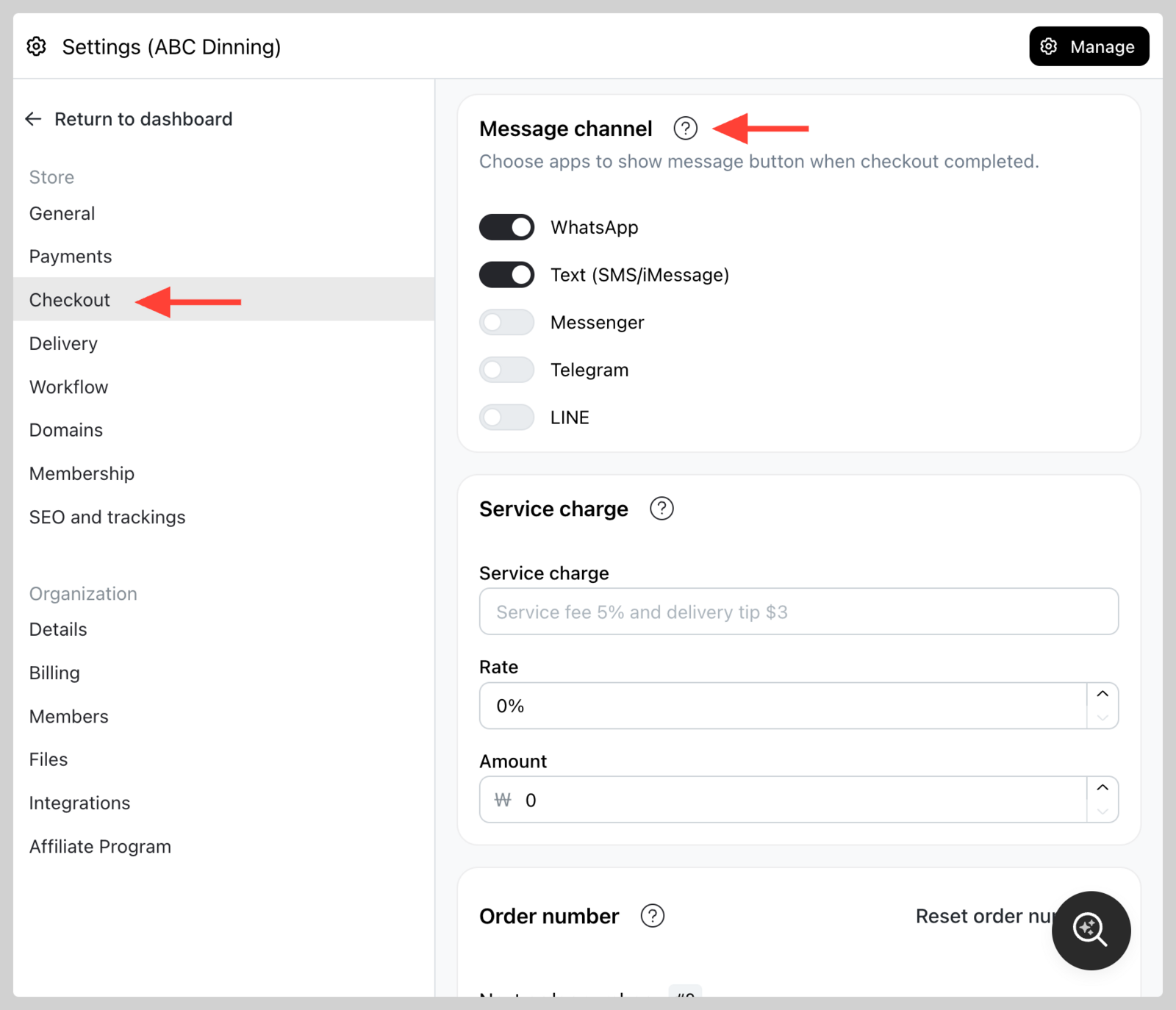
Go to Admin > Settings > Checkout and use Order messages to turn buttons on or off. A Preview shows the buttons your customers will see.
The buttons you turn on here are also offered when customers share your store or contact you from the booking and reservation pages, and on the page visitors see while your store is disabled.
Instagram needs an Instagram business profile. Turn on Instagram and enter your business username (up to 30 letters, numbers, periods or underscores — no two periods in a row and no period at the end).
Instagram does not accept a message from a link, so the customer copies their order message and taps Open Instagram to paste it into your DMs.
The button is hidden if the username is missing or not a valid Instagram handle.
Turn on Email and the customer gets a Send Email button that opens their mail app with the order details written and your store email already in the To field. The subject is Order 1234 - Your store.
Email uses your store email, so set one first — see Add or change store email. The switch shows the address it will send to; with no store email set, the button doesn't appear on the storefront.
Turn on WeChat and paste a Customer Service link from WeCom (https://work.weixin.qq.com/kfid/...). A personal WeChat ID has no link that opens a chat — the customer would have to search for you and wait to be accepted — so a Customer Service account is what makes the button work.
The customer copies their order message and taps through to the chat to paste it.
Viber and Zalo
Turn on Viber or Zalo — both use your store phone number, so there is nothing else to enter. Both open your chat directly, so no customer waits on a friend request. After you change your store phone number, save Settings > Checkout again so Viber and Zalo pick up the new one.
For Zalo, allow others to find you by phone number in your Zalo settings. Using a Viber Small Business Account or Bot, or a Zalo Official Account? Contact us and we will set it up with you.
KakaoTalk
Turn on KakaoTalk and paste a 1:1 Open Chat link (https://open.kakao.com/o/...). Create the Open Chat in KakaoTalk first. An Open Chat link opens the conversation straight away, which a personal ID or phone number cannot.
Each button is only shown when the details you saved still match the channel — a phone number that is not dialable, or a link that is not in the format above, hides the button rather than sending customers somewhere broken.