
Popups help you share announcements, promotions, or sign-up offers with your customers and increase your orders.
1 . Go to Popup Settings
Navigate to: Admin > Design > Appearance > Popup
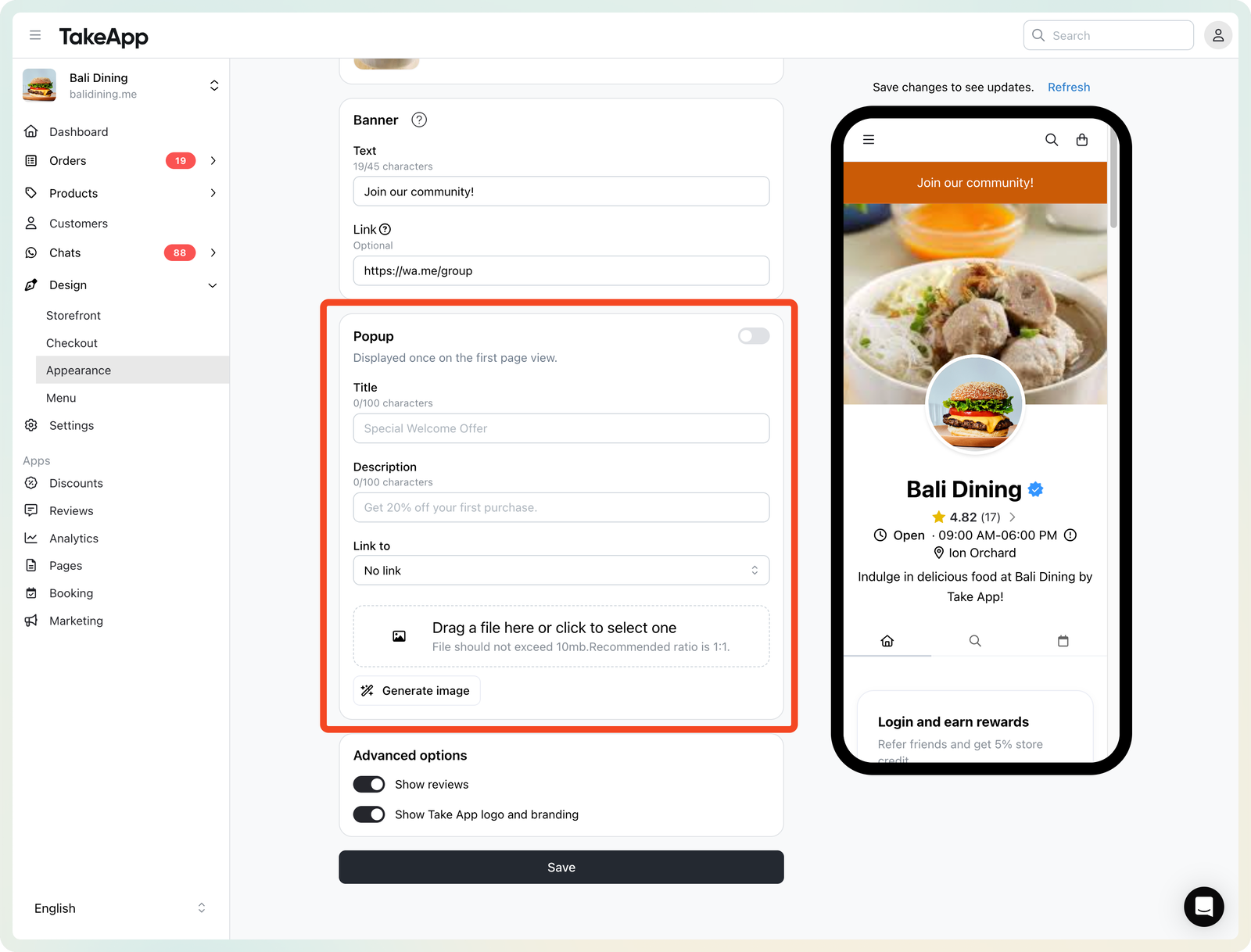
2 . Add Your Content
- Popup Visibility: Use the toggle switch at the top of the Popup settings page to control whether the popup is visible on your store.
- Title & Description: Add a headline and short description — up to 100 characters each.
- Link to:
Add a button with one of these options:- Custom URL – Direct customers to a specific page.
- Sign Up – Encourage customer sign-ups (Business plan only).
- Button Label: Customize the button text — up to 20 characters.
- Image: Upload one image to make your popup more attractive
Keep your message clear and short so customers can easily understand.
3 . Save and Preview
Click Save to apply your popup to your store.
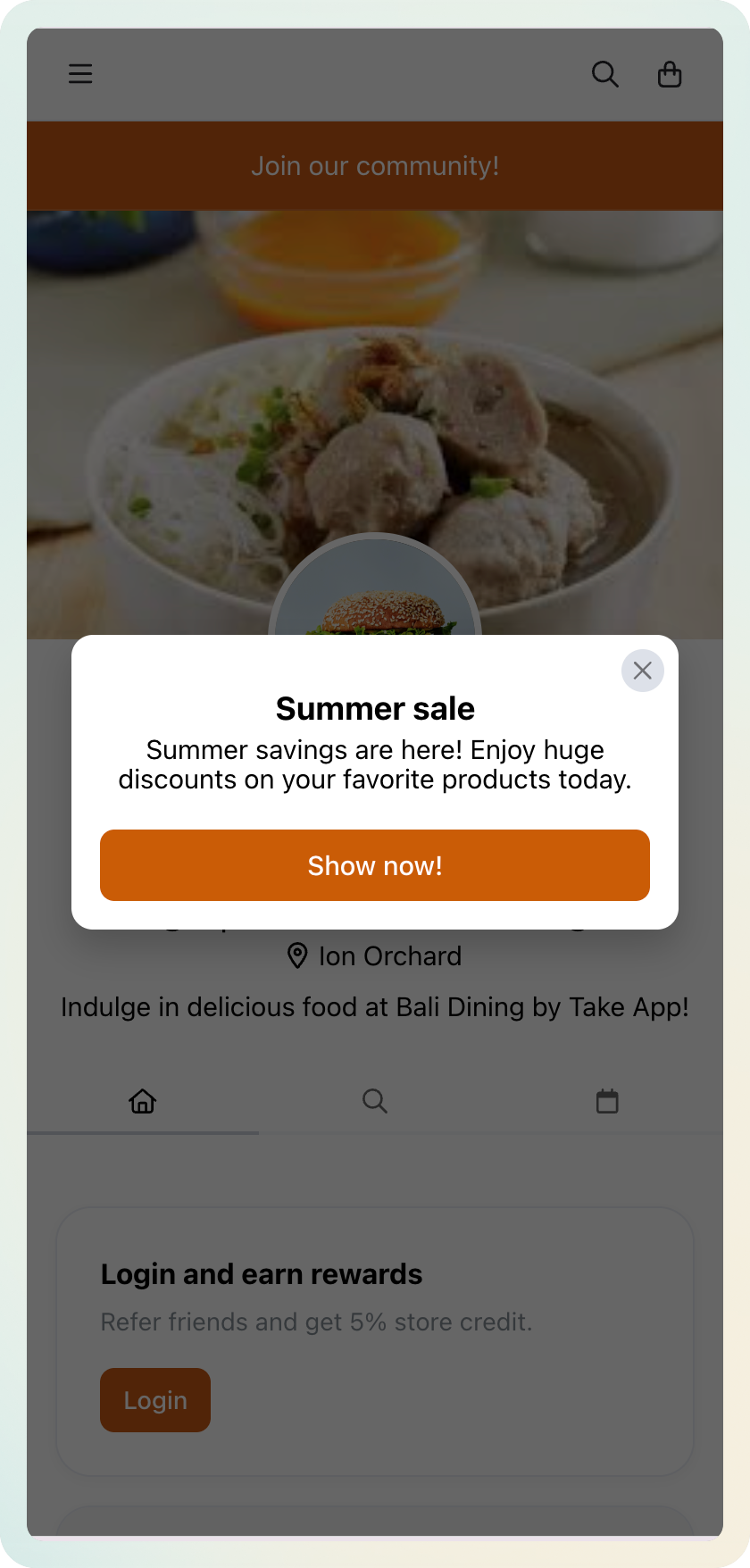
- Text and button popup
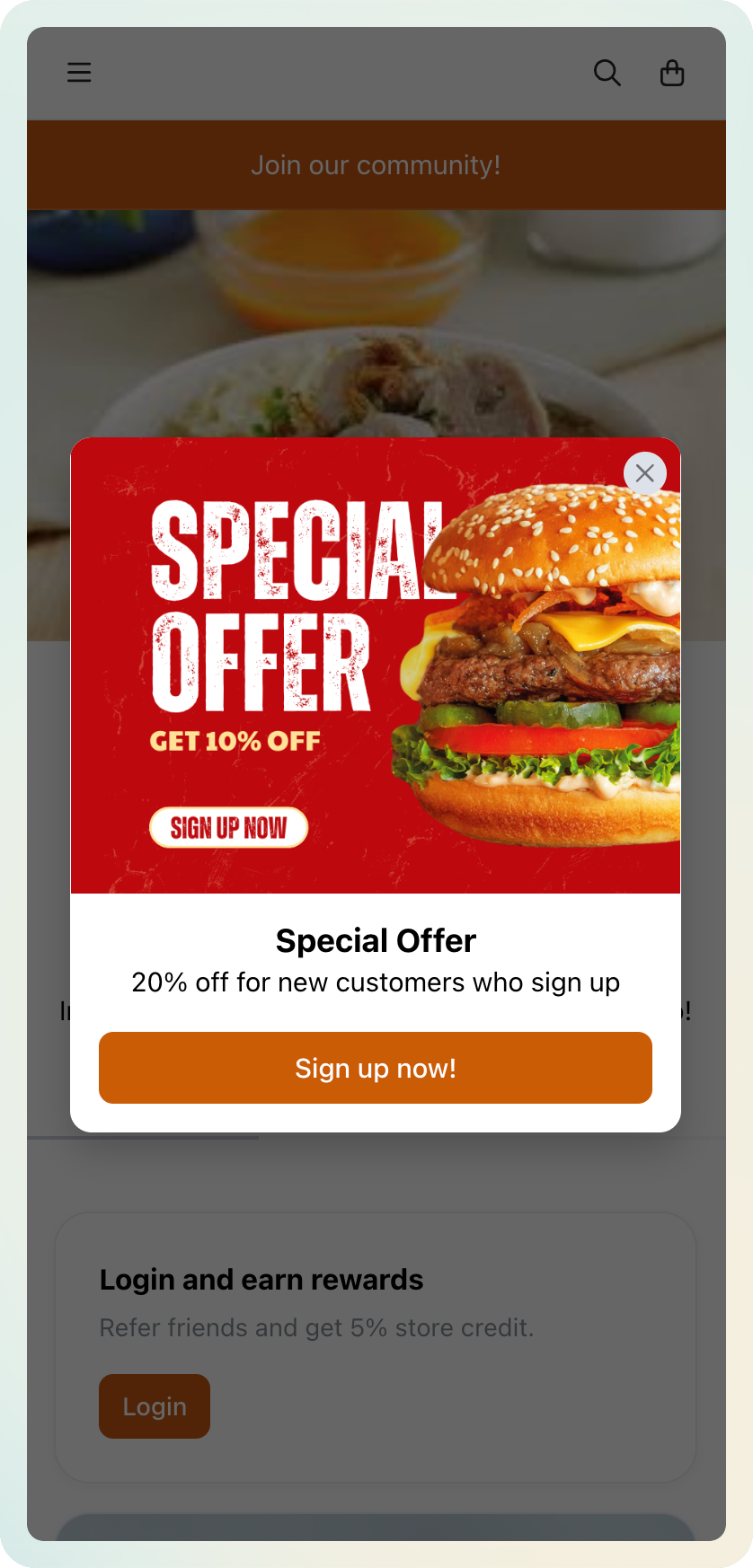
- Text , Image and Button popup
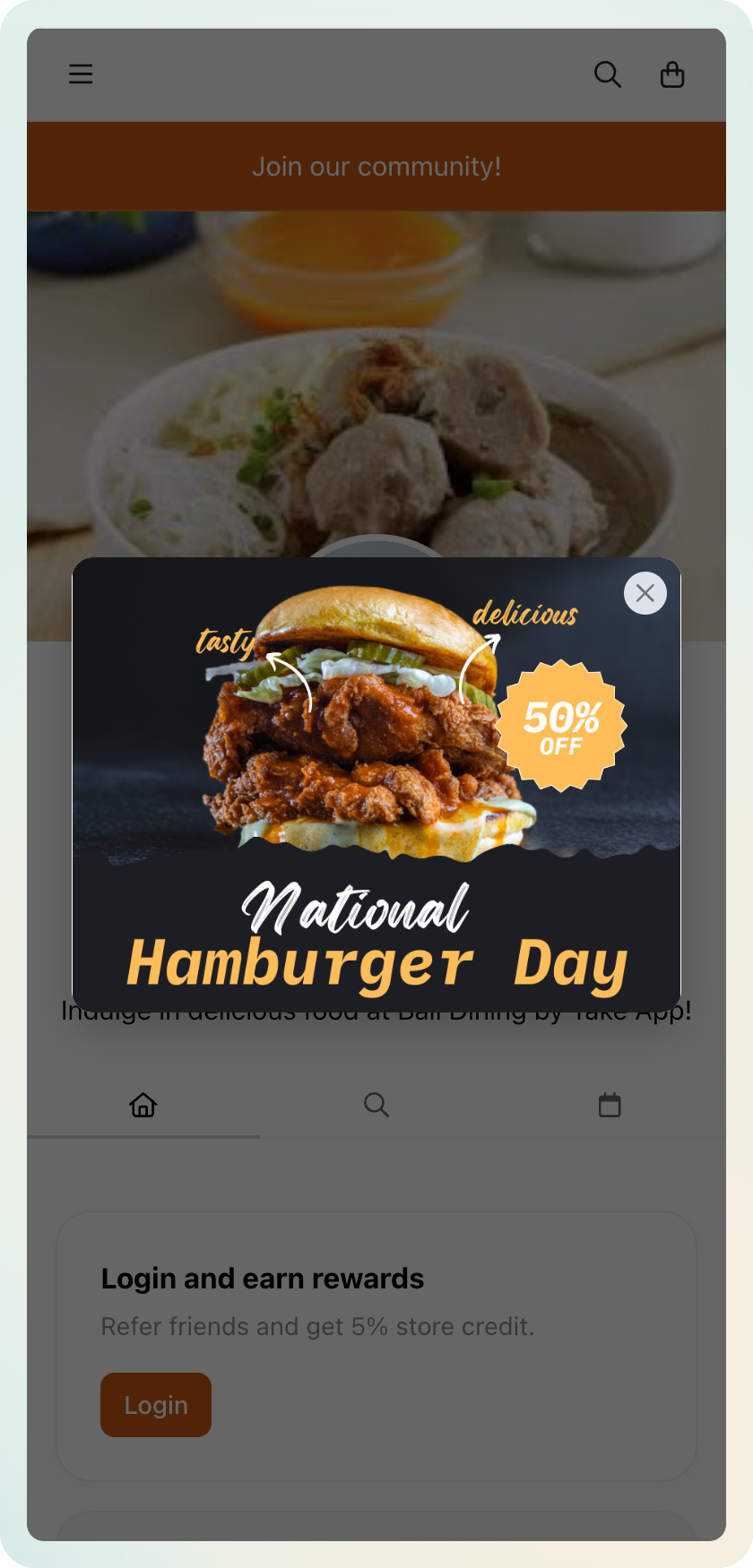
- Image only
Display Rules
- Once a customer closes the popup, it won’t show again for 7 days.
- If you update the content, the popup will show again immediately, even within 7 days.