
How to add Pawapay as payment method
-
Ensure your store currency is one of the following: 'XOF', 'XAF', 'GHS', 'KES', 'LSL', 'MWK', 'MZN', 'NGN', 'RWF', 'SLL', 'TZS', 'UGX', 'ZMW', 'USD', 'CDF',
-
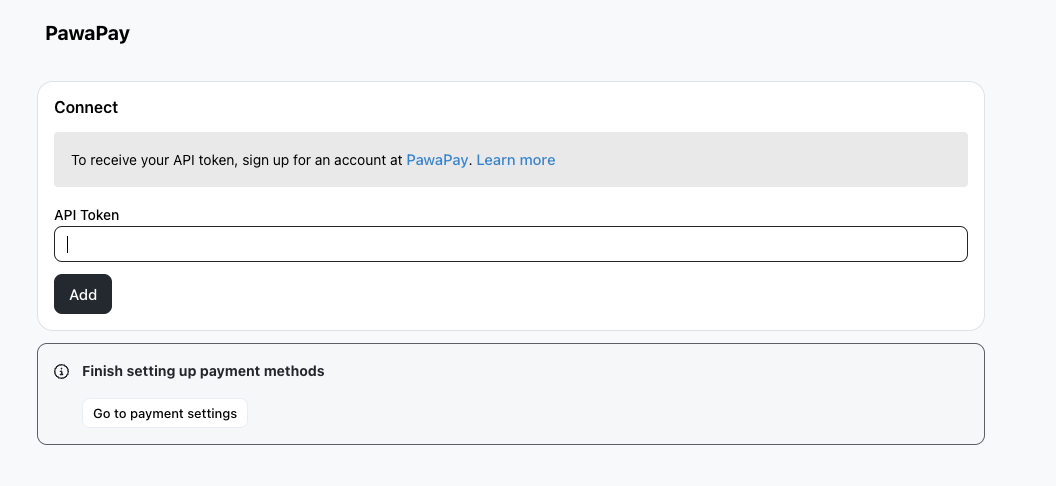
Go to Settings > Integrations and put your Pawapay API Token inside the Take App Dashboard (See how to find Pawapay API Token below). Use a live API token from the live PawaPay dashboard at dashboard.pawapay.io — a sandbox token will be rejected when you save. Take App checks the token when you save; if it's rejected you'll see why, and what you typed stays so you can fix it.
-
Go to Settings > Payments and click
Add payment method. -
Choose Pawapay and Save.
-
Then, on the Pawapay dashboards, enable "Sign all callbacks" (See How to enable "Sign all callbacks" below)
-
Lastly, on the Pawapay dashboard fill-in Callback URLs (See How to Fill in Callback URL below)
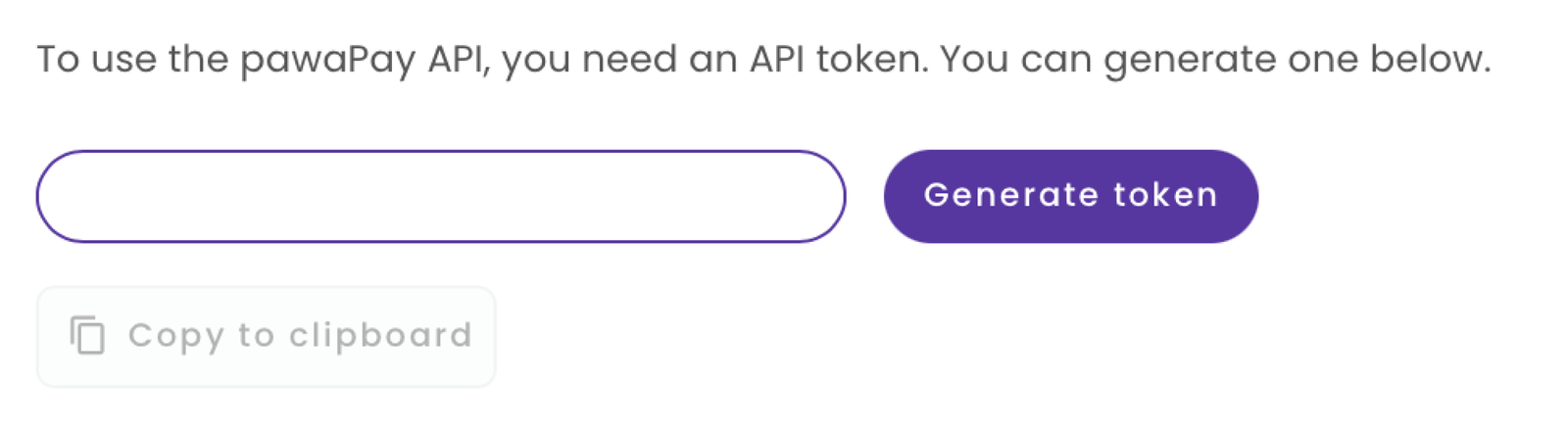
How to generate a PawaPay API token
- Sign in to the live PawaPay merchant dashboard at dashboard.pawapay.io
- Go to Developers > Manage API Tokens
- Generate an API token.
How to Fill in Callback URL
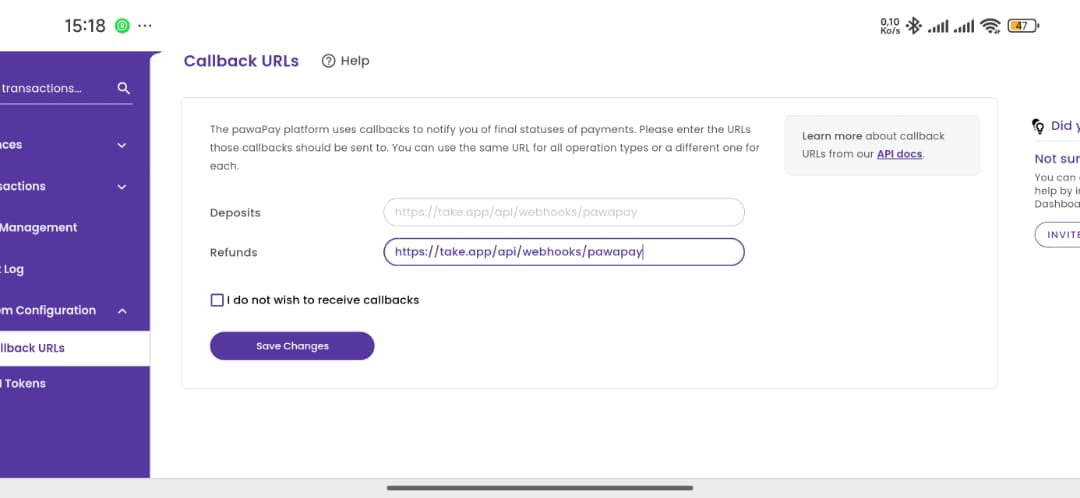
1. Login to your Pawapay dashboard.
2. Go to Callback URLs. For both the Deposits and Refunds field, type in https://take.app/api/webhooks/pawapay
How to enable "Sign all callbacks"
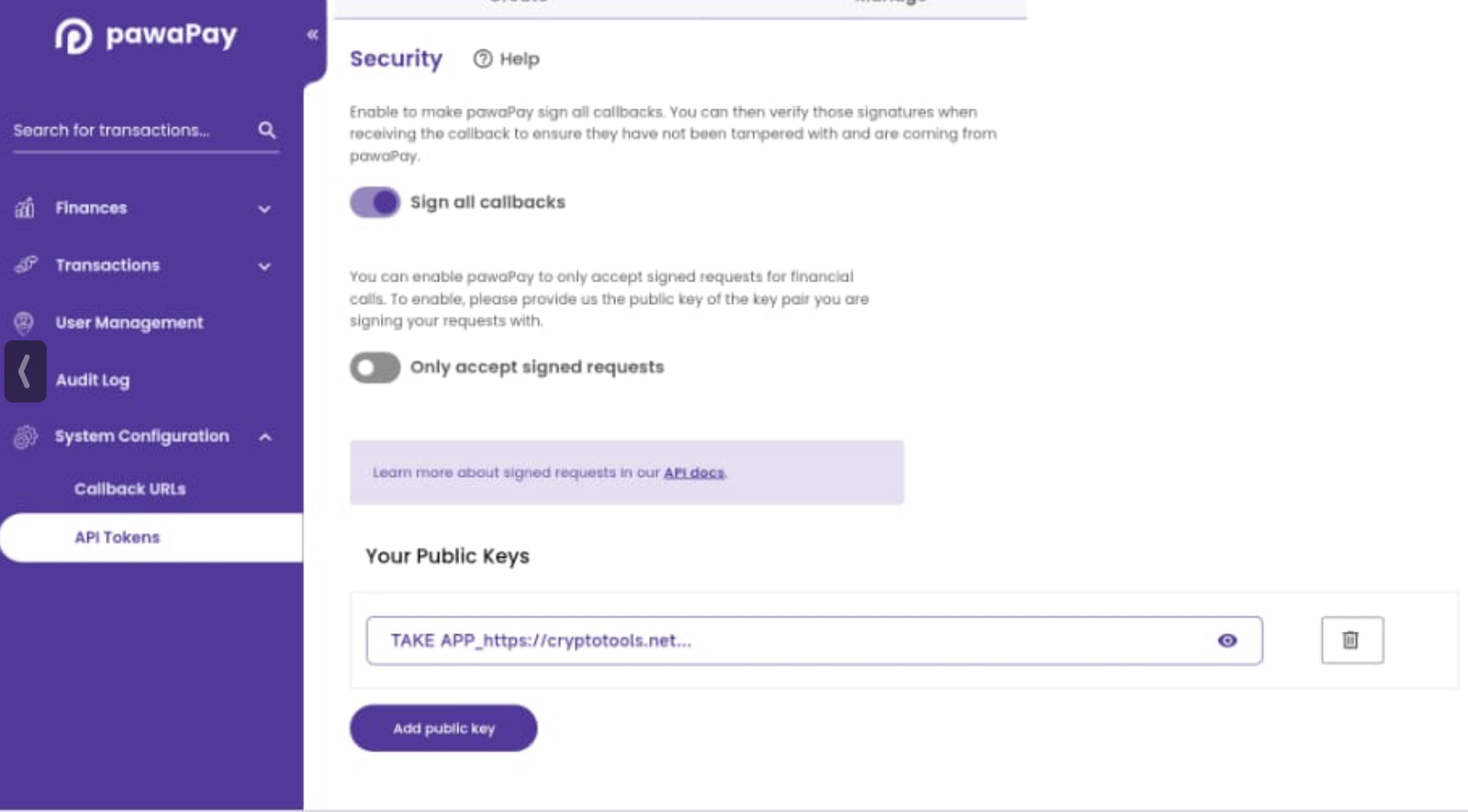
1. Login to your Pawapay dashboard.
2. Go to API Tokens, and switch on Sign All Callbacks.