
With Adyen, you can start accepting payments in markets where Adyen boards merchants — Europe, the Americas, Asia Pacific, UAE, and South Africa — and have the payment mark as paid automatically in Take App. Adyen is not offered where it does not board merchants (for example, Kenya).
Please follow the settings carefully.
How to add Adyen as payment method?
-
Go to Settings > Integrations
-
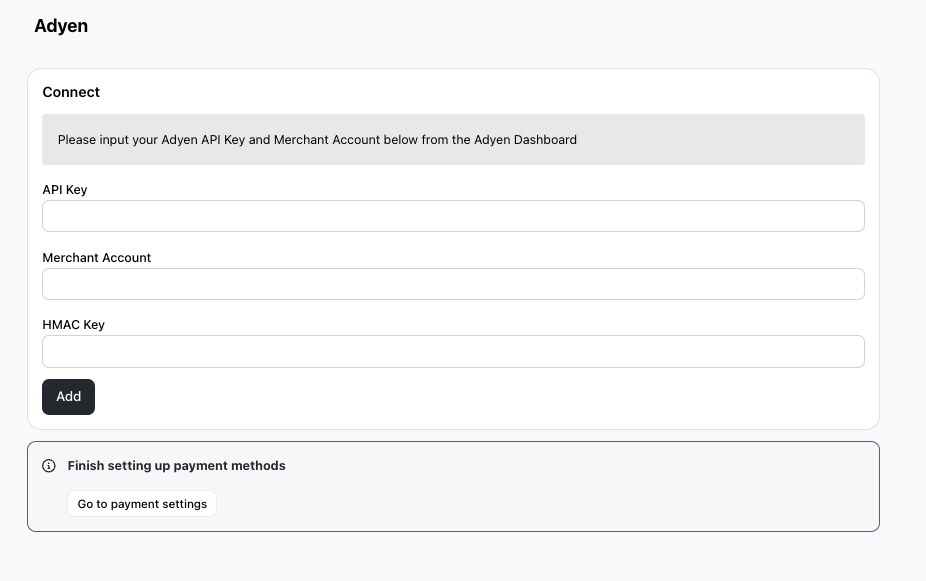
Choose Adyen
-
Complete the setup by keying in your Adyen Merchant Account ID, API Key, and HMAC Key (See below for instructions to generate these credentials)
-
Now go to Settings > Payments
-
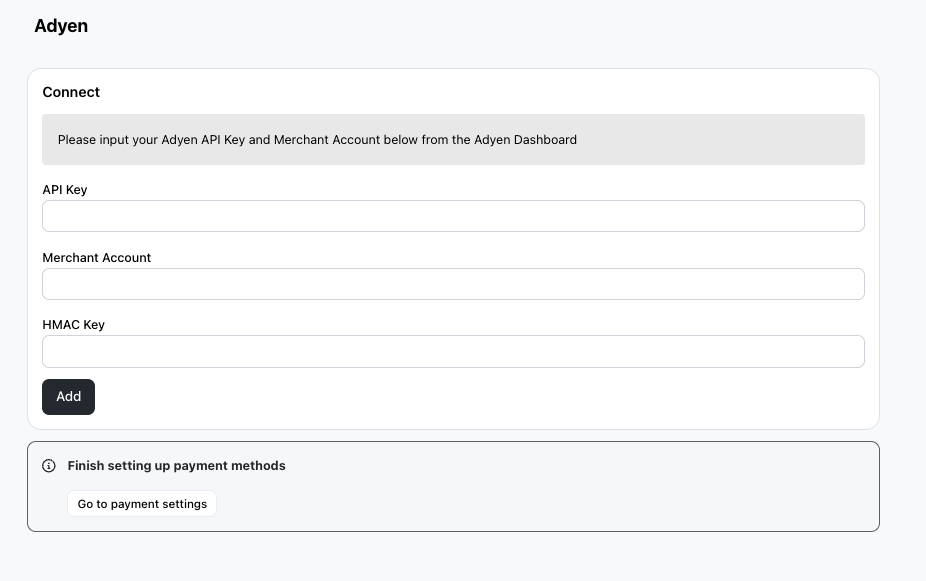
Add Adyen
-
Choose your integration credentials from the dropdown
-
Hit Save
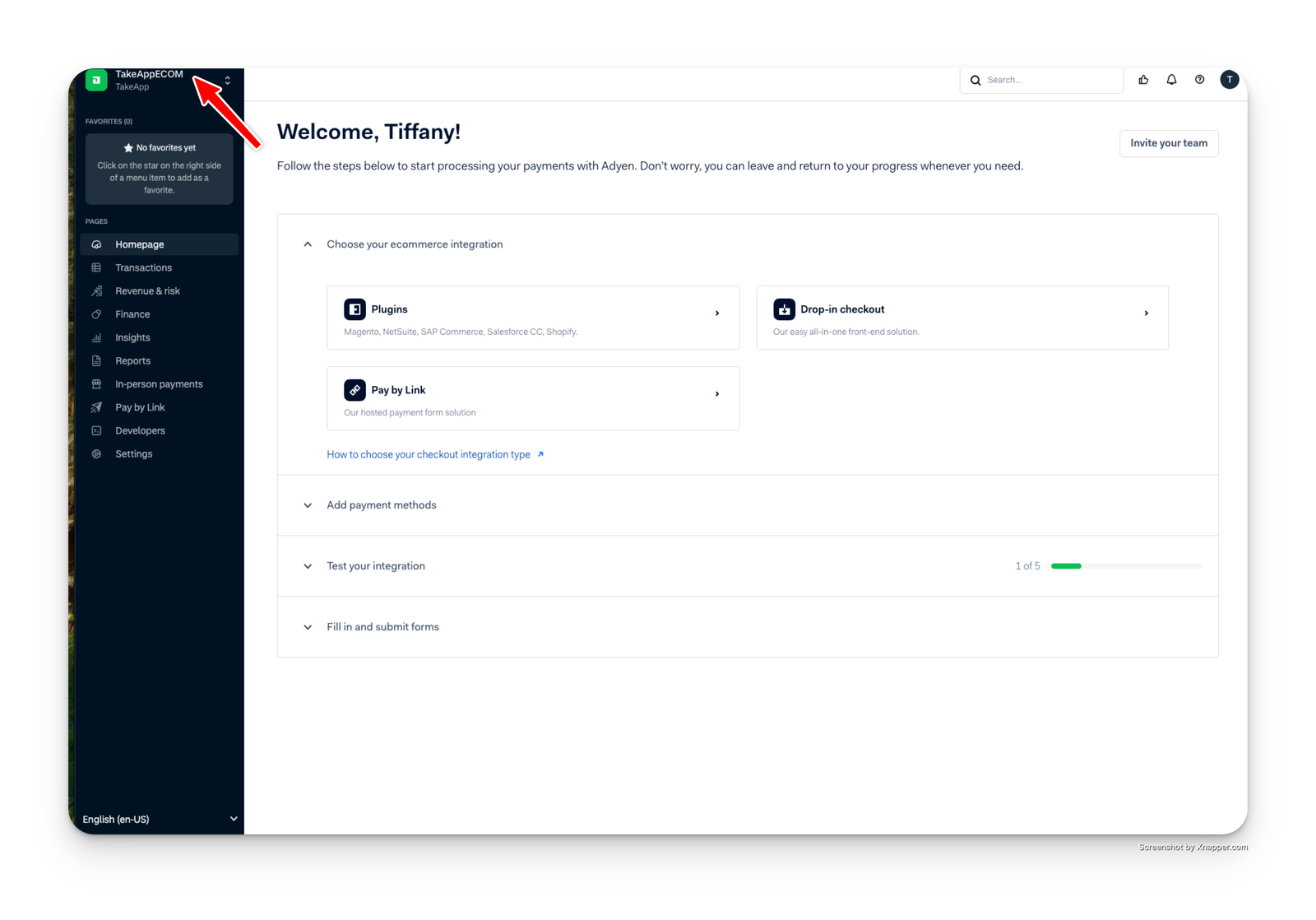
How to find your Adyen Merchant Account ID
- Check the top left side of the dashboard for the merchant account.
How to generate your Adyen API Key
- Switch to Company Account.
- Go to Developers > API credentials, and select the API credential username for your integration, for example ws@Company.[YourCompanyAccount].
- Under Server settings > Authentication select the API key tab.
- Select Generate API key.
- Select the copy icon and store your API key securely in Take App system.
- Select Save changes.
How to generate your Adyen HMAC Key?
- Switch to Merchant Account
- Go to Developers > Webhooks
- Click on + Create new webhook
- Choose Standard webhook
- Under Server Configuration > URL, type in
https://take.app/api/webhooks/adyen - Under Security > HMAC, click on Generate HMAC
- Select the copy icon and store API key securely in Take App system.
- Click Save changes