
Take App allows you to customize your storefront using design cards that appear on your homepage. Here's a quick guide to each card and how to use them:
How to Access Storefront Design
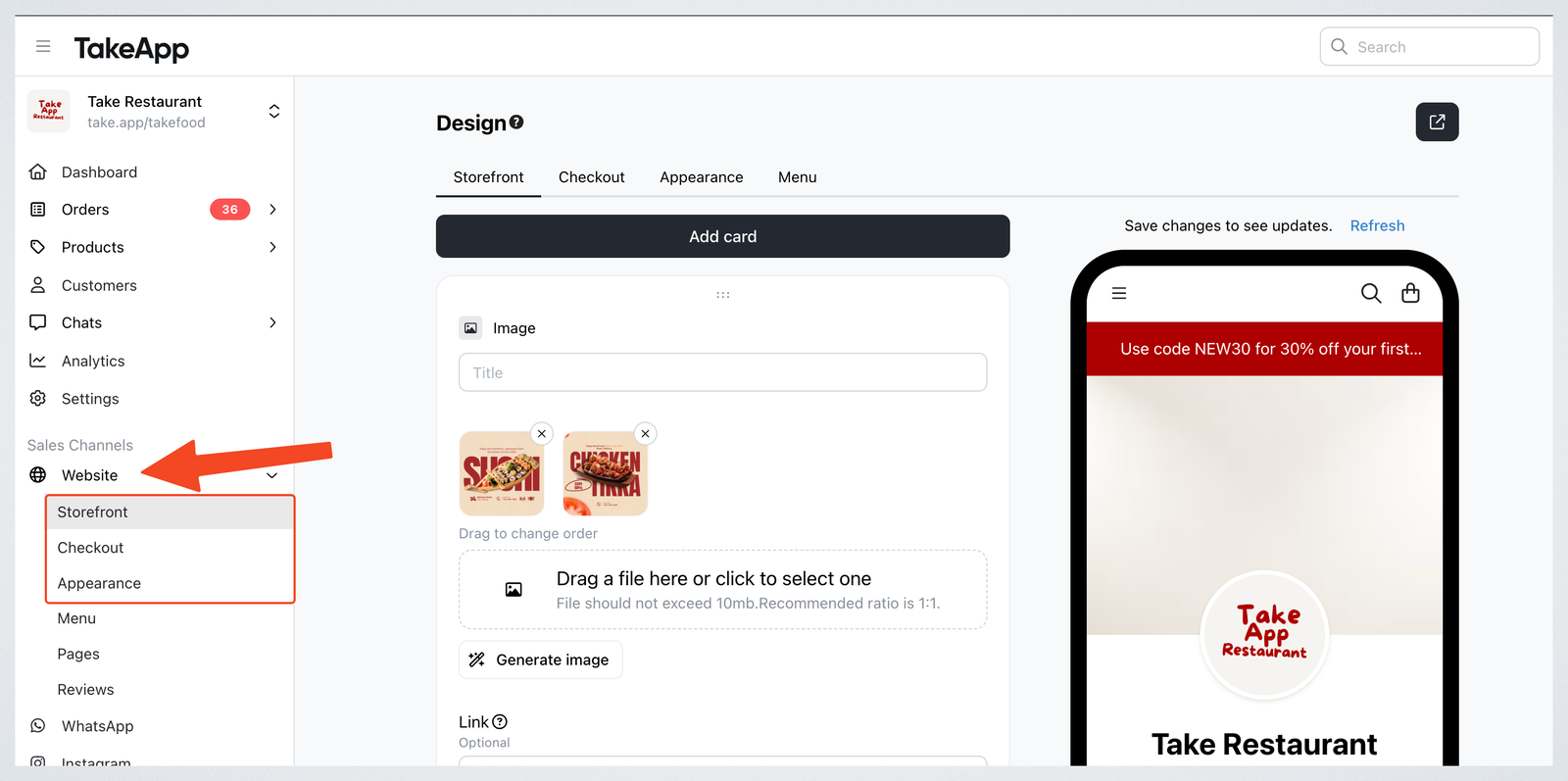
Go to Sales Channels > Website in your dashboard to start customizing your store layout. You can click which part you want to change: Storefront, Checkout, Appearance and Menu.
Types of Cards
Text Card
Use this to write a description of your store, welcome message, or any important info you want customers to see first.
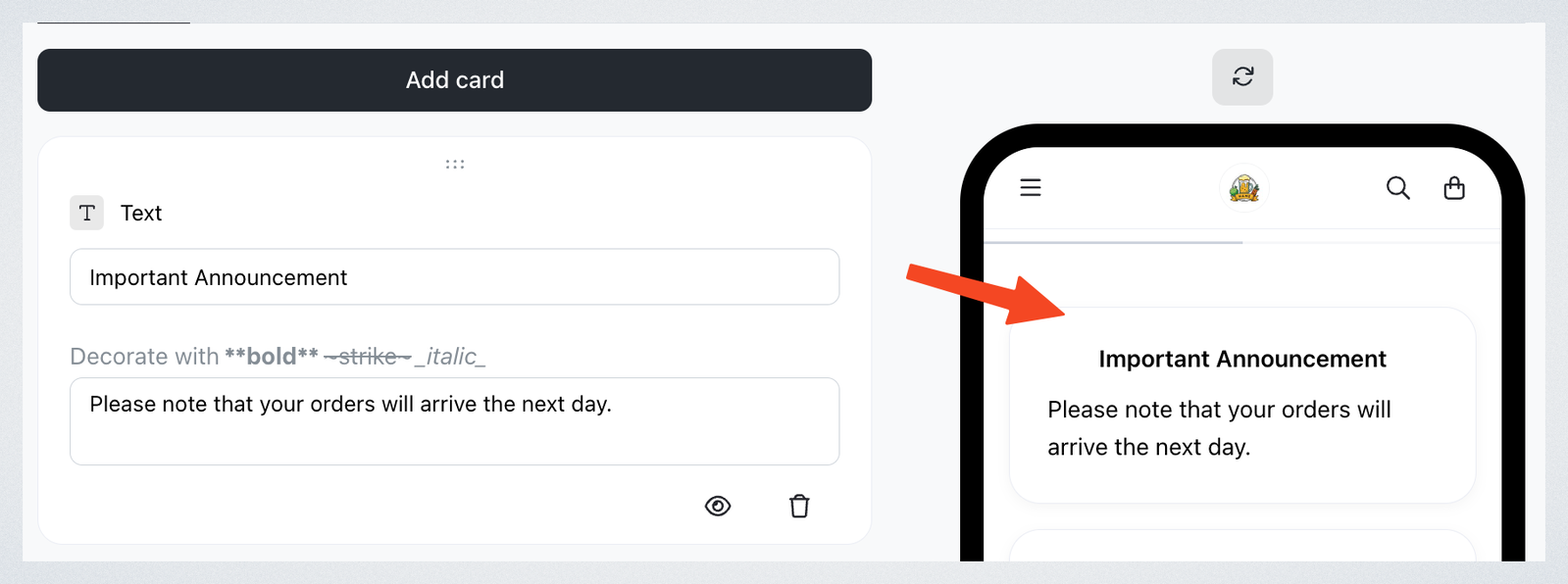
Image Card
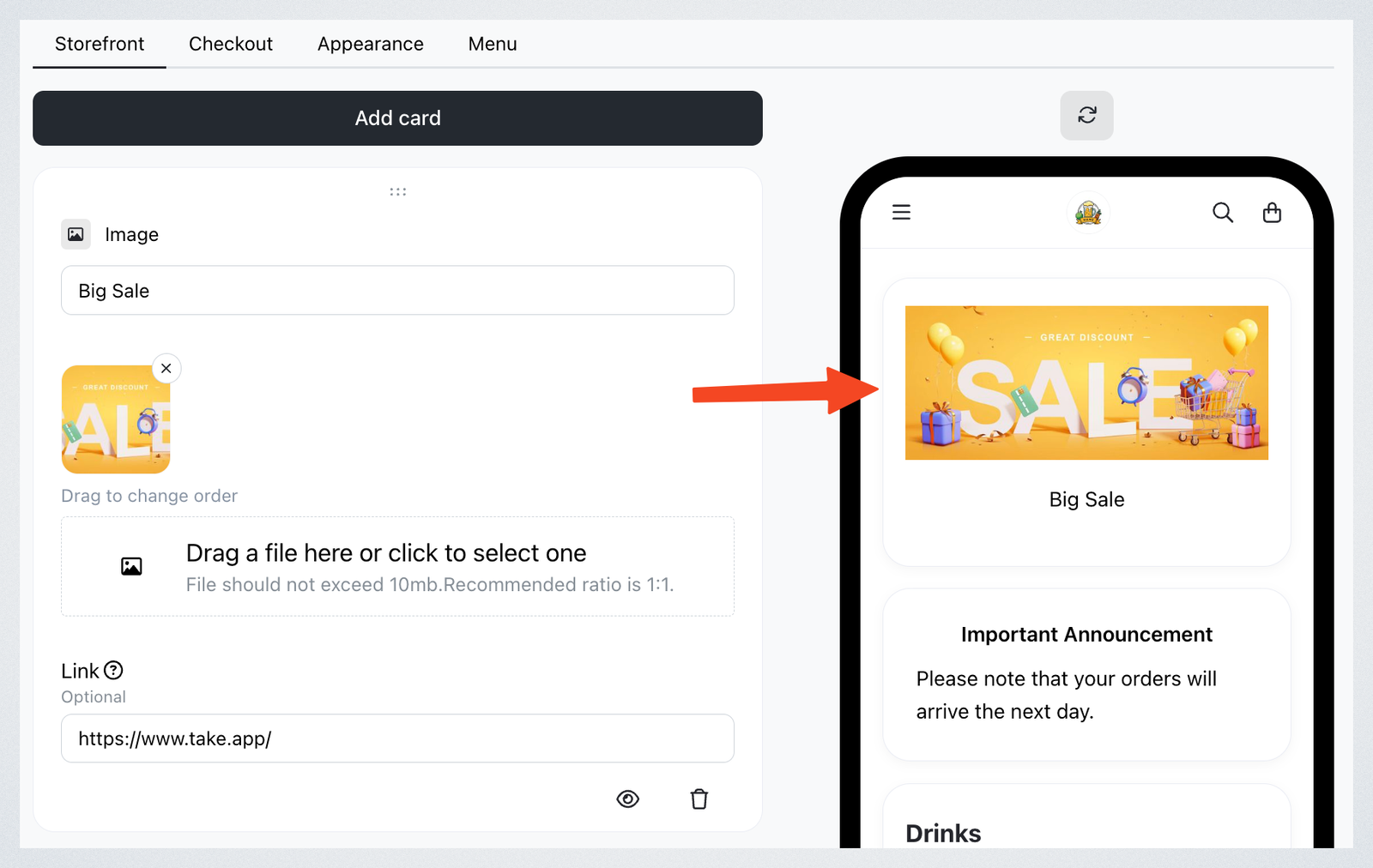
Upload banners, promotional images, or visuals. You can also attach a link—great for highlighting deals or events.
Video Card
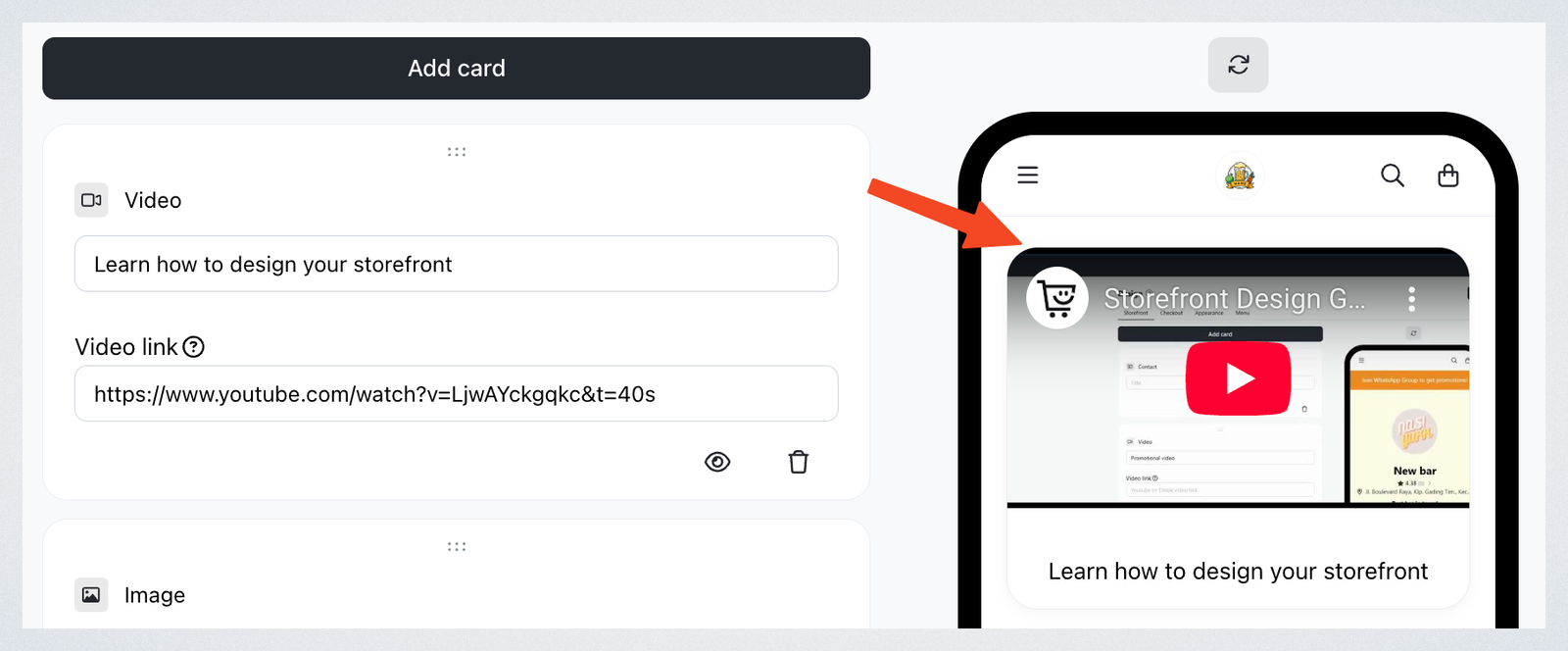
Add a YouTube or TikTok video link to your storefront. Perfect for introducing your shop, sharing tutorials, or showing product highlights. Only YouTube and TikTok links are supported.
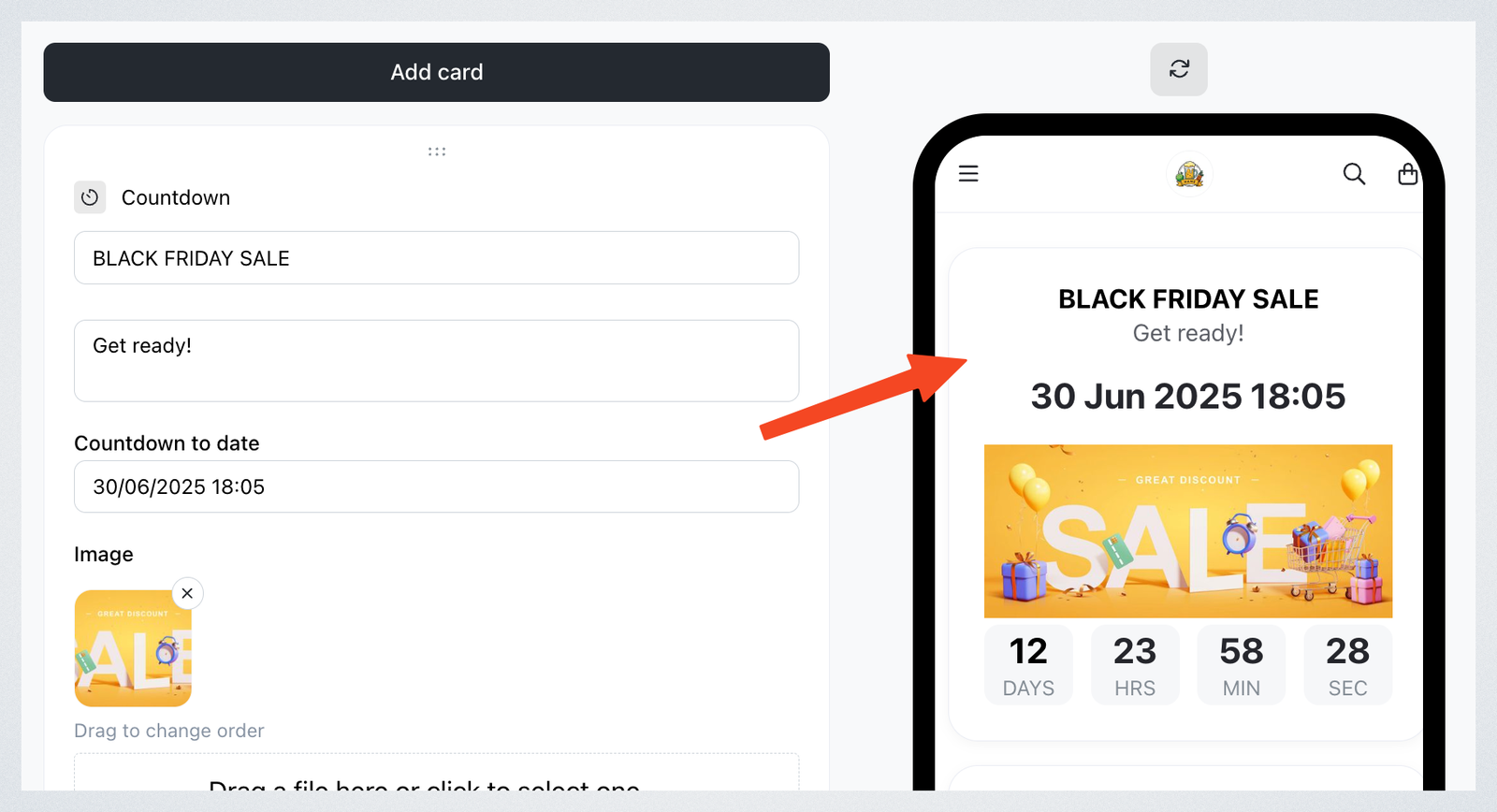
Countdown Card
Create urgency by setting a countdown—for example, for a sale ending soon or a new product launch. You can also add an image to go with it, title and description.
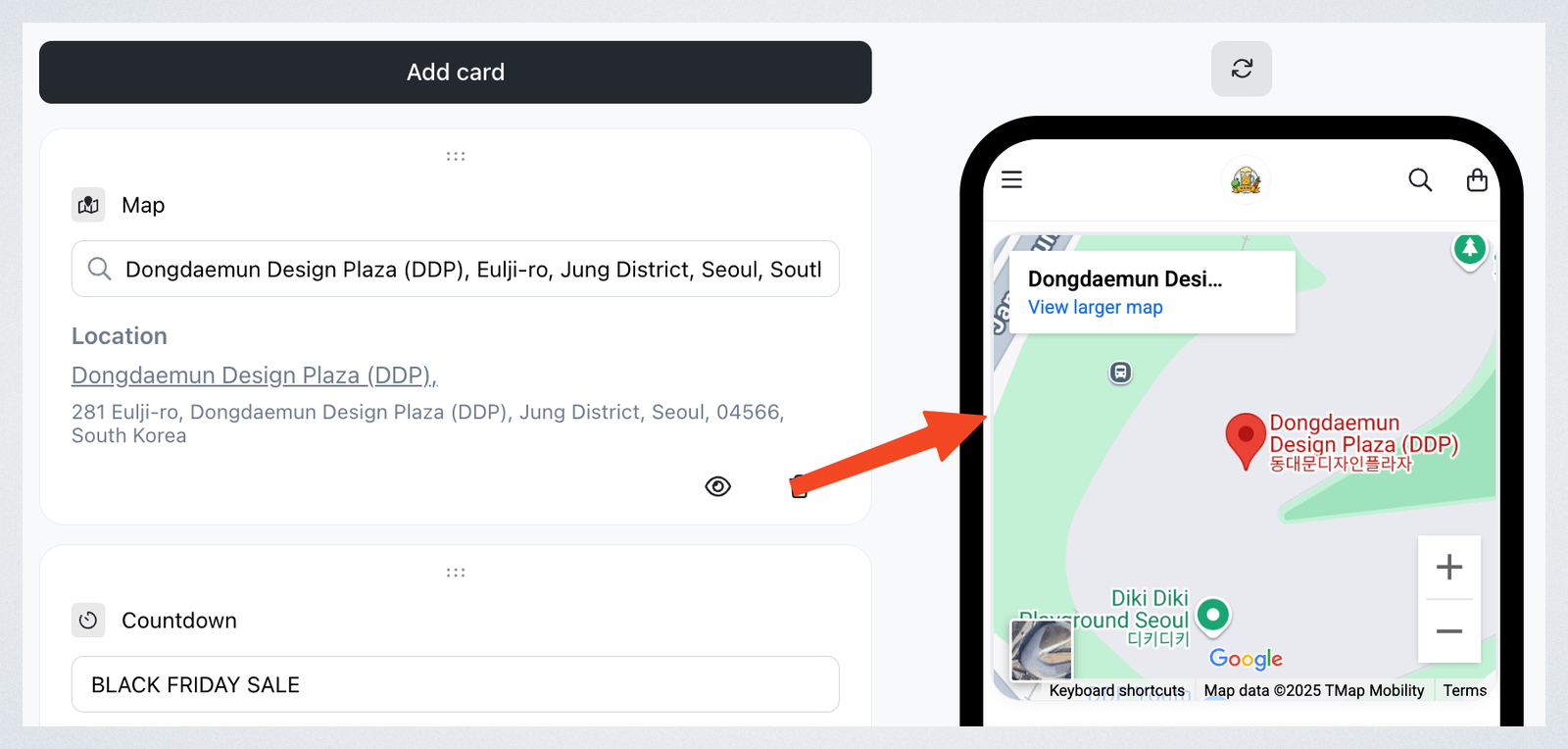
Map Card
Display your store location or pickup point using the Map card.
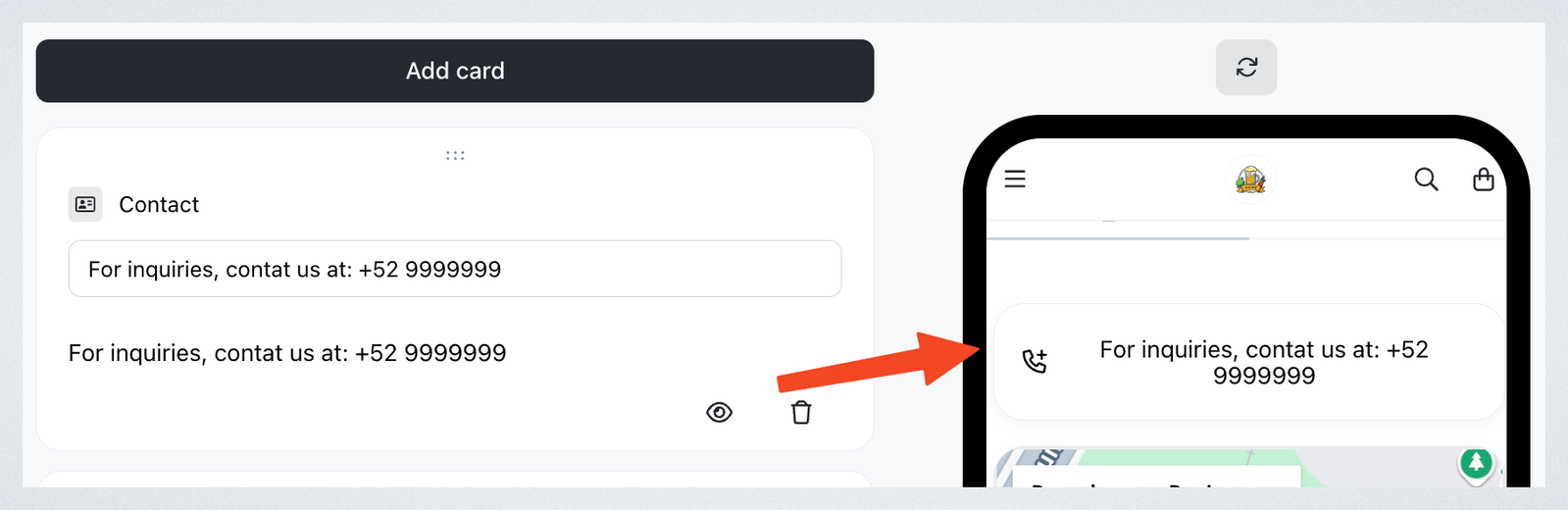
Contact Card
Make it easy for customers to save your contact info to their phone with one click.
Link Card
Send customers to another page — your booking form, a menu PDF, or your social profile — with a titled link block.
Products Card
Feature a hand-picked set of products, so a promotion or a new arrival sits at the top of the page instead of down in the catalog.
Delivery Card
Show your delivery and pick-up options up front, so customers know how they can receive their order before they start adding items.
Review Card
Show your customer reviews on the storefront. Requires a paid plan (Essential or Business) — see Customer review.
Once you've added your cards, click Save to apply changes.
For step-by-step settings for each card type, see Add cards to the storefront.