
How to change your store's background color
-
Go to Website > Appearance
-
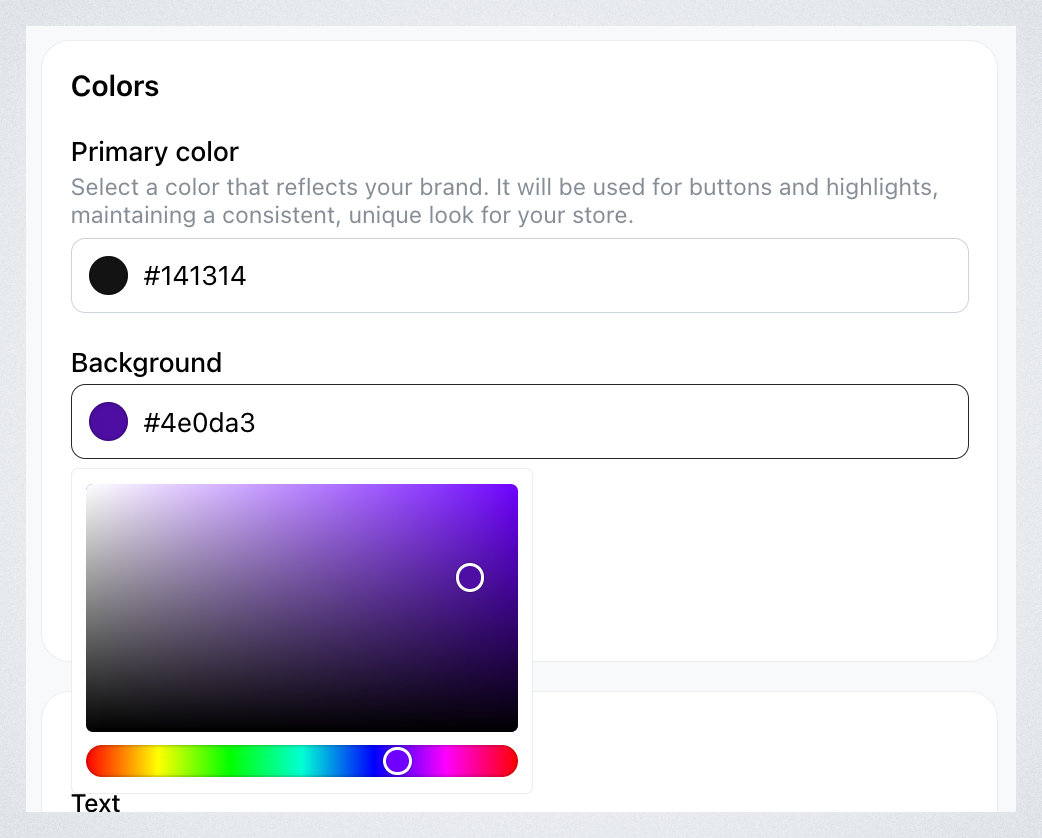
Scroll down to Colors section, click Background color and select the color you want.
-
Click Save.
How to change your store's background image
-
Go to Design > Appearance
-
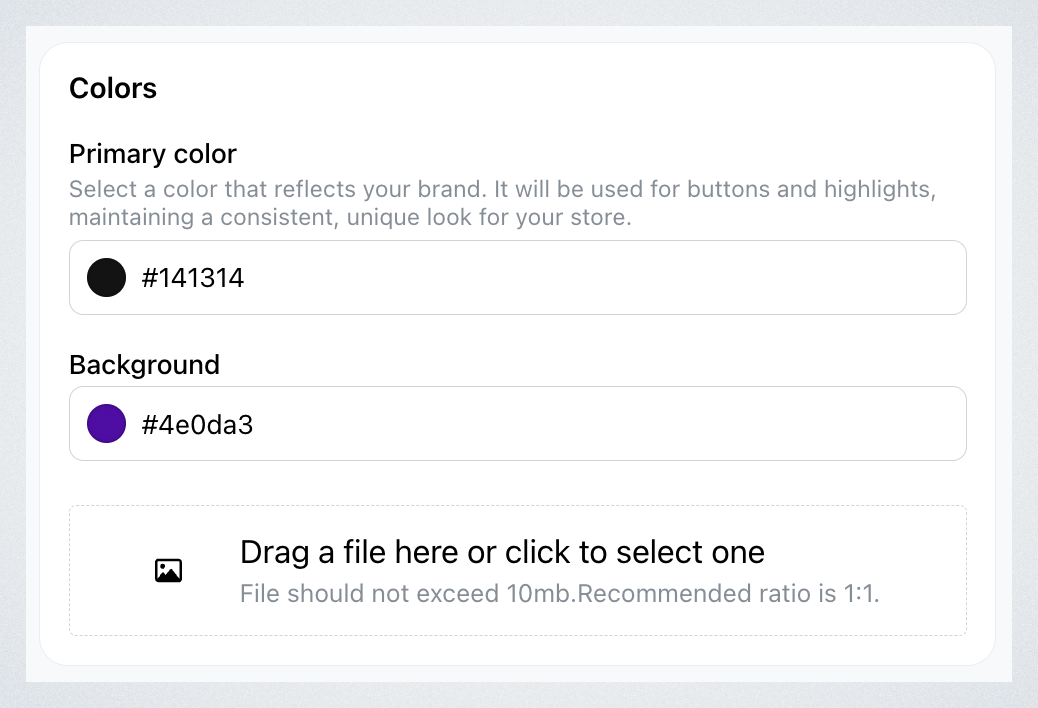
Scroll down to Colors section, and drag your image or select the one you want.
-
Click Save.
Your store's background will be updated accordingly:

How backgrounds display on your storefront
- Background color only: The coloured area takes up only the height it needs, so customers reach your store content straight away.
- Narrow horizontal image: A horizontally narrow background image is shown in full, without cropping.