How to Change the Store Owner Email
- Go to Admin
- Navigate to Settings > Staff
- Select the Store Owner
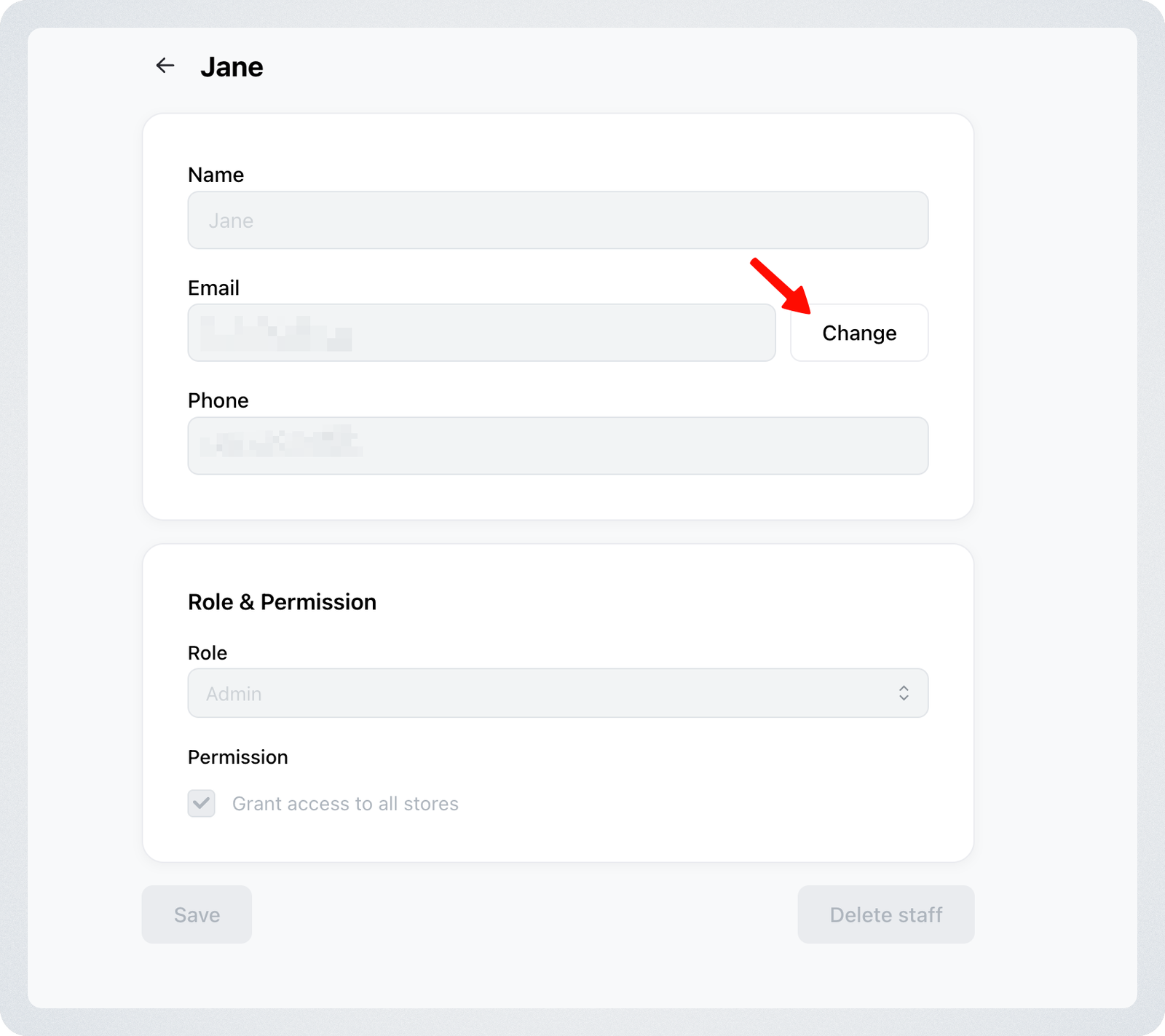
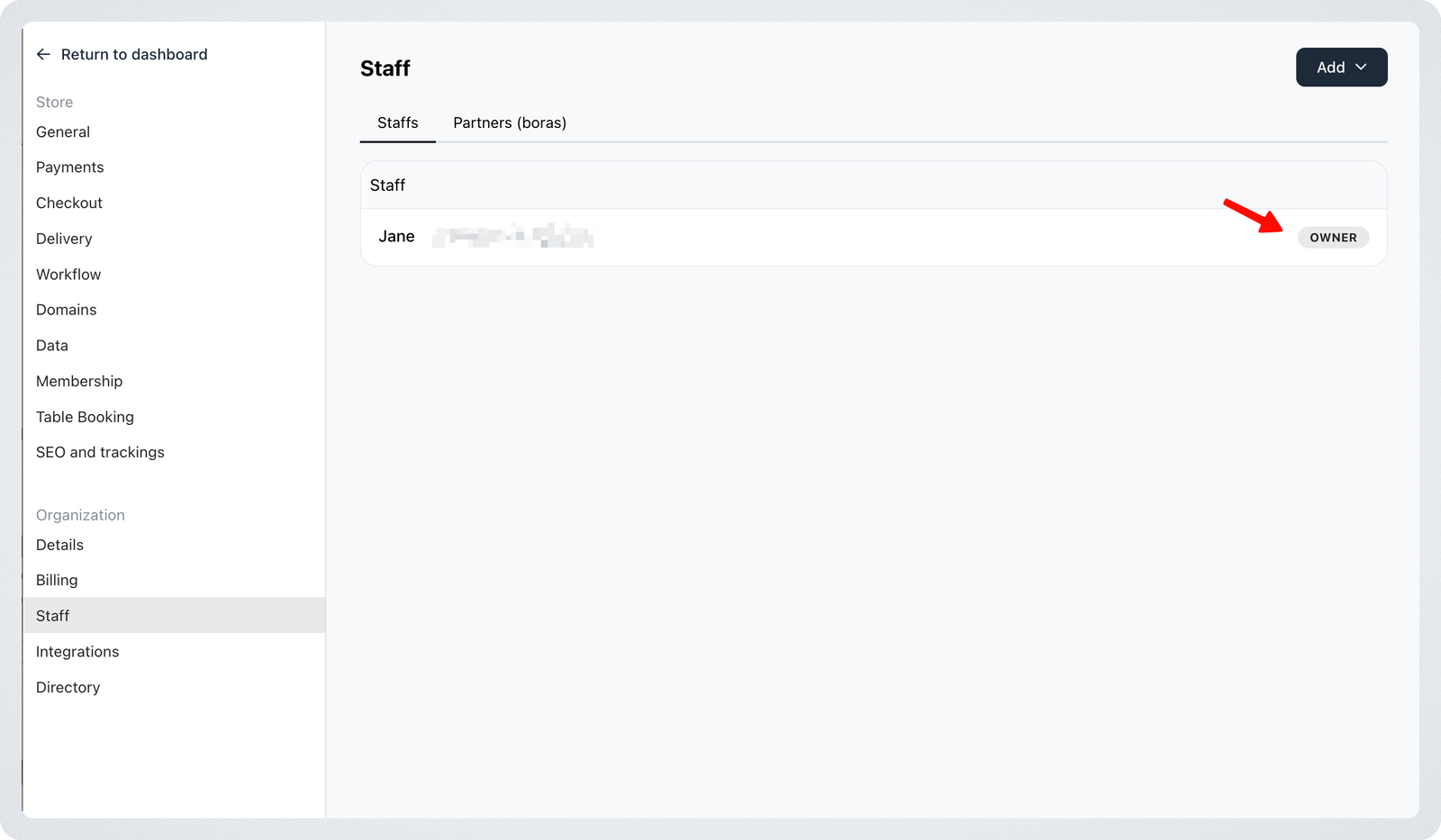 4. Click **Change, next to the email.**
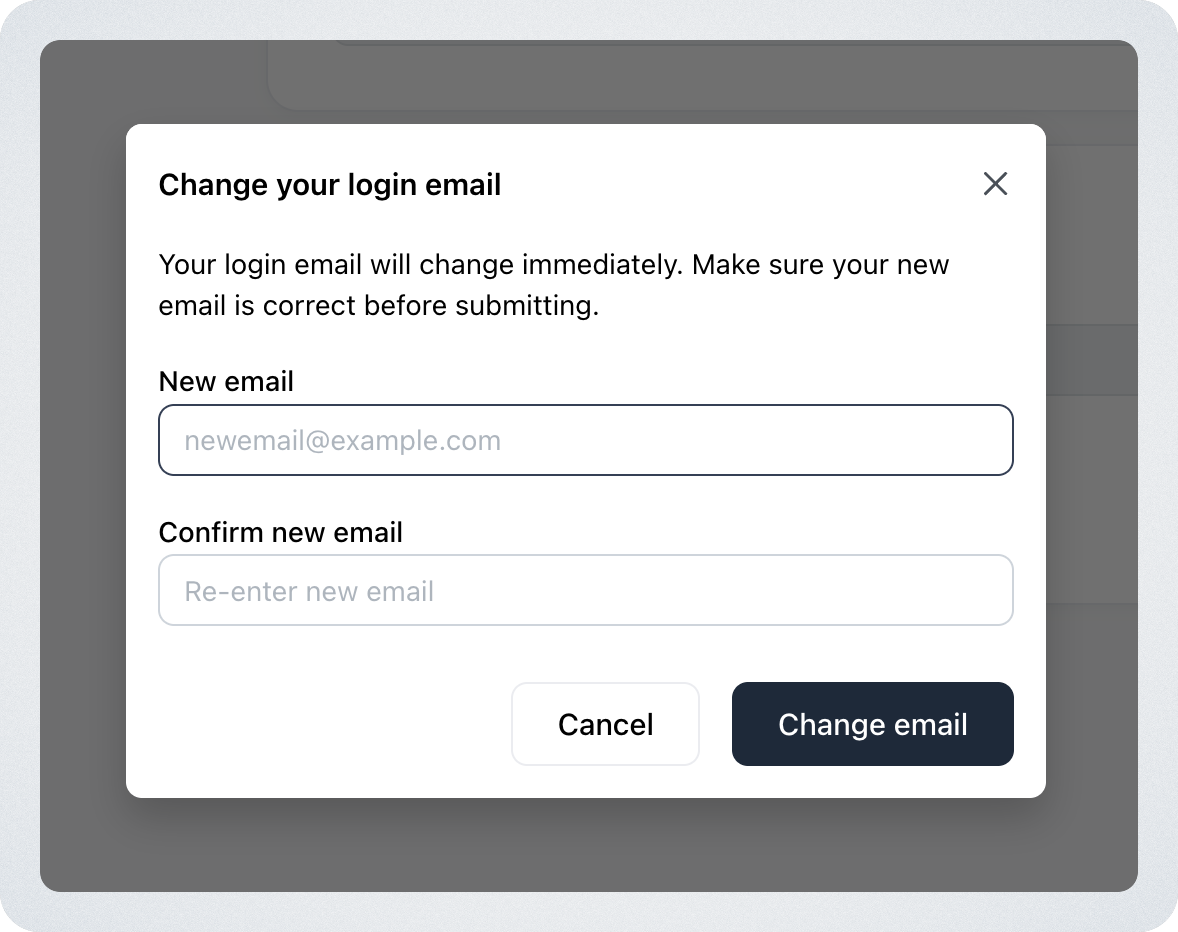
 5. Enter the new email address and and click "Change email"
Important Notes: Only Store Owners Can Change Email
- The Change Email option is only available for the Store Owner account.
- Admins and Staff members cannot update their email addresses directly.
Updating Staff Email Addresses
If you need to change a Staff member’s email address:
- Delete the existing Staff account
- Re-invite the Staff member using the new email address
Multi-Organization Behavior
Email changes only apply to the current organization.
If a user belongs to multiple organizations, changing the email in one organization will not update the email used in other organizations.
Security Notification
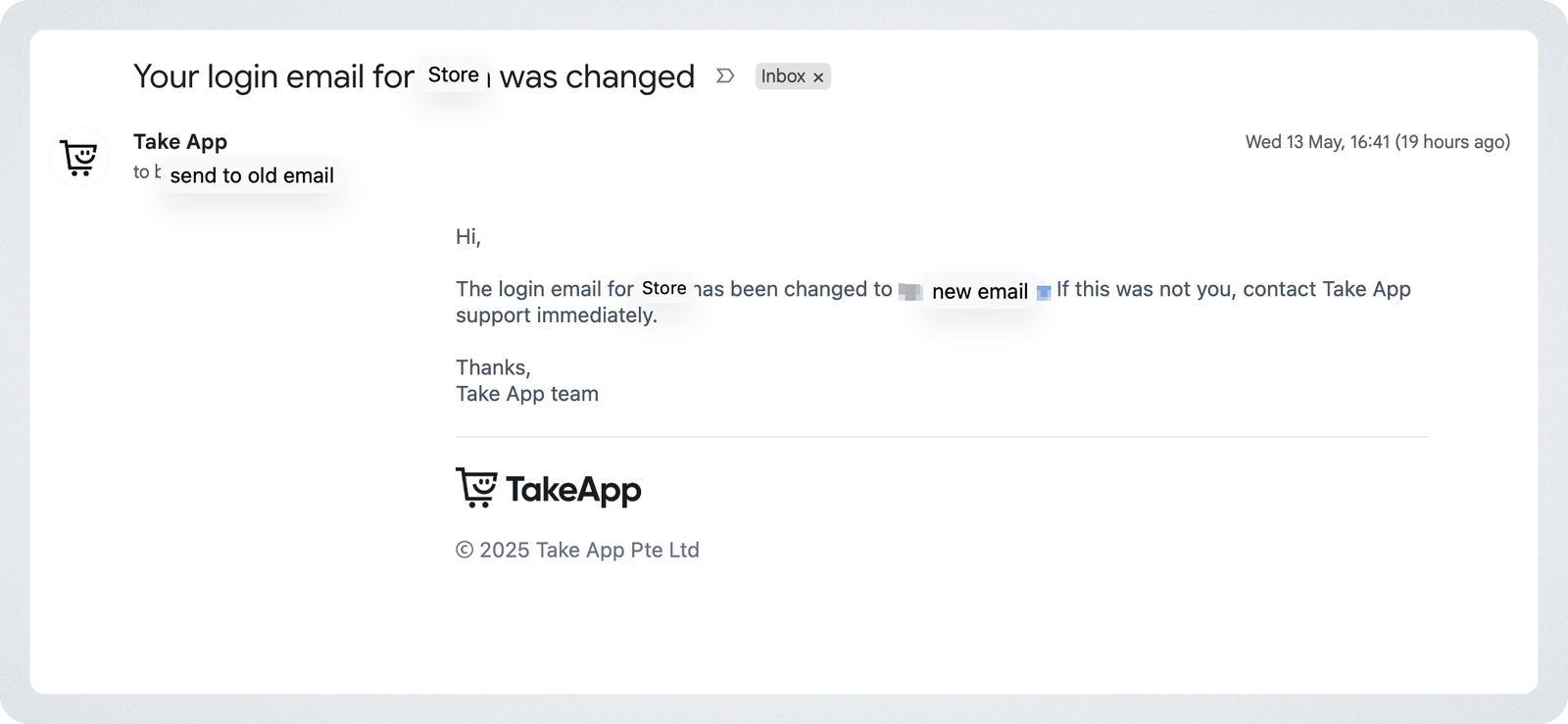
After the email address is successfully changed, a notification email will be sent to the previous email address associated with the store owner account.
This notification is sent for security purposes. If you did not make this change, please contact Take App Support immediately.\