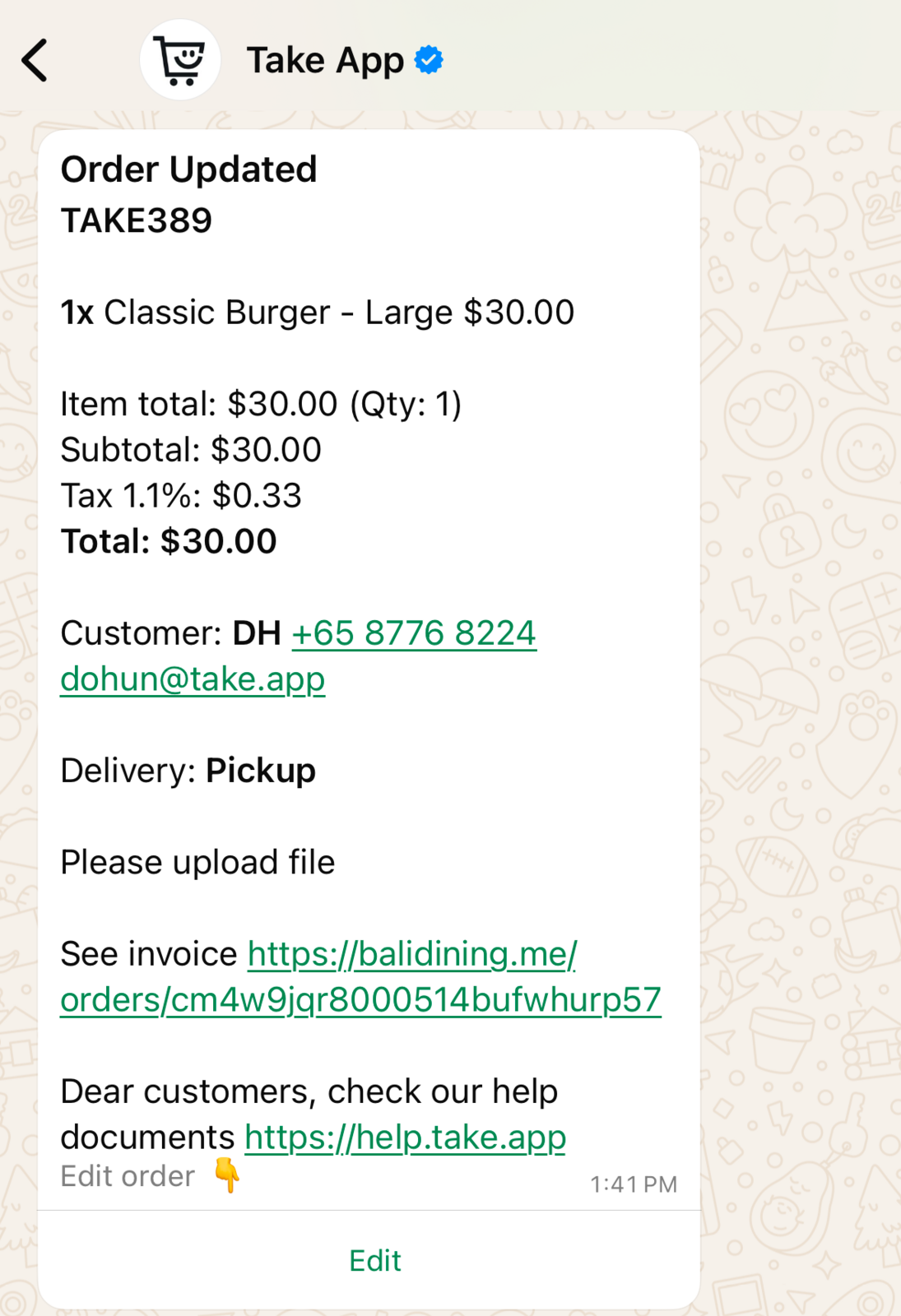
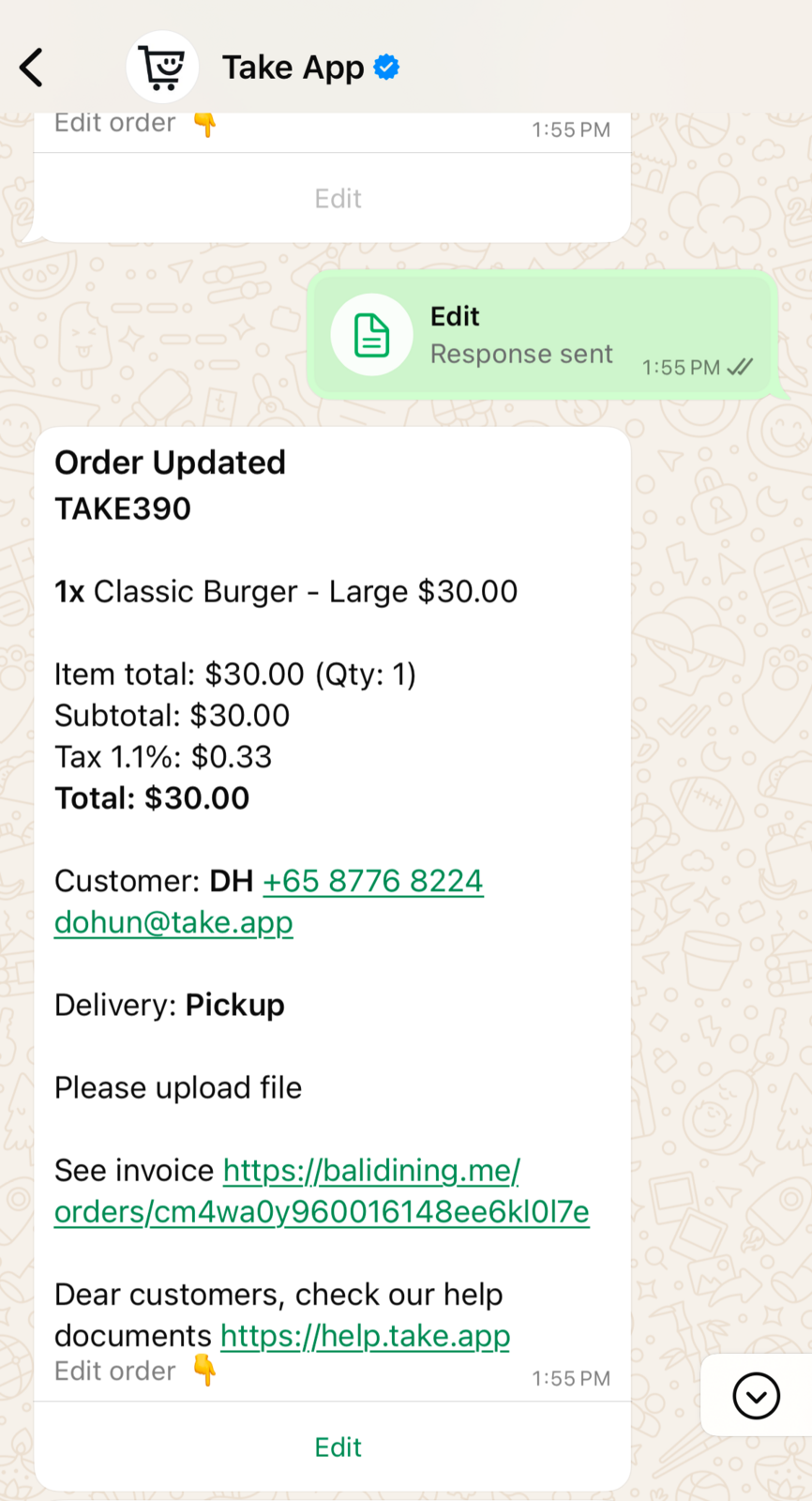
Your staff get a WhatsApp message when an order comes in or changes — in most stores this already works without you setting anything up.
Staff notifications are built in
Go to Settings > Workflows and look at the Store operations group. These are built-in workflows: they come pre-configured and are active by default.
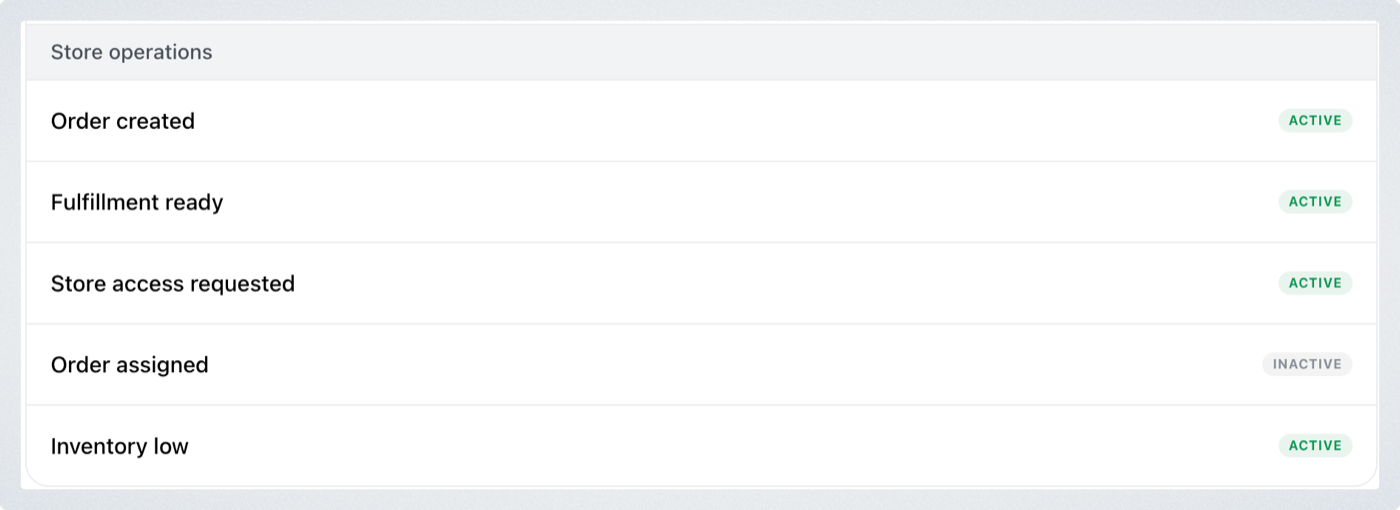
Order created messages your staff every time an order comes in, and the status workflows message them whenever an order's payment status, fulfillment status or order status changes. Click any of them to read what it does and to switch it on or off.
Check the built-in workflows before you build your own. A workflow you create with the same trigger as an active built-in one doesn't replace it — both fire, and your staff get the same notification twice.
When to build your own
The built-in workflows notify all your staff, on every matching event. Build your own when you need something narrower — for example:
- only one person or one number should be notified, not the whole team
- you only want a message for some order updates rather than all of them
Turn the matching built-in workflow off first. Otherwise your workflow runs alongside it and the notifications double up.
Create a staff notification workflow
-
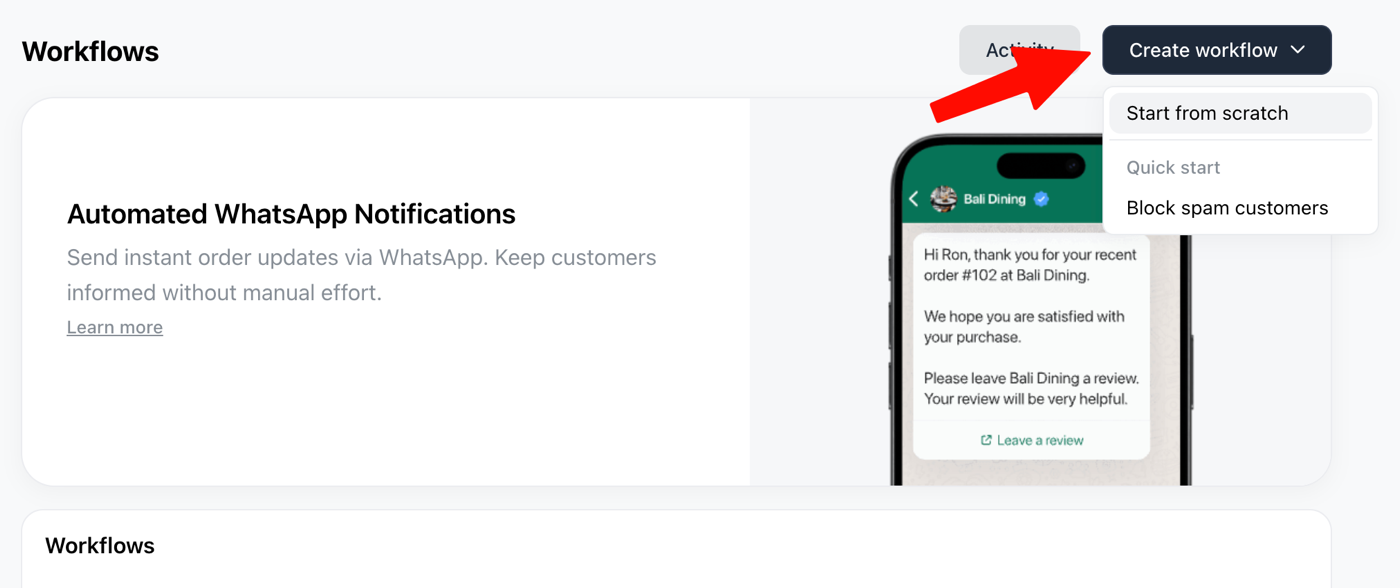
Go to Settings > Workflows and click Create workflow > Start from scratch.
-
Under Trigger, choose when it should fire — for example
New order. -
Under Action, choose
Send WhatsApp, pick the Order Notification to Staff template, and enter the number to notify.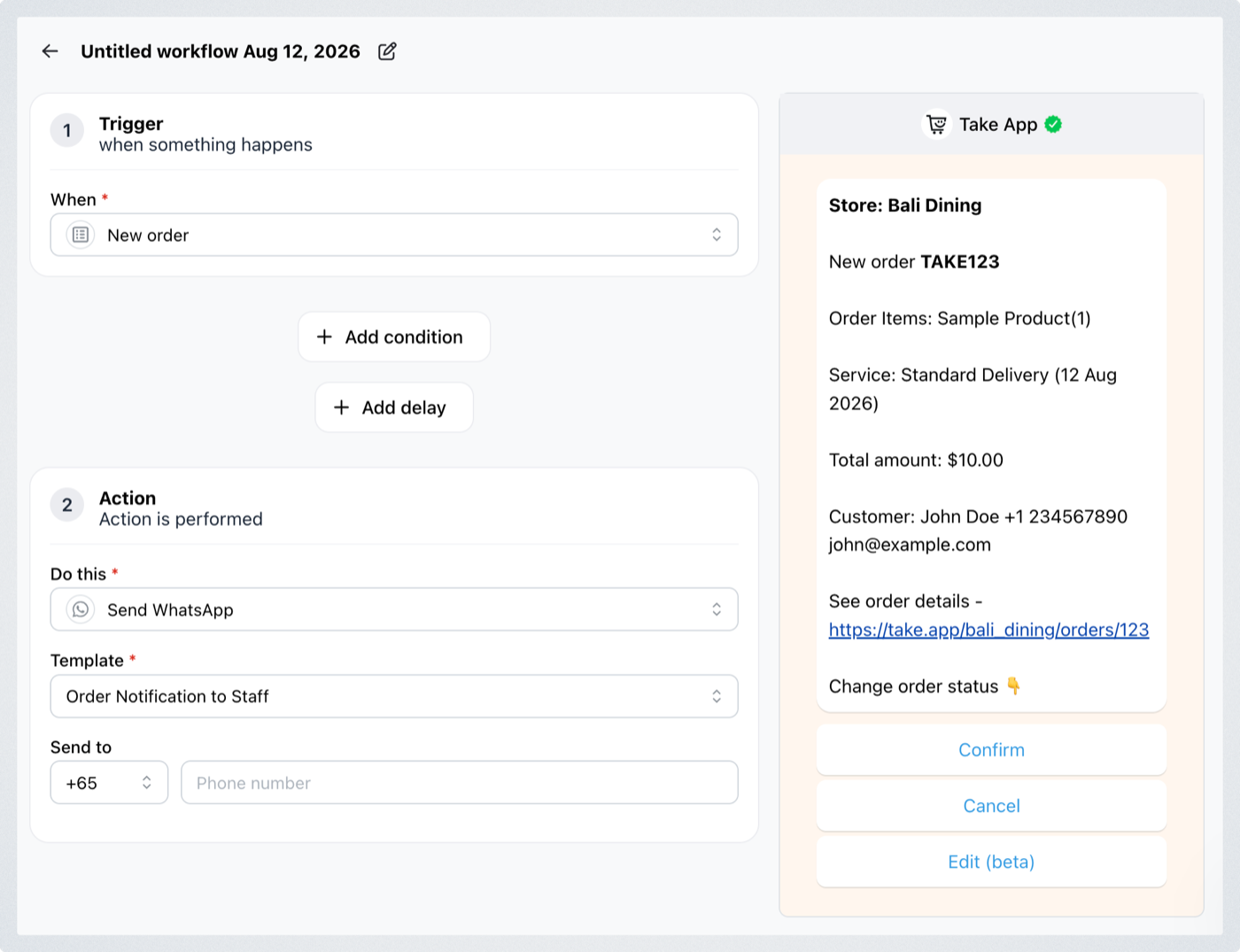
-
Click Save.
What your staff sees
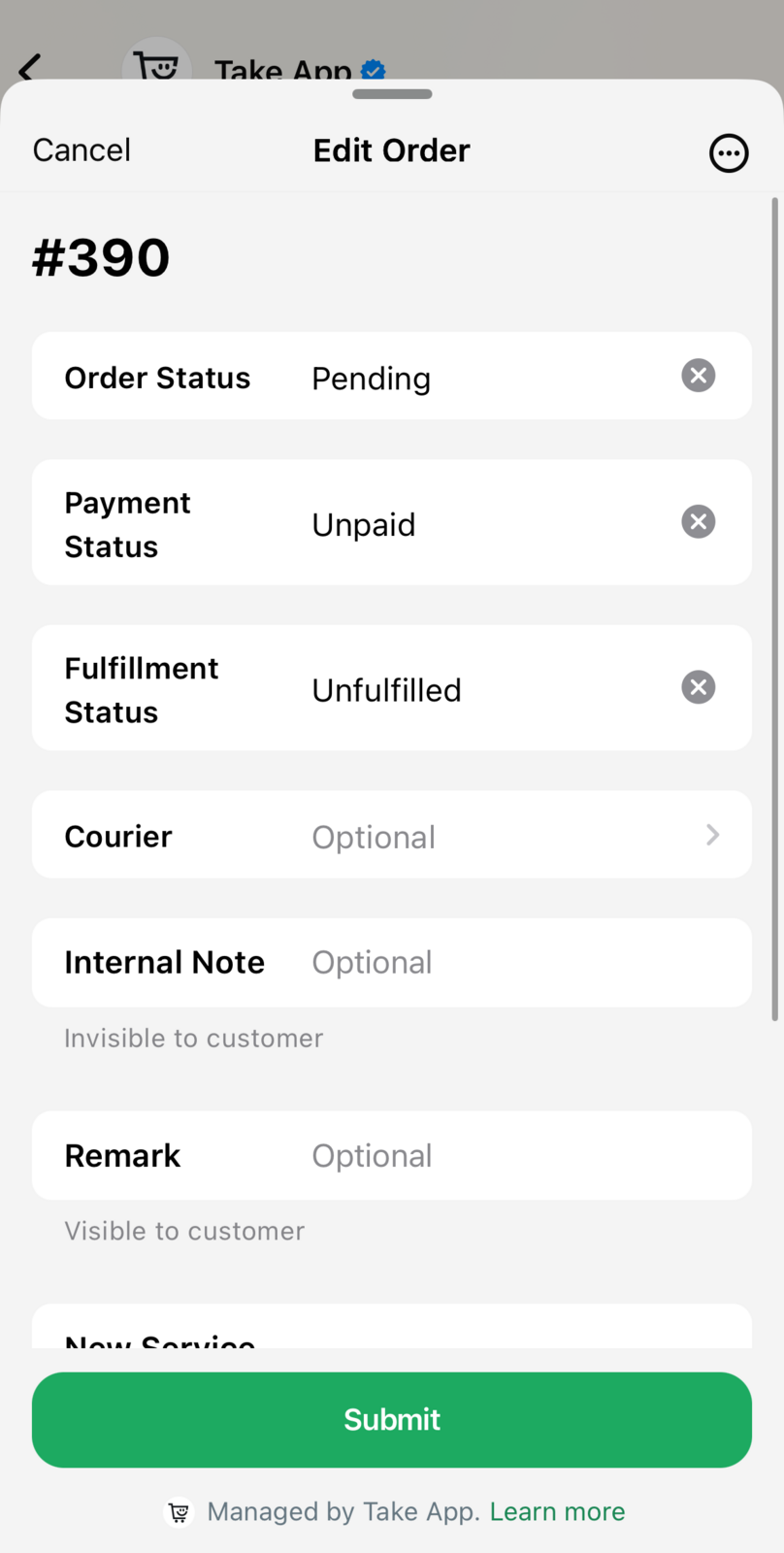
The notification arrives on WhatsApp with the order details, and your staff can act on it without leaving the app — confirm, cancel, or edit the order right in the chat with WhatsApp Flow.