
To collect a customer review automatically after an order, set up a workflow. Take App's official account sends the request over WhatsApp, and the customer can fill the review in without leaving the chat.
Set up the review request workflow
-
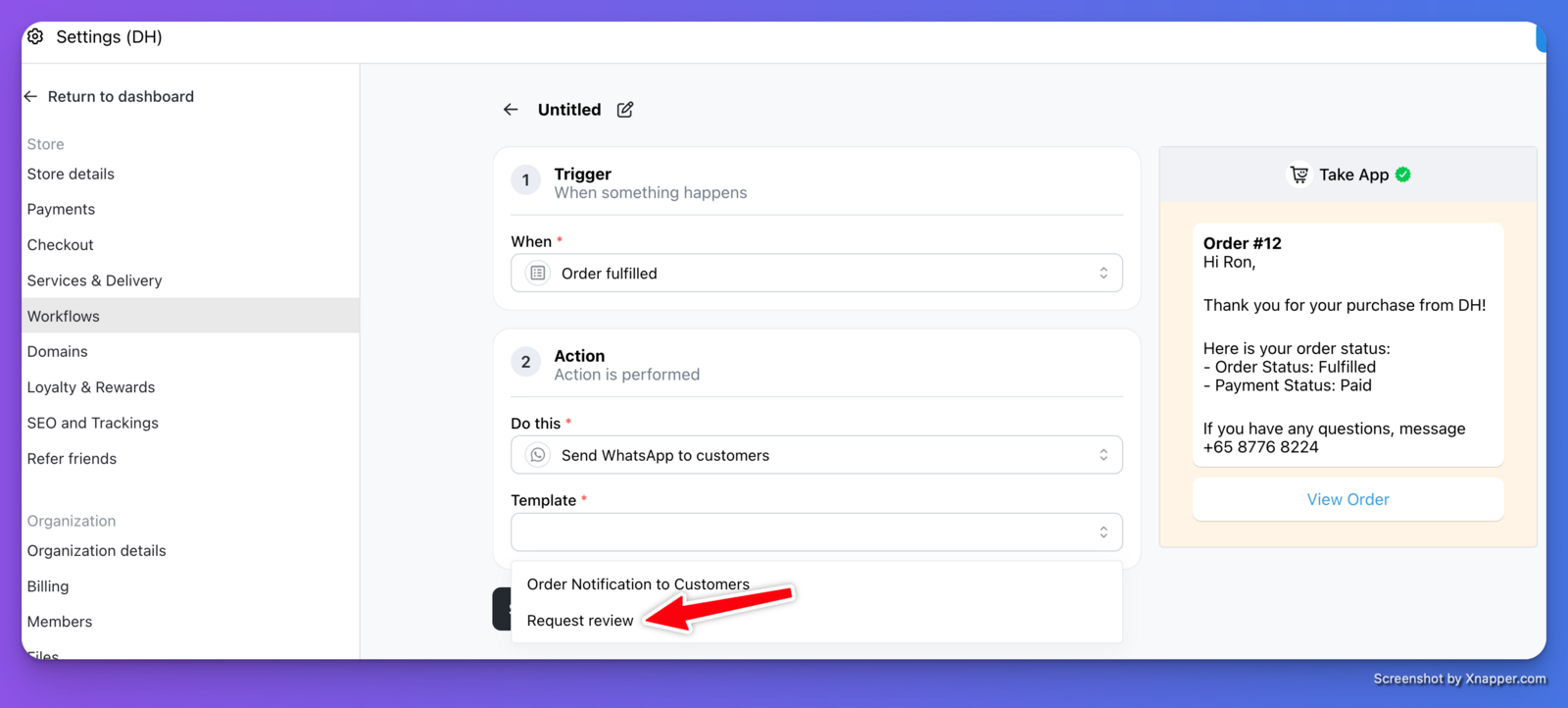
Go to Settings > Workflows. Click "Create" or start with the template "Request Review once Order Fulfilled".
-
When Trigger is set to "Order confirmed", "Order fulfilled" or "Order payment successful", you can see "Request review" Template.
-
When template is set to "Request review", you can see "Review link" field. If it's empty, default take app review link (eg. take.app) will be sent to the customer. Alternatively, you can set it as your own Review link such as Google review link. Find out how to get your google review link here.
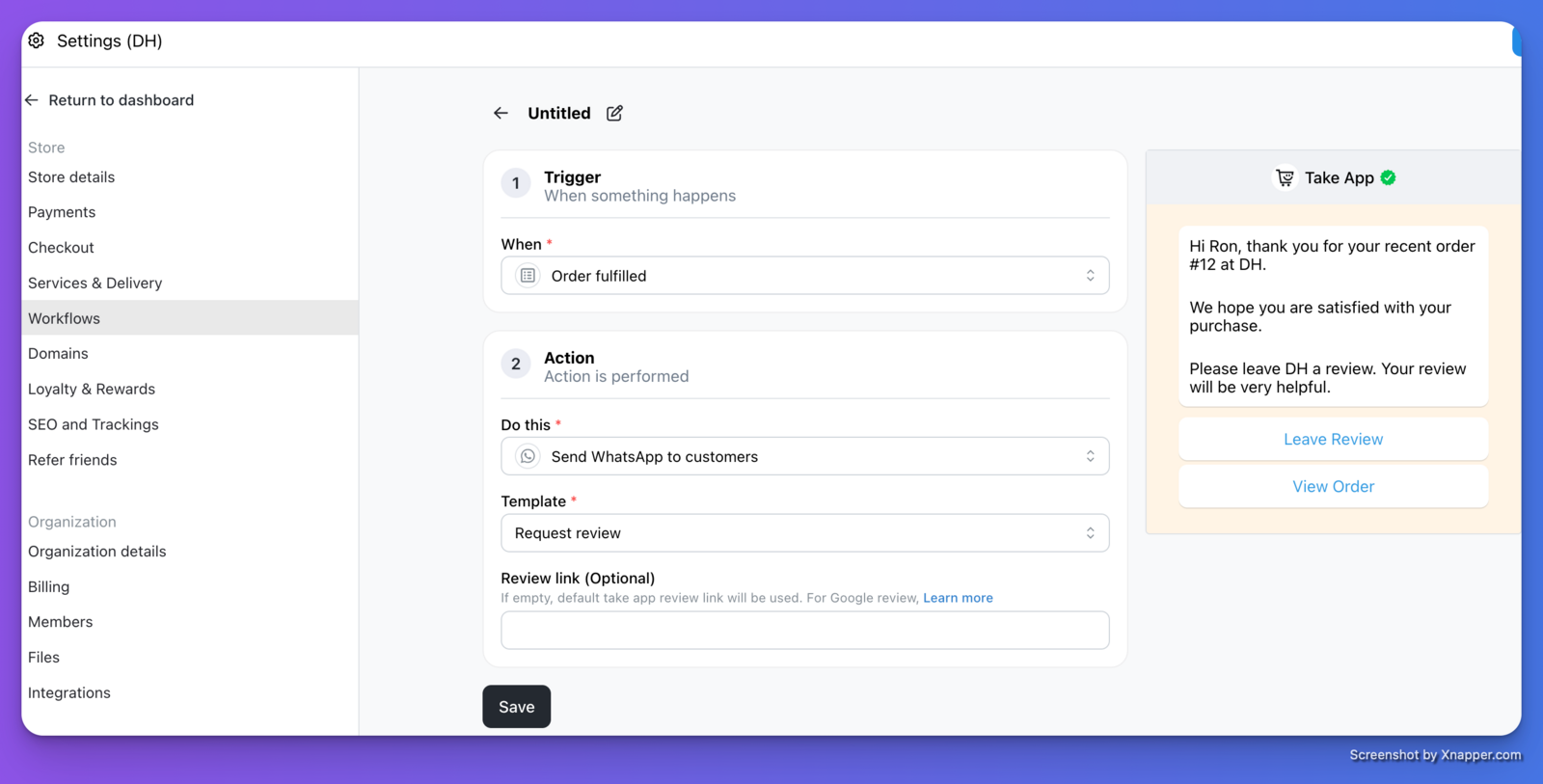
Note: A customer will not receive Review Request message if they already left a message before.
What the customer sees
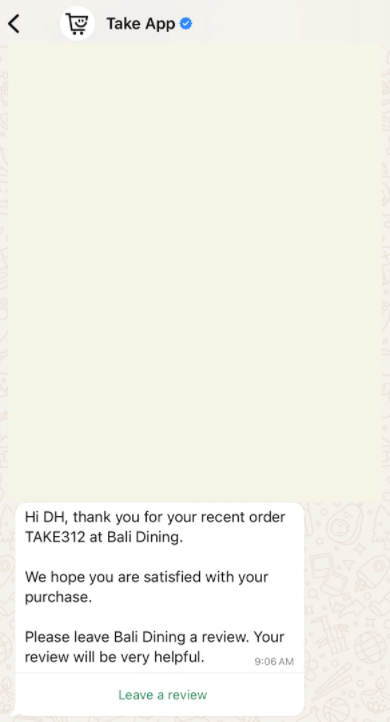
Once you change the order status for a customer in the Order details page, they receive the review request in WhatsApp and can answer it there.
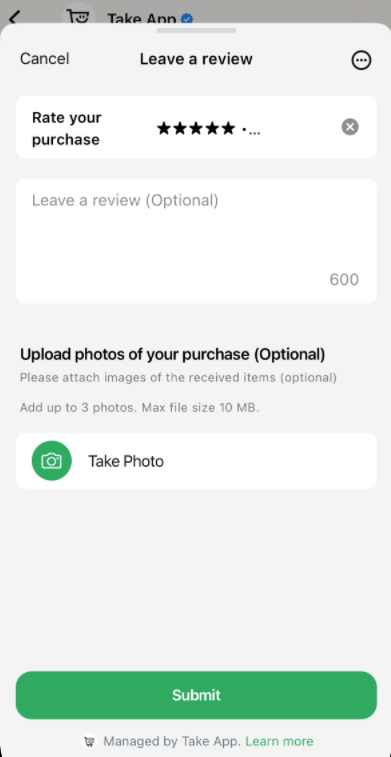
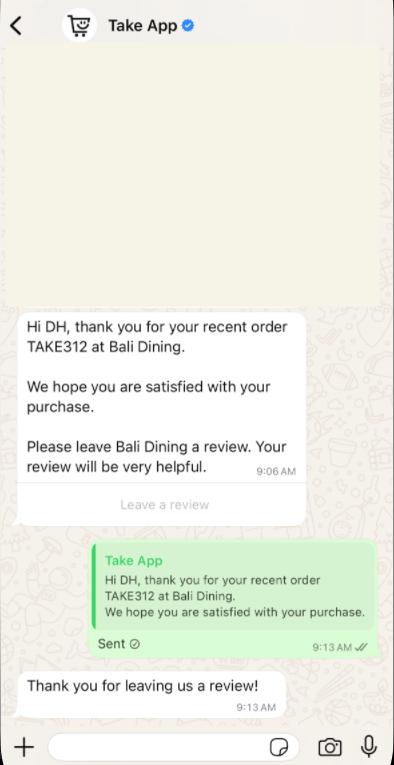
The review shows on your store immediately if you toggle the "Show review" setting in Website > Storefront.