Every order carries three statuses you can change independently: order status, payment status, and fulfillment status. What each value means is listed in Manage Orders.
This article covers changing them for many orders at once. To change them on a single order, open it and edit from its detail page — see Manage Orders.
The steps are the same for all three — select the orders, then pick the new status.
Select the orders and change status
-
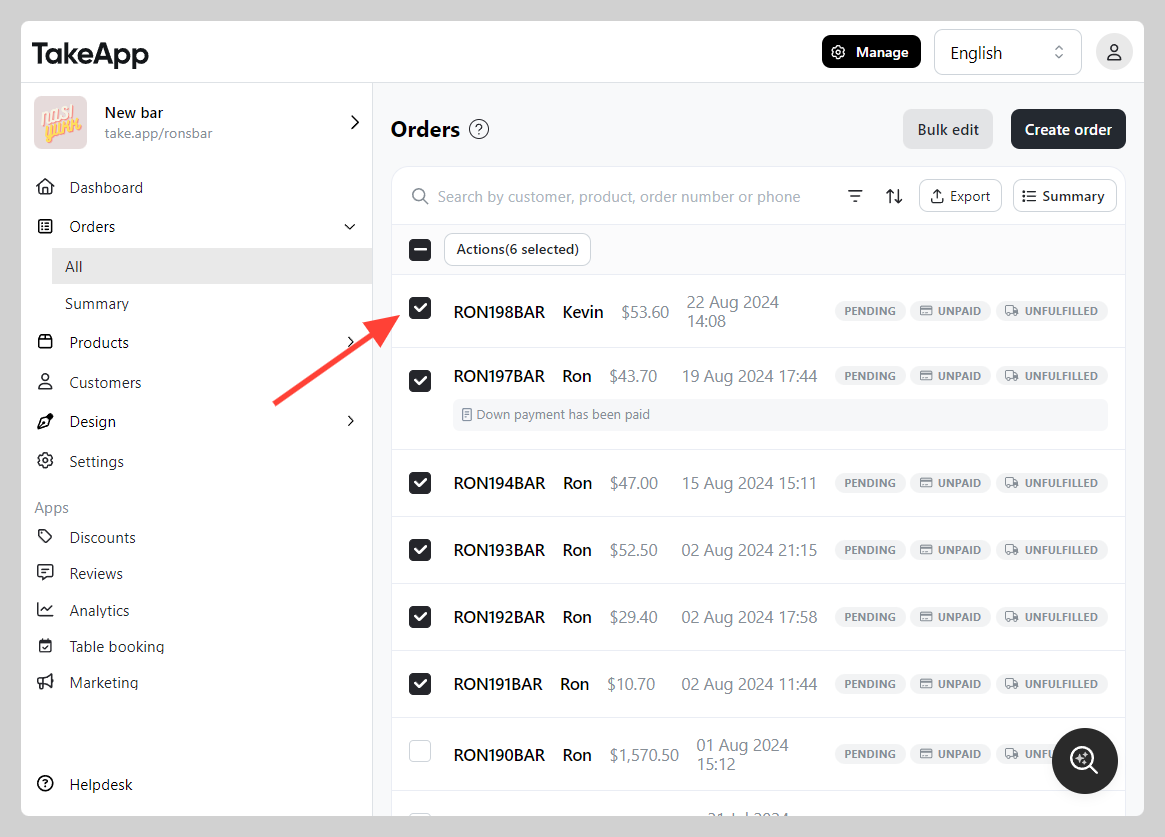
Go to Admin > Orders > All and tick every order whose status you want to change.
-
Click
Actions, then chooseChange status.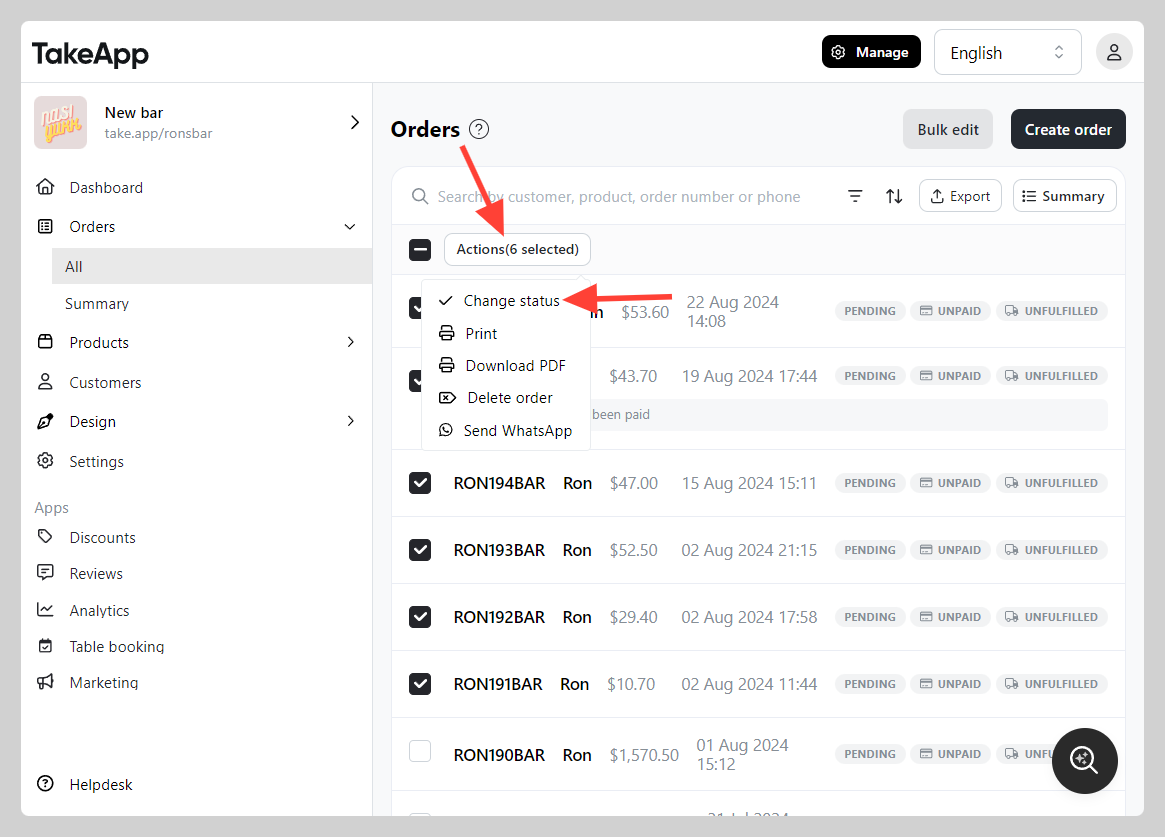
-
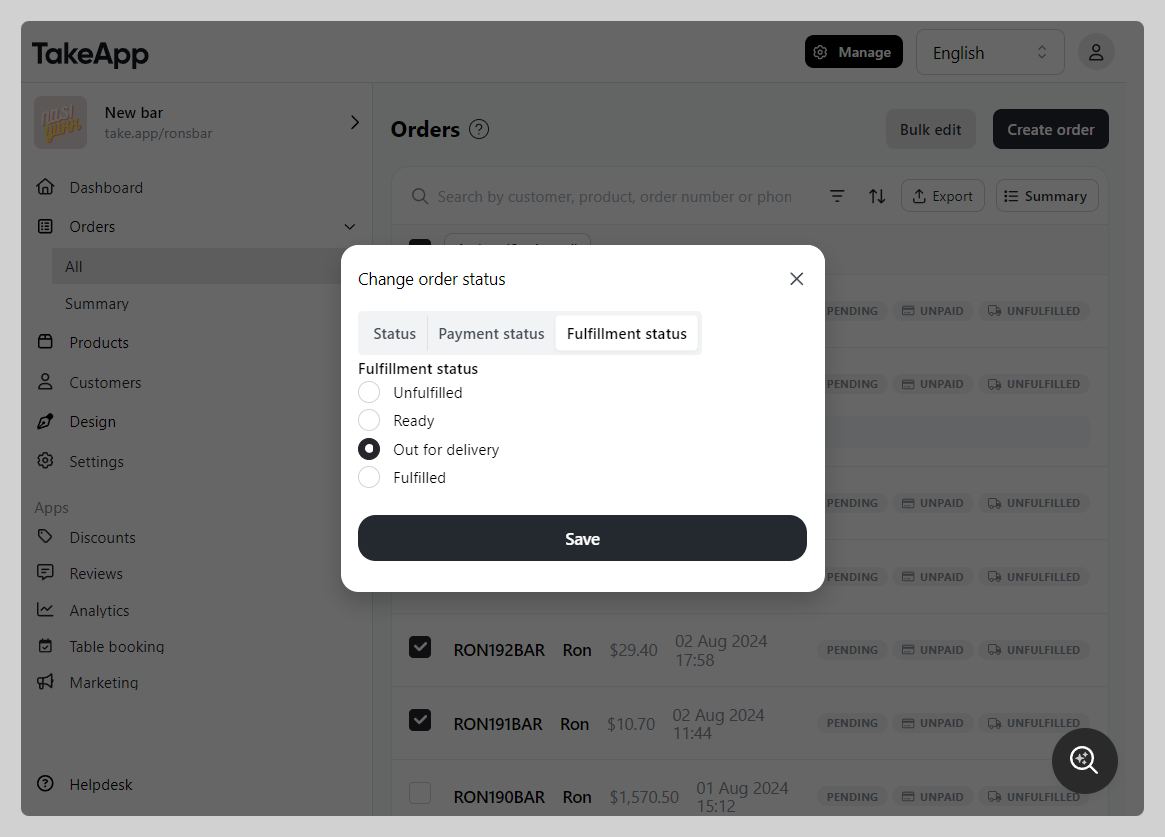
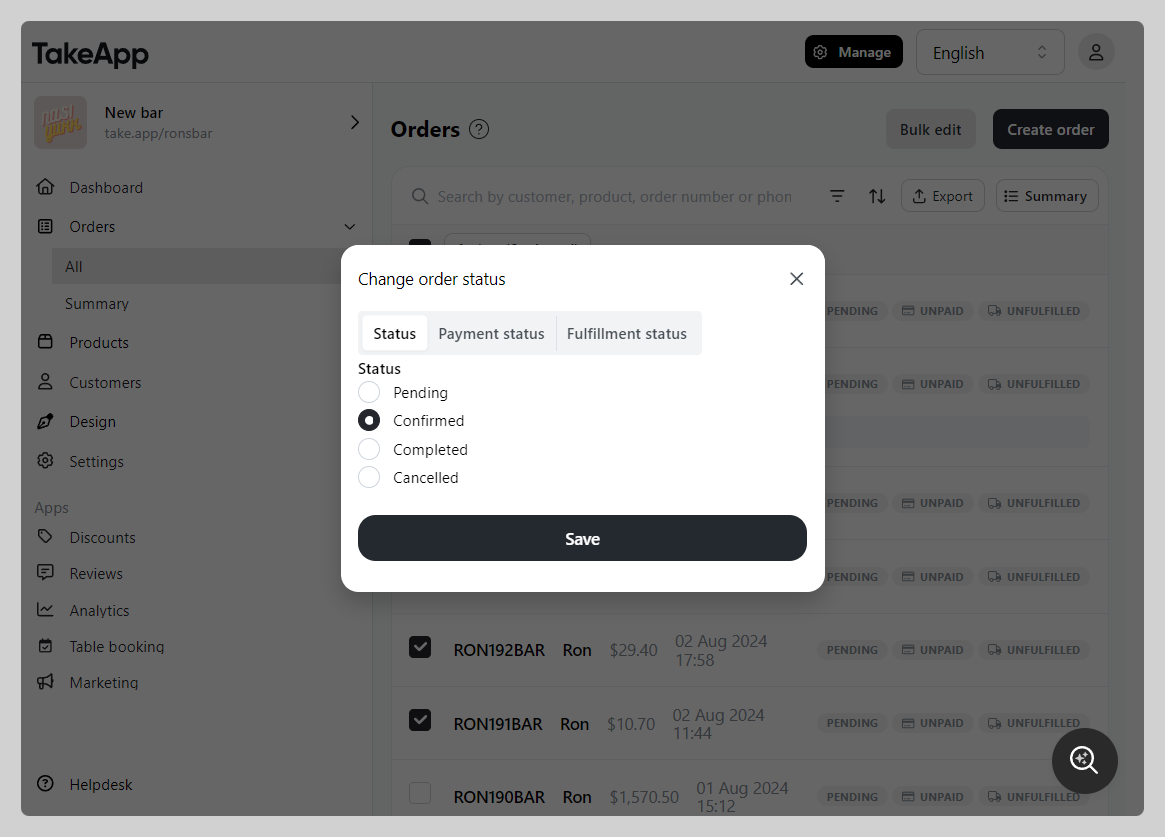
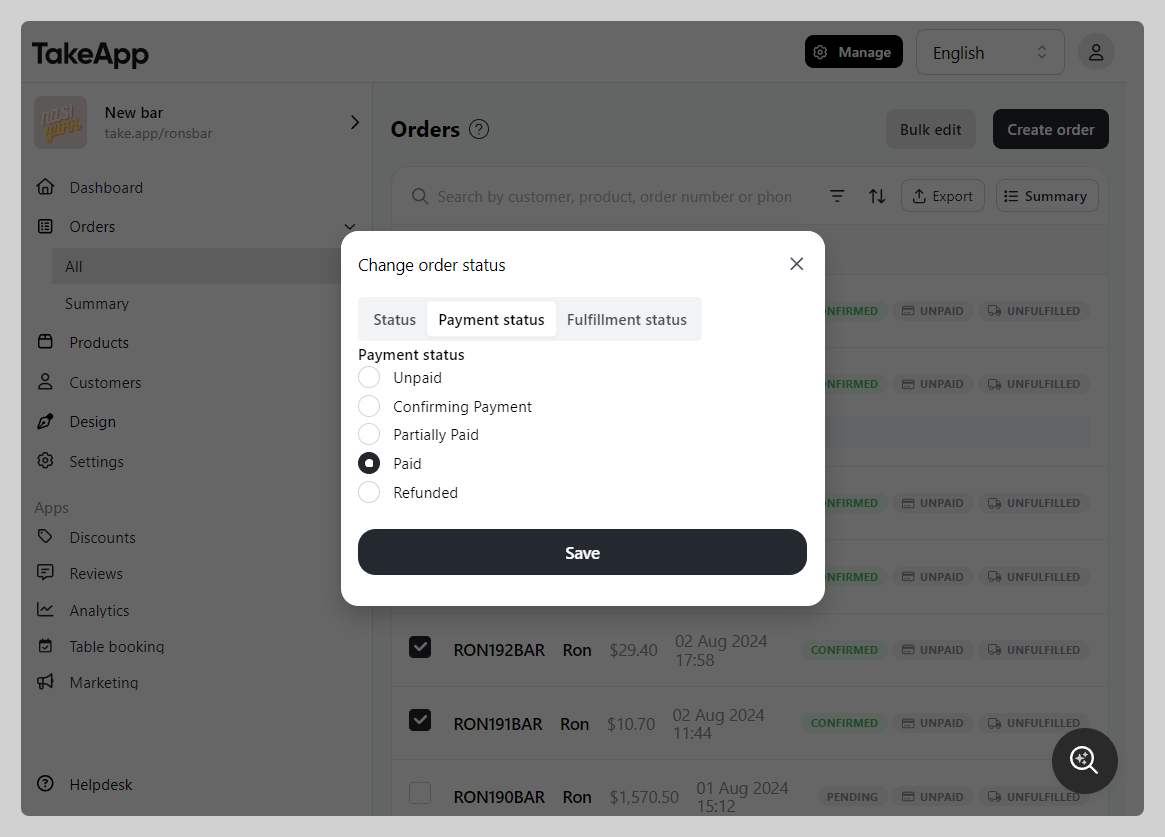
Choose the status you want, then click
Save. -
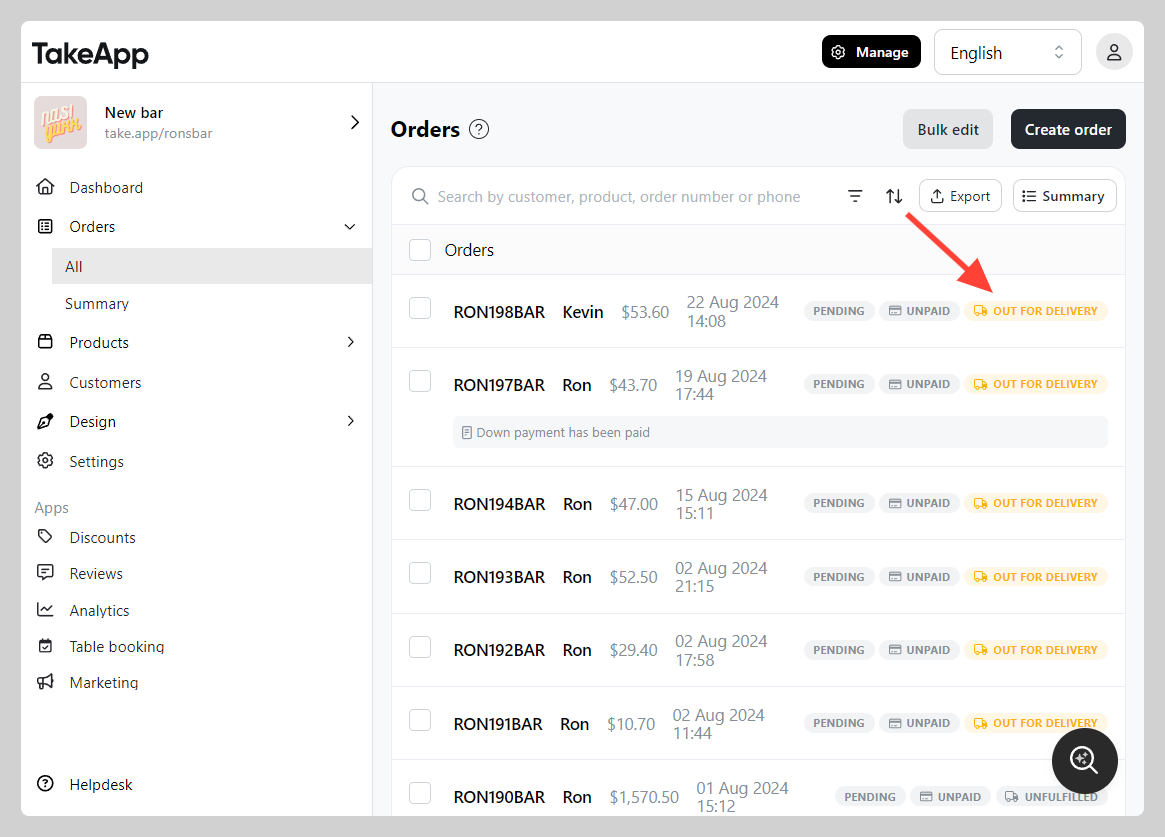
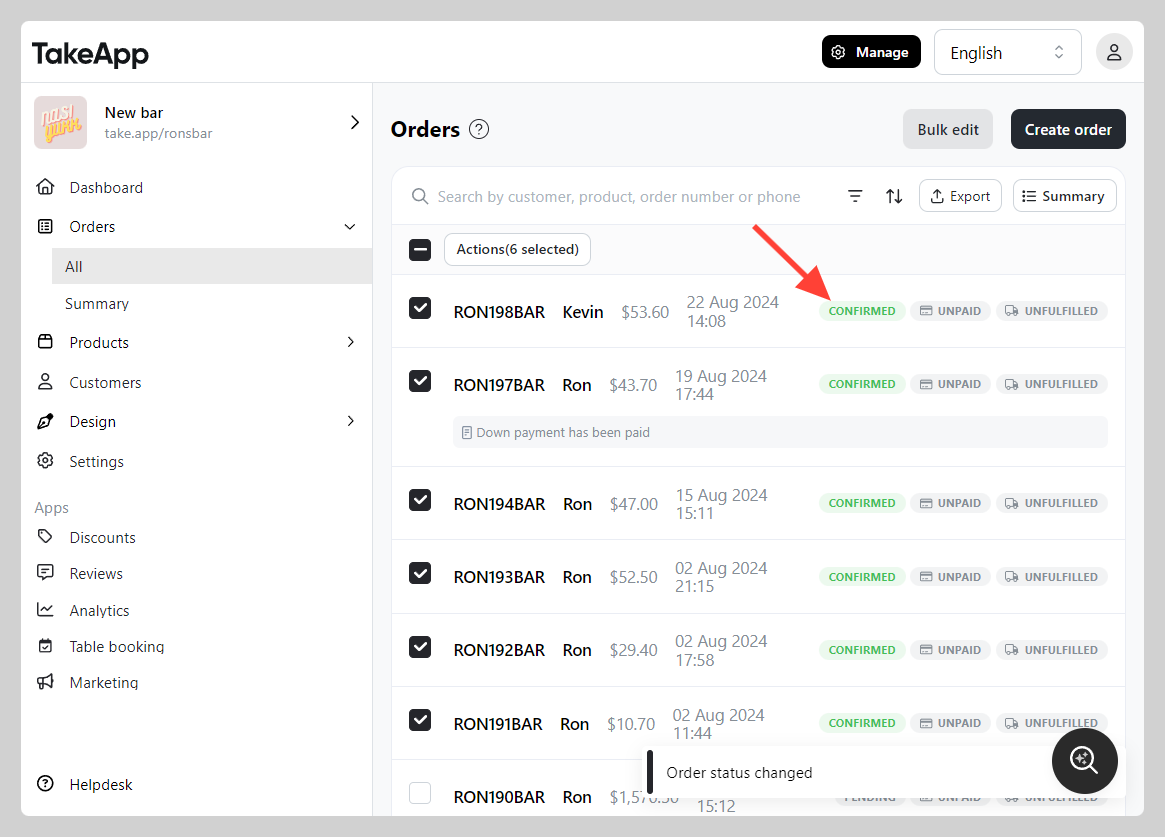
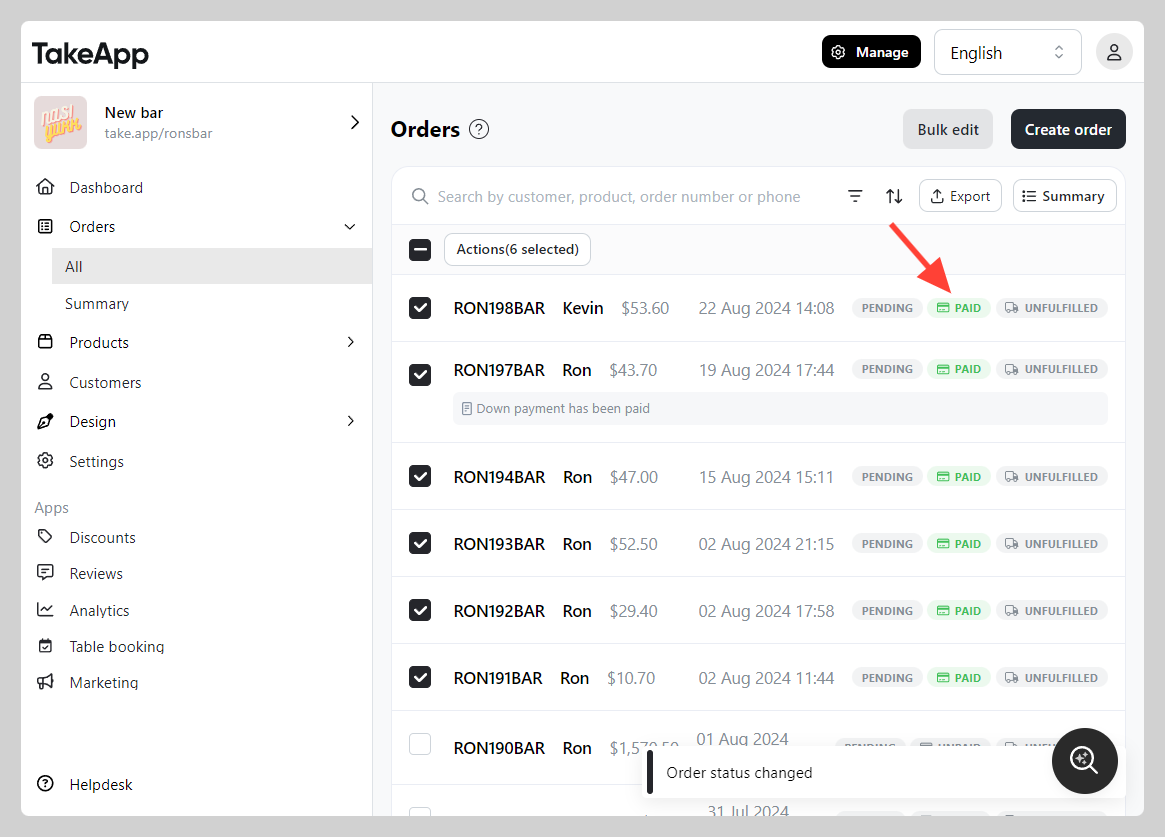
Check that the list now shows the new status.
Order status
Pick the order status from the Order status dropdown.
Payment status
Pick the payment status from the Payment status dropdown.
Fulfillment status
Pick the fulfillment status from the Fulfillment status dropdown.