
You can show different payment methods depending on the delivery method a customer picks at checkout. For example:
- Delivery → online payment only
- Pickup → cash and bank transfer
Each delivery method can have its own list of payment methods. A delivery method without a limit shows all your payment methods.
How to limit payment methods for a delivery method
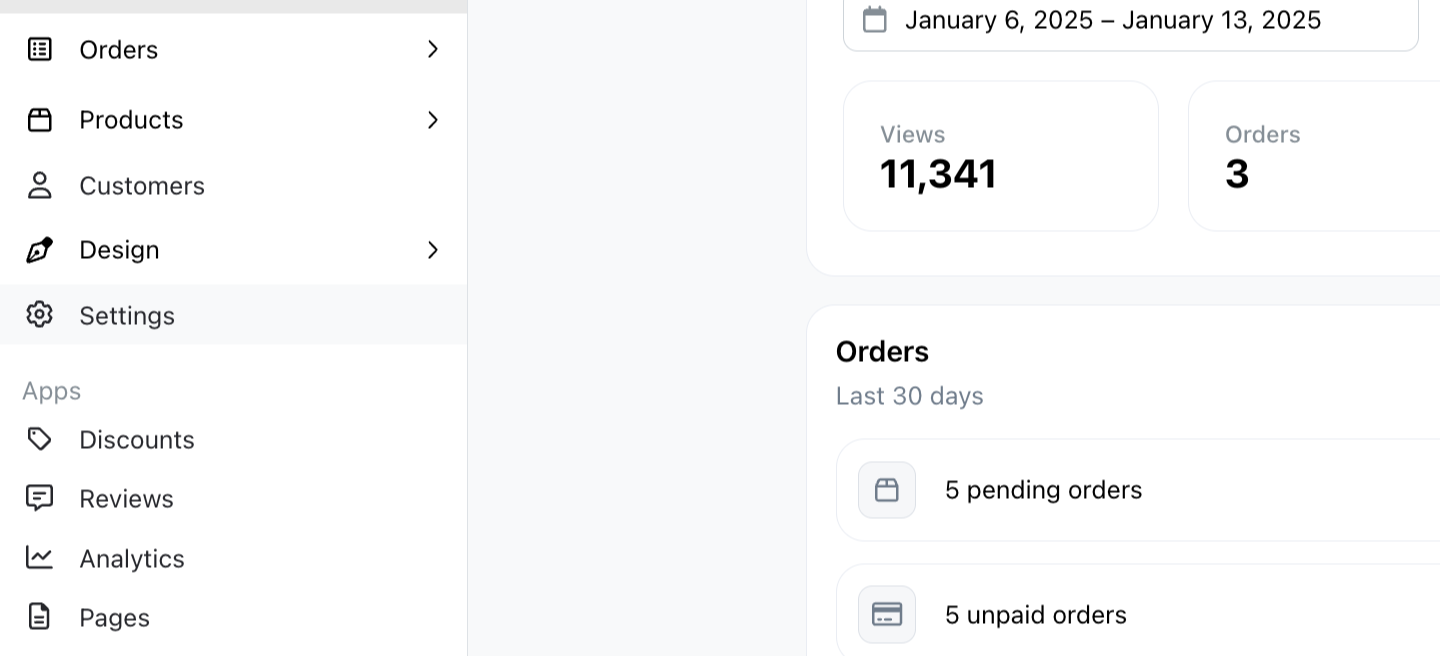
Step 1: Navigate to Settings.
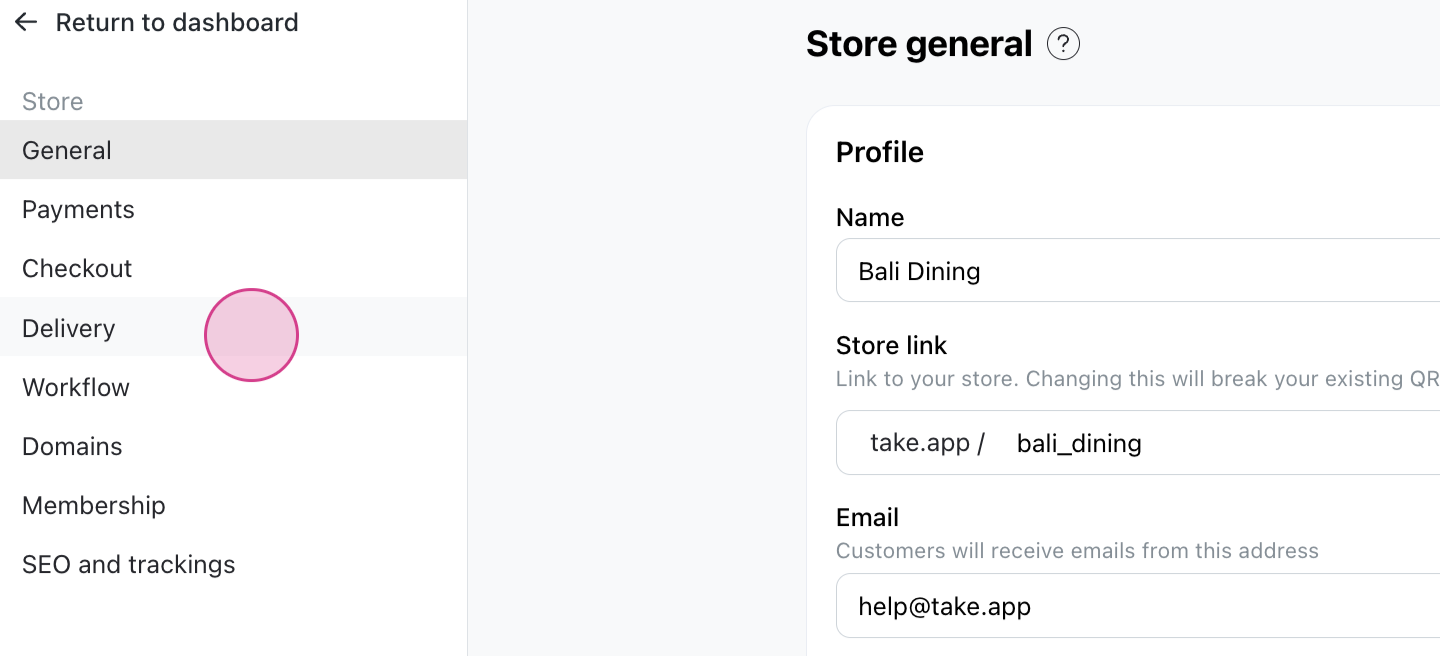
Step 2: Proceed to the Delivery section.
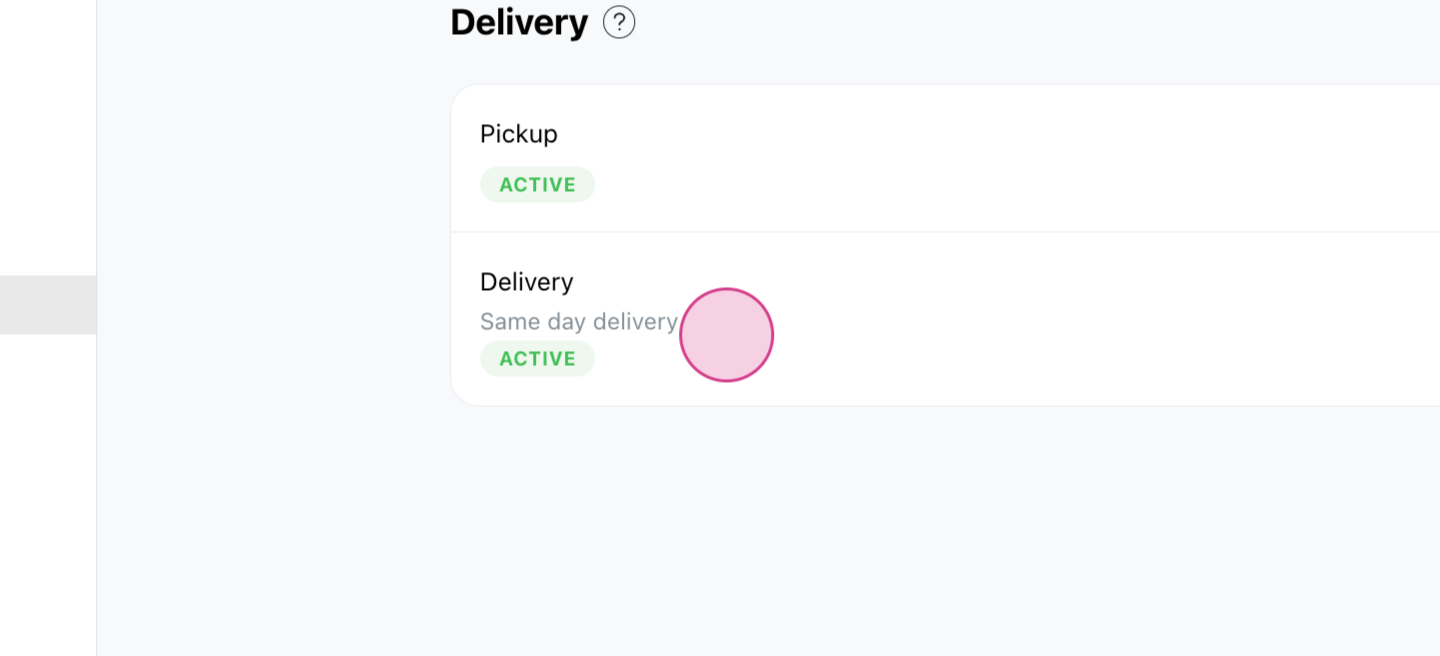
Step 3: Select your delivery method by clicking on it.
Step 4: Scroll down to the Payments section.
Step 5: Turn on the Limit Payment Methods option.
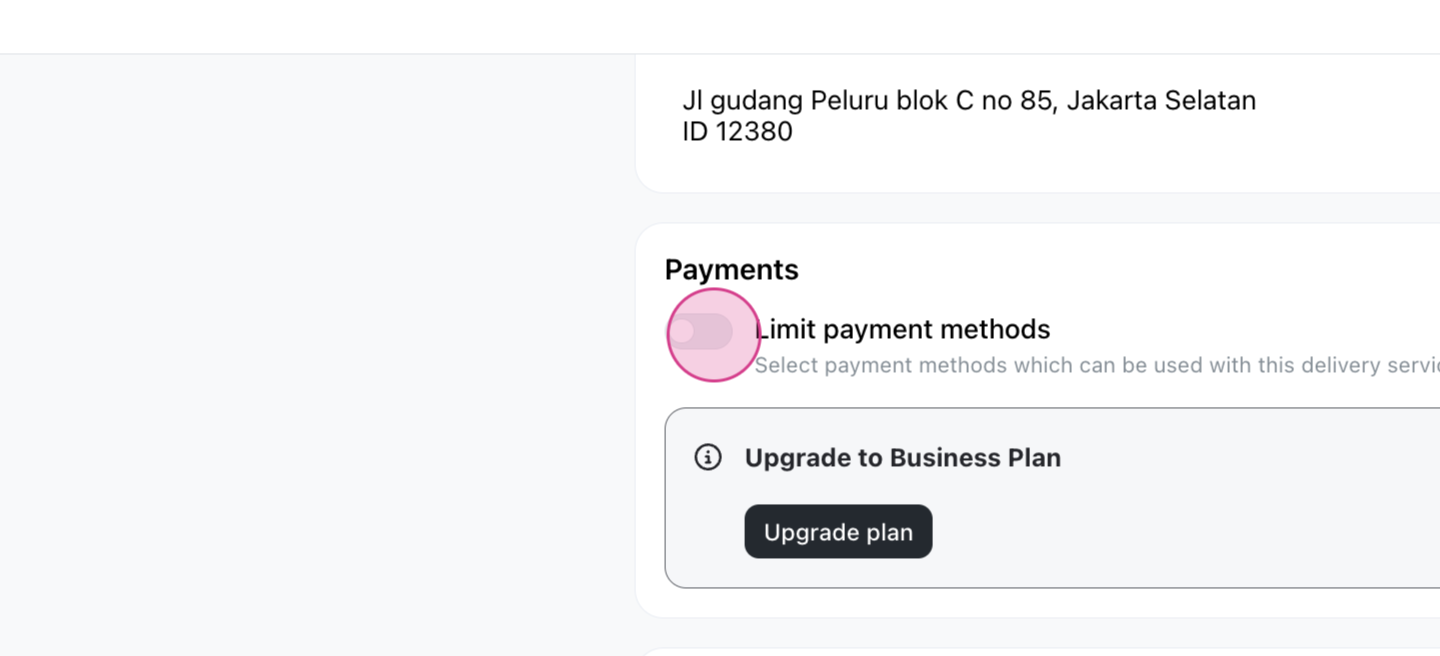
This allows you to specify the payment methods for the delivery service.
Step 6: Choose the payment methods for the delivery service.
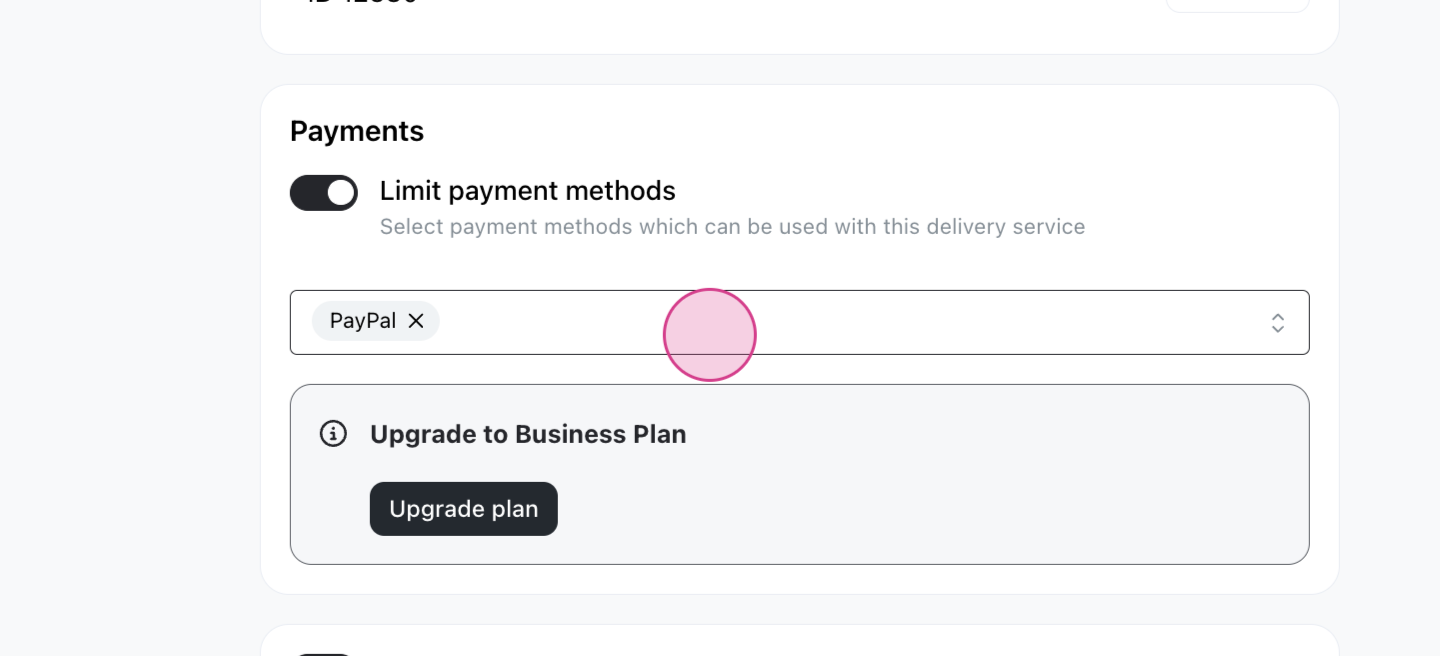
Step 7: Click Save.
Now, whenever you create an order using this delivery method, you'll notice that only the selected payment methods are available.
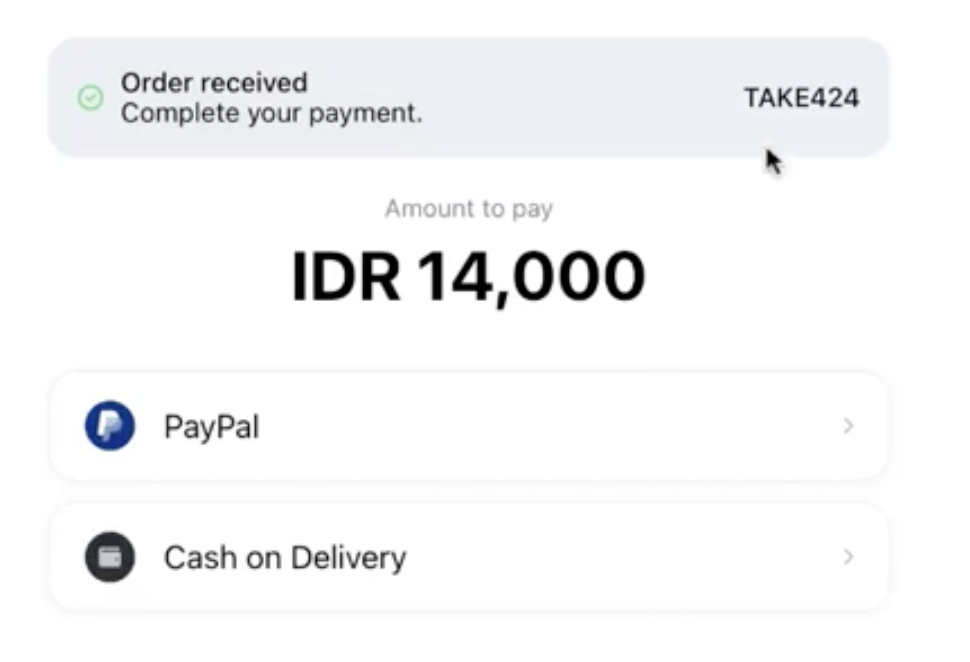
When customers check out using this delivery method, they'll only see the options you specified. The same goes for the order's payment page and invoice.
Show payment methods based on a customer's choice
Payment methods follow the delivery method, so if you want a customer's choice to decide how they can pay, make that choice a delivery method. You can add as many delivery methods as you need, name them freely, and leave the fee at zero.
For example, to offer a standard and a premium package with different ways to pay:
- Add two delivery methods, such as Standard order and Premium order.
- Limit each one to the payment methods it should accept, using the steps above.
- At checkout, the customer picks one, and only its payment methods are shown.
This works for any choice the customer makes once per order, such as Pickup – pay now and Pickup – pay at store.
Different payment methods for different products
You can also tie payment methods to products. Set which delivery methods each product can use with Available delivery methods by product, then limit the payment methods on those delivery methods. A customer buying that product can only choose its delivery methods, and so only sees their payment methods.
If a cart mixes products that don't share any delivery method, the customer is asked to remove items or place separate orders.
What isn't supported
You can't limit payment methods directly by:
- product option or variant
- add-on
- category
- order amount
Use one of the two setups above instead: turn the choice into a delivery method, or tie products to delivery methods.
Where the limit applies
The limit applies wherever the customer pays for an order that has a delivery method: the checkout, the order's payment page, and the invoice. It also applies to orders you create in the admin.
It doesn't apply to a one-off payment link, the mobile POS app, or a payment you record yourself on an order. These show all your payment methods.
Which plan do I need?
- Limiting payment methods by delivery method: Essential or Business plan. Legacy Premium plans include it too.
- Tying payment methods to products: Essential or Business plan, because it uses available delivery methods by product.
- Basic (free): not available.
Compare plans in Subscription plans and features.