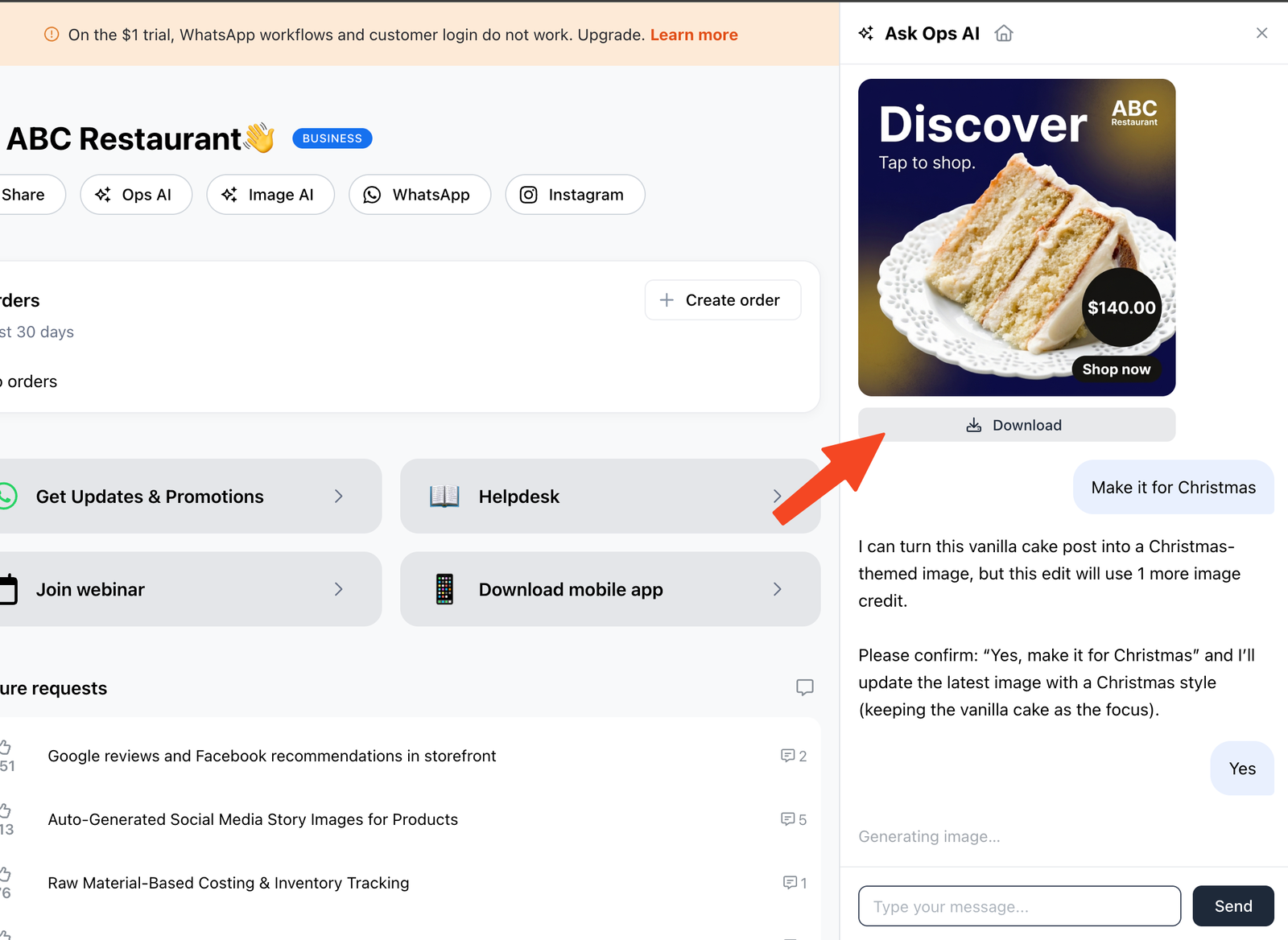
Take App can create images for you, so you don't need a separate design tool. There are two ways in:
- Generate image — a banner builder that sits on every image uploader in the admin. You choose a ratio, add text, pick colours, and drop in a photo.
- Image AI — an AI chat that produces ready-to-share images (social posts) from a prompt about your store.
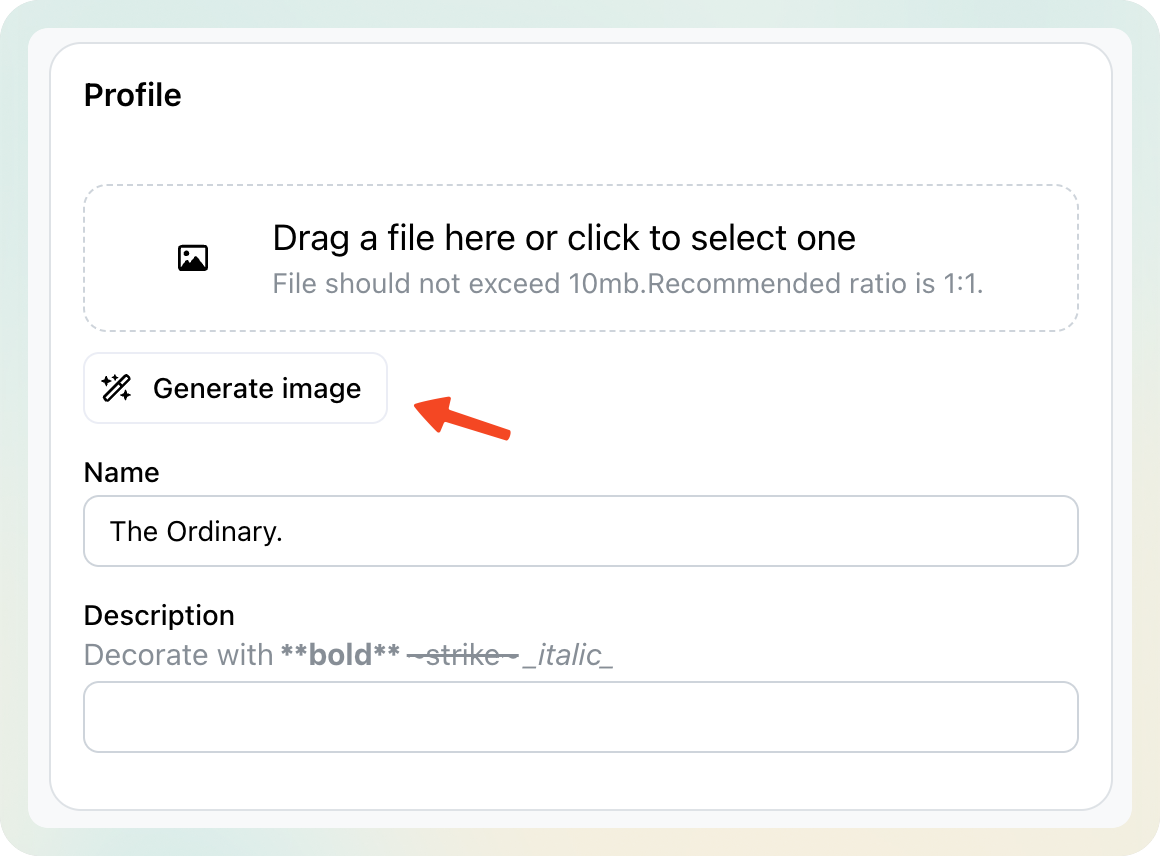
Where to find Generate image
You'll find the Generate image button anywhere you can upload an image, such as:
- Product images
- Storefront design (the image card, pop-up banner, and cover page)
- Category images
- SEO & Social sharing section
Build your image
Clicking Generate image opens a pop-up with the options below. The preview updates as you go, so you can see the result before saving.
1. Choose an image ratio
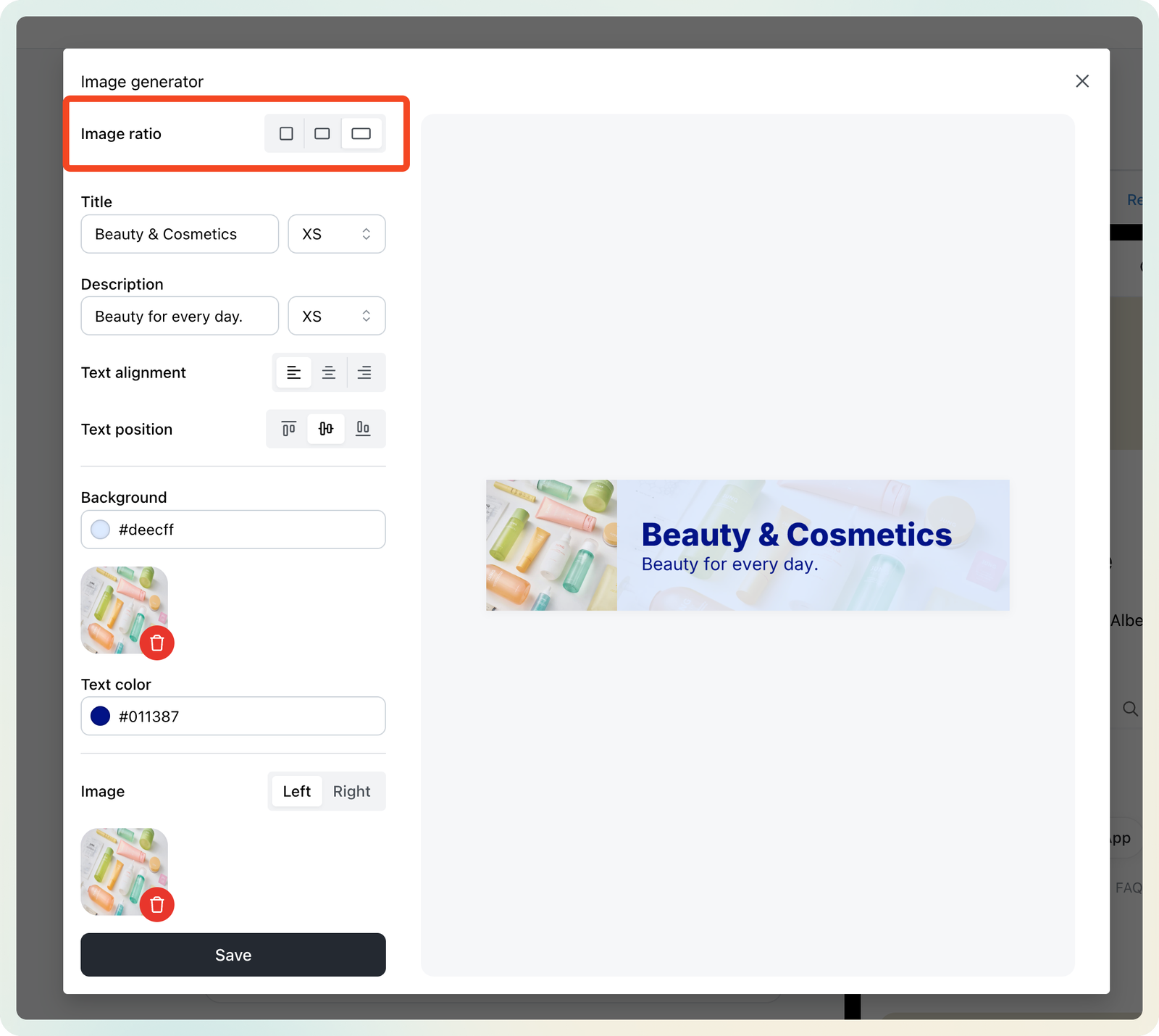
- Square (1:1) → profile images
- Rectangle (1.91:1) → category images on mobile, banners
- Wide (4:1) → category image card headers
2. Add title and description
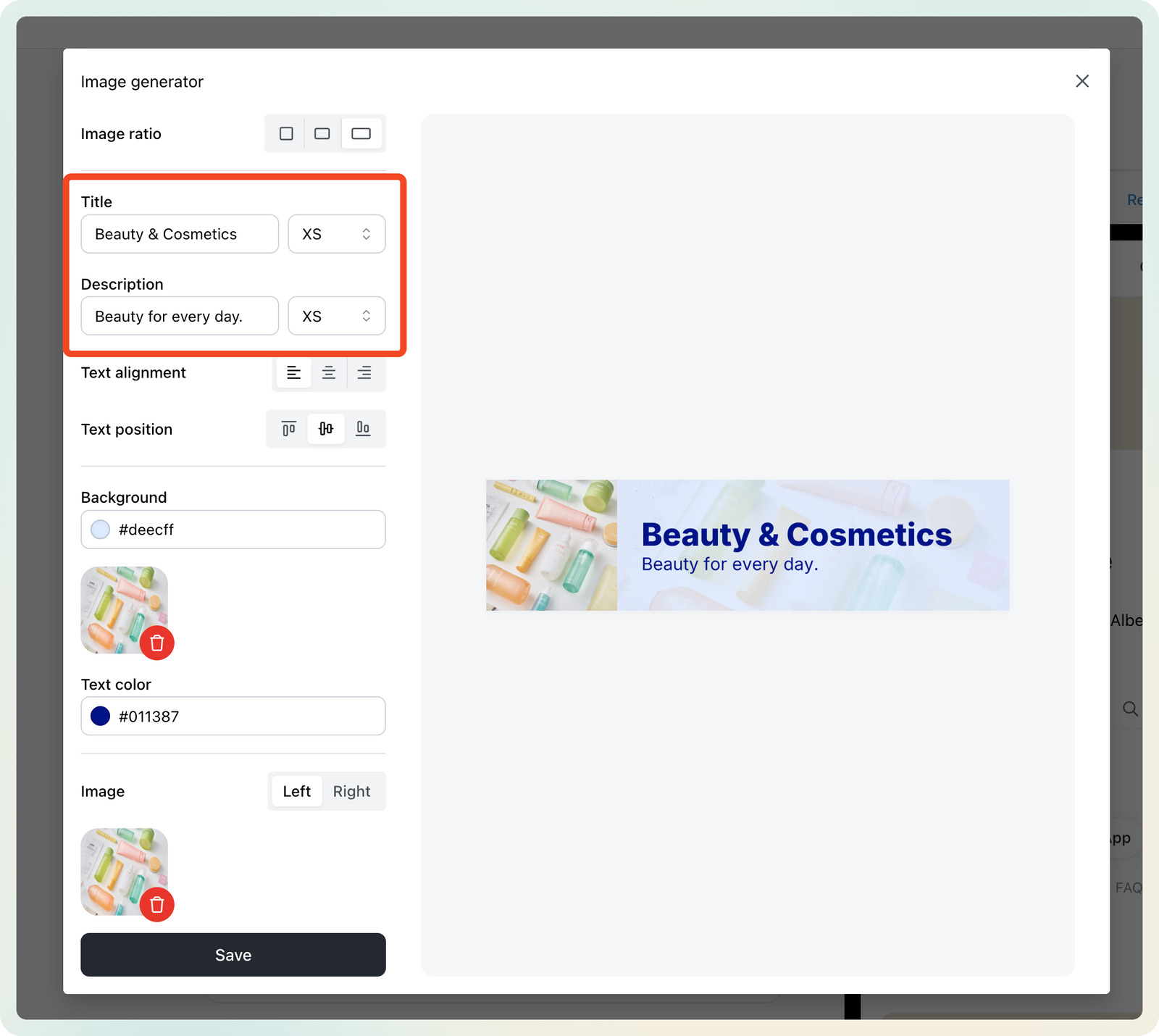
- Title — the main headline: your store name, a product tagline, or promotion text
- Description — supporting text or details
- Set a size for each from the dropdown (XS to XL)
Keep the title short so it stays readable at small sizes.
3. Adjust the text layout
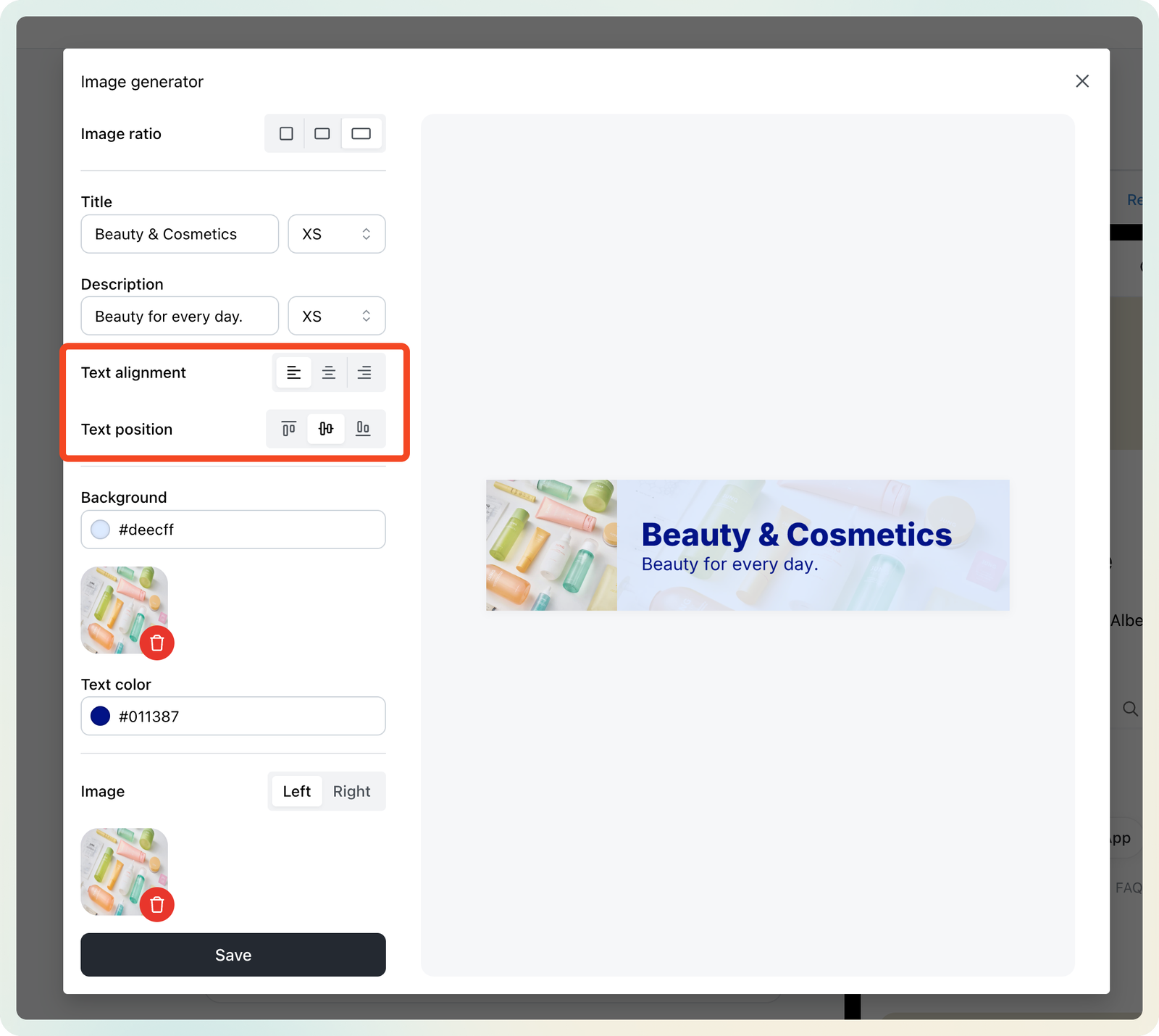
- Alignment — left, center, or right
- Position — top, middle, or bottom
4. Set the background and text colour
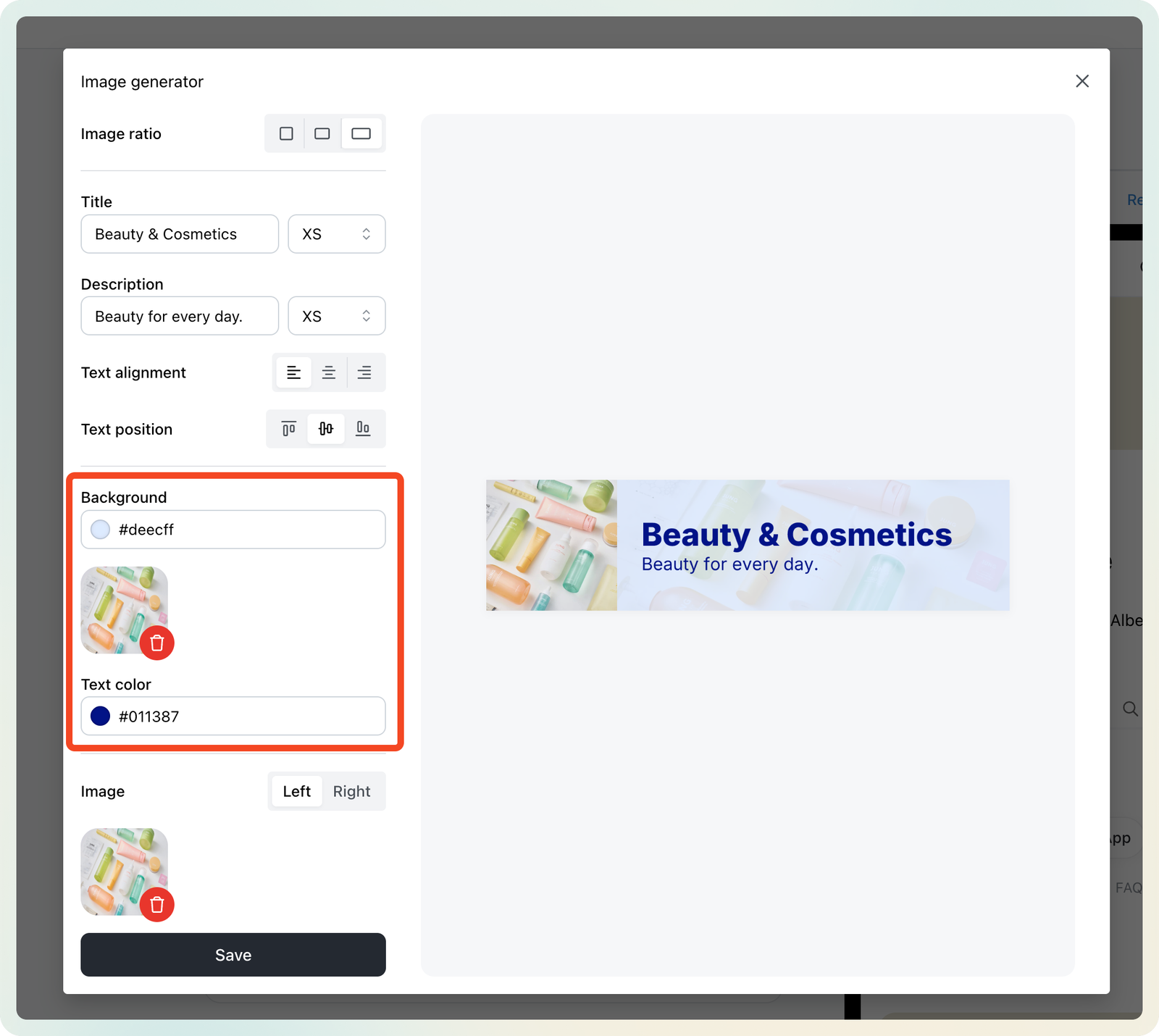
- Background colour — a solid colour
- Background image — upload your own
- Text colour — for the title and description; pick something that stays easy to read
5. Add an image
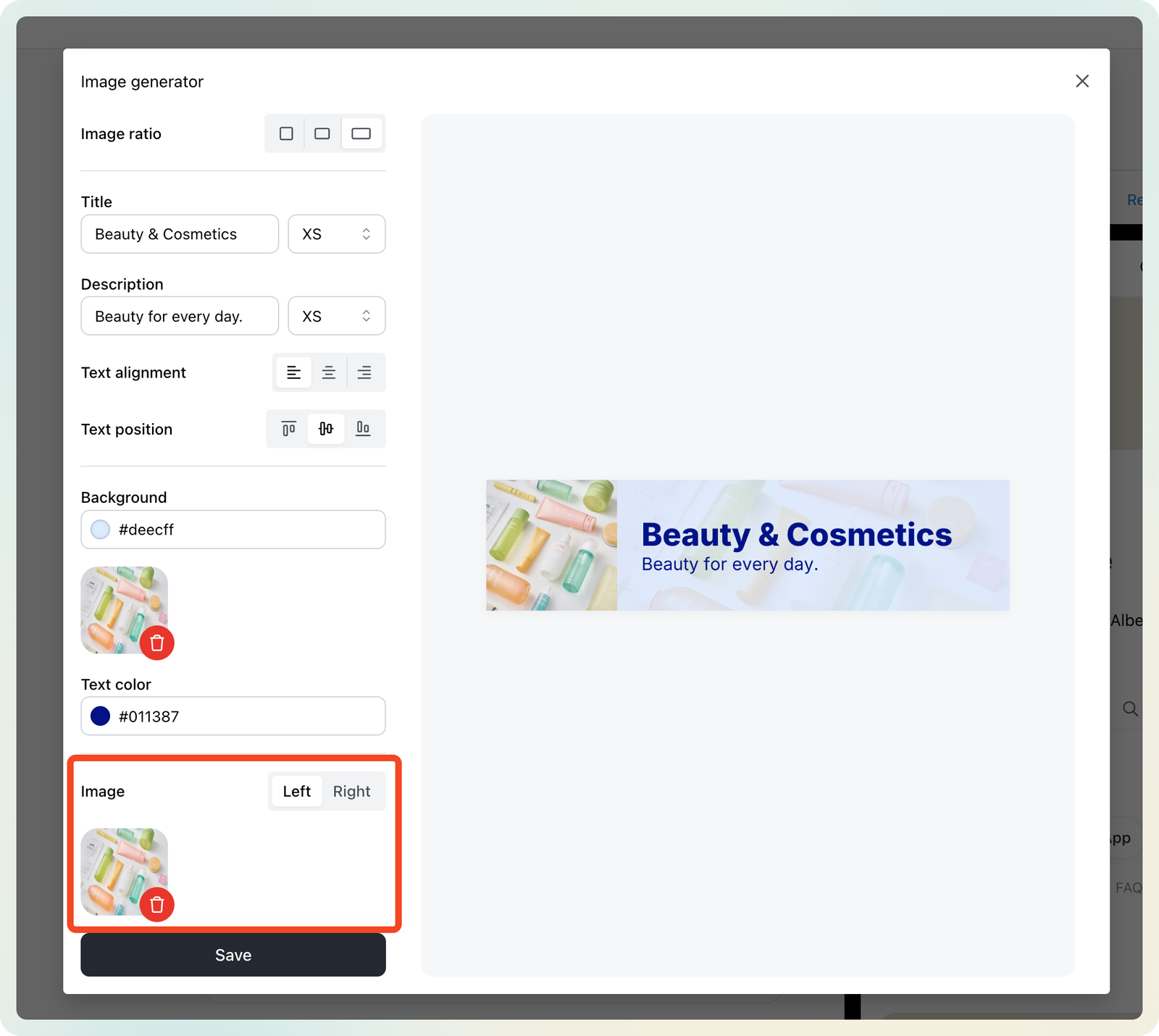
Upload a product photo, illustration, or logo to sit over the background, and choose whether it appears on the left or the right.
6. Preview and save
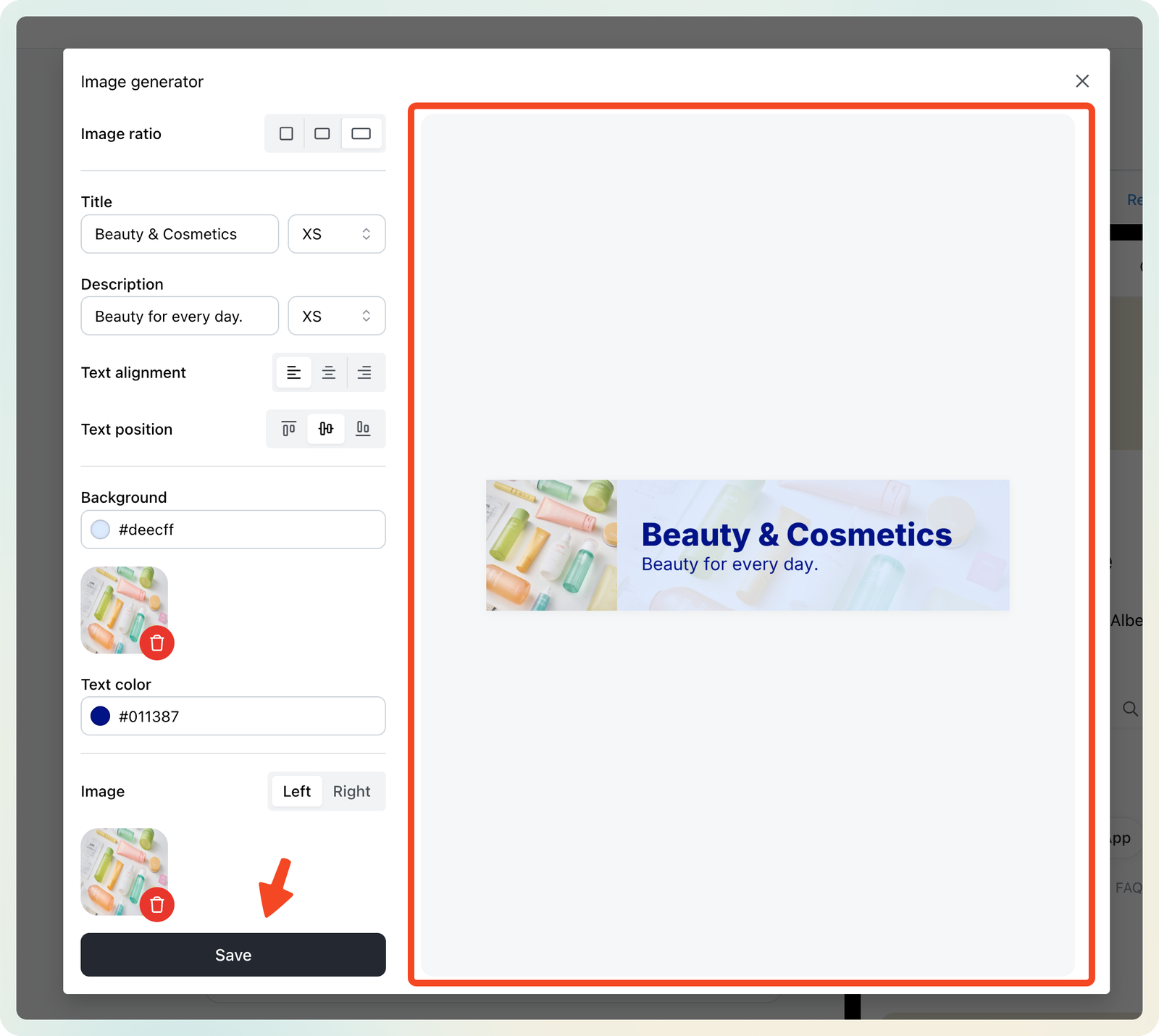
When you're happy with it, click Save to use it immediately or download it.
Tip: Experiment with different background colours and ratios to match your store's theme.
Here's a generated banner in use:
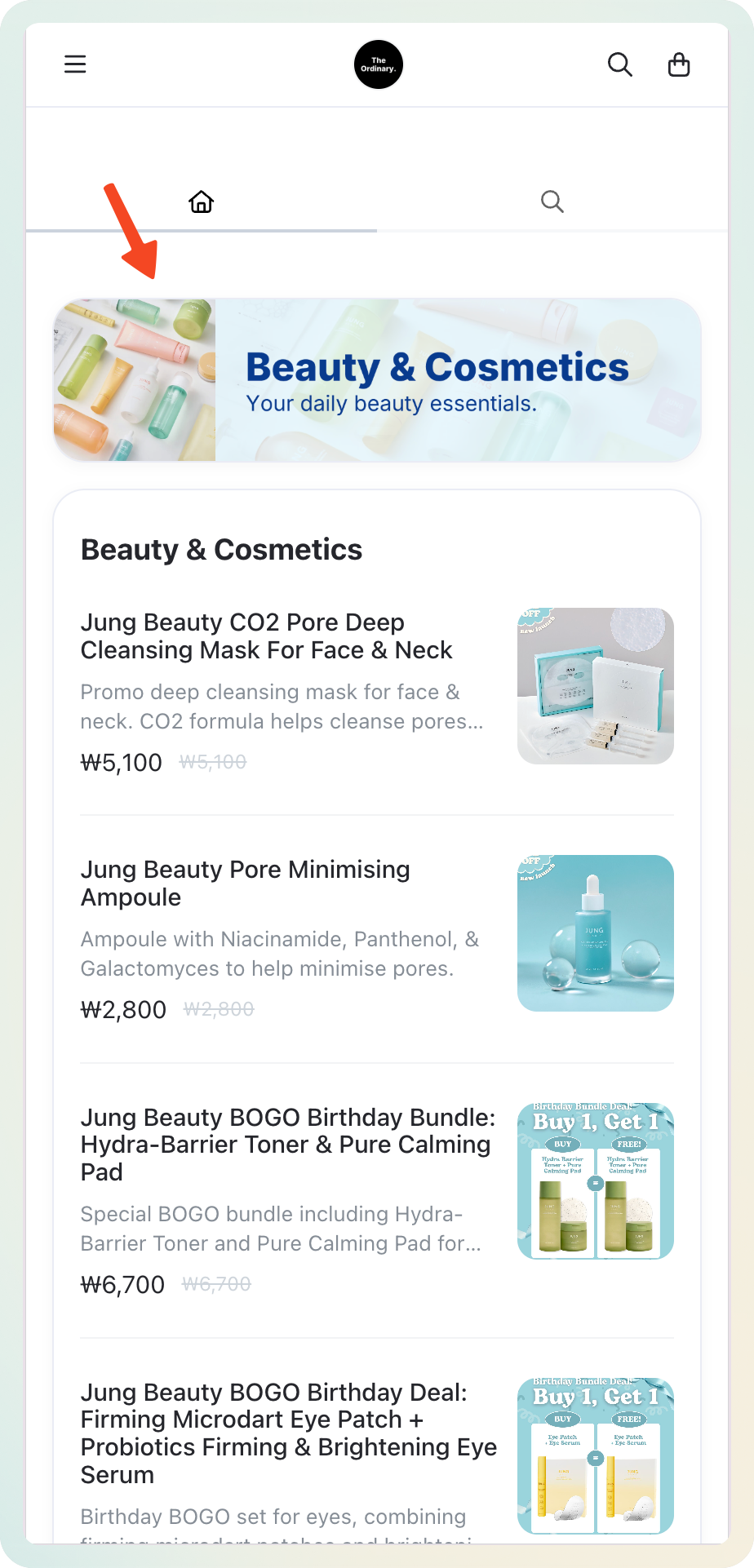
Image AI
Image AI is a built-in AI tool that creates ready-to-share images — social media posts in particular — straight from your dashboard.
-
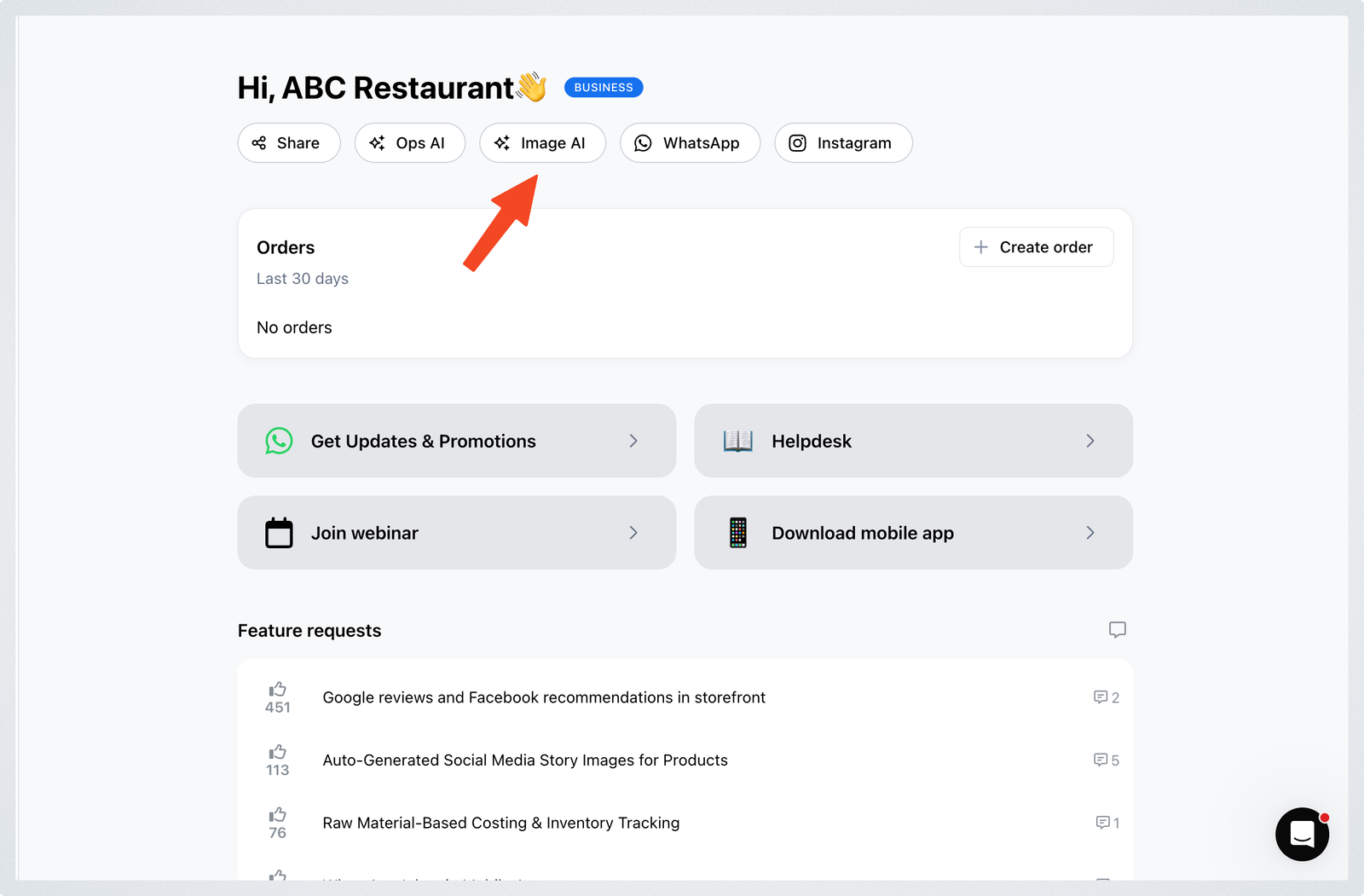
From your admin dashboard, find the Image AI button.
-
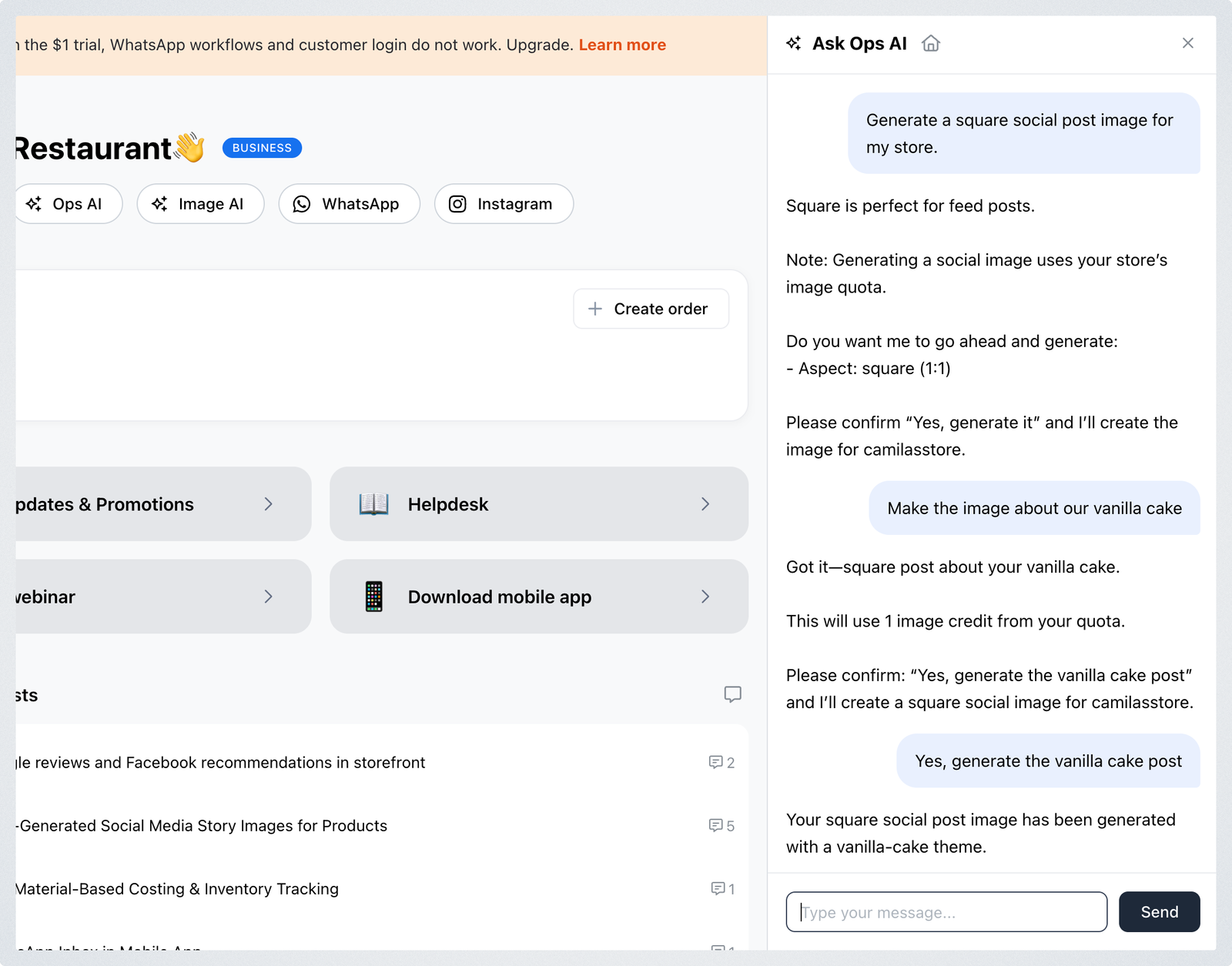
Click it. This opens the Ops AI chat with a prompt already prepared from your store. Add any extra context or instructions you want.
-
Ask for edits directly in the chat until the image looks right.
-
Click Download under the image, then share it on your preferred social platform.