
Zapier is workflow automation software across 7000+ app. Create your order in Take App automatically by integrating your own app to Take App through Zapier
How to set up Take App integration from Zapier (create order)
-
Go to zapier.com or search "Take App" from Zapier's app explorer. And press
Connect Take App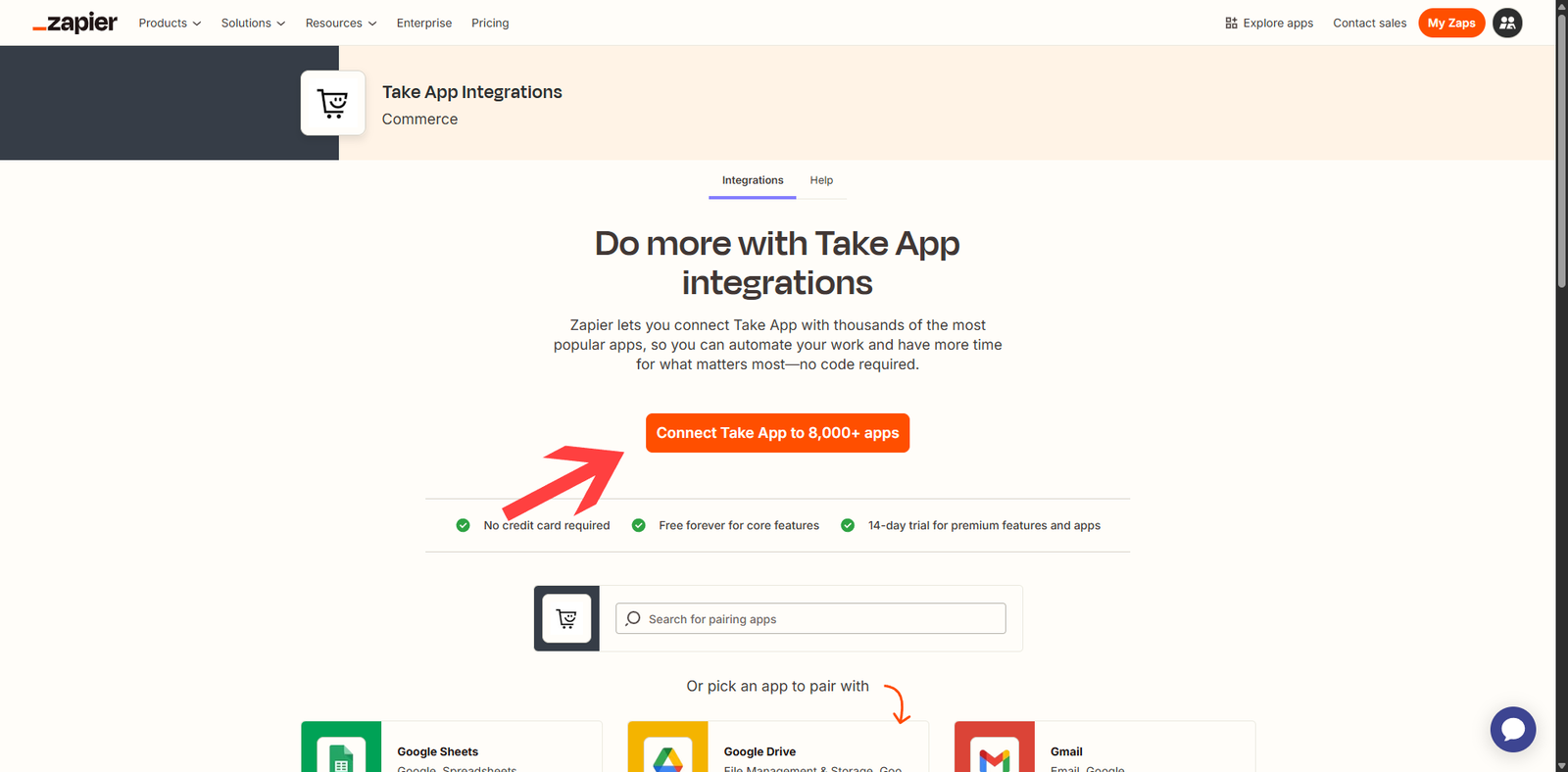
-
Click on "Action event" and choose
Create order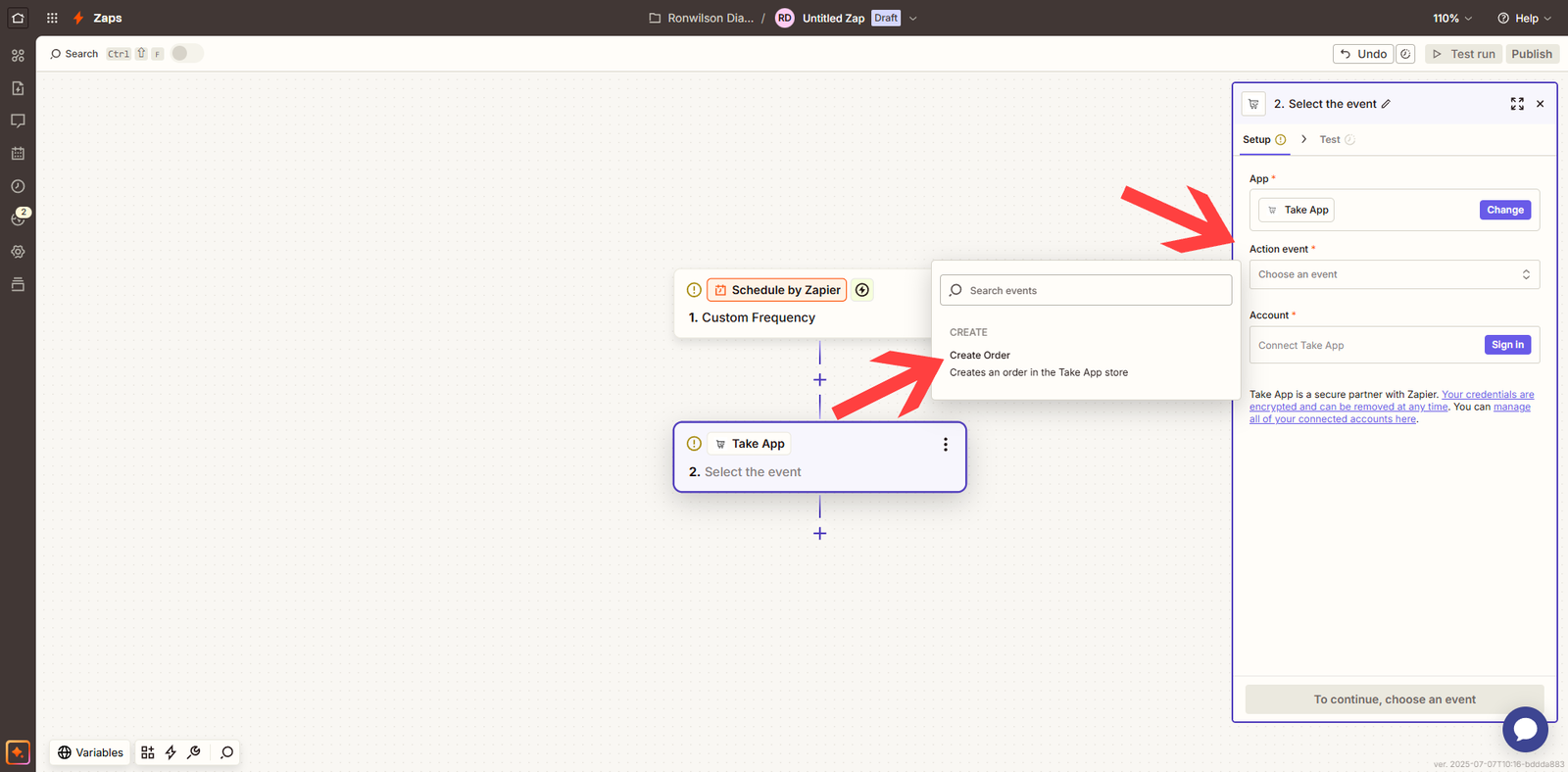
-
Click on
Sign inand paste the API key that you have copied from Take App admin (check the authentication section below to find your Zapier's API key from Take App admin)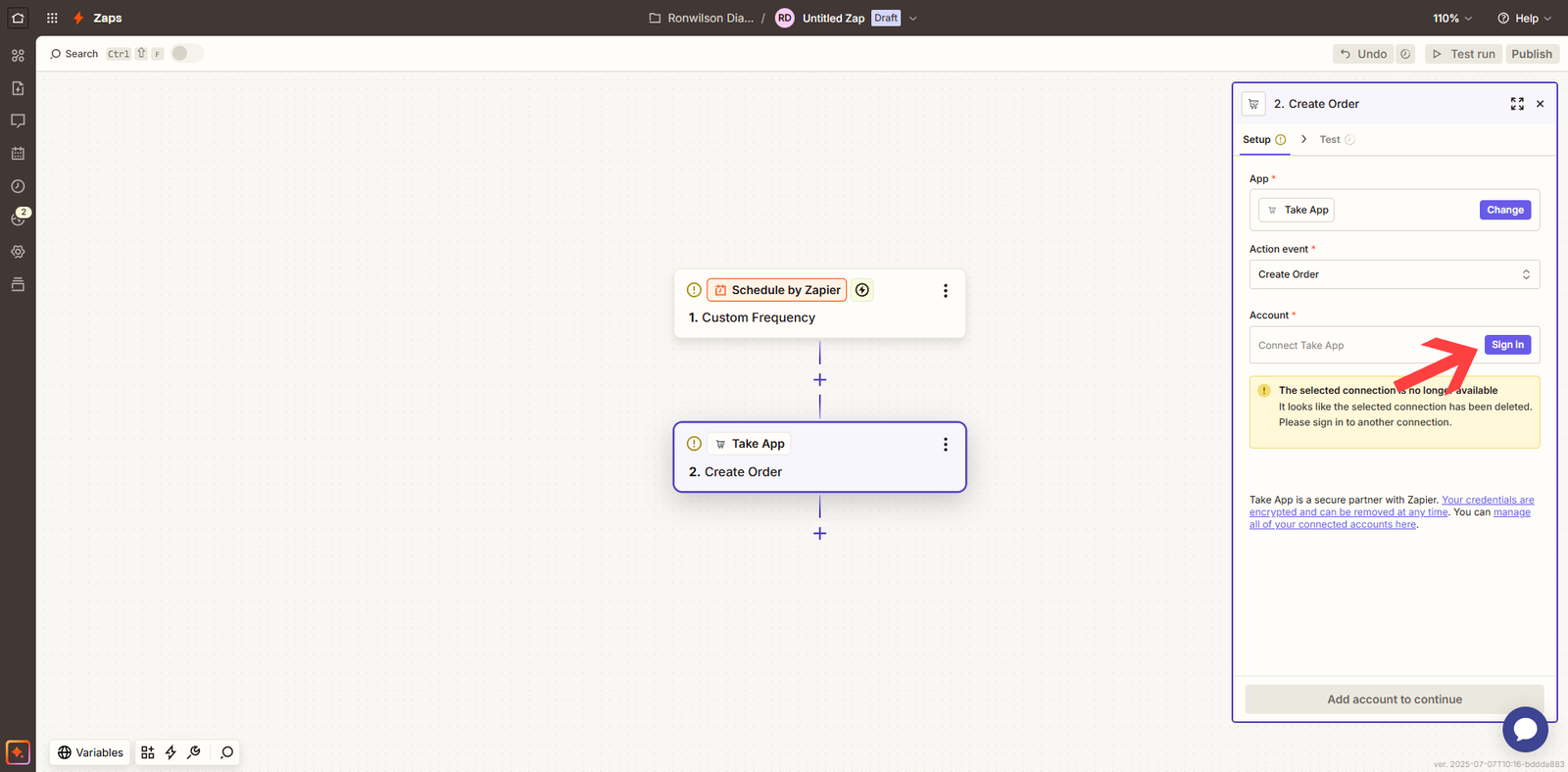
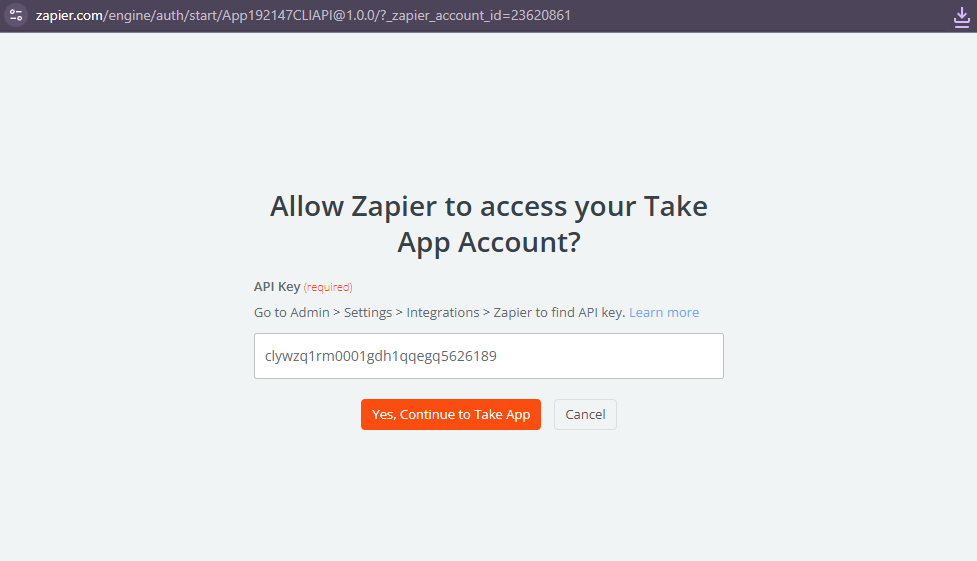
-
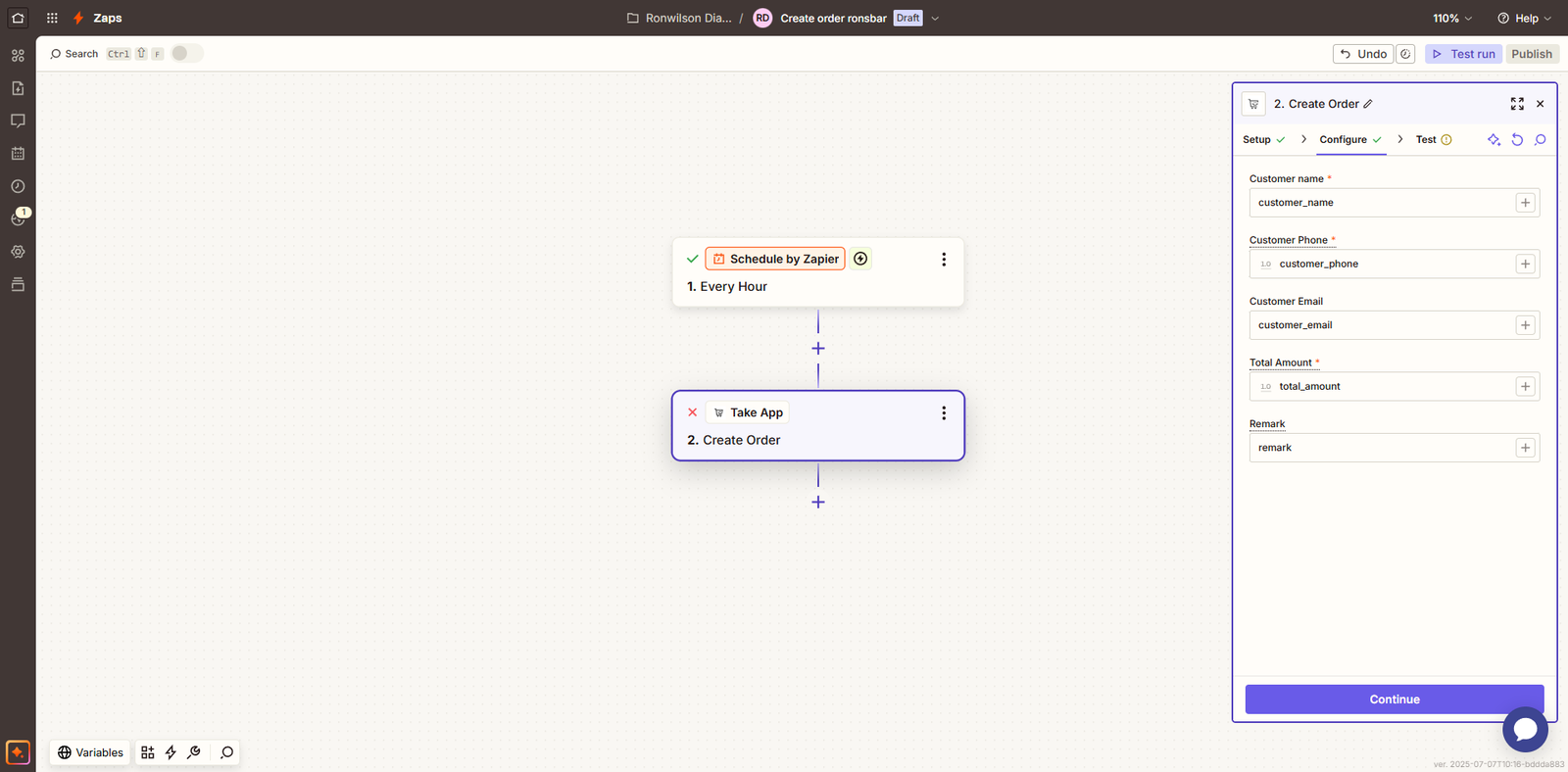
Click continue and fill in the data variable based on the designated input fields
-
Configure your app choice that will be connected to Take App through Zapier (e.g. Google Form)
Authentication
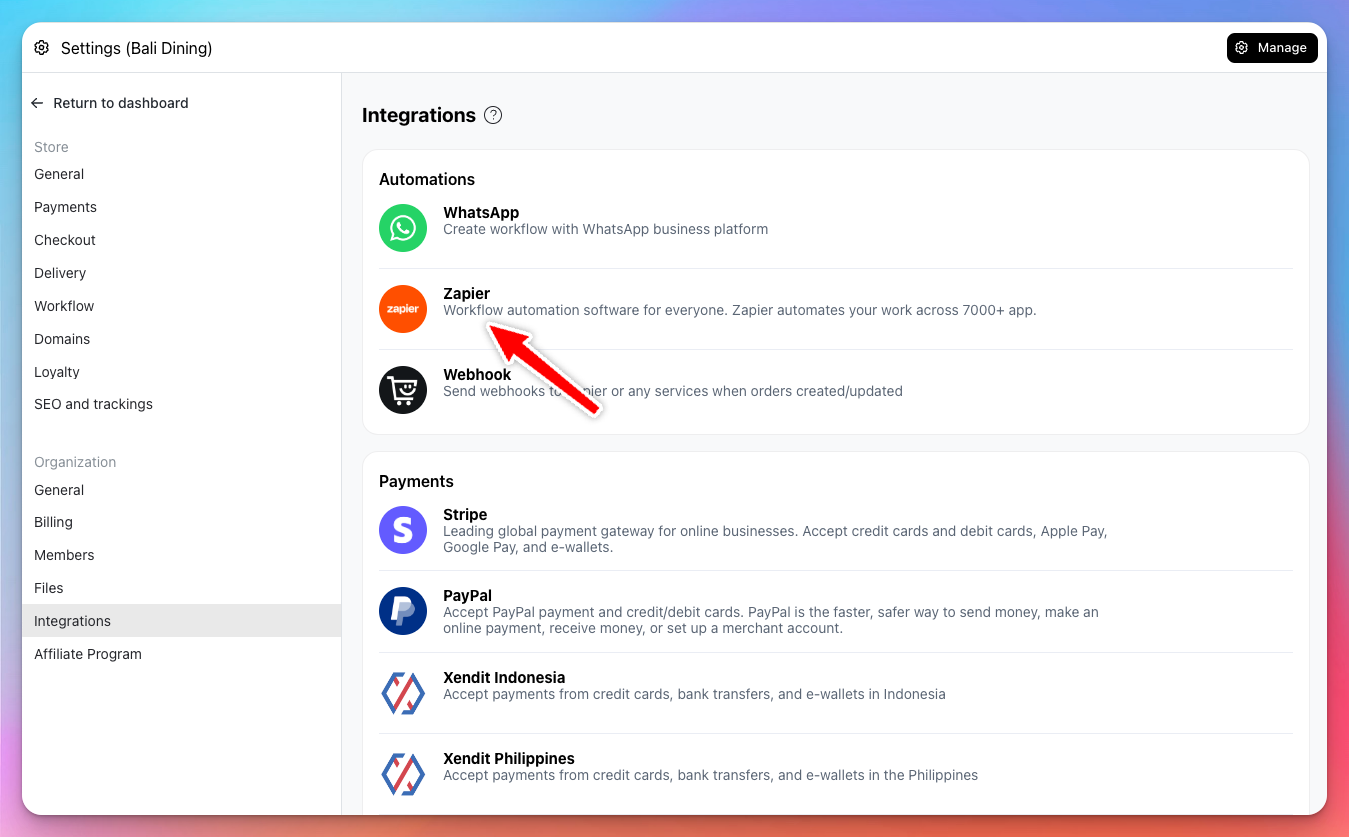
To authenticate, you need an API key. Follow these steps to obtain your API key. This API key is linked to your store.
- Go to Store Admin > Settings > Integrations > Zapier.
- Copy the API key.
Input Fields
- Customer Name (
customer_name) - Required - Customer Phone (
customer_phone) - Required - Customer Email (
customer_email) - Optional - Total Amount (
total_amount) - Optional - Remark (
remark) - Optional
Example Request
{
  "customer_name": "John Doe",
  "customer_phone": "6591234567",
  "customer_email": "john.doe@example.com",
  "total_amount": 120,
  "remark": "Please deliver after 5 PM."
}
This will create an order in the connected store.
Response example
{
  "id": "clyr7gpcf0035ajkudunq9uoz",
  "number": 28,
  "numberDaily": 1,
  "remark": "",
  "internalNote": null,
  "status": "ORDER_STATUS_PENDING",
  "paymentStatus": "PAYMENT_STATUS_PENDING",
  "fulfillmentStatus": "UNFULFILLED",
  "adjustmentAmount": 0,
  "totalServiceAmount": 0,
  "tipAmount": 0,
  "serviceChargeAmount": 0,
  "taxInclusive": true,
  "totalItemsQuantity": 0,
  "totalItemsAmount": 0,
  "totalAnswersAmount": 0,
  "totalDiscountsAmount": 0,
  "totalBeforeTax": 12300,
  "totalTax": 0,
  "totalAmount": 12300,
  "storeId": "cltpfufbn002rao3qnzasdr69",
  "customerId": "cltsbmumh00dr5iz9nzwpxy7q",
  "customerName": "John Doe",
  "customerPhone": "6591234567",
  "customerEmail": "john.doe@example.com",
  "updatedAt": "2024-07-18T11:46:08.848Z",
  "createdAt": "2024-07-18T11:46:08.848Z"
}
Related
- Take App API Overview — what each developer tool does, how to start, and the rules every integration needs