
How do I set Icebreakers and Shortcuts?
- Connect your WhatsApp or Instagram account.
- Go to Settings > Advanced. Icebreakers stay on the legacy chatbot page.
- Set icebreakers and shortcuts
Icebreakers
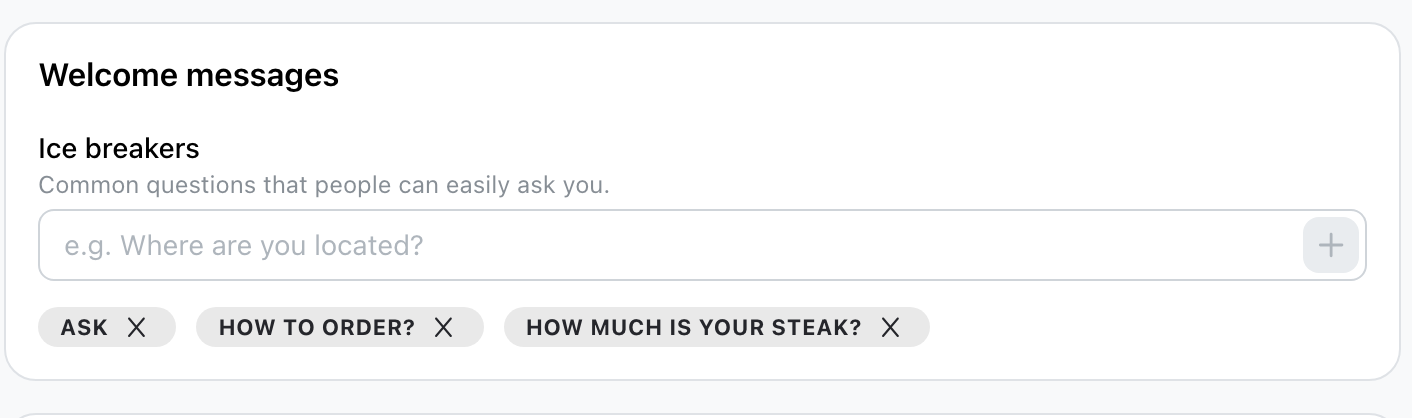
What are Icebreakers?
Icebreakers are conversation starters that users can use to send you preformed messages.
Where can people see them?
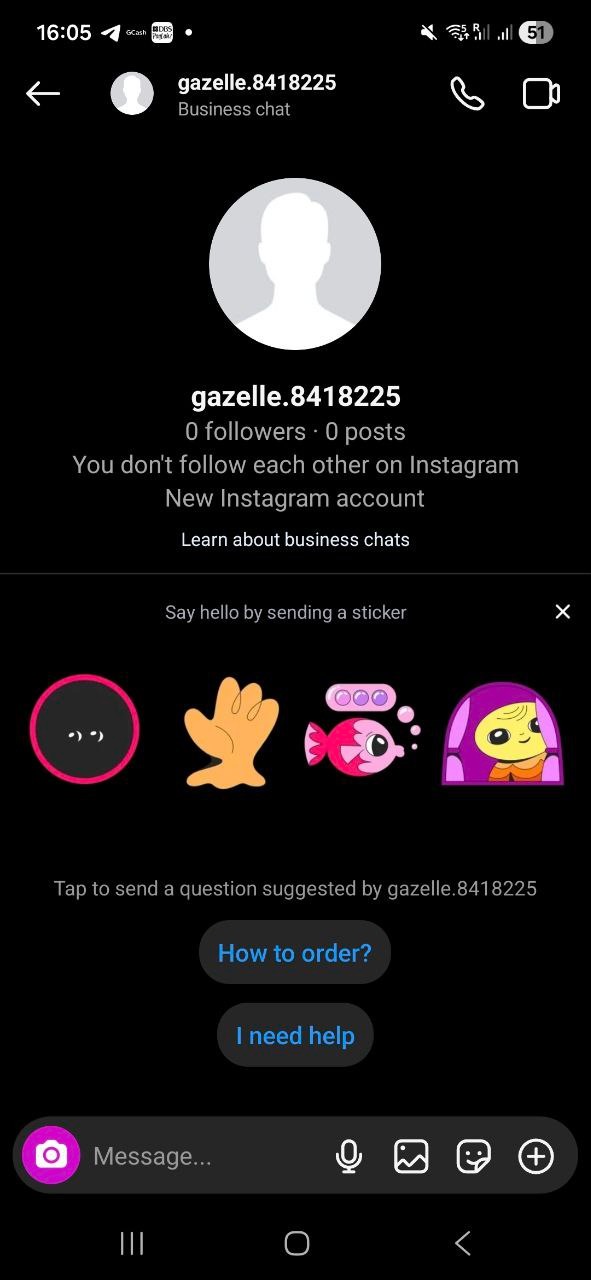
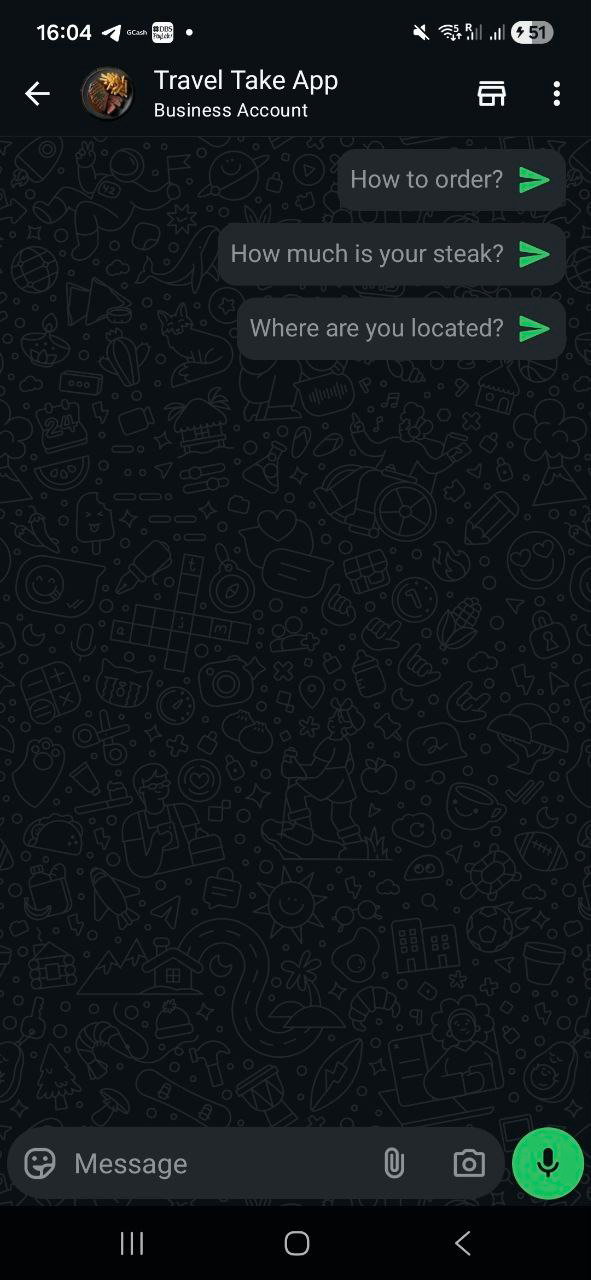
They are shown to your potential customers don't have any conversation with your store social media channel yet.
Example 1: Icebreakers on Instagram
Example 2: Icebreakers On WhatsApp
Do I need to reply to them?
We do not send automated messages when customers click on these icebreakers. So most of the time, you would have to reply to them by yourself. However, if you have the Chatbot enabled, the chatbot can also help you respond to these icebreakers for you.
What if I don't put any icebreakers?
We will use the default "I need help" and "How to order". Note that these are special icebreakers because we do send automated responses if people click on these special default icebreakers.
Shortcuts
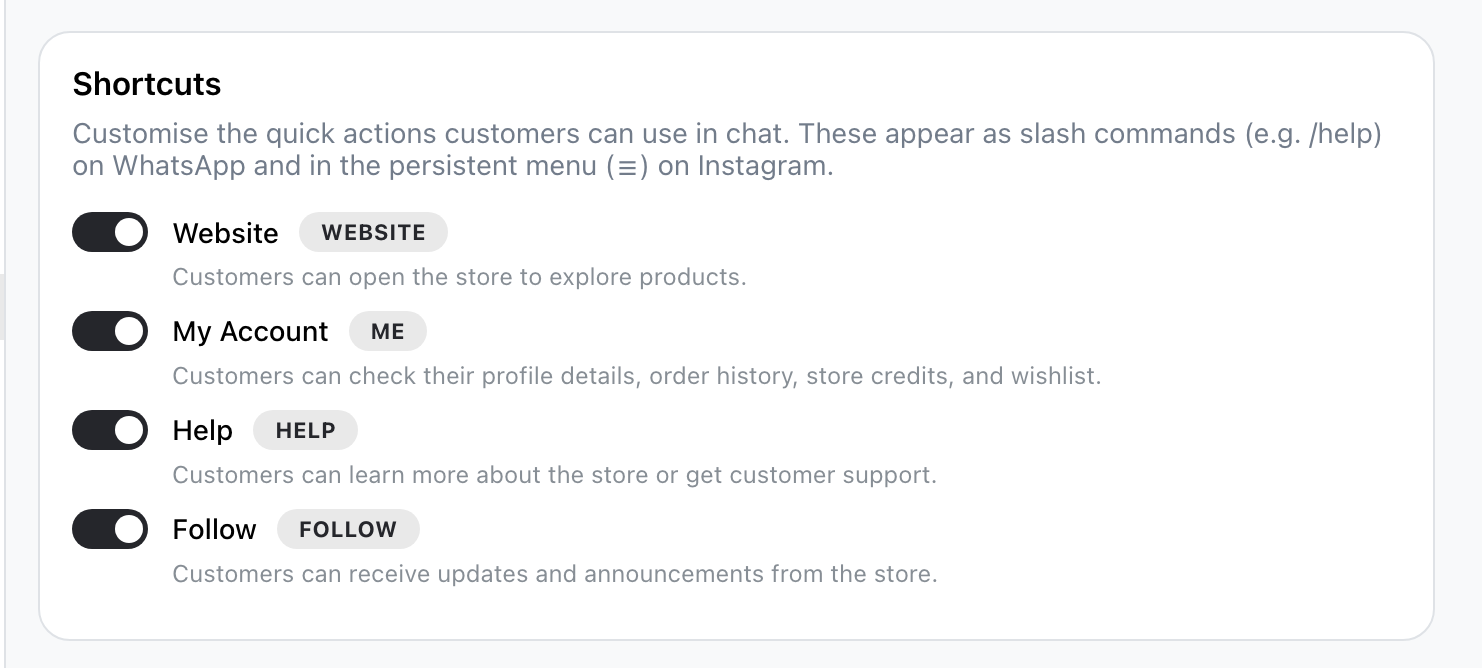
What are shortcuts?
Shortcuts allow your customers to perform quick actions based on a selection of commands/keywords made by Take App.
Where can people see them?
On Instagram, shortcuts are also known as persistent menu. Users can see these when they press the hamburger (☰) icon on the top right corner of the private chat with your account.
On WhatsApp, shortcuts are shown as commands, and users are able to see these when they type in slash / key.
Example 1: Icebreakers on Instagram
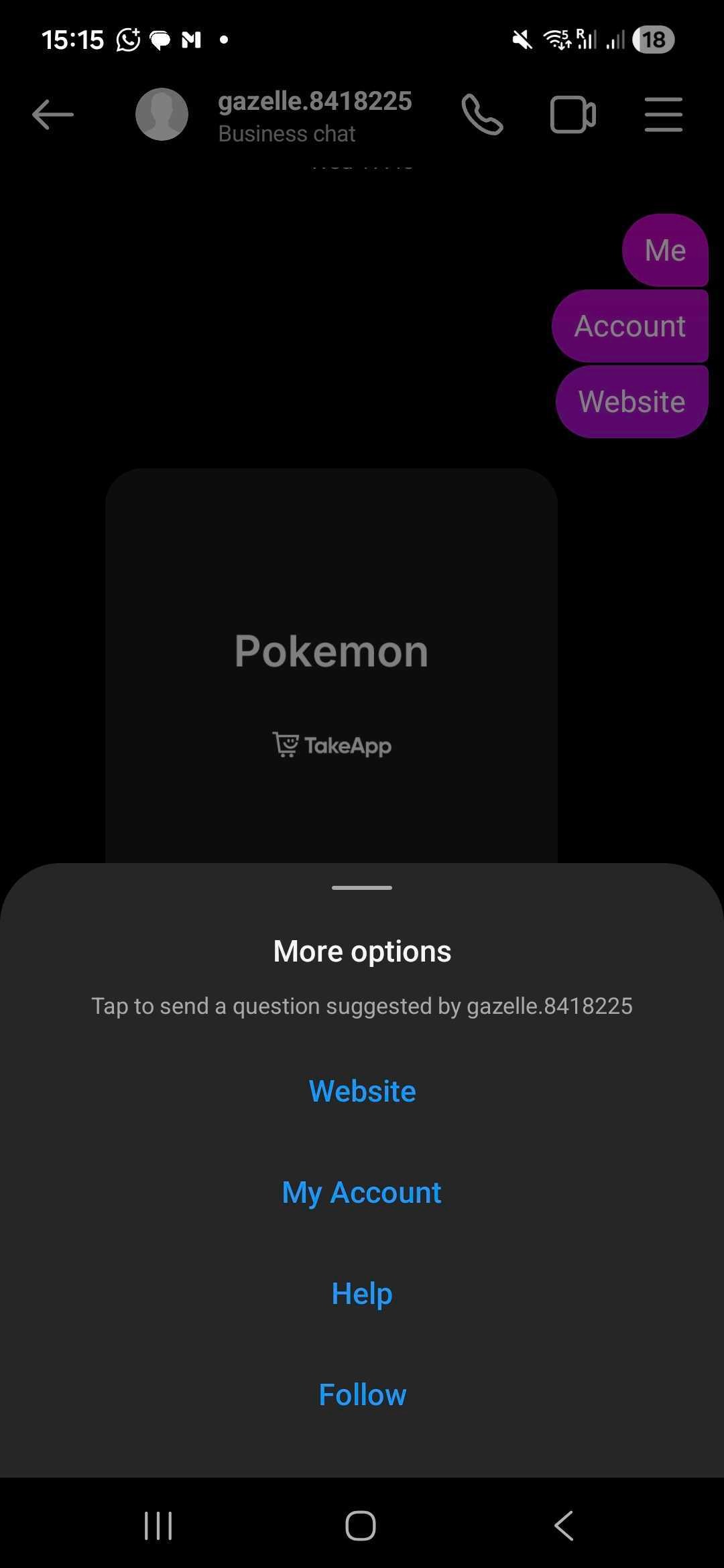
Example 2: Icebreakers On WhatsApp
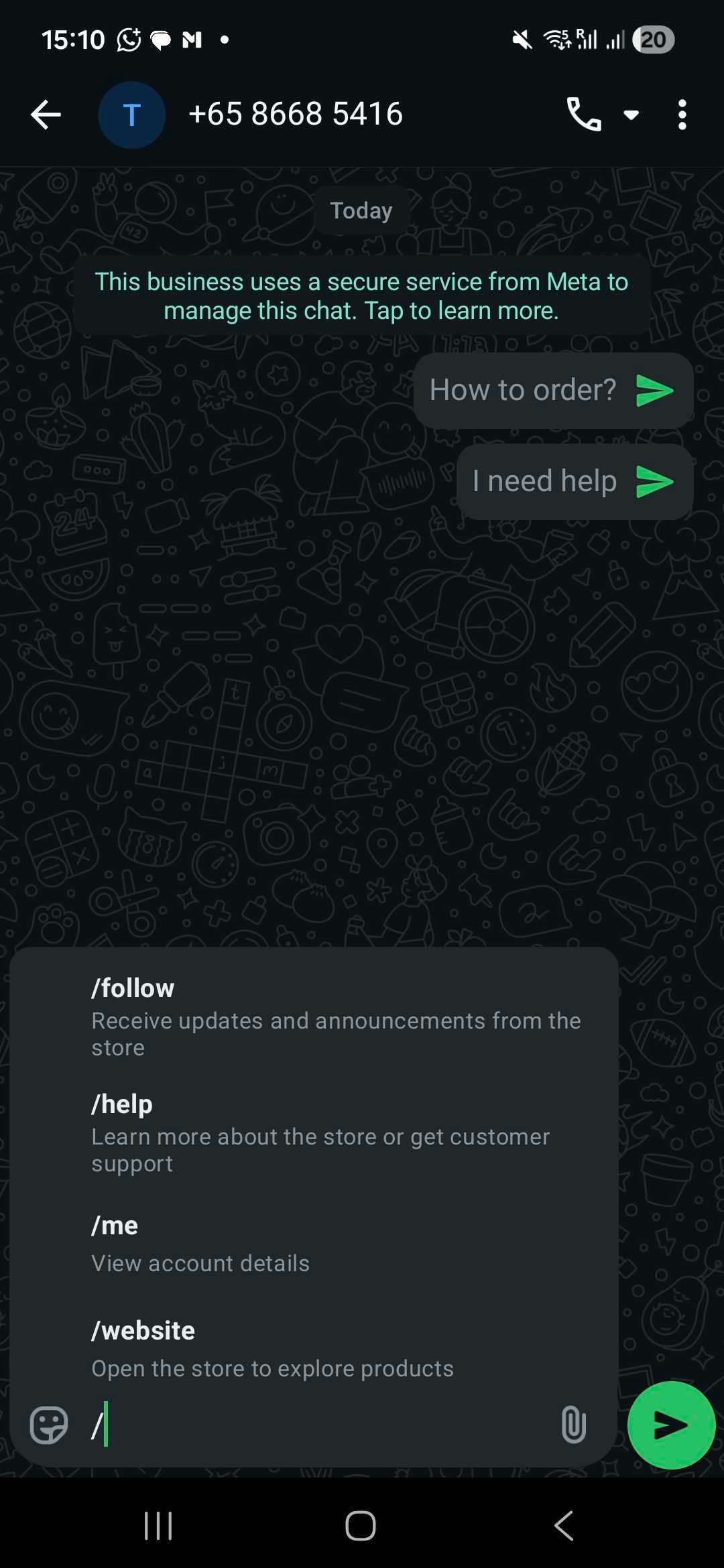
What shortcuts are there?
Currently, Take App offers 4 shortcuts (account, website, help, and follow). The purpose of each shortcut is highlighted in the chatbot page. But briefly:
My Account - About customer's purchase history and store credits
Website - Leads them to your Take App site
Help - Lists many resources where they can get help
Follow - Allows them to follow your page or community
Do I need to reply to them?
Once customers click on these shortcuts in their chat, Take App will send them automated responses instantaneously. You may still respond after that, but replying to these shortcuts is not necessary.
What if I don't enable any shortcuts?
None of the commands and menu items will then be available on Instagram.