
After successfully connecting your WhatsApp Business Account (WABA) to Take App, you may occasionally encounter message delivery errors in your Workflow Activity or message logs. These errors usually occur due to WhatsApp platform rules or recipient limitations.
If you wish to check why a workflow message failed sending, you can go to Settings > Workflow > Activity.
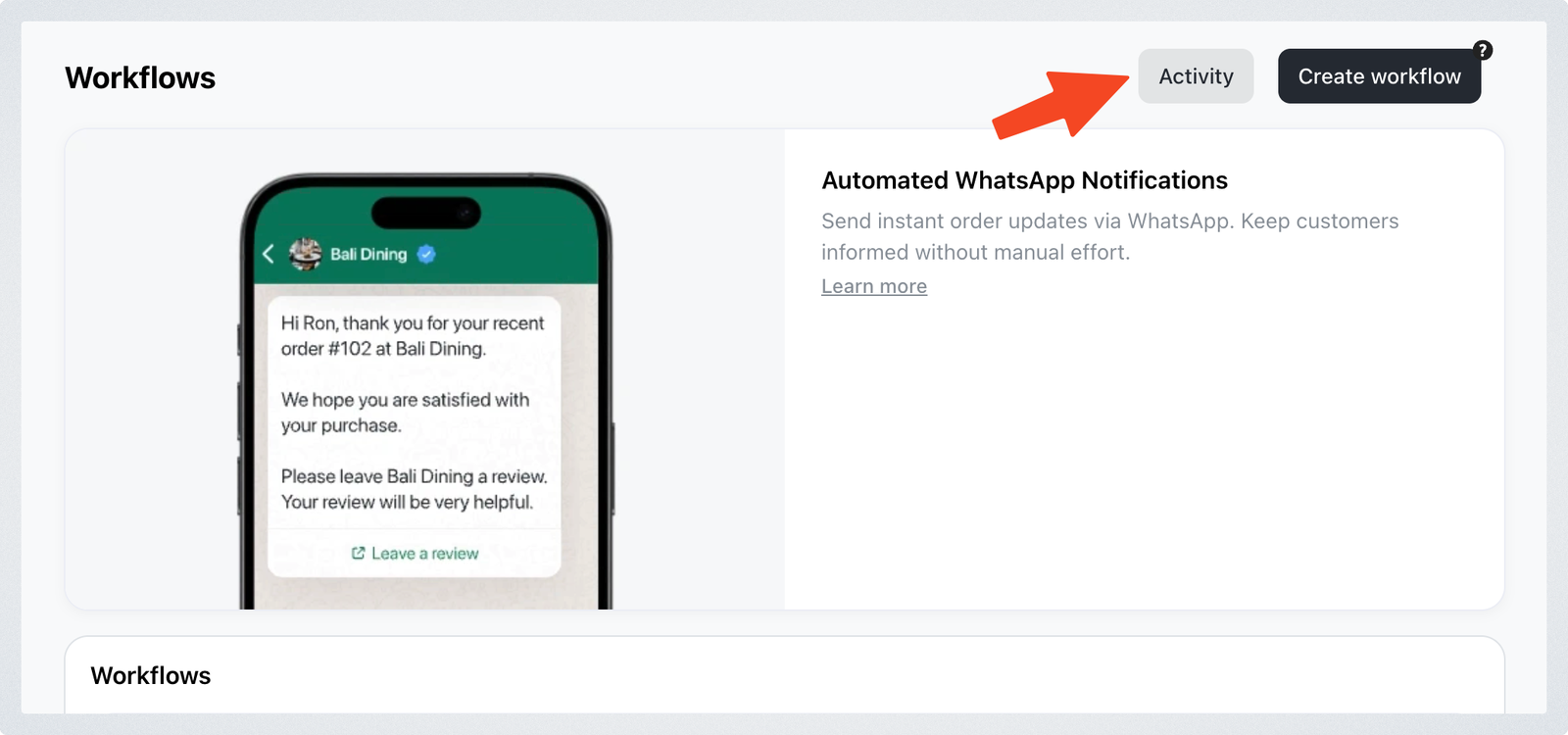
There, you can click on the "Failed" status and you will be able to see the reason for failure.
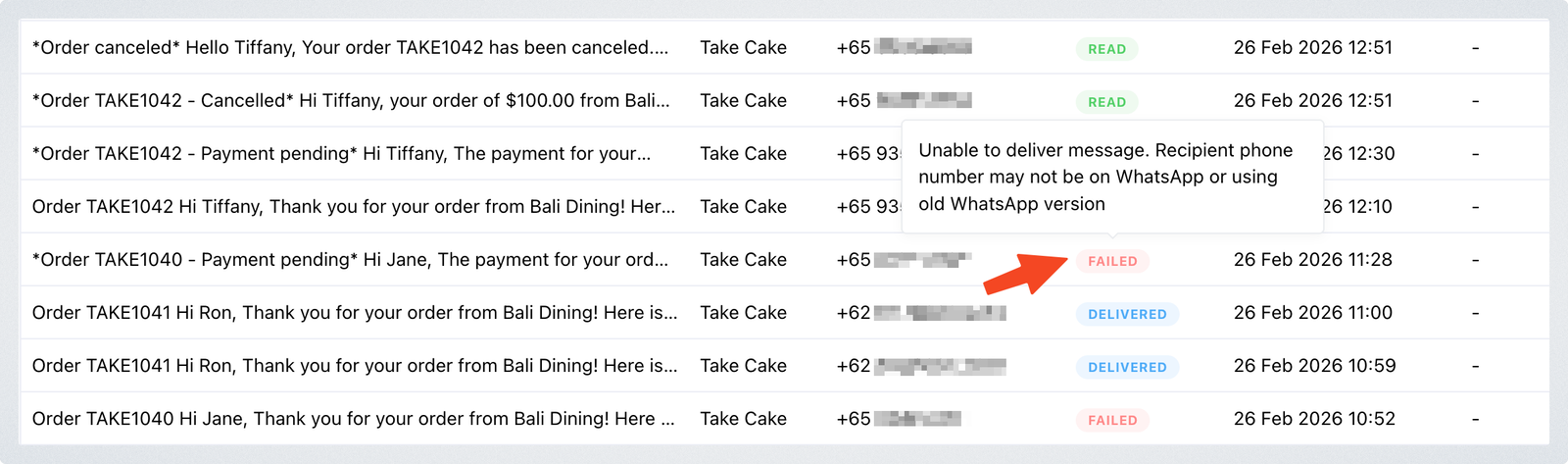
Below are the most common message delivery errors and how to resolve them.
Receiver is incapable of receiving this message / Message is undeliverable
You may see an error such as: “Unable to deliver message. Recipient phone number may not be on WhatsApp or using old WhatsApp version.”
This means WhatsApp could not deliver the message because the recipient’s account is currently unable to receive messages.
This may happen if:
- The phone number is not registered on WhatsApp
- The recipient has not accepted the latest WhatsApp Terms of Service or Privacy Policy
- The recipient is using an outdated version of WhatsApp
- The recipient’s account has temporary restrictions or flags from Meta
- The recipient has exceeded WhatsApp messaging limits
How to resolve it:
Ask the recipient through another channel (SMS, phone, or email) to:
- Confirm their number is active on WhatsApp
- Update their WhatsApp application to the latest version
- Open WhatsApp and accept any pending Terms of Service prompts
- Send a message to your WhatsApp business number
Once the recipient’s account becomes active again, your messages should be delivered normally.
Message couldn’t be delivered due to WhatsApp’s messaging frequency limits
WhatsApp applies messaging frequency limits to maintain a healthy messaging ecosystem. If a recipient has recently received many template messages, WhatsApp may temporarily block additional template messages from being delivered.
When this happens, your message may fail with a frequency limit error.
How to resolve it:
Wait at least 24 hours before sending the template message again. Sending it again too soon will likely result in the same error. The exact reset timing depends on WhatsApp’s internal limits and user activity.
Best practice:
- Avoid sending too many marketing templates to the same user within a short period
- Prioritize sending messages when users actively engage with your business
Message not sent as part of experiment
You may see this error in the activity log: “Message not sent as part of experiment.”
This occurs when the recipient’s phone number is part of a WhatsApp internal experiment related to marketing messages or delivery behavior. These experiments are controlled by WhatsApp and cannot be overridden by Take App. In most cases, this issue resolves automatically once the experiment period ends.
WhatsApp Business Account has been locked
This error appears when the WhatsApp Business Account connected to Take App has been restricted or disabled by Meta.
Possible reasons include:
- Violating WhatsApp Business policies
- Sending messages flagged as spam
- Incorrect two-step verification PIN during API requests
- Suspicious activity detected by Meta
How to resolve it:
- Check your WhatsApp Manager in Meta Business Manager for account status
- Review WhatsApp Business policy guidelines
- Submit an appeal if your account was restricted in error
- Verify that your WABA configuration and credentials are correct
Once the restriction is lifted, message delivery should resume normally.
Spam rate limit hit
This occurs when WhatsApp detects messaging activity that may be considered spam. If a business sends a high volume of messages that recipients ignore, block, or report, WhatsApp may temporarily limit the account’s ability to send messages.
Common reasons this may happen include:
- Sending messages to users who did not opt in to receive WhatsApp messages
- Sending a large number of promotional or broadcast messages in a short period
- Low engagement from recipients (messages are ignored or not opened)
- A sudden spike in messaging activity from the account
How to resolve it:
- Pause sending messages temporarily and wait before sending again
- Make sure customers have explicitly opted in to receive WhatsApp messages from your business
- Reduce the frequency of marketing or promotional messages
- Send messages that are relevant and expected by your customers
Following WhatsApp’s opt-in requirements and maintaining good message engagement can help prevent spam rate limits in the future.
Billing issues preventing messages from being sent
WhatsApp messages fail to send when Meta has no working payment method for your WhatsApp Business account. You may see "Payment issue - Verify billing setup" in Workflow Activity, or "Your number can't send messages" on the WhatsApp Business page in Take App.
Common causes:
- Your account is still billed through a previous WhatsApp provider's credit line. Meta doesn't allow a credit line to be changed once it's attached, so Take App can't take over the billing.
- Your own card is attached in Meta, and it was declined, expired, or has an unpaid balance.
- Your account is stuck on an old Take App billing setup.
- There is no payment method at all.
To find out which one applies and fix it, see Troubleshooting WhatsApp Billing Issues. It shows you how to check your billing status in Take App and Meta, and what screenshot to send us.