
Note that this feature is only available for the Business Plan
How to use store credit as a payment method for purchases
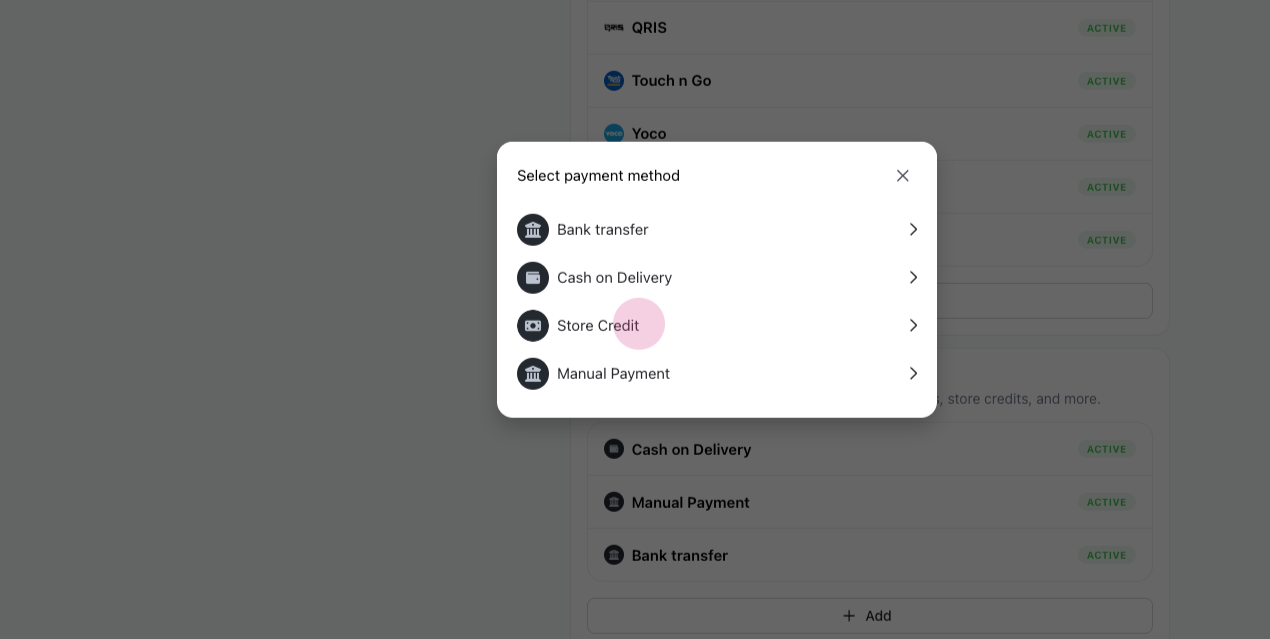
- Navigate to the Settings > Payments
- Add
Store Creditas a payment method under Manual Payments. After saving, store credit will appear as one of the Manual Payment methods. Next, proceed to the store to make a purchase.
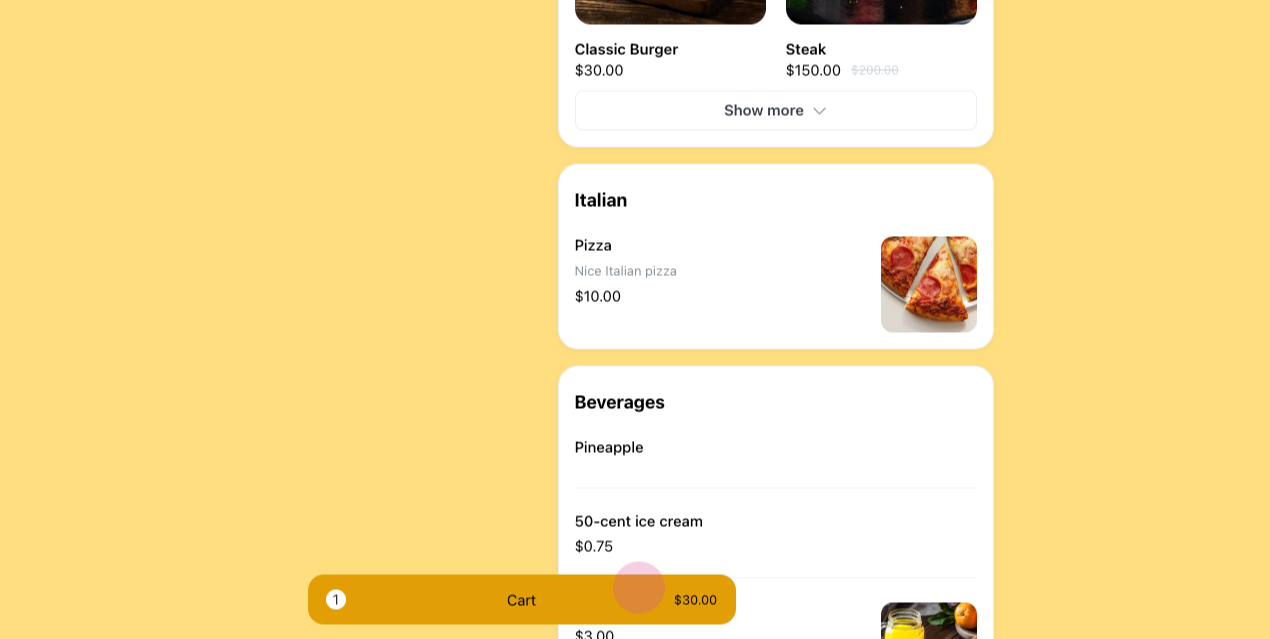
 3. Select item(s) from the store, add it to cart and check out.
 4. Enter your phone number, and the amount of store credits should appear on the Store Credit section.
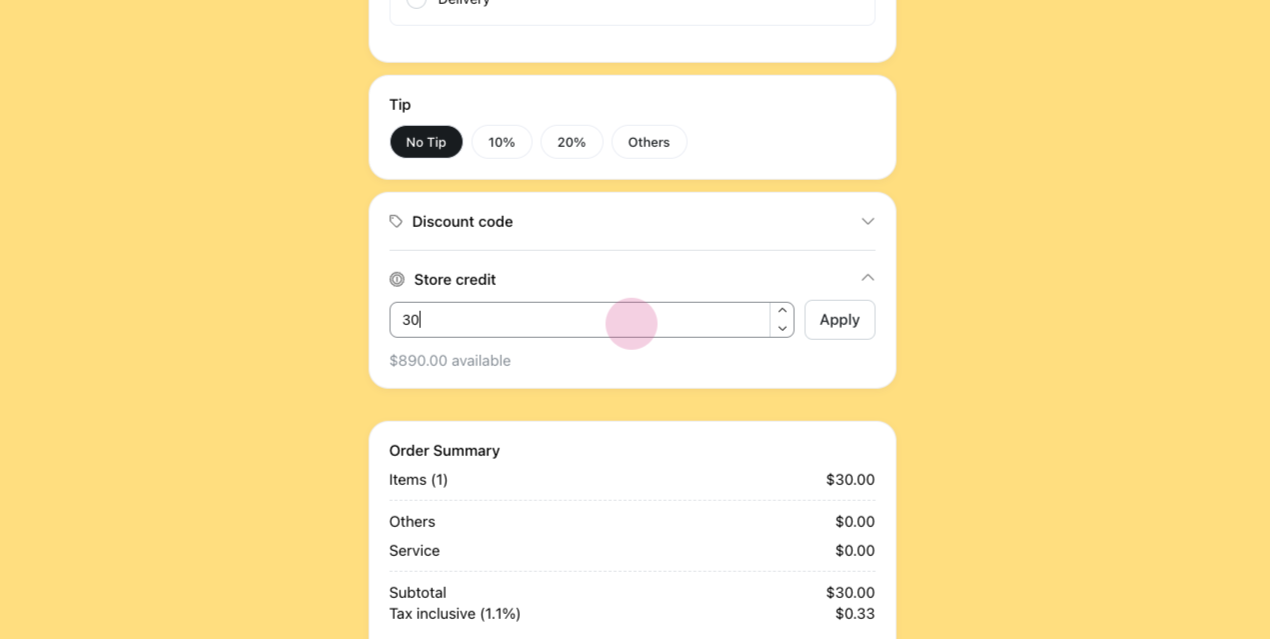 5. Enter the desired amount of store credits to use. In this example, we're using ten store credits. Note that the system may suggest using store credits equivalent to the item's price e.g. 30 dollars for the burger. However, it's possible to use less store credits and pay the balance with another payment method.
6. Place the order.
5. Enter the desired amount of store credits to use. In this example, we're using ten store credits. Note that the system may suggest using store credits equivalent to the item's price e.g. 30 dollars for the burger. However, it's possible to use less store credits and pay the balance with another payment method.
6. Place the order.
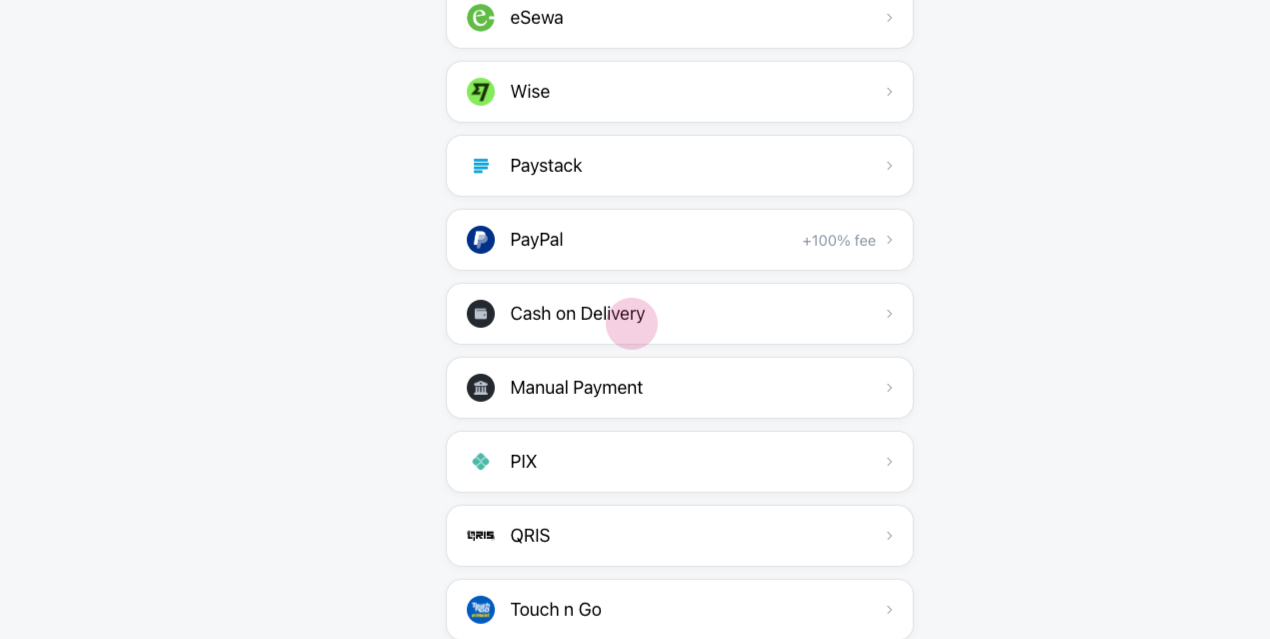
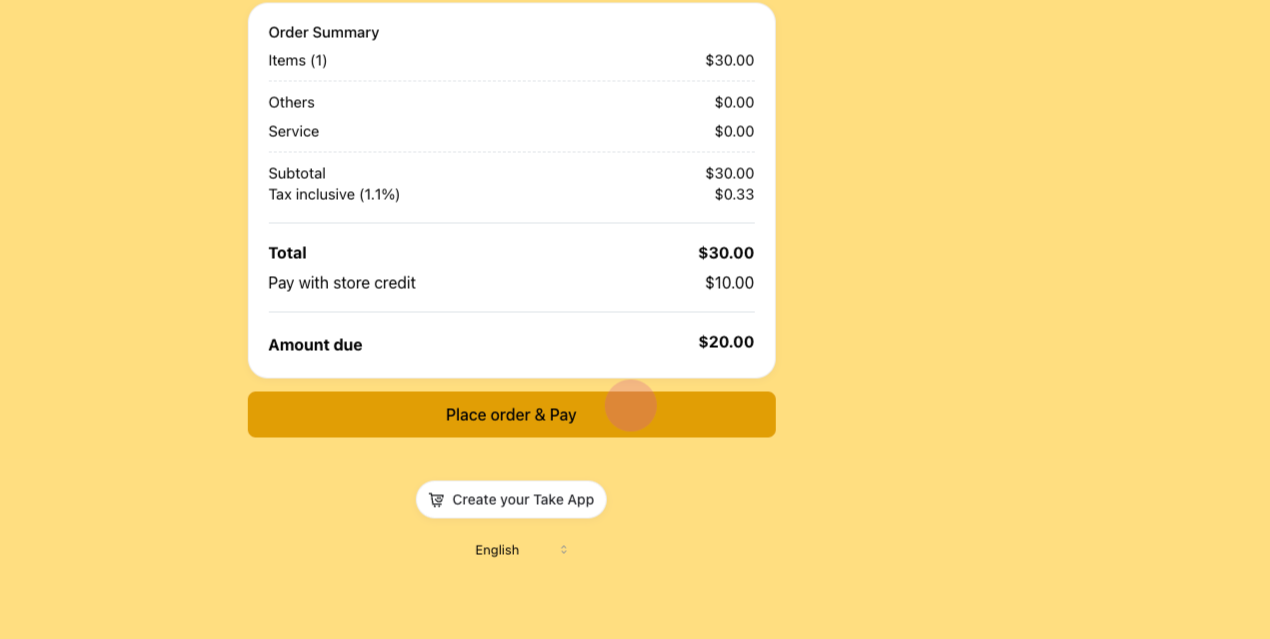 7. Select another payment method for the balance, e.g. cash on delivery.
 8. Confirm the payment method.
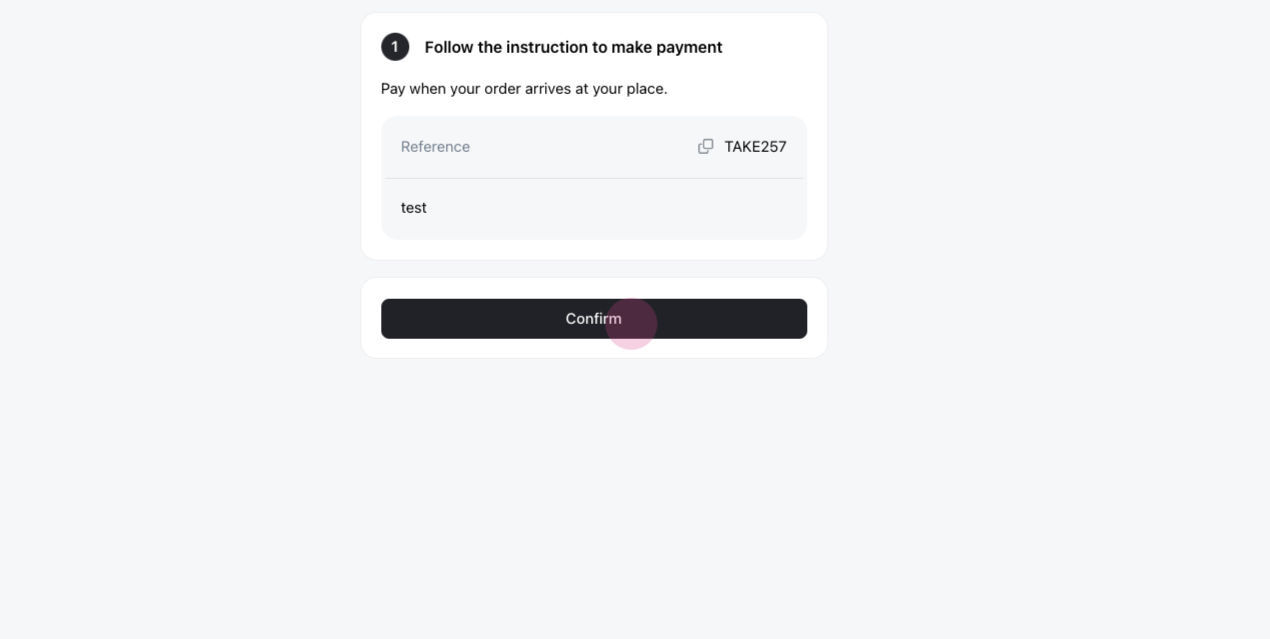
After confirming, the invoice will show that the payment status is partially paid. This means that part of the payment was made with store credits, and the remaining balance will be paid on delivery.