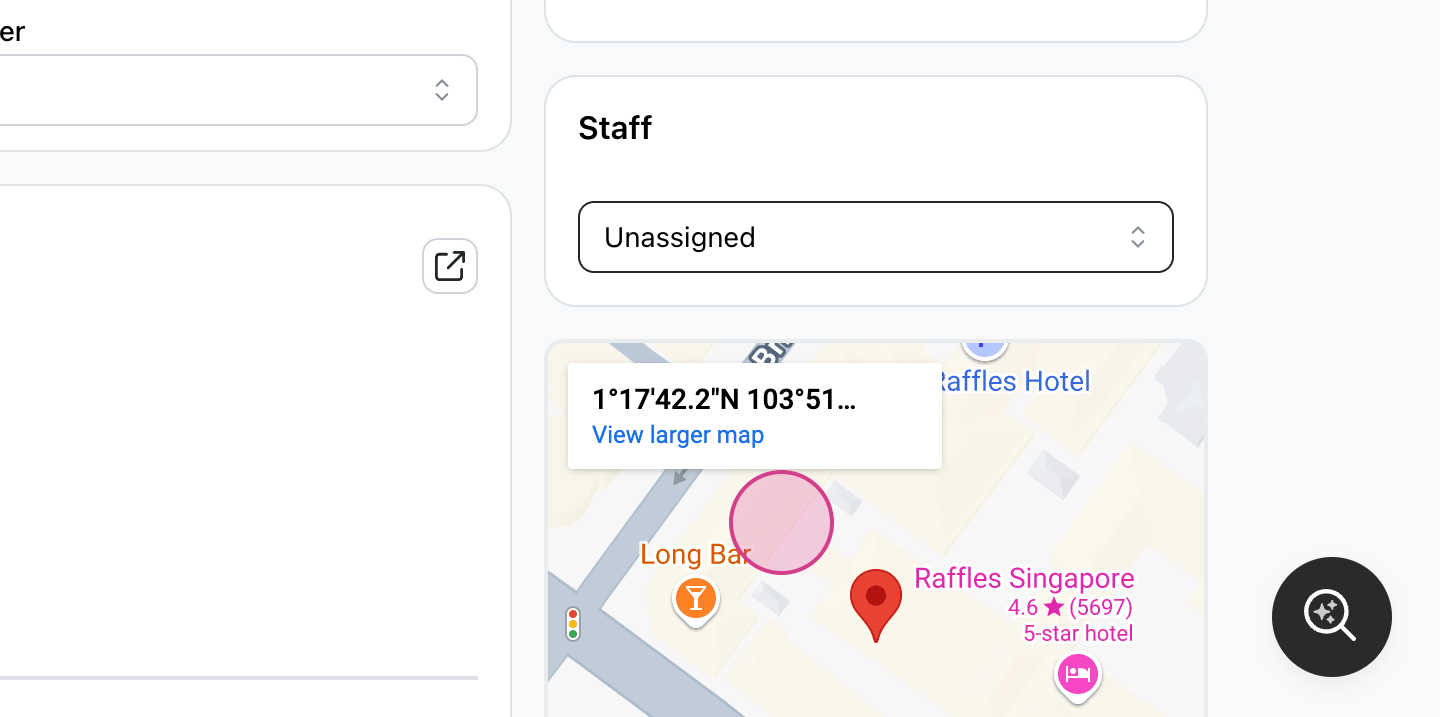
Assigning Staff
-
Go to the order detail page, and locate the staff section.
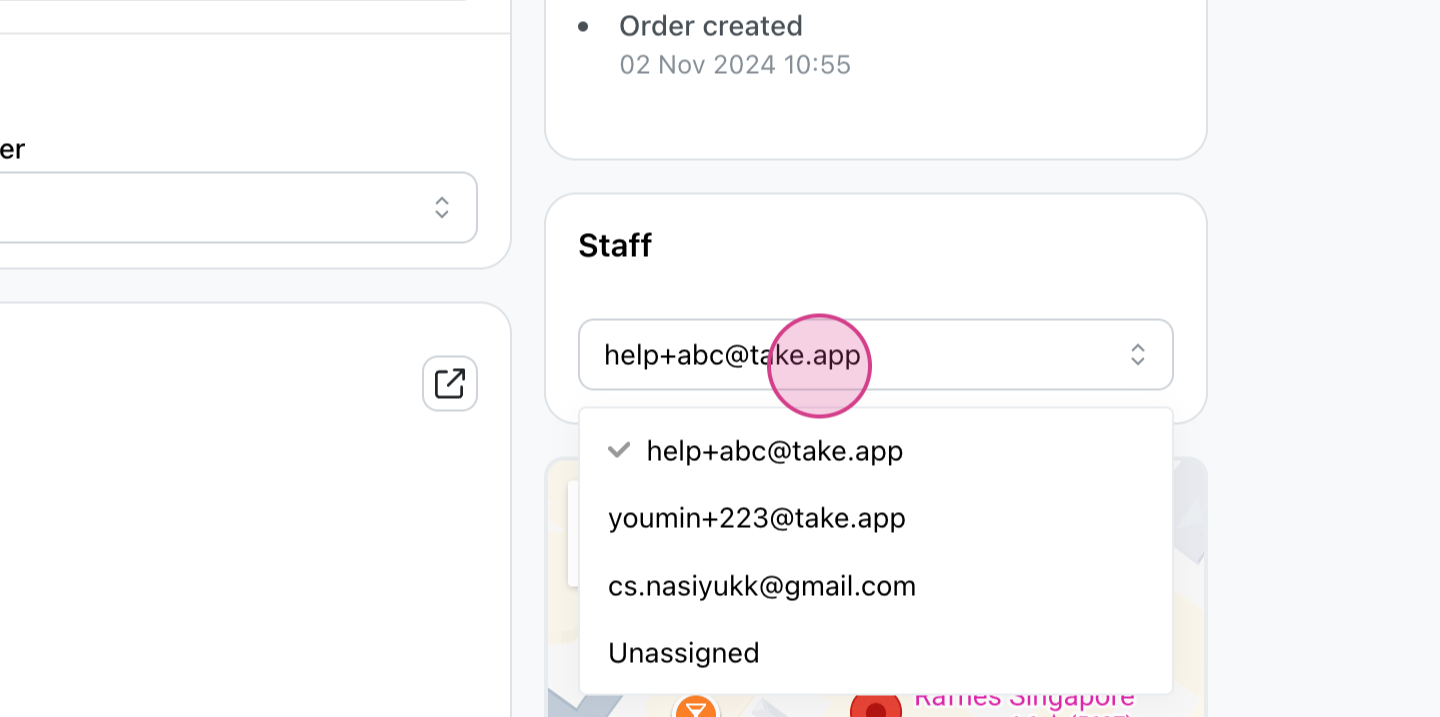
-
Choose the staff member to assign to the order.
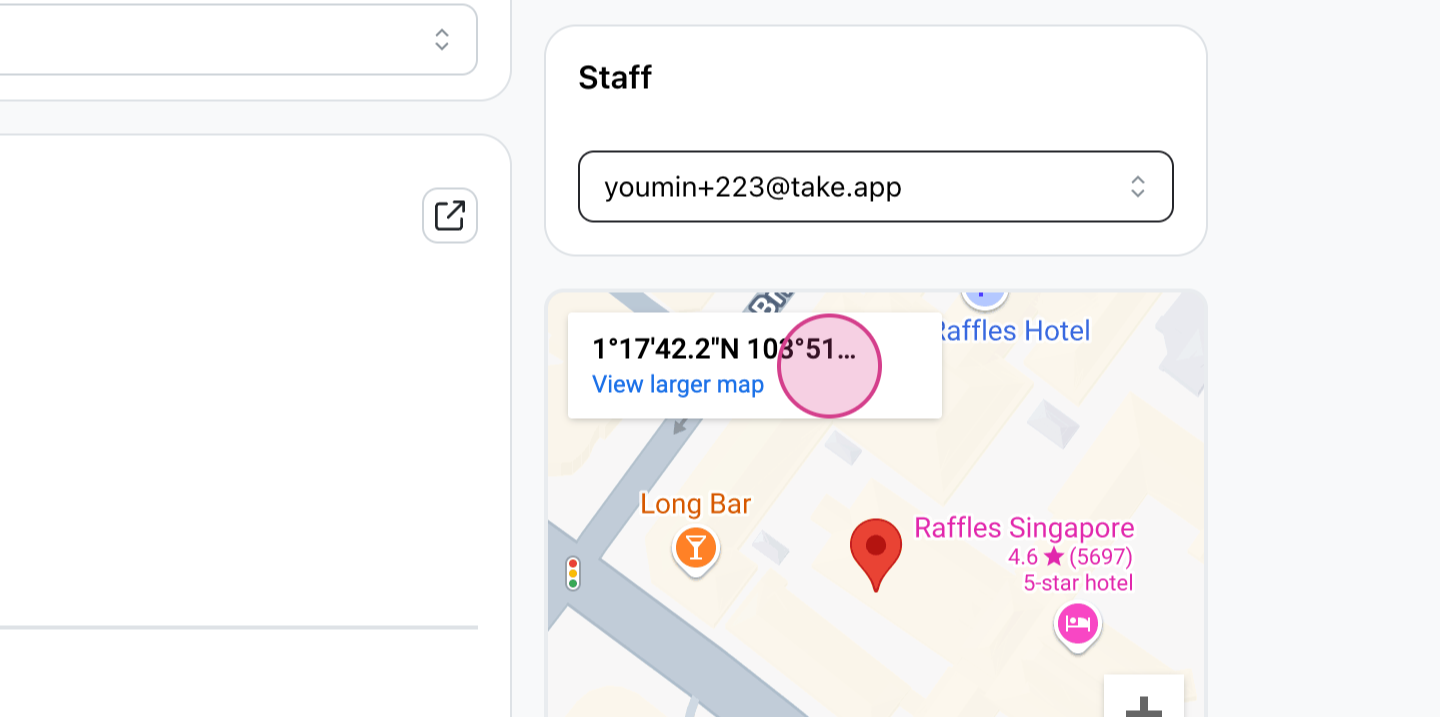
-
Notice that the staff badge is now shown in the order detail page.
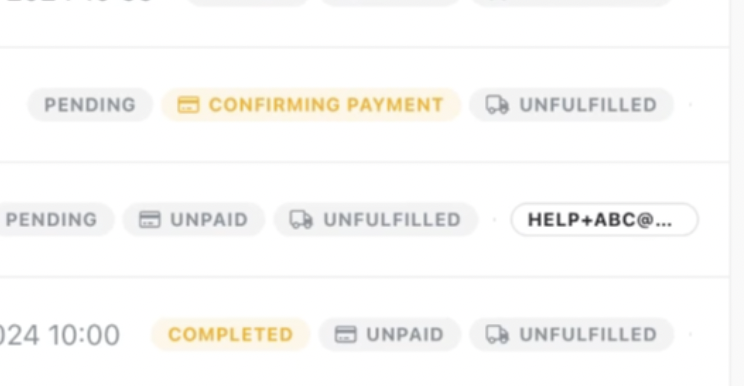
Filter based on Staff
-
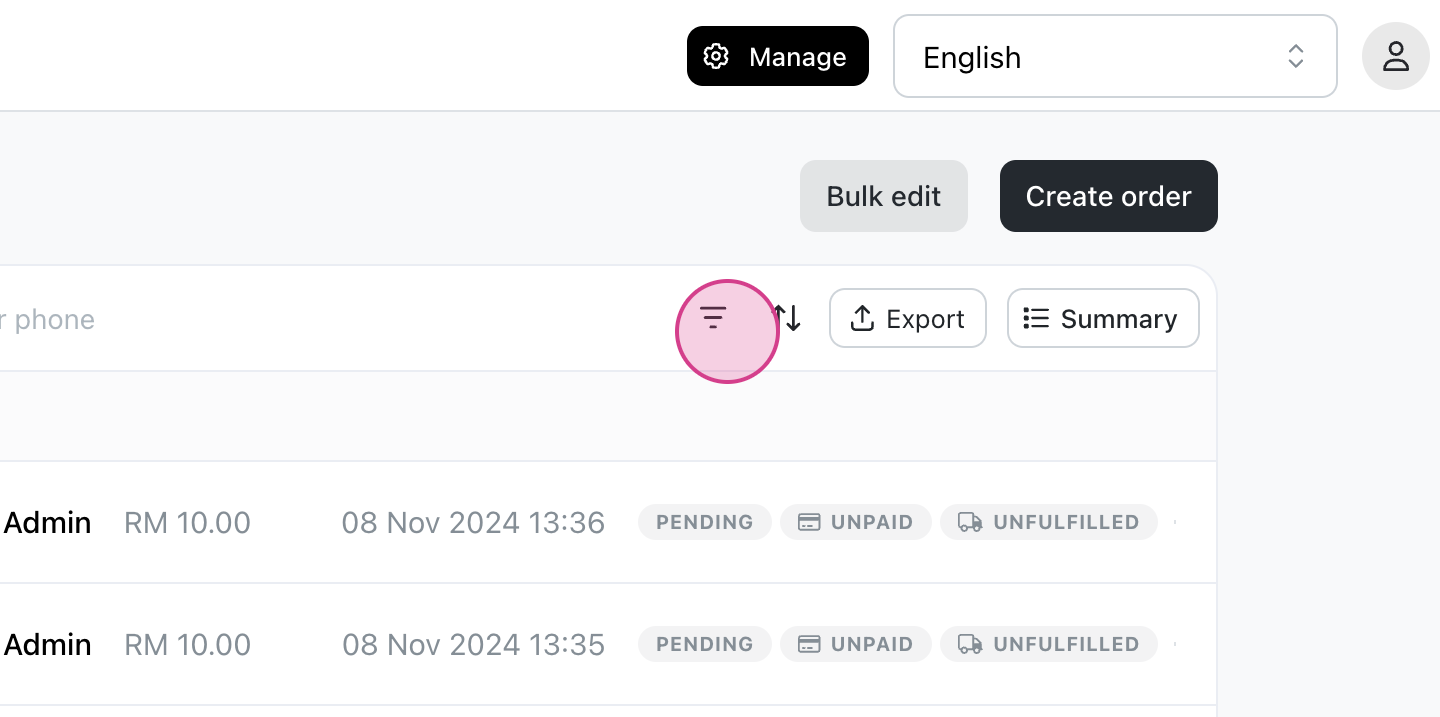
Go to the filter section on top (icon with three bars)
-
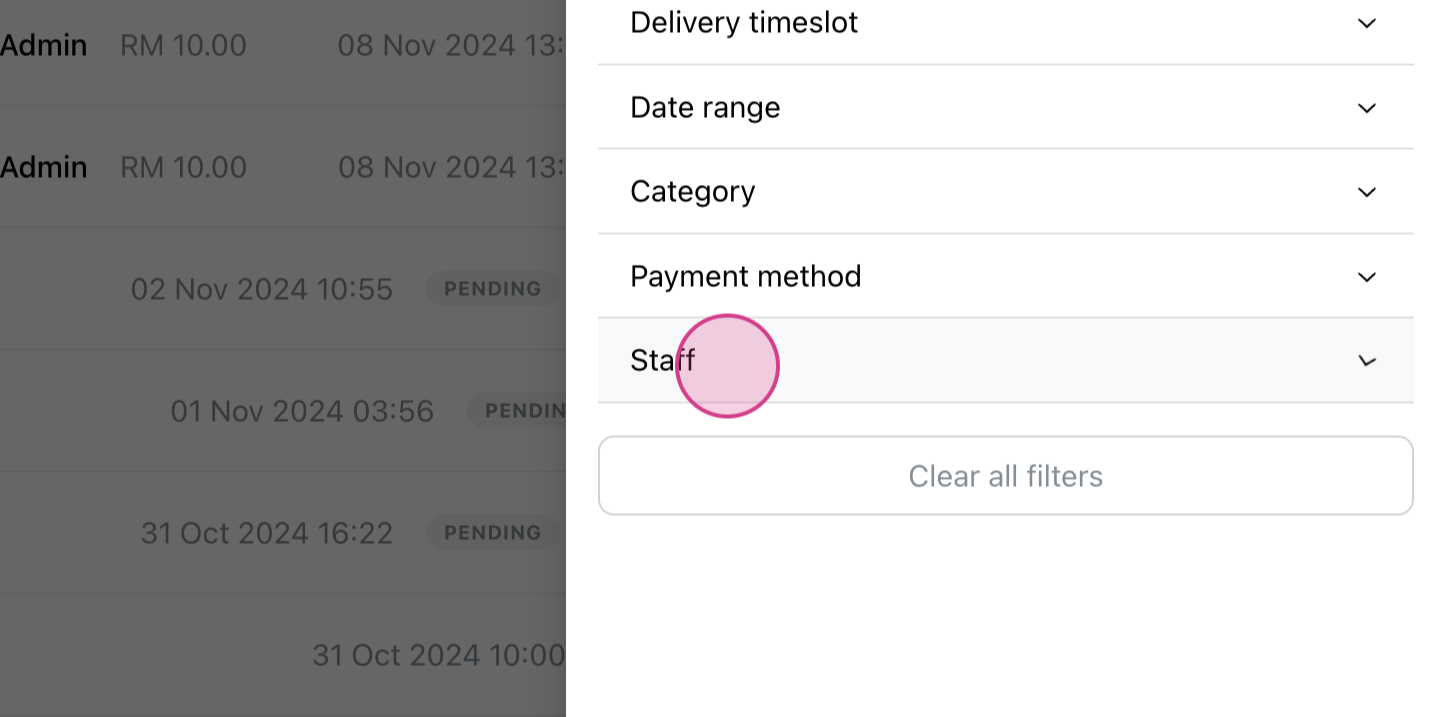
Click on Staff
-
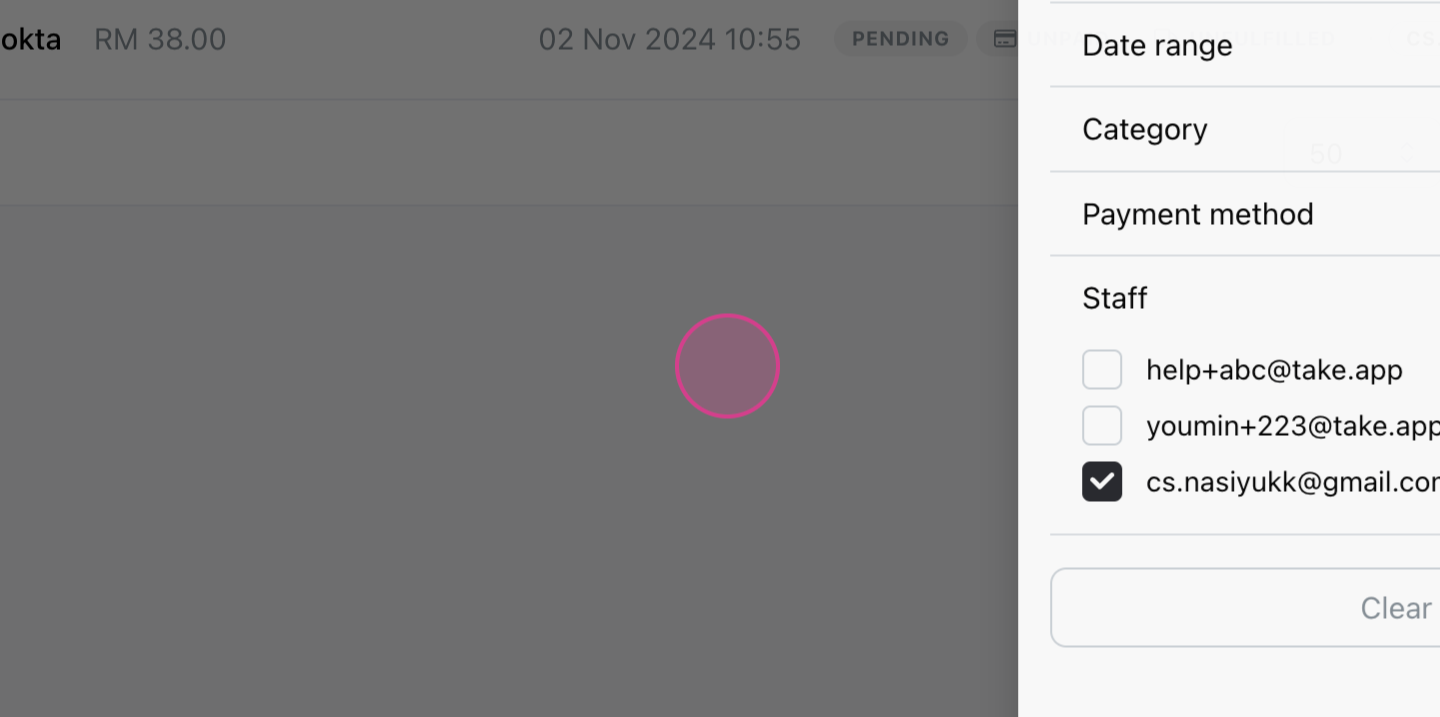
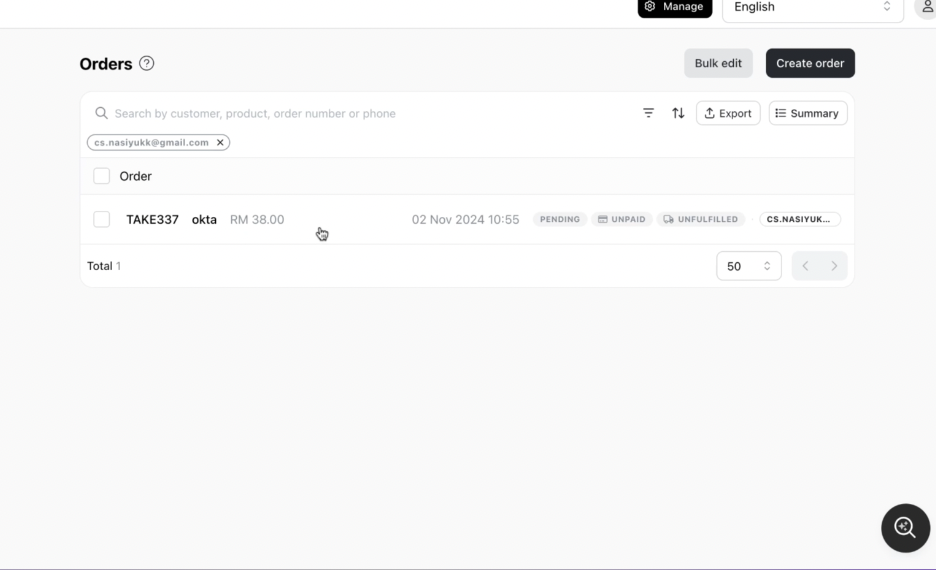
Scroll down to view the filtered orders.
-
The staff member will now see only their assigned orders.
Unassign orders
-
Select the order to unassign and choose "Unassigned" under Staff.