
You can add cards to your checkout page to ask customers for extra details — a delivery date, a table number, a gift message — or to show information they should read before ordering.
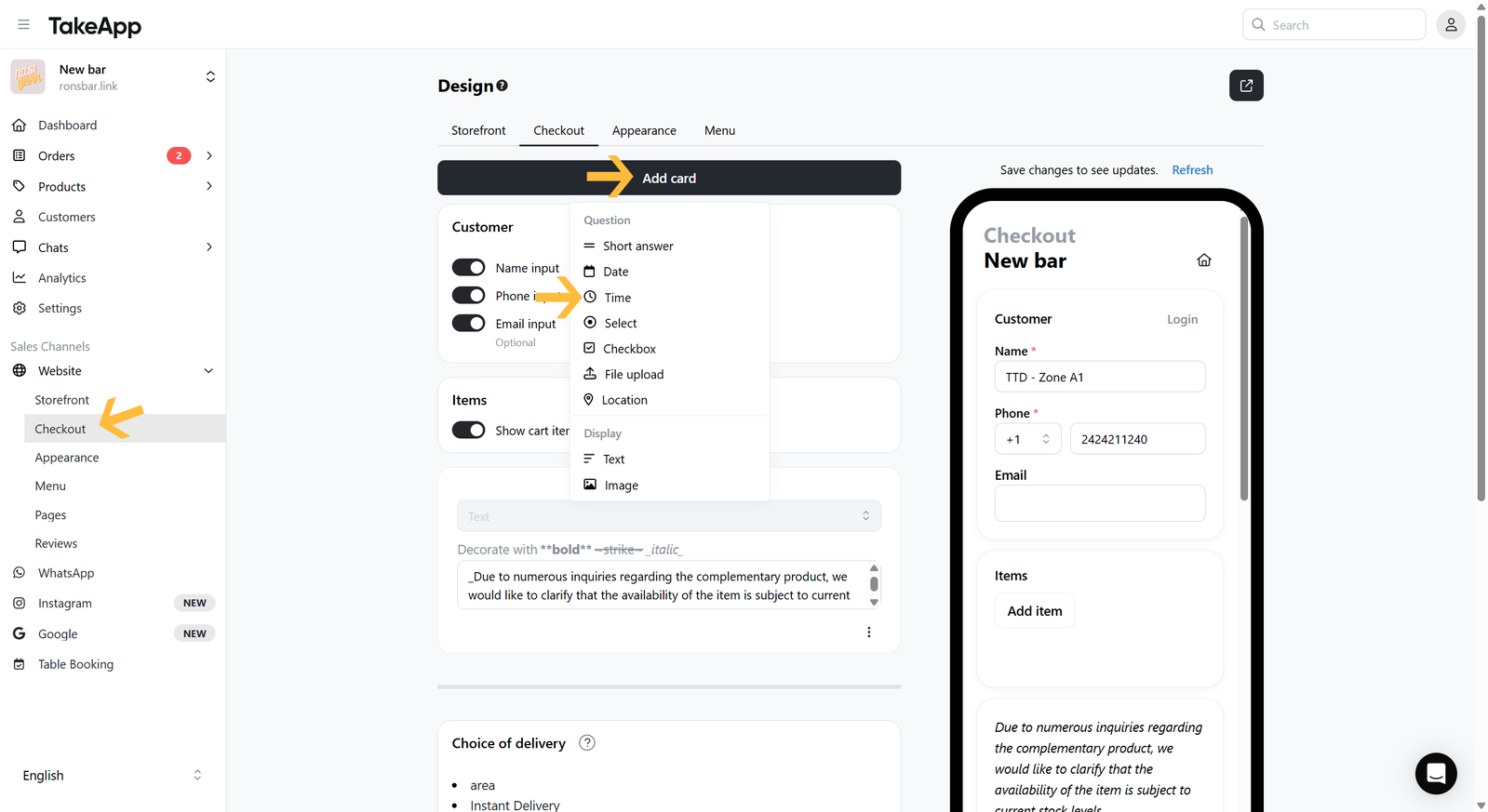
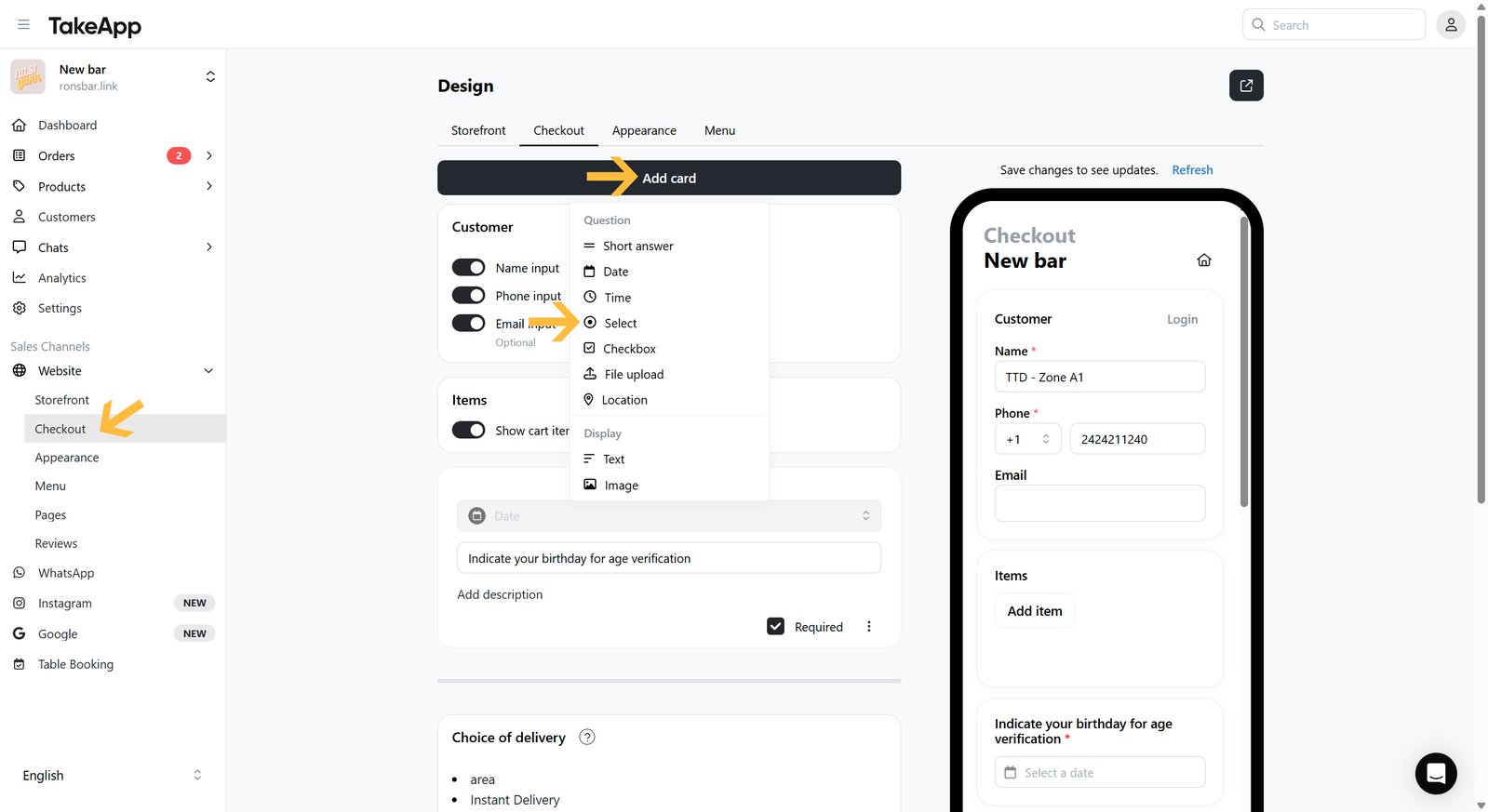
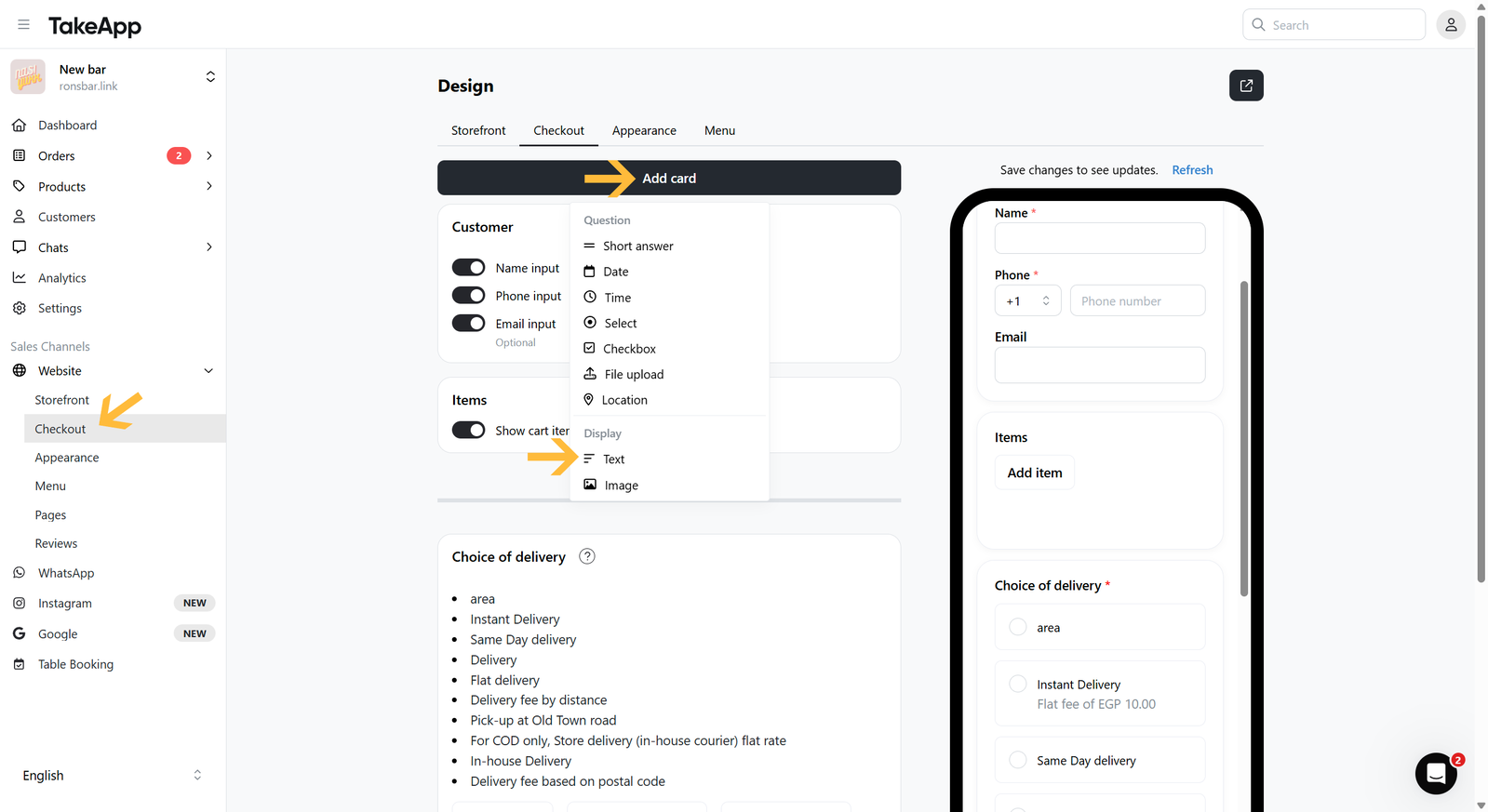
Every card is added the same way: go to Admin > Website > Checkout, click Add card, and choose the card type. Fill in the title and an optional description, set it to optional or required, then save.
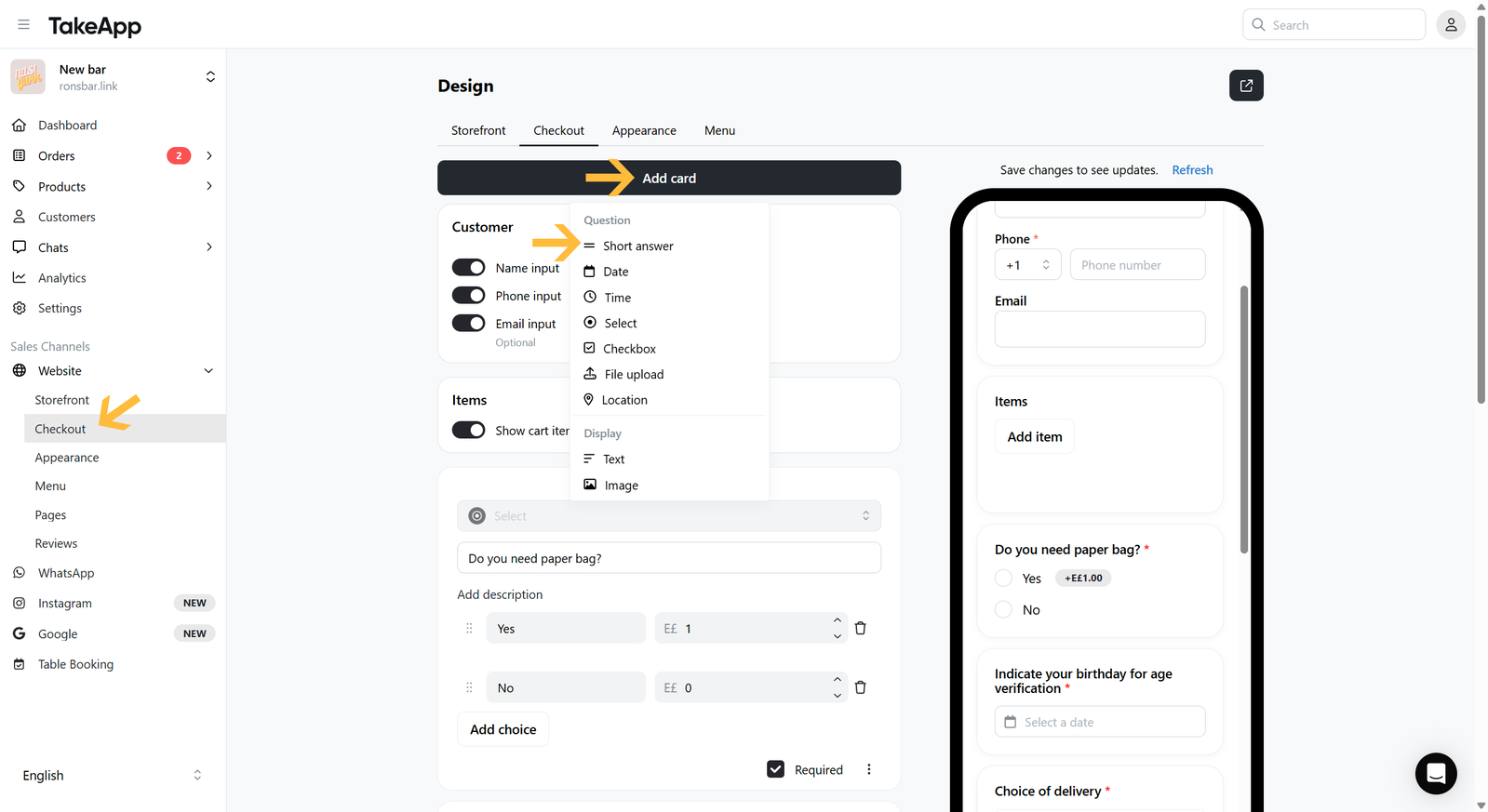
The sections below cover what each card type is for.
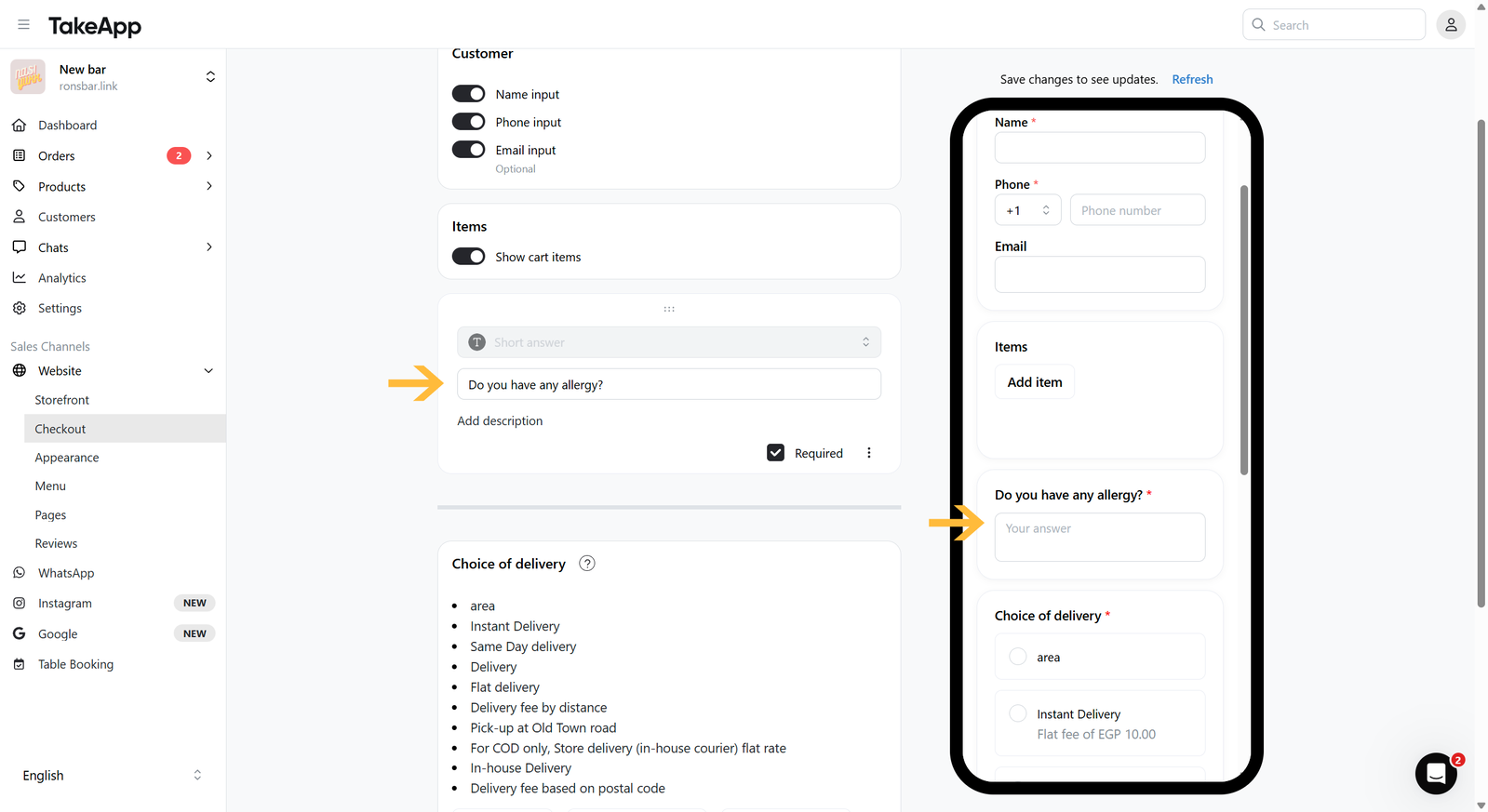
Short answer
Asks for remarks or notes as free text.
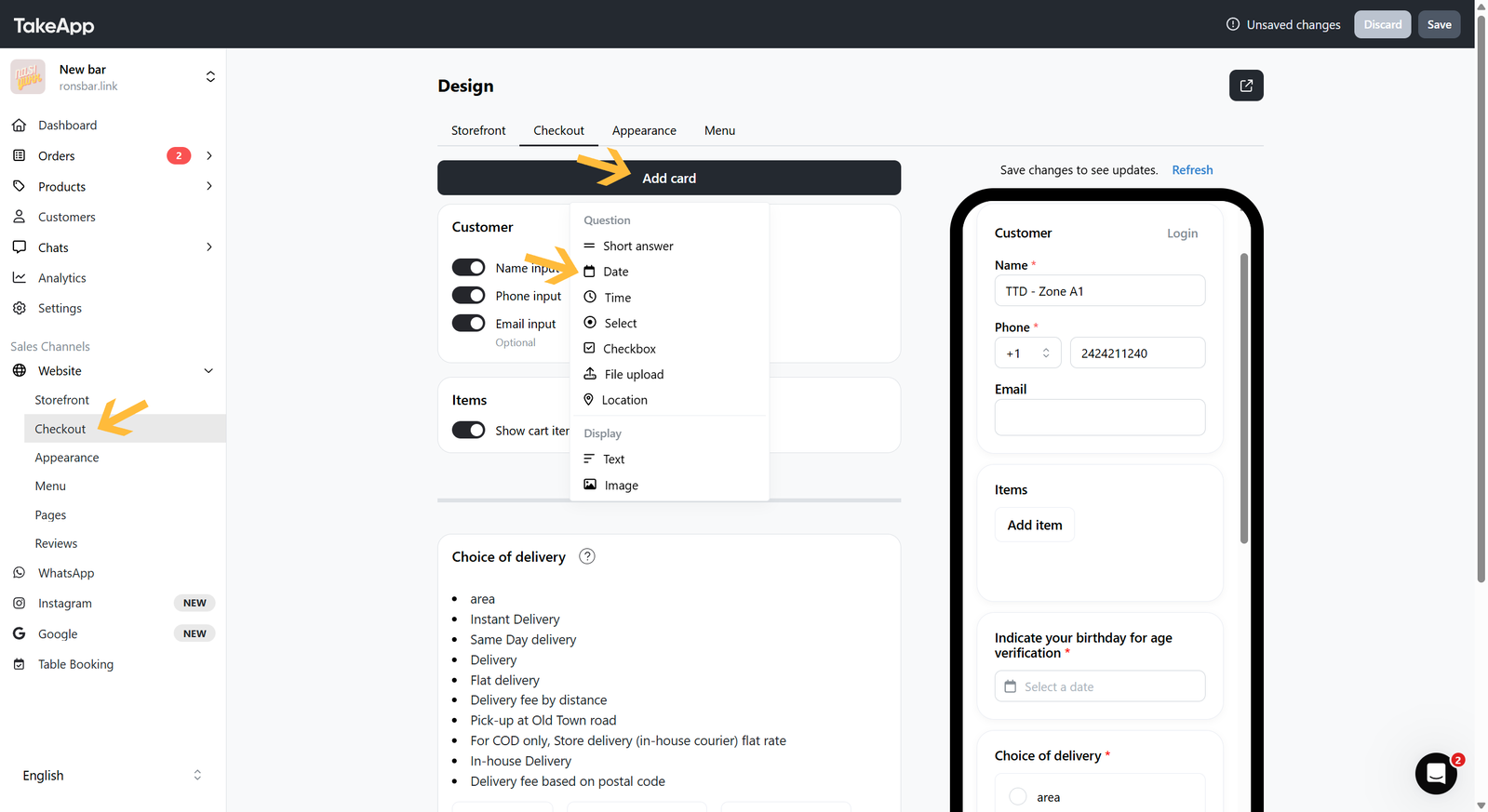
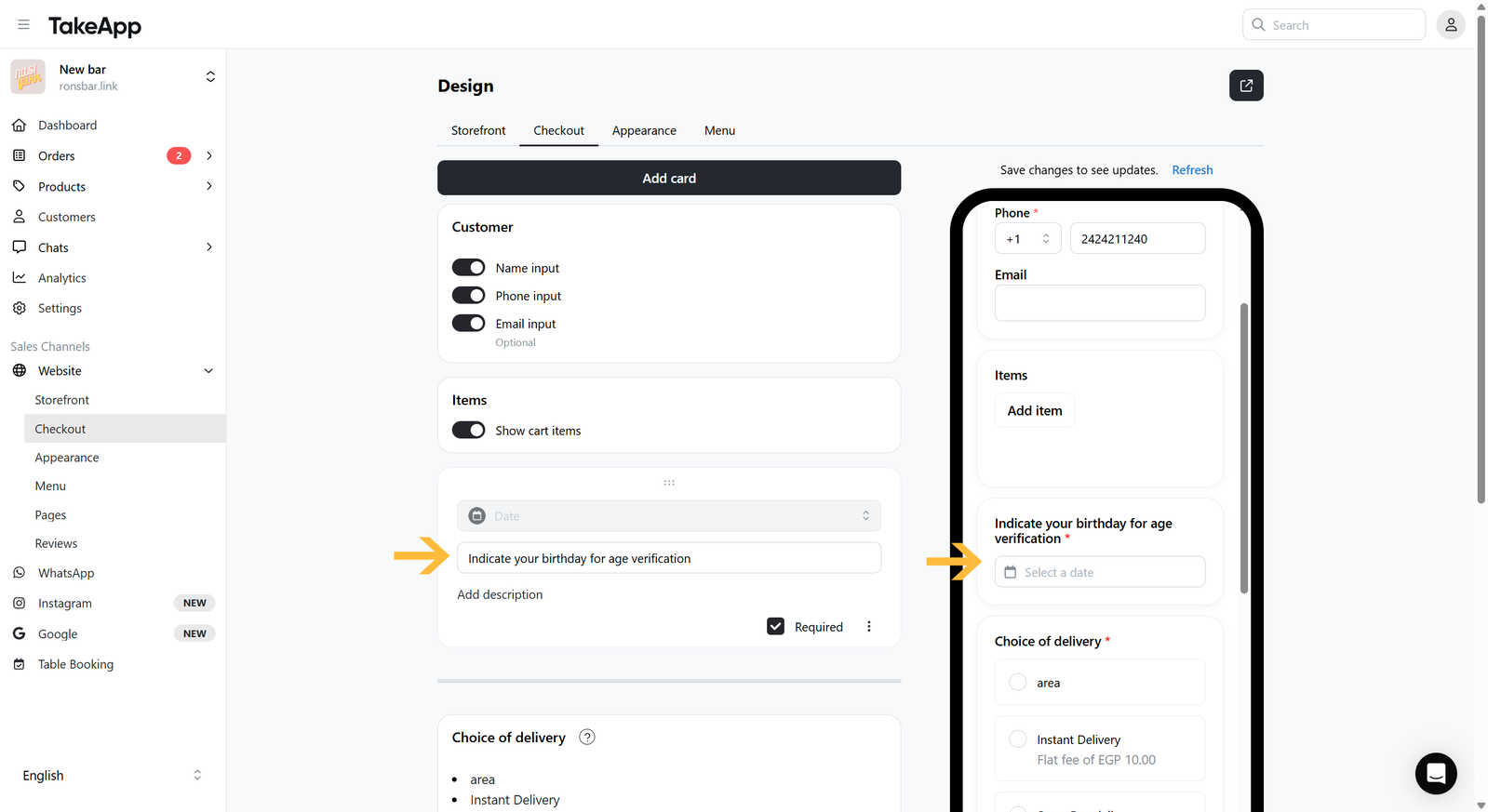
Date
A date picker, for date-specific questions such as a birthday or a booking date. Choose Date when adding the card.
Time
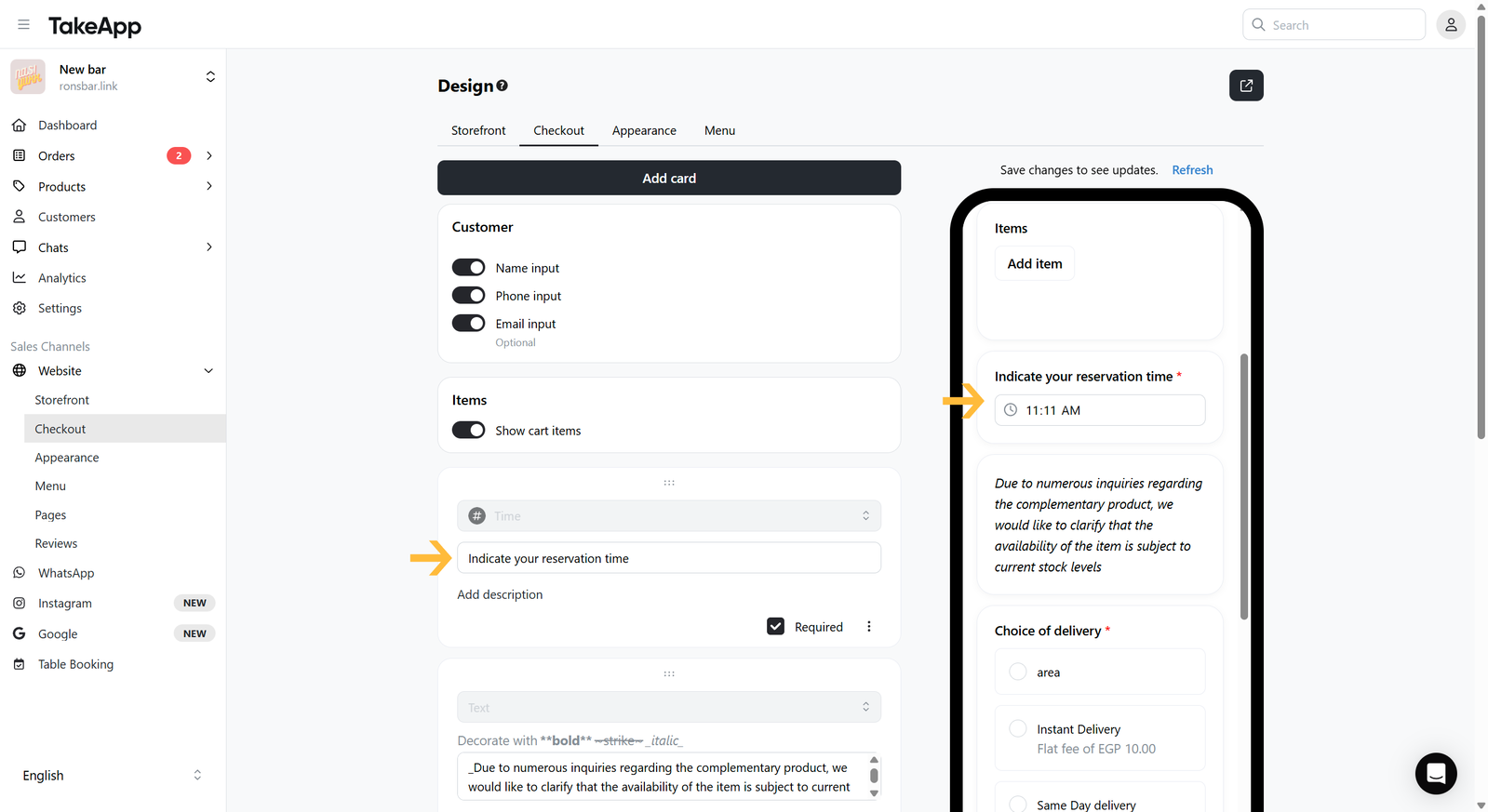
A time picker, for time-specific questions such as an arrival, departure, or booking time. Choose Time when adding the card.
Select
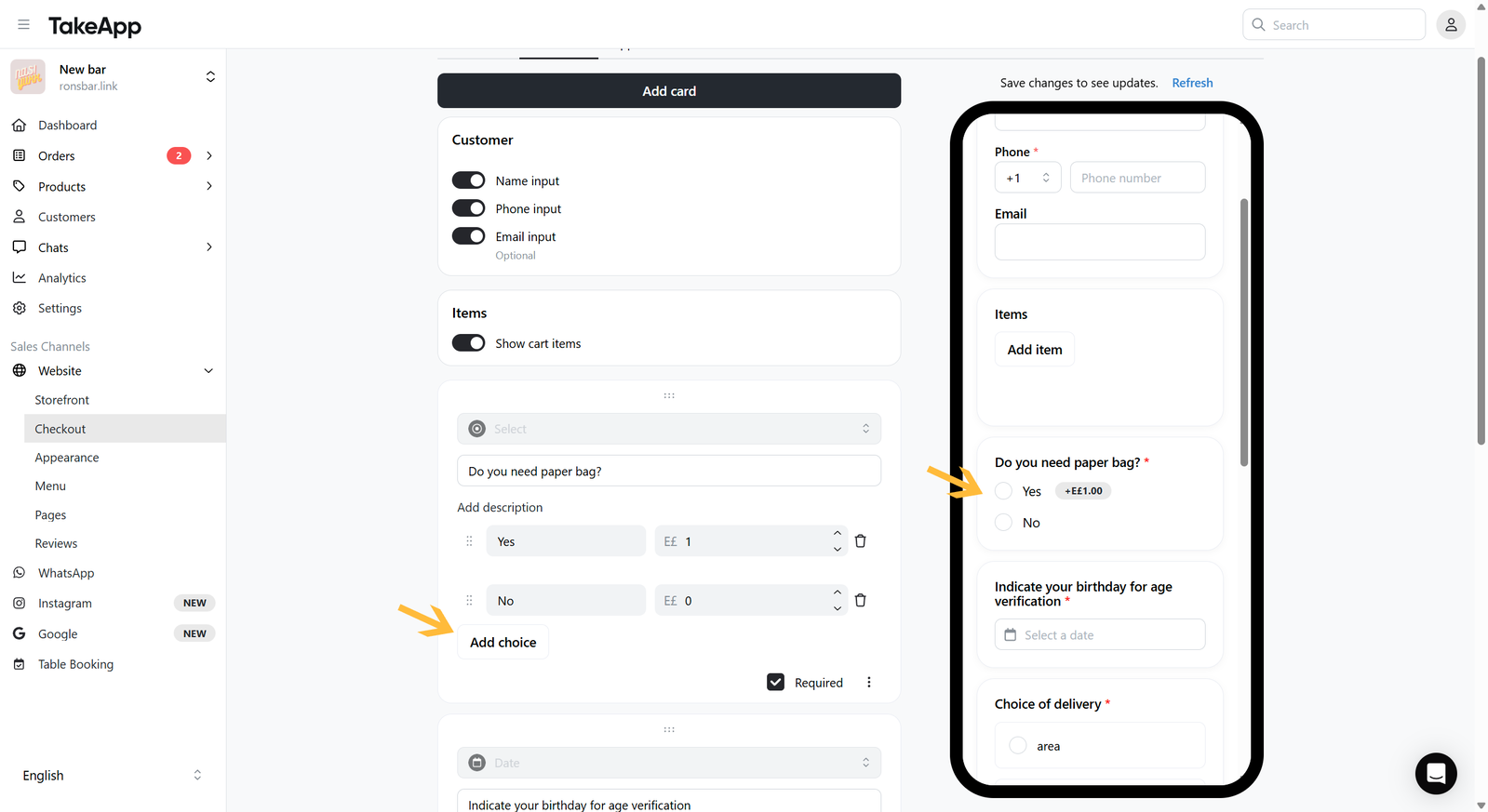
A multiple-choice question where the customer picks one answer. Choose Select when adding the card.
Click Add choice for each option (for example Choice 1 = Yes, Choice 2 = No). A choice can carry an additional price. Changes are autosaved.
Checkbox
A multiple-choice question where the customer can pick more than one answer. Choose Checkbox when adding the card.
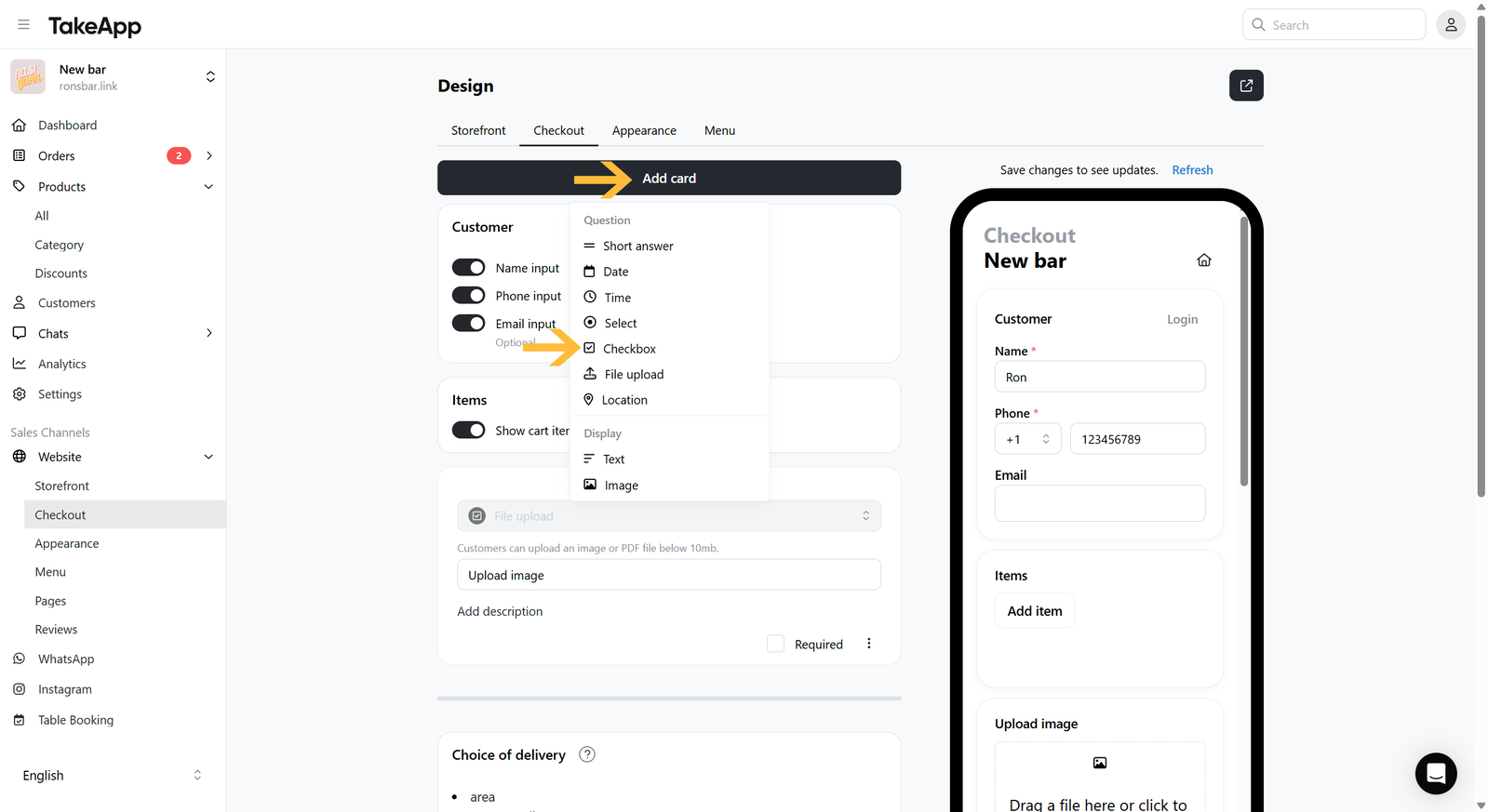
Add the choices (for example Extra rice, Extra vegetable, No extra), each with an optional additional price.
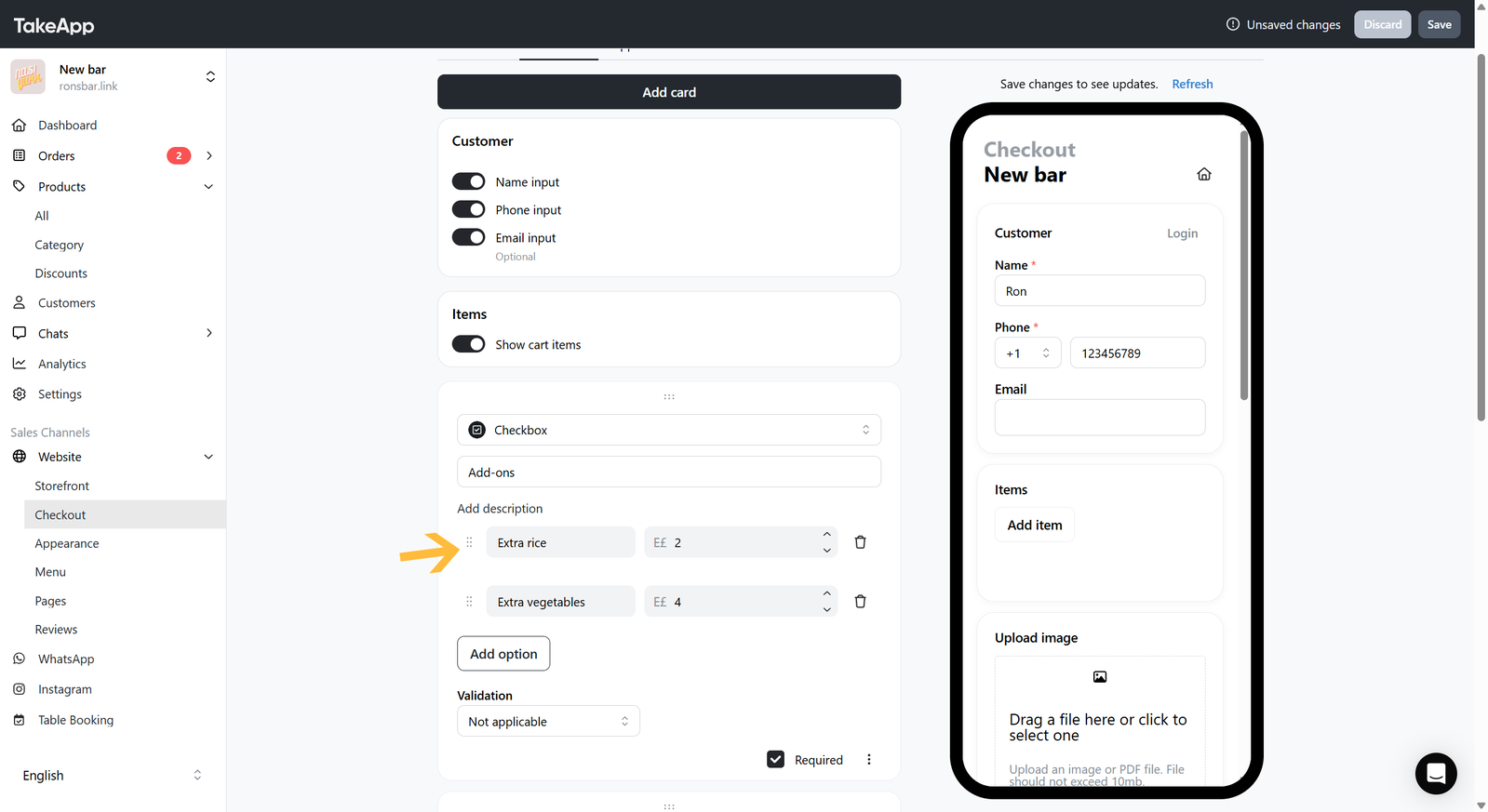
Then set the choice validation: at most caps how many choices a customer can pick, at least sets a minimum, and in between allows a range.
Text
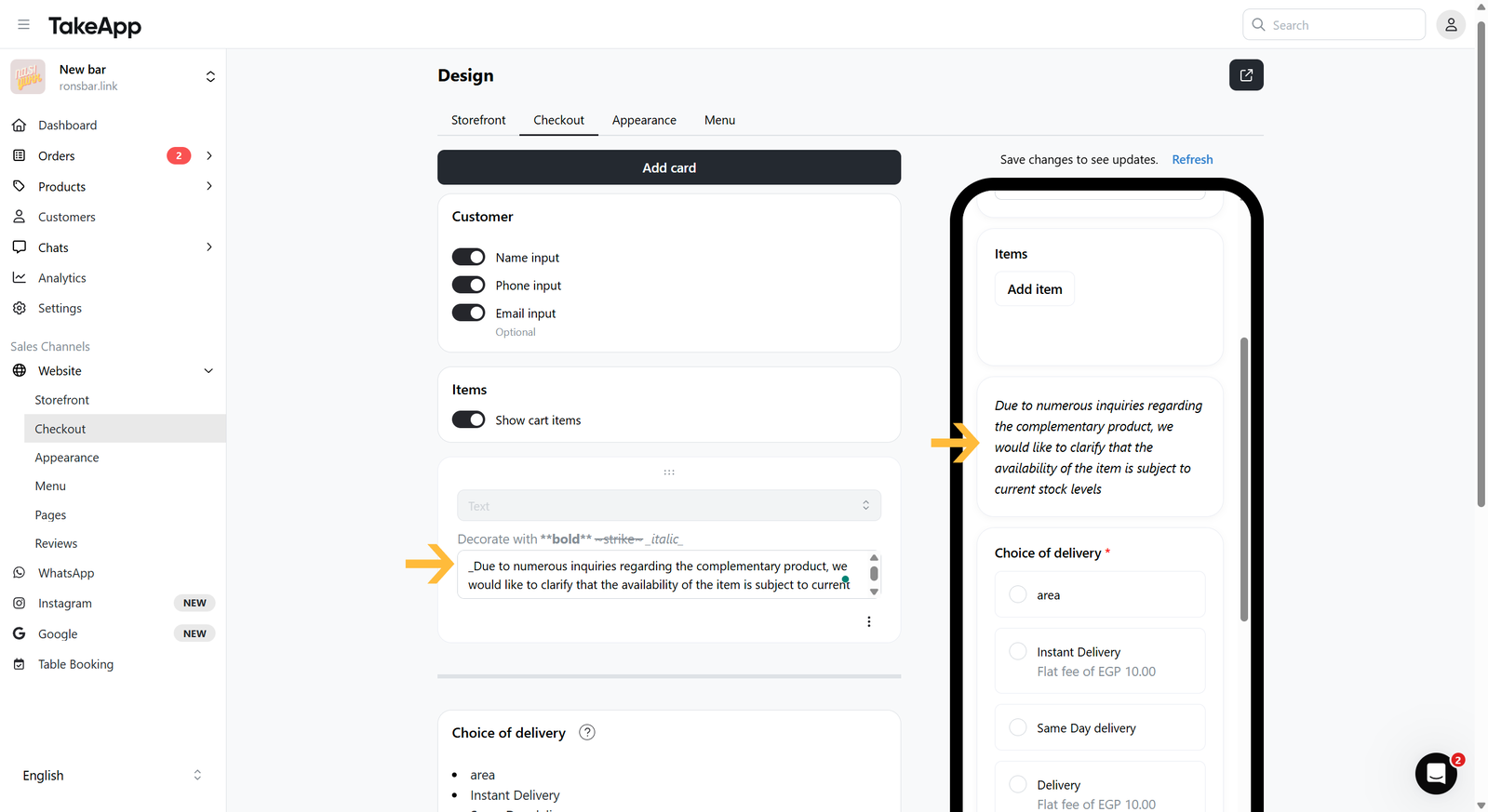
Static text rather than a question — terms and conditions, delivery notes, anything customers should read before they check out. Choose Text when adding the card, type your notice, and save.
File upload
To collect photos or files from the buyer, see Upload images or files for buyer.