
You may want to create/edit/duplicate orders yourself. For example, you receive orders via phone. You can create orders on behalf of customers.
How to create or modify orders
-
Go to Admin > Orders and click
Create orderbutton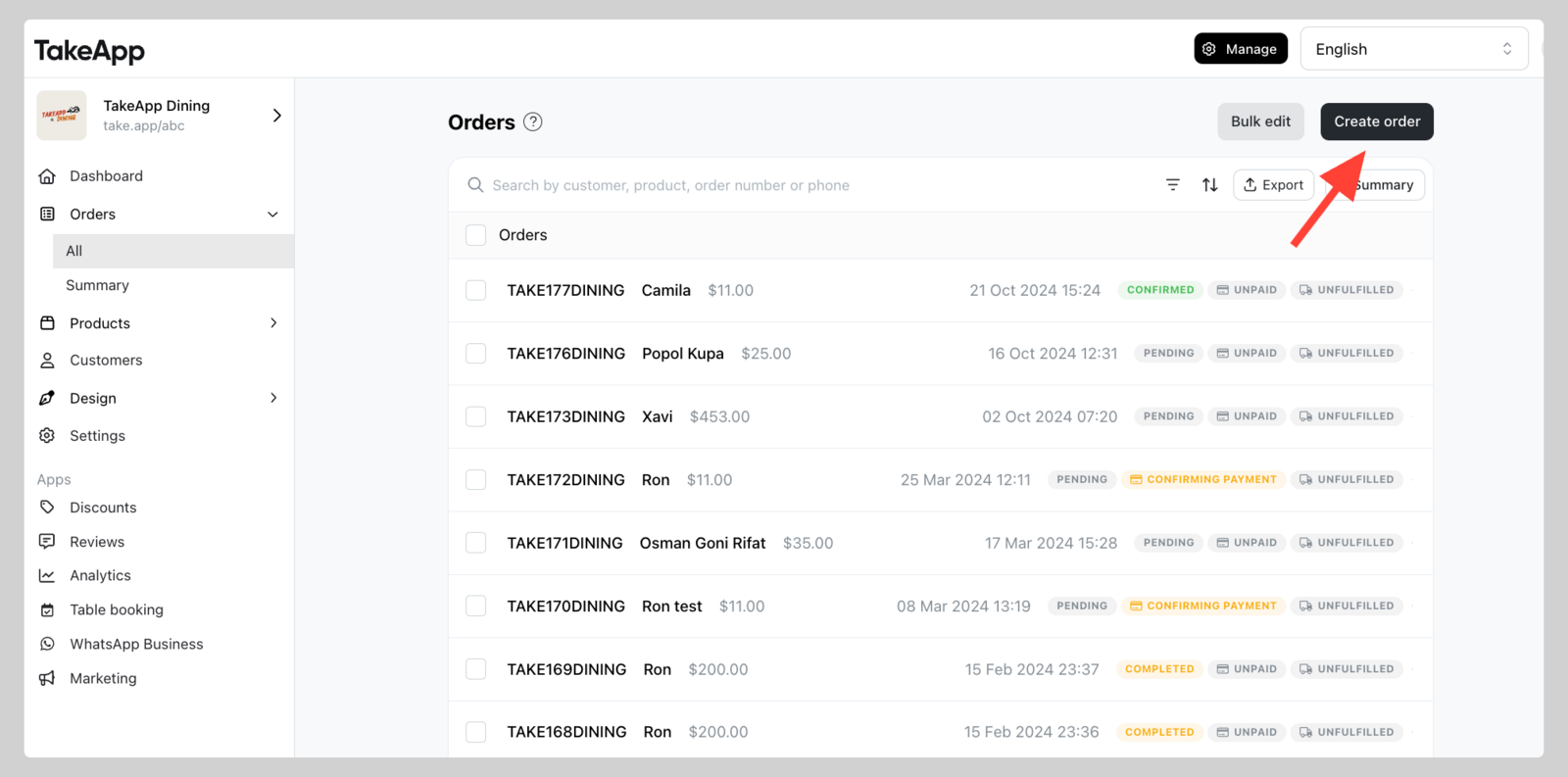
-
Creating order in Admin will send you to "admin mode order creator". You can start creating the order manually and do not forget to click
Save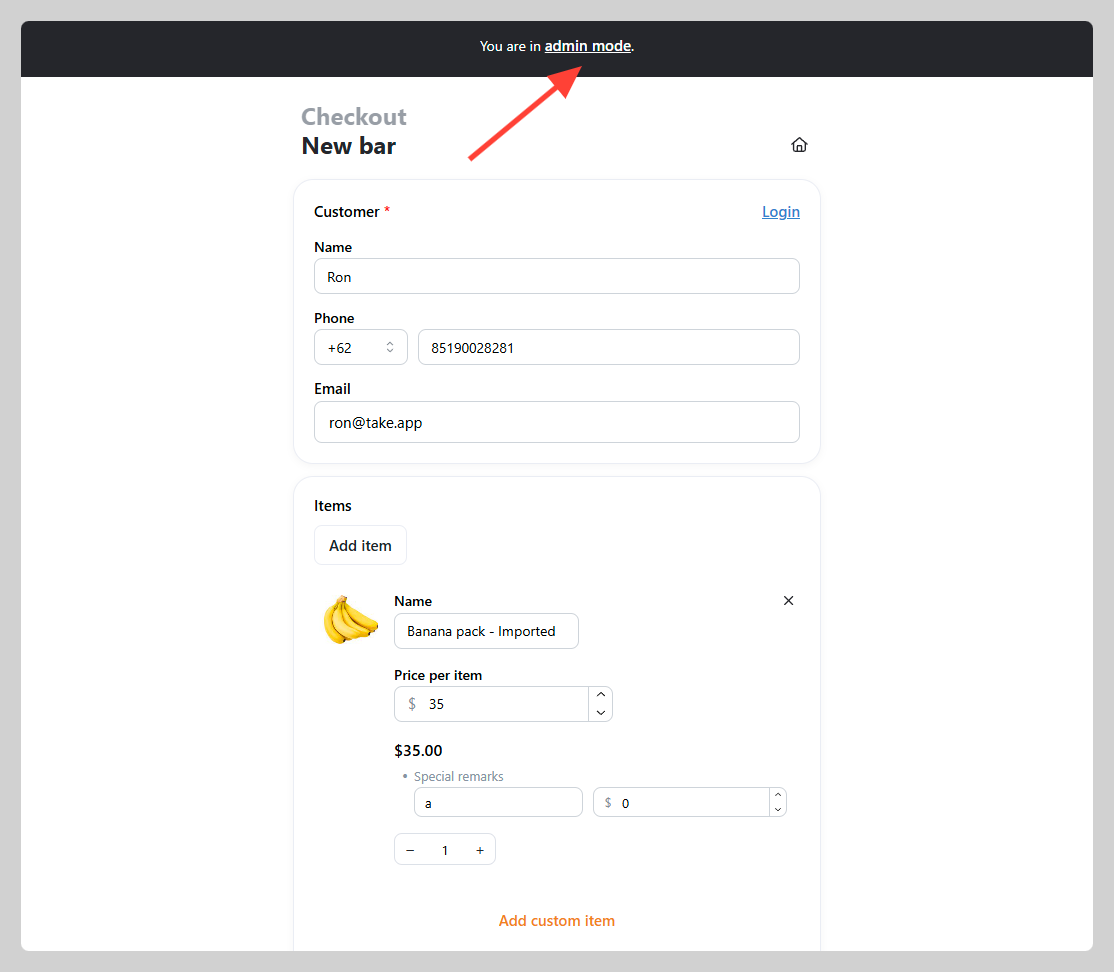
Sold-out and out-of-stock products
In admin mode, you can still add products that are marked sold out or have zero stock. Customers on your storefront stay blocked — they see Sold out (and can use Back in stock notifications if you offer them).
How to edit and duplicate
-
Go to Admin > Orders > Choose 1 order that you wish to modify.
-
Click
Editbutton, or click on...button and then clickDuplicate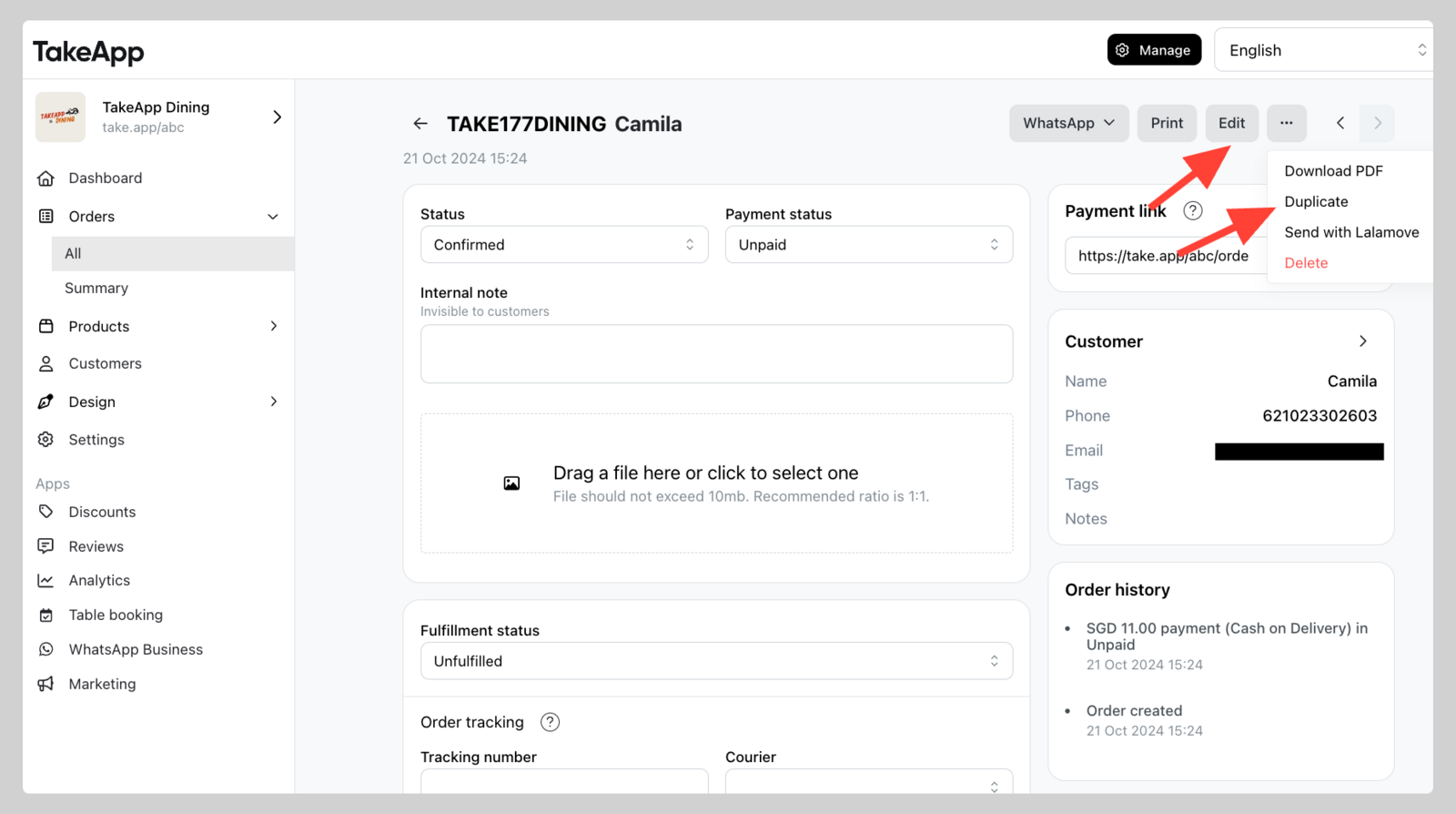
What you can edit
-
You can edit customer details for this order.
-
You can edit the name and price of each item, as well as the quantity purchased.
-
You can edit all the options chosen, and the price of each option. Make sure to also edit the total price per item when you edit option price.
-
You may specify a decimal quantity for the quantity purchased. This is only available in admin view.
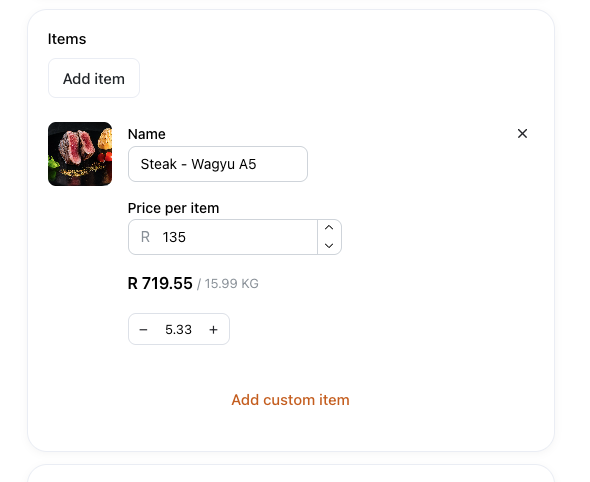
-
You may edit the answers of the customer, adjustment, etc. You may edit basically anything that the customer can edit.
Automatic discounts when you edit
If the order has a Bundle, Buy X Get Y, or Order value discount, a warning appears above the order summary when you edit. Those discounts aren't rechecked when you edit — conditions and amounts may differ from checkout. Check the total before you save.
Discount codes recalculate the same way as at checkout, so they don't show this warning.
How customers place an order
Placing a test order yourself is the quickest way to see the other side of this — the full walkthrough is in How customers place an order.